Welcome to the Janison Insights help portal
Deliver
This guide outlines the different ways you can access and manage test attempts in Janison Insights. It covers the different ways to view attempts, update their status, and understand what each status means.
You might need to change a test attempt’s status for reasons such as:
The system automatically transitions a test-taker’s attempt from Open to Marking, and then to Marked, if the test is set up for automatic marking. If the test includes a human marked question such as a short answer, the attempt will remain in the Marking status until it’s manually marked. If the test has pass/fail criteria, the status will change to Passed or Failed instead of Marked.
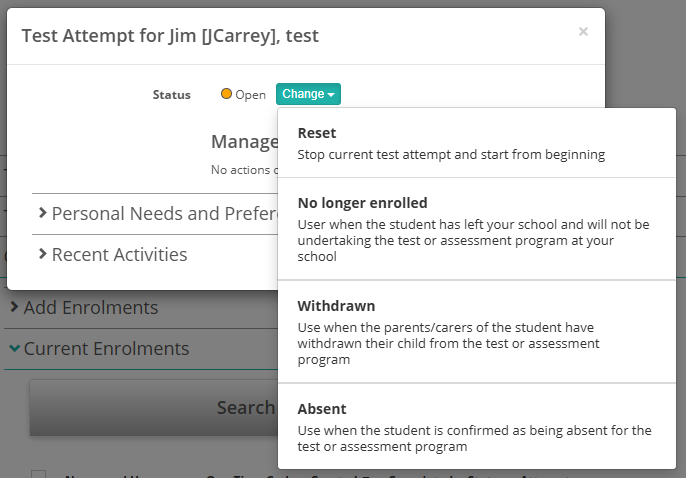
The options to manually change the test attempt status can be accessed from the Change button on the test attempt. There are several places to access the test attempt or enrolment screen which we have detailed below.
There are three icons available to open test attempts
.
The eye icon ![]()
The eye icon opens a Test Attempt modal. Options exist to change the attempt status as mentioned above and to manage Personal Needs and Preferences.
The View More icons ![]()
The View More icons lead to the enrolments page for a test-taker. The first icon (the three dots
) overwrites the current page, while the second icon
opens the page in a new tab.
In the Enrolment screen, you can access the Current Test Attempt at the top and if there is more than one attempt, you can access each attempt by expanding the Attempts section.

You can find your way to test attempts in a few different spots within Janison Insights. These are four main avenues, there are others.
Let’s take a closer look at each of these options.
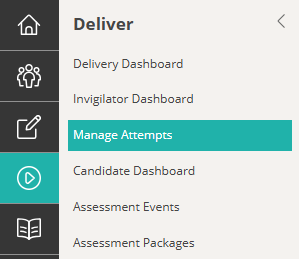
Navigate to Deliver > Manage Attempts.
The Test Attempts screen displays.
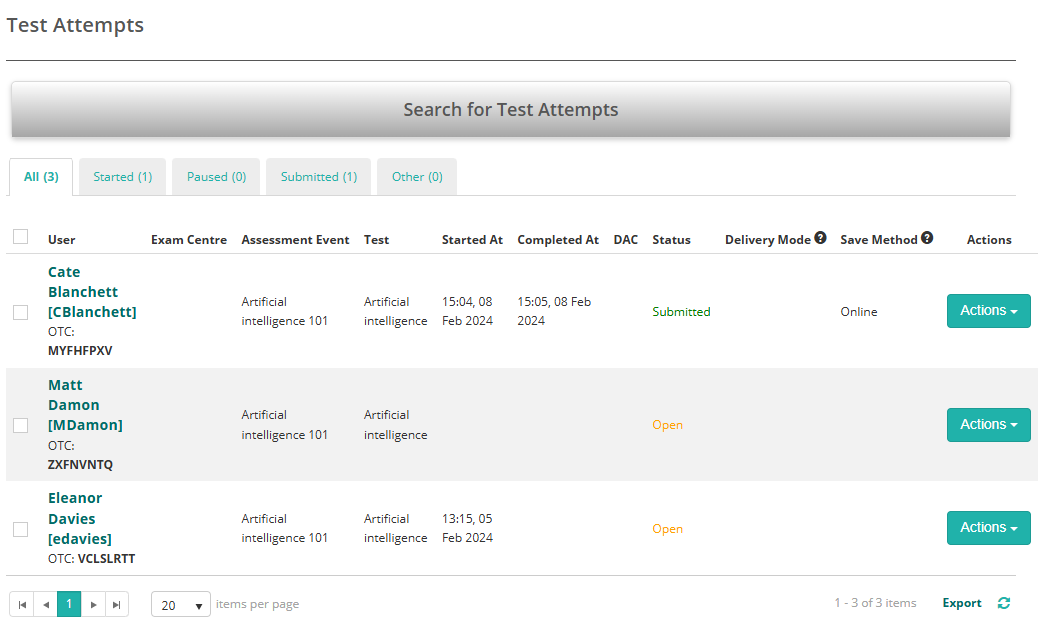
You can also search for the attempt if needed.
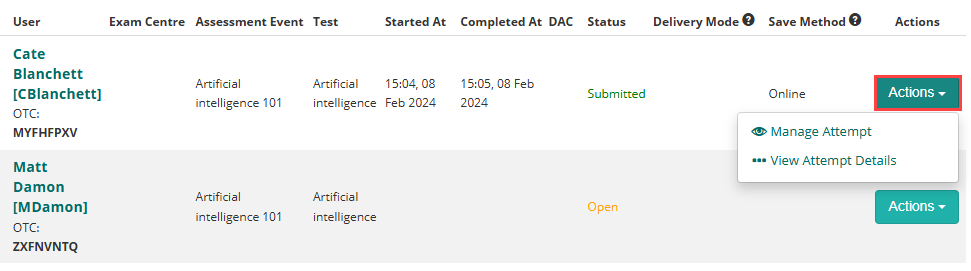
Select the Actions button for the relevant attempt. Two options are available:
Manage Attempt opens the test attempt in a pop-up window.
View Attempt Details opens the test attempt on a new page.
Navigate to People > Students or Users.
Expand the Test Attempts section.
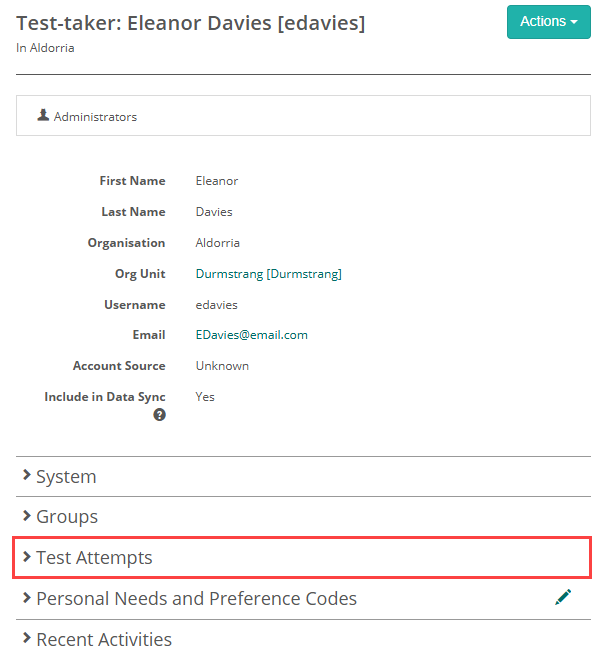
The attempts for the test-taker display. Select the eye icon for the relevant attempt.

Navigate to Delivery > Assessment Events.
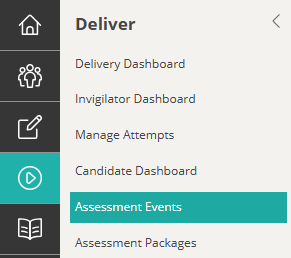
The Assessment event screen displays.
Expand Candidate Enrolments > Current Enrolments. There are three options to access the attempt.

Navigate to Deliver > Invigilator Dashboard.
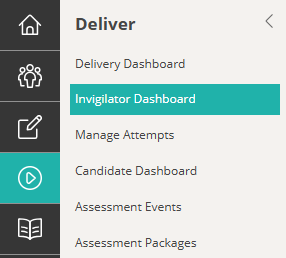
Scroll to the Test-takers section and select the Actions button for the relevant test-taker. Select Manage Attempt.

The following table provides a summary of the various test statuses, outlining their specific meanings, criteria, and the stages of the test-taking process they represent.
| Abandoned | Test-taker did not begin the test and is no longer expected to participate. This final status is used solely to explain the reason for non-participation for reporting purposes. |
| Absent | Test-taker did not begin the test and was unavailable to participate. This final status is used solely to explain the reason for non-participation for reporting purposes. |
| Cancelled | The test attempt was withdrawn before the test-taker began. This final status is used solely to explain the reason for non-participation for reporting purposes. |
| Completed | Test taken and answers stored, but test session not yet complete by invigilator. No marking attempted yet. |
| Exempt | The test-taker was not required to complete the test due to an exemption. This final status is used solely to explain the reason for non-participation for reporting purposes. |
| Failed | The test attempt was completed, answers were stored, and marks recorded. A pass mark was set for the test, and the test-taker did not meet this threshold. This is a special type of final status used to indicate an unsuccessful outcome. |
| Marked | Test attempt finished, answers stored and marks recorded. No pass or fail criteria set for the test. |
| Marking | The test-taker has completed the test and their answers have been saved to the database. The attempt is waiting to be marked. If marking is automatic, this status may pass quickly—often without being noticed. If manual marking is required (e.g. short answer questions), the attempt may remain in this status until marking is complete. |
| NoLongerEnrolled | The test-taker is no longer enrolled in the test. This final status is used solely to explain the reason for non-participation for reporting purposes. |
| Open | The initial state of the test enrolment. This status includes test attempts that are in progress or yet to be started. |
| Passed | The test attempt was completed, answers were stored, and marks recorded. A pass mark was set for the test, and the test-taker met or exceeded this threshold. This is a special type of final status used to indicate a successful outcome. |
| Paused | The test attempt has been paused, which removes the test-taker’s access to the test. The attempt can’t be resumed until an administrator reactivates it. |
| Postponed | The test-taker’s attempt was stopped after partial completion, and the attempt was removed from the session. This status is used when the test is intended to be resumed at a later time. |
| Refused to attempt | Test-taker did not begin the test and has indicated they will not participate. This is a final status used solely to record the reason for non-participation for reporting purposes. |
| Resitting | Creates a new test attempt when the current one is in an Open, Failed, or Cancelled status. If the current attempt is still Open, the system first changes it to Cancelled before creating the new attempt. This is a legacy feature maintained for compatibility purposes. |
| Suspended | The test has not been started and will not be taken. This final status is used solely to explain the reason for non-participation for reporting purposes. |
| Withdrawn | The test-taker did not begin the test due to withdrawing from the test. This final status is used solely to explain the reason for non-participation for reporting purposes. |
The options you see in the Change dropdown will depend on your role configuration and the current status of the test attempt.
Navigate to Settings > Workflow definitions.
Open the Test Attempt Workflow. Alternatively browse to yoursiteurl/admin/workflow/details/b14587e5-5755-44c7-a7ab-e235906fd95d.

If a test attempt is in an Open status, the following options are available.
| From | To | Description |
|---|---|---|
| Open | Abandoned | |
| Open | Absent | Use when the student is confirmed as being absent for the test or assessment program |
| Open | Cancelled | Cancel test attempt |
| Open | Completed | |
| Open | Exempt | Use when you have received approval from your local TAA that this student can be exempted from the test or assessment program |
| Open | NoLongerEnrolled | Use when the student has left your school and will not be undertaking the test or assessment program at your school |
| Open | Refused | Use when the student is confirmed as refusing to undertake the test either by not logging into the test or by logging in and not responding to the questions. |
| Open | Resitting | Stop current test attempt and start from beginning |
| Open | Suspended | |
| Open | Withdrawn | Use when the parents/carers of the student have withdrawn their child from the test or assessment program |
If a test attempt is in an Abandoned status, the following options are available.
| From | To | Description |
|---|---|---|
| Abandoned | Open | |
| Abandoned | Postponed |
If a test attempt is in an Absent status, the following options are available.
| From | To | Description |
|---|---|---|
| Absent | Open | |
| Absent | Postponed | |
| Absent | Refused |
If a test attempt is in an Completed status, the following options are available.
| From | To | Description |
|---|---|---|
| Completed | Abandoned | |
| Completed | Postponed | |
| Completed | Open | |
| Completed | Marking |
If a test attempt is in an Exempt status, the following options are available.
| From | To | Description |
|---|---|---|
| Exempt | Open | |
| Exempt | Postponed |
If a test attempt is in a Failed status, the following options are available.
| From | To | Description |
|---|---|---|
| Failed | Failed |
If a test attempt is in a Marking status, the following options are available.
| From | To | Description |
|---|---|---|
| Marking | Marked | Evaluate answered questions. |
| Marking | Refused | |
| Marking | Open | Undo submission |
| Marking | Completed | Use when a candidate’s answer submission needs to be reviewed, managed and/or updated. |
If a test attempt is in a No Longer Enrolled status, the following options are available.
| From | To | Description |
|---|---|---|
| NoLongerEnrolled | Open | |
| NoLongerEnrolled | Postponed |
If a test attempt is in a Paused status, the following options are available.
| From | To | Description |
|---|---|---|
| Paused | Passed | |
| Paused | Abandoned | |
| Paused | Open | Resume paused current attempt. |
If a test attempt is in a Postponed status, the following options are available.
| From | To | Description |
|---|---|---|
| Postponed | Abandoned | |
| Postponed | Absent | |
| Postponed | Cancelled | Cancel test attempt |
| Postponed | Completed | |
| Postponed | Exempt | |
| Postponed | NoLongerEnrolled | |
| Postponed | Refused | |
| Postponed | Open | |
| Postponed | Resitting | Stop current test attempt and start from beginning |
| Postponed | Suspended | |
| Postponed | Withdrawn |
If a test attempt is in a Refused status, the following options are available.
| From | To | Description |
|---|---|---|
| Refused | Absent | |
| Refused | Postponed | |
| Refused | Open | |
| Refused | Marking |
If a test attempt is in a Resitting status, the following options are available.
| From | To | Description |
|---|---|---|
| Resitting | Abandoned | |
| Resitting | Cancelled | Cancel test attempt |
| Resitting | Completed |
If a test attempt is in an Suspended status, the following options are available.
| From | To | Description |
|---|---|---|
| Suspended | Abandoned | |
| Suspended | Open |
If a test attempt is in an Withdrawn status, the following options are available.
| From | To | Description |
|---|---|---|
| Withdrawn | Open |
Administrators can view test-taker statuses by running a report on the Enrolment entity. For more details on how to run reports, see our Customisable Reports guide.
