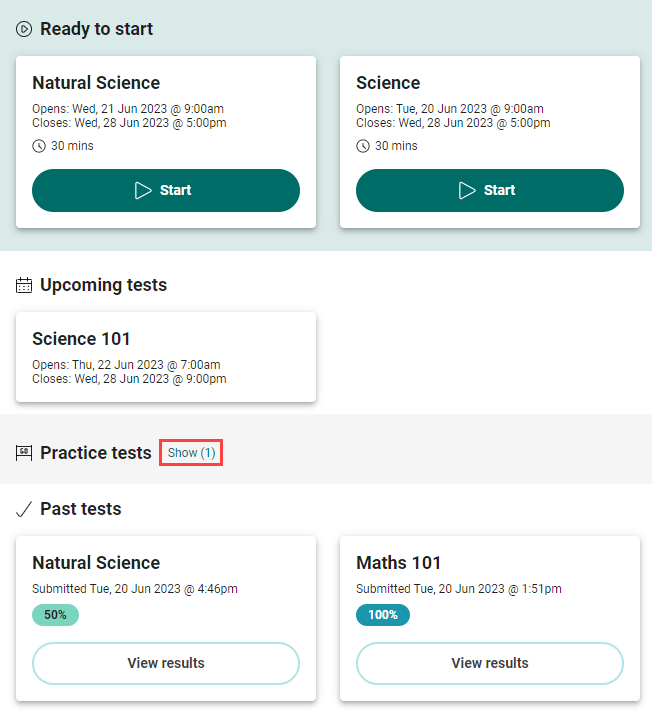
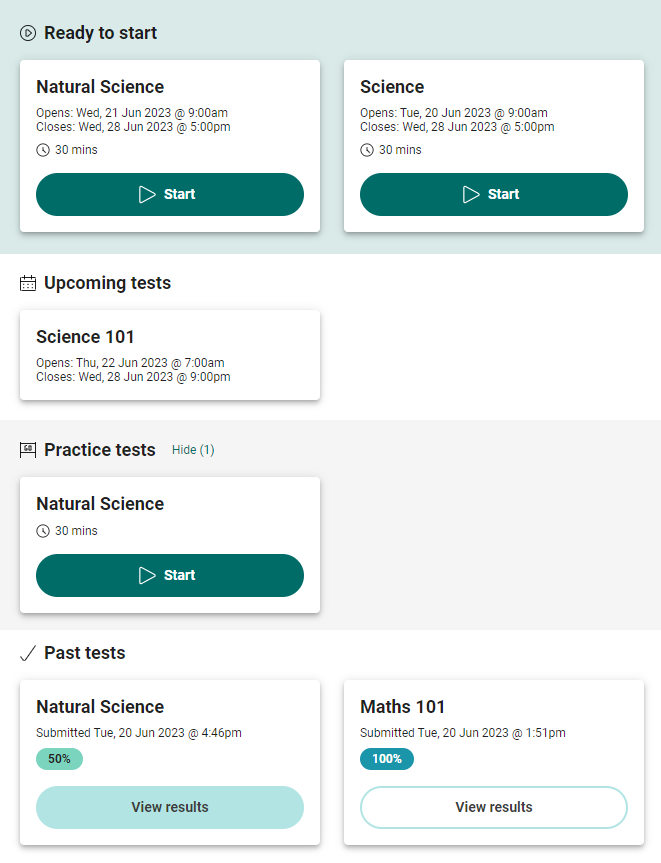
Let’s take a closer look at the tiles in each section.
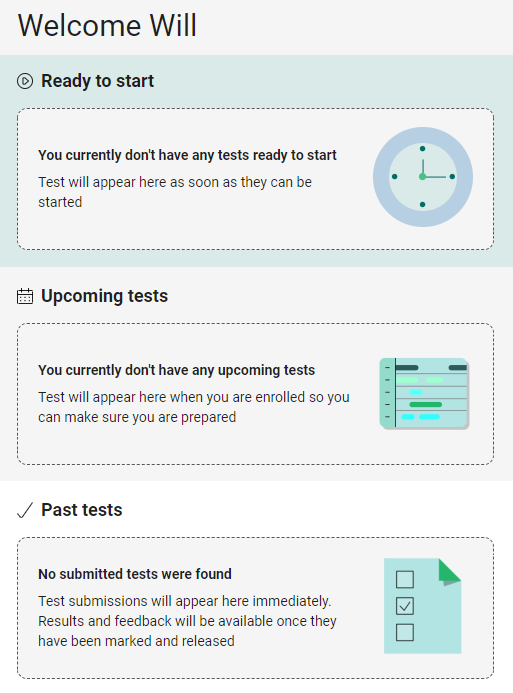
Ready to start
This section lists tests that are available for you to start, and tests you have started but not submitted.

The name of the test displays at the top of the tile, with timing information below the name. The timing information reflects the Timing Options set by the administrator in the assessment event. If the test has a duration set  , this value displays below the timing options. In these examples the time limit is set to 30 mins.
If you have not started a test, the Start button displays. Once you have started the test, the button adjusts to Resume. When you have completed your test, the tile moves to the Past Tests section.
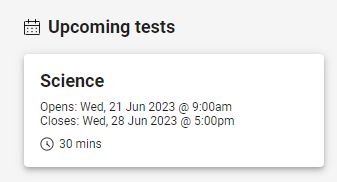
Upcoming tests
This section displays tests that are upcoming. You cannot start these tests until the open date. On the open date, the tile moves to the Ready to start section.
Past tests
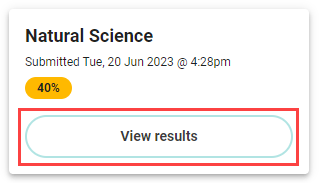
This section lists tests that you have submitted. The tiles list the test name and the submitted date details.
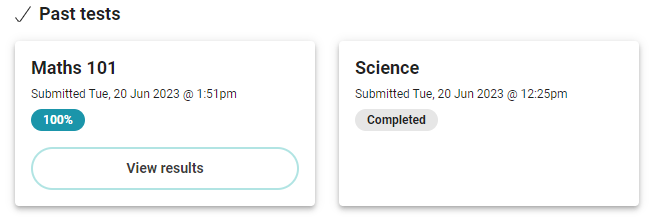
If the test has not been marked, the tile will display as Completed.
Tiles with a test that has been marked will display one of the following results:
 0 – 24% red
 25 – 49% amber
 50 – 74% green
 51 – 100% blue
View results
The View Results button on the tile takes you to a summary page with three sections.
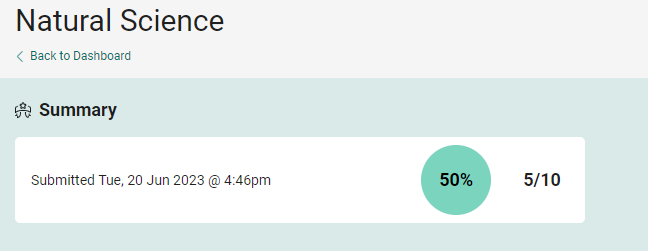
The Summary section displays the test submission time along with the percentage and score.
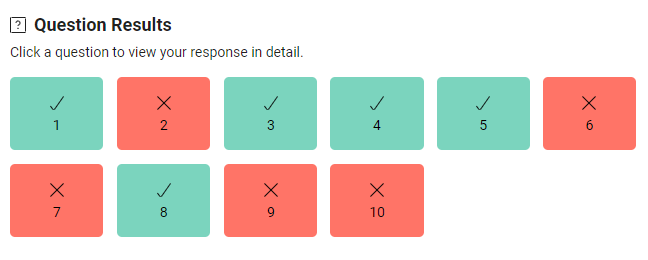
The Question Results section offers a visual summary of the items, indicating the ones that were answered correctly or incorrectly. By selecting items, you can access your responses.
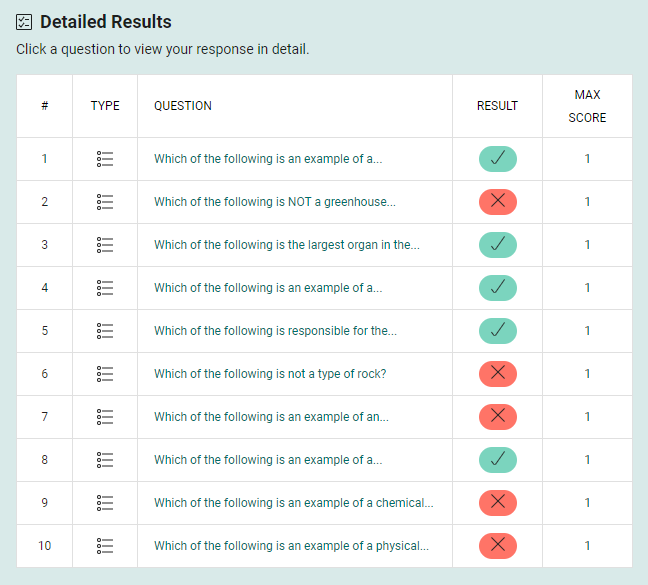
The Detailed Results section offers additional information about the items including the item type and max score. You can select the item links to view their responses.