Introduction
The Announcements feature is a communication tool within the Insights system, enabling administrators to deliver targeted messages to different user groups. This document outlines the process of managing announcements, including creating templates, sending announcements & sticky notes, and viewing a history of sent messages.
Manage announcements
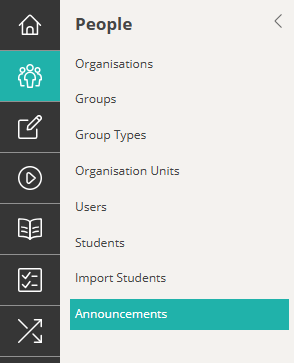
Navigate to People > Announcements.
You can also access announcements by adding this to the end of your site URL: /organisation/announcement/index.
For example: https://yoursiteurl/organisation/announcement/index.
Tokens
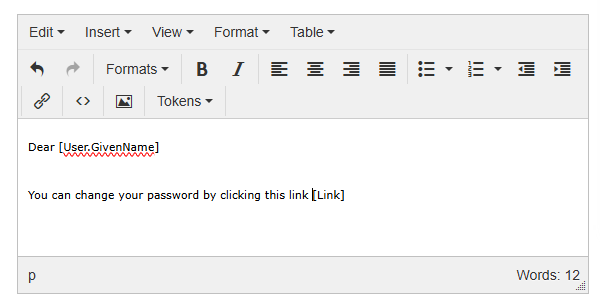
Tokens allow for dynamic content within announcements, such as personalised user information or authentication links. In the below example, we’ve selected the token User.GivenName, which personalises the message by inserting the recipient’s first name.
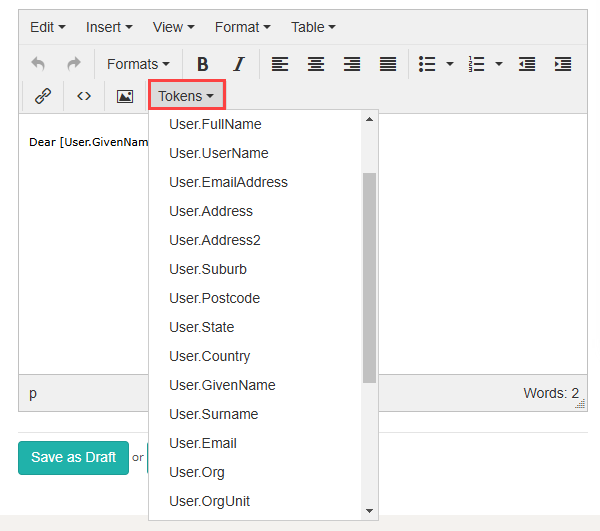
Most tokens are straightforward. For example, User.Surname inserts the recipient’s last name into the message. A few tokens need further explanation:
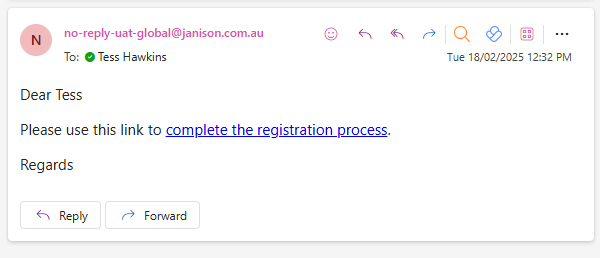
Links.AuthActionLink generates a clickable password reset link, using customisable text, Complete the registration process. Administrators can modify this text through the String Resources feature. Read more about string resources here.
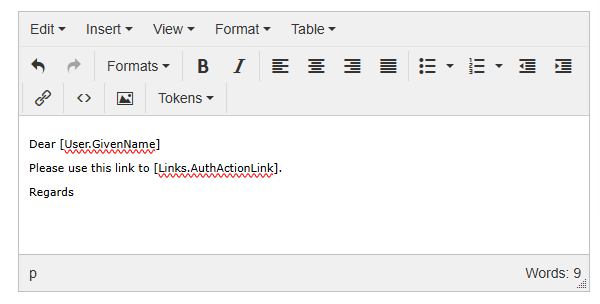
An announcement like the one above would appear in the recipient’s inbox as shown in the email below.
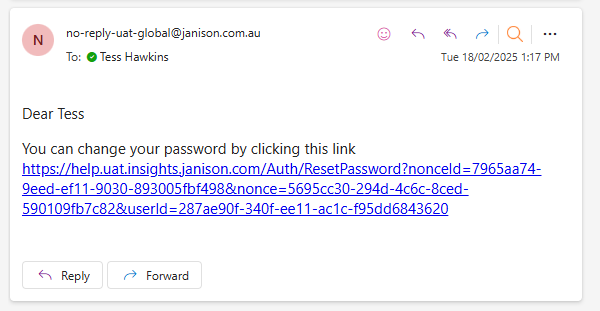
LinkToken and Link insert the password reset URL directly.
An announcement like the one above would appear in the recipient’s inbox as shown in the email below.
Create an announcement
These steps will guide you through creating an Announcement from scratch.
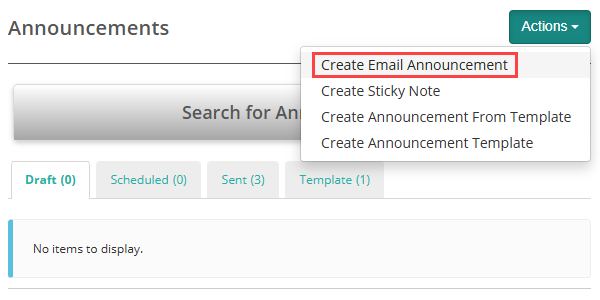
From the Actions dropdown, select Create Email Announcement.
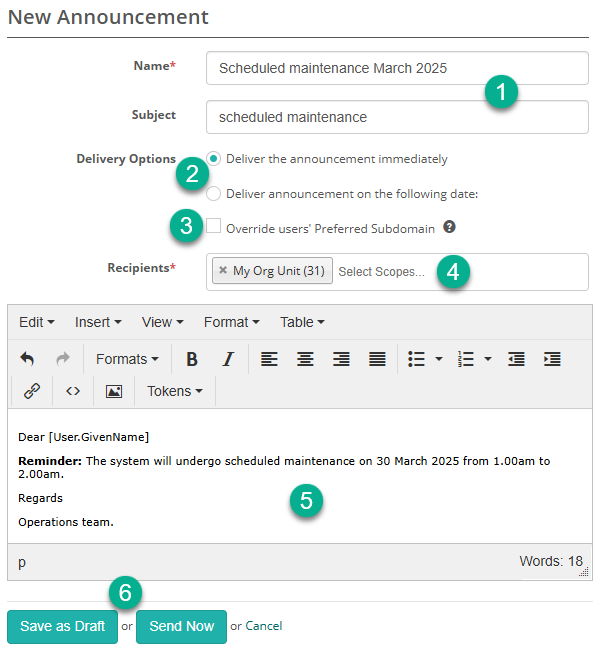
Below is an example of a completed form.
- Enter a Name and Subject.
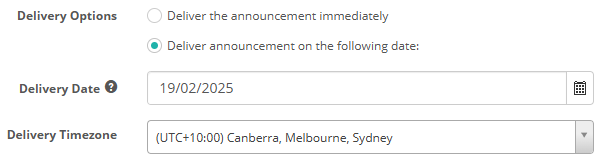
- Select a Delivery option. You can choose to deliver the message immediately or set a specific delivery date and timezone.
- If Override users’ Preferred Subdomain is checked, then any links will direct users to the subdomain where the announcement was created.
- Select the Recipients for the announcement. This could be individual users, organisations, org units or groups of users.
- Enter the announcement text.
- Click Save as Draft to continue working on the announcement later, or Send Now to send it immediately or schedule it for a future delivery.
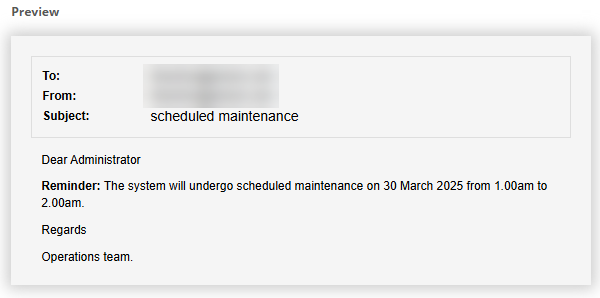
A preview is available to the right of the form.
Create an announcement from the user list
It’s possible to send announcements directly from the Users list screen.
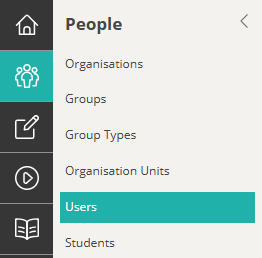
Navigate to People > Users.
The Users screen displays.
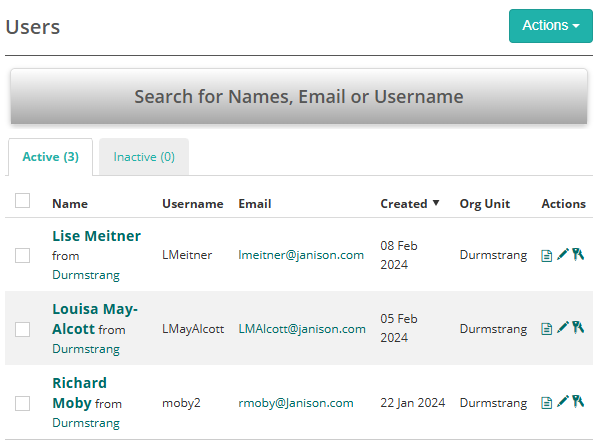
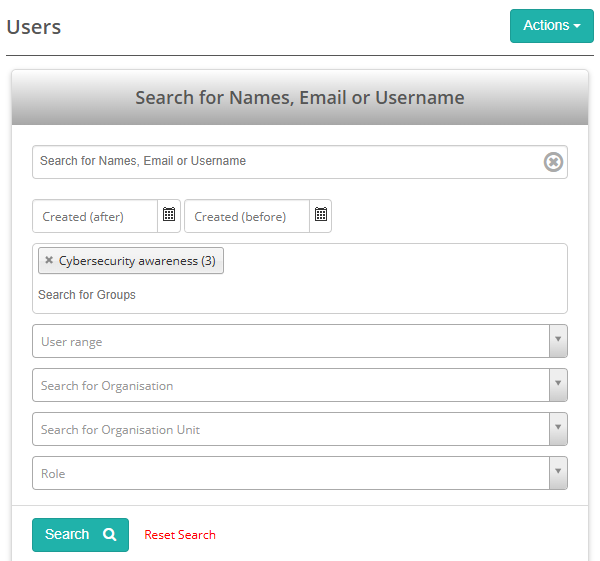
Use the Search tool to select the required users.
Use the checkboxes in the left column to select users. To select all users on the page, check the topmost checkbox.
Select Bulk Email Users.
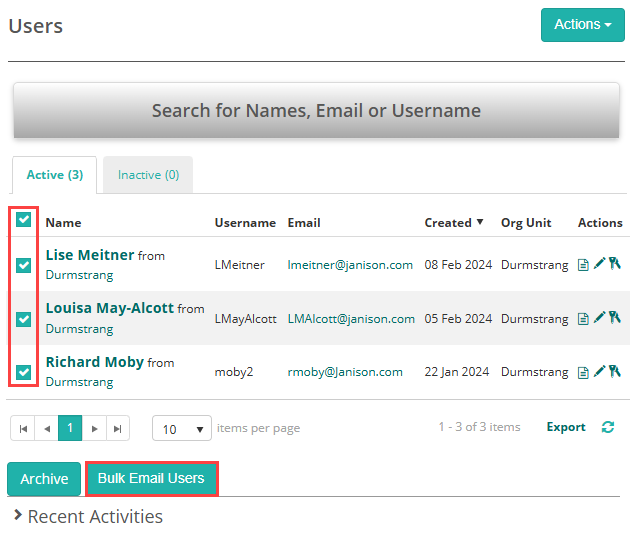
The bulk email screen displays.
Select a template and select Send Announcement.
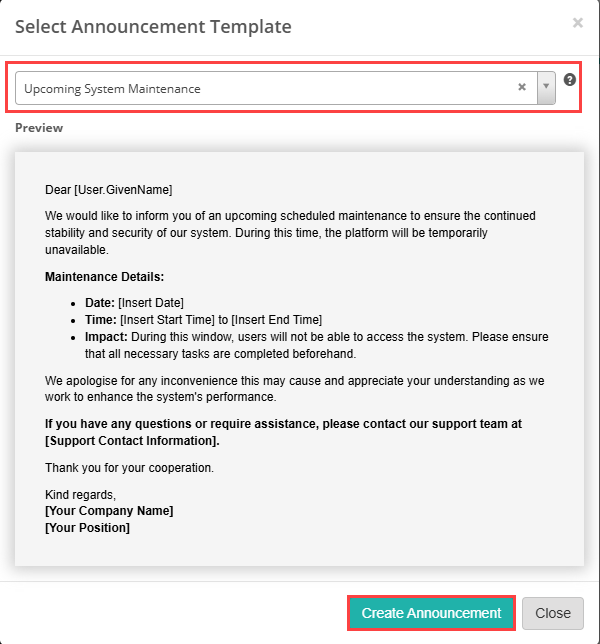
The New Announcement screen displays.
The steps from this point onward are identical to those for creating an announcement, as outlined above.
Create a sticky note
A sticky note is a digital message or reminder that stays visible on the screen. It’s often used to highlight important information, announcements, or tips that users should see.
Sticky notes remain “stuck” in place until dismissed by the user or removed by the administrator.
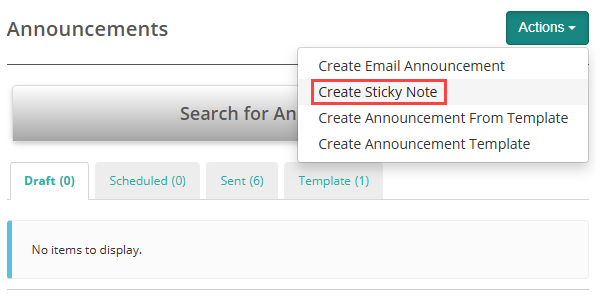
From the Actions dropdown, select Create Sticky Note.
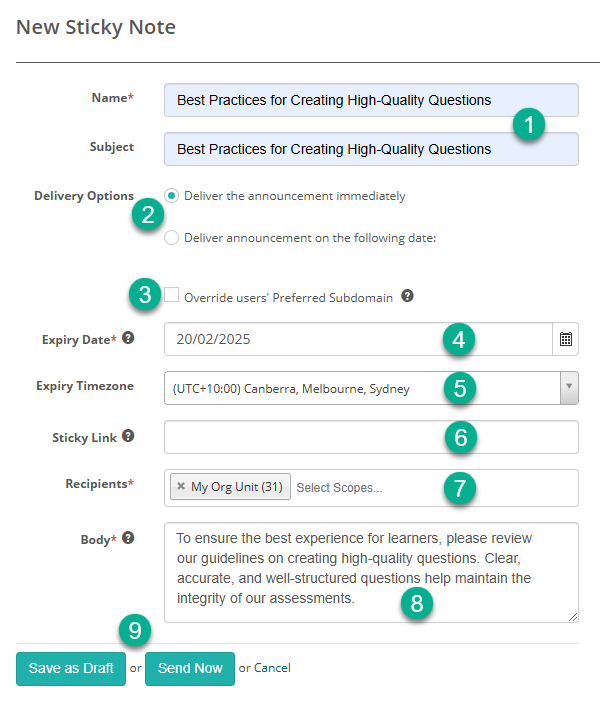
The New Sticky Note screen displays.
- Enter the Name and Subject.
- Select one of the Delivery Options. You can choose to deliver the message immediately or set a specific Delivery Date and Delivery Timezone.
- If Override users’ Preferred Subdomain is checked, then any links will direct users to the subdomain where the announcement was created.
- The expiry date must be set so that the announcement is not available for more than 7 days. This is determined by the selected delivery options and the specified expiry date. For example, if the expiry date is set for the 28th, the announcement will expire at midnight on the 28th or shortly thereafter.
- Select the Expiry Timezone.
- The Sticky Link field allows you to optionally provide a URL for users to click on to access more information about the announcement.
- Select the recipients for the announcement. This could be individual users, organisations, org units or groups of users.
- Enter a short message of up to 300 characters for sticky notes.
- Click Save as Draft to continue editing the announcement later or Send Now to send it immediately or schedule it for future delivery.
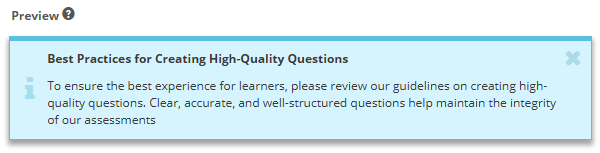
A preview is available, allowing you to see how the announcement will appear to recipients. Recipients can close the sticky note by clicking the X in the top right corner.
Use a template to create an announcement
Using a template to create an announcement streamlines the process by reusing pre-written content.
Select Actions > Create Announcement from Template.
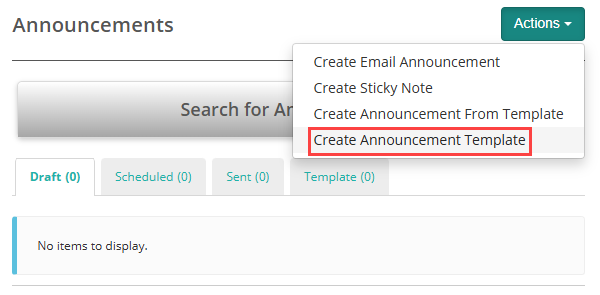
The Select Announcement Template displays.
Select the desired template.
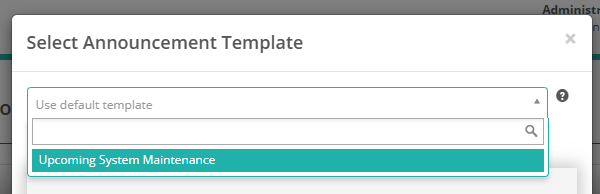
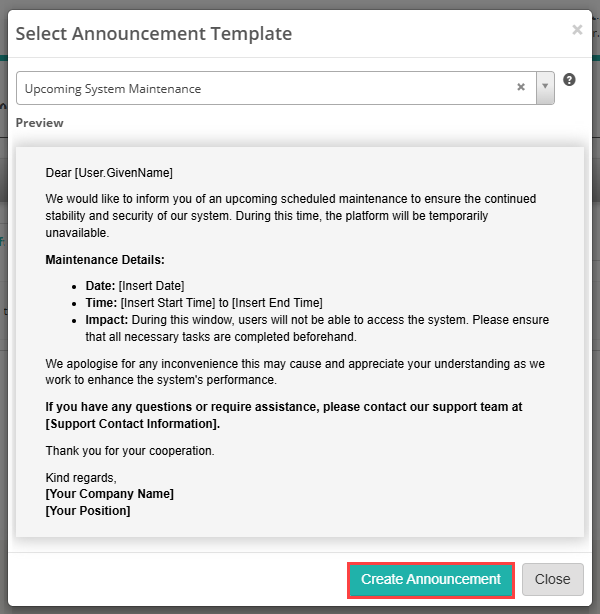
The announcement displays in the body as a Preview.
Select Create Announcement.
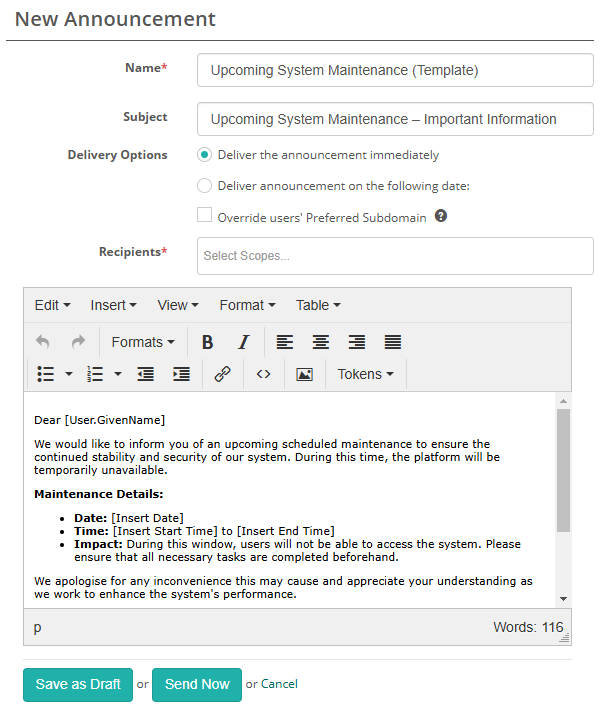
The New Announcement screen appears, allowing you to modify the announcement as needed.
Create announcement template
Templates allow for consistent messaging. They also save time and ensure accuracy by reusing pre-approved content. This reduces the need for manual entry and minimises the risk of errors or inconsistencies in announcements.
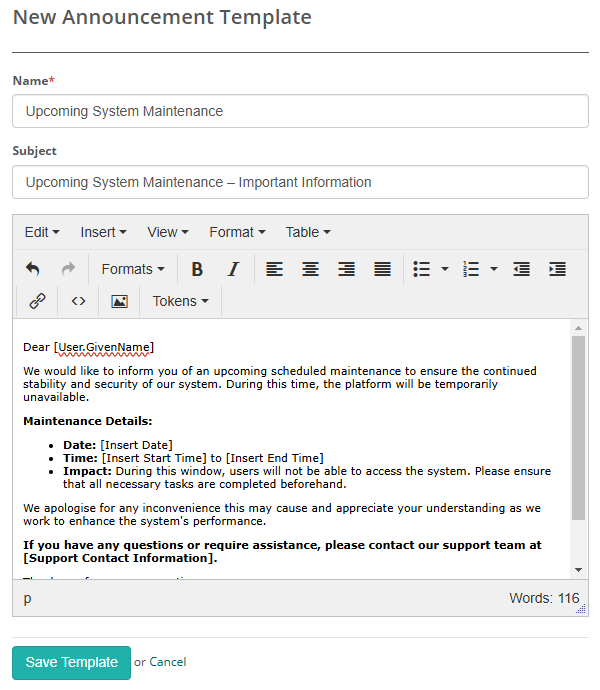
Select Actions > Create Announcement Template.
Enter the Name, Subject, and Template Body for your announcement.
Click Save Template to finalise the creation.
Refer to the example in the screenshot below.
View announcements and templates
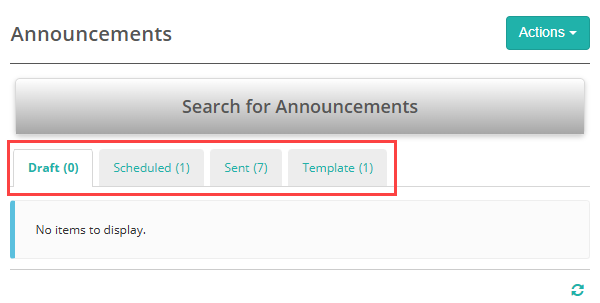
Use the filter tabs to view Drafts, Scheduled and Sent announcements, as well as Templates.