Marking team
In the Marking Team section, you can add markers and define their roles and seniority within the project.
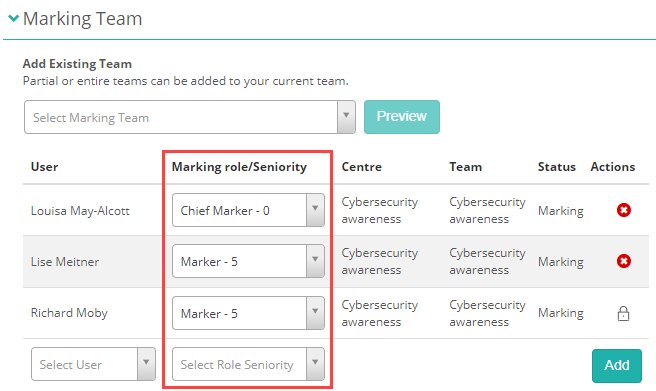
Marking role and seniority
By default, a Marking Team includes two roles — Markers and Chief Markers.
- Markers are responsible for assessing responses.
- Chief Markers not only mark responses and manage escalations raised by other markers but also pre-mark seed scripts.
Seed scripts are test-taker responses that have been pre-marked before live marking begins. They’re automatically distributed into markers’ queues to check that marking is consistent with the standard set by the Chief Markers.
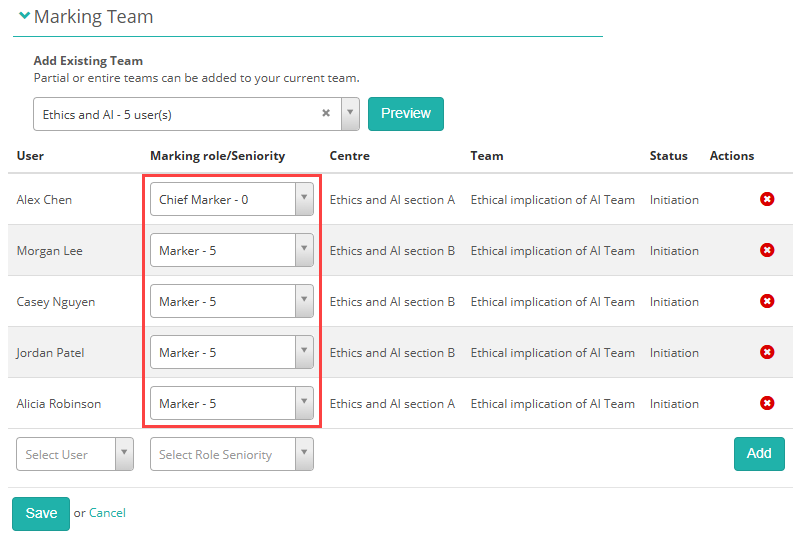
Roles are set in the Marking role/Seniority column.
Add markers to the project
There are two ways to add markers to a marking project: you can add multiple markers at once using groups, or add individual markers using the Select User dropdown. Let’s look at both options in detail.
Add marking teams with groups
Use this method to quickly add multiple markers at once.
Before you begin, make sure a Marking Team group has been created in People > Groups and that the required markers have been added to it. You can learn more in the guide on Groups.
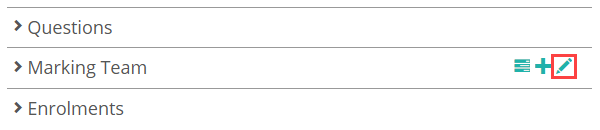
In the Marking Team section, select the pencil icon.
- Select the marking team from the dropdown.
- Select Preview.
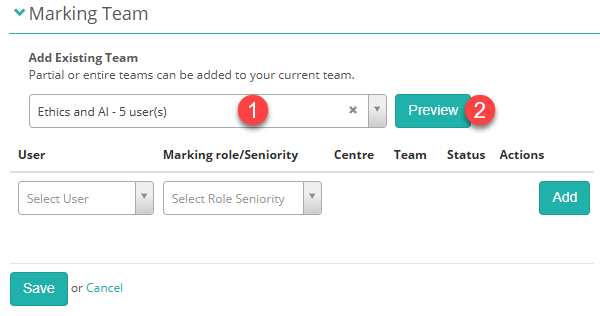
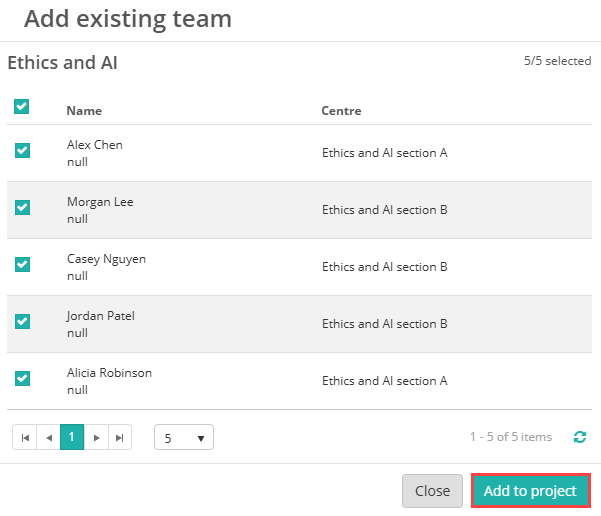
A preview modal opens, showing all available markers in that group.
Select the markers you want to add, then choose Add to project.
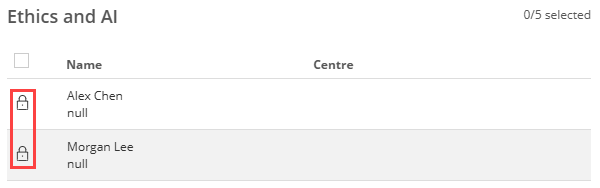
Markers already included in the project are locked and cannot be selected again.
The selected markers now appear in the list. Assign their Marking Role/Seniority as needed.
Add individual markers
You can also add markers individually.
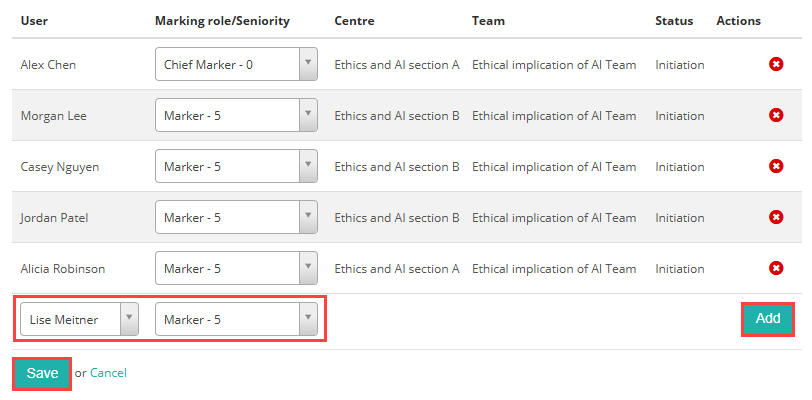
From the Select User dropdown, select the marker, choose their Marking Role/Seniority, and then select Add.
When you’re done, select Save. The markers are now members of the project.
Allocate items to markers
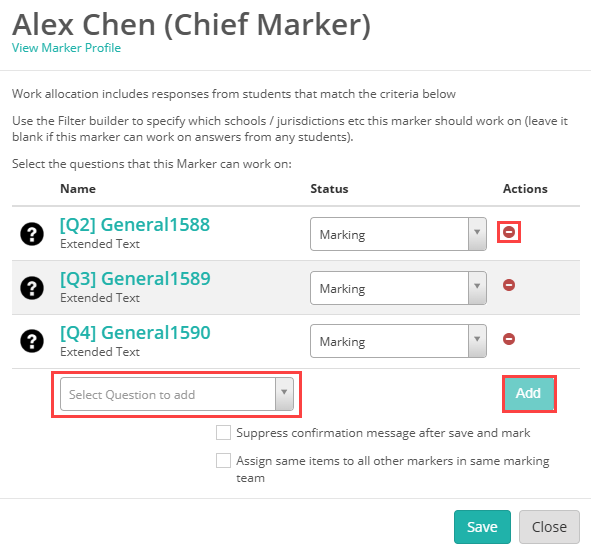
When you add markers to a project, they’re automatically assigned all questions from the linked assessment events. You can easily change this later by adding or removing questions.
Select the work allocation icon  .
.

To remove an item, click the – icon.
To add one, pick a question from the Select Question to add dropdown, then click Add.
When you’ve finished, click Save to close the modal.
The Work Allocation Summary page is accessed from the icon in the Marking Team section. It provides an overview of all markers and the questions assigned to each one.

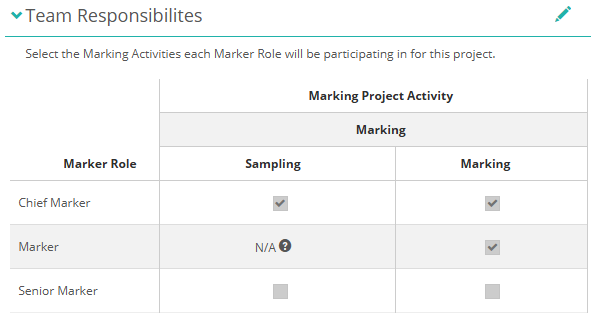
Team responsibilities
This section lets you choose which marking activities each role is involved in.
For a simple project with just two roles, you probably won’t need to adjust anything. But if your project includes extra roles, like Senior Markers, you can use this area to decide who can assign seed scripts or manage other quality control steps.