Welcome to the Janison Insights help portal
Author items
The ‘Resources’ feature in Janison Insights empowers you to enrich your test questions with supplementary content, creating a more engaging and informative assessment experience for test-takers. By attaching various resource types directly to a question, you can provide essential context, supporting materials, or interactive elements that enhance understanding and allow test-takers to demonstrate their knowledge more effectively. This guide will walk you through the different types of resources you can add to your questions and how they can be utilised.
View the test below to see an electrical circuit in action, built using the HTML Snippet resource type. We’ve included the code so you can easily copy it and try it on your own site.
Practice test demonstrating HTML Snippet
Open this test in the Janison test player and view a question with an HTML snippet attached.
Read more
Interactive Electric Circuit
+1.5V-
Battery
OFF
Switch
Bulb
Click the switch to complete the circuit!
In Janison Insights, you’ll find a variety of resource types available. While there are several legacy resource types listed, our current focus and recommendations are on the following types, which are actively used and supported:
Audio: This resource type allows you to embed audio files (e.g., MP3, WAV) directly into the question. This can be useful for language assessments (listening comprehension), providing instructions, or setting a specific context through sound.
Document: You can attach various document formats as resources. This is ideal for providing lengthy reading passages, detailed instructions, data tables, or reference materials that test-takers might need to answer the question.
Image: This resource type enables you to include visual aids such as photographs, diagrams, charts, or illustrations. Images can provide essential context, support understanding, or be the subject of the question itself.
Video: Embedding video files (e.g., MP4) can provide dynamic and engaging content. This can be utilised for delivering instructions, presenting scenarios, or providing visual explanations relevant to the question.
HTML Snippet: Similar to HTML, this option allows you to insert HTML code. This is useful for adding elements like small interactive widgets, or formatted text blocks without needing to create a full HTML page. The practice test at the top of the page contains an HTML snippet of an electrical circuit in action. It’ll give you a feel for how you can use this resource type.
You can create resources via the left navigation menu and then add them to a question from within the test question editor when you are building or modifying a question. An option also exists to upload a new resource via the test question editor.
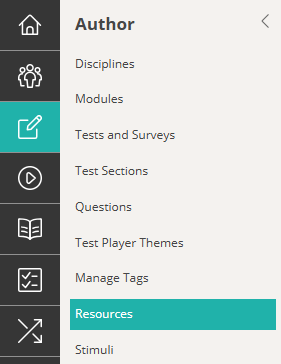
Select Author > Resources.

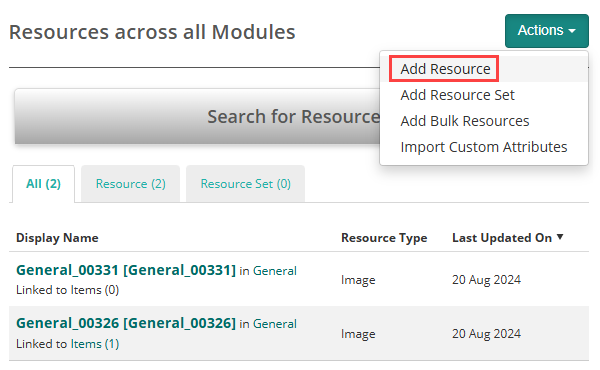
The Resources across all Modules screen displays, where you can view and manage the resources.
Select Actions > Add Resource.
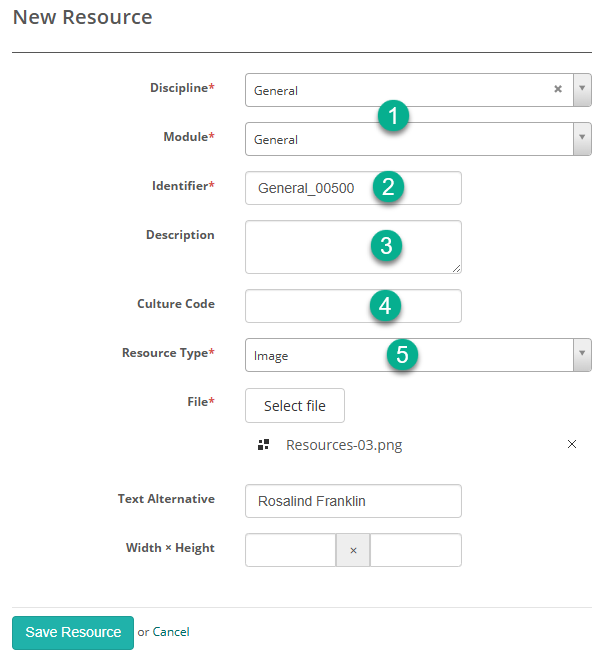
The New Resource screen displays.
Below is an example of a completed form.

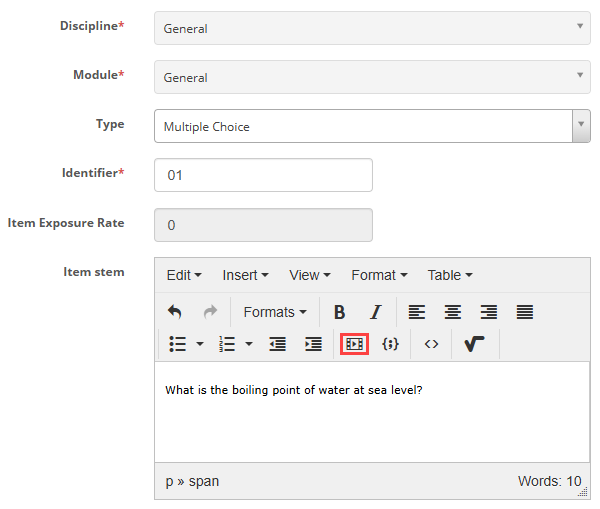
When you create a question, an editor is available to enter the item stem. The insert/edit resources icon
allows you to load existing resources or upload new ones.
Preview: It is highly recommended to preview the question after adding the resource to ensure it displays and functions as expected for the test-taker. This allows you to verify the content is correct and the integration is seamless.