Welcome to the Janison Insights help portal
Deliver
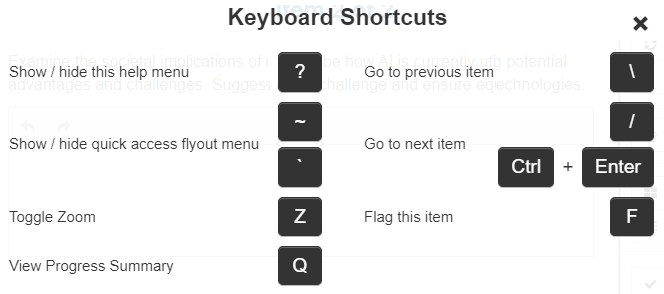
Keyboard shortcuts are available to test-takers in Replay and provide an alternative way to interact with the test player without relying on a traditional mouse or touch input. You can view the keyboard shortcuts by selecting Shift + ? as highlighted below.
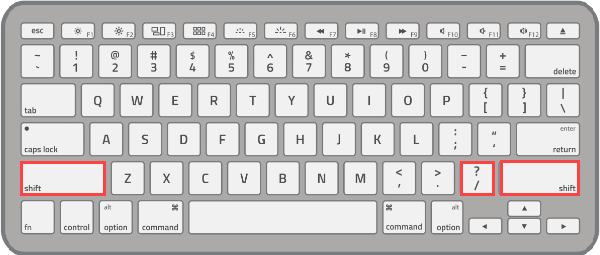
The menu that displays is dynamic and changes depending on the screen you have open, and the features in the test player that are turned on. For example, you won’t see shortcuts related to volume if your test does not include sound.
This is an example of what you’ll see when you open the shortcut menu when in an extended text question type. You may see additional shortcuts depending on the configuration for the question.
| Action | PC | Mac |
|---|---|---|
| Open the keyboard shortcut menu | ? | Shift+? |
| Scroll | Arrow keys | Arrow keys |
| Navigate forward through screen elements | Tab | Option+Tab |
| Navigate backward through elements | Shift+Tab | Option+Shift+Tab |
| Navigate to the next question | / | / |
| Navigate to the previous question | \ | \ |
| Zoom or unzoom | Keep pressing Z until you reach the required magnification | Keep pressing Z until you reach the required magnification |
| Flag or unflag a question | F | F |
| Show / hide audio player bar | Tab to audio icon, then Enter | Option+Tab to audio icon, then Enter |
| Play or pause audio | Tab to play/pause icon, then Enter | Option+Tab to play/pause icon, then Enter |
| Mute or unmute audio | Tab to volume icon, then Enter | Option+Tab to volume icon, then Enter |
| Adjust audio volume | Tab past volume icon, then Arrow keys | Option+Tab past volume icon, then Arrow keys |
| Skip audio forward or backward | Tab past the volume icon to audio progress bar, then Arrow keys | Option+Tab past volume icon to audio progress bar, then Arrow keys |
| Show / hide timer icon | Tab to timer icon, then Enter | Option+Tab to timer icon, then Enter |

The following relate to shortcuts you can use from the progress summary screen.
| Action | PC | Mac |
|---|---|---|
| View the question progress summary screen | Q | Q |
| Return to last visited question | Q | Q |
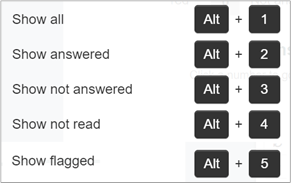
| Show all questions | Alt+1 or Tab to Show all, then Enter | Option+1 or Option+Tab to Show all, then Enter |
| Show only answered questions | Alt+2 or Tab to Answered, then Enter | Option+2 or Option+Tab to Answered, then Enter |
| Show only unanswered questions | Alt+3 or Tab to Not answered, then Enter | Option+3 or Option+Tab to Not answered, then Enter |
| Show only unread items | Alt+4 or Tab to Not read, then Enter | Option+4 or Option+Tab to Not read, then Enter |
| Show flagged questions | Alt+5 or Tab to Flagged, then Enter | Option+5 or Option+Tab to Flagged, then Enter |
| Navigate to any question | Pressing 1 will select item 1, then Enter Pressing 1 then 2 would select item 12, then Enter or Tab to the numbered question, then Enter | Pressing 1 will select item 1, then Enter Pressing 1 then 2 would select item 12, then Enter or Option+Tab to the numbered question, then Enter |

| Action | PC | Mac |
|---|---|---|
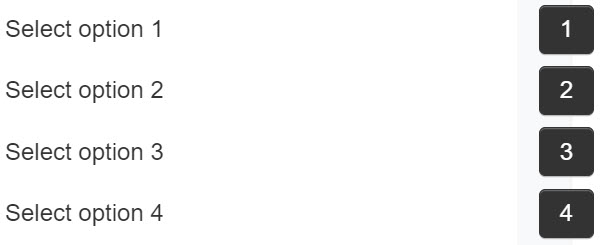
| Select or deselect answer | Select a number corresponding to the preferred response, for example for the first response, select ‘1’. To deselect it, press 1 again. Where multiple responses are available for selection (multiple choices), select all relevant numbers. To deselect, press the number again | Select a number corresponding to the preferred response, for example for the first response, select ‘1’. To deselect it, press 1 again. Where multiple responses are available for selection (multiple choices), select all relevant numbers. To deselect, press the number again |
| Action | PC | Mac |
|---|---|---|
| Enter response | Tab to text box, then type in response | Option+Tab to text box, then type in answer |
| Clear response | Tab to text box, then Delete | Option+Tab to text box, then Delete |
| Edit response | Tab to text box, then use Arrow key to place cursor in position | Option+Tab to text box, then use Arrow key to place cursor in position |
Many of the keyboard shortcuts referenced here are shortcuts that are used universally, for example in Microsoft Word.
| Action | PC | Mac |
|---|---|---|
| Select all | Ctrl+A | Command+A |
| Delete text | Backspace | Delete |
| Move the cursor | Arrow keys | Arrow keys |
| Place the cursor at the beginning of current line | Home | Command+left |
| Place the cursor at the end of current line | End | Command+right Arrow key |
| Place the cursor at the beginning of the response box | Ctrl+Home | Command+up Arrow key |
| Place the cursor at the end of the response box | Ctrl+End | Command+down Arrow key |
| Move the cursor by one word, before or after | Ctrl+left or right Arrow key | Option+left or right Arrow key |
| Undo | Ctrl+Z | Command+Z |
| Redo | Ctrl+Y | Command+Y |
| Cut | Ctrl+X | Command+X |
| Copy | Ctrl+C | Command+C |
| Paste | Ctrl+V | Command+V |
| Bold | Ctrl+B | Command+B |
| Italic | Ctrl+I | Command+I |
| Underline | Ctrl+U | Command+U |
| Action | PC | Mac |
|---|---|---|
| Drag and drop an answer into place. | Tab the required answer, Enter to select. Tab to drop zone, Enter to release | Option+Tab to required answer, Enter to select. Tab to drop zone, Enter to release |
| Move an existing answer into place | Tab to answer, Enter to select. Tab to new drop zone, Enter to release | Option+Tab to answer, Enter to select. Tab to new drop zone, Enter to release |
| Draw lines to join 2 answers | Tab to answer in left-hand column, Enter to select. Tab to answer in right-hand column, Enter to join | Option+Tab to answer in left-hand column, Enter to select. Option+Tab to answer in right-hand column, Enter to join |
| Delete a line joining answers | Tab to line, Enter to delete | Option+Tab to line, Enter to delete |
| Select or change an answer from a drop-down list | Tab to drop-down box, Enter to expand list, use Arrow keys to move between list, Enter to select | Option+Tab to drop-down box, Enter to expand list, use Arrow keys to move between list, Enter to select |
| Select or deselect a hot-spot question | Tab to desired hot-spot region, Enter to select or deselect | Option+Tab to hot-spot region, Enter to select or deselect |
| Show reading text only (hide item panel) | s | s |
| Alternate between multiple reading texts | Tab to reading text tab, then Enter | Option+Tab to reading text tab, then Enter |

| Action | PC | Mac |
|---|---|---|
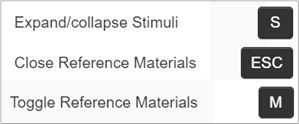
| Expand/Collapse Stimuli | s | s |
| Close reference materials | Esc | Esc |
| Toggle reference material | m | m |
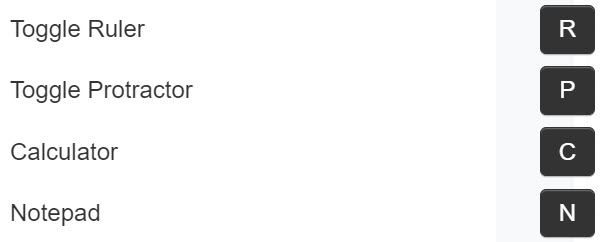
These shortcuts will only work if the test author has activated these tools.
| Action | PC | Mac |
| Turn the ruler on/off | r | r |
| Turn the protractor on/off | p | p |
| Turn the notepad on/off | n | n |
| Turn the calculator on | c | c |
| Turn the calculator off | Tab out of calculator, then c | Tab out of calculator, then c |
| Rotate ruler or protractor | Type r or p, then Tab to tool rotation handle, then use the Arrow keys | Type r or p, then Tab to tool rotation handle, then use the Arrow keys |
| Rotate ruler or protractor quickly | Type r or p, then Tab to tool rotation handle, then Shift+Arrow keys | Type r or p, then Tab to tool rotation handle, then Shift+Arrow keys |
| Action | PC or Mac |
|---|---|
| Add | + |
| Subtract | – |
| Multiply | * |
| Divide | / |
| Square | X2 |
| Power | Xy |
| Square root | √ |
| Equals | = |
| Clear entry | C |
| Action | PC or Mac |
|---|---|
| Clear all | CC |
| Negative (-) | N |
| Numerals 0–9 | 0–9 |
| Brackets | () |
| Pi | π |
| Memory add | M+ |
| Memory subtract | M- |
| Memory recall | MR |
| Memory clear | MC |