Conditional Release
Introduction
You can use Conditional Release to set time or date based periods during which a program component is active for use. There are two ways to set Conditional Release.
- You can set a time for when a component will be made active within a program enrolment.
- You can set a time for when a component will be made inactive within a program enrolment.
Learners can see the details of both but cannot access inactive content.
Conditional Release also works with Prerequisites. An asset does not become available to a learner unless both the prerequisites are met and the asset is available for use under Conditional Release rules.
Initial Settings
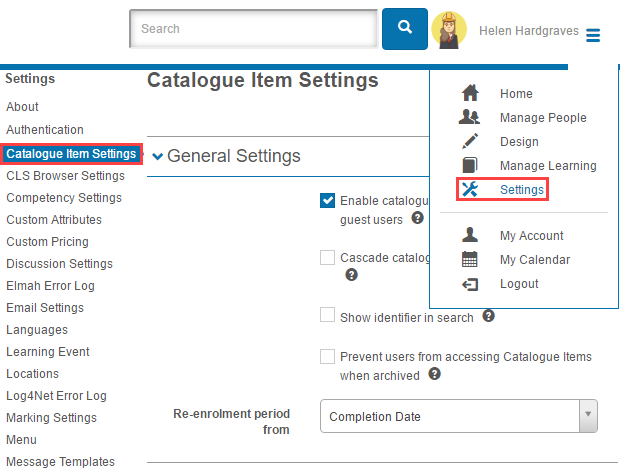
To enable Conditional Release, browse to Settings > Catalogue Item Settings.
Within the Authoring Settings section.
- Select
 .
.
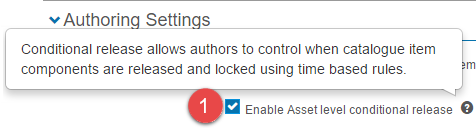
- Select
 .
.
Configure Conditional Release
Conditional Release is applied within a program and directly to the components which they effect. Before you set up Conditional Release of program components, remember:
- Conditional Release cannot be applied to the following learning assets.
- Assessment Events
- Booked Assessment Events
- Learning Events
- Plans
- Subscriptions
- Setting up Conditional Release on a program which already has active enrolments will not affect those enrolments.
- Conditional Release cannot be set on components with Share Progress selected.
Setup
Browse to Manage Learning > Manage Catalogue.
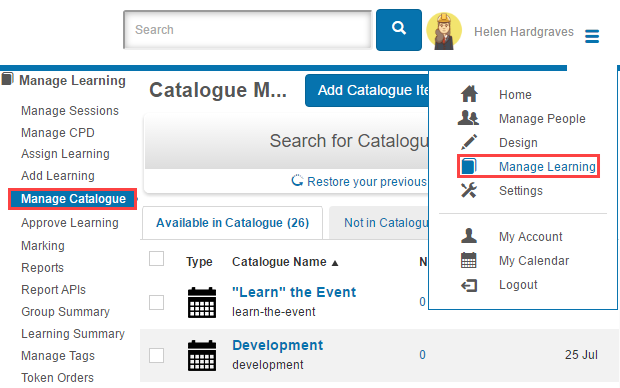
From here, you can either choose to configure Conditional Release on an existing Catalogue Item by editing it or on a new Catalogue Item. For this tutorial, we will be creating a new Catalogue Item.
- Select Add Catalogue Item.

- Enter a Name and Identifier.
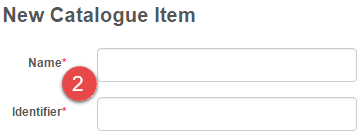
- In the Components section, Select Learning Asset and Add Component.

Make sure to add at least two component to enable Conditional Release.
Note:
 Indicates that Conditional Release is not available on this component. Selecting the icon will provide details as to why.
 Indicates that Conditional Release is available for this component but has not been set.
 Indicates that Conditional Release has been set for this component.
- Select
 to set the Conditional Release on this component.

A dialogue box will appear with several options which allow you to set the Conditional Release of a Component.
- Release Date options allow you to set the time on which the component becomes available for use.
- This option does not set a Conditional Release rule. The component will be available on enrolment.
- This option releases the component on the specified number of days, weeks or months after the enrolment is received.
- This option releases the component on the specified day of the year after the enrolment is received.
- Lock Date options allow you to set the time on which the component becomes locked from use.
- This option does not set a Conditional Lock rule. The component will always be available after release.
- This option locks the component on the specified number of days, weeks or months after the enrolment is received.
- This option locks the component on the specified day of the year after the enrolment is received.
- Select Save to complete the action.
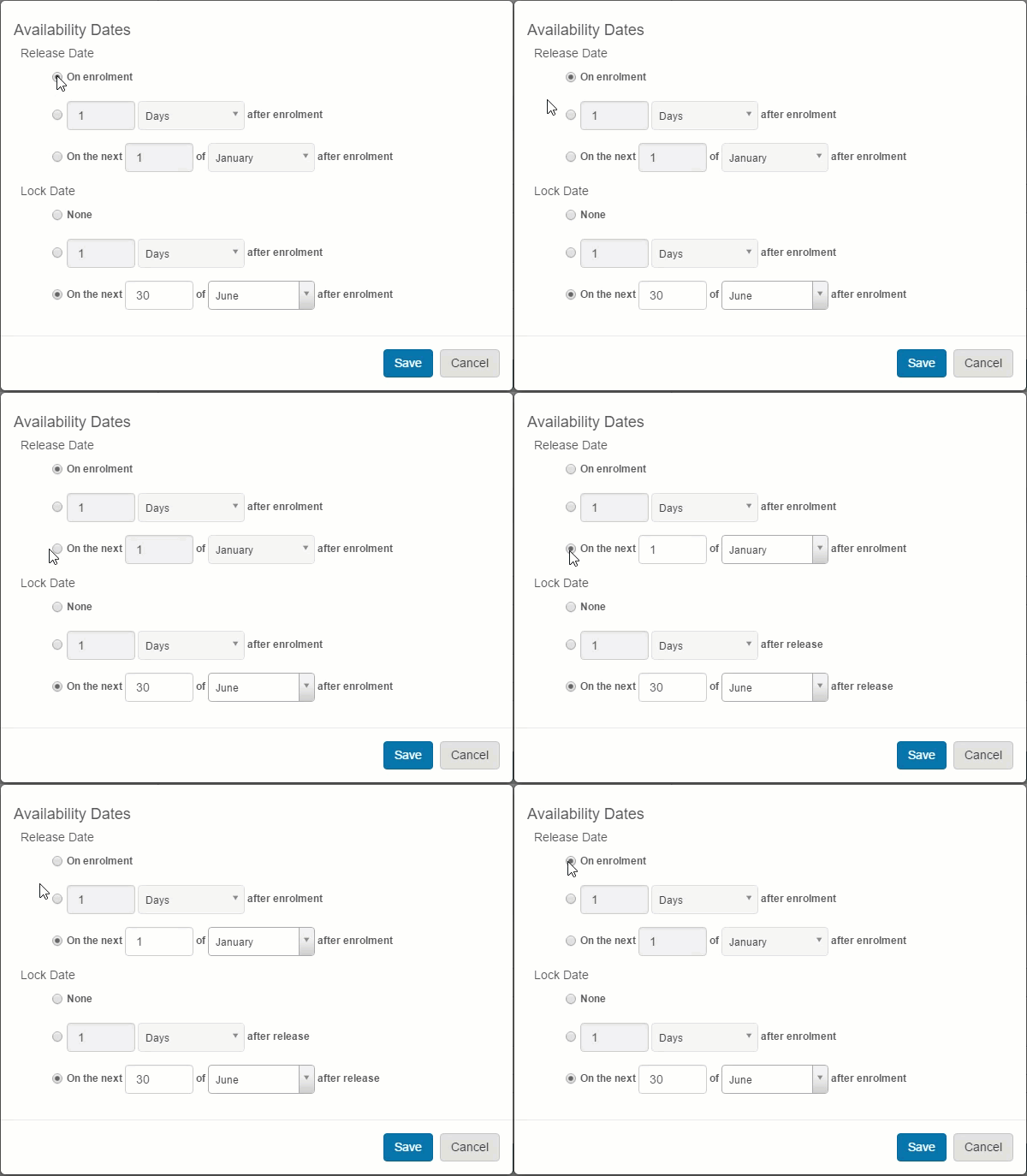
Note: The Lock Date settings react to the Release Date settings. If a Release Date is set, the Lock Date rules change from ‘after enrolment’ to ‘after release’.
- Select Save Catalogue Item.
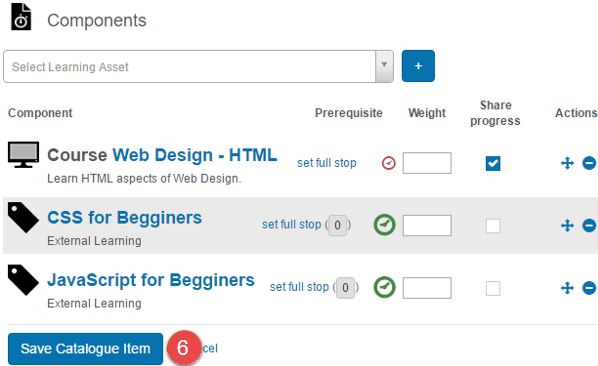
Note: You can edit Conditional Release on components by selecting  while editing the catalogue item.
Learner Experience
When a learner finds a program with Conditional Release applied they will be able to see the conditions applied to the component from the enrolment screen. Each component will list the period in which the learner can gain access.
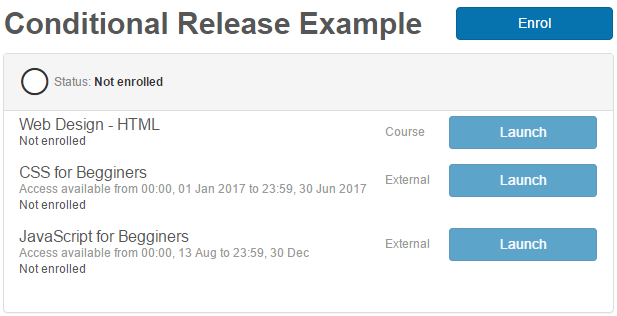
After a learner is enrolled into a program, those assets not yet released or those assets locked are unavailable to the learner and is shown by dimming the Launch button.
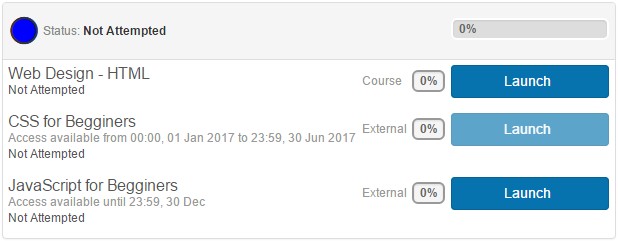
When an asset is within the Conditional Release period then it becomes active and the learner is able to launch the component. If there is a Conditional Lock on the component, a message will display on the asset which shows how long the asset is available for.
Manage a User’s Conditional Release
A situation might arise where an administrator needs to modify a learner’s enrolment. On a per user basis, an administrator can change the date on which an asset is released or the date an asset becomes locked.
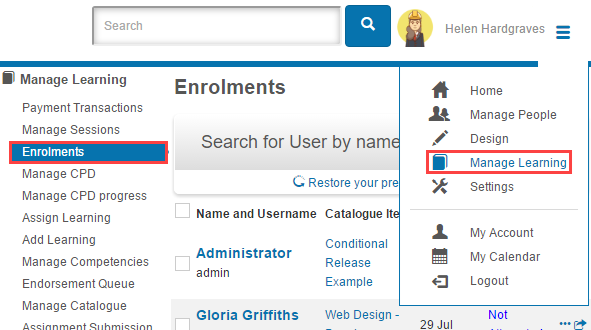
Browse to Manage Learning > Enrolments.
- Select View More (
 ) to go to a learner’s enrolment.

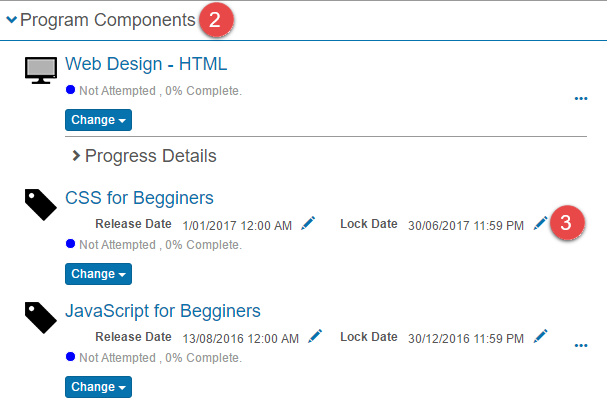
- Select the Program Components section.
- Select the
 icon for either the Release Date or the Lock Date to edit them. A dialogue box will appear.
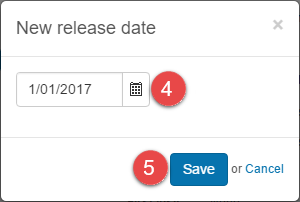
- Enter a new release or lock date.
- Select Save. A dialogue box will appear.
- Select Yes to make this change to all learner enrolments for this program which share the same enrolment date.
or
- Select No to only change the current learner’s enrolment.
