Marking
Introduction
A large amount of Learning and Assessment Test marking is done automatically in the CLS, based on the specifications set for the Questions (correct answers, etc) and Test (pass marks, etc). The Marking section of the CLS displays the results of automatically marked Test Attempts and makes it possible to inspect, re-mark and edit those results if desired.
However, certain types of Learning Assets must be marked manually. Examples are:
- Face-to-face training in Learning Event Sessions
Learning Event Sessions are marked as part of Managing Sessions, see Mark a Session.
- File-based submissions, i.e. Assignments
Assignments are marked as part of Assignment Submission, see Assignments.
- Manually marked Test Attempts
These are marked in the Marking section and the process is described in this document.
As with automatically marked Test attempts, the Marking section also displays the results of these marked Test Attempts and makes it possible to inspect, re-mark and edit them if desired.
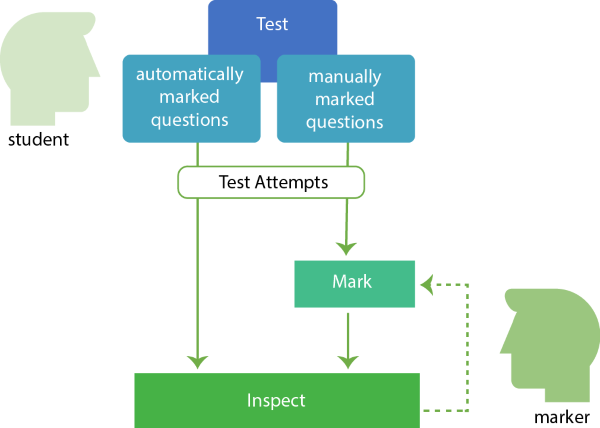
Tests can have the following marking options:
- Automatic: the CLS does the marking.
- Manual: a marker must do the marking.
- Mixed: partly automatically marked and partly manually marked.
- Do not mark: the Test is non assessable and will not be marked.
The Test Attempts in categories 2 and 3 are those from:
- Learning Module Tests containing Short Answer questions,
- Assessment Module Tests containing Short Answer(s) and/or File Upload questions.
When learners submit these kinds of Test Attempts, the appropriate Marker is notified by email if notifications are enabled. When the Marker logs into the system the Test Attempts to be marked are displayed and can be marked. After marking their status is set to completed. They can subsequently be inspected and re-marked if desired.
Note that an Assessment Event, that is an Assessment Test that takes place at a specific time and place, requires an additional role, that of Chief Marker. This person is in-charge of overseeing the marking and scoring of candidate responses for this specific Test paper and the creation of the Test marking project.
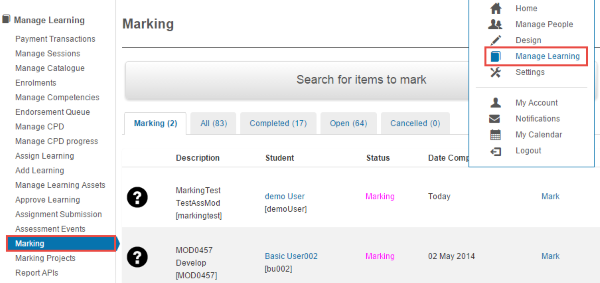
Marking is managed by selecting Manage Learning > Marking.
Inspect Marking
To inspect marking select Manage Learning > Marking.
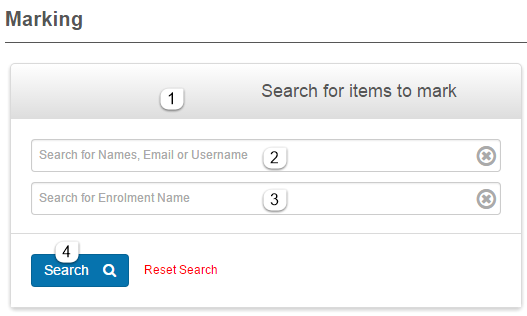
The top part of the screen allows you to search for particular items to mark.
- Click the search bar to expose the search fields.
- You can enter User names, email addresses or usernames, or
- You can enter all or part of the enrolment name, i.e. the name of the Test.
- Click Search to search for the desired item(s).
The bottom part of the screen will display the marking items that match the search criteria. If no search terms have been entered it will display all items.
The bottom part of the screen lists marking items, divided into tabbed sections:
- Marking items yet to be marked.
- All lists all items.
- Completed Items that have been marked.
- Open the item has been started by a student but not submitted.
- Cancelled Items that have been cancelled.
Click the tabs to view the members of each category.
- For every category there are four headings. Each heading can be clicked to order the list according to that value.
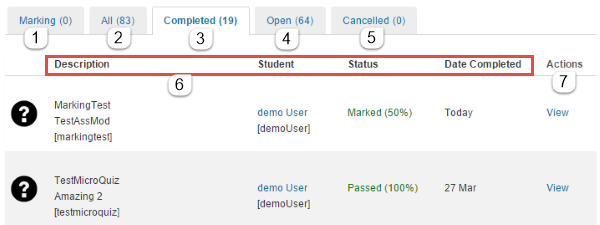
- The options under the Actions heading will vary depending on whether it is possible to mark the item (Marking) or just view it (Completed, Open and Cancelled).
View Marking
Clicking View for a Test Attempt provides the opportunity to see its details and also to make some changes. Items under the Marking tab are not available for View yet but will be after they have been marked.
To View marking select Manage Learning > Marking.
- Click any tab except Marking
- Click View in the Actions column next to the desired item.
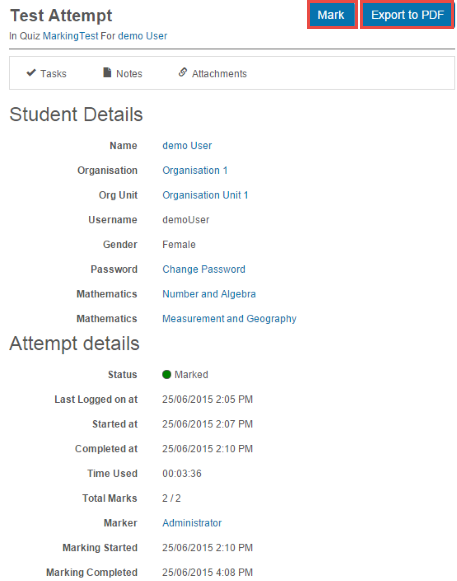
View Completed items
- Click Mark to re-mark the Test Attempt
- Click Export to PDF to save the Test Attempt to a PDF file
View Open items
An Open item has been started by a student but not submitted, so it can’t actually be marked.
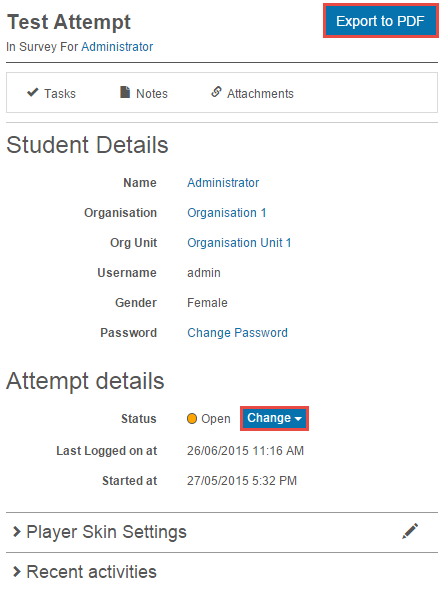
- Click Change to alter the status of the Test Attempt. The options are:
- Exempt
- Complete
- Absent
- Reset – this stops the current Test Attempt and starts from the beginning
- Withdrawn
- No longer enrolled
- Click Export to PDF to save the Test Attempt to a PDF file
Mark Test Attempt
To mark Test Attempts go to Manage Learning > Marking.
- Click the Marking tab to see all the Test Attempts that can be marked by you.
- To mark an item click Mark in the Actions column next to the required item.
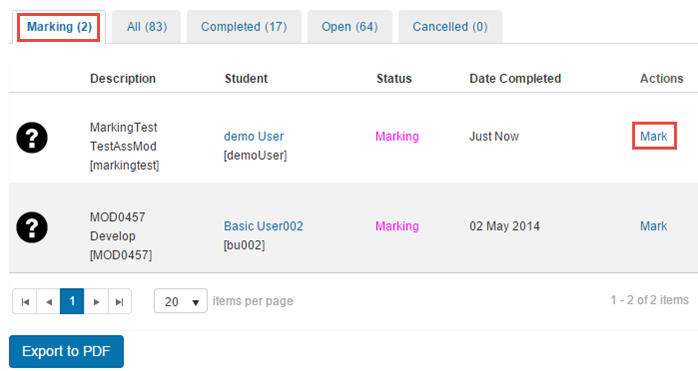
The screen will show the Test Attempt details and a list of the User’s answers to questions.
- Note that answers to Questions that were automatically marked will be displayed with their marks and can be examined. No further action is required for them.
- The total number of answers that need to be marked is listed.
- Answers that need to be marked are indicated.
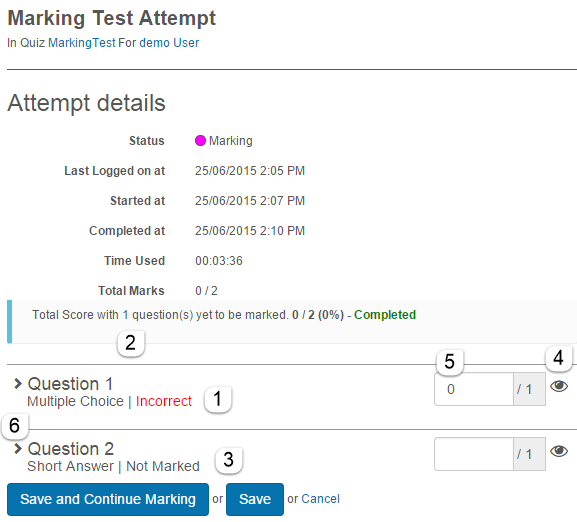
For each answer that needs marking there are two ways to do it:
- Without feedback
- Click the eye icon to view the Attempt
- Enter the mark in the marking box
- With feedback
- Click the chevron to open and view the Test Attempt
- Add feedback
- Add Marker Notes if desired
- Enter the mark in the marking box
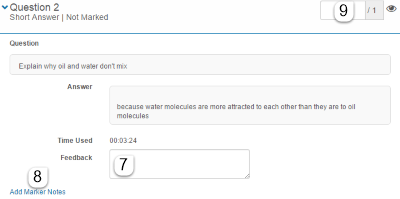
For either option you finish by clicking the buttons at the bottom:
- Save, or
This will save your entries but the item will still be considered to need marking
- Save and Continue Marking
This will then offer the option to click Submit Marks and complete the marking.
Assign Markers
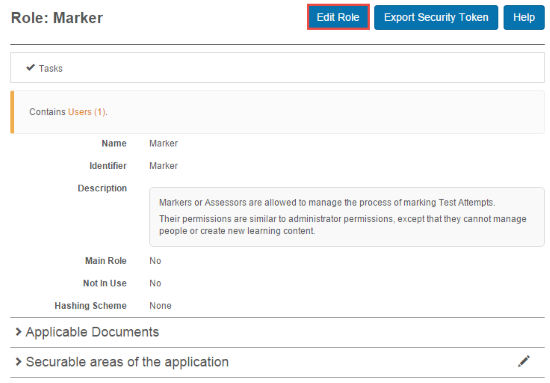
Marking can be performed by Users with high level Roles or by Basic Users with the Extra Role of Marker. It is important to first set up the Marker Role and Applicable Documents before trying to assign marking.
- Select Settings> Roles and locate Marker and click it.
- Click Edit Role
- Click the chevron next to Applicable Documents to open its window. Tick the box next to all system entities that you want potential Markers to be assigned to then click Save Role.
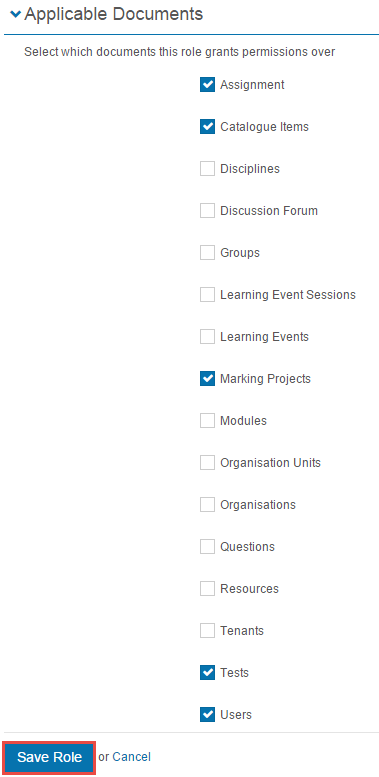
This has established the entities that you want Markers to be linked to.
The assignment of Marker(s) to Test Attempts can be made several ways:
- Via a system entity
Nominate Users to be Markers for this entity, e.g. a Test or a Group
- Via a User
Add the extra Role of Marker to a User and allocate it to one system entity, e.g. a Test or a Group
Assign Marker to a system entity
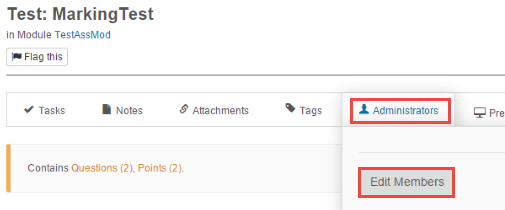
- Inspect the entity and click Administrators then click Edit Members.
- Select the Marker Role from the drop-down box
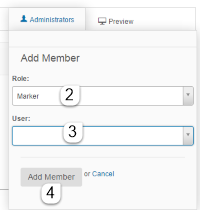
- Select a User from the drop-down box
- Click Add Member.
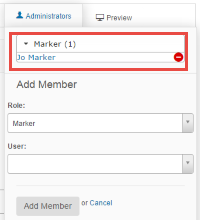
- The presence of a Marker is now indicated under Administrator. When you click on the Marker drop-down box the User(s) can be seen. A User can be deleted from the marker list by clicking the minus icon.
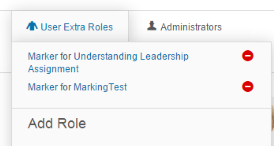
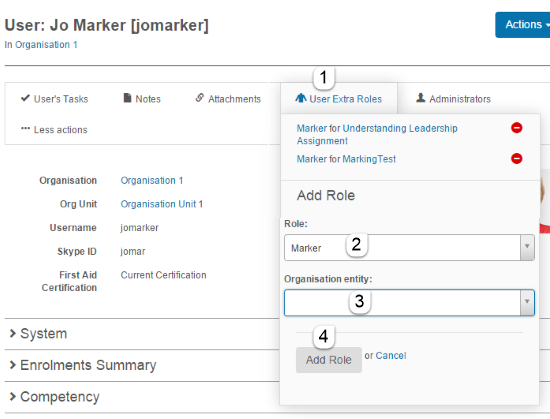
The marking role now appears under that User’s Extra Roles:
Add an Extra Role of Marker to a User
- Inspect the User and click User Extra Roles.
- Click the Role drop-down box and select Marker
- Click the Organisational entity box and select a particular entity. You can use the search bar to narrow the options.
- Click Add Role to add the Role.
Email Settings for Marking
You can specify whether you want certain emails to be sent as part of the marking process.
Select Settings > Email settings and click Marking
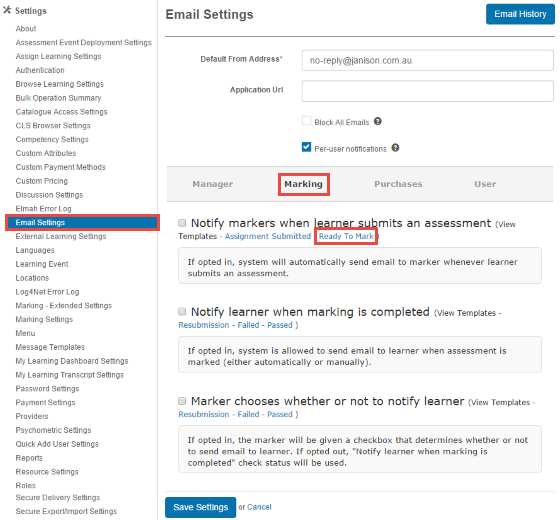
Click the checkbox next to any of the three options that are available and click Save Settings.
Note that it is also possible to change the Templates for the emails.
As an example:
- Click the Ready To Mark template to customise the message sent to markers when a new Test Attempt has been created and needs to be marked.
This takes you to the Message Templates section of Settings.
- Click Create Local Message Template to create a custom version.
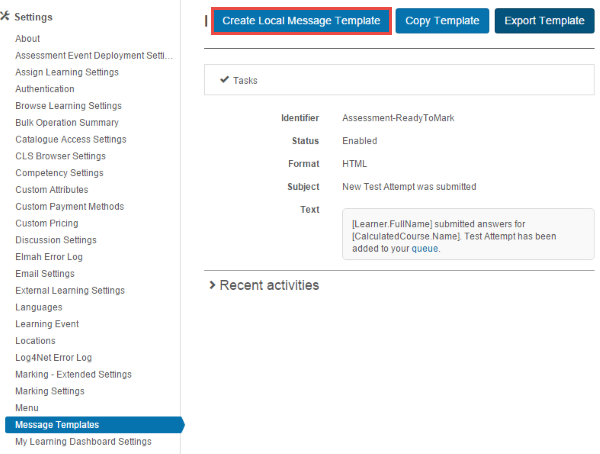
- You can customise the text in the body of the email and also insert appropriate Tokens such as the email address of the learner in order to incorporate other CLS data as required.
Export Test Attempts to PDF
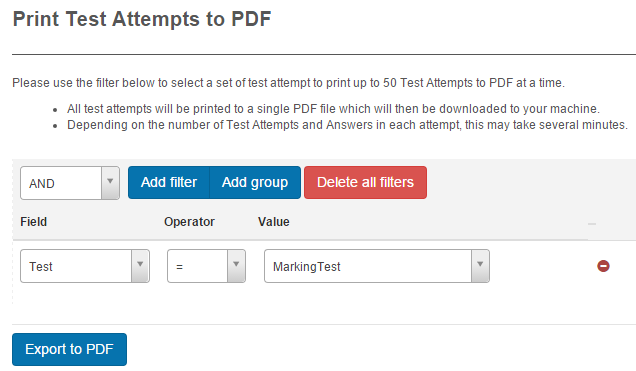
At the bottom of every category of Inspection screen you can click Export to PDF.
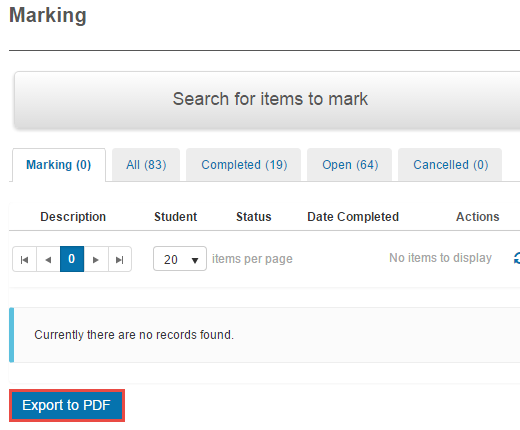
- The next step is to specify which of the Test Attempts you want to be saved to PDF. The instructions explain that it is important to be selective.
- To specify the selection criteria, you create one or more rules, called filters. You build rules that can operate alone or be logically combined with other rules in order to specify very precisely what you want to save. The example rule below specifies Test Attempts in that category from a Test named Marking Test.
Clear and detailed instructions about how to set these up are found in the Building Filters topic.
- Click Export to PDF to save the file.