
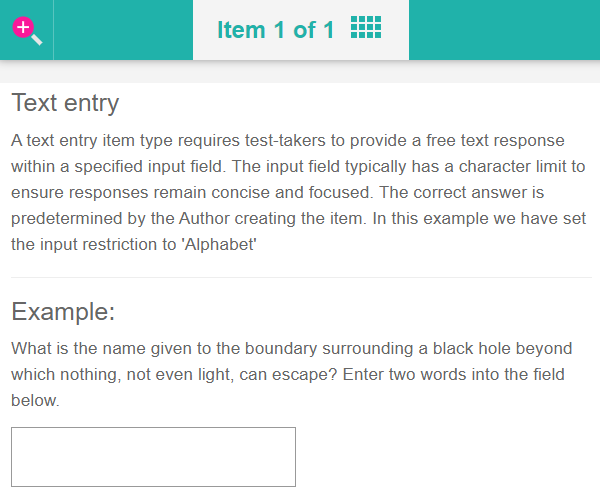
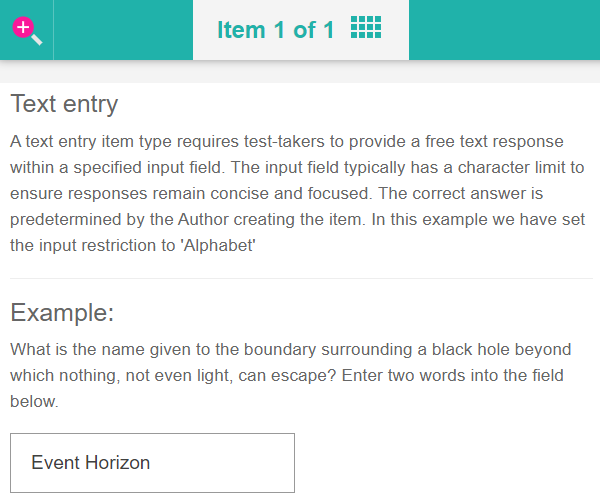
Create a Text entry item
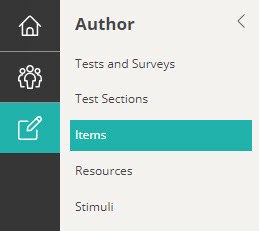
Navigate to Author > Items.
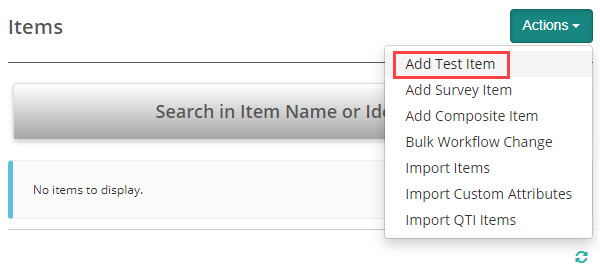
Select Add Test Item from the Actions drop-down.
The New Test Item screen displays.
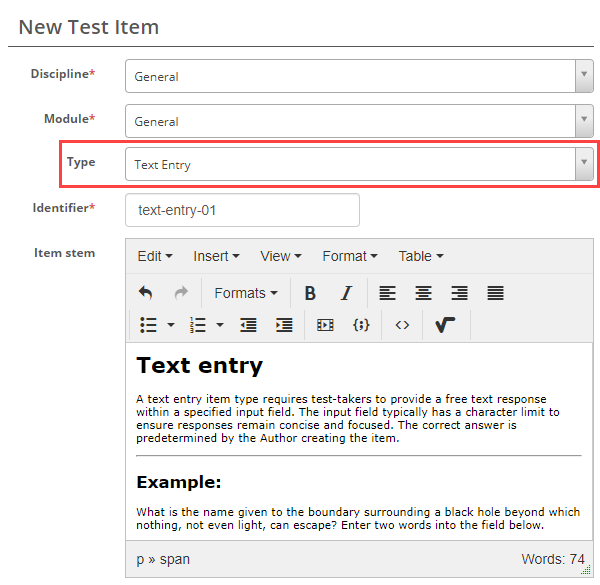
Complete the form as required. Below is an example of an new item we created.
Select Text Entry as the item type and enter the Item stem.
You now have several options available to meet your requirements.
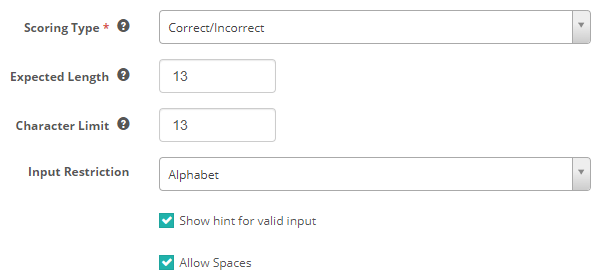
Scoring Type – The options are Correct/Incorrect, Per distractor and Semi-automatic. See the Setting scores and marking below to learn more about this.
Expected Length – provides a hint to the Test Player for how wide the text box should be. The width of the text box is roughly equivalent to the number of capital letter ‘W’s you will be able to see in the text box.
Character Limit – Character limit restricts the number of characters that test-takers can enter when answering this item.
Input Restriction – limitations or rules available on the type of text that can be entered by the test-taker. Restrictions include None, Integer, Decimal, Alphabet or Alphanumeric.
If a restriction is set, you can show test-takers a hint for valid input and allow spaces.
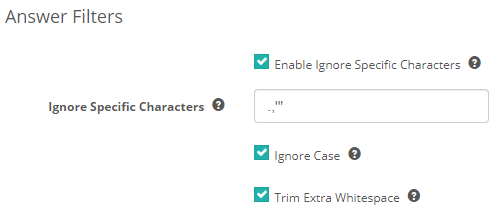
Answer filters
Ignore Specific Characters – If this field is enabled then system will ignore specific characters and will compare test-taker response with answer key.
Ignore Case – If enabled, the system will ignore character case of the answer.
Trim Extra Whitespace – Removes repetitive spaces in the answer.
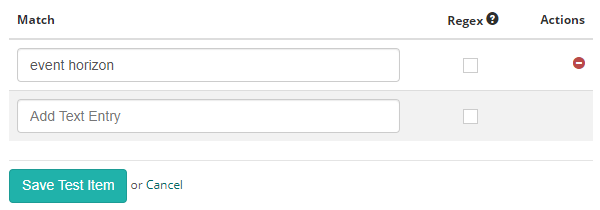
Match (Correct response)
Enter one or more permitted responses in the Match column.
Regex
If checked, the text entry will be treated as Regex. To learn more about building supported regex expressions, visit http://regexstorm.net/
Setting scores and marking
Text entry item types are system marked but authors can set them to be sent to human markers as a backup measure.
Scoring type
There are three scoring types available, Correct/Incorrect, Per distractor and Semi-automatic.
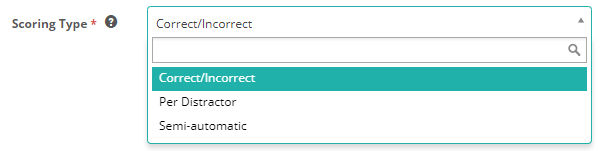
Correct/Incorrect
With this scoring type, the test-taker must enter the correct response to get the item correct.
Per distractor
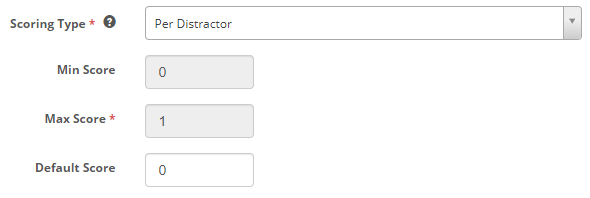
With this scoring type, additional scoring options will become available to the item author, allowing them to add a score for each response.
Min Score – Setting a value in this field will determine the minimum score that the system can assign to the item.
Max Score – Setting a value in this field will determine the maximum score that the system can assign to the item.
Default Value – The system will use this value if a row doesn’t have a value in the Score column.
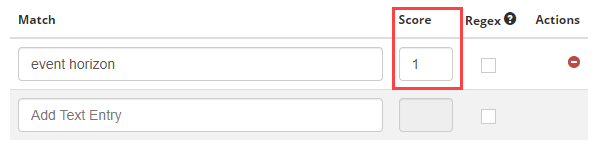
A Score column allows item authors to set a score for each Match. In this example, there is only one match. However, if the item author adds multiple possible responses, they can assign different scores to each one. This means that the response closest to the correct answer can receive a higher score.
Semi-automatic
If the test-taker enters a response that matches the configured responses exactly, the system will mark it. If the test-taker enters a response that doesn’t match the configured responses exactly, the system will send the response to a human marker for marking.