Create a graphic associate interaction item
Navigate to Author > Items.
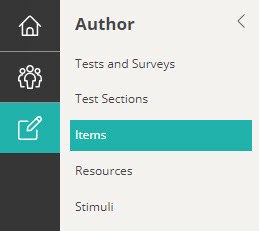
Select Add Test Item from the Actions drop-down.
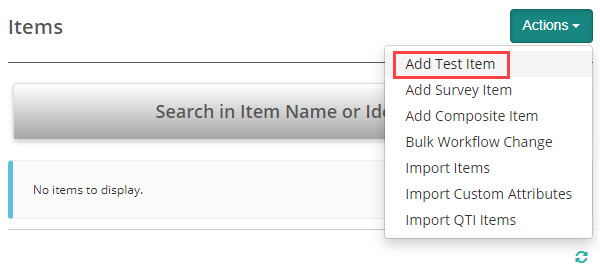
The New Test Item screen displays.
Complete the form as required. Below is an example of an new item we created.
Select Graphic Associate Interaction as the item Type and enter the Item stem.
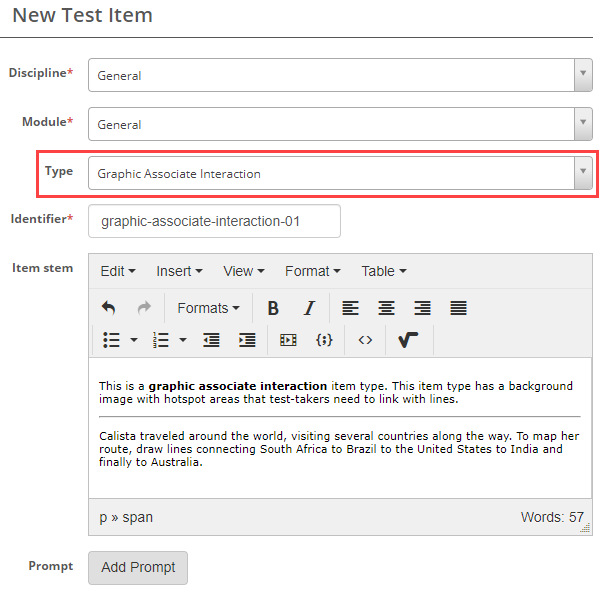
Set the Scoring Type – The options are Correct/Incorrect and Per distractor. See the topic on Setting scores and marking below to learn more about this.
You now have an option to add an Image. Select the image icon.
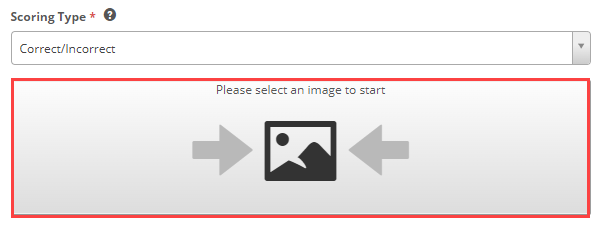
The resources manager displays. You can either select an existing image or upload a new image.

Once the image has uploaded you have an option to upload a new image or to edit the image using the image icon at the top right  .
.
Add hotspots to the image
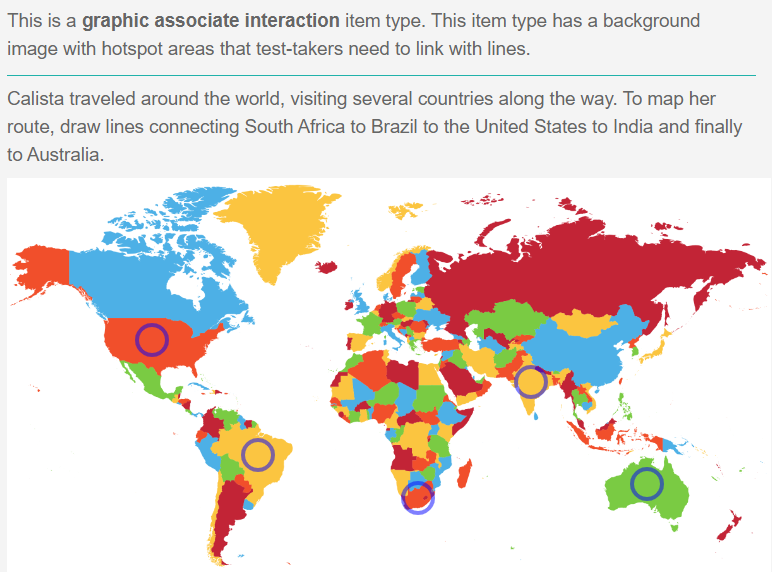
Select one of the shape tools to create the hotspots. In this example we’re going to use the circle.
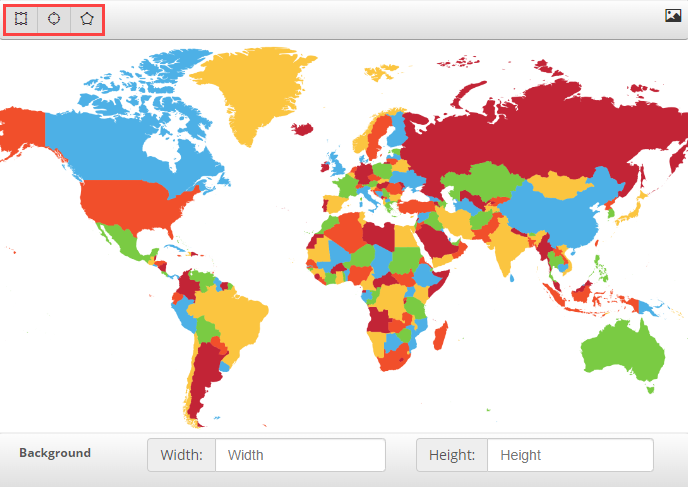
Using the shape tool, draw shapes around the areas that are to be hotspots by clicking and then dragging to the required size. Once you have placed the shape, you can make adjustments using the fields below. Increasing the Width will increase the size of the shape.
You can move the shape by clicking on it and then dragging. The coordinates in the Top and Left fields will reflect the moves.
In the example below, we have used the circle tool and we have clicked into the hotspot in South Africa.
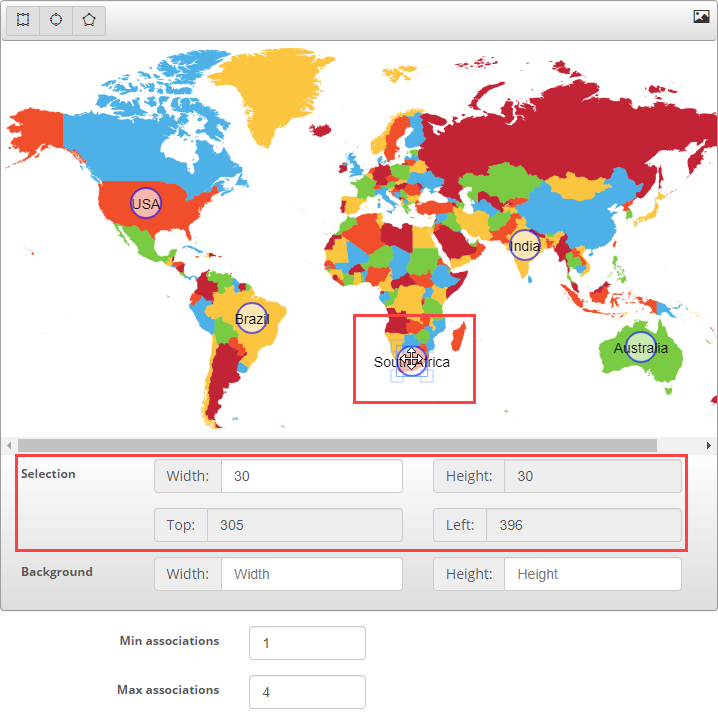
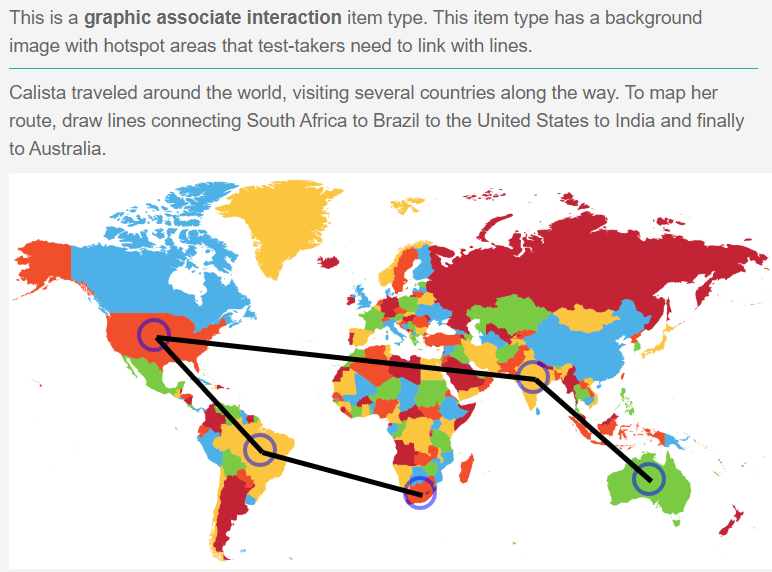
The Max associations must be higher than the Min associations. The value entered into the max associations field will limit the number of lines the test-taker can draw. In this example we have set the max associations to 4, so the test taker can only draw a total of 4 lines. You could set this value higher which would take away a cue which could be useful in certain scenarios to increase the difficulty of the item.
Source
Complete the information in the Source area to identify the matches for each hotspot.
Enter a meaningful name into the Text column. The content of the text column is not visible to test-takers.
See below the screen capture for details about the Match Min and Match Max columns.
Select the correct responses (the option the test-taker should add the line to) in the Correct column.
To remove any hotspots, select the –  icon.
icon.
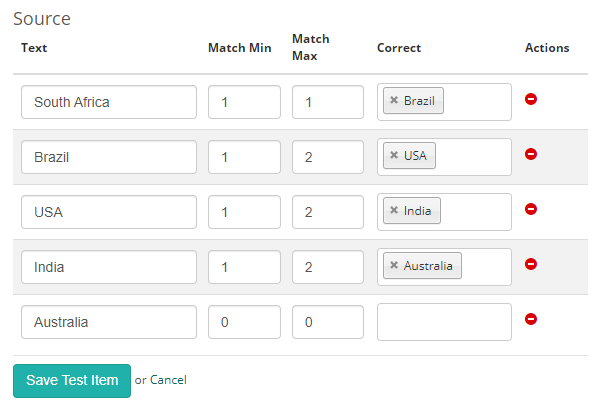
Match Min – The match min must be lower than the match max.
Match Max – if you set match max to ‘1’, the test-taker can only add a single line to or from the item in the Text column. In the example above, we have set the match max for South Africa to 1. The test-taker will only have the option to add a single line, either to Australia or to Brasil. We have then set the match max for Brazil to 2 so that the test-taker will have the option to draw lines to or from USA and to or from South Africa.
To understand this in practice, please view the first item in the practice test.
Setting scores and marking
Graphic associate interaction item types are system marked.
Scoring type
There are two scoring types available, correct/incorrect and per distractor.

Correct/Incorrect
With this scoring type, the test-taker must select all correct responses to get the item correct.
Per distractor
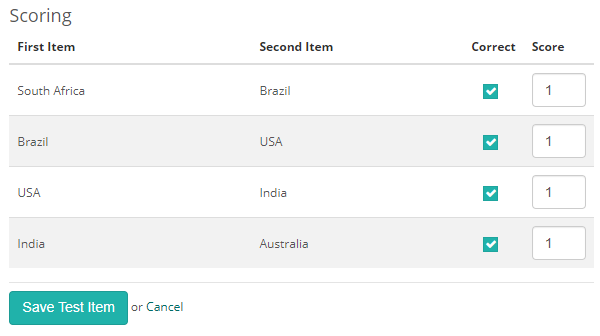
With this scoring type, additional scoring options will become available to the item author, allowing them to add a score for each response.
Min Score – Setting a value in this field will determine the minimum score that the system can assign to the item.
Max Score – Setting a value in this field will determine the maximum score that the system can assign to the item.
Default Value – The system will use this value if a row doesn’t have a value in the Score column.
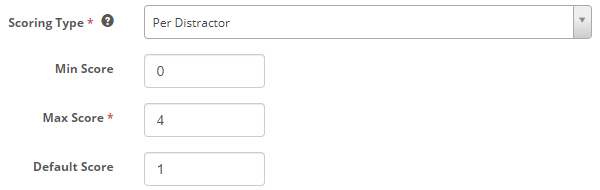
A scoring section becomes available below where item authors can set a score per distractor.