
Create a multiple-choice item
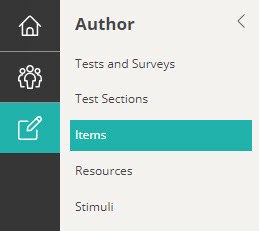
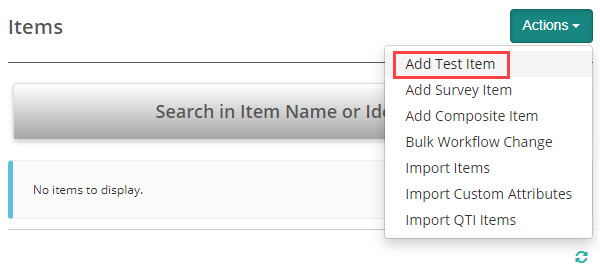
Navigate to Author > Items.
Select Add Test Item from the Actions drop-down.
The New Test Item screen displays.
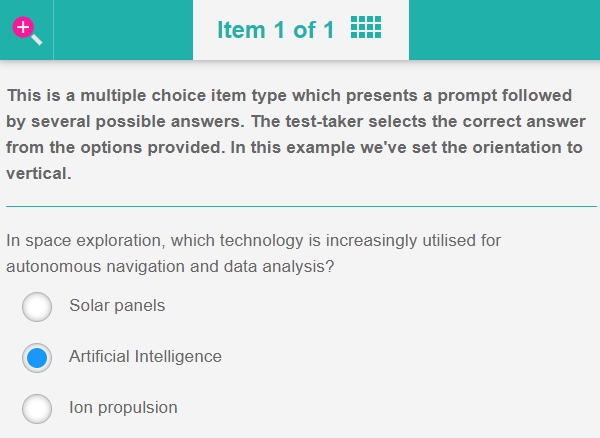
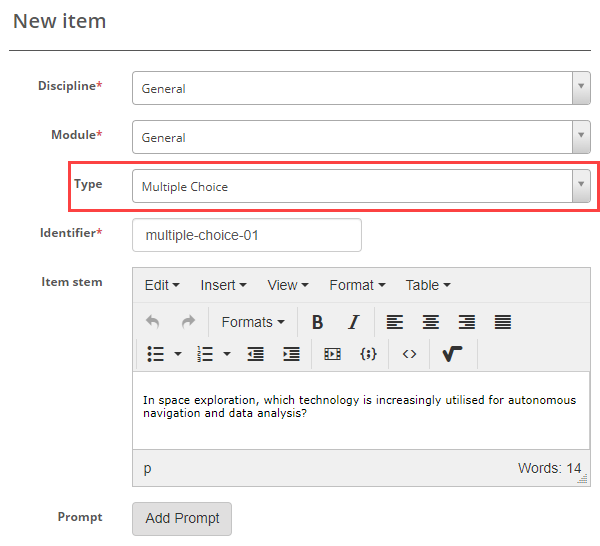
Complete the form as required. Below is an example of an new item we created.
Select Gap Match Interaction as the item type and enter the Item stem.
In the next section we can set the orientation and scoring type.
Orientation – The options are Horizontal and Vertical. This will determine if the distractors display to the test-taker horizontally or vertically. We have added examples of both these options in the sample test.
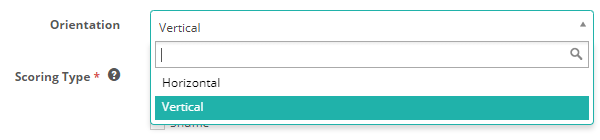
If you select the horizontal orientation, an additional field displays where you can select the Options Per Line. This determines how many columns display to the test-taker. We’ve provided two examples of options per line in the example test at the top of the page.

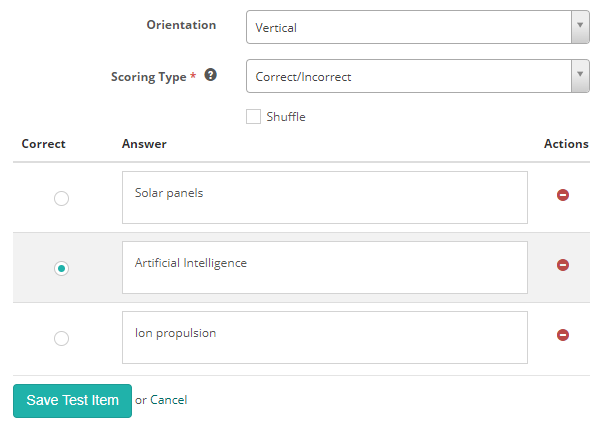
Scoring Type – The options are Correct/Incorrect and Per distractor. See the Setting scores and marking below to learn more about this.
Check Shuffle if you want the options displayed to test-takers in different orders.
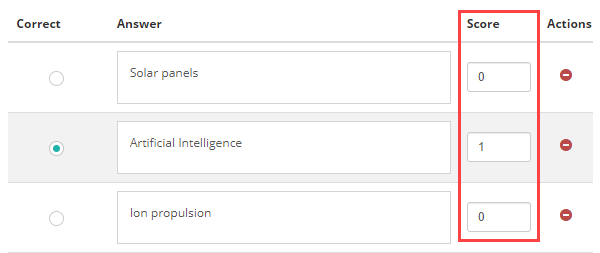
Enter the Answers and select the Correct option.
The final step is to Save Test Item.
Setting scores and marking
Gap match interaction item types are system marked.
Scoring type
There are two scoring types available, Correct/Incorrect and Per distractor.

Correct/Incorrect
With this scoring type, the test-taker must select all correct responses to get the item correct.
Per distractor
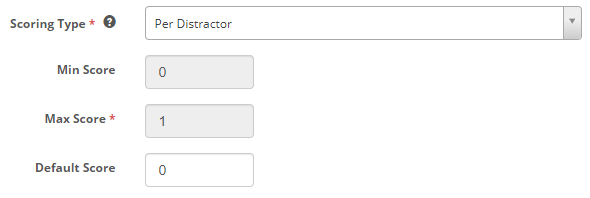
With this scoring type, additional scoring options will become available to the item author, allowing them to add a score for each response.
Min Score – Setting a value in this field will determine the minimum score that the system can assign to the item.
Max Score – Setting a value in this field will determine the maximum score that the system can assign to the item.
Default Value – The system will use this value if a row doesn’t have a value in the Score column.
A scoring section becomes available below where item authors can set a score per distractor.