Configuring OAuth Authentication in Janison Academy
This guide explains how to configure Janison Academy Authentication to allow logon using an OAuth provider Microsoft Entra ID (Azure AD).
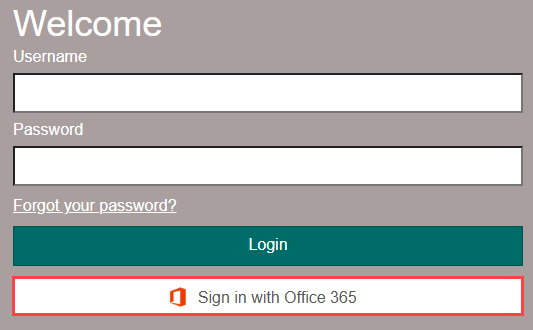
Once configured, this is how the button will appear on the Academy login page.
We’ll first show you how to configure the OAuth provider, then set up Academy to connect with it.
Configuring OAuth Provider – Microsoft Entra ID (Azure AD)
Before configuring OAuth in your Academy tenant, you must create an application in Microsoft Entra ID that represents your Academy site.
Step 1: Register an application
- Log in to the Azure Portal with an administrative account.
- Search for Microsoft Entra ID and select it.
- Go to App Registrations.
- Select New registration.
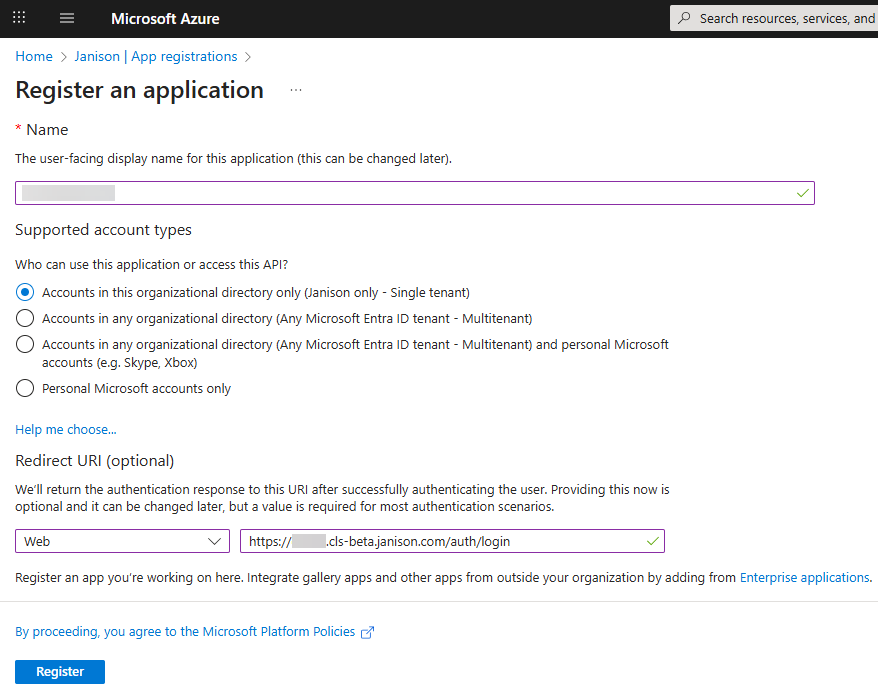
- Enter a Name (e.g., Janison Academy Integration).
- Under Redirect URI, choose Web.
- Enter your Academy URL followed by /auth/login.
- Example: https://mytenant.cls.janisoncloud.com/auth/login
- Always use https://.
- Select Register.
Step 2: Branding & Properties
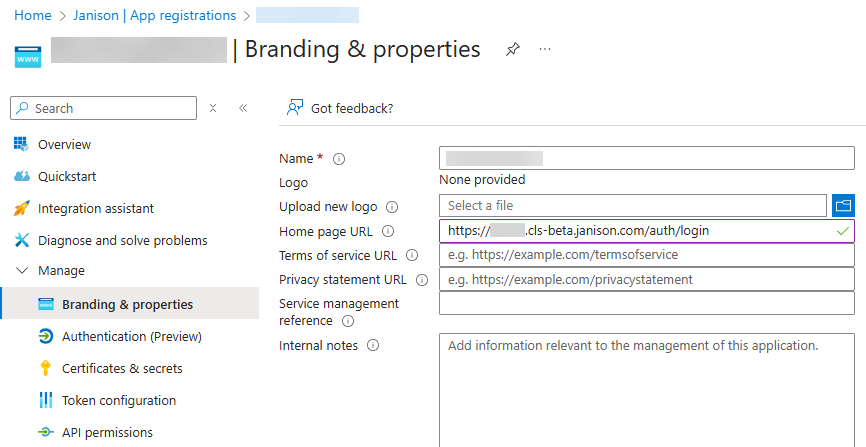
- Go to Branding & Properties.
- Set the Home page URL to your Academy site URL (include /auth/login). Select Save.
Step 3: Authentication (Preview)
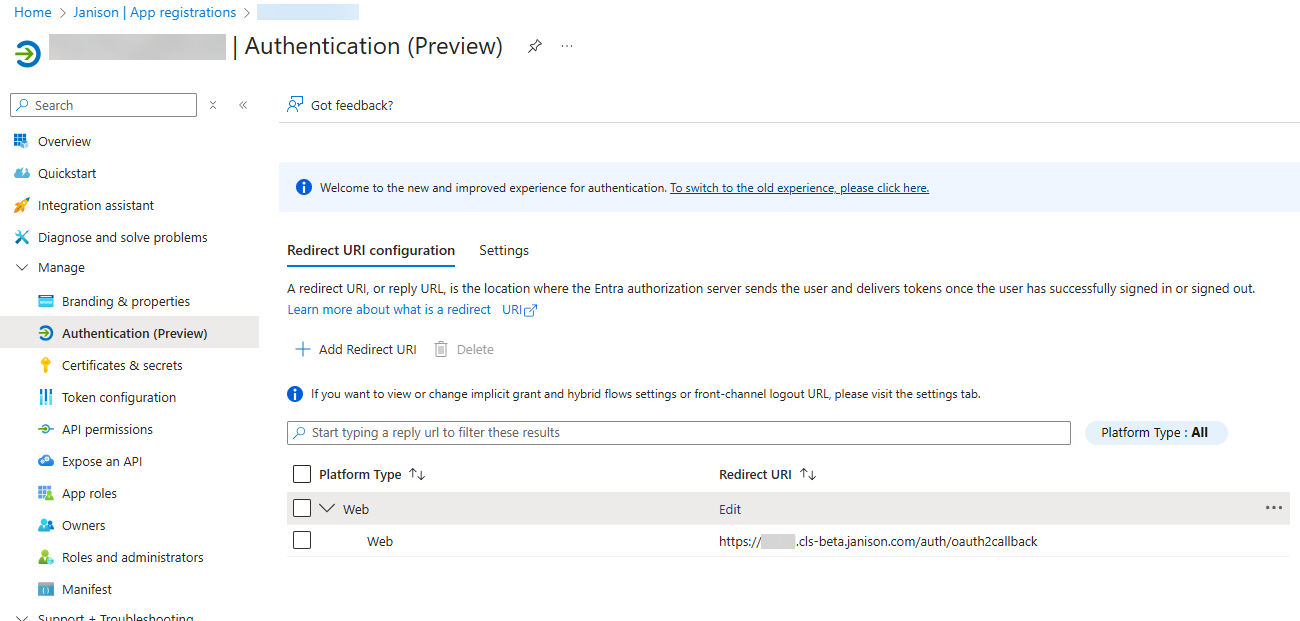
- Go to Authentication (Preview).
- Select Edit in the Redirect URI column.
- Update the URL: replace /auth/login with /auth/oauth2callback.
Example: https://mytenant.cls.janisoncloud.com/auth/oauth2callback
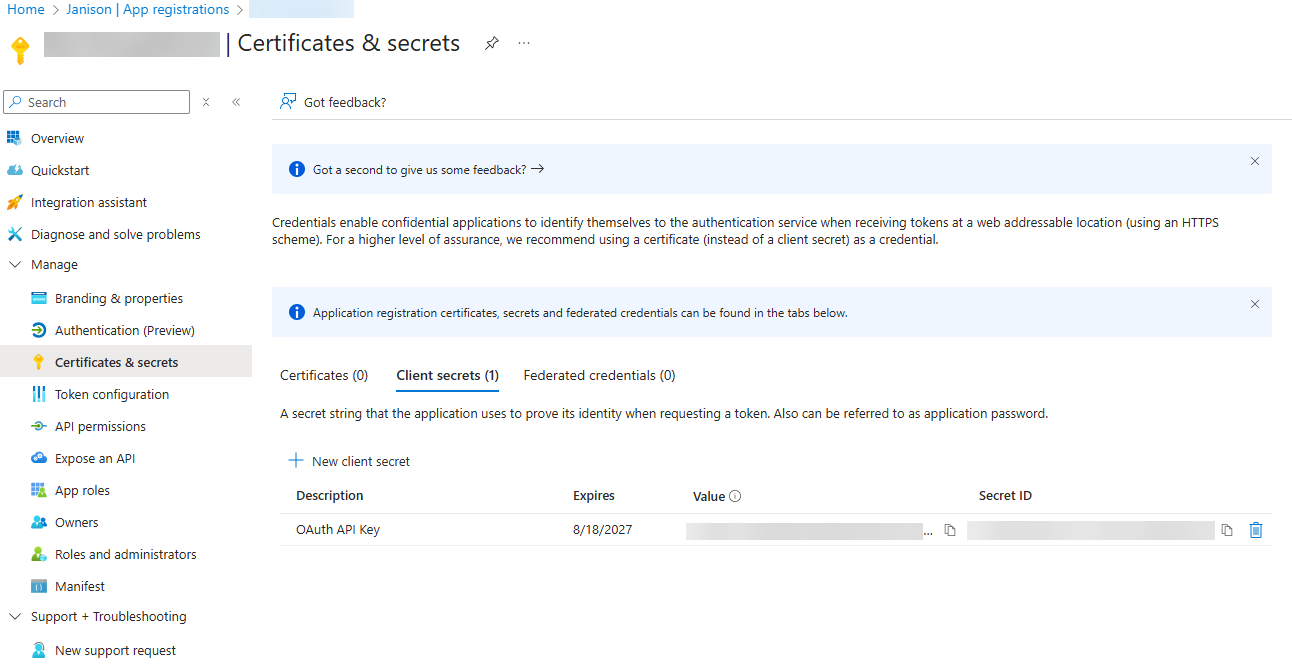
Step 4: Certificates & Secrets
- Go to Certificates & Secrets.
- Select New client secret.
- Enter a description (e.g., OAuth API Key).
- Set expiry to 24 months.
- Select Add.
- Copy the Value of the client secret (API key). Keep it safe—you will need it when configuring Academy.
Step 5: API Permissions
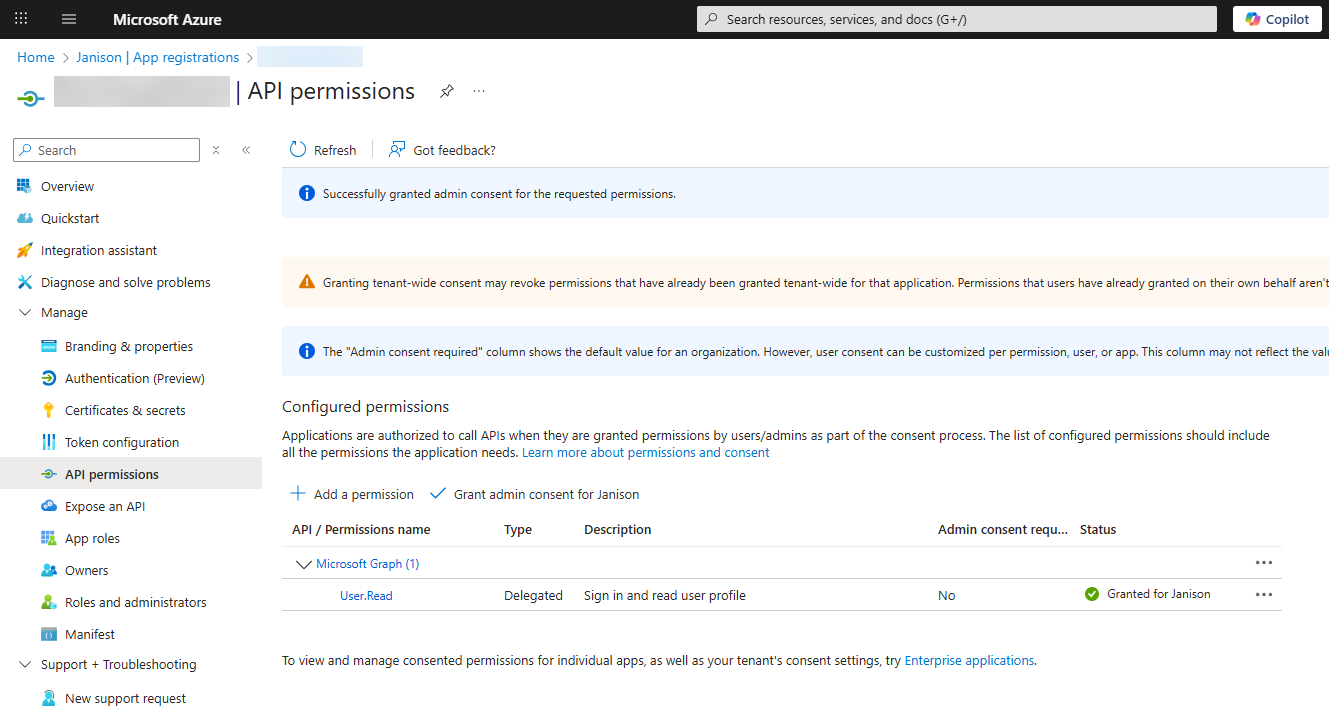
- Go to API Permissions.
- Confirm Microsoft Graph > User.Read is listed.
- If not, add it.
- Select Grant admin consent for [tenant], then confirm.
Step 6: Expose an API
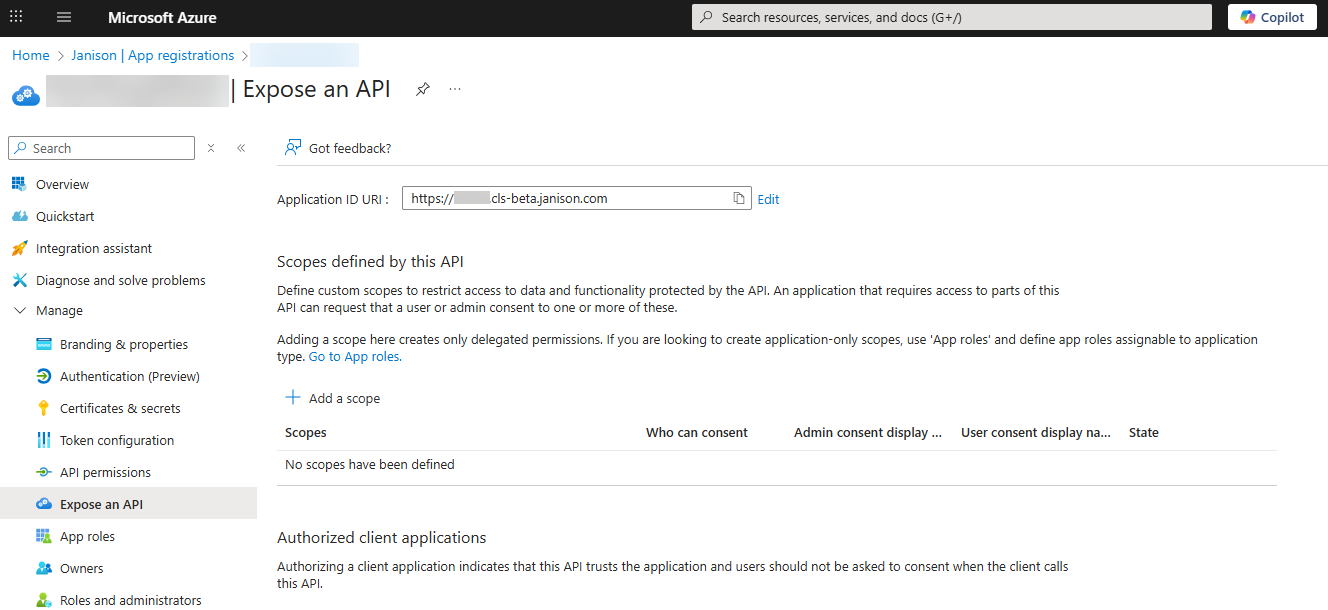
- Go to Expose an API.
- Select Add next to Application ID URI.
- Enter your Academy URL. Example: https://mytenant.cls.janisoncloud.com
Step 7: App registrations
- Record the following details:
- API Key – from the client secret you created.
- Application (client) ID – from the Overview page.
- App ID URI – e.g., https://mytenant.cls.janisoncloud.com.
- Reply URL – e.g., https://mytenant.cls.janisoncloud.com/auth/oauth2callback.
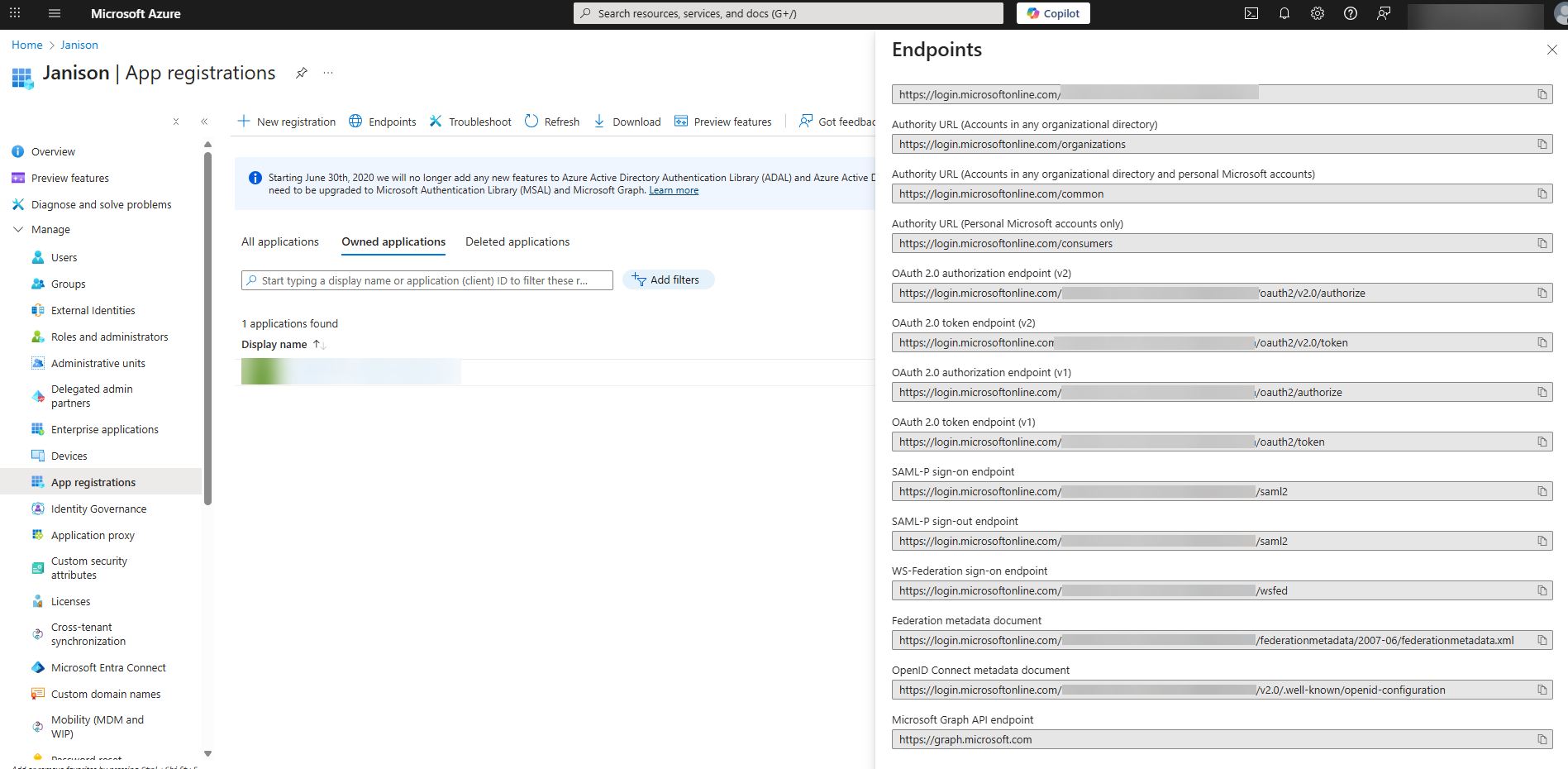
- In App Registrations, select Endpoints.
- Record the following:
- Microsoft Graph API endpoint
- OAuth 2.0 token endpoint (v1)
- OAuth 2.0 authorization endpoint (v1)
Enable Azure AD Login in Academy
These settings are only available to users with admin permissions.
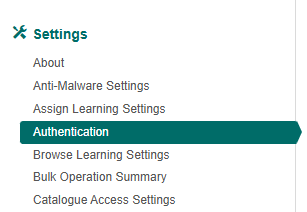
Go to Settings > Authentication.
Select Microsoft Azure OAuth 2.0 from the Model dropdown.
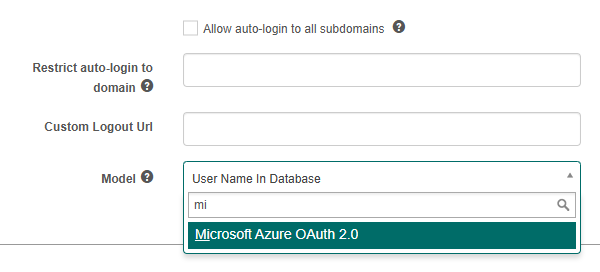
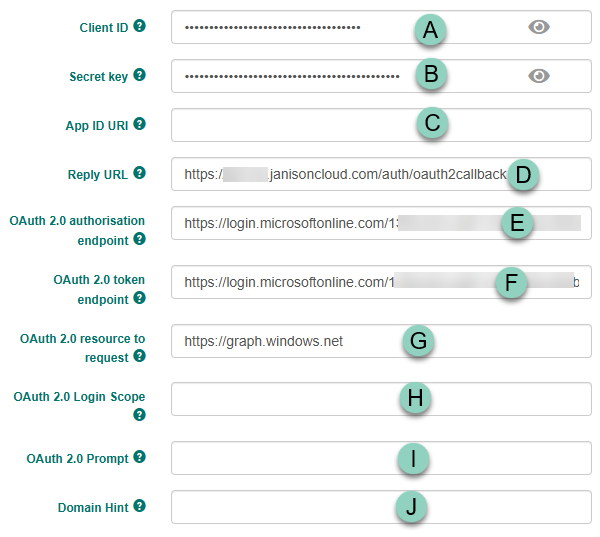
The screen will update with further fields to be created (see screen capture below).
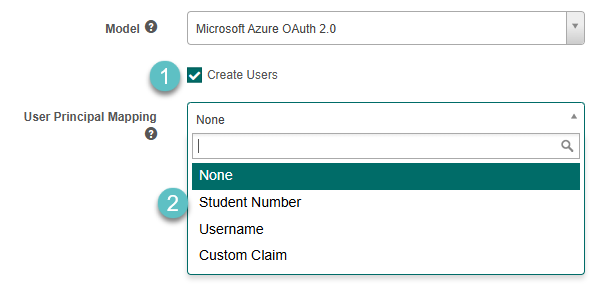
- Optionally select Create Users. The Academy will create users in its database in the Default Organisation.
- Select a User Principal Mapping option.
Academy always attempts to match user accounts using the ImmutableId first. If no match is found, it will fall back to using the UserPrincipalName provided by the OAuth identity provider (e.g., Microsoft Azure Active Directory).
The UserPrincipalName can be mapped to Student Number or Username.
If no mapping is configured, the UsePrincipalName is ignored, and Academy will attempt to match the user account based on the Email field instead.
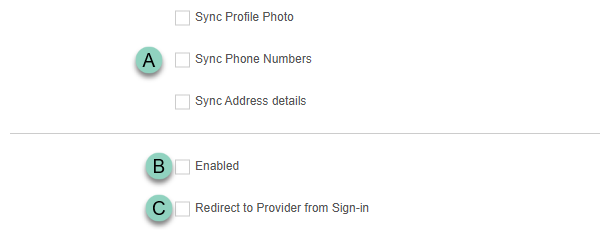
The following settings are optional and allow you to customise how Azure Active Directory integration behaves during user authentication and creation.
A. Enable optional data sync settings
You can choose to import additional user information from Azure Active Directory during user creation. This includes:
- Profile Photo – syncs the user’s photo from Azure AD.
- Phone Numbers – imports the user’s phone contact details.
- Address Details – imports the user’s physical address information.
Simply enable the relevant options as needed.
B. Select Enabled to enable Azure AD Authentication.
C. If you require the user to be automatically redirected to the provider, rather than selecting the login button, then select Redirect to Provider from Sign-in.
Complete only the following fields that apply to your environment. Several of them correspond to values you configured in the Azure portal; if a field isn’t relevant, simply leave it blank.
- Enter the Client ID as configured in Azure Portal.
- Enter the Secret key as configured in Azure Portal.
- Enter the App ID URI as configured in Azure Portal.
- Enter the Reply URL from the Azure AD Portal.
- Enter the URL for the OAuth 2.0 authorisation endpoint, as configured in Azure Portal ‘View Endpoints’. Looks like https://login.microsoftonline.com/
- Enter the URL for the OAuth 2.0 token endpoint, OAuth 2.0 token endpoint as configured in Azure Portal ‘View Endpoints’. Looks like https://login.microsoftonline.com/
- Enter https://graph.windows.net for OAuth 2.0 resource to request.
- OAuth 2.0 Login Scope. If required, strings can be entered to enable access to particular resources, such as user data.
- OAuth 2.0 Prompt. If required, this can be used to provide prompts to the user.
- Enter a Domain hint In order to bypass Home Realm Discovery, set a value for the Domain Hint. Users will be taken directly to the login screen for the specified domain. If this is left blank, users may be taken to the Home Realm Discovery screen to select which domain account they wish to use before being redirected to the domain’s login screen. e.g. mycompany.com.au.
Microsoft Azure OAuth is now enabled.
The login screen will now include an option to Sign in with Office 365.