String Resources
String resources is a powerful tool which allows administrators to customise the text displayed throughout the platform. Whether you need to tailor messages to fit your brand’s voice, accommodate different languages, or provide clearer instructions to users, String Resources gives you the flexibility to make it happen.
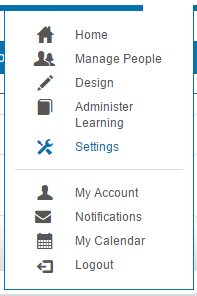
Navigate to Settings > String Resources to access this feature.
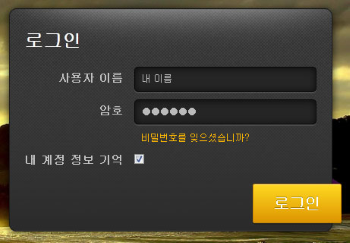
In the example below, we utilised this feature to change the language of the login screen.
There are five different things you can do with String Resources:
- Change particular labels and text.
You can change the actual terms used by the CLS so that they match those used in your organisation. You can also customise various instructions, warnings and messages. Such changes can make the application much more intuitive for your users.
- Translate all labels and text.
Entirely different languages can be used for all the labels and text, that is, for all the String Resources in the CLS. Such changes mean that the CLS can be presented in completely different languages, depending on the language that has been set for a particular User’s Browser.
- Inject a custom page into My Learning Dashboard.
You can develop a Custom Page and use it to customise the My Learning Dashboard. This is only available if the Smart Dashboard plugin is active.
- Customise the links in the footer of screens.
You can customise these links to create links to Custom Pages or to external sites.
- Hide Text
If Text is not part of the menu it can be hidden if required.
The CLS has a default set of terminology, for example the primary categories are:
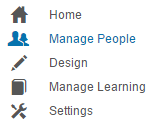
Using String Resources you can change terms such as these and instead employ the language of your organisation, thus:
- Manage People could read Staff Admin.
You could also change the name of other constructs, thus:
- A Group could become a Cohort.
You can also change messages, thus:
- the error message Circular dependency caused as {0} already exists in the parent-child hierarchy of this Competency Set could be translated into terms that your organisation is more familiar with.
The Janison CLS took a best-practice approach to managing string resources meaning that different instances of the same resource can actually be translated differently.
Edit string resources
To edit the default String Resource navigate to Settings > String Resources.

Important note about language settings
The CLS checks the User’s browser language setting to determine the String Resources delivered to the User. Make sure that browsers are set to the correct language e.g.to en-AU. How you change a browser’s language setting will differ from browser to browser.
When you change String Resources, the CLS takes note of its own language settings and links the updated String Resources only to that language. Languages are set in the CLS via Settings > Languages:

Note that there is a difference between, say, English and English (Australian). Thus, if your user base potentially contains different English Cultures (e.g. English (Ireland) and English (Caribbean)) and you want your changes to target all English cultures, you must set the CLS to the parent category, English, before making changes to the String Resources:

Inspect
After selecting Settings >String Resources you will see a list of all possible String Resources that can be changed.
- Click Search to search for a particular String Resource. You can narrow the search to a particular Plugin, such as Janison.CompetencyManagement and/or language, in Australia, en-AU.
- The list can be sorted according to the four headings:
- The Type of String Resource
- The Key or CLS internal name of the String Resource
- The Value, that is, the new value of the String Resource. This is the only field that you can change and it is blank if you have not made changes.
- The Default Value of the String Resource.
- The icons here allow you to edit the String Resource.

Edit a String Resource
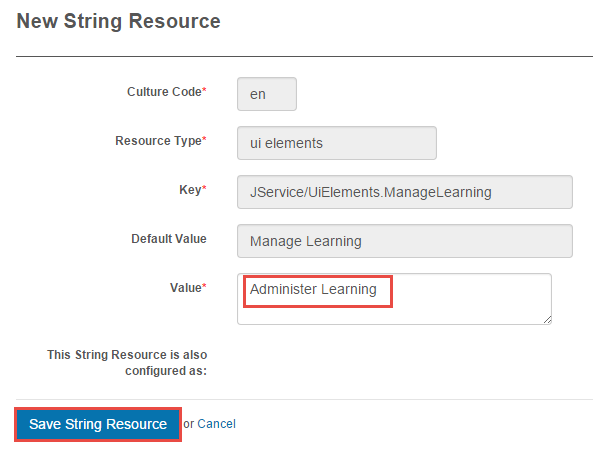
As an example, we want the word Manage to be changed to Administer. The first step is to find all the instances of the term. In this example we will change one of them.
- Select Settings >String Resources and look for the Default Value you wish to alter.

- To change this instance click the pencil icon to edit it.
- Type Administer Learning into Value.
- Click Save String Resource.
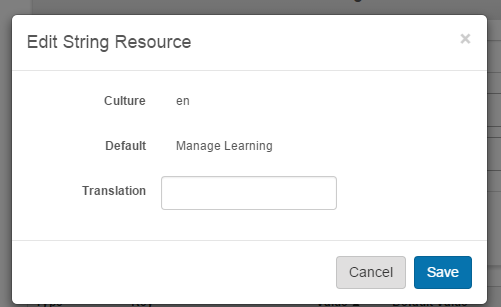
Note that you could also click the lightning bolt to make the same change in the Quick edit screen:
- The change will appear on the String Resource list under Value.

- A reset button has also been generated. You can click the cross icon to return the Resource to its default value if desired.
- We can now see that Manage Learning has been changed to Administer Learning:
Customise Links
Four links are placed by default on the bottom of each page:

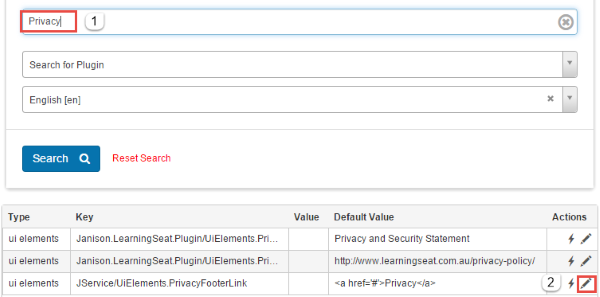
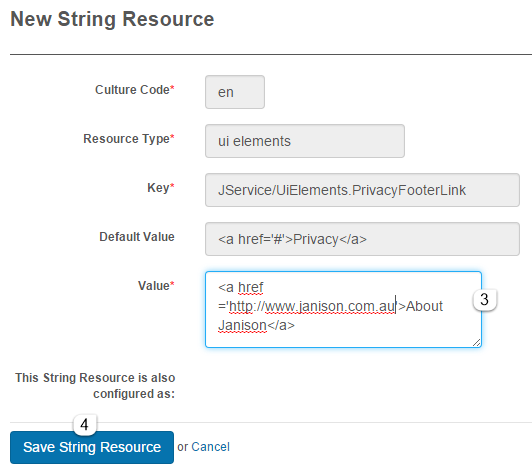
These can be customised using String Resources. As an example, to change the Privacy link to a link to the Janison website, select Settings > String Resources.
- Search for Privacy
- Click the pencil icon for the ui element PrivacyFooterLink.
- Enter the HTML code that specifies the new link to the Janison web site
- Click Save String Resource
The footer has now been updated. Clicking About Janison will take Users to the Janison web site

Link a Custom Page to My Learning Smart Dashboard
The My Learning Dashboard is the page where learners access their catalogue enrolments. It is possible to add a custom page to the top of this dashboard.
To add the page to the Dashboard you need to locate and update a String Resource with a key called JService/UiElements.DashboardIntro. A more detailed guide is available in the document on Custom Page Modules.
Below is an example of the My Learning page with a custom page linked.

Hide Text
By inserting non-breaking space ( ) into the Value field the text will be hidden.
Note: Text existing in the menus would be hidden using a custom menu in Settings > Menu
