Extended text
An extended text item asks test-takers to write a response in their own words, from a few sentences to a full essay. A marker scores each response against the marking guidance you set.
Note
Extended text items are sometimes called short answer, short text, extended response or essay items.
You can add images, sound and video to the item stem. Options on the item set the size of the text box, a word limit, the text editor test-takers use and whether they can copy and paste.
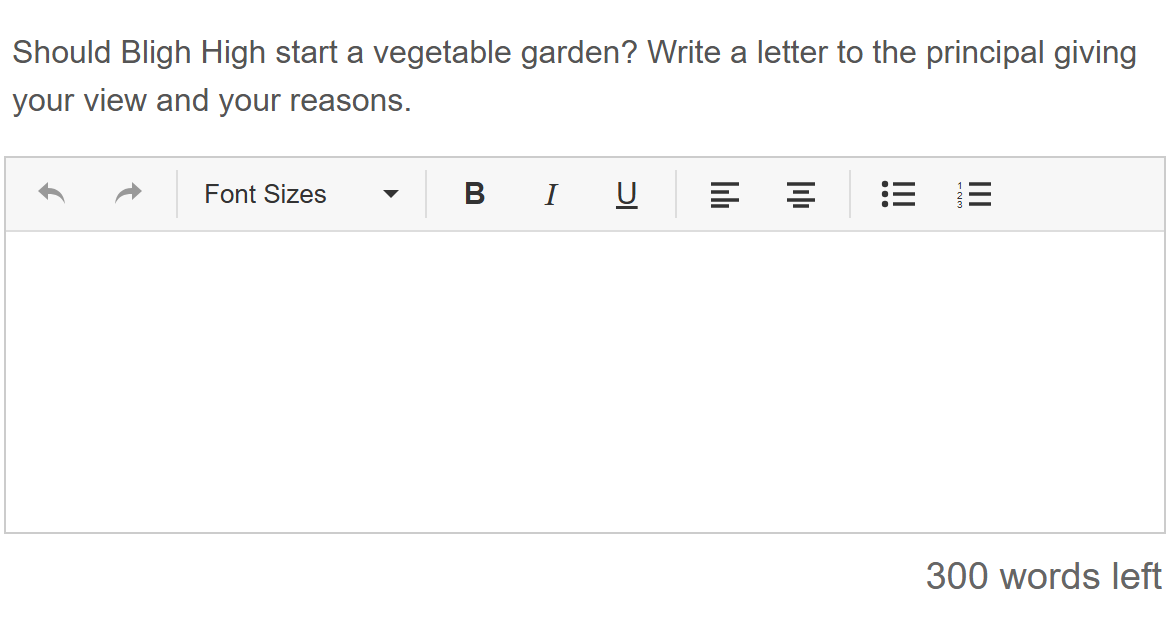
The example below shows an extended text item in the test player, with a word limit and the word count showing.
Practice test
Open this test in the Janison test player and complete some examples of extended text items using various settings.
Info
The test player uses the fonts Helvetica Neue, Helvetica, Arial and sans-serif, in that order. Helvetica Neue and Helvetica are usually only on Apple devices, so most other devices show Arial.
Create an extended text item
Go to Author > Items and select Add Test Item from the Actions dropdown.
The New Test Item screen opens. Select Extended Text as the Type, complete the other fields and enter the Item stem.
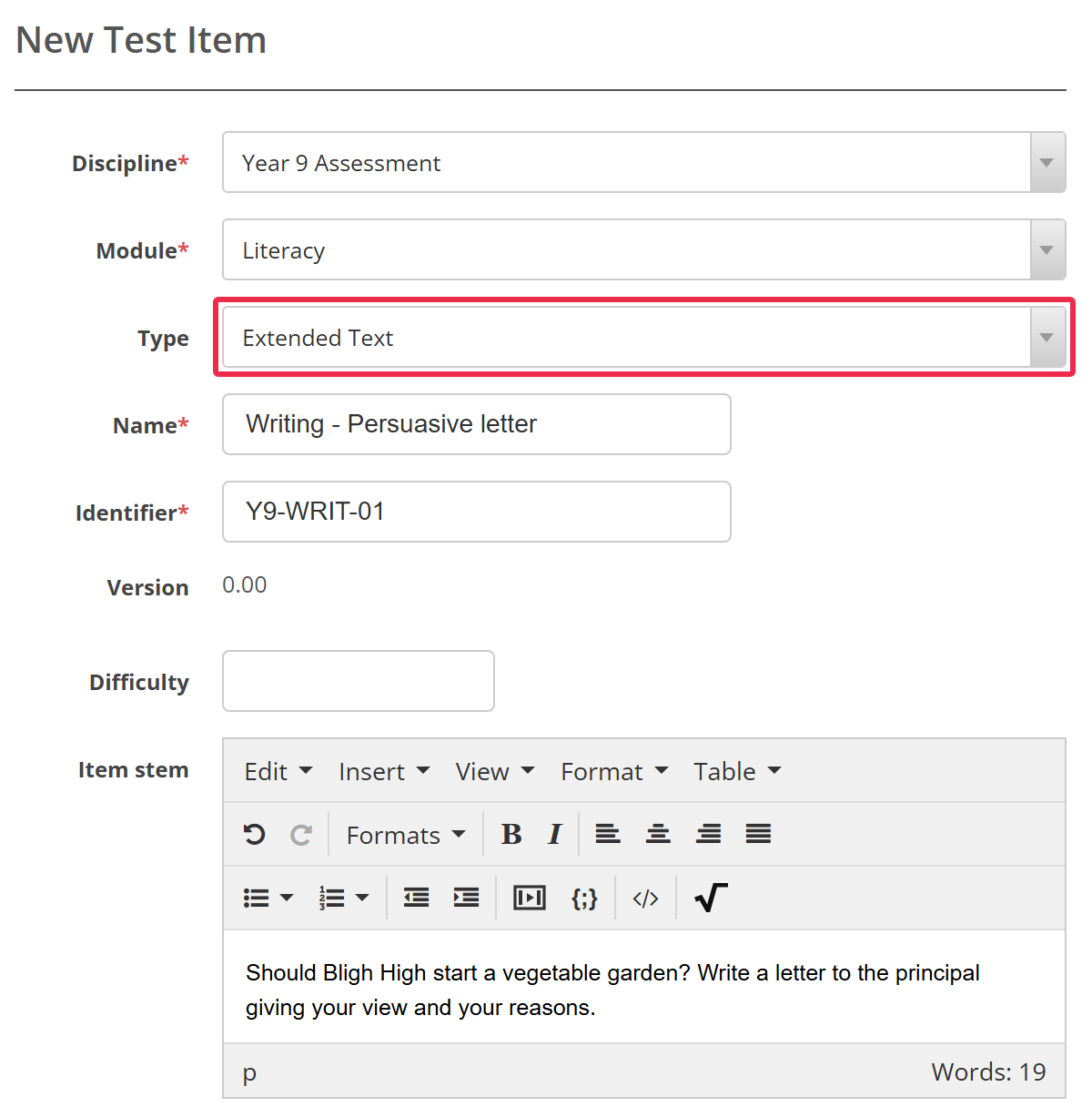
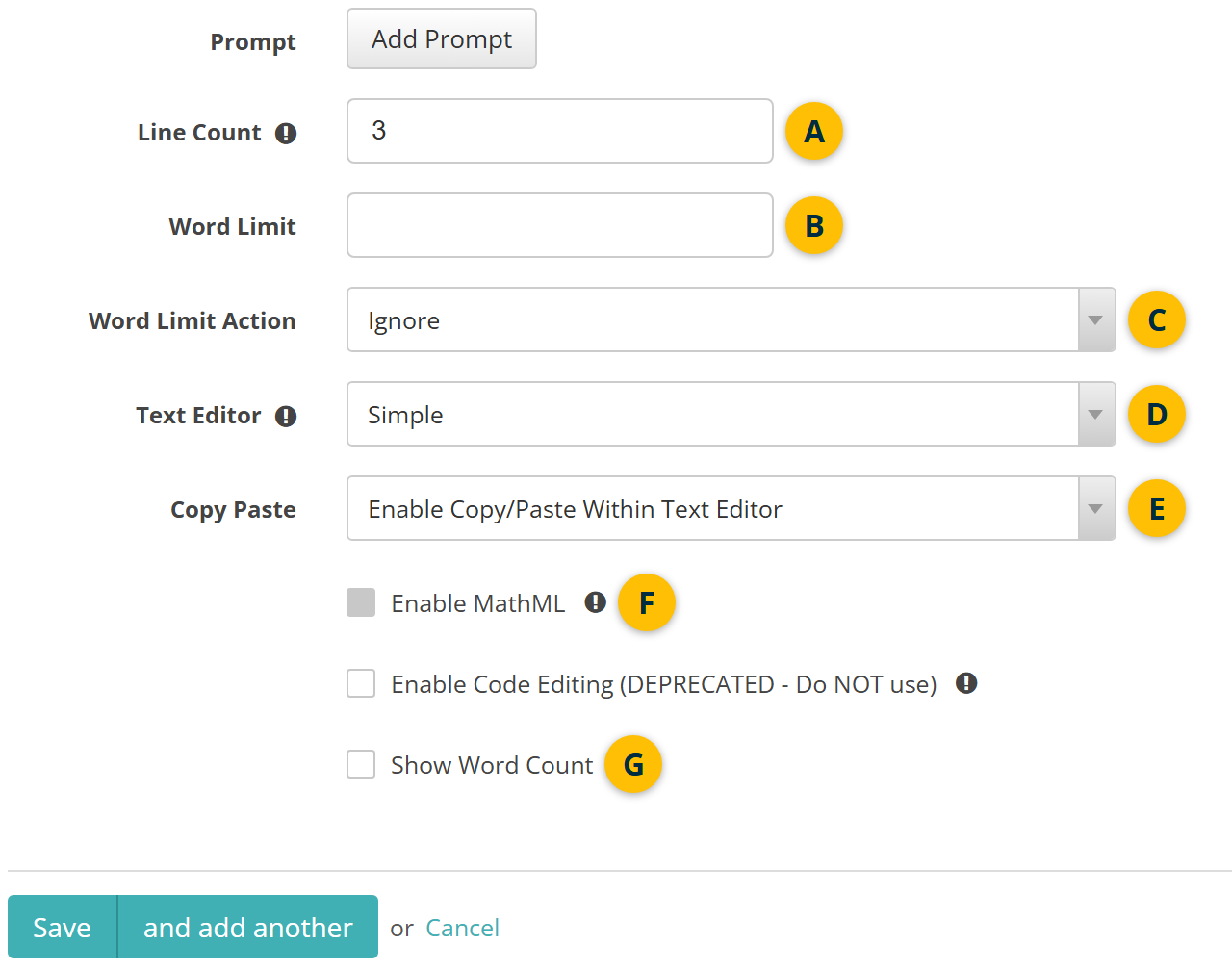
Then set the options for the test-taker's response, labelled A to G on the capture below. The practice test uses several of them, so you can see how they look to test-takers.
- Line Count sets the height of the text box, from 1 to 100 lines. It's optional. If the test is printed for paper delivery, it also sets the number of answer lines.
- Word Limit sets the most words test-takers should write. Fill it in unless Word Limit Action is Ignore.
- Word Limit Action sets what happens at the word limit:
- Ignore sets no limit.
- Advise shows test-takers a message when they reach the limit, but lets them keep writing.
- Restrict shows the same message and stops test-takers writing past the limit. If a paste takes the response over the limit, the paste is undone.
- Text Editor sets the kind of text box test-takers write in:
- Simple is a plain text box.
- Simple Rich Text Editor adds undo and redo buttons.
- Detailed Rich Text Editor also has font sizes, bold, italic and underline, alignment, and bulleted and numbered lists.
- Copy Paste sets whether test-takers can copy and paste. The options are described under Copy and paste options.
- Enable MathML adds a maths equation editor to the test-taker's toolbar. It's only available with a rich text editor, and only the Detailed Rich Text Editor shows the equation editor button. Choose which equation editor tabs test-takers see in each test's test player styling.
- Show Word Count shows test-takers a word count below the text box. Where Word Limit Action is Advise or Restrict, it counts down the words left.
Select Save when you're done, or and add another to save the item and start a new one.
Copy and paste options
The Copy Paste option controls whether test-takers can copy and paste in their response. It's useful when the test is delivered in a browser, to stop test-takers pasting in text from other sources.
The options are:
- Enable Copy/Paste Within Text Editor — test-takers can cut, copy and paste, but only within extended text responses in the test.
- Enable Copy/Paste - Text Only — test-takers can copy text from anywhere in the test player and paste it into extended text responses. Pasted text loses its formatting.
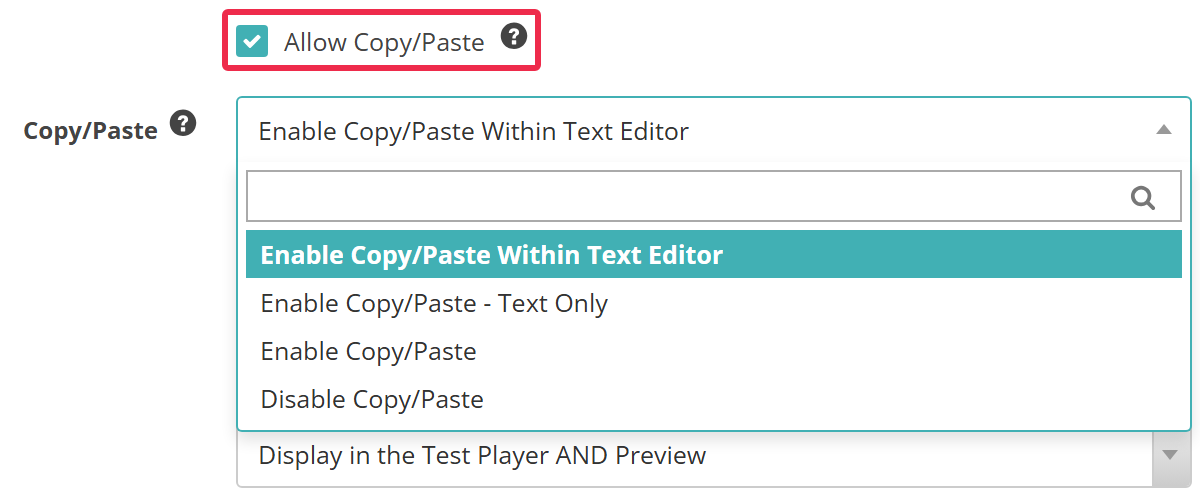
- Enable Copy/Paste — test-takers can copy from anywhere and paste into extended text responses, keeping the formatting. It's only offered when an administrator has ticked Allow Copy/Paste.
- Disable Copy/Paste — test-takers can't cut, copy or paste in extended text responses.
Test-takers can't paste images into the Detailed Rich Text Editor, whichever option you choose. Where the option allows pasting from outside the test, text and tables such as cells copied from Excel paste as normal.
A new item starts with your site's default option. Both site settings are described under Settings.
Marking and setting scores
A marker scores each extended text response. Once you save the item, open its Marking section to add a marking rubric and marking scheme components for markers. Set scores on an item shows how.
Once the item has marking scheme components, a read-only Max Score field above Line Count shows their total.
Where Janison has set up AI co-marking for your site, you can also allocate an AI marker in the item's Marking section. In a quick marked event, it suggests a score for each marking scheme component, and a marker reviews and finalises it. Extended text is the only item type an AI marker can mark. See AI co-marking.
Settings
Administrators can configure the following settings at Settings > Test Designer Settings > Item Options.
Allow Copy/Paste — adds Enable Copy/Paste to the Copy Paste options on extended text items. Its hint advises against it unless test-takers have to answer spreadsheet or table items. If you untick it later, items set to Enable Copy/Paste use the Copy/Paste default instead.
Copy/Paste — the Copy Paste option new extended text items start with. It's Enable Copy/Paste Within Text Editor unless you change it.
With Allow Copy/Paste ticked, Copy/Paste offers all four options.
Enable score descriptions for components — lets authors describe each possible score on a marking scheme component. The descriptions can be used in reporting.
Enable feedback snippets for items — adds a Marking Feedback list to the item's marking section, for markers to give test-takers feedback. The section is then headed Marking & Feedback.
Administrators can configure the following settings at Settings > Test Designer Settings > Test Player 2 Settings. Both change the Detailed Rich Text Editor.
Enable larger font sizes in Rich Text Editor — adds font sizes 18, 20, 22, 24, 26, 28, 36 and 48 pt to the usual 14 and 16 pt.
Enable Rich Text Editor Sticky Toolbar — keeps the editor's toolbar in view as the test-taker scrolls down the page.
Both can also be turned on for individual test-takers with personal needs and preferences.
The Allocate AI Marker for this item field appears in the item's marking section once Janison has set up an AI marking provider for your site.