Senior marker role
On a standard marking project, senior markers usually complete Standardisation 2, then supervise the markers in their team: checking their Standardisation 3, sampling their scores, following their blind quality monitoring and resolving double marking conflicts. This page covers each task, in the order they come up in a project.
Which of these you see depends on the project's quality controls and on your role's activities in Team Responsibilites. See Marker training and quality control and Marking teams.
Complete Standardisation 2
Standardisation 2 trains senior markers before markers complete Standardisation 3. You score a set of standardisation scripts whose scores were agreed in Standardisation 1, and Insights checks your scores against them.
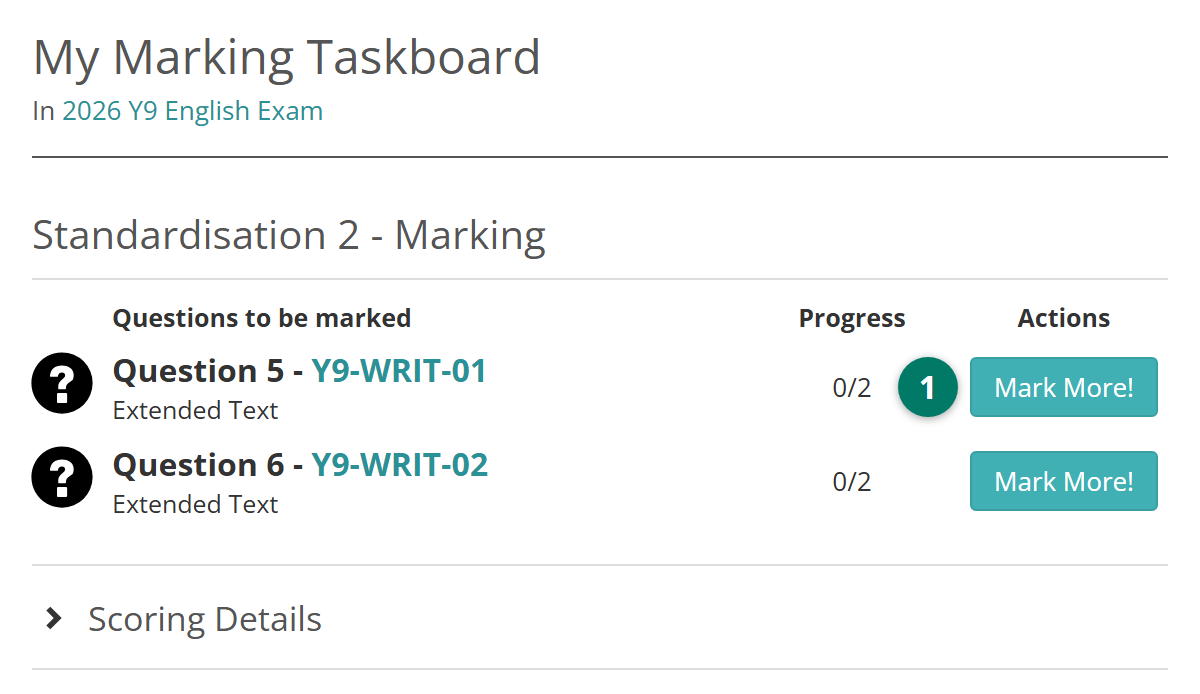
- In Standardisation 2 - Marking on My Marking Taskboard, select Mark More! beside the item.
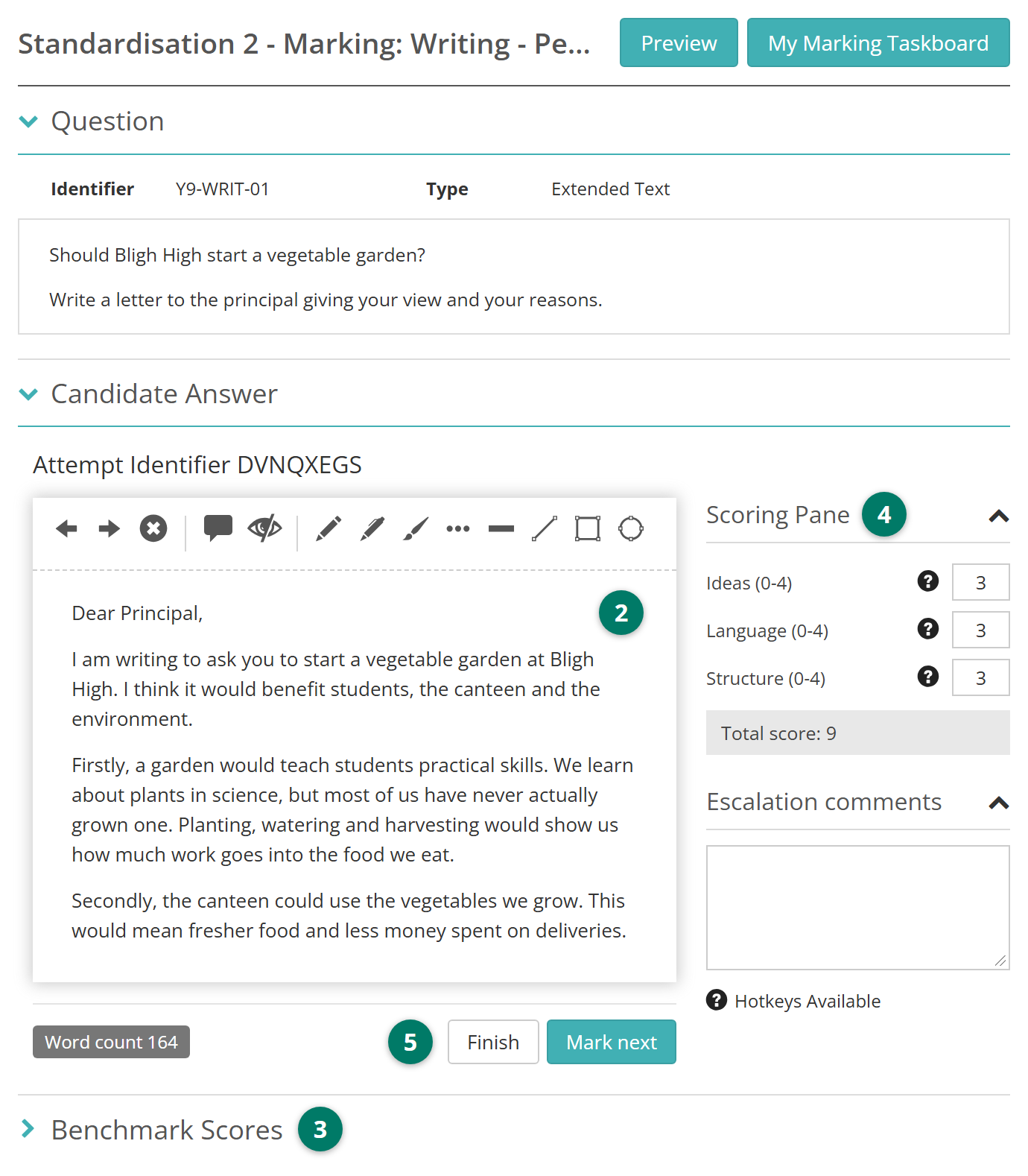
- Read the response, and annotate it if you want to.
- Open Benchmark Scores to compare it with model answers, if you want to. See Use benchmark scores.
- Enter your scores in the Scoring Pane, and a comment under Escalation comments if you want one.
- Select Mark next to move to the next script, or Finish to stop.
- Select Confirm to confirm you've finished scoring the response.
- Repeat until no scripts are left. The screen then shows "There are no remaining standardisation scripts to mark. Please contact your senior marker."
When your scores are within the project's tolerances, you pass. The screen shows "You have passed standardisation, please return your marking taskboard and begin marking.", and you move straight to marking.
When they aren't, you're suspended. The screen shows "You have been suspended as you have failed to meet standardisation requirements.", and your senior markers are emailed. A chief marker can return you to Standardisation 2 to try again.
Use benchmark scores
Benchmark scripts are model answers whose scores were agreed in Standardisation 1. They show what a response at a given score looks like.
During Standardisation 2, Benchmark Scores at the bottom of the marking screen lists them, if your role has permission to see benchmark scripts in standardisation. Choose a score in Find benchmark scripts with scores similar to: to see the benchmark scripts near it. A score is similar when it's within 10% of the item's available score, above or below.
Once live marking starts, only markers at levels 0 to 2, usually chief markers, see Benchmark Scores.
Check markers' Standardisation 3 progress
You can follow how markers do in Standardisation 3 from their marker profile, or for every marker at once from Scoring Details.
From the marker profile
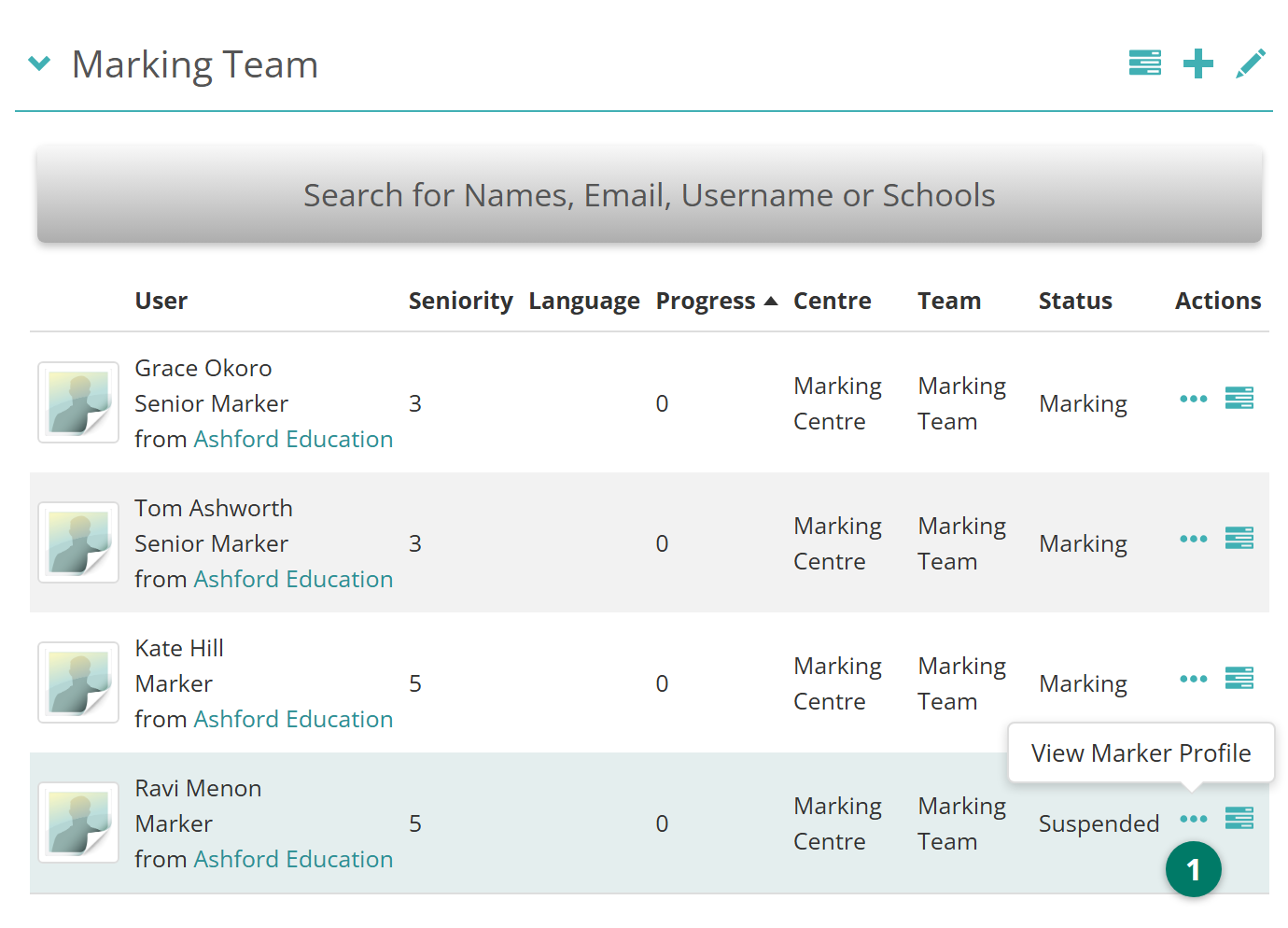
- In the project's Marking Team section, select View Marker Profile in the marker's row.
- Open Standardisation 3 Marking Progress.
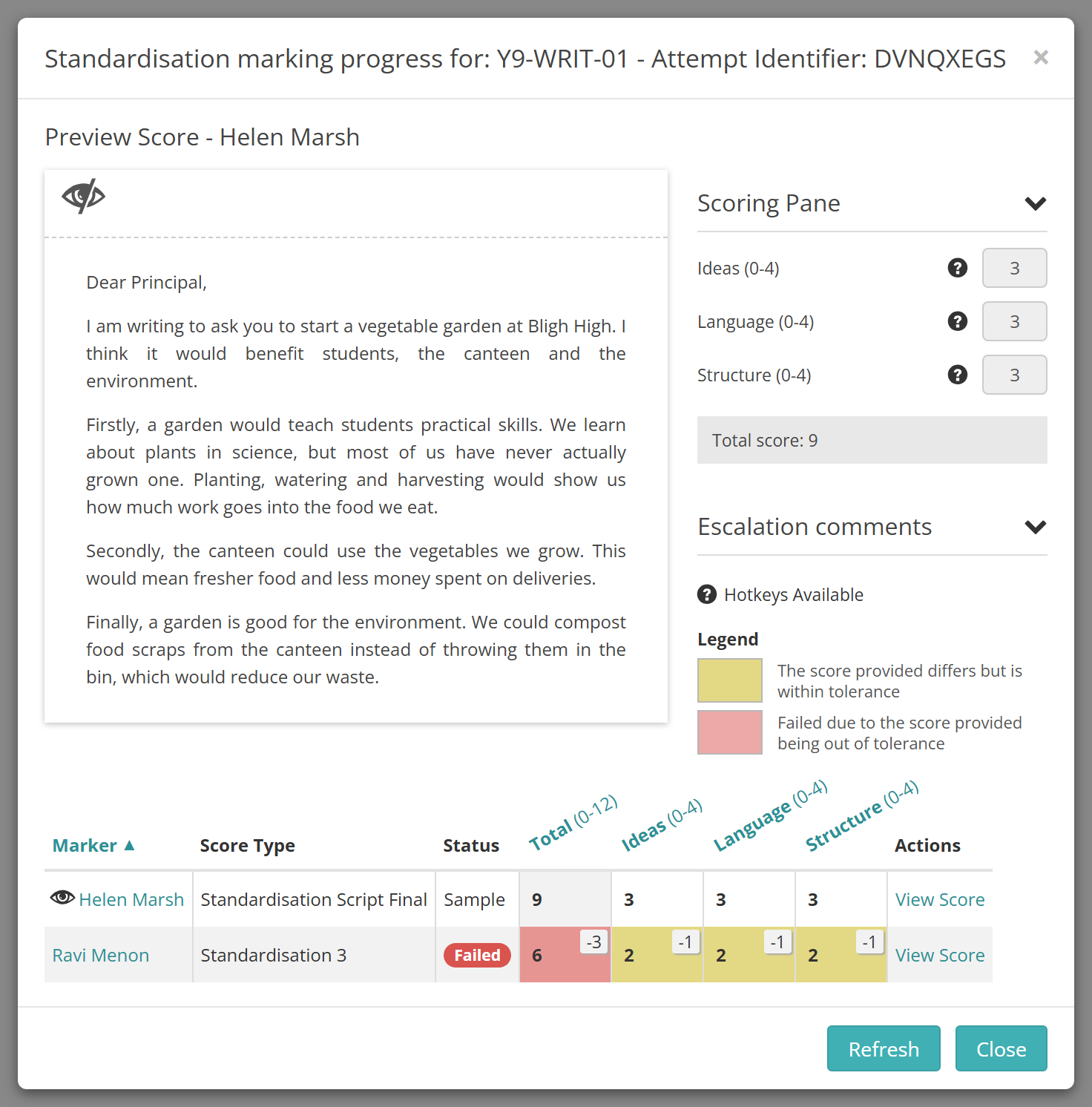
Each item shows a box for every standardisation script the marker has scored. Legend explains them: locked, available, passed within tolerance, or failed.
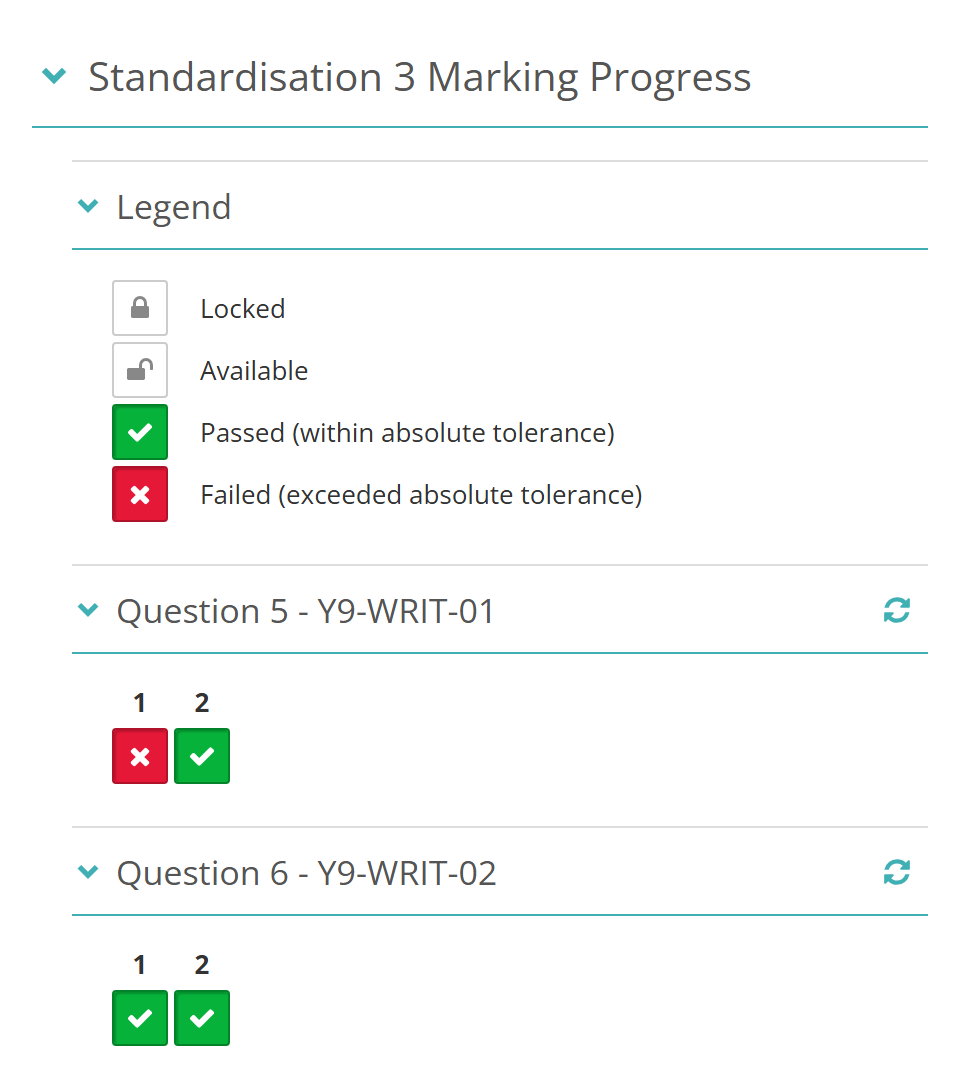
Select a passed or failed box to open the script's progress screen. It compares the marker's score with the agreed one.
From Scoring Details
- At the bottom of My Marking Taskboard, open Scoring Details and select the Standardisation tab.
- Select Review scores beside the script.
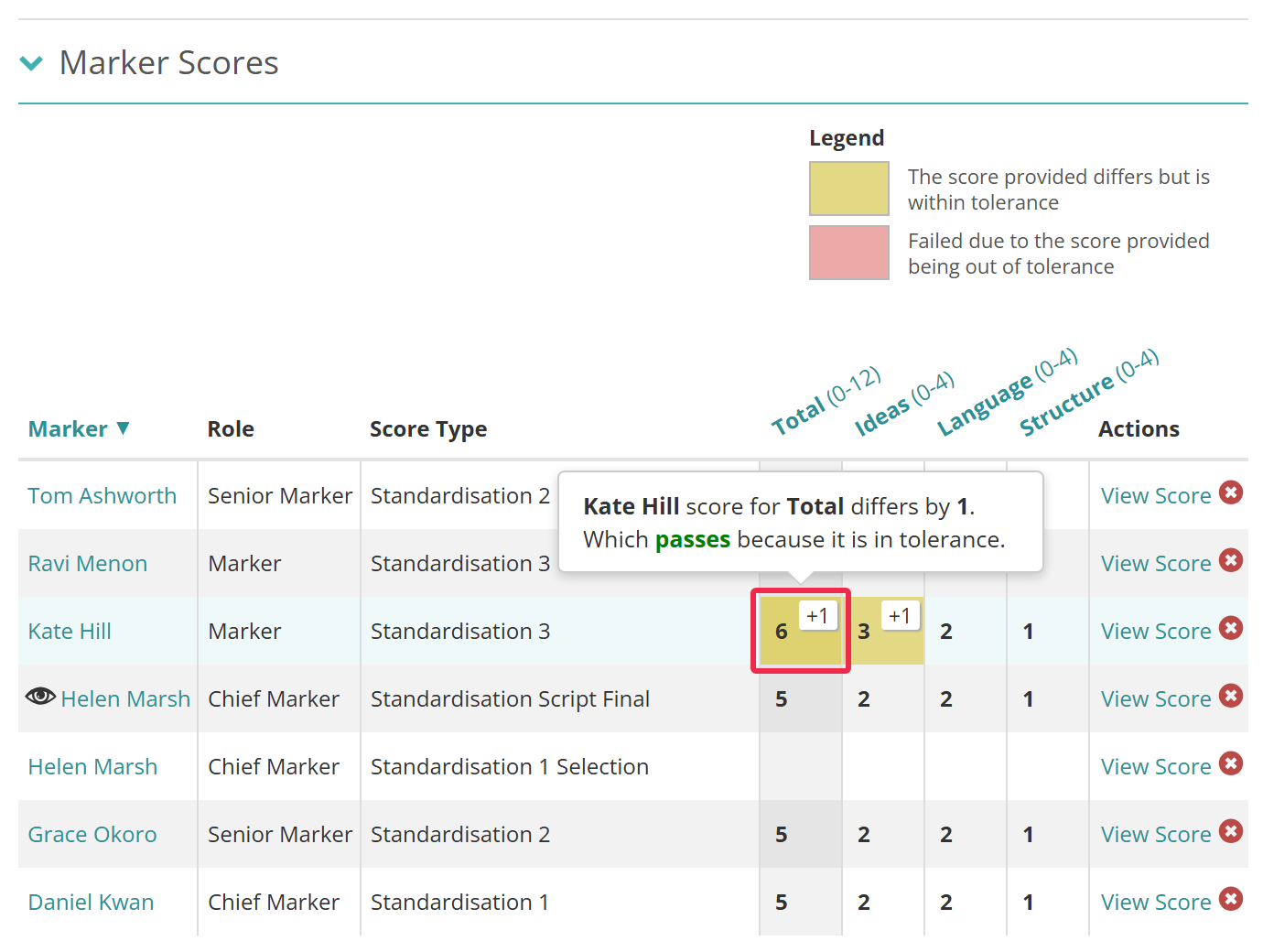
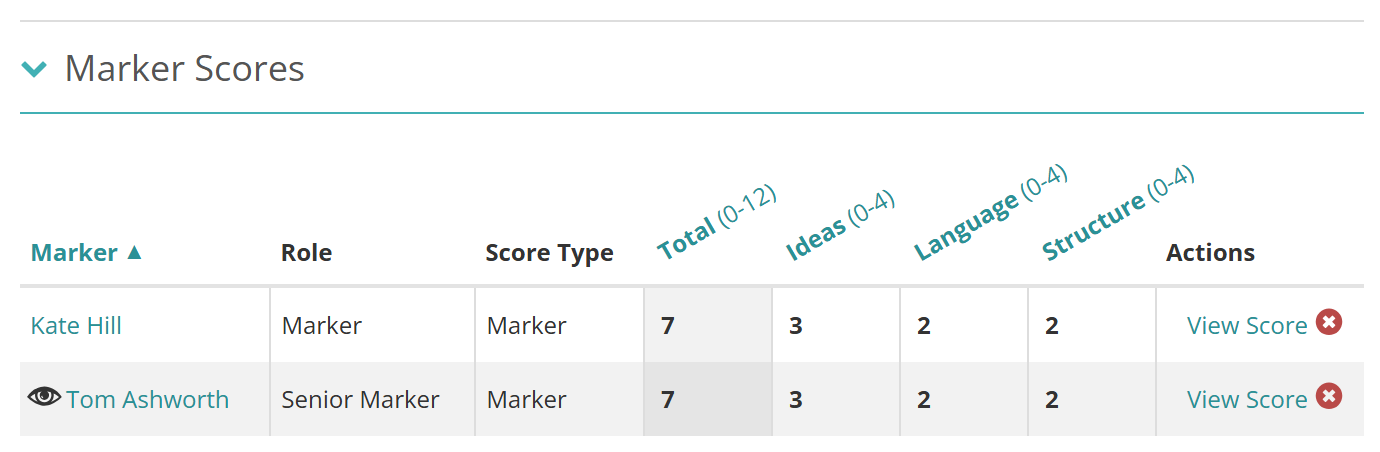
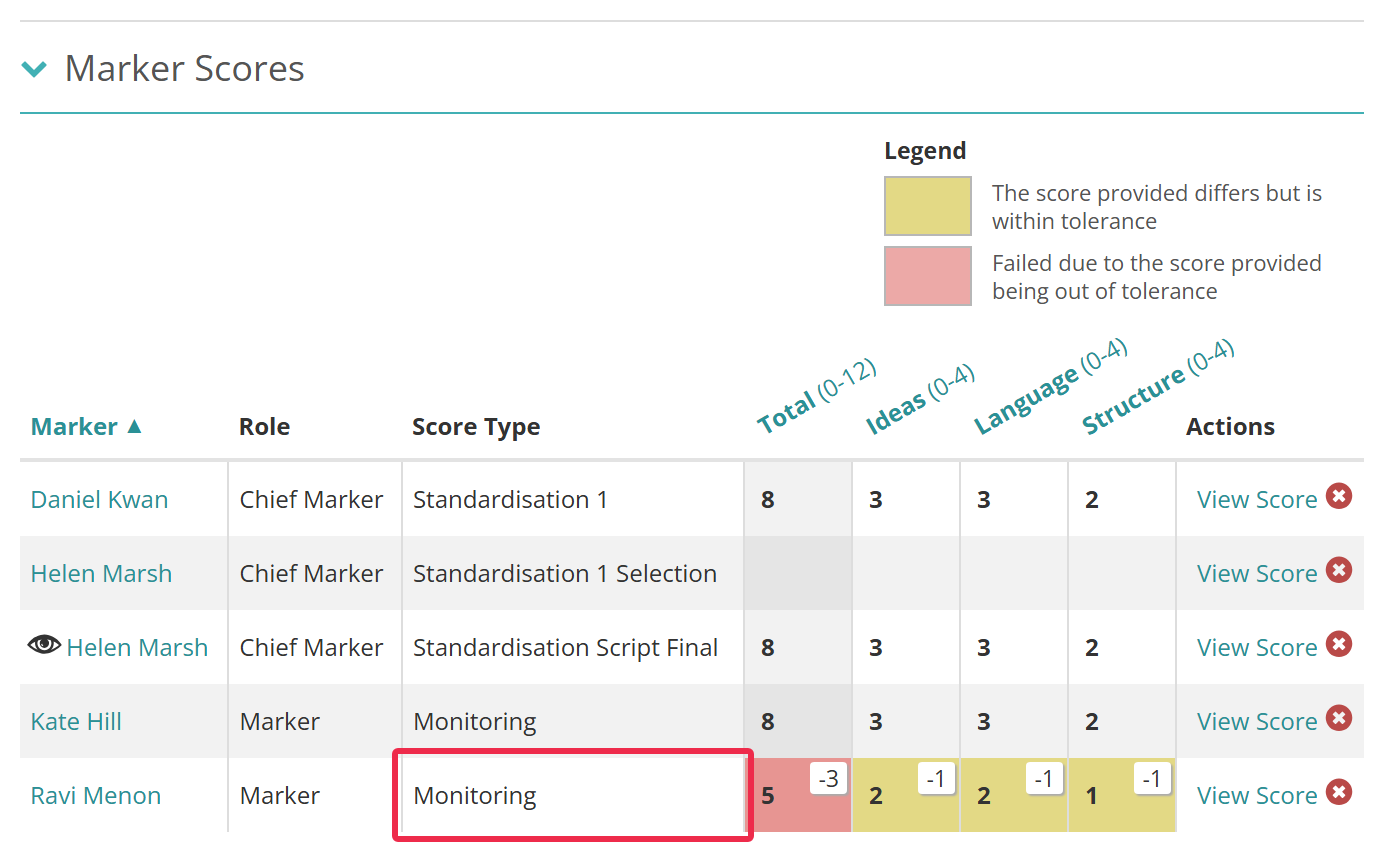
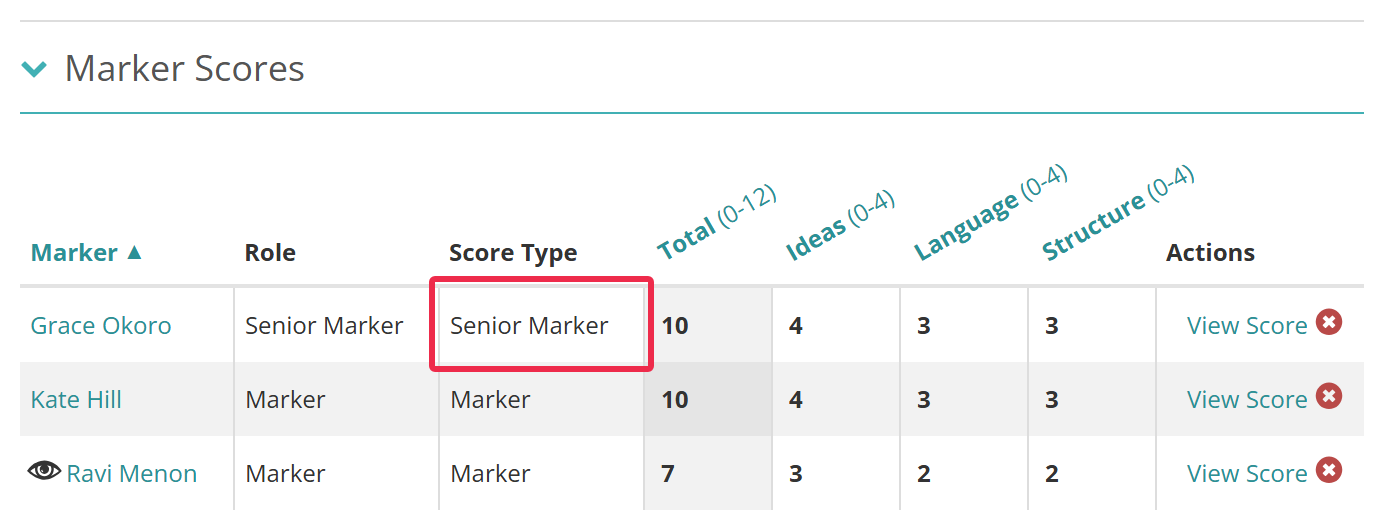
Marker Scores lists every score on the script, and the Score Type column shows which are from Standardisation 3. Hover over a score to see how far it is from the agreed score, and whether that's within tolerance.
Follow markers' progress during marking
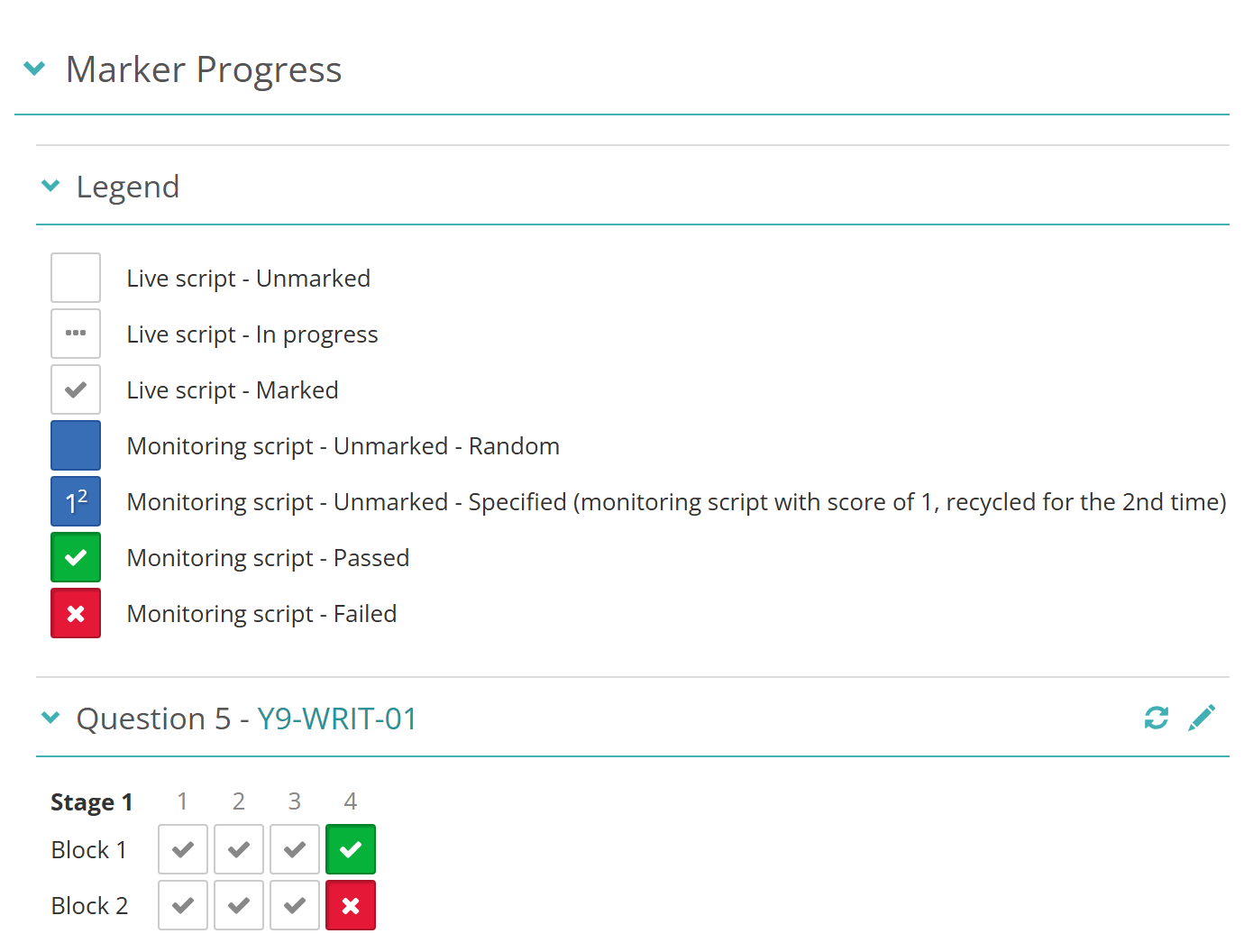
Once marking starts, each marker's profile has Marker Progress. It shows every script the marker has had, stage by stage and block by block. That includes the monitoring scripts blind quality monitoring gave them, each marked passed or failed. Open the marker's profile as in From the marker profile, then open Marker Progress.
To see every score on a script, not just one marker's, use Scoring Details:
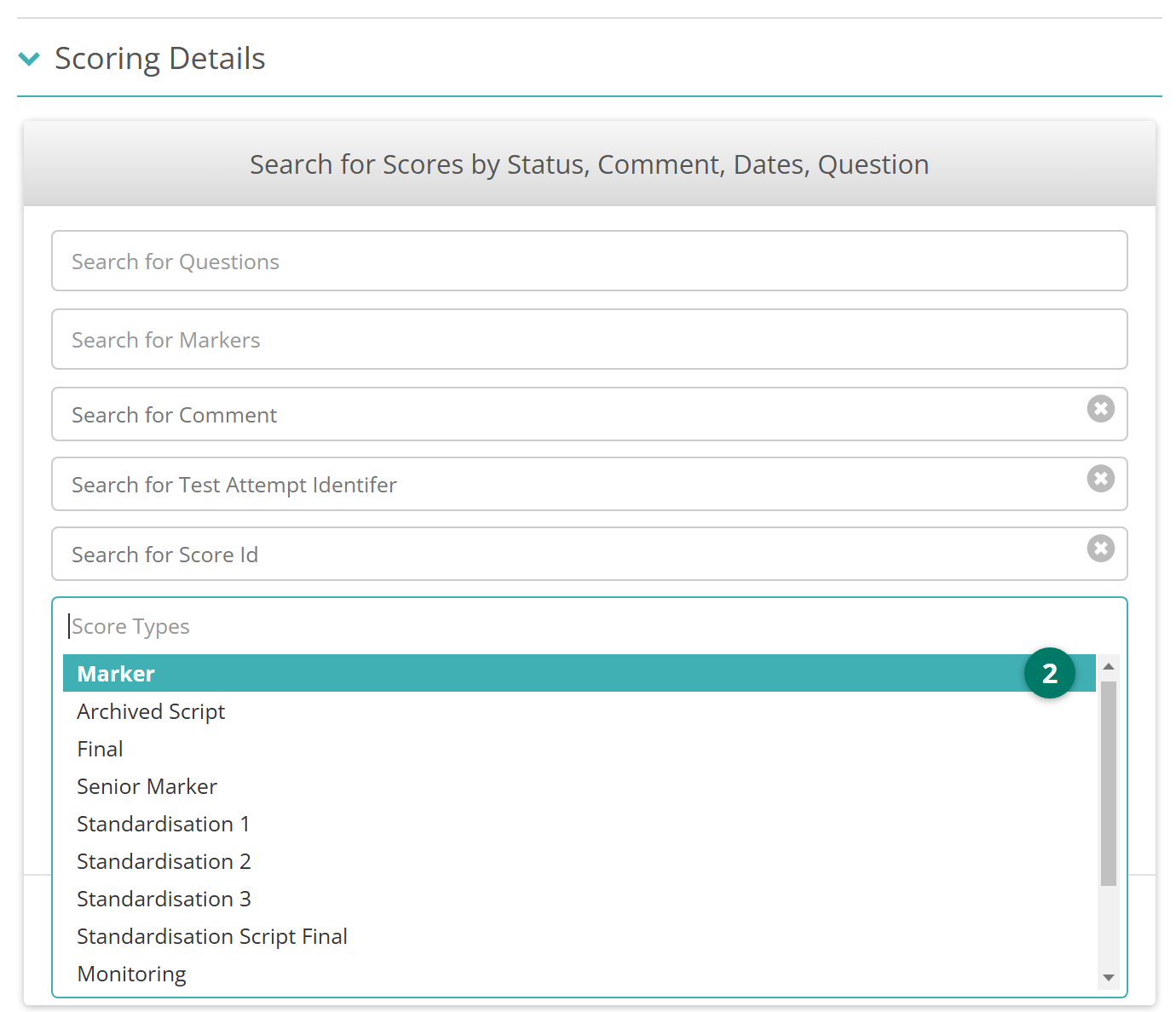
- At the bottom of My Marking Taskboard, open Scoring Details and select the All tab. The Description column shows each score's type.
- To list only one type, open the search panel, choose the type under Score Types, such as Marker, then select Search.
- Select Review scores beside the script.
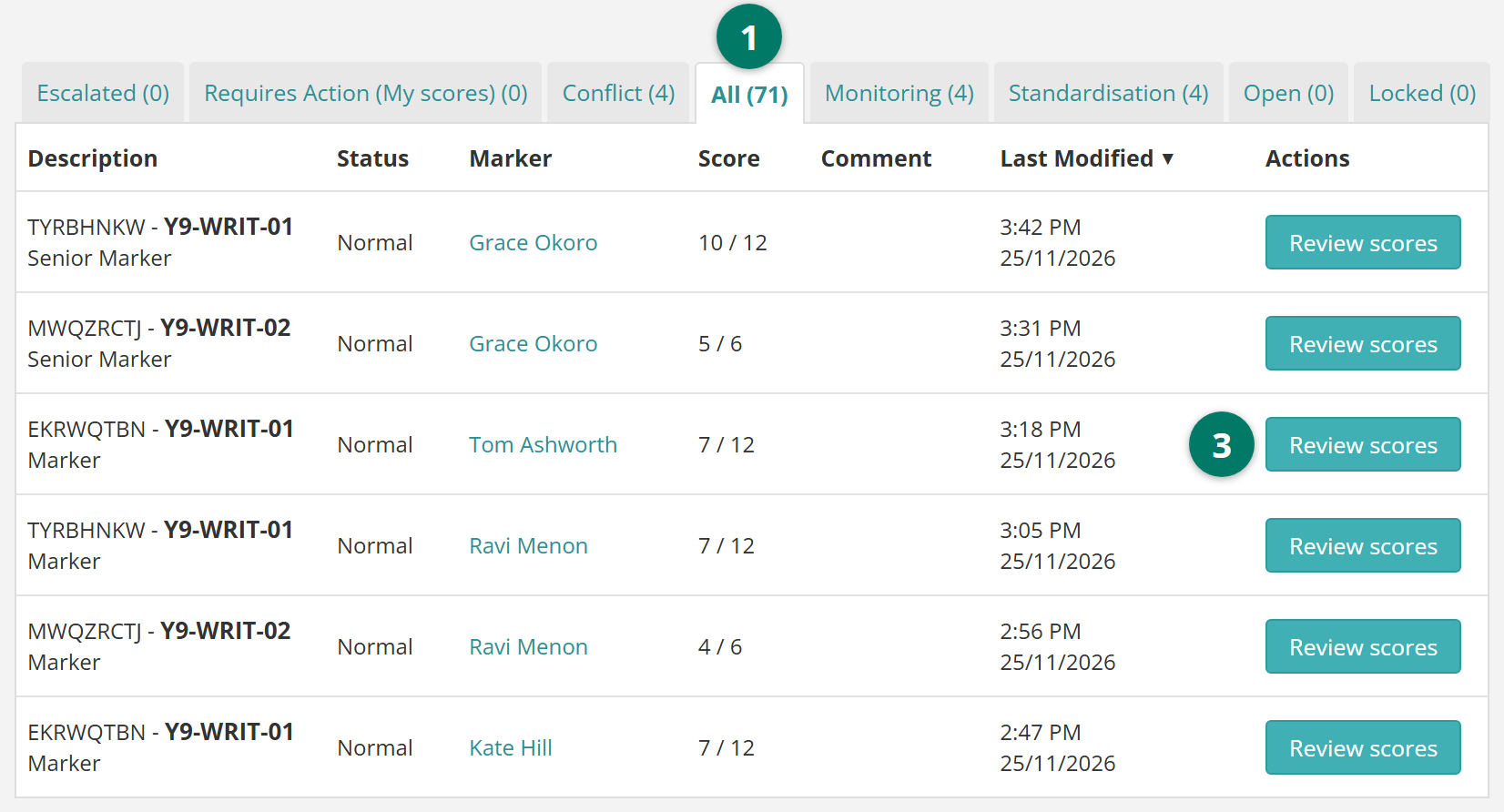
Marker Scores lists every score on the script.
Sample markers' scores
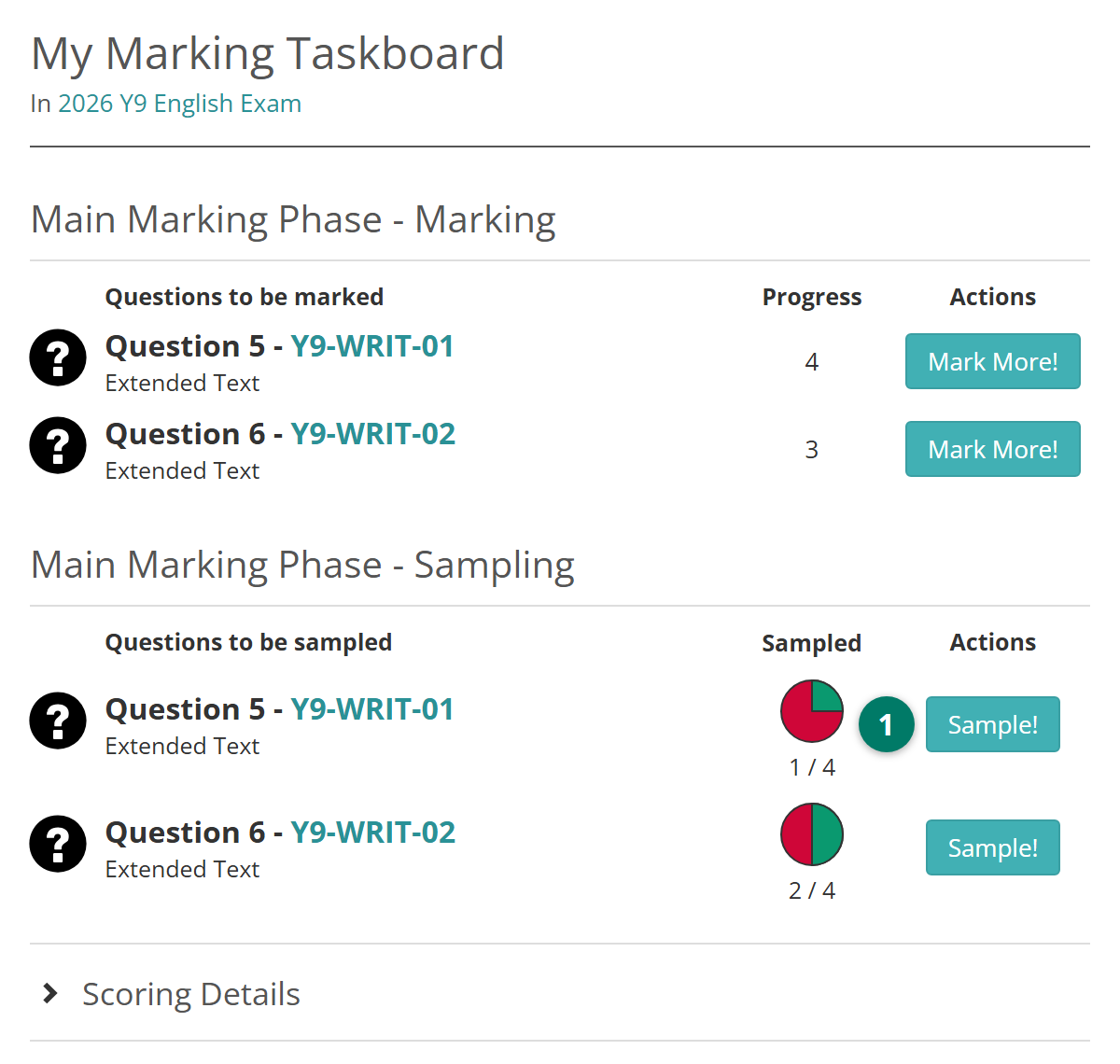
Sampling checks markers' scores during marking. Main Marking Phase - Sampling on your taskboard shows how many of your team's scores you've sampled for each item, against the project's target.
- Select Sample! beside the item.
- Read the score. Select Agree to keep it, or Disagree to give your own.
- If you disagree, annotate the response if you want to, and enter your scores in the Scoring Pane.
- Select Sample next to move to the next script, or Finish to stop.
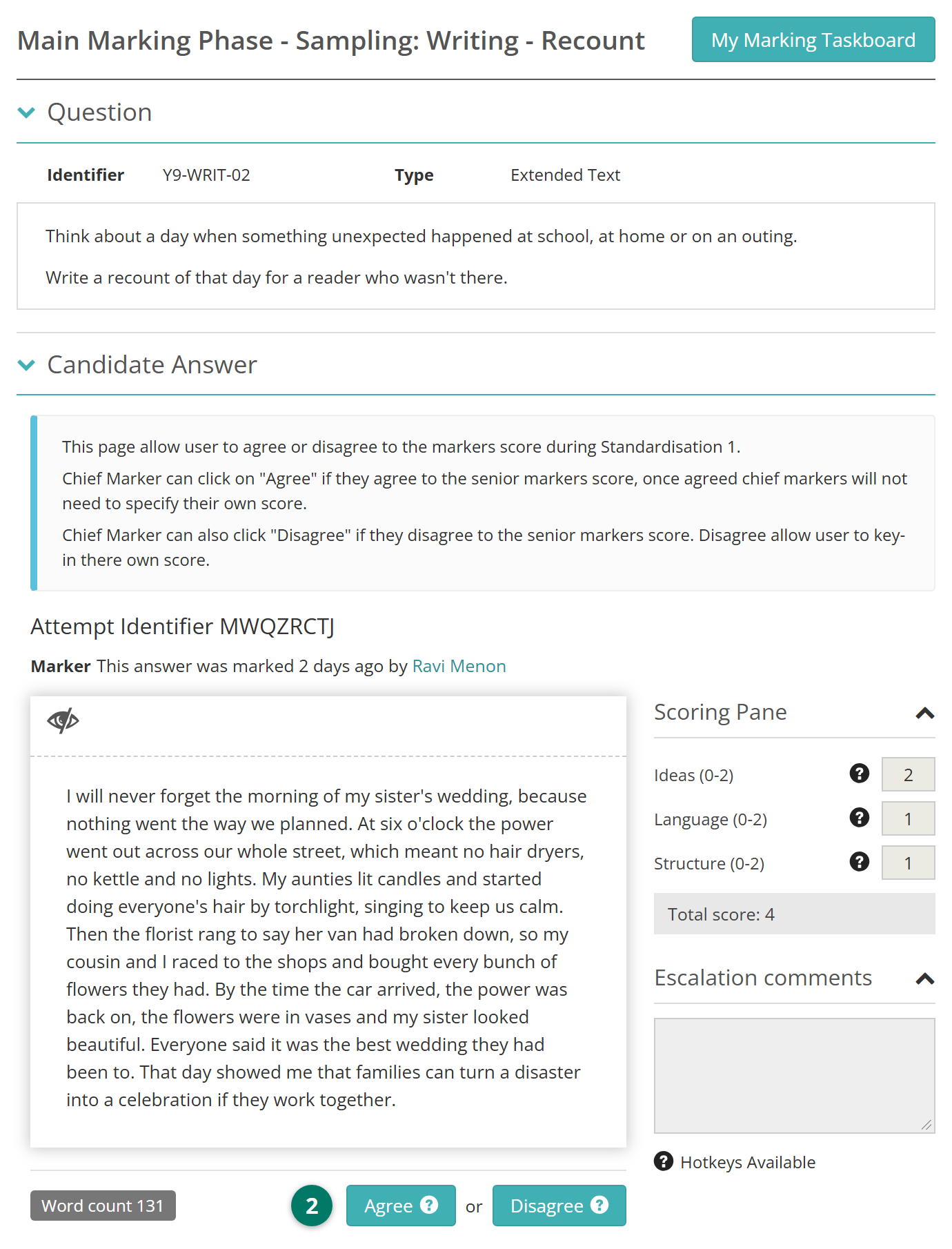
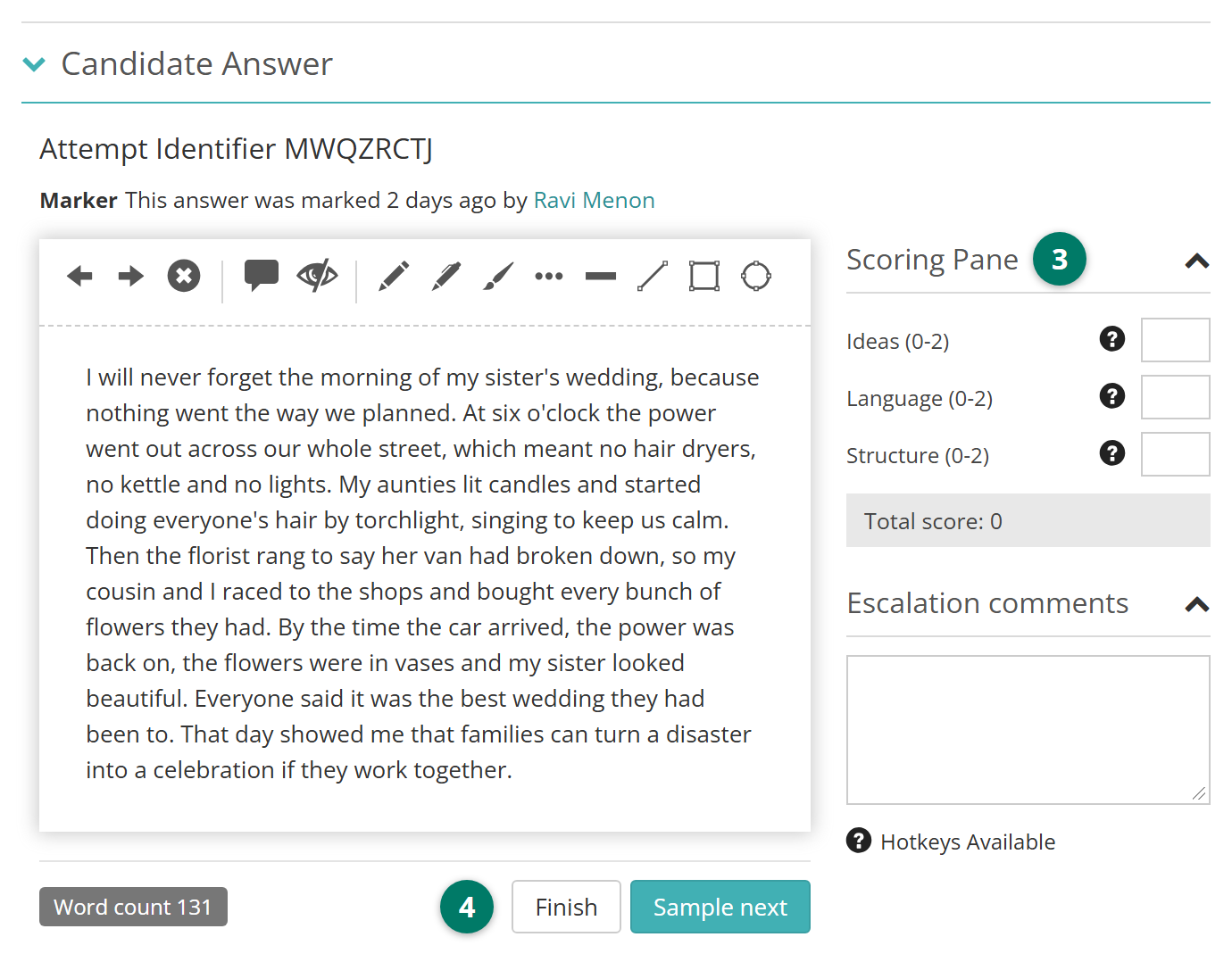
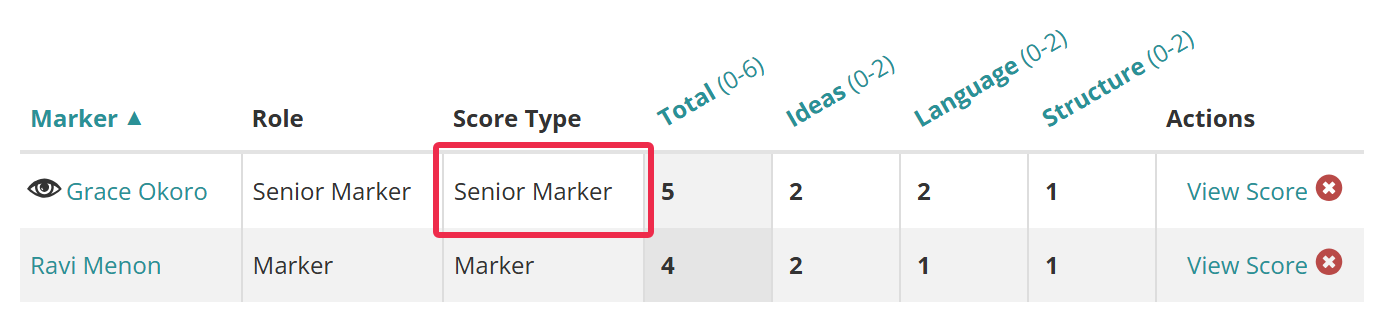
Your sampling score is saved with the score type Senior Marker. A chief marker's is Final. You can't finalise the project until the sampling targets are met.
Check blind quality monitoring
Blind quality monitoring gives markers monitoring scripts among their live scripts, and compares their scores with the agreed ones. Each marker's results show in their Marker Progress, above, and in Marking Output, below. To see every marker's score on a monitoring script:
- At the bottom of My Marking Taskboard, open Scoring Details and select the Monitoring tab.
- Select Review scores beside the monitoring script.
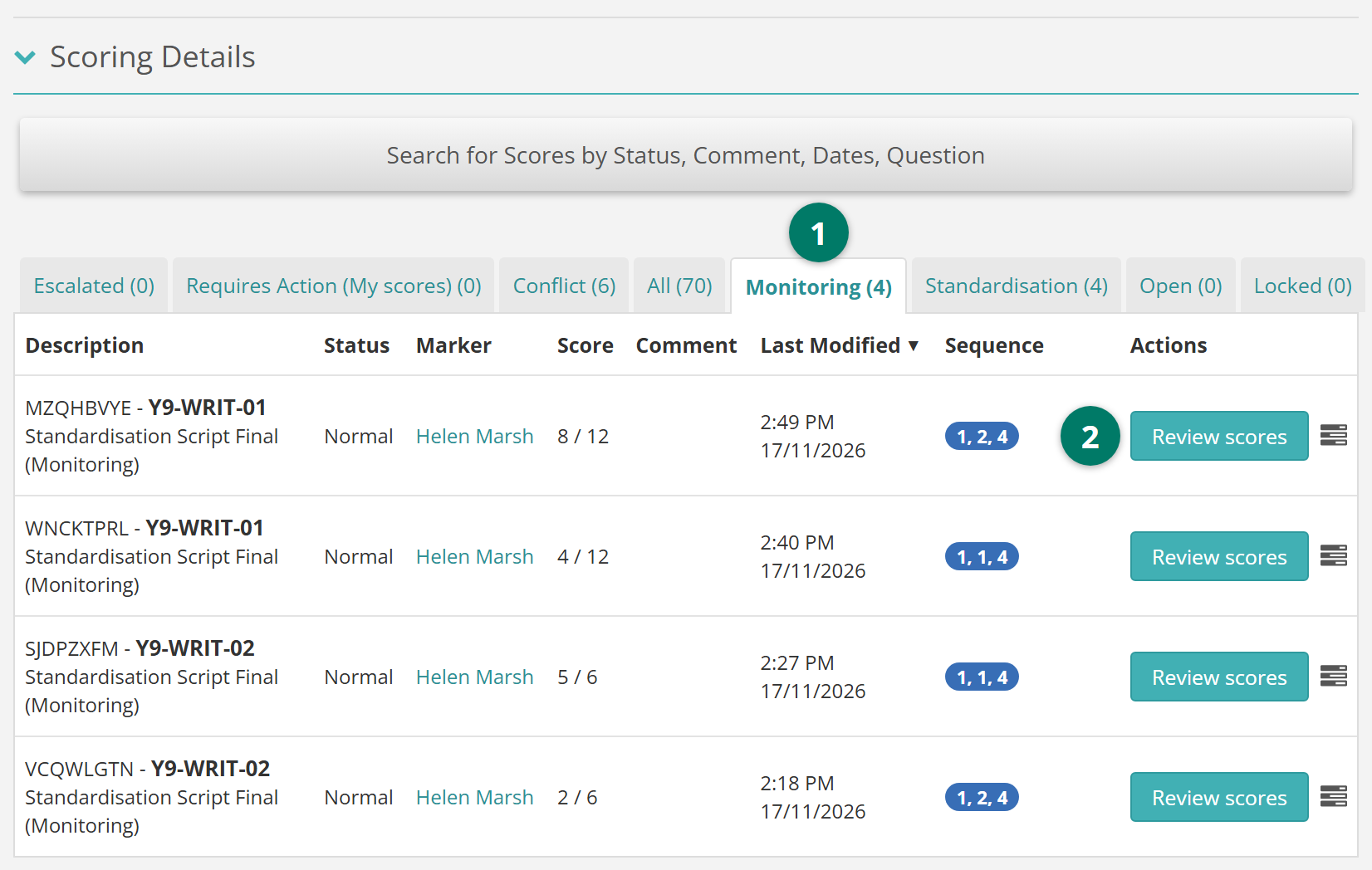
In Marker Scores, markers' scores on the script have the type Monitoring, coloured by how far they are from the agreed score.
Resolve double marking conflicts
With double marking, more than one marker scores each response. When their scores are further apart than the item's tolerance, the response becomes a conflict, and appears on your Conflict tab.
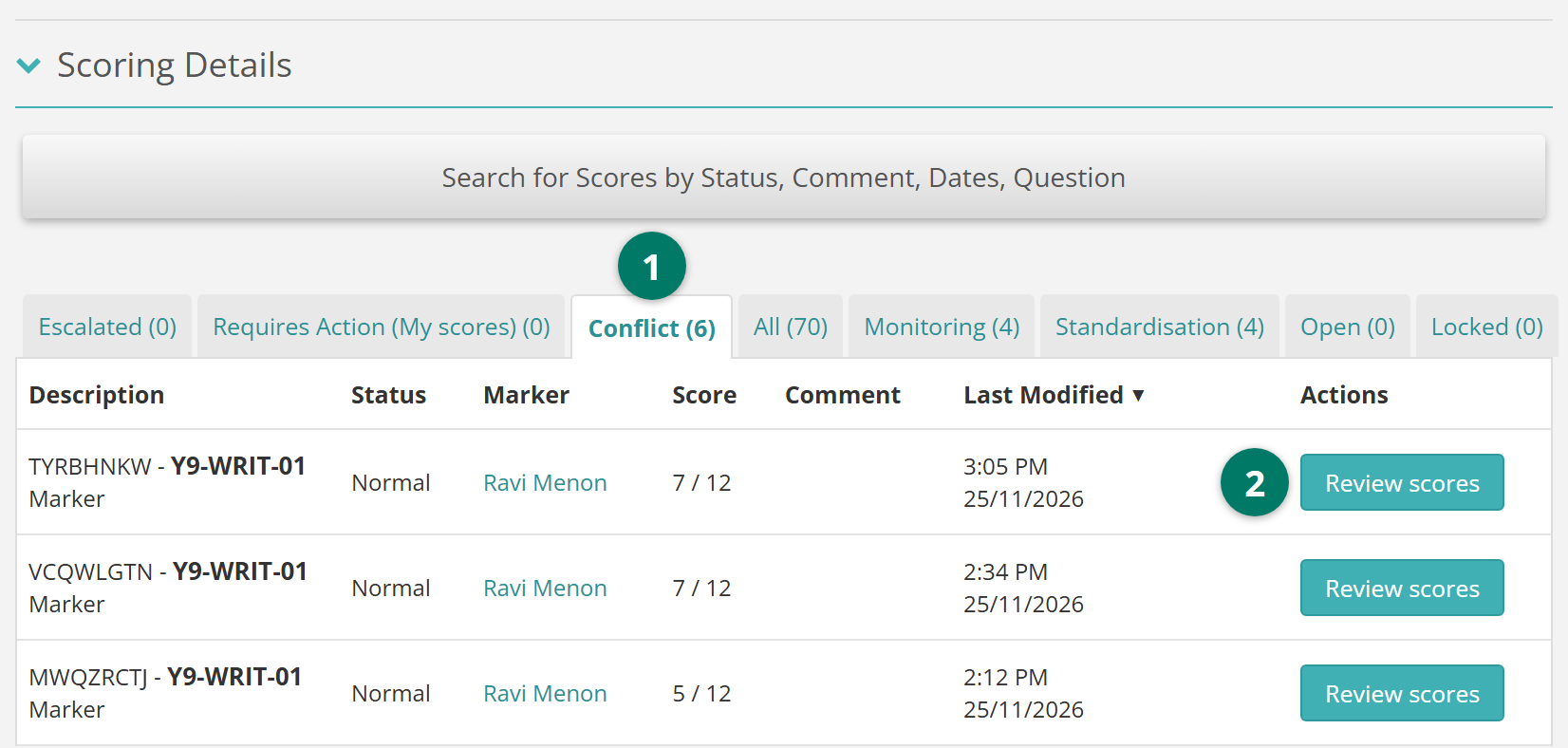
- At the bottom of My Marking Taskboard, open Scoring Details and select the Conflict tab.
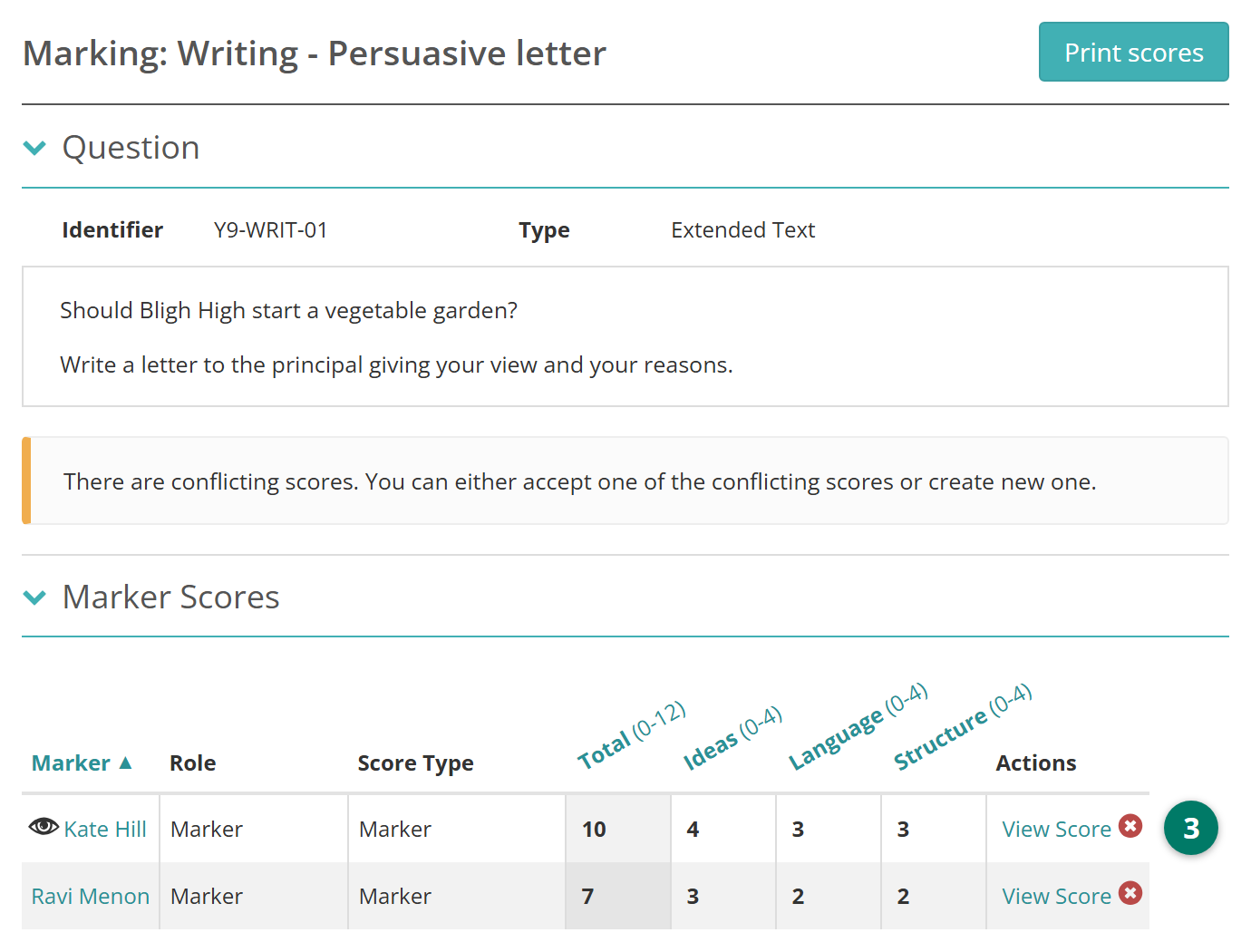
- Select Review scores beside the script. The score page shows "There are conflicting scores. You can either accept one of the conflicting scores or create new one.", and Marker Scores lists the scores.
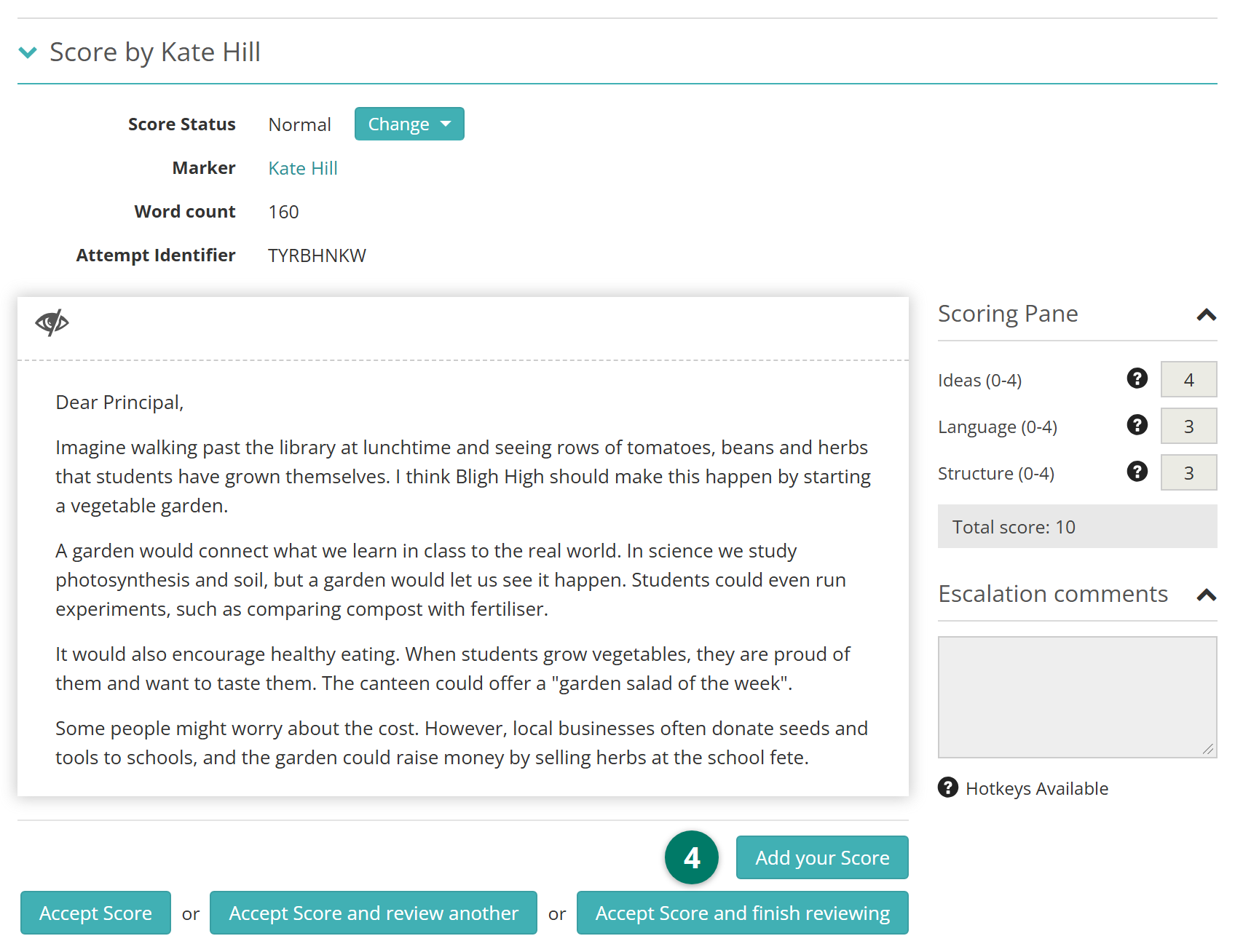
- Select View Score beside a score.
-
Choose how to resolve the conflict:
Option What it does Add your Score Makes the annotation tools, Scoring Pane and comments active, so you can give your own score Accept Score Accepts the score you're viewing Accept Score and review another Accepts the score and opens the next conflict Accept Score and finish reviewing Accepts the score and ends your review
Your score, or the score you accept, is saved as a Final score or a Senior Marker score, depending on your role's permissions.
Review a marker's marking output
Marking Output, on each marker's profile, shows their time on the project, responses per hour and responses scored, then an entry for each item.
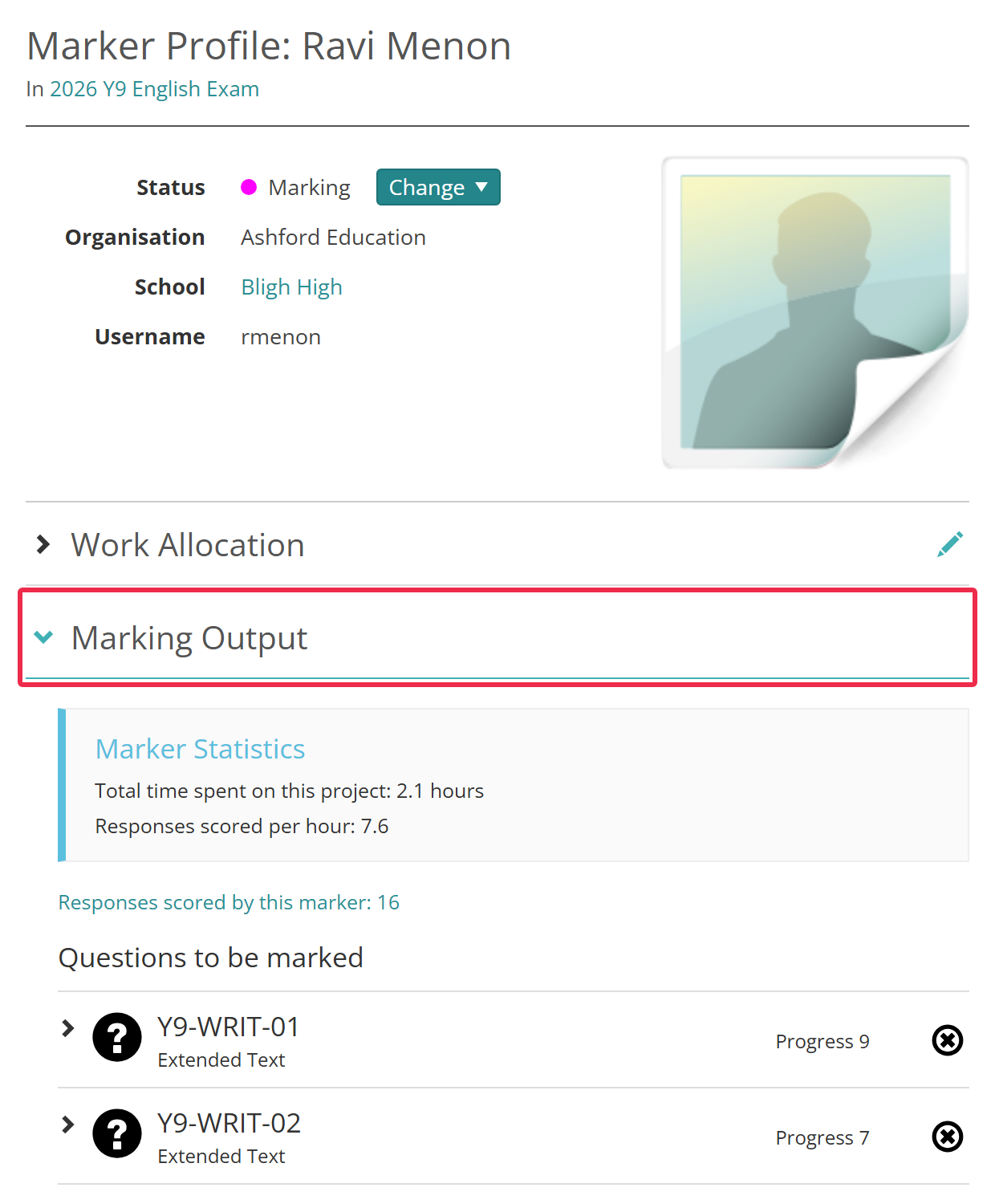
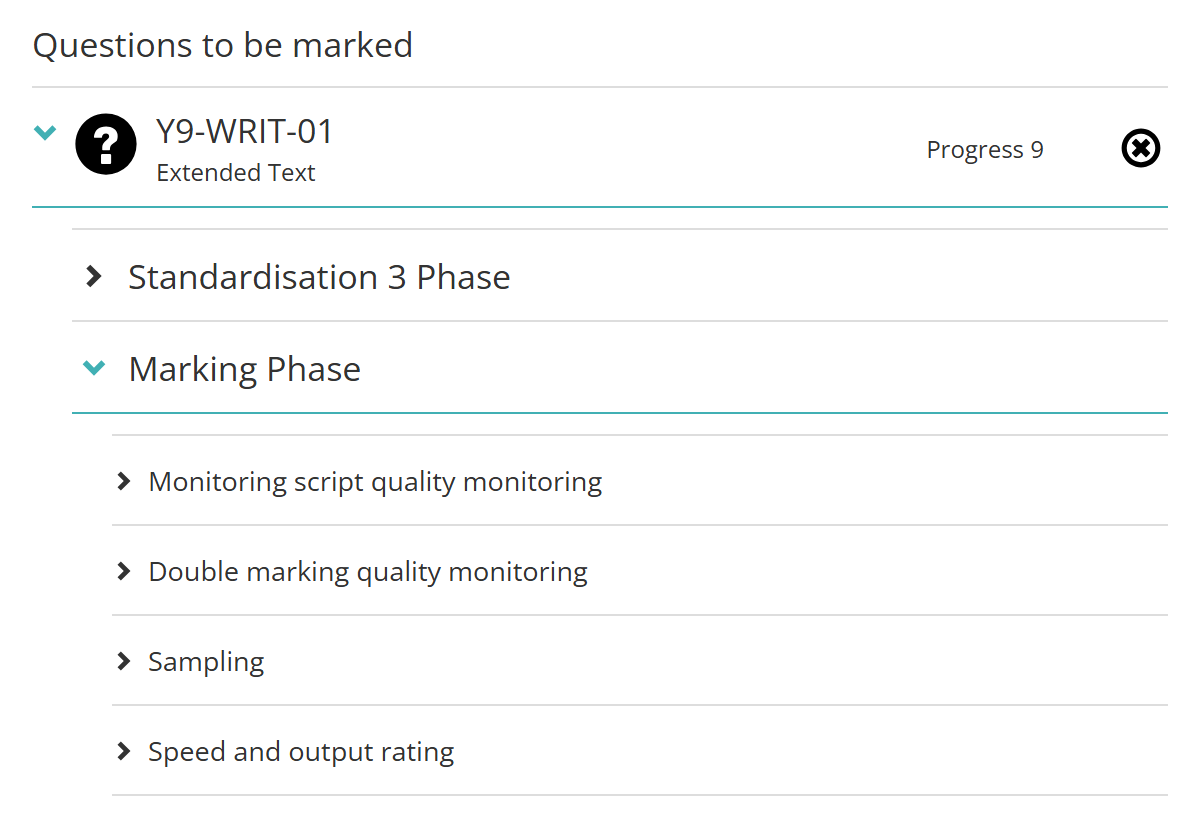
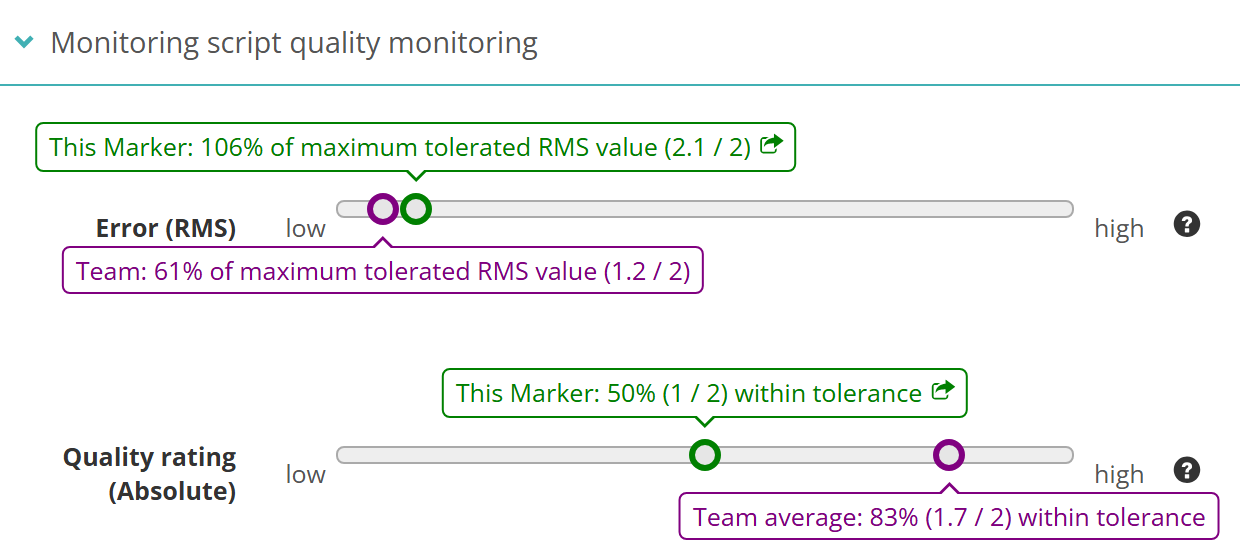
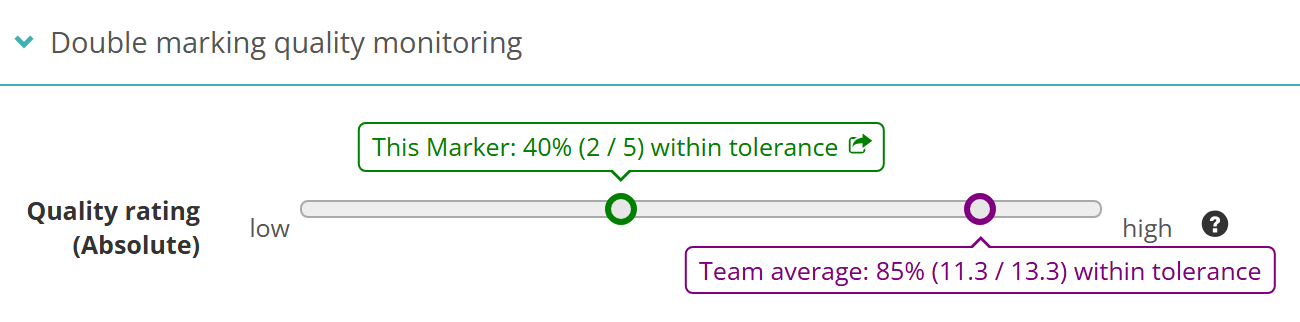
Open an item, then Marking Phase, for four ratings that compare the marker with the team:
- Monitoring script quality monitoring — Error (RMS), how far the marker's scores on monitoring scripts are from the agreed scores, as a percentage of the largest error the project tolerates, and Quality rating (Absolute), the percentage of monitoring scripts the marker scored within tolerance
- Double marking quality monitoring — Quality rating (Absolute), the percentage of the marker's double-marked scores that were within tolerance of the other marker's. Markers well below the team average may need closer monitoring
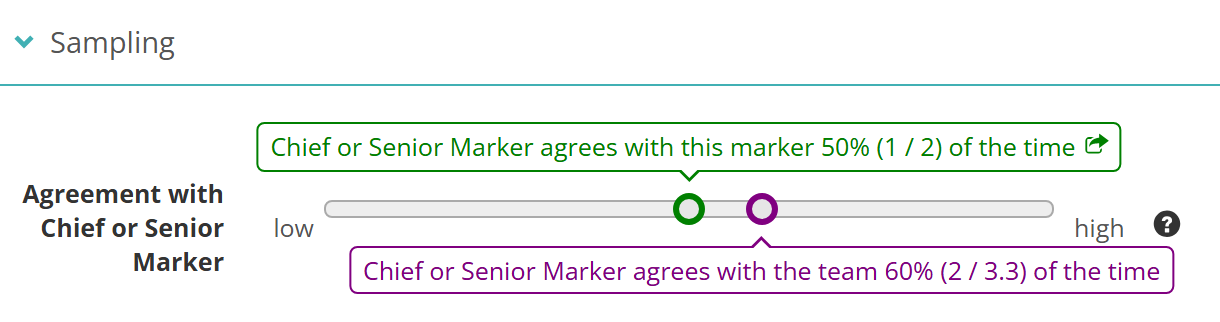
- Sampling — Agreement with Chief or Senior Marker, how often a chief or senior marker's sampling score agreed with the marker's
- Speed and output rating — the marker's output compared with the team average for the item.
Settings
Administrators can configure these settings at Marking > Marking Extended Settings. Each makes a quality control available to marking projects.
Enable Standardisation 2 and Enable Standardisation 3 — make each phase available. On by default.
Enable Benchmark Scores — shows Benchmark Scores on the marking screen. On by default.
Enable Blind Quality Monitoring and Enable Sampling — make each available. On by default.
Enable Double Marking — makes double marking available. Off by default.
Each project's Quality Controls then decide which of these it uses, and its Team Responsibilites decide which roles take part in each activity. See Marker training and quality control.