Test player preview tools
The preview tools let you check an item, test section or test in the test player before you deliver it. You can try the navigation, see what a personal needs and preferences code substitutes, randomise the items and distractors, watch the score as you answer, and move an item through its workflow without leaving the player.
When you preview, the tools sit down the right-hand side of the test player under the Tools heading. Select an icon to open its panel, and select it again to close it.
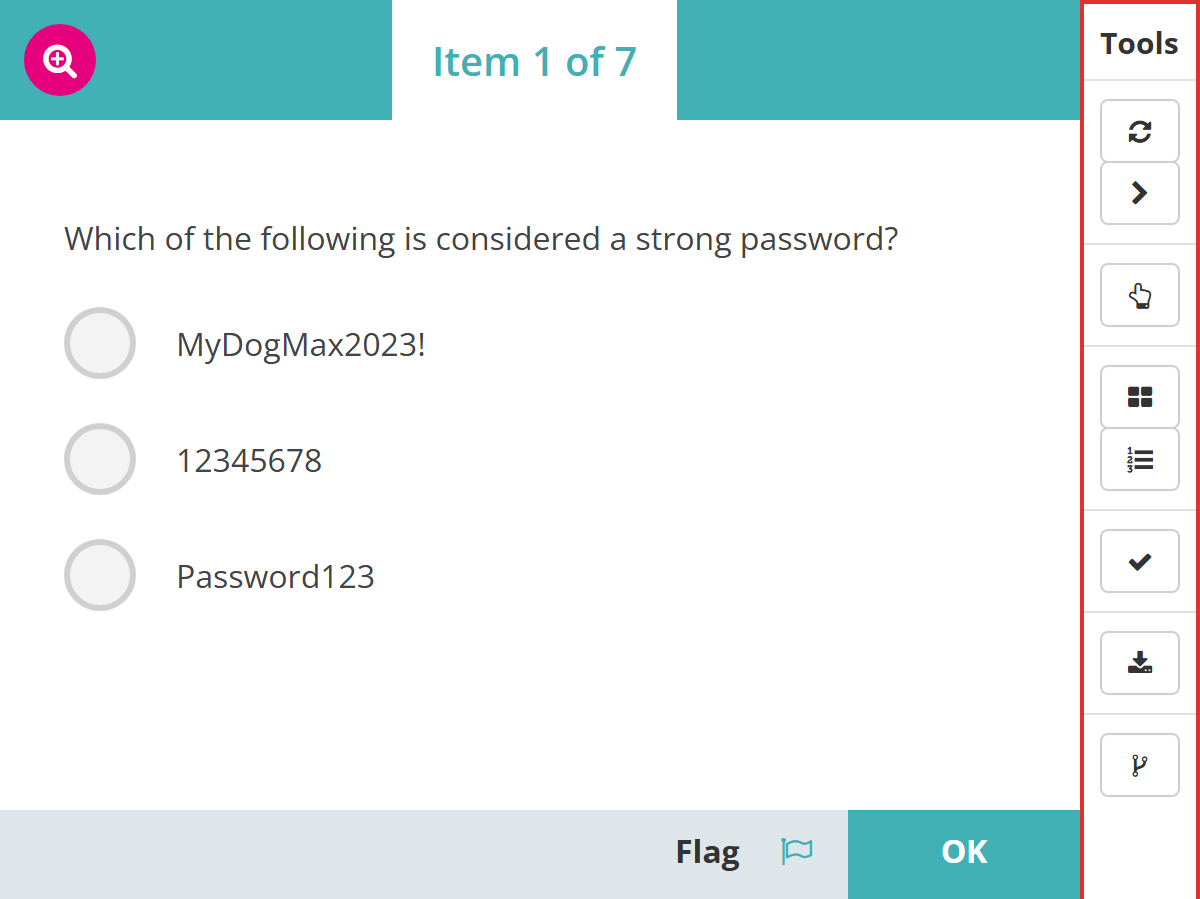
Which tools you see depends on what you're previewing:
- Reset is always there.
- Navigation appears on test sections and tests, except item adaptive tests.
- Personal Needs and Preference Codes is always there.
- Item Order Sequence appears on test sections and tests.
- Distractor Order Sequence is always there, but is greyed out until an item with shuffled options is on screen.
- Scoring appears when Enable Score Preview is on for your site.
- Download response appears for file upload items, and on every test section and test preview.
- Question Workflow appears when the module you're previewing from has an items workflow.
- Branching appears on branching tests.
- Integration Test appears on file upload items with a custom delivery-testing template.
Note
The preview is not a live test attempt. The system does not record any results during a preview.
Open a preview
You can preview an item, test section or test from its list page or from its details page. Either way the preview opens in a new tab.
From the list page
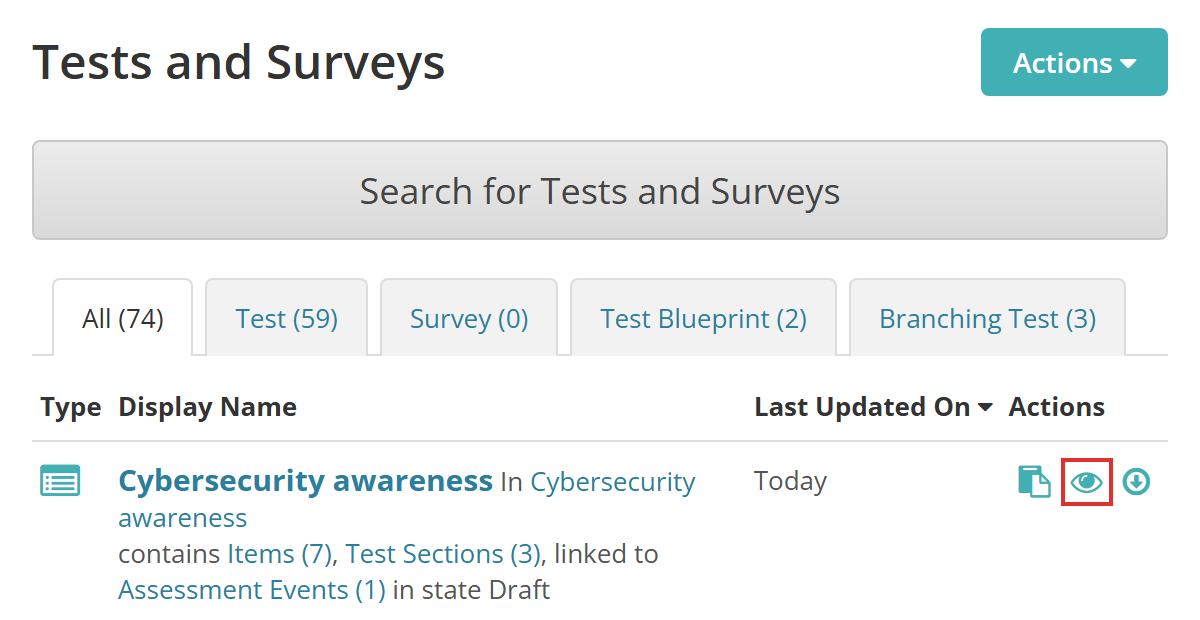
Go to Author > Tests and Surveys, Test Sections or Items and select the preview icon  in the Actions column. The example below is the Tests and Surveys list, and the icon sits in the same place on the other two.
From the details page
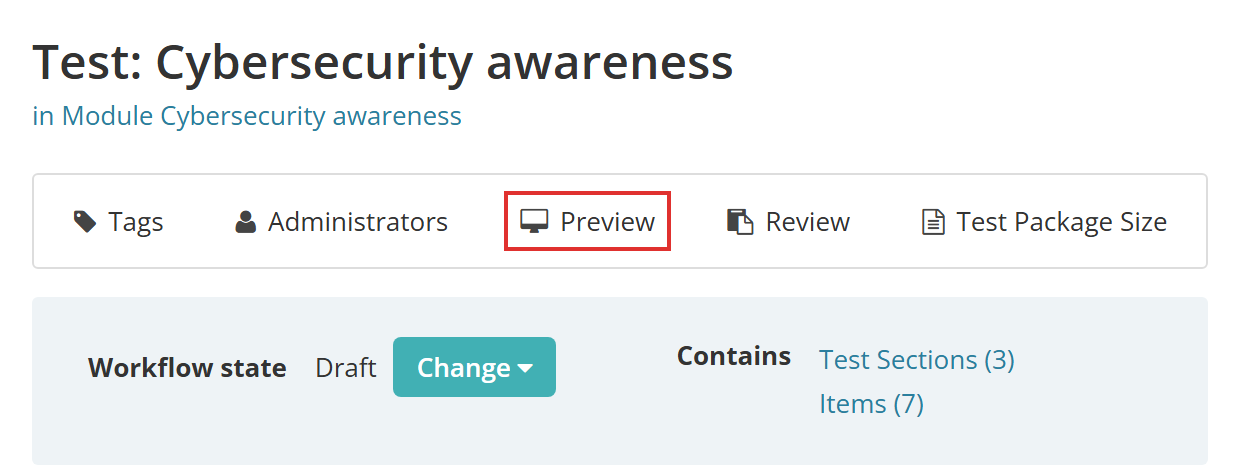
Open the test, test section or item and select Preview in the toolbar under its name.
Reset
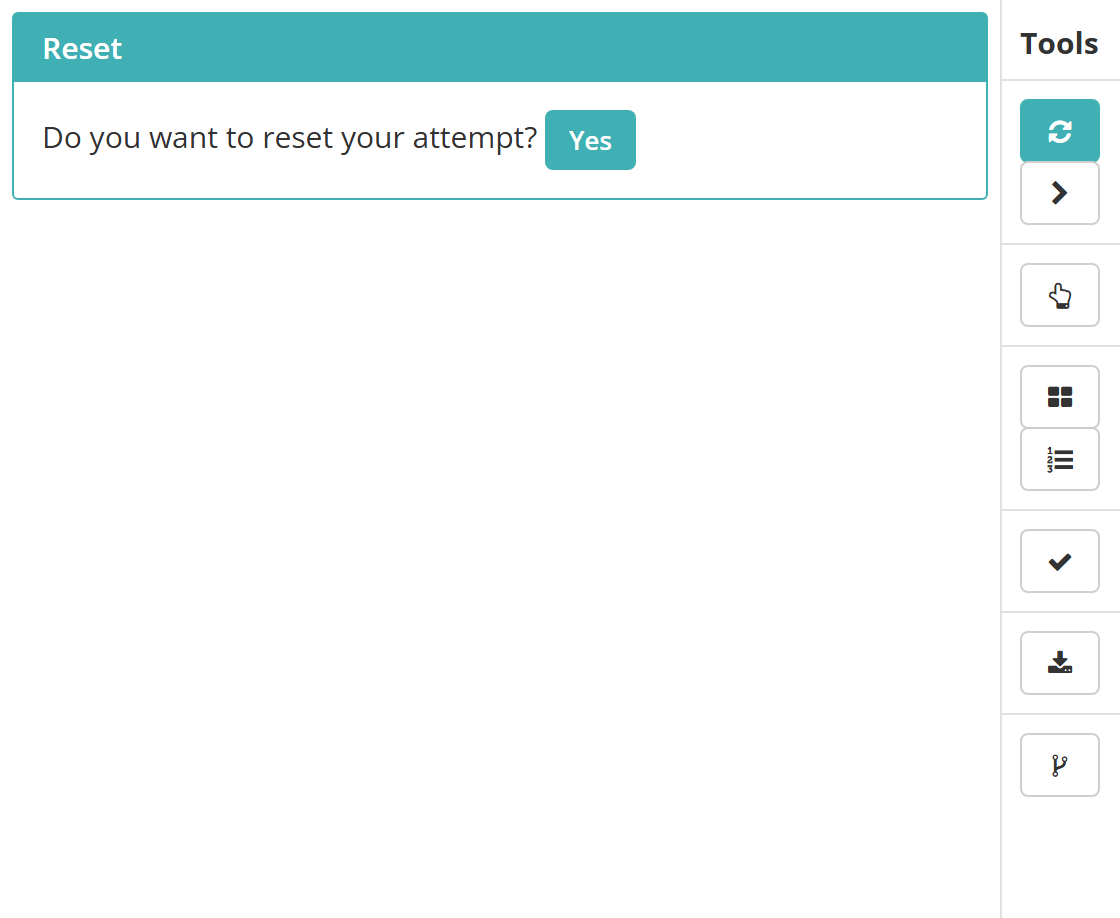
Reset throws away your answers and starts the preview again from the first item. Select Yes to confirm. Use it when you've worked through an item or a test and want to try it again.
Navigation
With linear navigation, test-takers move through the items in order. They can look back at an earlier item, but they can't change its answer. Navigation lets you switch linear navigation off and on in the preview so you can try the test both ways.
Select Disable to turn linear navigation off. The button then reads Enable, and the panel says linear navigation is not required. Your answers are kept, and the choice lasts for the rest of your browser session.
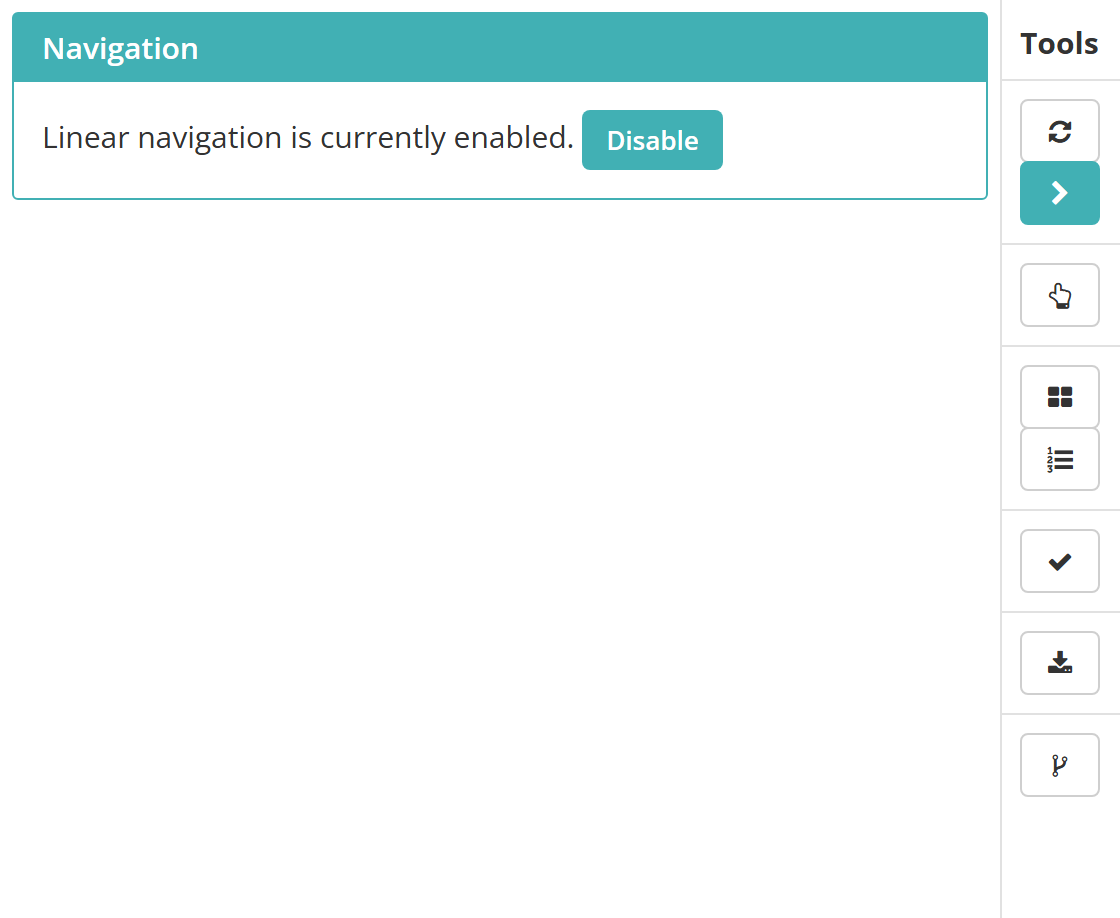
The tool appears when you preview a test section or a test. It's left off an item adaptive test, where navigation is always linear.
Personal needs and preference codes
A personal needs and preferences (PNP) code swaps in a substitute version of an item for test-takers who need one. Personal Needs and Preference Codes shows you what those test-takers would see. See Personal needs and preferences for how the codes work. On some sites the panel is labelled Disability Adjustment Codes instead.
Select a code from the Personal Needs and Preference Code Type dropdown and select Add. Add as many codes as you need. To take one off the list, select its cross under Actions.
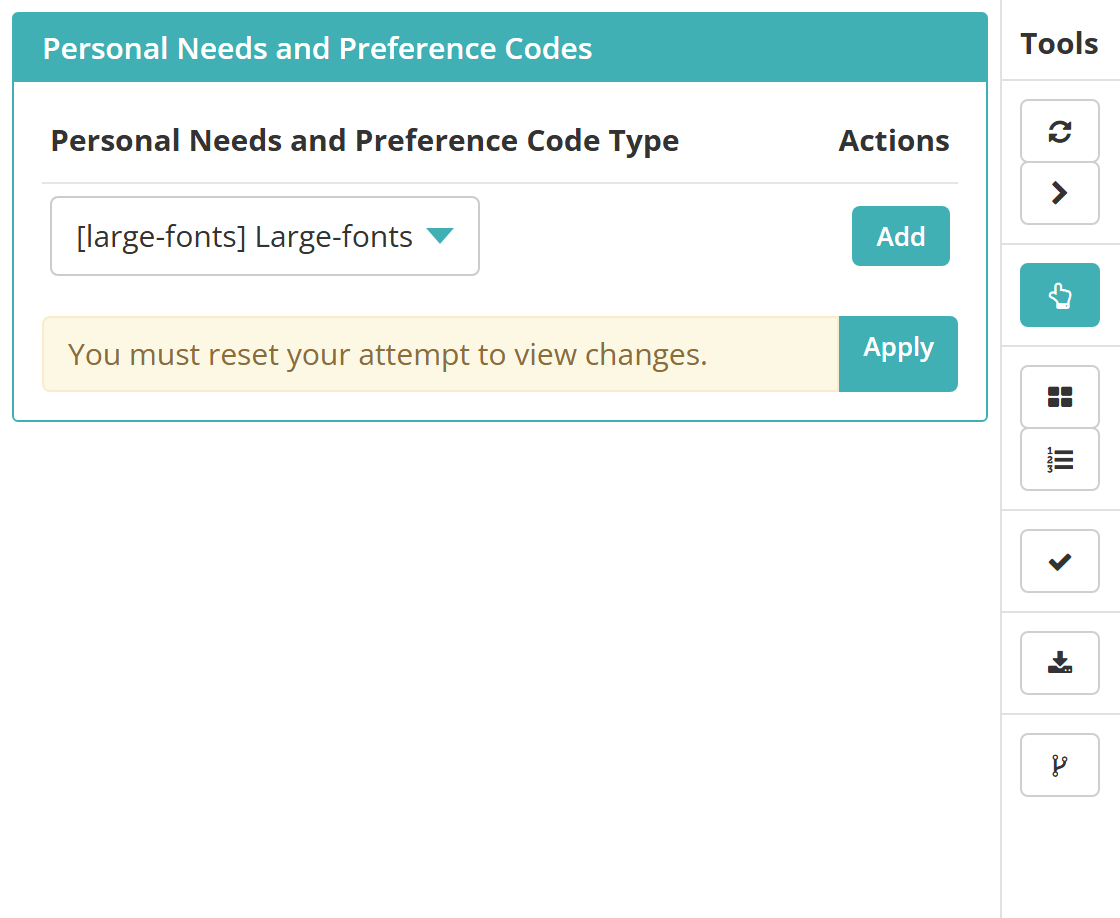
The codes take effect when the preview restarts. Select Apply to reset your attempt and view the substitute items.
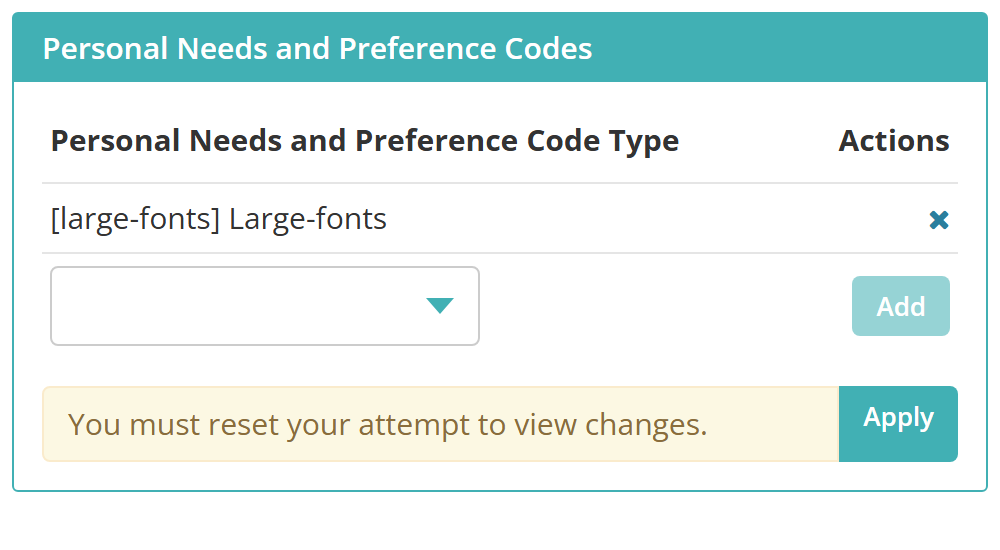
The tool is on the toolbar for every preview. If your site has no codes yet, the panel tells you so.
Item order sequence
A test section can be set to randomise its items, so test-takers see them in a different order from the one you arranged. Item Order Sequence lets you see the test both ways.
Select Randomize to see the items as a test-taker could, or Arrange to see them in the order they were arranged in. Either choice restarts the preview and clears your answers. A section without a randomisation option keeps its arranged order whichever you pick.
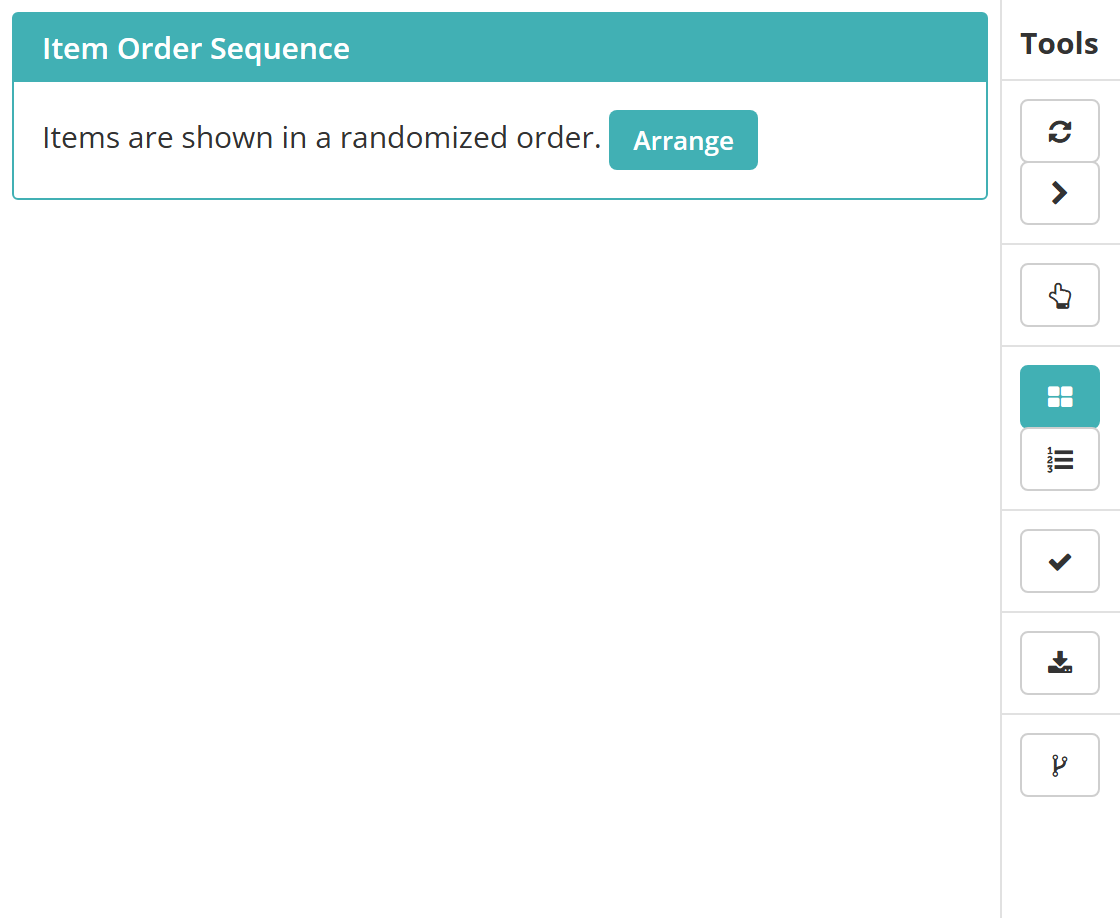
The tool appears when you preview a test section or a test, since a single item has no order to change.
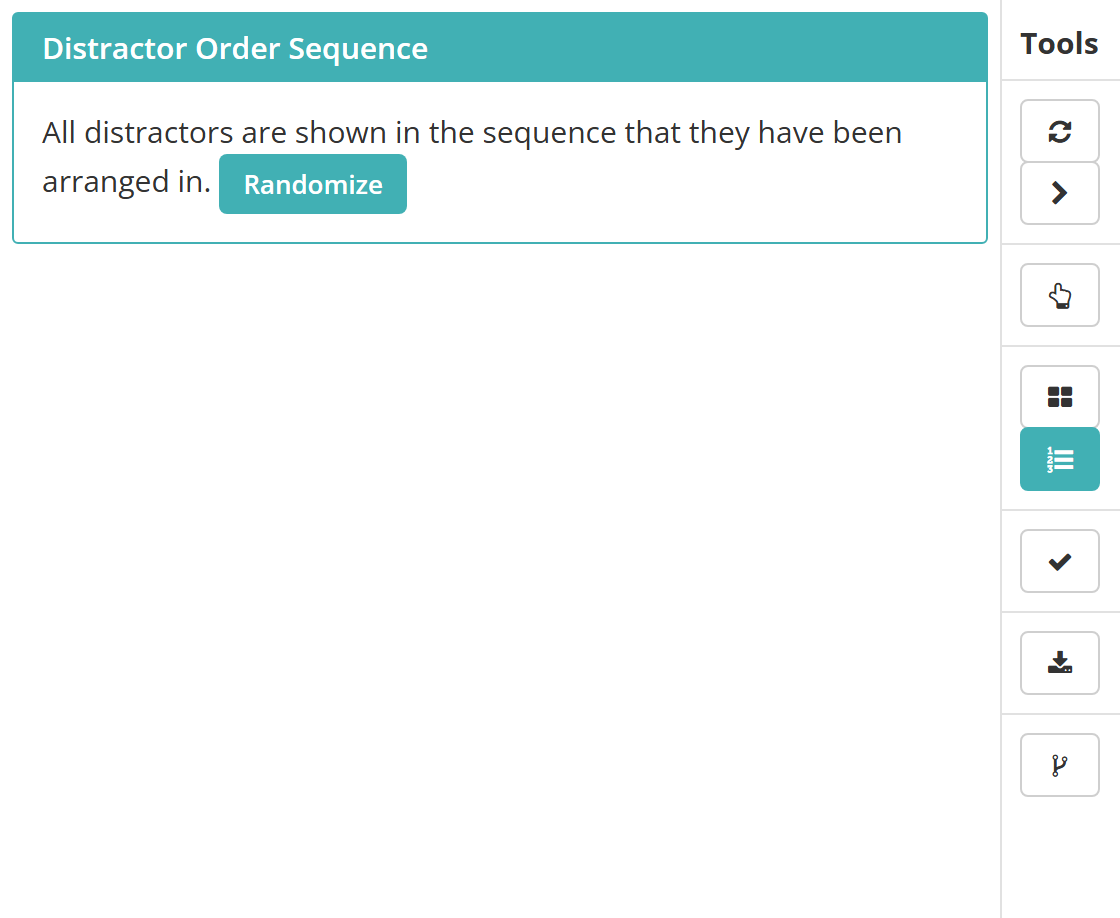
Distractor order sequence
An item with Shuffle ticked shows its answer options in a different order to each test-taker. Distractor Order Sequence lets you see the item with its options shuffled or in the order you arranged them.
Select Randomize to shuffle the options or Arrange to put them back. Either choice restarts the preview and clears your answers. The icon is greyed out while the item on screen has nothing to shuffle.
Scoring
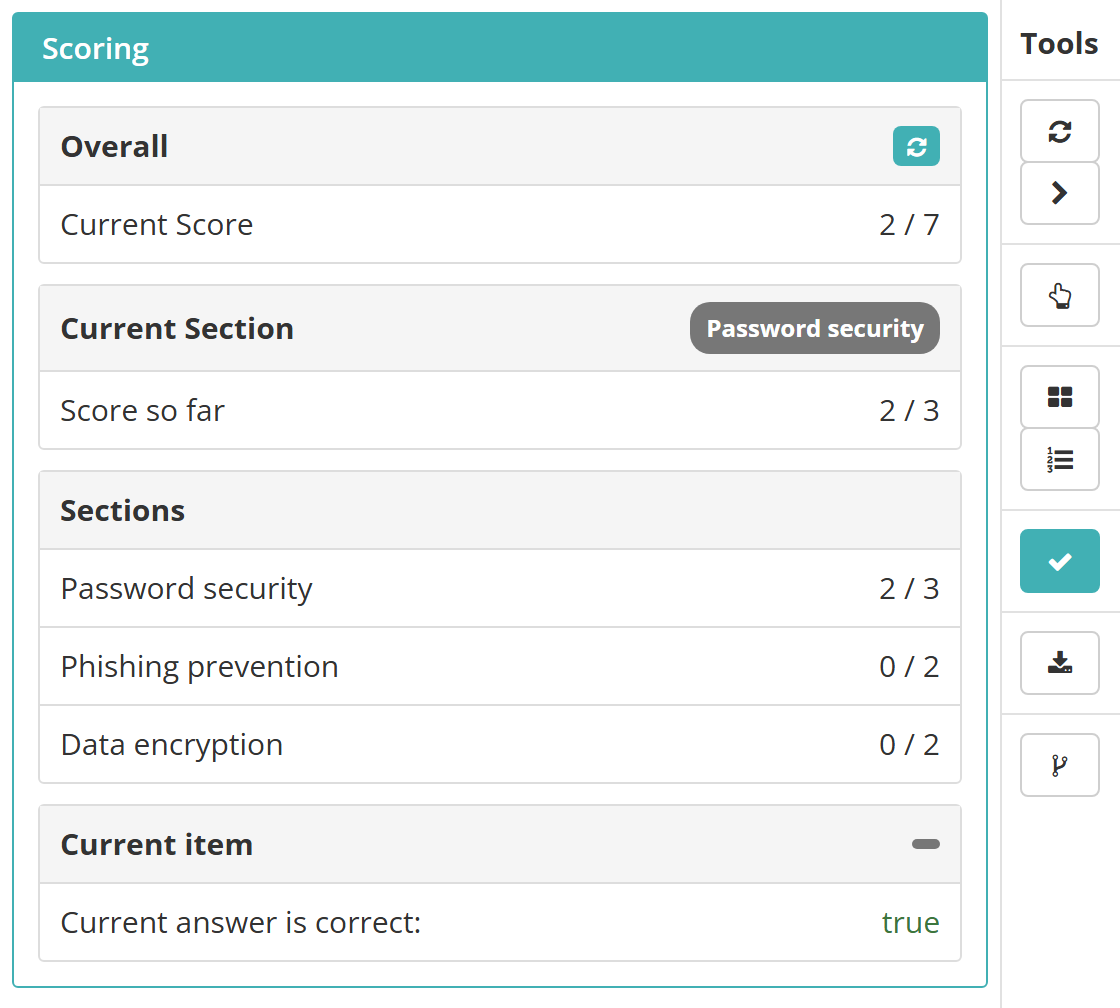
Scoring shows the marks you've earned as you answer, so you can check that each item's correct response is set up the way you intended. It appears when Enable Score Preview is on for your site (see Settings).
The panel has four parts:
- Overall shows your Current Score out of the total for the test or section. The refresh button beside the heading re-marks the item on screen.
- Current Section shows the Score so far in the section you're in, with the section's name on the right.
- Sections lists each section you've reached with its score. It appears when you preview a test or a test section.
- Current item shows whether your answer to the item on screen is correct: true in green or false in red. On a survey item it says survey questions don't have scores.
Scores update each time an answer is saved: when you move to another item, or when you open the tool.
On an item adaptive test, the panel shows Current Theta in place of a score, and the item's difficulty under Current item. On a branching test, a history button beside Sections shows the score at each node once a section is complete, and a section whose score is ignored for branching says so.
Download response
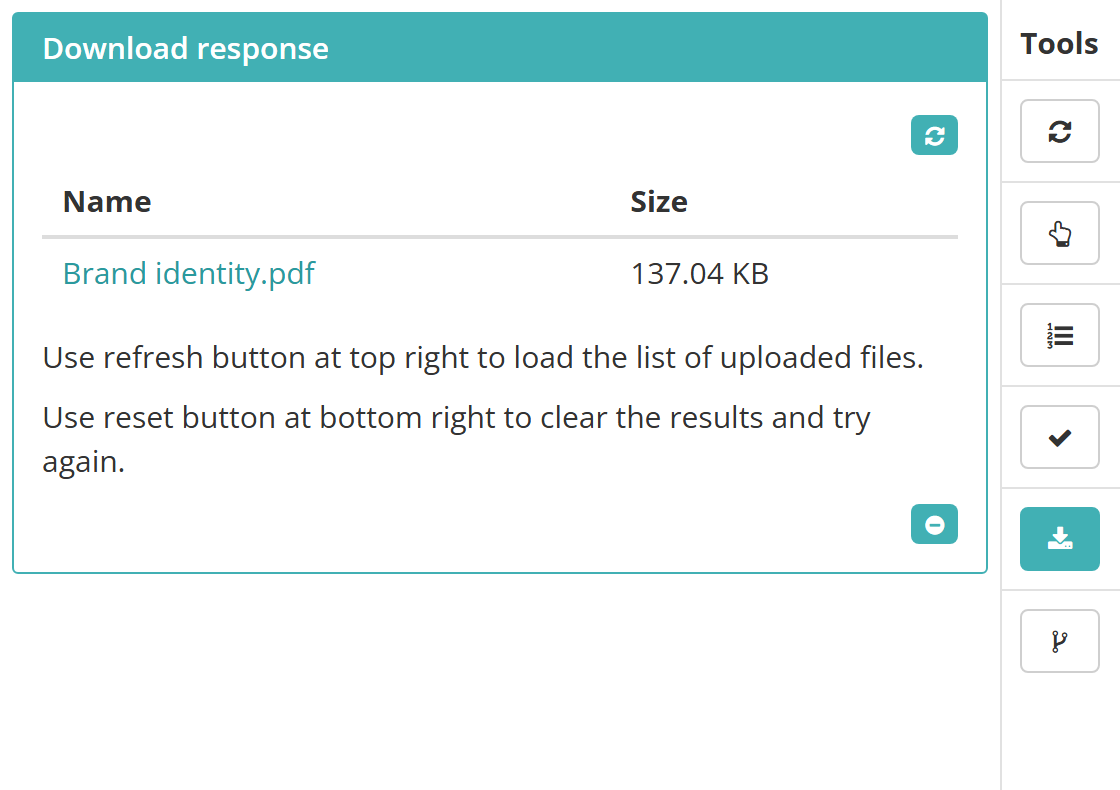
Download response lists the files uploaded to a file upload item in your preview, so you can open them and check they arrived intact.
Select the refresh button at the top right to load the list. Each file name is a link that opens the file, with its size beside it.
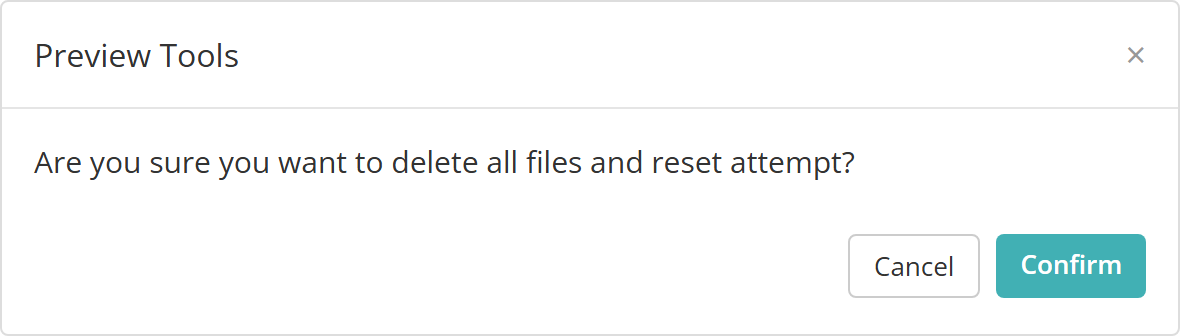
To clear the files and start the item again, select the delete button  at the bottom right, then Confirm.
When you preview a single item, the tool appears only for a file upload item. When you preview a test section or a test, it stays on the toolbar throughout and tells you it's only available for upload items until a file upload item is on screen.
Workflow state
Question Workflow lets you move the item on screen through its review workflow without leaving the preview. It appears when the module that holds the item, test section or test you're previewing has an Items Workflow assigned. See Review and approval for the workflow itself.
The panel shows the item's Workflow state. Select Change and pick a transition. Each one has a line under it saying what it does and who can make it.
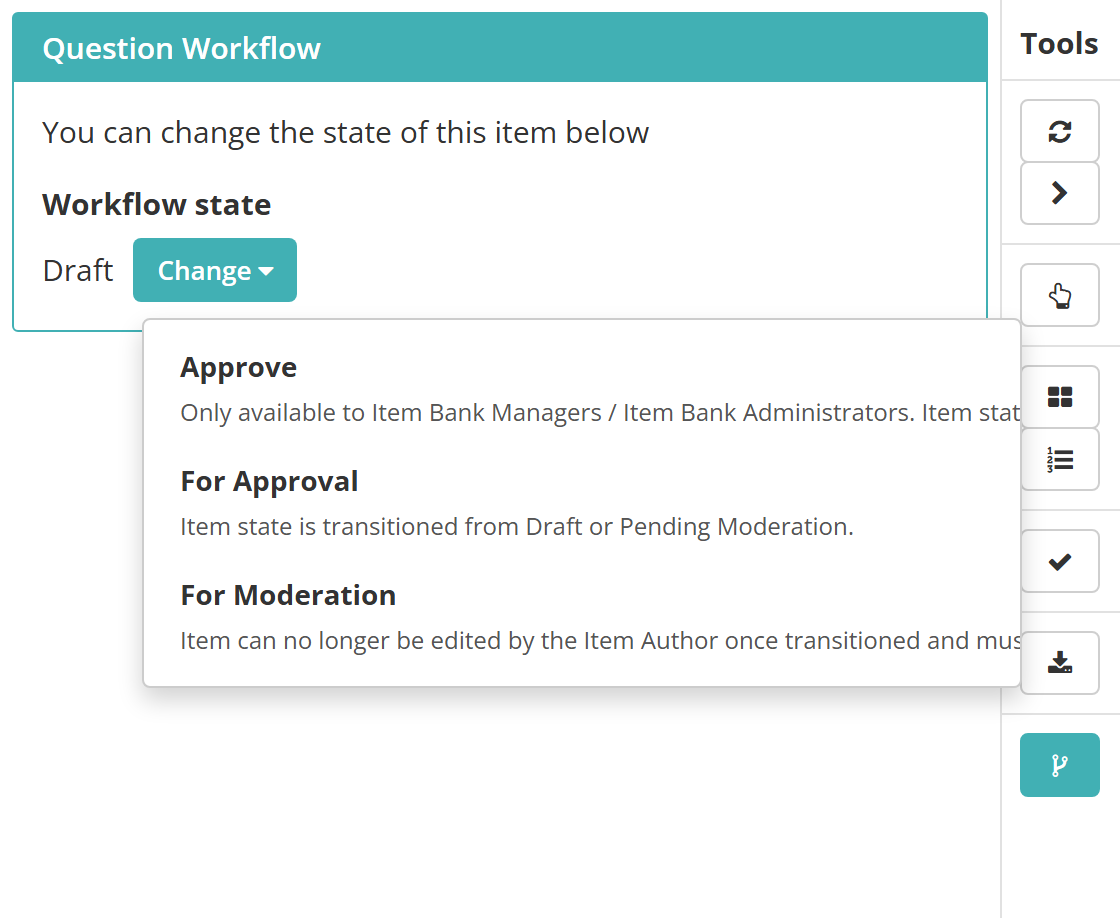
If item comments are turned on for your site, a Workflow Comments panel below carries the item's discussion thread, so you can read and add comments as you review. See Comments.
Branching
On a branching test, Branching shows the test paths and the parallel tests that make them up, with the node you're in highlighted, so you can check that your answers sent you down the path you expected. See Branching tests.
Integration test
Integration Test appears only for a file upload item built with a custom rendering template that includes a delivery-testing view. It embeds that view so the integration can be exercised from the preview.
Item adaptive tests
An item adaptive test picks each item from the test-taker's answers so far, so its preview behaves a little differently. Navigation is left off the toolbar, because navigation is always linear, and Scoring reports theta rather than marks. On a site that uses NoSQL delivery, the preview opens through the test-taker entry screen and offers Personal Needs and Preference Codes, Scoring and Branching only.
Settings
Administrators can configure the following settings at Settings > Test Designer Settings.
Enable Score Preview — under General Assessment Options. Adds the Scoring tool to the toolbar. It's off by default.
Available Test Types — the Branching tool appears only on a branching test, so at least one branching type has to be available here. See Branching tests.
Items Workflow — under Default Settings For Disciplines / Modules / Item Analysis > Workflows, or on a module's details page. The Question Workflow tool appears when the module you're previewing from has one assigned. See Review and approval.
Two things outside this page also shape what you see:
- The codes offered by Personal Needs and Preference Codes are the ones created at Deliver > Personal Needs and Preference Codes.
- Your role needs the test player's Preview permission, granted at Settings > Roles. Enable test preview by Invigilators, at Settings > Assessment Event Settings, also lets invigilators and presiding examiners open an unrandomised preview from the invigilator dashboard.