General settings
In Settings, you customise how Janison Insights looks and works for your organisation. This page shows you how to find a setting, gives examples of what you can change, and lists the guides in this section.
Find a setting
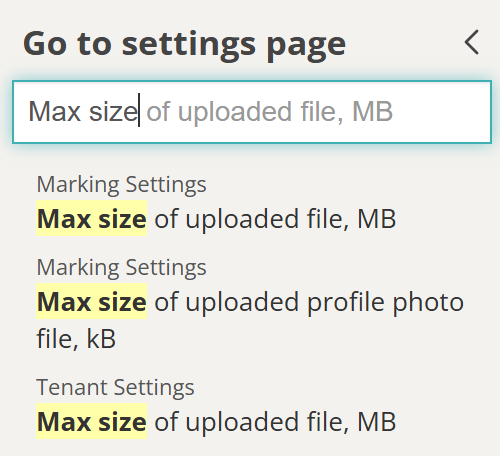
The quickest way to find a setting is to search for it. Press Alt+S and type part of the name of a setting or a settings page. The Go to settings page search lists the matches as you type, each under the name of the page it's on.
Select a result to open its page. Insights scrolls to the setting and highlights it. To open the first result, press Enter.
If the setting is hidden because of how a related setting is set, a message says so.
In this example, a search for Max size finds the upload size limits on the Marking Settings and Tenant Settings pages.
What you can change
Settings is a menu of pages, each for one part of the platform. For example:
- Style & Images sets the look of your site, including its colours, logos and images.
- Menu sets which items each role sees on the menu and what they're called.
- Password Settings sets the rules for passwords, such as how complex they must be.
- Message Templates holds the content of the email notifications Insights sends.
- Roles sets what each role can see and do.
The Janison team will make most of the configuration changes in this area when your system is implemented.
In this section
- Custom attributes — define additional data fields, group them into sets, and batch edit their values
- Custom attribute types — what each attribute type looks like and how to set it up
- Password settings — complexity rules, generation, expiry, reveal and reuse policies
- Quick add user settings — configure the quick user-creation form
- Schedule a job — run reports, imports and other jobs at set times or intervals
- String resources — customise system text, terminology and translations
- Style and images — brand your site with colours, logos and custom CSS
- User settings — configure user forms, views, self-registration and defaults
- Workflows — approval processes for tests, items, resources and stimuli
Settings
What you see in Settings depends on your role. Each settings page is a separate permission, and so is the search. Administrators grant them per role at Settings > Roles. If a page described here doesn't appear in your menu, or Alt+S doesn't open the search, your role may not include it.
Some settings pages appear only when their feature is switched on for your site.