Surveys
Surveys gather information, opinions and feedback from test-takers. You can run a survey on its own as a survey test, or add a survey section to an ordinary test — for example, a few feedback items at the end of an exam. This page covers putting a survey together. For creating the items that go in it, see survey items.
Open the simulation to see a survey as test-takers do.
Survey simulation
See a survey as a test-taker does, with a guide beside each step. Mei Lin opens the 2026 Y9 Wellbeing Check-in and answers one item of each survey type, then finishes the survey. Just want to look around? Skip straight to free practice.
Survey tests and survey sections
Before you start, decide which of the two you need:
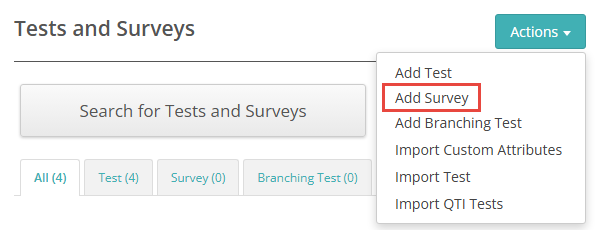
Survey test — a test made entirely for gathering feedback. Choose Add Survey from the Actions dropdown on Tests and Surveys. Use it when the survey is delivered on its own, separately from any assessment. A survey test is never marked and has no pass mark or resit settings. See Create a survey test.
Survey section — a test section with its Type set to Survey. Use it to add survey items to a test that's otherwise assessed, such as a short questionnaire before or after the main sections. See Create a survey section.
Both hold survey items, and both are set up the same way once you're inside the section — see Add items to a survey section.
Create a survey test
Navigate to Author > Tests and Surveys.
Select Add Survey from the Actions dropdown.
Complete the form as you would for a test (see Create a test), then select Save. A survey test's form leaves out the options that only make sense for an assessed test:
- There's no marking option. Survey tests are always set to Do Not Mark
- There's no pass mark, pass/fail outcome or resit settings
- There's no paper or mixed delivery mode
- There's no end-of-test summary screen
A survey test can only contain Survey, Introduction, Instruction and Exit sections. Sections you create from inside the test default to Survey. The Exit if passed and Exit if failed types aren't available, because a survey has no result.
Survey tests appear under the Survey tab on Tests and Surveys.
Create a survey section
Survey sections are created and managed in the same way as other test sections. You can create one from either of these places:
- Author > Test Sections, then Add Test Section
- The + icon on the Sections expandable inside a test
Select Survey from the Type dropdown. For the full steps, see Create a test section.
In an ordinary test, a survey section can sit in the pre-test area, before the main sections, or in the post-test area after them. It can't go in the post-test area while the test has a results summary format set. See change the order of sections.
Survey section options
Two checkboxes on the section form apply to survey sections:
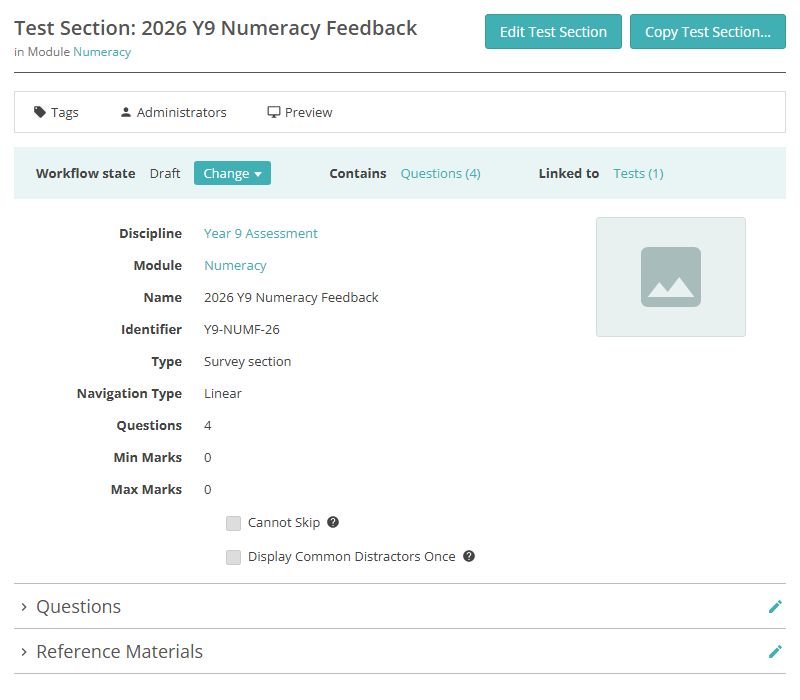
Cannot Skip — stops test-takers skipping past the section when it's used in an ordinary test. It's ignored in a survey test. To make test-takers answer particular items, use mandatory items instead.
Display Common Distractors Once — shows multiple choice and multiple choices items that share the same answer options as one table, with the options as column headings. Use it for a run of rating-scale items such as "Strongly agree" to "Strongly disagree".
Add items to a survey section
To add or edit items, open the survey section and select the Edit Questions icon on the Questions expandable.
Randomisation and optional items
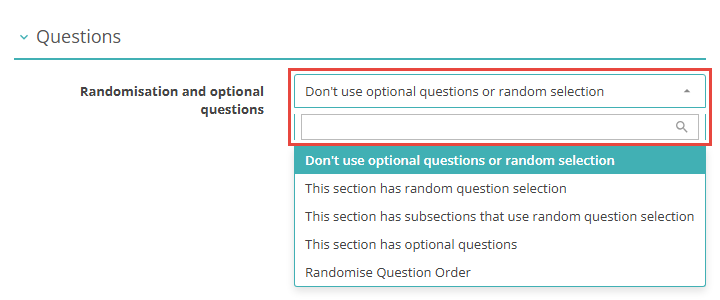
When a survey section is used in an ordinary test, choose an option from Randomisation and optional questions:
- Don't use optional questions or random selection — every item appears, in the order you set
- This section has random question selection — each test-taker gets a set number of items, chosen at random
- This section has subsections that use random question selection — items are grouped into subsections, each with its own random selection
- This section has optional questions — test-takers answer a set number of the items and can leave the rest
- Randomise Question Order — every item appears, in a random order
Two more options appear when subsection randomisation is enabled: This section has random subsections and This section has random subsections that use random question selection.
The dropdown doesn't appear in a survey test, where items always appear in the order you set.
View and edit current items
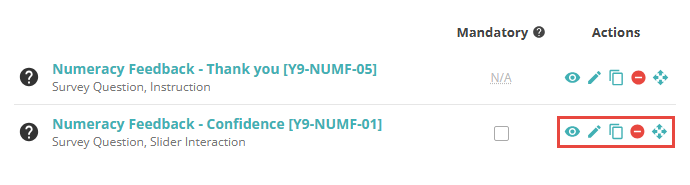
The items already in the section are listed under Current Questions. Use the icons in the Actions column to work with each one:
- Preview — see the item as test-takers will
- Edit — change the item
- Copy — make a copy of the item
- Remove — take the item out of this section. The item itself isn't deleted
- Sort — drag the item to a new position
Make an item mandatory
Select the Mandatory checkbox next to an item to make test-takers answer it. Instruction items show N/A because there's nothing to answer.
In the test player, a mandatory item is marked with an asterisk. If a test-taker selects next or finish without answering every mandatory item on the page, they stay on that page. Each unanswered item shows a prompt such as "Please make a selection", and a summary says how many answers still need to be completed.
The Mandatory column is hidden while the section is set to This section has optional questions. Choosing that option clears any mandatory ticks.
Warning
Mandatory items can't be enforced on paper. If the section is in a test that uses mixed delivery, a warning appears above the list.
Add items
Open the Add Questions expandable to create a new item or add an existing one. Only survey items can go into a survey section.
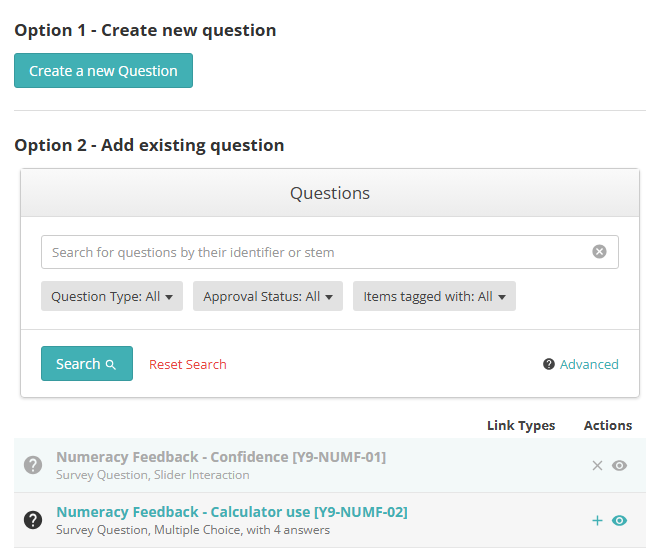
To create a new item, select Create a new Question. A new survey item opens, ready to link to this section. For the fields and item types, see Create a survey item.
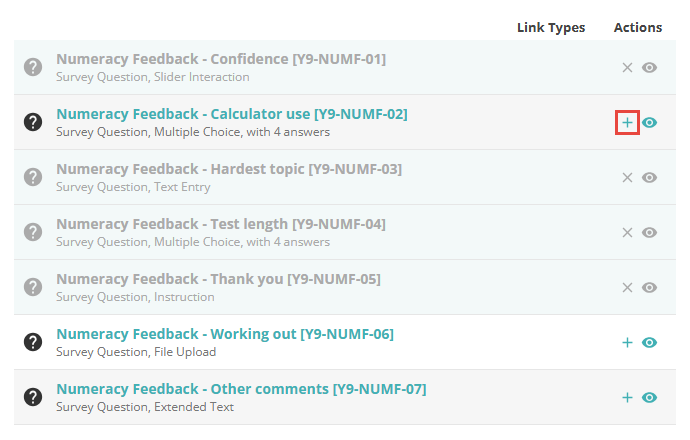
To add an existing item, search for it under Option 2 - Add existing question, select the + icon next to it, then select Save. Items already in the section are greyed out.
Settings
Administrators configure the settings that affect surveys at Settings > Test Designer Settings.
Available Test Types — Survey must be ticked for Add Survey to appear on Tests and Surveys.
Available Test Section Types — Survey must be ticked for it to appear in the section Type dropdown.
Available Question Types — the For Surveys column controls which item types can be survey items. See survey items.
Enable Optional Questions (under Test Authoring Settings) — adds This section has optional questions to the randomisation dropdown.
Enable Subsection Randomisation (under Test Section Options) — adds the subsection options to the randomisation dropdown.
Randomise by default (under Test Section Options) — makes Randomise Question Order the default for new sections.
Enable Question Unrandomization (under Test Section Options) — lets you fix individual items in place when the section is randomised.
Enable Approximate Duration Input for Tests and Surveys (under General Assessment Options) — adds an approximate duration field to the test and survey forms.