Open test sessions
Open Test Sessions lists the test sessions still running at the org units you can access, so you can find one and open it. A session counts as running while its status is Open, Started or Paused, or while it's being verified. Finalised sessions still waiting to be processed are listed too. To open the list, select Deliver > Open Test Sessions.
Search for a session
- Select the search bar at the top of the list to open the search panel.
- Enter a session code or an org unit's identifier, choose filters, or both.
- Select Search.
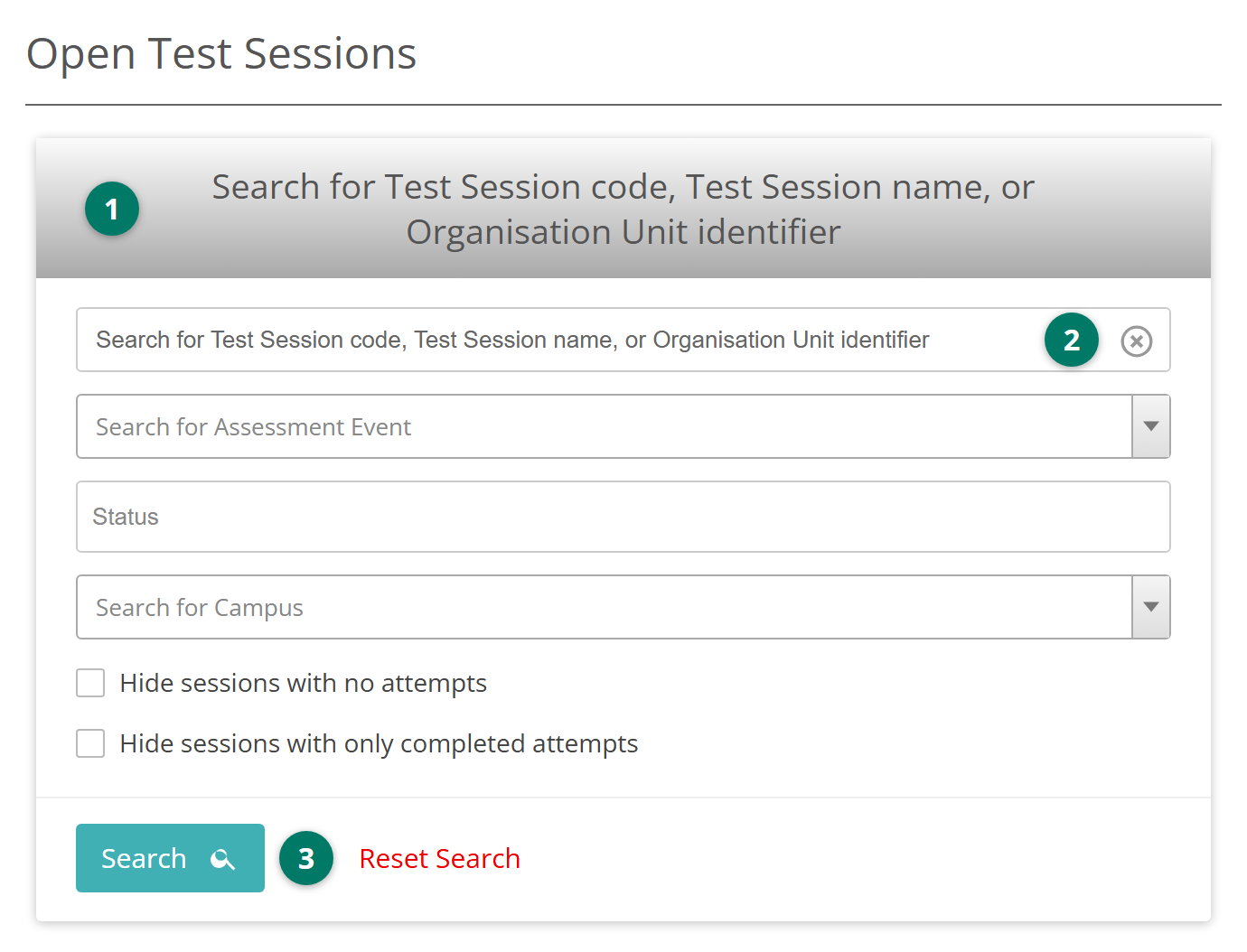
You can enter a session code with or without its dashes. The bar reads Search for Test Session code or Organisation Unit identifier. If your site names test sessions, the search also matches session names, and the bar reads Search for Test Session code, Test Session name, or Organisation Unit identifier.
The filters are:
- Exam Series — sessions for tests in one exam series, on sites that record exam information
- Assessment Event — sessions for one event in Delivery
- Exam Class — sessions for one exam class, on sites that schedule exams by class
- Status — sessions in any of the statuses you choose
- Campus — sessions at one org unit
- Hide sessions with no attempts — leaves out sessions no test-taker has joined
- Hide sessions with only completed attempts — leaves out every session in which at least one attempt has finished.
Tip
To start again, select Reset Search beside Search.
Read the list
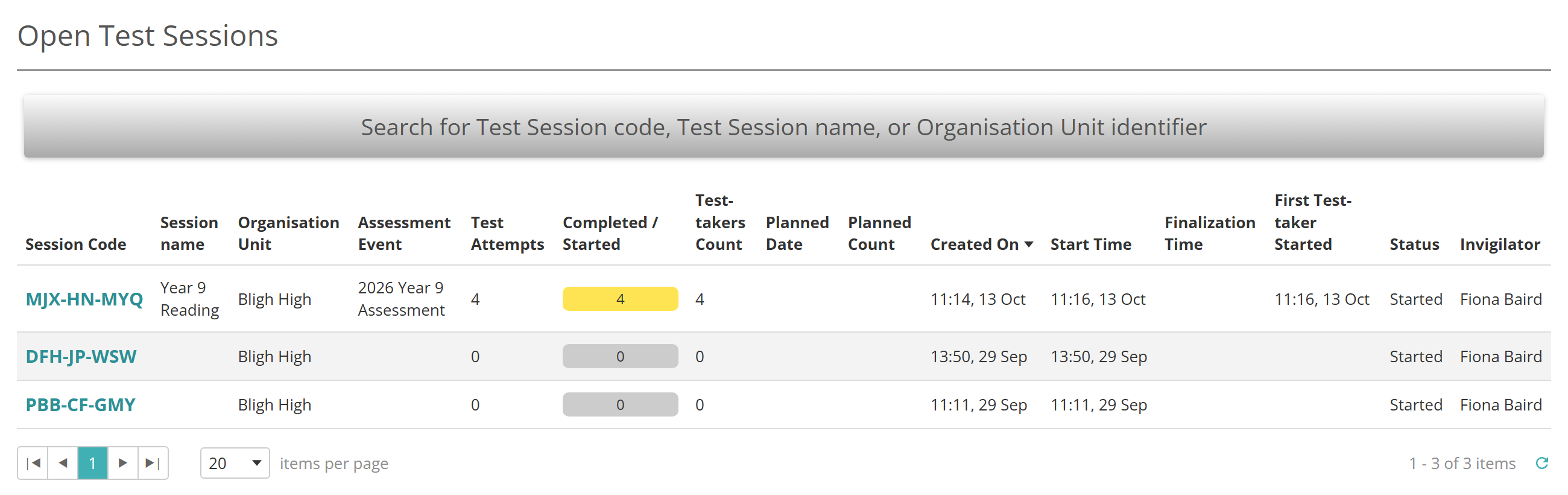
Each row shows the session's code, org unit, assessment event and invigilator. It also shows when the session was created, started and finalised, and its status. If your site names test sessions, a Session name column appears after the code. Some columns need a little explaining:
- Test Attempts — the number of attempts in the session
- Completed / Started — a bar of the attempts submitted and in progress
- Test-takers Count — the number of different test-takers, since one test-taker can have several attempts
- Planned Date and Planned Count — the date and number of test-takers planned for a scheduled session or an exam class
- First Test-taker Started — when the first test-taker began.
The newest session is listed first. Select a column heading to sort by it.
Open a session
Select a session code to open the session's administration page, where you run the session. See Test session administration.
All test sessions
All Test Sessions, also under Deliver, has the same search panel and list, but includes every session whatever its status. Use it to find a session that has finished, been abandoned or been cancelled.
Settings
Administrators configure the following at Settings > Assessment Event Settings.
Enable test session name — adds the Session name column and lets the search match session names.
Ask for Assessment Event, Invigilator and Room details when creating test session — changes what the Assessment Event, Exam Series and Exam Class filters match. While it's on, they match on the event each session was created for. While it's off, they match on the attempts in each session.
Allow Scheduling of Test Sessions — lets sessions have a future planned date. They show as Scheduled, with their Planned Date.
Exam Class Scheduling Settings — turning on exam class scheduling adds the Exam Class filter.
At Settings > Test Designer Settings, Enable Exam Info adds the Exam Series filter.
Open Test Sessions and All Test Sessions are separate permissions, granted per role at Settings > Roles. Either list shows only the org units your role gives you access to.