Tags and tag types
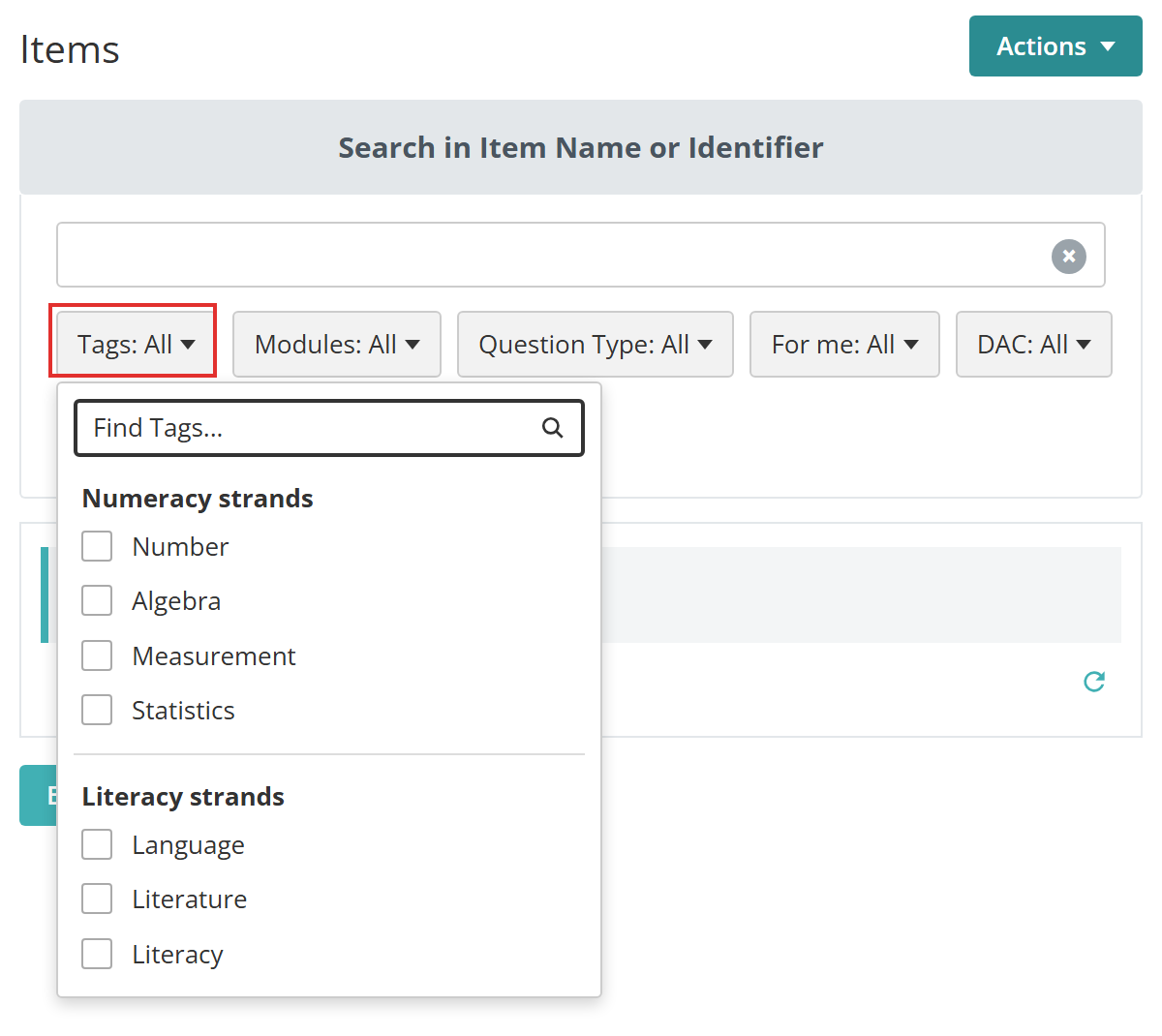
Tags are labels you attach to items to say what each one covers: a topic, a strand, a knowledge area. Tag types group the tags that belong together, so a tag type called Numeracy strands might hold the tags Number, Algebra, Measurement and Statistics. You manage both at Author > Manage Tags.
This guide explains what tags are used for, then walks through creating tag types and tags, attaching tag types to a module and tagging the module's items.
What tags are used for
Tags on items feed 5 features:
Test blueprints — a blueprint's components are built on tag types, and each tag marks out a knowledge area the blueprint draws items from. See test blueprints.
End-of-test feedback — a test's Results Summary Configuration can summarise results by tag type, giving the test-taker a score for each knowledge area. The tag's Description is the label they see. See end-of-test feedback.
Reporting — a customisable report on the Items entity can include each item's Tags, Tag Types and Tag Descriptions, and can filter by tag. See customisable reports.
Finding items — the Items list has a Tags filter. When tag types are enabled, it groups the tags under their tag types.
Disciplines — a discipline's Taxonomic level tag types and Competency tag types fields nominate the tag types its items use for taxonomy and competency data. See disciplines.
Before you start
Tag types only reach modules and items while Blueprint is an available test type. Making it available adds a Blueprint Settings section to every module and a Tags section to every item, for regular tests as well as blueprints.
An administrator sets this at Settings > Test Designer Settings. Expand Available Test Types and tick Available on the Blueprint row.
Important
With Blueprint unavailable, modules lose their Blueprint Settings section and items lose their Tags section. A module still has a Tags tab at the top of its page. That tab tags the module itself and has nothing to do with tag types.
Create a tag type
Create the tag type first, because every tag belongs to one.
Go to Author > Manage Tags. The Tags screen opens. Select Actions > Manage Tag Types.
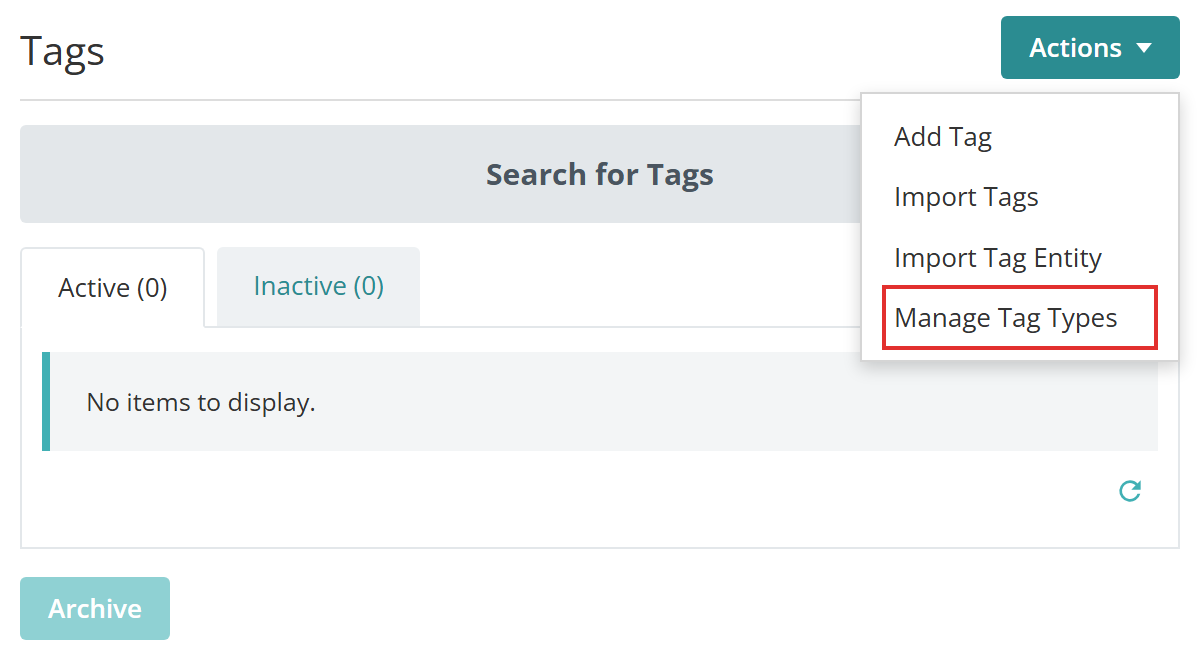
The Tag Types screen lists your tag types, each with a count of its tags. Select Actions > Add Tag Type.
Fill in the form:
- Enter a Name.
- To add a tag straight away, enter its name in Enter a new tag.
- Enter its description in Enter a tag description.
- Select the add icon
 . The tag joins the list above, where the pencil renames it and the minus removes it.
Repeat steps 2 to 4 for each tag, then select Save Tag Type.
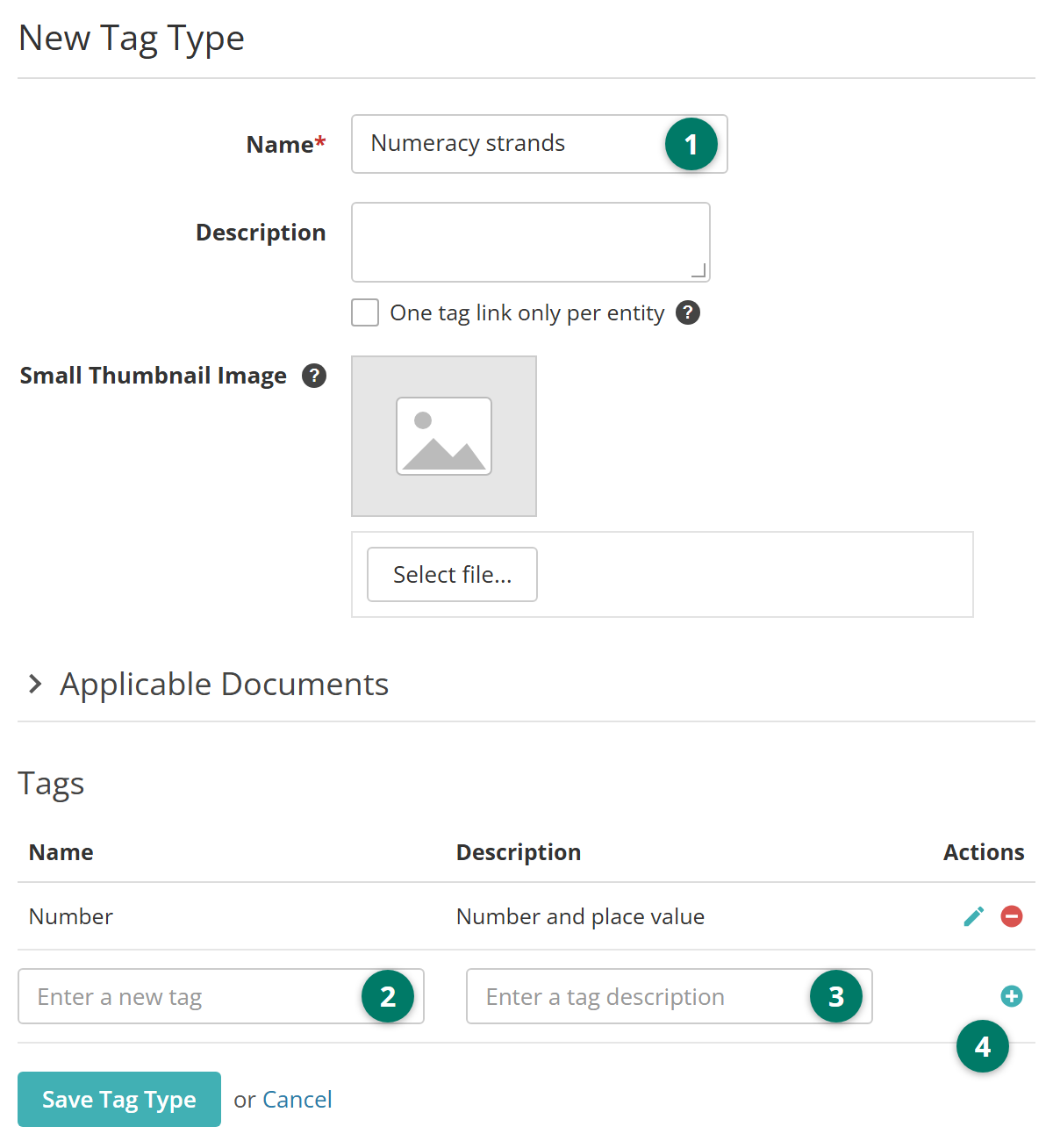
The other fields on the form:
Description — notes for authors about the tag type.
One tag link only per entity — allows an item to carry only one tag from this tag type. Leave it clear if an item can cover more than one of the tags.
Small Thumbnail Image — an optional 64 × 64 pixel icon for the tag type.
Applicable documents
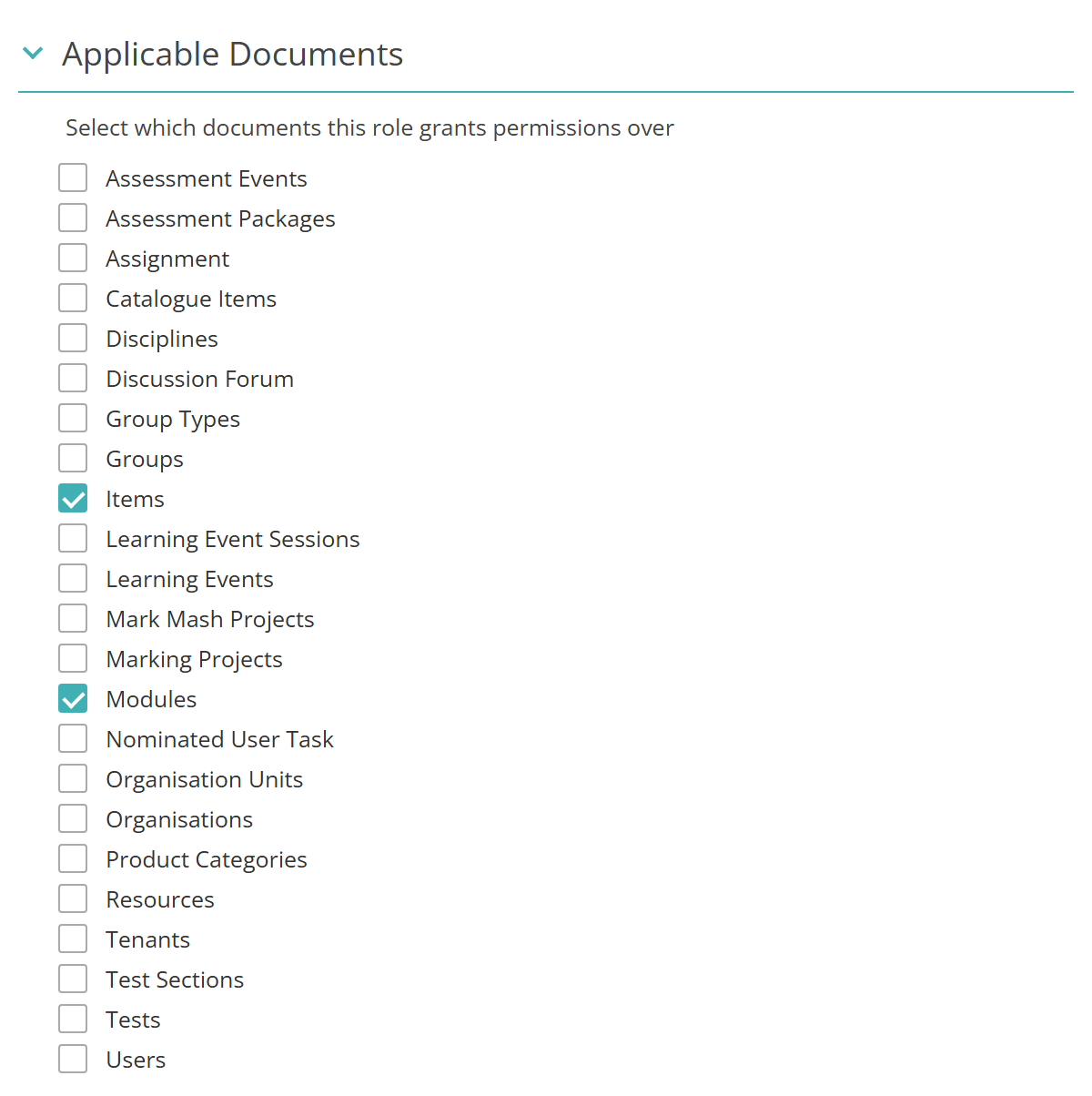
Applicable Documents sets where the tag type can be used. Expand it and tick:
- Modules, so the tag type appears in a module's Blueprint Settings. Without it you can't attach the tag type to a module, and its tags never reach the module's items
- Items, so the tag type's tags appear in the Tags filter on the Items list.
Then save.
Create a tag
You can add tags while creating the tag type, as above, or later from the Tags screen.
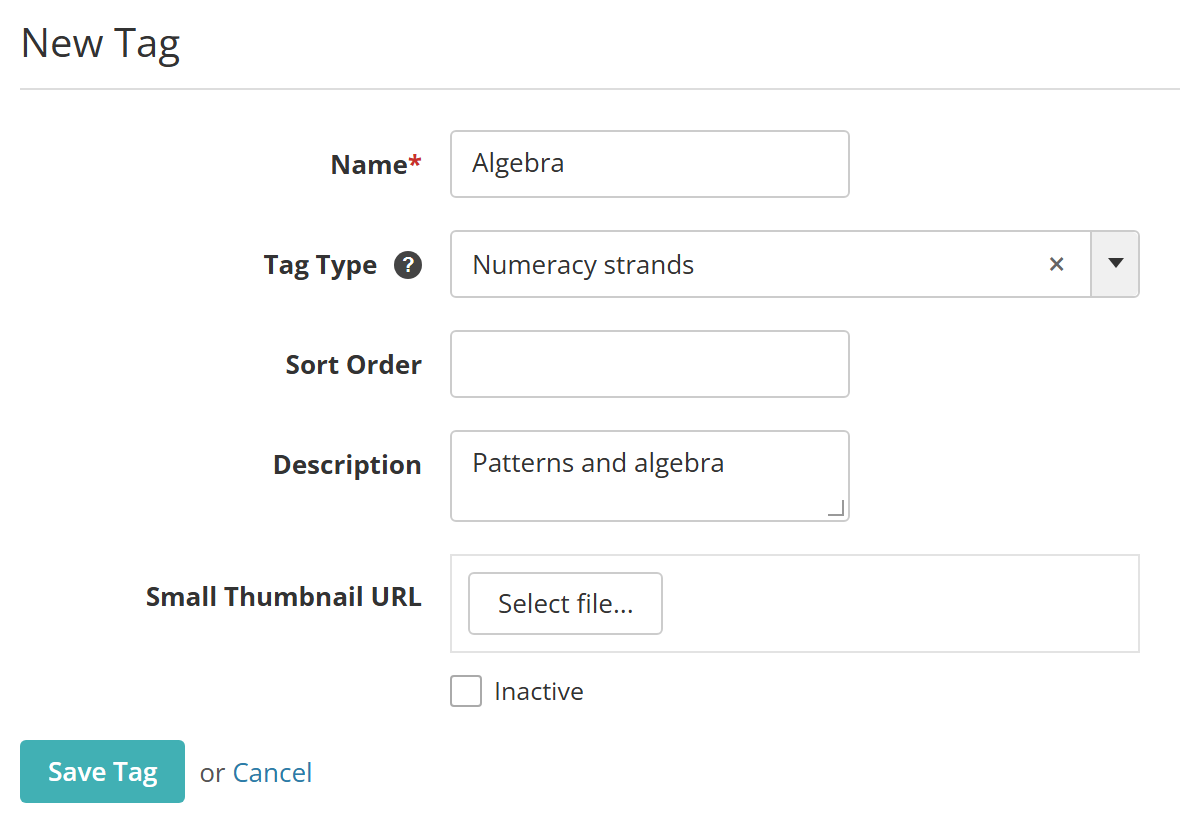
Go to Author > Manage Tags and select Actions > Add Tag. Complete the form and select Save Tag.
Name — the tag as it appears on items, in filters and in blueprints.
Tag Type — the tag type the tag belongs to. The field appears only while Enable Tag Type is on (see Settings).
Sort Order — a number that sets where the tag sits among the tag type's tags. Lower numbers come first.
Description — the label test-takers see in end-of-test feedback. Leave it blank and the feedback shows the Name instead.
Small Thumbnail URL — an optional icon for the tag.
Inactive — retires the tag. Inactive tags drop off the item's tag fields and the Items list filter, and the Tags screen lists them under its Inactive tab.
Tip
If you plan to use end-of-test feedback, enter a Description for every tag. It's the label the test-taker sees.
Attach tag types to the module
A module's Blueprint Settings choose which tag types its items use. Despite the name, this applies to items in regular tests as well as blueprints.
Open the module at Author > Modules and select the pencil on Blueprint Settings. Choose a tag type in Tag types, select + to add it, and repeat for each tag type you want. Then select Save Blueprint Settings.
Only tag types with Modules ticked under Applicable Documents appear in the dropdown.
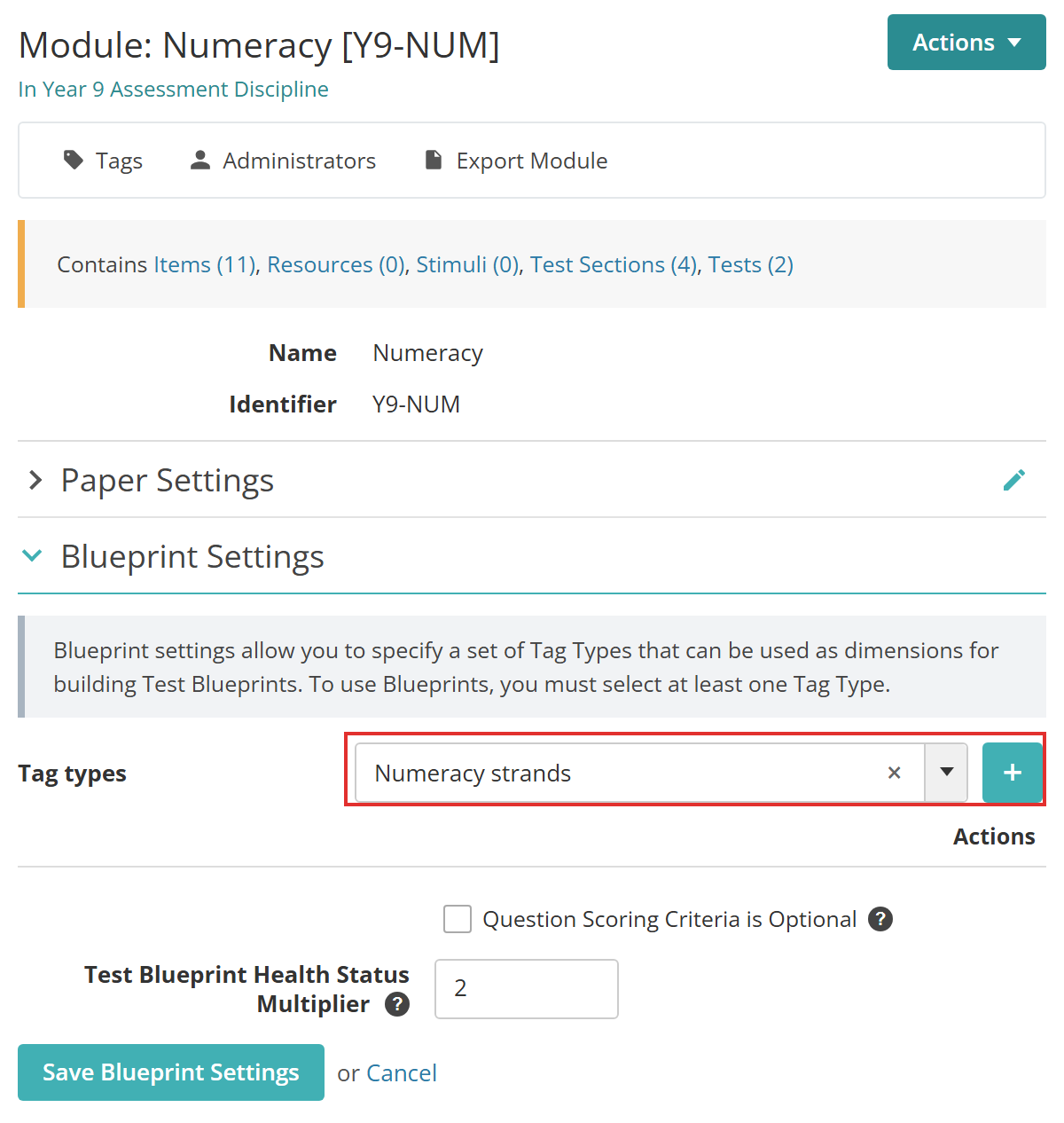
The section's other two settings, Question Scoring Criteria is Optional and Test Blueprint Health Status Multiplier, only matter for blueprints. See test blueprints.
Tag items
When you create or edit an item in the module, a Tags section lists each of the module's tag types as a field. Select one or more tags in each. On an existing item, select the pencil on Tags to change them.
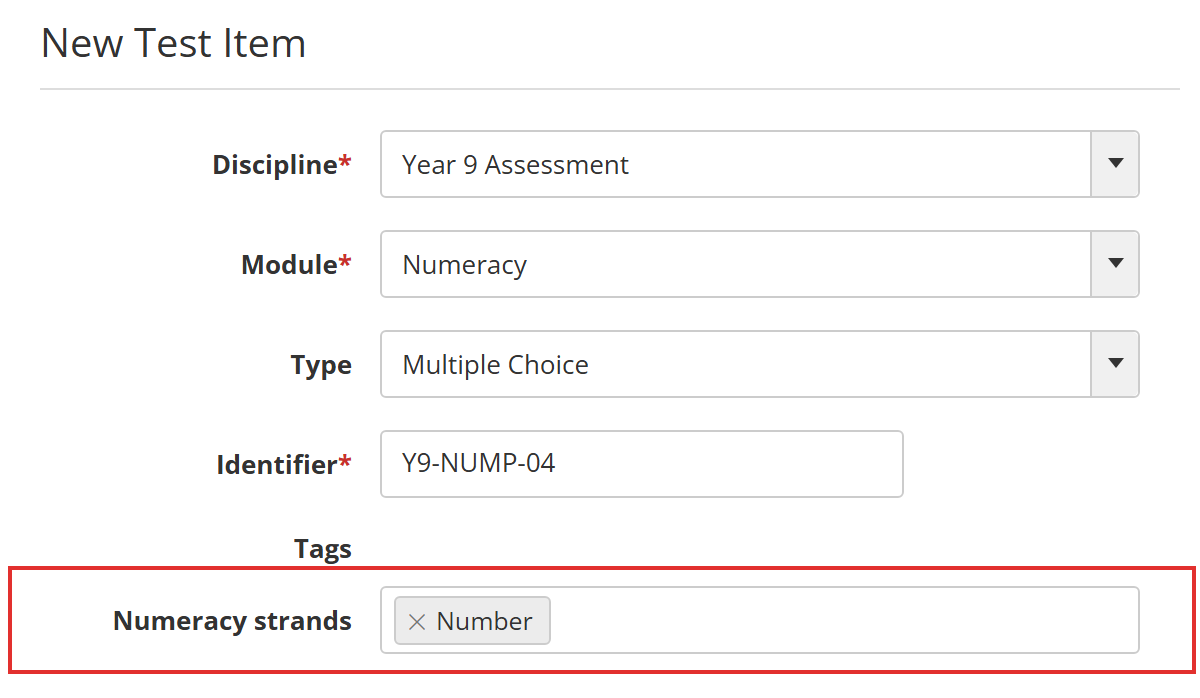
The fields are mandatory unless an administrator has ticked Blueprint item Tags Optional (see Settings).
Settings
Administrators configure the following settings at Settings > Test Designer Settings.
Available Test Types — ticking Available on the Blueprint row makes tag types available on modules and items. See Before you start.
Blueprint item Tags Optional — in Test Authoring Settings, makes the tag fields on items optional. By default an item in a module with tag types must carry at least one tag from each tag type.
Administrators configure the following setting at Settings > Tenant Settings > Miscellaneous.
Enable Tag Type — shows the Tag Type field on the tag form and groups the Items list's Tags filter by tag type. With it off, a tag added from the Tags screen has no tag type, and only the tag type's own form can create tags that belong to it.
At the module level, Blueprint Settings on each module (Author > Modules) chooses the tag types its items use. See Attach tag types to the module.