Scoring details
Scoring Details, at the bottom of My Marking Taskboard, lists the scores you can see in a marking project, sorted into tabs. Markers at seniority levels 5 to 8 see it as My scoring so far, with only their own scores. Select Review scores beside a script to open it on the score page. See Review a response's scores.
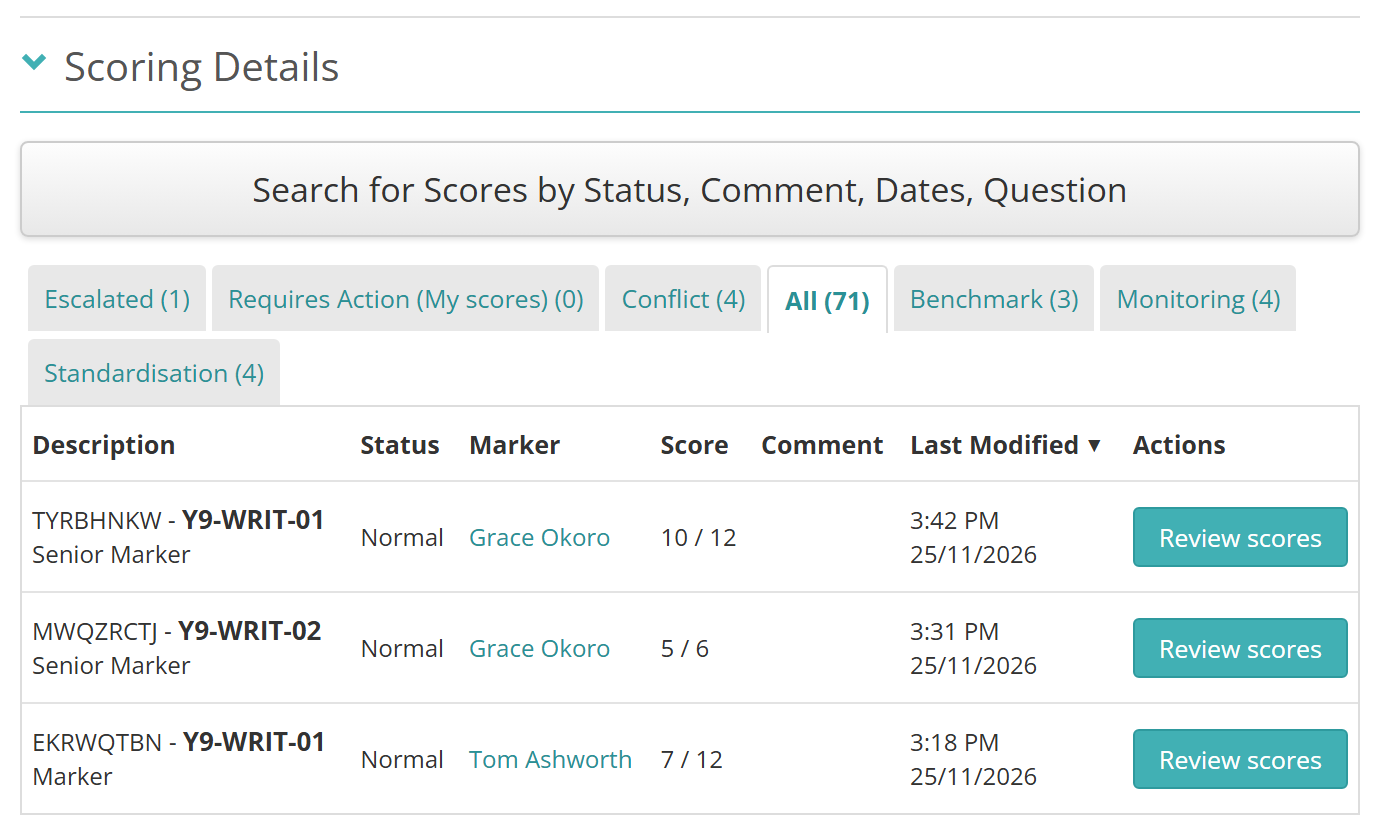
Use the search bar to find scores by status, comment, date or item. Senior and chief markers can also search by score type. See Follow markers' progress during marking.
Print Friendly View, below the list, opens a printable view of the open tab, if your site has a print template and your role allows it.
The tabs
Which tabs you see depends on the project's settings and your role's permissions. Some tabs fill only as marking moves on.
| Tab | Lists | Appears |
|---|---|---|
| Escalated | Scores that have been escalated, sent back or put under review, until they're resolved. With grace periods, a score appears once its grace period ends | Always |
| Requires Action (My scores) | Your responses that you opened but didn't score, and your scores that a senior marker sent back or asked you to review | Always |
| Conflict | Scores in conflict under double marking | When the project uses double marking |
| All | Every score you can see | Always |
| Benchmark | Benchmark scripts | When the project uses Standardisation 1, to markers who can see benchmark scripts |
| Monitoring | Scripts used for blind quality monitoring | When the project uses Standardisation 1 |
| Standardisation | Standardisation scripts. Chief markers release them for Standardisation 2 and 3 from here | When the project uses Standardisation 1 |
| Open | Your scores still in their grace period, which you can change | When the project uses grace periods, if your role marks |
| Locked | Your scores past their grace period | When the project uses grace periods, if your role marks |
Escalated
A marker who isn't sure of a score escalates it to a more senior marker, and it waits on their Escalated tab. See Escalate a script. To act on one:
- Open the Escalated tab and select Review scores beside the script.
- In Score by and the marker's name, select Change beside Score Status.
- Choose what to do.
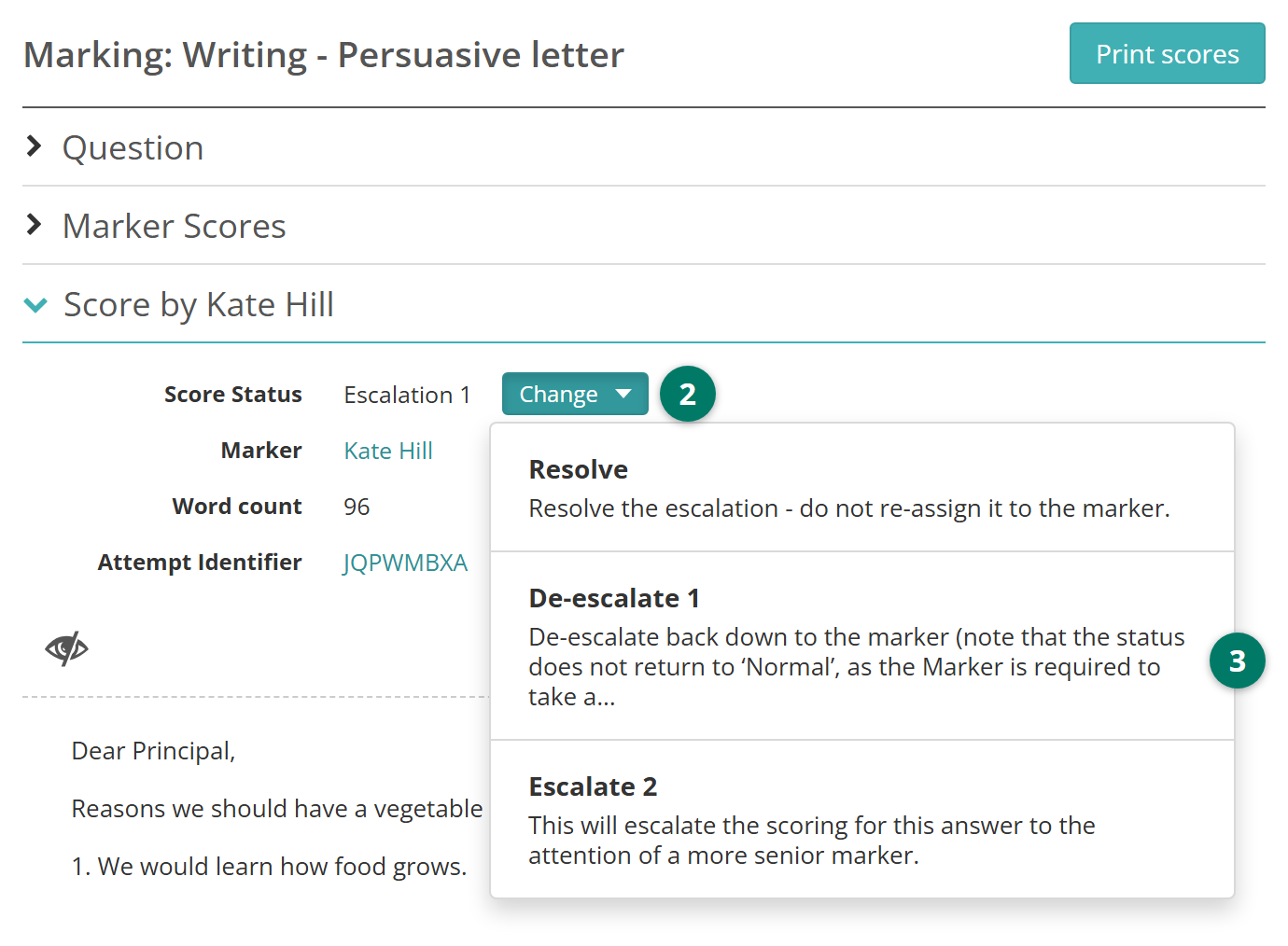
The options follow the score's escalation level. From Escalation 1 they're:
- Resolve — closes the escalation. The score isn't sent back to the marker.
- De-escalate 1 — sends the score back to the marker, who must act on it. Its status becomes De-escalated, not Normal.
- Escalate 2 — passes the score to a more senior marker.
Requires Action (My scores)
Requires Action (My scores) lists your own responses that need you: ones you opened but didn't score, and scores a senior marker sent back or asked you to review. While it has any, a notice at the top of My Marking Taskboard says how many.
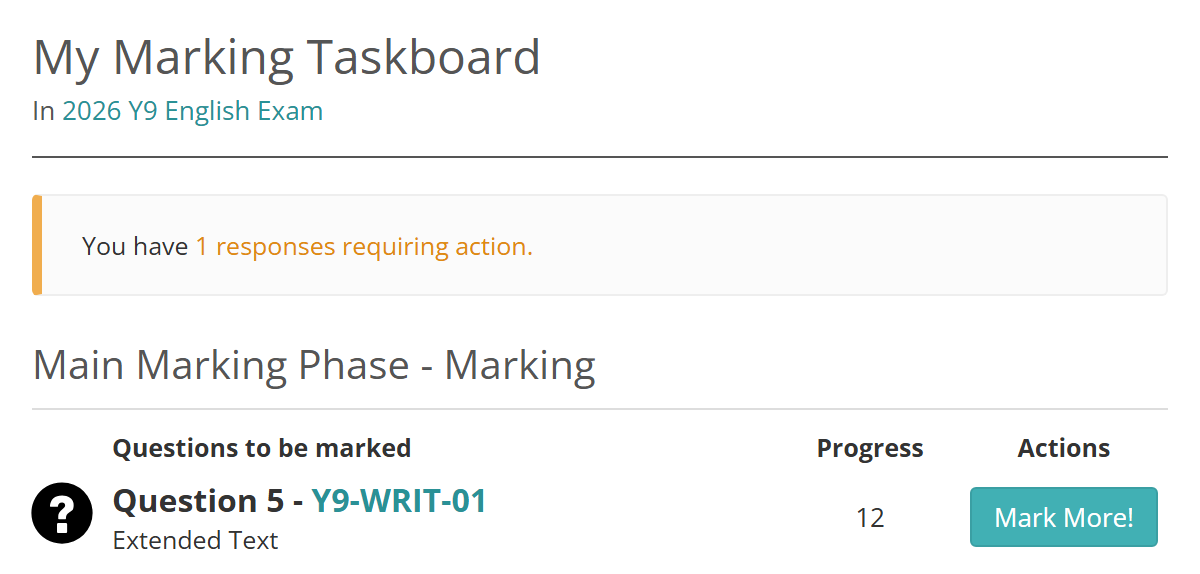
Select Review scores beside a script, then Review Mark to act on it. See Base marker role.
Settings
The project's own settings decide which tabs appear: double marking adds Conflict, Standardisation 1 adds Benchmark, Monitoring and Standardisation, and grace periods add Open and Locked.
Print Setting, at Marking > Marking Settings — the template Print Friendly View uses. See Marking settings.
Permission to see each tab is set per role at Settings > Roles.