Marking teams
Every marking project has its own marking team: the people who mark its responses. Each marker has a role, which sets what they can do, and a seniority level, which sets who they can see and where their escalations go. This page explains how the two work together.
Roles and seniority
A marking project has two roles by default: Chief Marker and Marker. Your site can add others, such as Senior Marker. What each role can do is set by its permissions at Settings > Roles, so your site may have changed them.
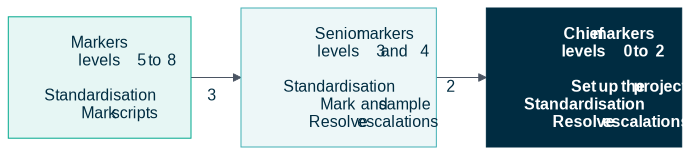
Each marker also has a seniority level from 0 to 8, where 0 is the most senior. The project counts levels 0 to 2 as chief markers, 3 and 4 as senior markers, and 5 to 8 as markers, whatever their role. The level also sets who a marker can see:
| Level | Can see |
|---|---|
| 0 | Everyone in the project |
| 1 and 2 | Markers at their level or less senior, in their marking centre or team |
| 3 and 4 | Markers at their level or less senior, in their marking team |
| 5 to 8 | Only themselves |
Which activities each role takes part in is set for each project in its Team Responsibilites grid (the screen's spelling). The activities are Standardisation 1, 2 and 3, marking and sampling.
A team usually works like the diagram below, from markers on the left to chief markers on the right. Each arrow shows where a marker's escalations go.
Allocate items to markers
A marker's work allocation can limit them to some of the project's items. You can copy a marker's allocation to everyone else in their marking team, so one team marks items 1 to 10 while another marks items 11 to 20.
Escalate a script
A marker who isn't sure of a score can escalate the script to a more senior marker. It appears on that marker's Escalated tab in Scoring Details, at the bottom of My Marking Taskboard. The senior marker can:
- resolve it, so it doesn't go back to the marker
- de-escalate it back to the marker, who must act on it and can escalate it again
- escalate it to a more senior level.
See Scoring details.
Settings
Administrators can configure these settings at Marking > Marking Extended Settings, in Team Roles.
Seniority and Role table — the roles you can choose in a project. A role that isn't in the table doesn't appear in a project's role list.
Role Seniority Mode — Custom, the default, lets you choose a role and a seniority separately for each marker. Automatic offers only the pairs in the table, such as Chief Marker - 0.
Group Type for Marking Team — the group type Add Existing Team lists groups from, when you add a group of markers to a project.
Roles allowed into Marking Project — the main roles a person needs before they can join a marking team.
What each marking role can do, including escalating, resolving escalations and editing the team, is set per role at Settings > Roles.