Project settings
Project settings control when markers can work on an enrolment-based marking project, how long they can change a score after saving it, and which annotation tools they use. You'll find them in the Project Settings section, under Settings & Activities on the marking project's page.
What's in project settings
Project Settings can hold up to four expandables. Which ones appear depends on your site's settings (see Settings).
- Marking Sessions Schedule limits marking to set times and days. On by default.
- Grace Periods gives markers time to change a score after saving it. It appears only when your site turns it on.
- Marking & Annotation Settings sets the annotation tools markers use, and whether they use holistic or discrete marking. On by default. See Marking and annotation.
- Marker Self Registration Settings lets markers join the project's marking team themselves, with a registration key. It appears only when your site turns on marker self-registration.
To change an expandable, select its pencil icon. You can change project settings until the project is closed or cancelled.
Marking sessions schedule
By default, markers can mark at any time. A schedule limits marking to set hours on set days, such as school hours or a planned marking session.
- In Project Settings, select the pencil icon on Marking Sessions Schedule.
- Select Set time periods during which markers are allowed to mark.
- In the empty row, set a Start and End time and tick the days.
- Select Add. The period moves into the list above the empty row.
- Repeat steps 3 and 4 for any other periods.
- Select Save.
Important
Select Add for every period, including the first. Save keeps only the periods in the list, and a filled-in row that wasn't added is dropped.
This schedule allows marking from 8 am to 5 pm, Monday to Friday. To remove a period, select the red cross in its row.
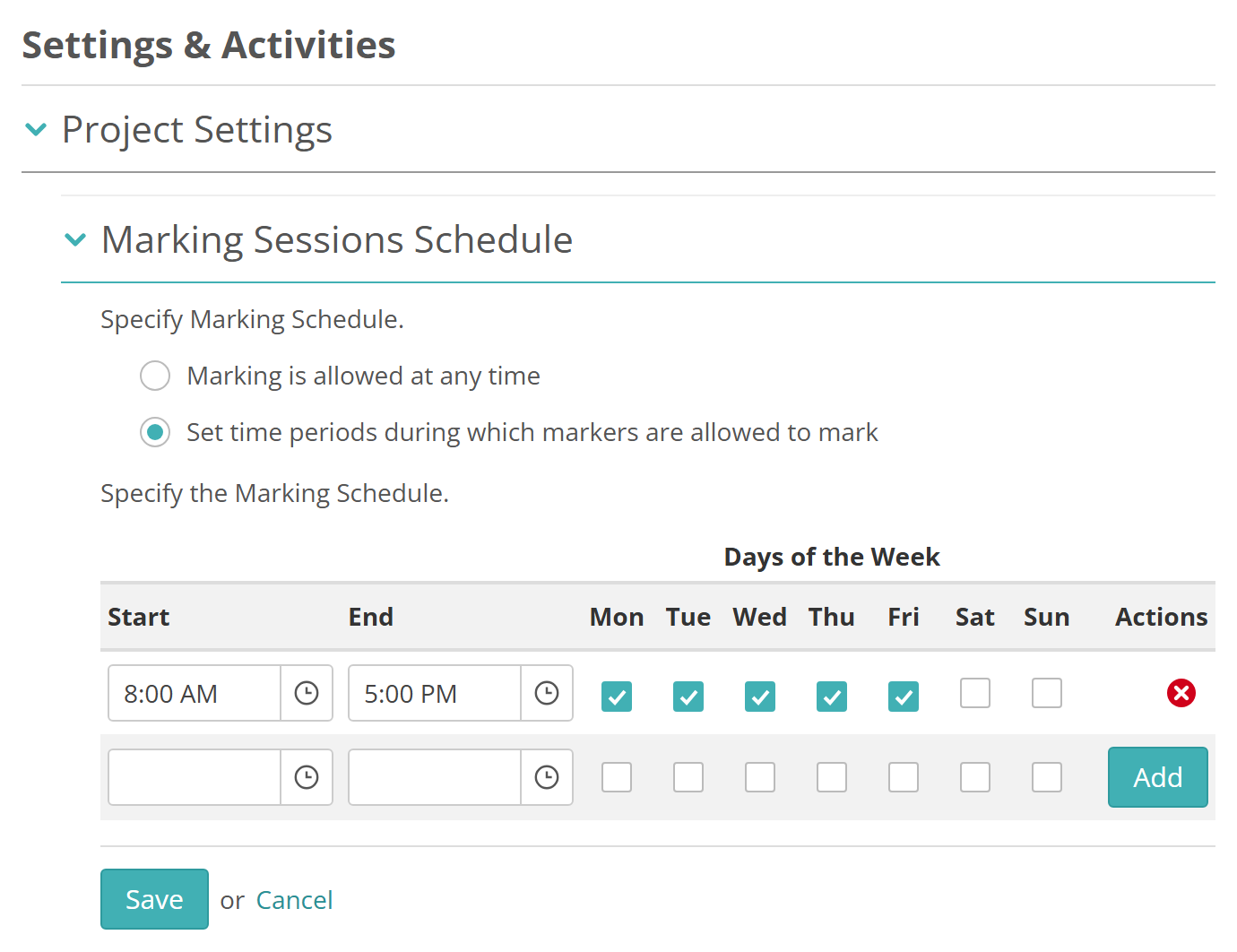
Each period must start before it ends, so it can't run past midnight, and needs at least one day ticked. Times are in your site's time zone.
Outside the schedule, a marker who opens a response sees a message that the project isn't open for marking, with the times it is. The project's summary shows Marking Schedule Status as Active while marking is allowed, and Inactive outside those times.
Grace periods
A grace period gives markers time to change a score after they've saved it. When the grace period ends, the score is locked. Without one, a marker can't change a score once it's saved.
- In Project Settings, select the pencil icon on Grace Periods.
- Select Use grace periods, and lock scores only after a grace period has expired.
- In Locked grace period, enter the number of minutes markers have to change a score.
- Select Save.
Once saved, the section shows the grace period you set.
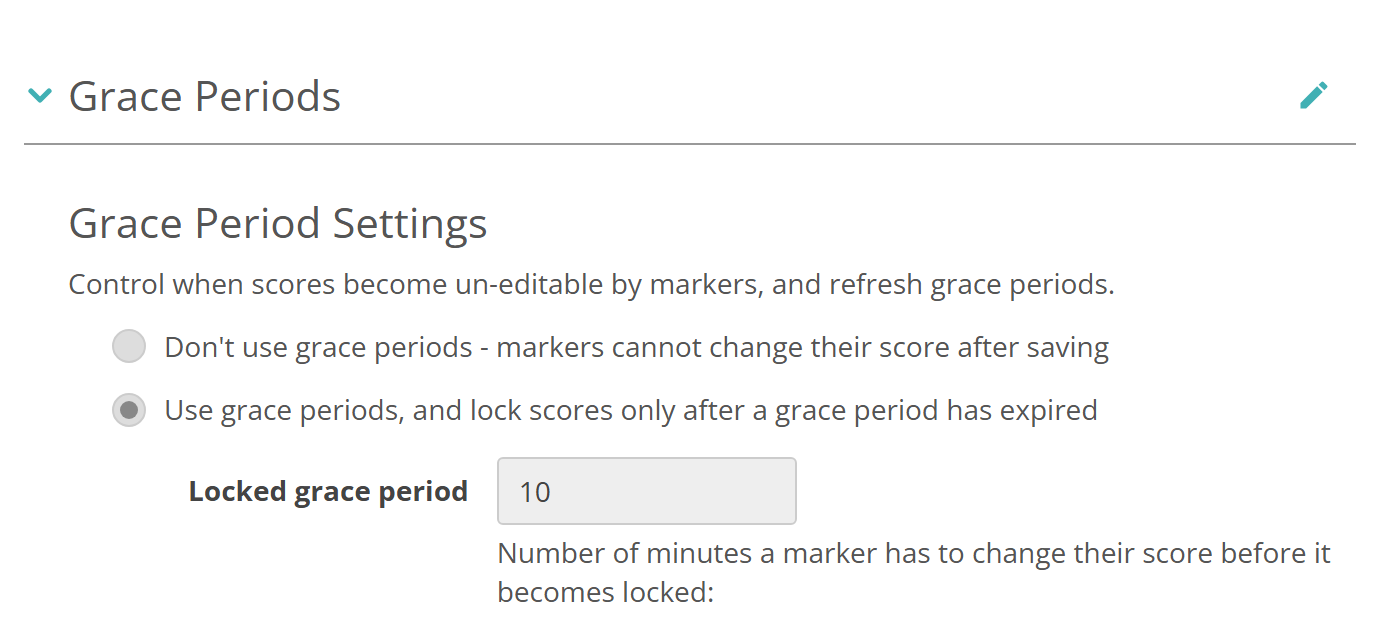
New projects start with Don't use grace periods - markers cannot change their score after saving selected, unless your site gives every new project a grace period (see Settings).
Senior markers see an escalated score only once its grace period has ended.
While any of a test-taker's scores is still in its grace period, the marker can't finish marking them. Insights shows a message such as "There are 2 answer scores within grace period, markers can still amend these scores", and the test-taker stays at Marking. Once the grace period has ended, the marker can finish, and the test-taker moves to Pending Release.
When the project uses grace periods, you can reopen all of an item's scores so markers can change them again. See Reopen an item's scores.
Marking and annotation settings
Marking & Annotation Settings sets the annotation tools markers can use on test-taker responses for every item in the project. It also sets whether they use holistic or discrete marking. See Marking and annotation.
Settings
Administrators can configure these settings at Marking > Marking Extended Settings, in the Marking Project Settings section.
Enable Schedule Settings Section, in Enrolment Based Marking Project Section Settings — shows Marking Sessions Schedule on enrolment-based projects. On by default.
Enable Miscellaneous Marking Settings Section, in Enrolment Based Marking Project Section Settings — shows Grace Periods on enrolment-based projects. Off by default.
Enable Annotation Settings Section, in Enrolment Based Marking Project Section Settings — shows Marking & Annotation Settings on enrolment-based projects. On by default.
Enable Marker Self Registration Settings Section, in Enrolment Based Marking Project Section Settings — shows Marker Self Registration Settings on enrolment-based projects. It also needs Enable Marker Self Registration. Both are off by default.
Enable Targeted Back Marking, in Quality Monitoring Settings — adds Targeted Back Marking options to the Grace Periods expandable. Off by default. See Targeted back marking.
Default Grace Period On and Default Grace Period, in New Marking Project Automation — give every new project a grace period, in minutes. Off by default.
Permission to see and change each expandable is set per role at Settings > Roles.