QTI import and export
Question and Test Interoperability (QTI) is a standard XML format for moving items, tests and results between assessment systems. It is published by 1EdTech, formerly IMS Global. Janison Insights follows QTI version 2.1.
Insights can export items and tests as QTI content packages, and import packages made in Insights or in another QTI 2.1 system. This page explains which item types the standard covers, how to import and export, and the settings that control both.
Important
QTI import and export is a plugin that Janison switches on for your tenant. If the options on this page are missing from your Actions menus, contact Janison support.
Item types the standard covers
Each Insights item type below maps to a QTI interaction, so items of these types can be exported and imported.
A speaking item is a file upload item with the Speaking sub type. It exports as an upload interaction, with the sub type written into the item file so that another Insights site restores it on import. Survey is a use of these types rather than a type of its own. A filtered or module export includes test items only.
| Insights item type | QTI interaction |
|---|---|
| Associate interaction | associateInteraction |
| Drawing interaction | drawingInteraction |
| Extended text | extendedTextInteraction |
| File upload | uploadInteraction |
| Gap match interaction | gapMatchInteraction |
| Graphic associate interaction | graphicAssociateInteraction |
| Graphic gap match interaction | graphicGapMatchInteraction |
| Graphic order interaction | graphicOrderInteraction |
| Hotspot interaction | hotspotInteraction |
| Inline choice | inlineChoiceInteraction |
| Match interaction | matchInteraction |
| Multiple choice and Multiple choices | choiceInteraction |
| Order interaction | orderInteraction |
| Position object interaction | positionObjectInteraction |
| Select point interaction | selectPointInteraction |
| Slider interaction | sliderInteraction |
| Text entry | textEntryInteraction |
| Text spot interaction | hottextInteraction |
| Instruction, Composite and video response timed interaction | customInteraction |
The last row uses QTI's custom interaction, which another system may not recognise.
What a package holds
A QTI content package is a zip file with a manifest (imsmanifest.xml), one XML file per item, a test.xml file when the package is a test, and the images, audio and other media the items use. Insights exports one item as a single package. For several items, it puts each item's package inside one outer zip.
For import, a zip can hold one item, several items, or several package zips. Only zip files are accepted, up to the size limit shown on the import form.
Import items
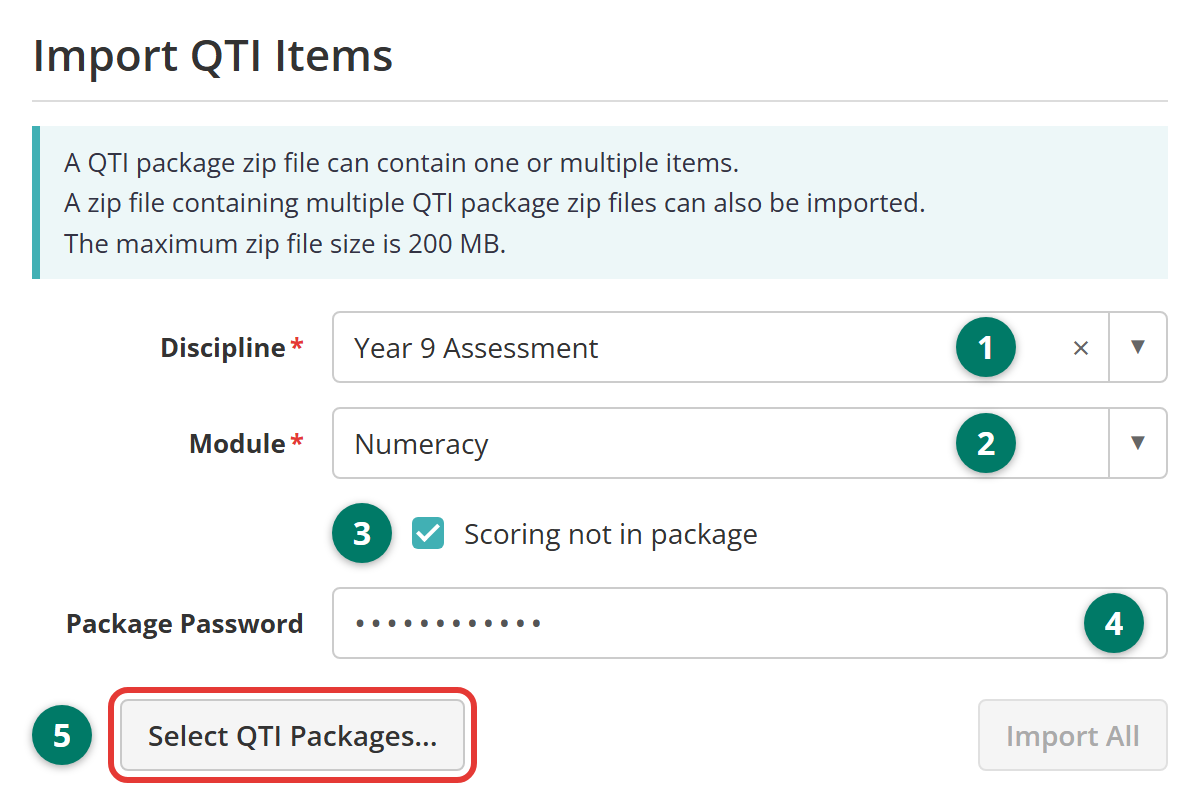
Navigate to Author > Items and select Import QTI Items from the Actions dropdown.
- Select the Discipline.
- Select the Module the items are created in. Only modules you can work in are listed.
- Tick Scoring not in package if the items' scoring isn't in the package. The checkbox appears only when Enable No Scoring Information On Import is on.
- Enter the Package Password if the package was exported with one. The field appears only when Enable Secure Packages is on.
- Select Select QTI Packages and choose the zip files. You can add more files before you import.
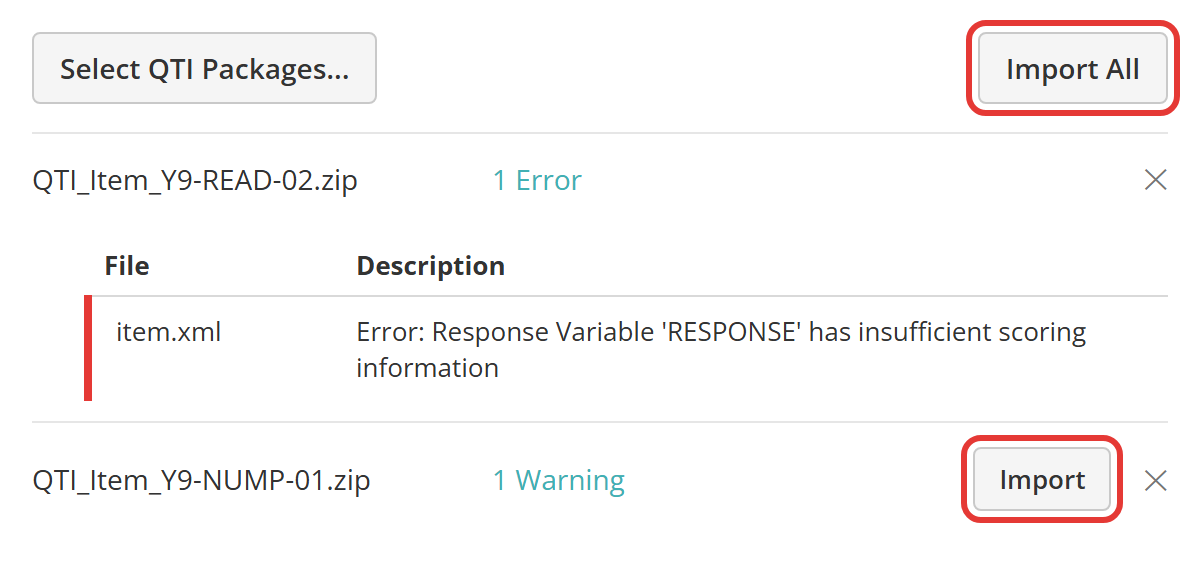
Each file is validated as it uploads. Its row then shows No Warnings or Errors, or a count of warnings or errors. Select the count to see each message and the file it came from.
- A file with warnings can still be imported.
- A file with errors can't be imported until the package is fixed. The one exception is a role with Can Import QTI With Errors on a site that allows it, which also sees a Treat Errors As Warnings checkbox on the form.
Select Import on a file to import it, or Import All to import every file without errors. The row shows Importing and then Imported.
What the import creates
Each item is created in the module you chose, in the first state of the module's items workflow. An item imports only if its type is turned on for your site (see Settings). Media in the package becomes resources, and any stimuli become stimuli in the module. Insights gives each item an identifier the same way it does a new item. To keep the identifier from the package instead, turn on Import QTI Assessment Item Identifiers as Question Identifiers.
If an item with the same identifier already exists in the module, the import overwrites it and warns you first. The file fails instead when the existing item:
- is in a different module
- has moved past the first state of its workflow
- has been answered in any test attempt.
Adaptive items and custom response-processing rules aren't imported. Feedback blocks are removed from items that are.
Tip
A package that holds a test won't import here. Use Import QTI Tests on the Tests and Surveys page instead.
Import a test
Navigate to Author > Tests and Surveys and select Import QTI Tests from the Actions dropdown. The form and the validation work the same way as for items.
A test package holds the test and its items. The import creates the test in the module you chose, with its sections and the items in them. A test whose identifier already exists in Insights can't be imported, and its items follow the rules above.
Export items
You can export items in three ways:
- One item, from the Items list or the item's own page.
- A filtered list of items, from the Items list or a module's items.
- A module's items by workflow state, from the module's page.
Export one item
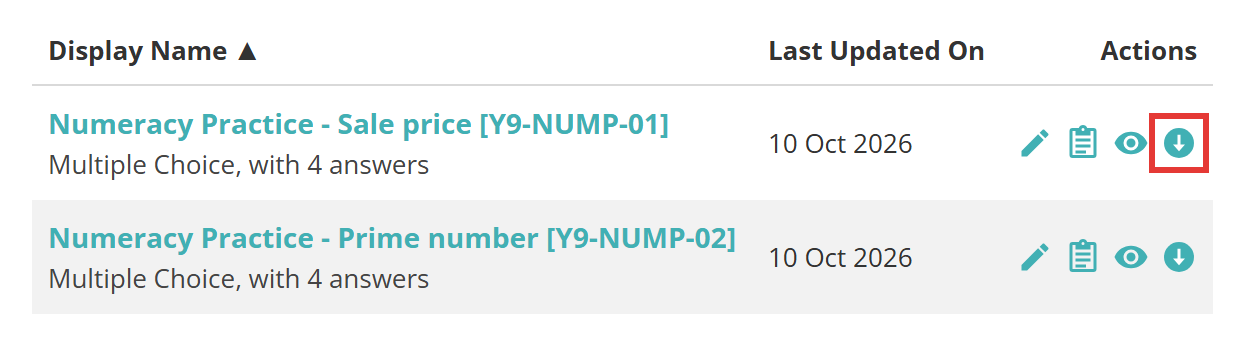
Navigate to Author > Items and select the download icon  in the item's Actions column. The icon is greyed out for item types the standard doesn't cover. The item's own page has the same action, Export QTI Item, in its Actions dropdown.
Export a filtered list
Navigate to Author > Items.
- Select Search in Item Name or Identifier to open the search panel.
- Enter a search or set the filters, then select Search.
- Select Export QTI Items below the list.
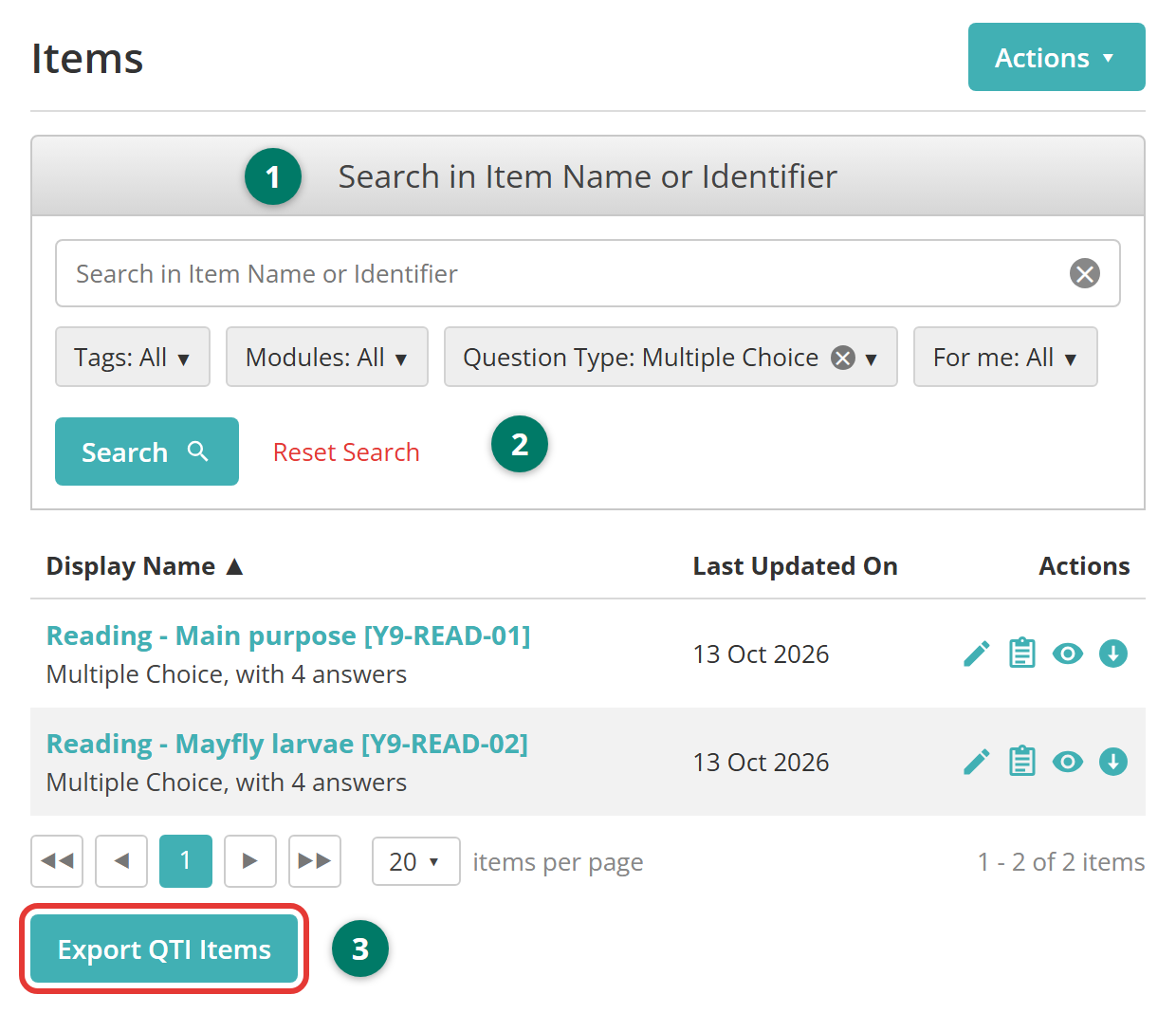
The same button sits below the items list on a module's page.
Export a module's items
Navigate to Author > Modules, open the module and select Export QTI Items from the Actions dropdown.
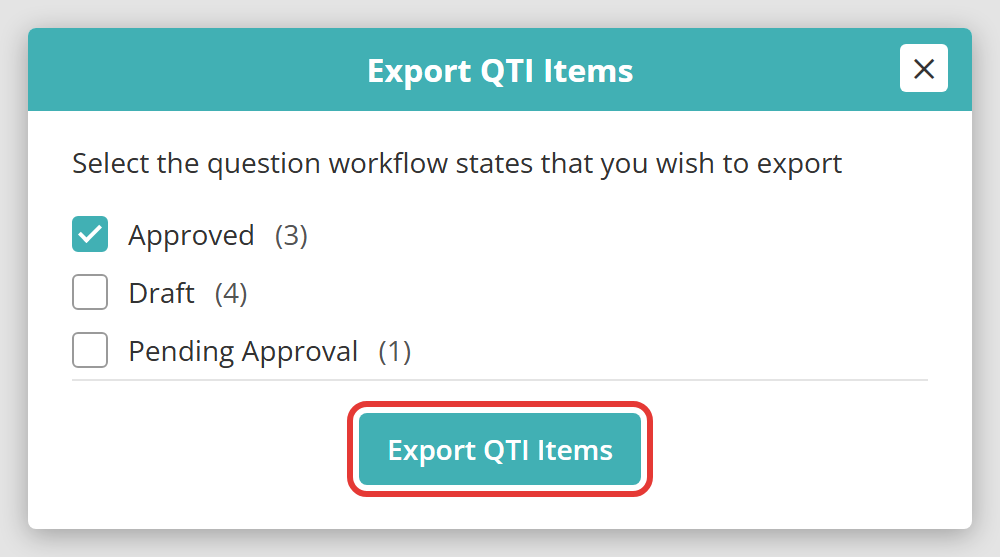
A popup lists the workflow states of the module's items, with a count for each. Tick the states you want and select Export QTI Items. Insights remembers your choice for next time.
Download the package
Whichever way you export, Insights builds the package, checks it against the standard and shows the result: the file name, a summary, and a table of any messages with the file each one relates to. Select Download to save the zip.
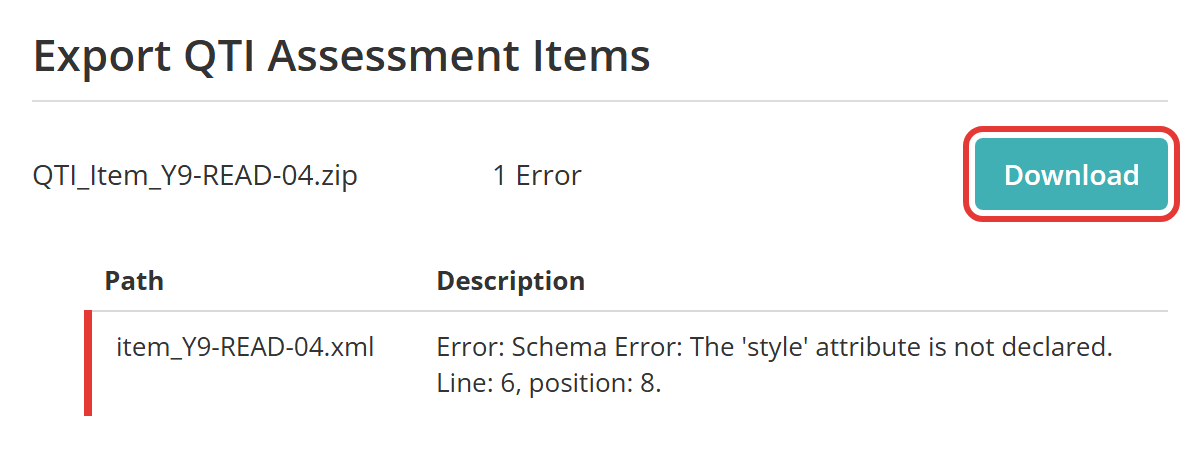
You can download a package that has warnings or errors. Another system may accept it, but Insights won't import a package with errors until the item is fixed.
Two limits apply. An export holds at most 500 items, and a filtered or module export leaves out survey items and item types the standard doesn't cover.
The file is named QTI_Item_<identifier>.zip for one item. For several it is QTI_Export_ followed by the module identifier, or by the date and time for a filtered list.
Export a test
Navigate to Author > Tests and Surveys and select the download icon in the test's Actions column. The package holds the test and every item in it, is named QTI_Test_<identifier>.zip, and downloads the same way as an item export.
The icon is greyed out when the test contains an item type the standard doesn't cover. Branching tests have no icon.
Secure packages
When Enable Secure Packages is on, every export is protected with a 12-character password, shown on the export page. Pass it to the recipient safely. Whoever imports the package enters it in Package Password.
Results packages
QTI also describes results, and Insights uses it to exchange test-taker responses and scores with other systems:
- On a closed assessment event, Export results to QTI package in the Actions dropdown downloads the event's responses as a results package.
- Integration > Marking API Status has Download QTI Responses and Upload QTI Scores, for marking responses in another system and loading the scores back.
Settings
Administrators can configure the following settings at Settings > QTI Settings.
Metadata Xsd Files and Metadata Xml File — the schema and mapping file that link custom attributes to QTI metadata, so they travel with exported items and come back on import.
Original Item Id Field — the custom attribute that stores an imported item's original identifier, so a later import of the same item is matched to it.
Import QTI Assessment Item Identifiers as Question Identifiers — keeps the identifier from the package instead of generating a new one.
Enable No Scoring Information On Import — adds Scoring not in package to the import form, so items without complete scoring can be imported.
Ignore Warnings On Import — hides warnings from the import results.
Treat Attribute Errors As Warnings On Import — downgrades errors on XML attributes to warnings.
Treat Selected Element Errors As Warnings On Import — a comma-separated list of XML elements, such as span,sub, whose errors are downgraded to warnings.
Enable Secure Packages — password-protects exports and adds Package Password to the import form.
Export Module and Discipline Identifiers — adds the owner module and discipline to each exported item's metadata.
Exclude responses associated with comment questions and practice sections from being exported — leaves instruction items and practice sections out of results packages.
Max number of Test Attempts exported to Qti package — caps the attempts in each results package the QTI API returns. The default is 50.
Keycode Country, Use One Time Code In Results Export/Import and Keycode Prefix — identify attempts in results packages by one-time code rather than username, with a prefix that keeps codes unique across servers.
Allow Import Errors To Be Treated As Warnings — adds Treat Errors As Warnings to the import form for roles that have Can Import QTI With Errors.
Enable Test Package Delivery Modes — adds a Delivery Mode field to the test components of an assessment event.
Scanned Answer Interpretation Method — how scanned paper answers in a results package are read. AptisEPC is the only option.
At Settings > Test Designer Settings:
Available Test Question Types and Available Composite Question Types — an item imports only if its type is turned on in one of these lists. Interactions of other types are skipped.
Two more things control who sees the feature. Janison switches the plugin on per tenant. Each QTI action is then a permission under QTI in a role's permissions at Settings > Roles: importing items and tests, each kind of export, the settings page and Can Import QTI With Errors.