Order interaction
An order interaction item asks test-takers to put a set of answers in order by dragging them into place. The answers can be text or images.
It works like a graphic order interaction item, where test-takers drag numbers onto hotspots on an image to show the order.
Try this item type in the practice test below.
Practice test
Open this test in the Janison test player and complete an example of an order interaction item.
What test-takers see
Test-takers first see the answers in the display order you set.
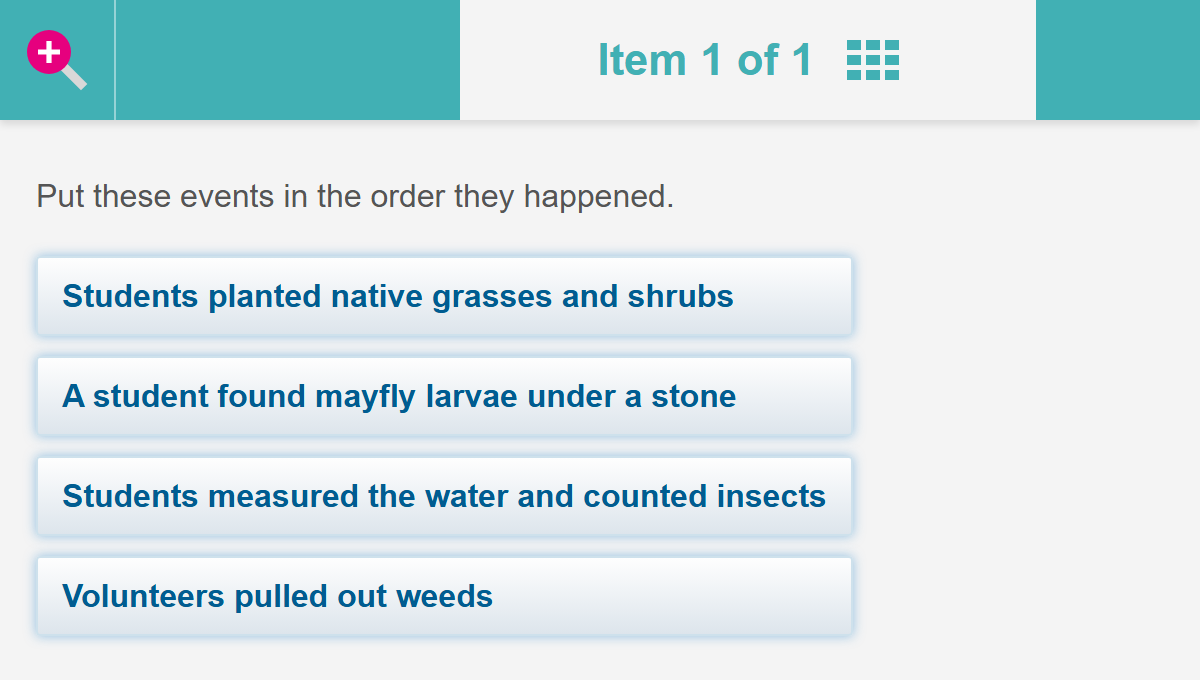
They drag the answers into place. Here they're in the correct order.
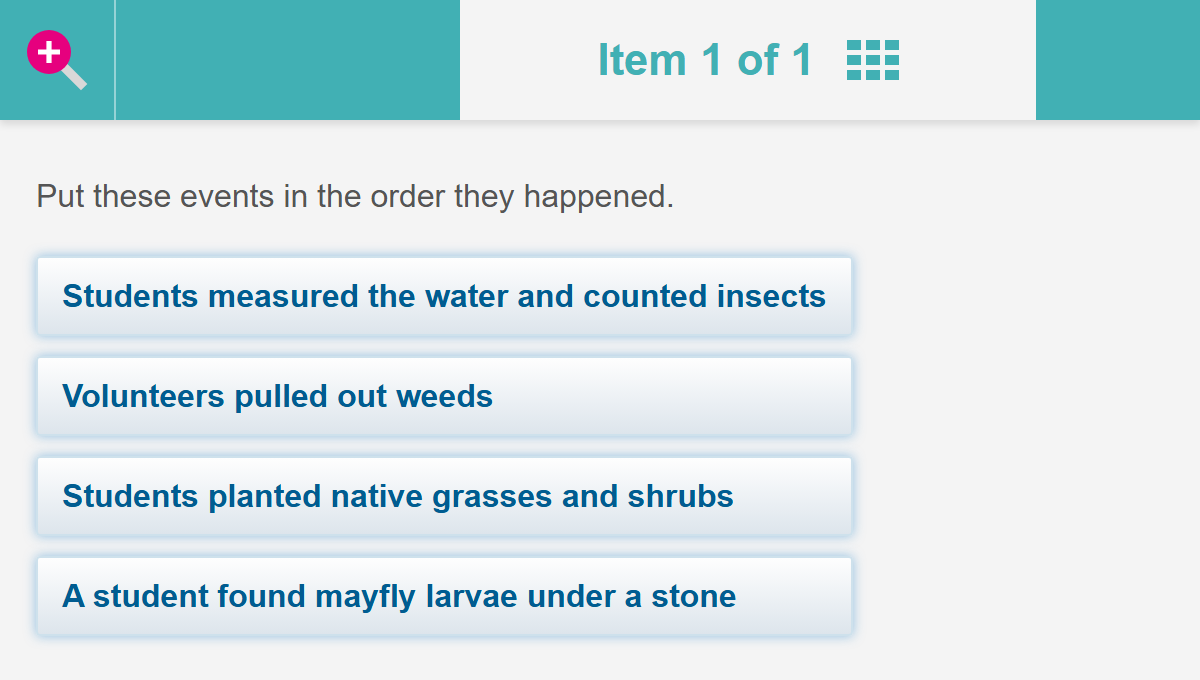
If a test-taker leaves the answers in the order they started in, the item is recorded as not answered.
Create an order interaction item
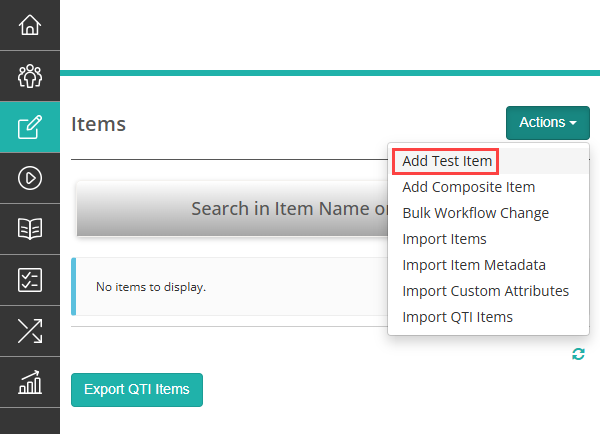
Navigate to Author > Items, then select Add Test Item from the Actions dropdown.
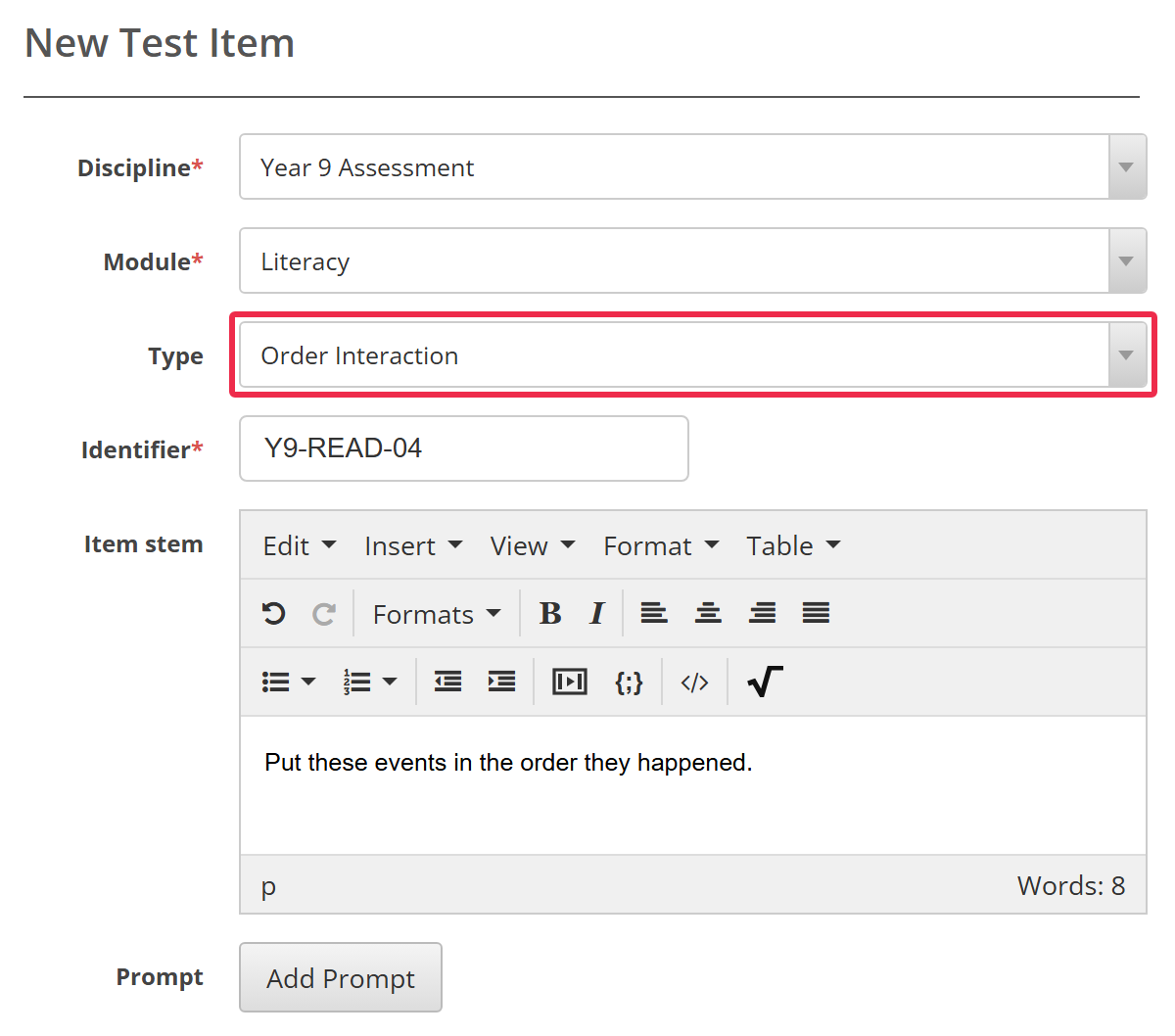
The New Test Item screen opens. Choose the Discipline and Module, select Order Interaction as the Type, then enter an Identifier and the Item stem.
Further down the form, set up the answers:
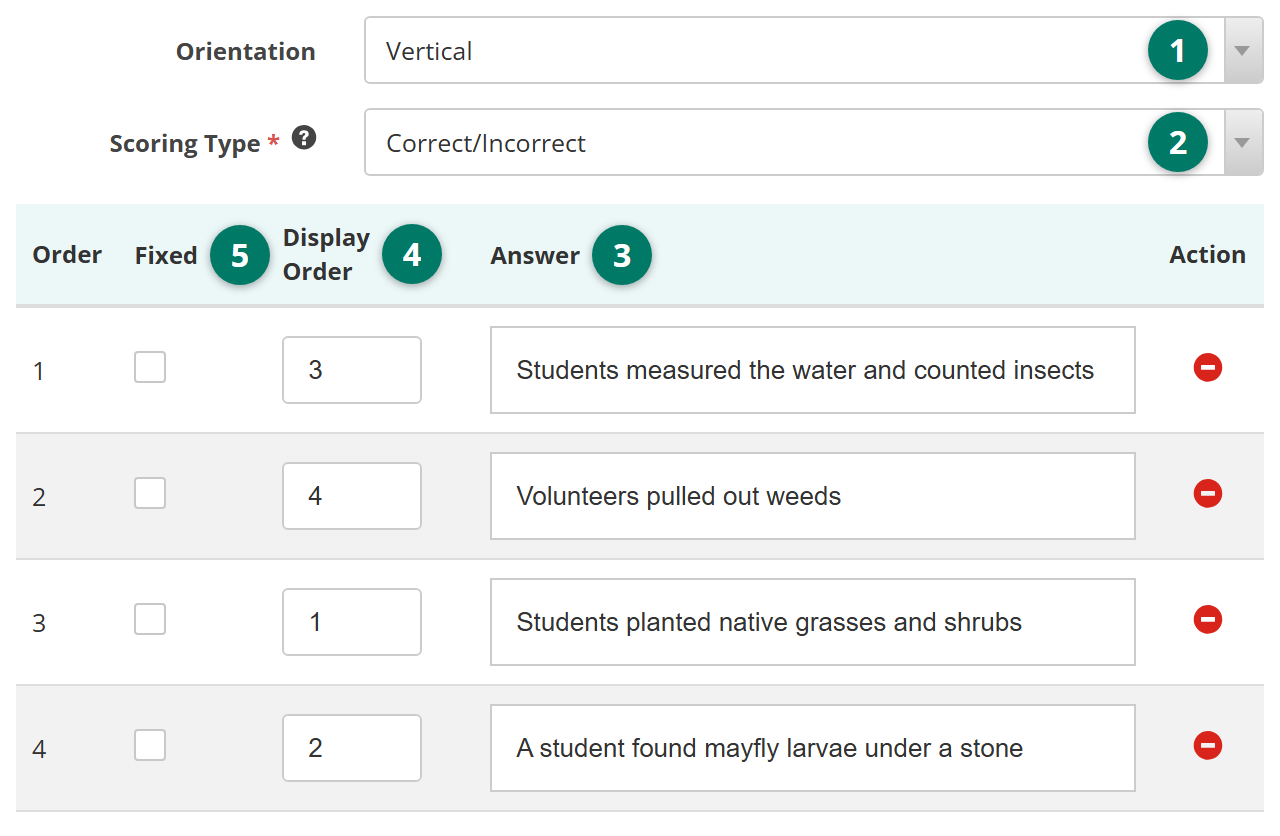
- Choose the Orientation. Horizontal shows the answers side by side, and Vertical stacks them. The practice test has an example of each.
- Choose the Scoring Type. See Scoring types below.
- In the Answer column, enter the answers in the correct order. The Order column numbers them in that order. A new empty row appears when you click in the last one.
- In the Display Order column, enter the position each answer starts in when test-takers see the item. Each number can only be used once.
- Tick Fixed for any answer that should stay where it starts. A fixed answer needs a display order, and test-takers can't move it.
Important
Give the answers a starting order that isn't the correct order. The editor only stops a display order that matches the Order column on every row. A blank display order fills the next free position, in the order you entered the answers. So if every display order is blank, test-takers start with the correct order. An item left as it started counts as not answered, so nobody can get it right.
Select Save.
Setting scores and marking
Order interaction items are marked automatically.
Scoring types
Choose one of three scoring types from the Scoring Type dropdown.
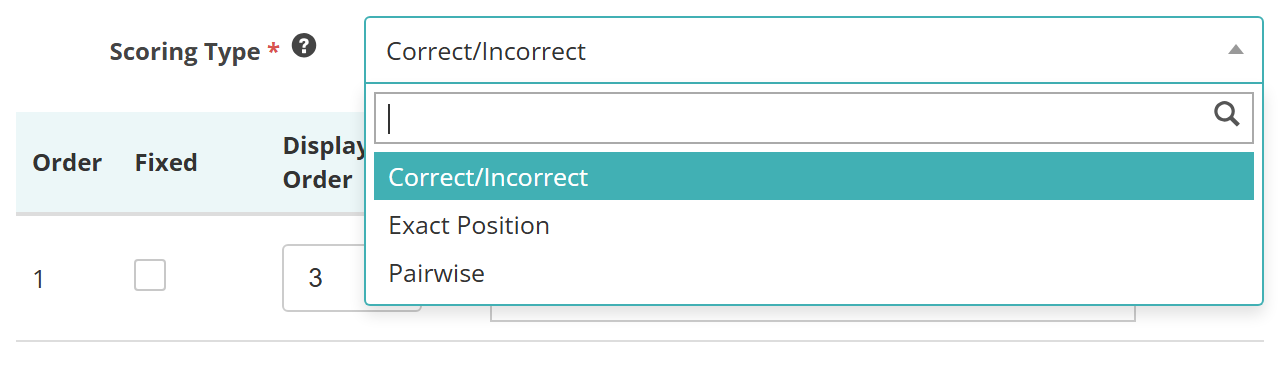
- Correct/Incorrect — the item is right only when every answer is in its correct position. Anything else scores 0.
- Exact Position — each answer in its correct position earns its score.
- Pairwise — each answer earns its score when it comes straight after the answer before it in the correct order, wherever the pair sits in the list. The first answer earns its score only in first place.
For example, say a test-taker moves the first answer to the end, giving the order 2, 3, 4, 1 (numbered as in the Order column). With a score of 1 on each answer, Exact Position scores 0, because no answer is in its correct position. Pairwise scores 2: answer 3 still comes straight after answer 2, and answer 4 straight after answer 3.
Additional scoring options
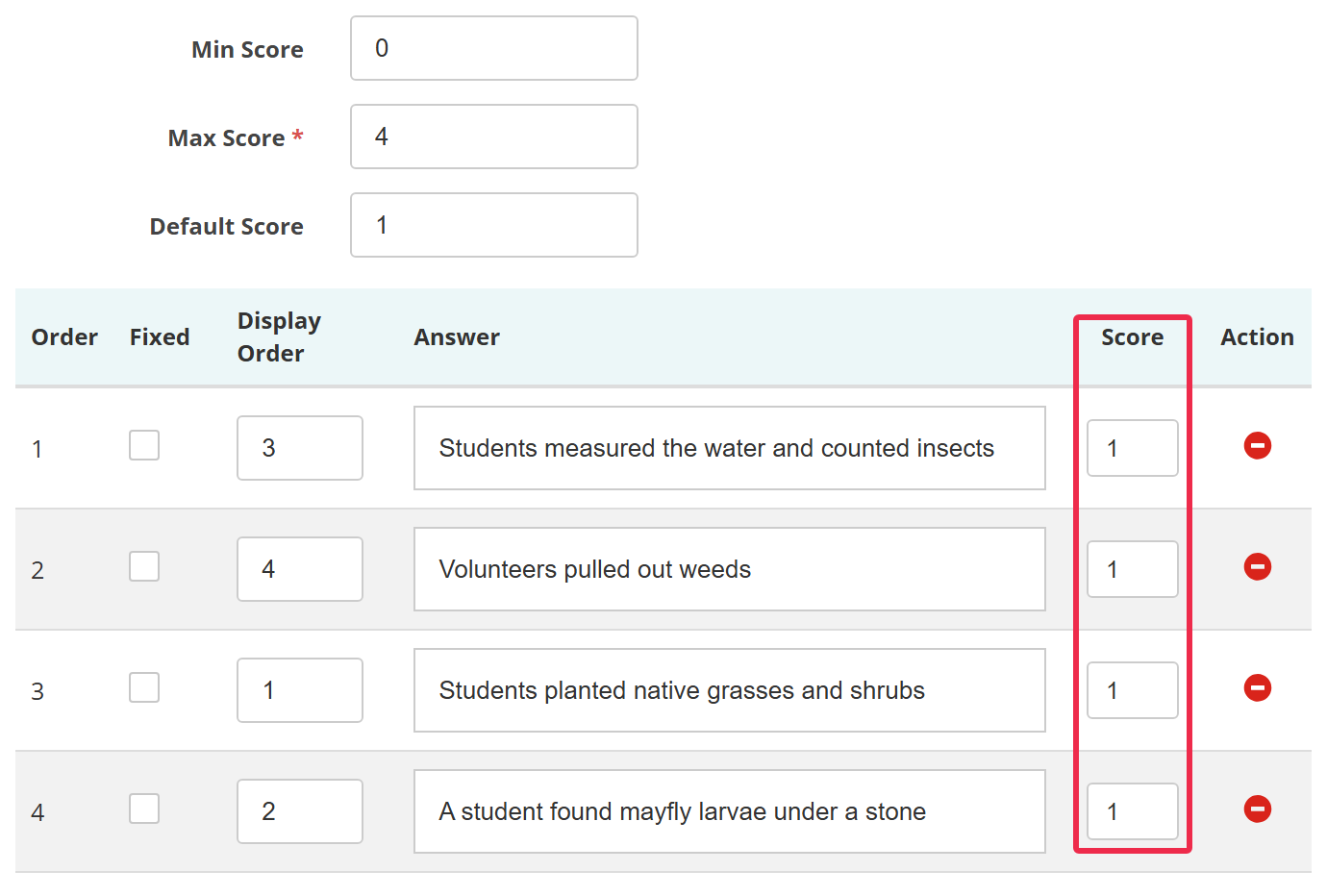
When you choose Exact Position or Pairwise, three fields appear above the answers table:
- Min Score — the lowest score the item can give.
- Max Score — the highest score the item can give. It's required, and must be higher than Min Score.
- Default Score — the score a correctly placed answer earns when its Score is blank.
A Score column also appears in the answers table. Enter the score each answer earns.
Settings
Administrators configure this setting at Settings > Test Designer Settings.
Available Question Types — the Order Interaction row controls where the type is offered. Tick For Tests to list it in the Type dropdown on New Test Item, and For Composite to use it in a composite item. It has no For Surveys box, so it can't be a survey item.