Marking sessions schedule
A marking sessions schedule limits marking in a standard marking project to set times, such as school hours or planned marking sessions. You set it in the project's Marking Sessions Schedule, which has two options:
- Marking is allowed at any time — markers can mark whenever they like. This is the default.
- Set time periods during which markers are allowed to mark — markers can mark only during the periods you add. Each period has a start time, an end time and the days it applies to.
Set a schedule
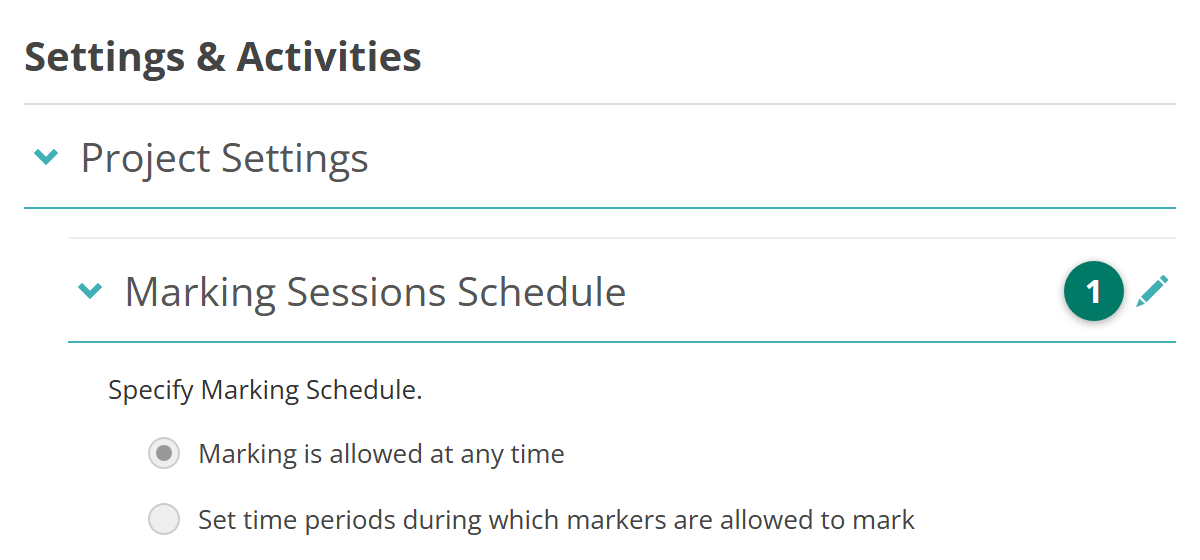
The schedule is in the project's Project Settings, under Settings & Activities.
- Select the pencil icon on Marking Sessions Schedule.
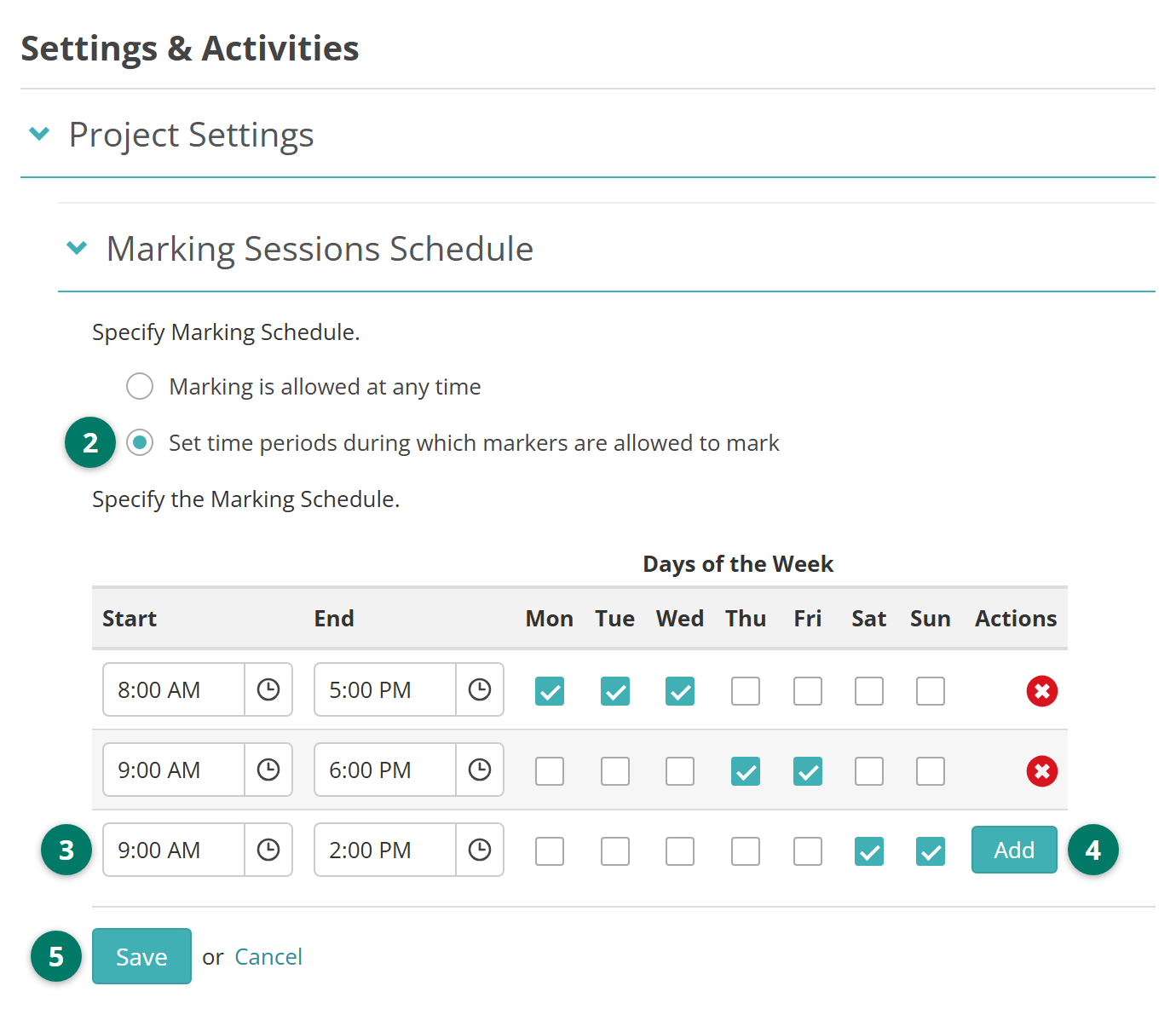
- Select Set time periods during which markers are allowed to mark.
- In the empty row, set a Start and End time and tick the days.
- Select Add. The period joins the list above the empty row, in order of start time. Repeat steps 3 and 4 for any other periods.
- Select Save.
Important
Select Add for every period, including the first. Save keeps only the periods in the list, and a filled-in row that wasn't added is dropped.
Each period must start before it ends, so it can't run past midnight, and needs at least one day ticked. Times are in your site's time zone.
To remove a period, select the red cross in its row, then select Save. To lift the schedule, choose Marking is allowed at any time and select Save.
You can change the schedule at any time until the project is closed or cancelled, and a change applies straight away.
Outside the schedule
Outside the schedule, nobody in the marking team can get a response to mark, whether for standardisation, marking or sampling. A marker who asks for one sees "The Marking Project is not currently open for Marking", followed by the times marking is available.
A marker part-way through a response when a period ends can still save its score. The next response doesn't load.
Chief markers can still choose responses for Standardisation 1 outside the schedule. Marking and sampling those responses waits for the schedule.
The project's summary shows Marking Schedule Status as Active while marking is allowed, and Inactive outside the schedule.
Settings
No site settings affect the schedule on standard marking projects: every standard project has a Marking Sessions Schedule. Permission to change a project's schedule is set per role at Settings > Roles.