Test attempt workflows
Every test attempt has a status, such as Open, Completed or Absent, that records where the attempt is up to. Most changes happen on their own as the test-taker sits the test and it is marked. This page covers where to open an attempt, how to change its status by hand, what each status means and which changes each status allows.
Note
Your role decides which attempts you can open and which status changes you see. If you need more, ask your Janison account manager.
Open a test attempt
An attempt opens in one of two places, and both let you change its status:
- The test attempt modal, a pop-up over the page you are on. It holds the status, the session actions and the test-taker's personal needs and preference codes.
- The test attempt page, which adds the test-taker's details, timing options, every response and a print view. See Manage attempts for the page in full.
You can reach them from four places. They behave the same from each.
From the manage attempts screen
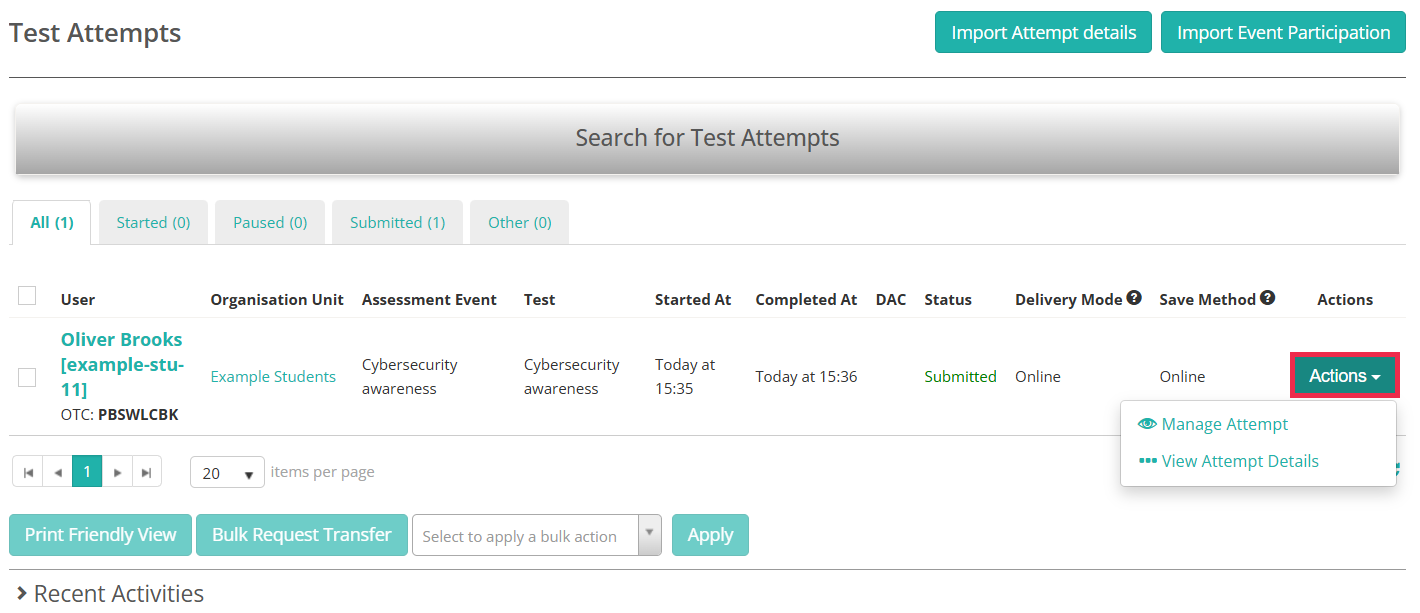
Select Deliver > Manage Attempts, then find the attempt. Use Search for Test Attempts or the status tabs to narrow the list.
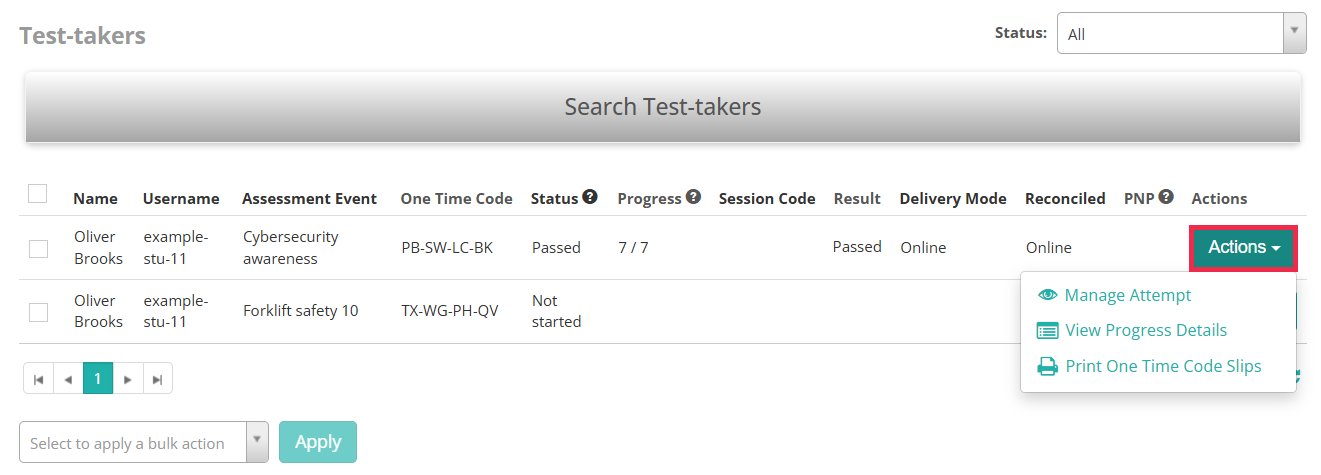
Select Actions on the attempt's row. Manage Attempt opens the modal and View Attempt Details opens the page.
From a user's profile
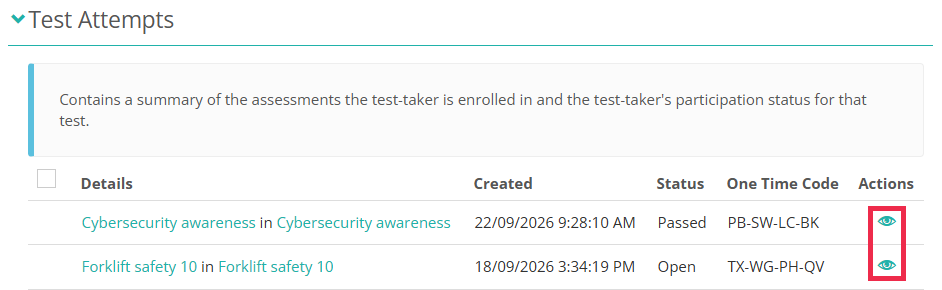
Select Manage People > Test-takers or Users and open the person. Expand Test Attempts, which lists every test they are enrolled in with the attempt's status and one time code. Select the eye icon on an attempt to open the modal. An attempt with personal needs and preference codes also shows a plus icon, which opens the codes directly.
From an assessment event
Select Deliver > Assessment Events, open the event and expand Candidate Enrolments > Current Enrolments. The icons at the end of a test-taker's row open the attempt.
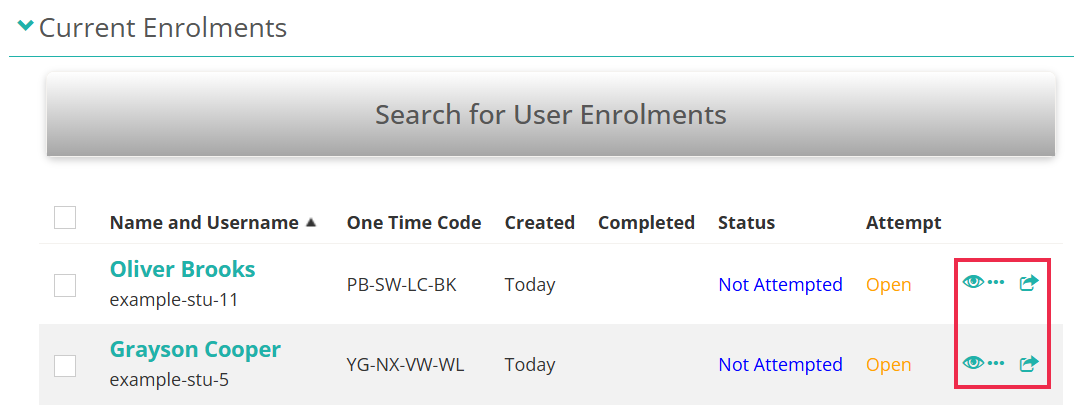
The eye icon  opens the modal. The two View more icons open the test-taker's enrolment page: the three-dot icon
  in the same tab and
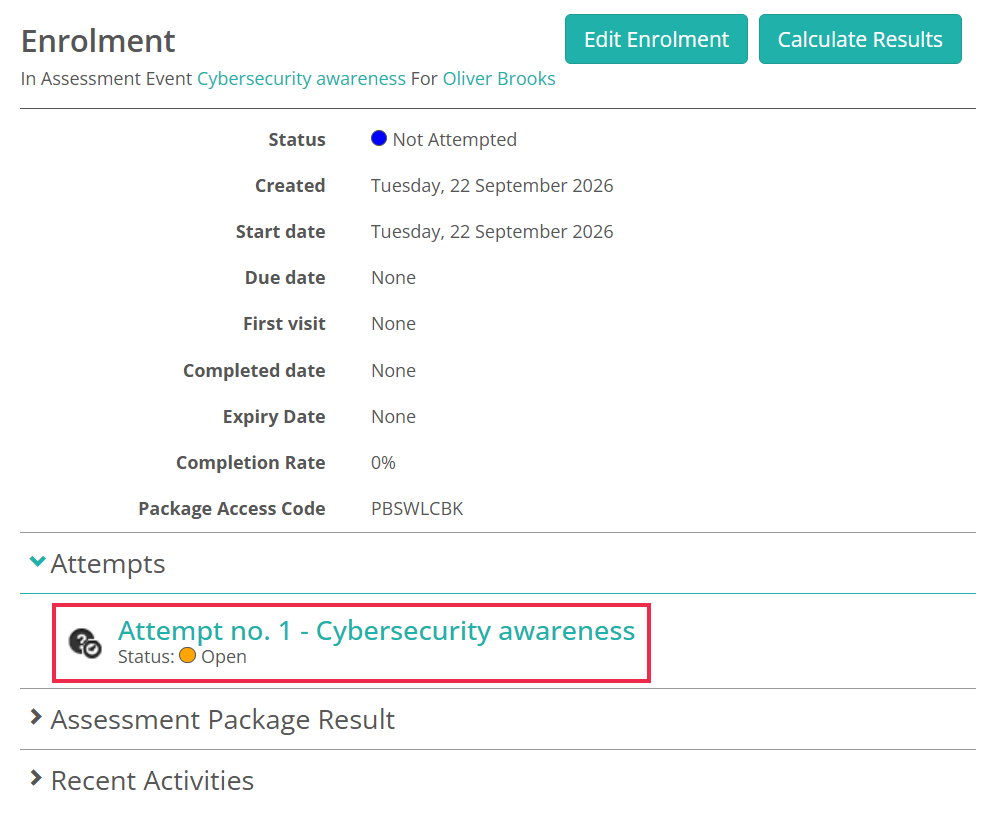
  in a new tab. On the enrolment page, expand Attempts and select the attempt to open its test attempt page.
From the invigilator dashboard
Select Deliver > Invigilator Dashboard and scroll to Test-takers. Select Actions on the test-taker's row, then Manage Attempt.
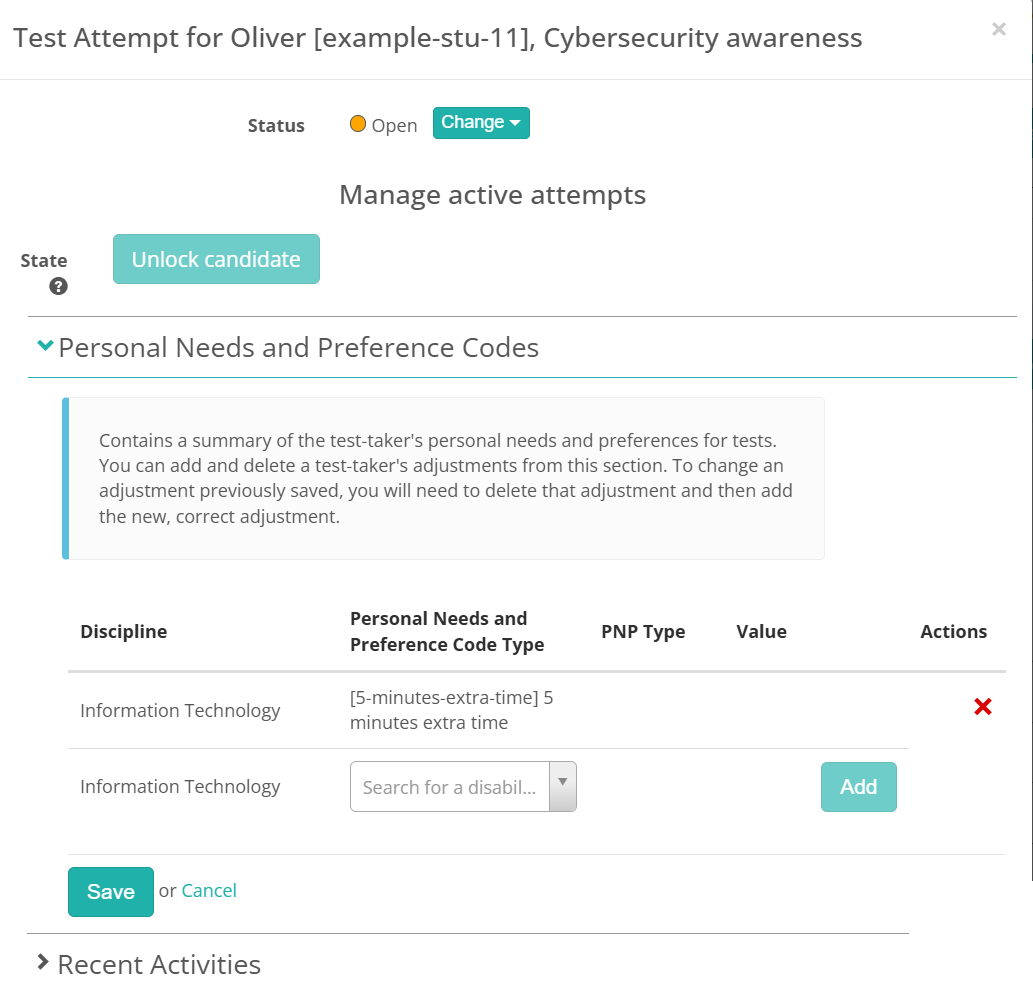
The test attempt modal
The modal has four parts.
- Status shows the current status, with Change beside it. See Change an attempt status.
- Manage active attempts holds the session actions your role allows, such as Unlock candidate, Pause candidate or Award more time. Which appear depends on the state of the attempt and its test session. If none apply, the modal says so.
- Personal Needs and Preference Codes lists the test-taker's adjustments for this attempt. Add or delete a code here. To change one, delete it and add the correct one. See Personal needs and preferences.
- Recent Activities is the audit trail of everything done to the attempt.
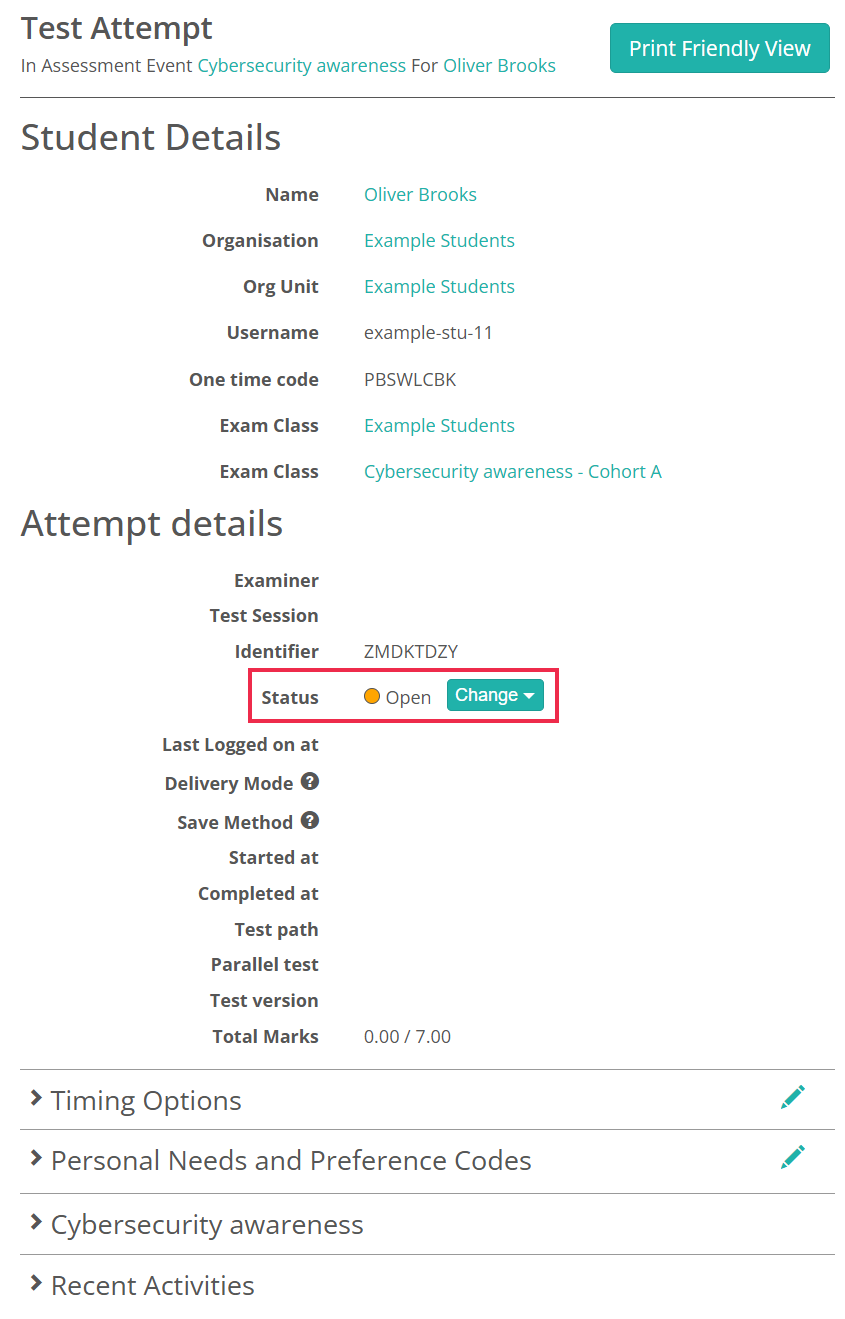
The test attempt page
On the page, Status and its Change button sit under Attempt details. The rest of the page, from Student Details to the responses and Recent Activities, is covered on Manage attempts.
Change an attempt status
You might change a status by hand to:
- record why a test-taker didn't complete the test, such as Absent or Withdrawn, for reporting
- make a functional change, such as cancelling or postponing an attempt.
From the modal or the page, select Status > Change. Each option names the change, such as Reset or No longer enrolled, with a line under it saying what it's for. Select one and confirm. Four changes ask for a reason before they go through: Suspend on an Open attempt, Un-suspend, and the moves between Absent and Refused.
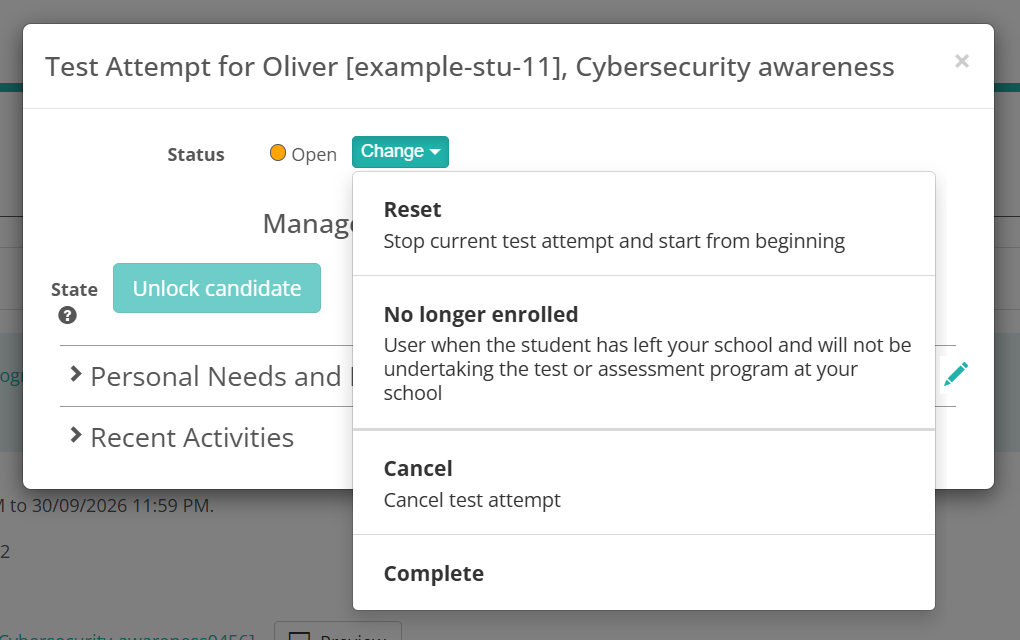
The options you see depend on three things:
- The current status. Each status allows a fixed set of changes. See Allowed changes from each status.
- Your role. An option your role can't use appears greyed out with an information icon explaining why, unless your site hides them (see Settings).
- The event. In a session-based assessment event, most changes to an attempt in a test session are made from Test session administration instead. The Change menu still lists them, but the product refuses with an error that says where to go. The same applies to re-opening a Postponed attempt and to Reset on an attempt linked to a session. No attempt can be re-opened once its event is Closed.
Changes the system makes
Most attempts never need a manual change. When the test-taker submits, the attempt moves from Open to Completed. Marking then begins: straight away for a test outside an assessment event, or for an event when its test session is finalised or the event closes. The attempt sits in Marking until every response has a mark, which is immediate for automatically marked items and waits on a marker for items such as short answers. It then becomes Marked, or Passed or Failed when the test has Set a pass/fail outcome ticked and a pass mark.
Two more statuses come from the test session rather than the Change menu. Pause candidate sets Paused and Resume candidate clears it. Postpone candidate sets Postponed.
Statuses
| Status | What it means |
|---|---|
| Open | The starting status. The test-taker hasn't started, or is part-way through. |
| Paused | An invigilator paused the attempt with Pause candidate. The test-taker can't continue until Resume candidate returns it to Open. |
| Postponed | The attempt was stopped part-way and taken out of its session, to be picked up later. |
| Completed | The test-taker has submitted, or an invigilator submitted for them. Marking hasn't started. |
| Marking | Marking is under way. Automatically marked items finish at once; the attempt waits here for any marker-marked items. |
| Marked | Every response has a mark and the test has no pass/fail outcome. |
| Passed | Every response has a mark and the total met the test's pass mark. Set by the system. |
| Failed | Every response has a mark and the total fell short of the pass mark. Set by the system. |
| Resitting | A Reset is in progress. The current attempt is cancelled and a new Open attempt replaces it. |
| Suspended | The test-taker didn't sit on the scheduled date and may be rescheduled. The only change offered is back to the status it came from, and suspending or un-suspending an Open attempt needs a reason. |
| Absent | The test-taker was confirmed absent. Recorded for reporting. |
| Refused | The test-taker refused to sit, by not logging in or by logging in and not answering. Recorded for reporting. |
| Withdrawn | Parents or carers withdrew the test-taker from the test or program. Recorded for reporting. |
| Exempt | The test-taker was approved as exempt from the test or program. Recorded for reporting. |
| No longer enrolled | The test-taker has left the school or organisation and won't sit here. Recorded for reporting. |
| Cancelled | The attempt was cancelled. Reset also cancels the current attempt before creating a new one. |
| Abandoned | The attempt was stopped and won't be resumed. In a session-based event, an Open attempt must be postponed from the session first. |
Three more statuses exist in the workflow but are only set by the system while it builds or removes attempts: Building, PreGenerated and Deleted. You won't be offered them.
Allowed changes from each status
The tables list every change in the standard test attempt workflow: the label the Change menu shows, the status it moves to and what it's for. Your role may not have all of them, and session-based events refuse some, as described above. Marked and Cancelled offer no changes.
From an open attempt
| Change | To | What it's for |
|---|---|---|
| Complete | Completed | Submits the attempt on the test-taker's behalf. |
| Reset | Resitting | Stops the current attempt and starts again from the beginning. |
| Suspend | Suspended | The test-taker didn't sit on the scheduled date and may be rescheduled. Needs a reason. |
| Cancel | Cancelled | Cancels the attempt. |
| Absent | Absent | The test-taker is confirmed absent from the test or program. |
| Refused to attempt | Refused | The test-taker refused to sit, by not logging in or by not answering. |
| Withdrawn | Withdrawn | Parents or carers withdrew the test-taker from the test or program. |
| Exempt | Exempt | The test-taker has approval to be exempted from the test or program. |
| No longer enrolled | No longer enrolled | The test-taker has left and won't sit the test or program here. |
| Abandon (sanctioned) | Abandoned | Stops the attempt for good. Session-based events refuse this on an Open attempt; postpone it from the session first. |
From a paused attempt
| Change | To | What it's for |
|---|---|---|
| Resume | Open | Resumes the paused attempt. |
| Abandon (sanctioned) | Abandoned | Stops the attempt for good. |
From a postponed attempt
| Change | To | What it's for |
|---|---|---|
| Re-open | Open | Returns the attempt to Open. Session-based events refuse this; re-open from the session instead. |
| Reset | Resitting | Stops the current attempt and starts again from the beginning. |
| Completed | Completed | Marks the attempt as submitted. |
| Suspend | Suspended | The test-taker didn't sit on the scheduled date and may be rescheduled. |
| Cancel | Cancelled | Cancels the attempt. |
| Absent | Absent | The test-taker is confirmed absent from the test or program. |
| Refused to attempt | Refused | The test-taker refused to sit. |
| Withdrawn | Withdrawn | Parents or carers withdrew the test-taker. |
| Exempt | Exempt | The test-taker has approval to be exempted. |
| No longer enrolled | No longer enrolled | The test-taker has left and won't sit here. |
| Abandon (sanctioned) | Abandoned | Stops the attempt for good. |
From a completed attempt
| Change | To | What it's for |
|---|---|---|
| Start Marking | Marking | Starts marking. Session-based events do this when the session is finalised. |
| Re-open | Open | Lets the test-taker continue. Session-based events refuse this; use the session screen. |
| Postpone | Postponed | Sets the attempt aside to resume later. |
| Abandon (sanctioned) | Abandoned | Stops the attempt for good. |
From an attempt in marking
| Change | To | What it's for |
|---|---|---|
| Mark | Marked | Finishes marking. Refused until every response has a mark. |
| Revert to Completed | Completed | Use when a submission needs to be reviewed, managed or updated before marking. Refused once a linked marking project has started or a marker has opened the attempt. |
| Re-open | Open | Undoes the submission. |
| Refused to attempt | Refused | Records that the test-taker refused to sit. |
From passed and failed attempts
| Change | To | What it's for |
|---|---|---|
| Pass | Passed | Recorded by the system when marking finishes above the pass mark. |
| Fail | Failed | Recorded by the system when marking finishes below the pass mark. |
From a resitting attempt
| Change | To | What it's for |
|---|---|---|
| Complete | Completed | Submits the new attempt. |
| Cancel | Cancelled | Cancels the attempt. |
| Abandon (sanctioned) | Abandoned | Stops the attempt for good. |
From a suspended attempt
| Change | To | What it's for |
|---|---|---|
| Un-suspend | Open | Returns the attempt to Open. Needs a reason. |
| Abandon (sanctioned) | Abandoned | Stops the attempt for good. |
A suspended attempt offers only the change back to the status it came from, so you will normally see Un-suspend alone.
From an absent attempt
| Change | To | What it's for |
|---|---|---|
| Open | Open | Re-opens the attempt. |
| Postpone | Postponed | Sets the attempt aside to resume later. |
| Refused | Refused | Changes the recorded reason to refused. Needs a reason. |
From a refused attempt
| Change | To | What it's for |
|---|---|---|
| Re-open | Open | Re-opens the attempt. In a session-based event, refused if the test-taker has already submitted answers. |
| Re-open and start marking | Marking | Sends a refused attempt that has submitted answers to marking. In a session-based event, refused if there are none. |
| Postpone | Postponed | Sets the attempt aside to resume later. |
| Absent | Absent | Changes the recorded reason to absent. Needs a reason. |
From a withdrawn attempt
| Change | To | What it's for |
|---|---|---|
| Open | Open | Re-opens the attempt. |
From an exempt attempt
| Change | To | What it's for |
|---|---|---|
| Open | Open | Re-opens the attempt. |
| Postpone | Postponed | Sets the attempt aside to resume later. |
From a no longer enrolled attempt
| Change | To | What it's for |
|---|---|---|
| Open | Open | Re-opens the attempt. |
| Postpone | Postponed | Sets the attempt aside to resume later. |
From an abandoned attempt
| Change | To | What it's for |
|---|---|---|
| Open | Open | Re-opens the attempt. |
| Postpone | Postponed | Sets the attempt aside to resume later. |
View the workflow definition
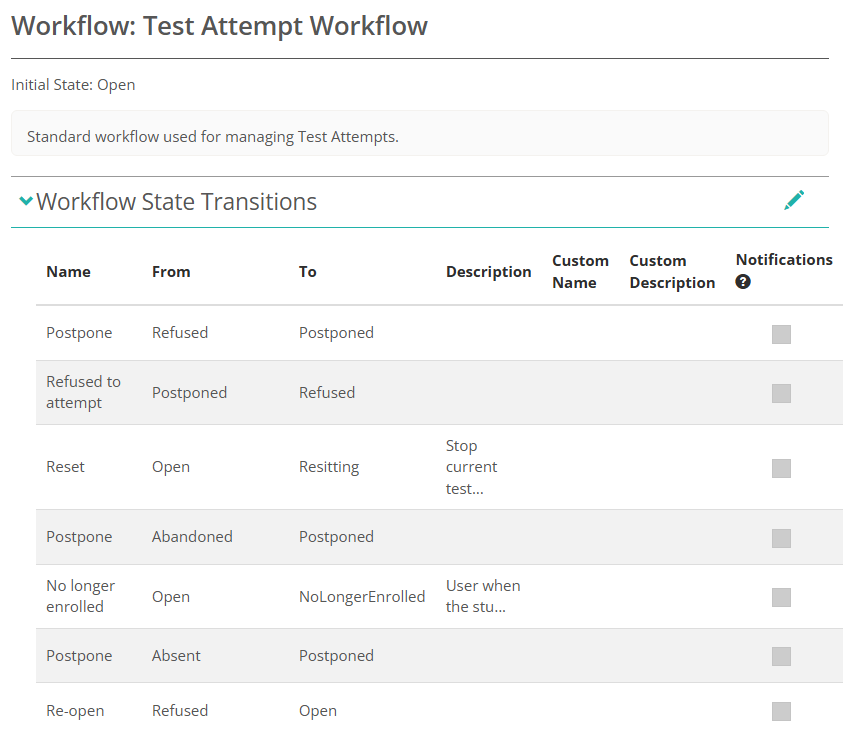
To see the workflow as the product defines it, select Settings > Workflow definitions and open Test Attempt Workflow. Its Workflow State Transitions section lists every change with its Name, From, To and Description. Users with permission can select the pencil to edit the Custom Name, Custom Description and Notifications columns. You can also browse straight to yoursiteurl/admin/workflow/details/b14587e5-5755-44c7-a7ab-e235906fd95d.
Report on attempt status
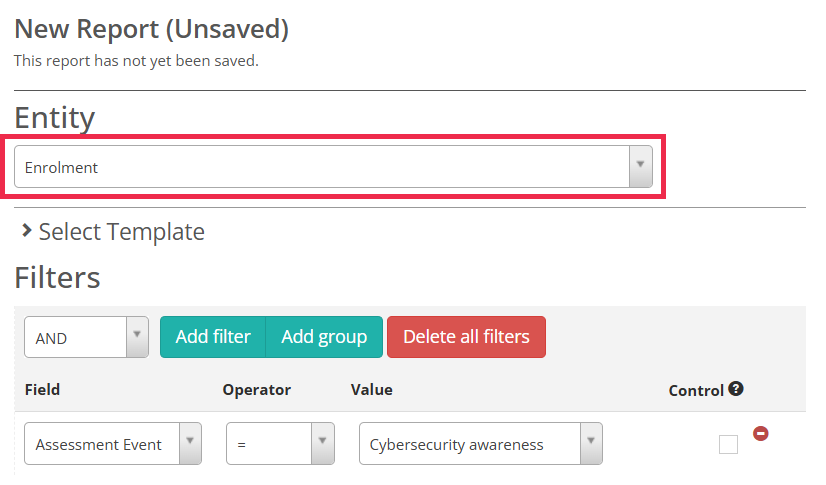
To report on statuses across many test-takers, create a customisable report on the Enrolment entity and filter by Assessment Event. See Customisable reports.
Settings
Four places control what this page describes.
Settings > Workflow definitions > Test Attempt Workflow — the definition itself. Any tenant can view it. Editing it is possible only from the global tenant, where Edit shows Configurable Workflow Security Actions. Ticking Transition there exposes each change to the security manager under Workflow, so a role can be allowed or denied specific changes. Ask your Janison account manager for role changes.
Settings > Tenant Settings > Miscellaneous > Hide unauthorized workflow state transitions — hides the changes your role can't make instead of showing them greyed out. Off by default, so the Change menu lists every change from the current status, with an information icon on the ones you can't use.
Settings > Test Designer Settings > General Assessment Options > Personal Needs and Preferences — whether codes attach at the discipline or the test attempt level, and whether attempt-level codes lock once created. This decides what the modal's Personal Needs and Preference Codes section lets you edit. See Personal needs and preferences.
On the test — Set a pass/fail outcome and its pass mark decide whether a fully marked attempt ends as Marked or as Passed or Failed. See End-of-test feedback for where they sit on the test.