Review a response's scores
The score page shows every score on one test-taker's response to an item, and opens each score in full. Senior and chief markers use it to review other markers' scores, such as escalations, conflicts, sampling and monitoring. Markers use it to look at their own scores.
To open it, select Review scores beside a script. The button is on each tab of Scoring Details, at the bottom of My Marking Taskboard, and on the Responses screen. See Scoring details and View all responses. The email Insights sends when a score's status changes links to the page too.
What you see depends on your seniority level in the marking team:
- Levels 0 to 4, usually chief and senior markers, see every marker's scores on the response.
- Levels 5 to 8, usually markers, see only their own scores, without the Score Type column.
What's on the page
- Print scores prints a summary of the response's scores. See Print the scores.
- Question shows the item's identifier, type and stem.
- Marker Scores lists the scores on the response. See Compare the scores.
- Score by and a marker's name shows one score in full. See Look at one score.
- Benchmark Scores finds model answers with a similar score. See Find benchmark scripts.
- Recent Activities lists what has happened to the score, such as changes and invalidations.
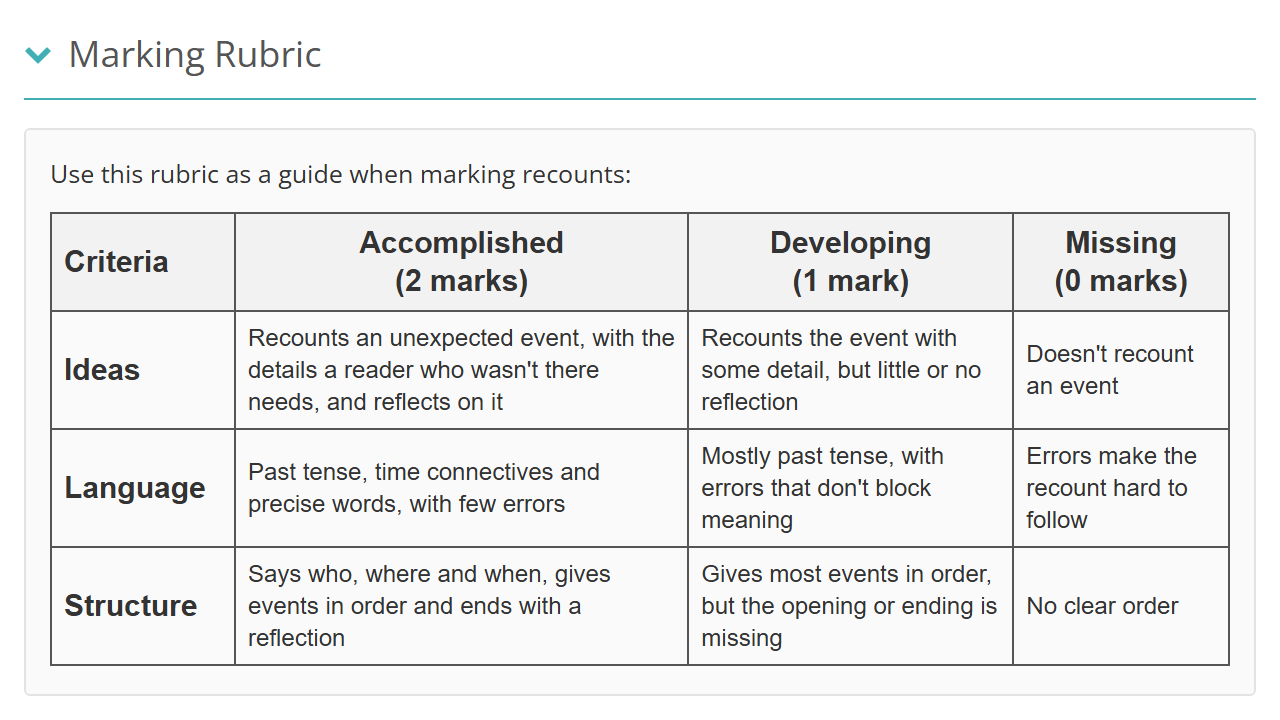
- Marking Rubric shows the rubric the item's author wrote, if there is one.
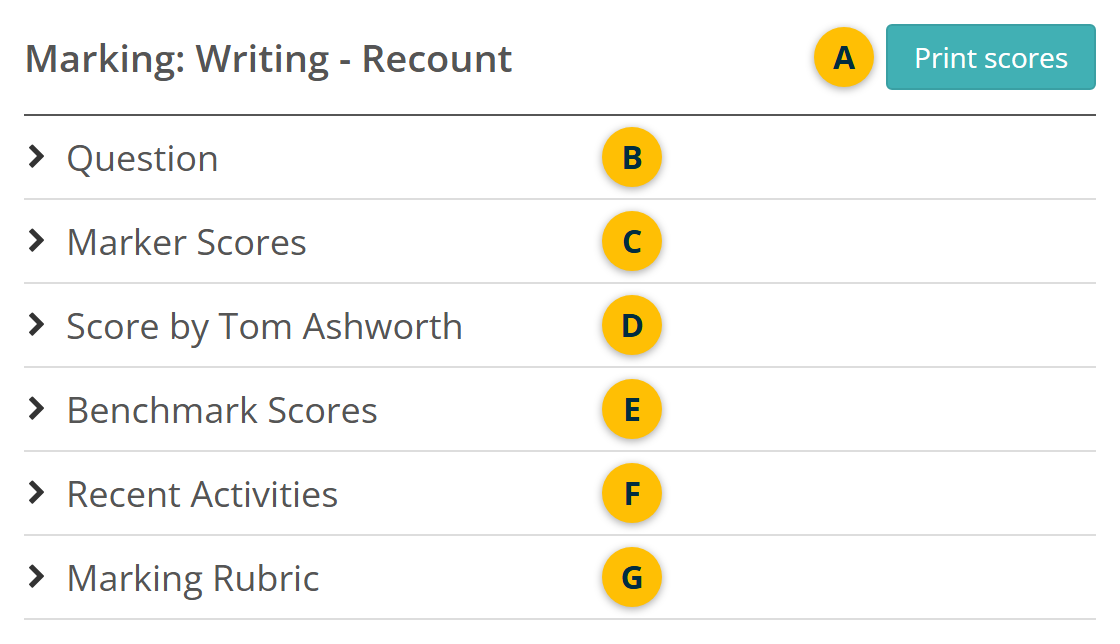
Benchmark Scores appears for markers who can see benchmark scripts, and Recent Activities for roles that can see activity. Chief markers may also see Edit selection for Stdn 1 beside Print scores. See Add scripts to Standardisation 1 later.
Print the scores
Select Print scores. A preview opens with the response's scores, laid out by your site's print template. Select Print to print it.
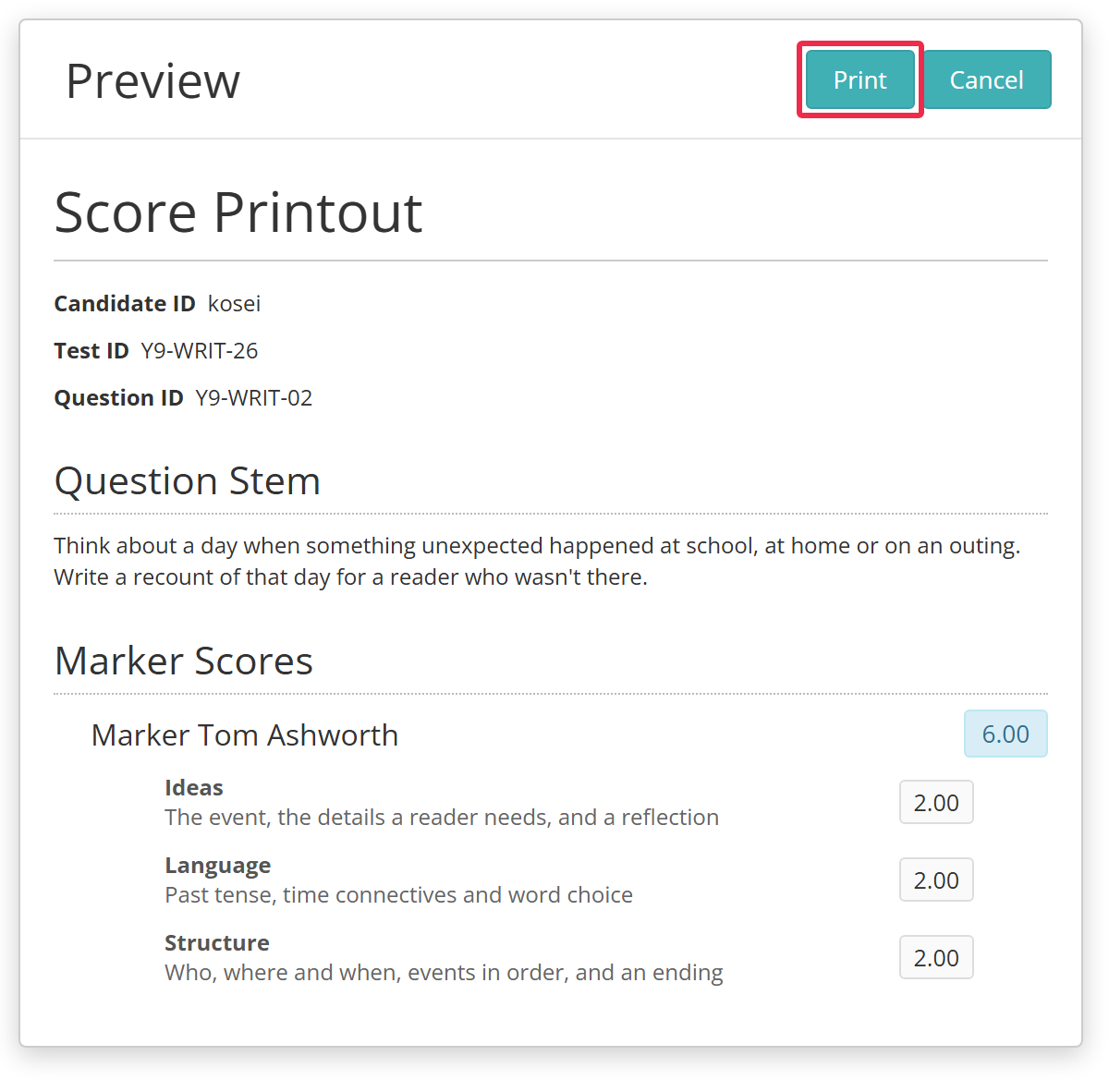
Print scores appears when your role can print scores and your site has a print template chosen (see Settings).
Compare the scores
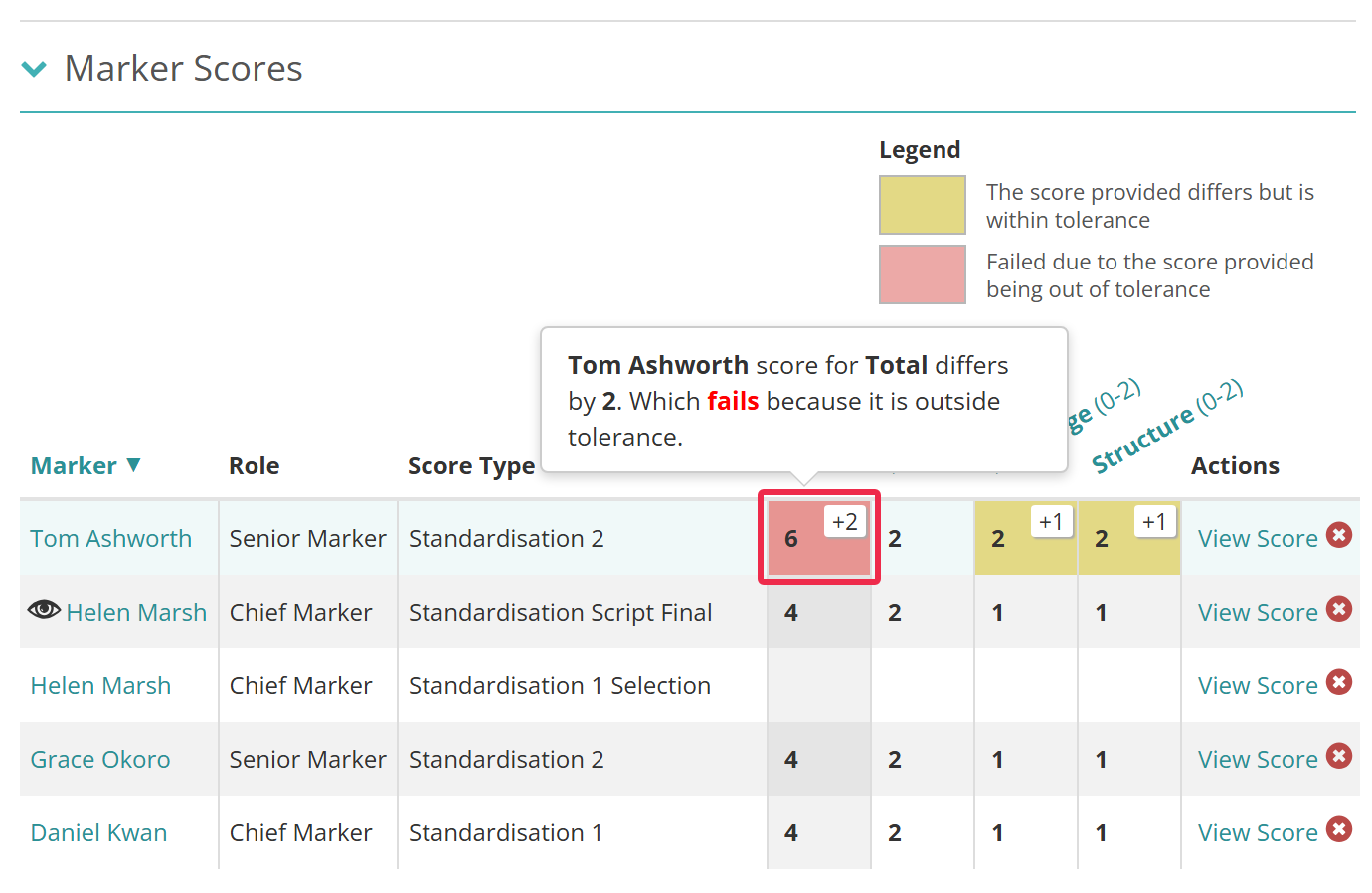
Marker Scores lists the scores you can see, a row for each: the marker, their role, the Score Type, the total, and the score for each marking scheme component. The eye marks the score open in Score by. Select a column heading to sort by it.
On standardisation and monitoring scripts, each score is compared with the agreed score. A yellow cell differs but is within tolerance. A red cell is outside tolerance and fails. The small number in the corner is the difference. Hover over a score to see a summary.
Invalidate a score
Invalidating a score removes it from the response. If appropriate, Insights gives the response to another marker to score again. Invalidating a Standardisation 1 score invalidates every standardisation score on that script.
- Select the Invalidate Score icon in the score's row.
- Enter the reason.
- Select Ok.
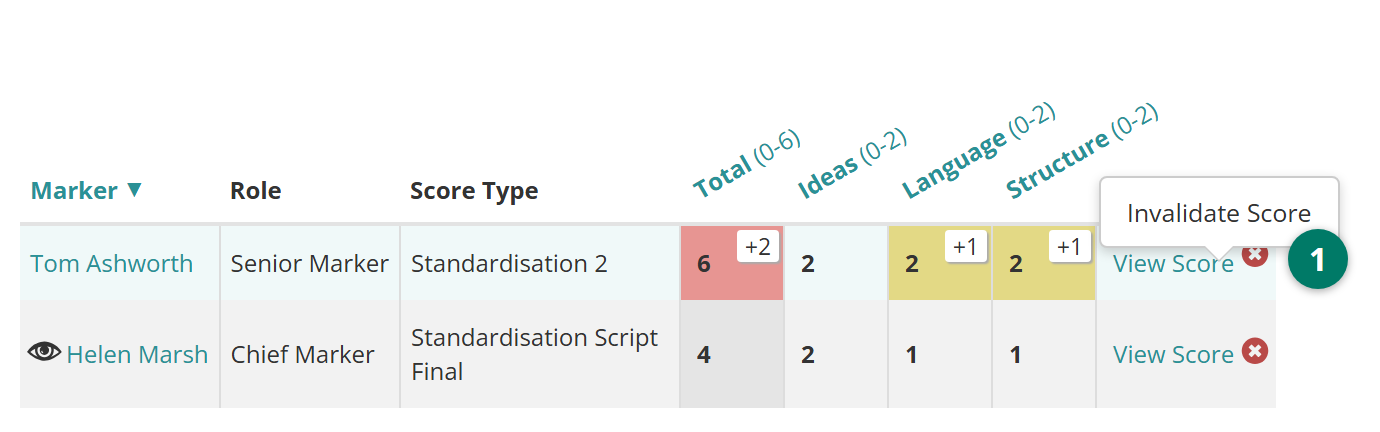
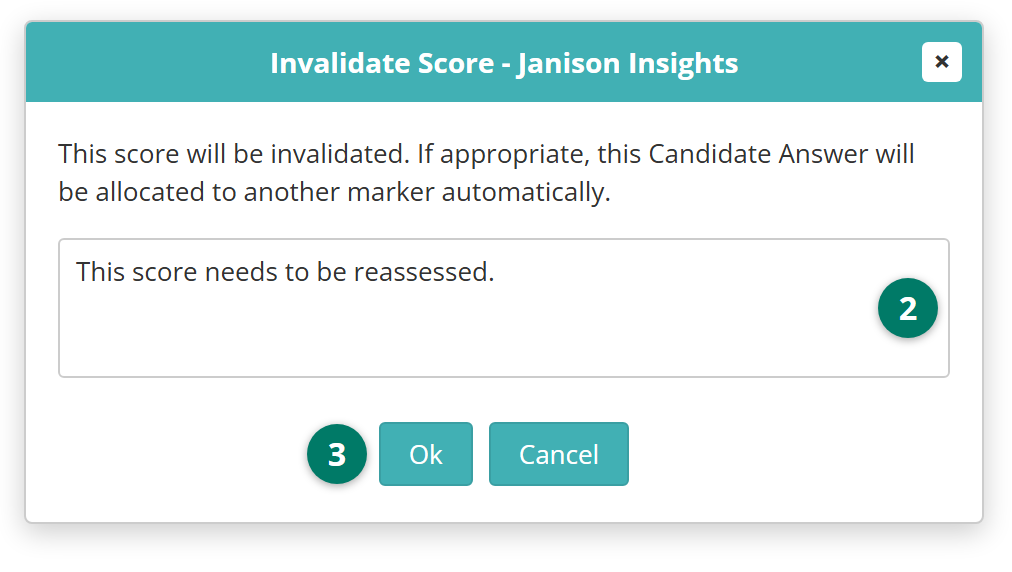
The icon appears when your role can invalidate scores. It isn't on archived final scores.
Look at one score
Select View Score beside a score. It opens below the list, in Score by and the marker's name. You see the score's status, the marker, the word count, the attempt, the response with the marker's annotations, the Scoring Pane and comments.
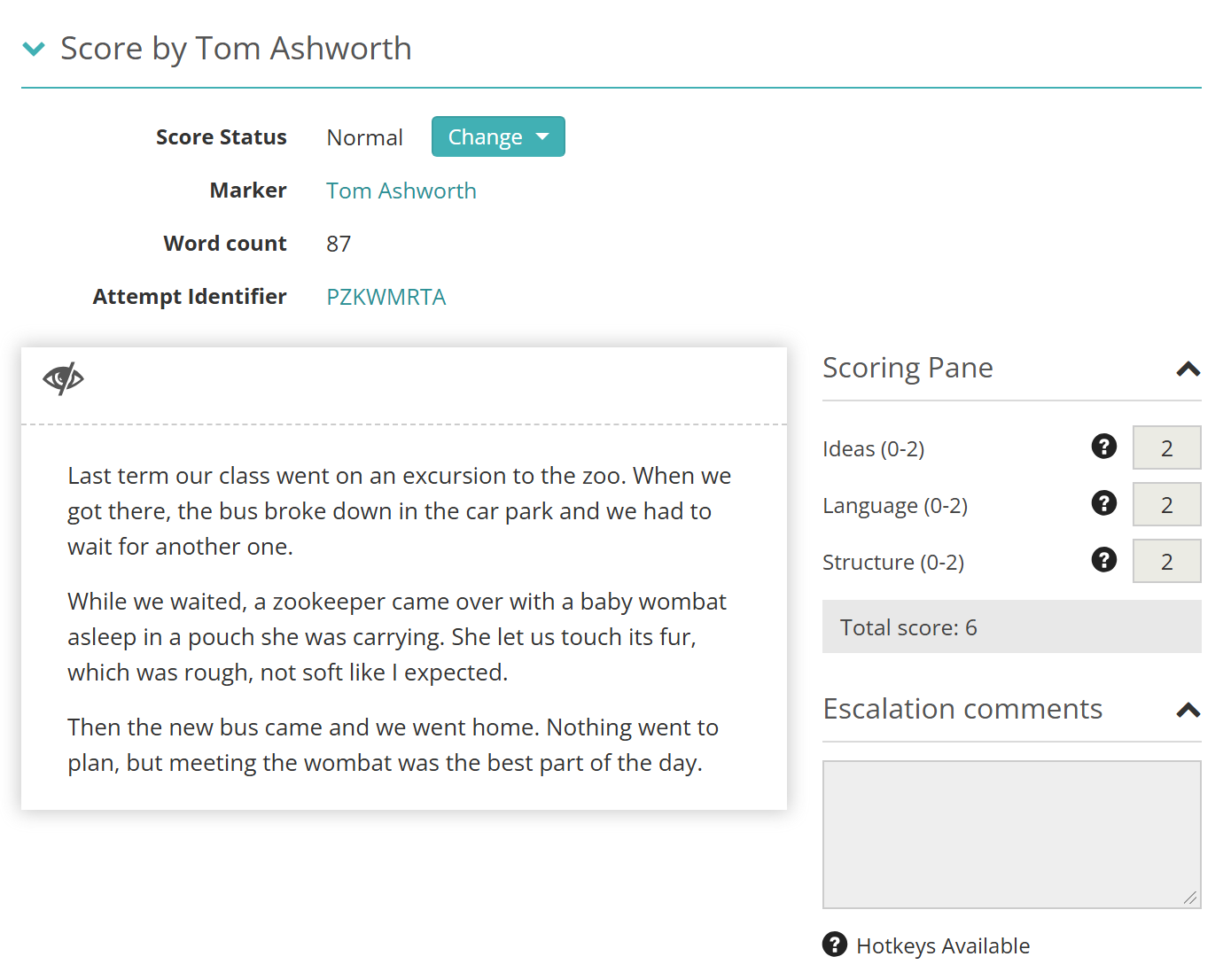
Change, beside Score Status, moves an escalated score on: resolve it, send it back or escalate it further. See Marking teams.
Review Mark appears on your own score while you can still change it: during its grace period, or after a senior marker sends it back or asks you to review it. Select it, change the score, then select Save Reviewed Mark. From a Scoring Details tab, select Review next or Finish instead.
Add Your Mark, below Marker Scores, lets a senior or chief marker give their own score on a response they haven't scored, if their role allows it. A response can have only one Final score. To resolve a double marking conflict, see Resolve double marking conflicts.
Find benchmark scripts
Benchmark scripts are model answers whose scores were agreed in Standardisation 1. A search finds those with a score close to yours.
- Open Benchmark Scores.
- Enter a score and select Search.
- Select Previous and Next to move through the results.
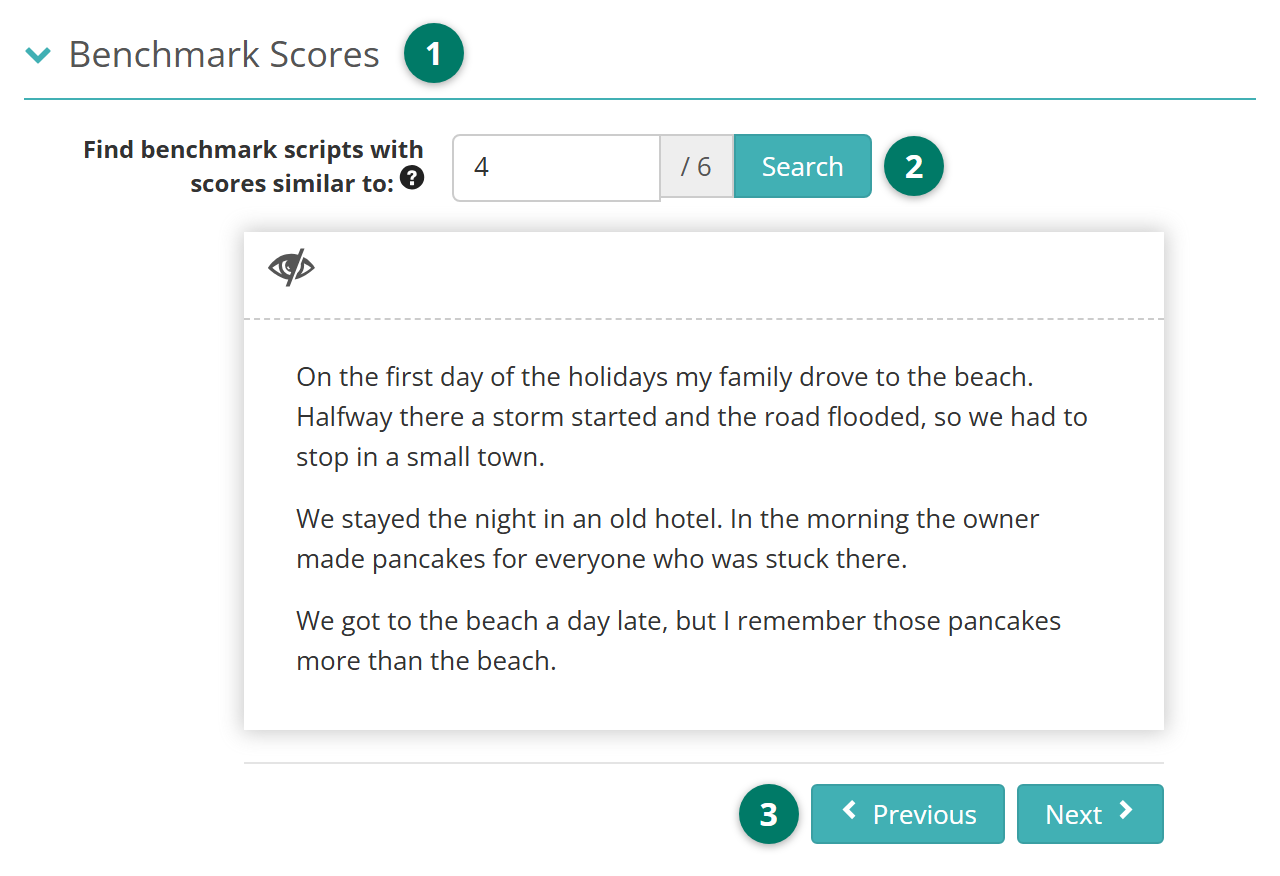
A score is similar when it's within 10% of the item's available score, either way. Who sees Benchmark Scores depends on the phase and their level. See Use benchmark scores.
Read the marking rubric
Marking Rubric shows the rubric the item's author added to the item. See Set scores on an item.
Settings
Administrators can configure these settings at Marking > Marking Extended Settings. See Marking settings.
Enable Benchmark Scores — shows Benchmark Scores on the score page and the marking screen. On by default.
Print Setting, at Marking > Marking Settings — the template Print scores uses. Print scores appears only when one is chosen.
Permissions to see other markers' scores, invalidate scores, add your own mark and print scores are set per role at Settings > Roles.