Sampling
Sampling checks markers' scores during the main marking phase. Chief and senior markers are given marked scripts at random, and for each one they agree with the marker's score or give their own. The project sets what percentage of marked scripts must be sampled, and it can't be finalised until that's met. The screen's hints also call sampling "random check".
This page covers setting up sampling for a project. To sample scripts, see Sample markers' scores.
Sampling types
The project's Sampling section offers three choices:
- Do not use Sampling — the project isn't sampled.
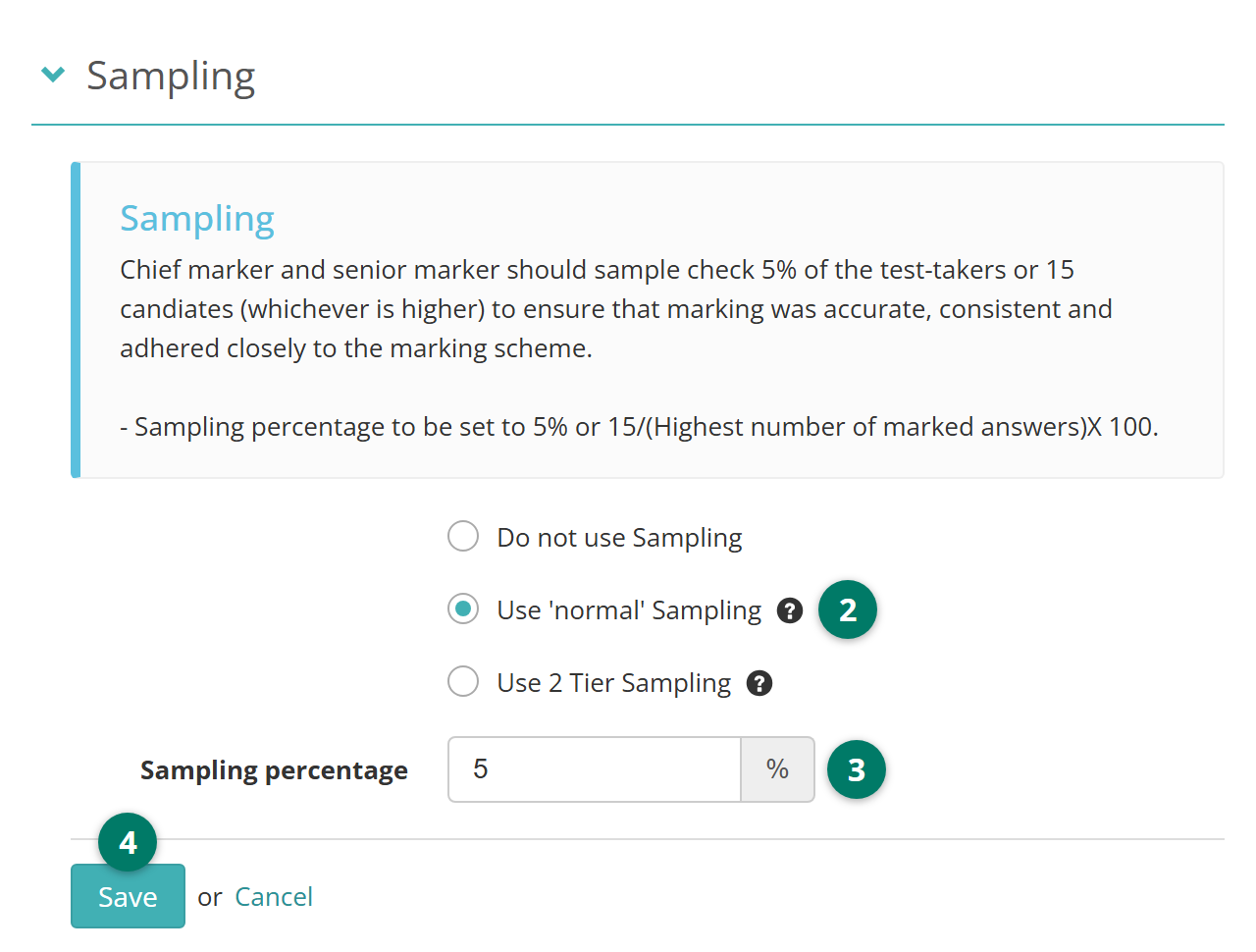
- Use 'normal' Sampling — one target, set by the Sampling percentage. Chief and senior markers share it, and sample from every marker's scores. A script counts once any of them has sampled it.
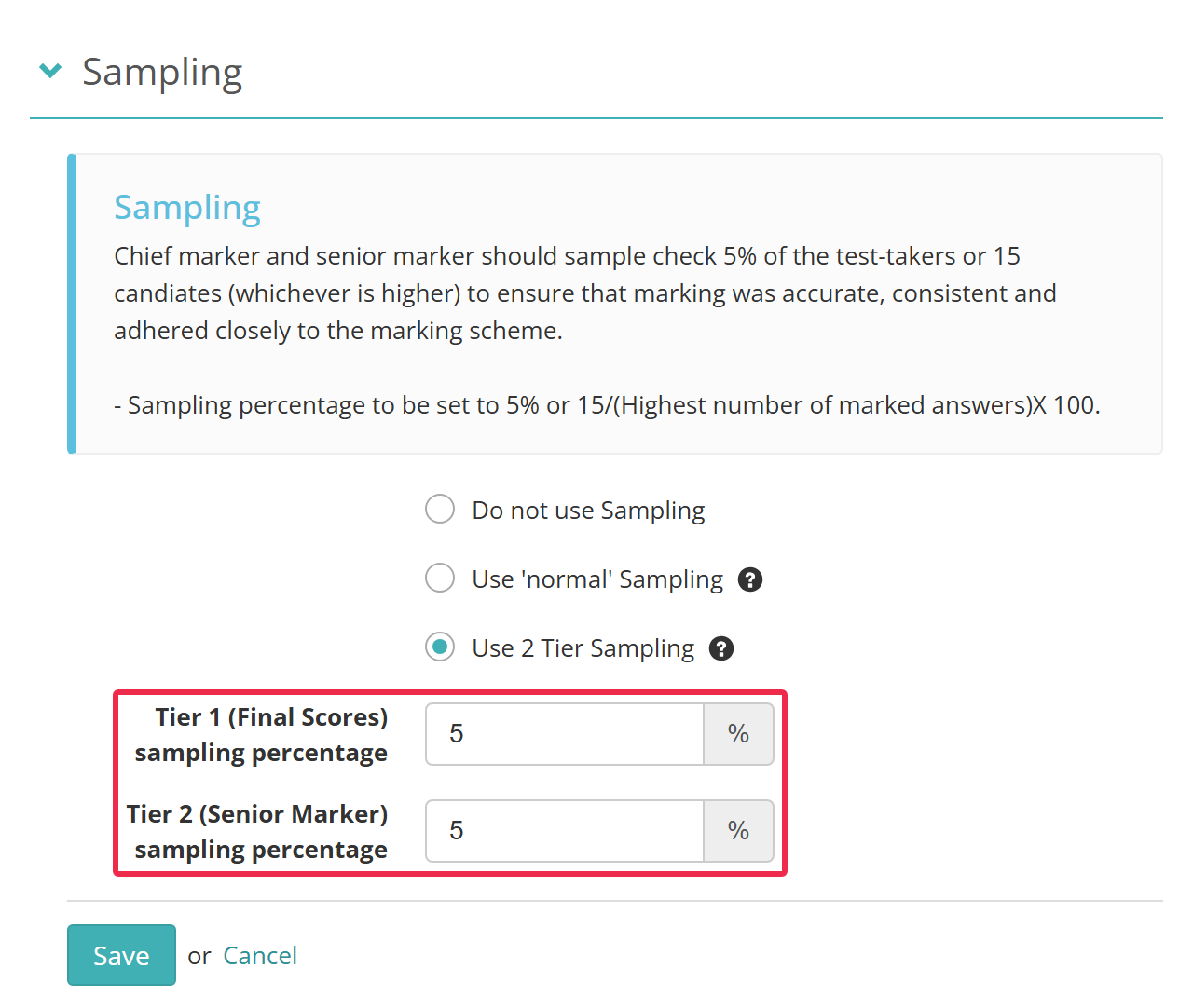
- Use 2 Tier Sampling — two targets, each with its own percentage. Tier 1 (Final Scores) sampling percentage is for chief markers, at levels 0 to 2, whose sampling scores are Final. Tier 2 (Senior Marker) sampling percentage is for senior markers, at levels 3 and 4, whose sampling scores are Senior Marker. Each samples the scores of the markers they supervise (see Roles and seniority), and a chief marker can still sample a script a senior marker has sampled.
Markers at levels 5 to 8 never sample. Which roles sample in a project is set in its Team Responsibilites grid (the screen's spelling). See Choose each role's activities.
Set up sampling
The settings are in the project's Sampling section, under Quality Controls. The section is there when the project uses Team mode and your site has sampling turned on (see Settings). New projects start with your site's default.
- Select the pencil icon on Sampling.
- Choose Use 'normal' Sampling or Use 2 Tier Sampling.
- Enter the Sampling percentage, or for 2 tier sampling the Tier 1 (Final Scores) sampling percentage and Tier 2 (Senior Marker) sampling percentage. Each is a number from 0 to 100.
- Select Save.
With Use 2 Tier Sampling chosen, the section asks for a percentage for each tier instead.
The information box at the top of the section suggests sampling 5% of test-takers or 15 of them, whichever is more. For the percentage, that's 5, or 15 divided by the highest number of marked answers, times 100.
What counts towards the target
For each item, the target is the sampling percentage of its marked scripts, rounded up. It grows as marking goes on.
- A script can be sampled once it's been marked. If the project uses grace periods, it waits until the marker's grace period has ended.
- Each script is sampled once for each target.
- With double marking, a score given to resolve a conflict doesn't count towards the target. This stops sampling leaning towards scripts that were in conflict.
When you finalise the project, Insights checks the targets across all its items. If one isn't met while scripts are still waiting to be sampled, finalising stops with "Senior marker sampling target (target) has not been met (currently number sampled)." With 2 tier sampling, the numbers are given for each tier. See When results are released.
Follow sampling
When you're not editing it, the Sampling section shows each item's progress. A chart and a count show how many of its marked scripts have been sampled. With 2 tier sampling there's a column for each tier. Select an item to see how many scripts should have been sampled so far, and how many have been.
With 2 tier sampling, choose one or more Marking Centres and Teams to count only the scripts their markers marked. Select the refresh icon to update the section.
Chief and senior markers also see their own progress on My Marking Taskboard, in Main Marking Phase - Sampling.
Settings
Administrators can configure these settings at Marking > Marking Extended Settings. See Marking settings.
Enable Sampling, in Marking Project Settings — adds the Sampling section to projects. On by default. A project that already uses sampling keeps the section if it's turned off.
Default Sampling and Default Sampling Percentage, in Quality Controls — whether new projects start with Use 'normal' Sampling, and its percentage. The defaults are Do not use Sampling and 5%.
A project's grace periods hold scripts back from sampling, and its Team Responsibilites grid sets which roles sample.
Permission to change a project's sampling settings is set per role at Settings > Roles.