Example or practice tests
An example test gives open access to a test. Anyone with the link can take it, with no username, password or one-time code. Use one to show test-takers what a Janison test looks like and let them try the item types before a real test.
Insights calls these Example Tests on screen. This page uses "example test" and "practice test" to mean the same thing.
See example tests in action
Transport for NSW
Practice driver knowledge and boat licence tests from Transport for NSW.
NAPLAN
Public demonstration tests showing the item types test-takers see in NAPLAN.
Before you start
Check these before you publish:
- Enable Example Tests must be on. See Enable example tests.
- A Student Role must be set at Settings > Assessment Event Settings > Event Settings. Every launch creates a temporary test-taker in that role, and the test won't start without one.
- The test can't be a survey or a blueprint. Publish as Example Test… doesn't appear for those.
- Your role needs permission to publish example tests. If the action isn't in your Actions dropdown, ask an administrator to check your role at Settings > Roles.
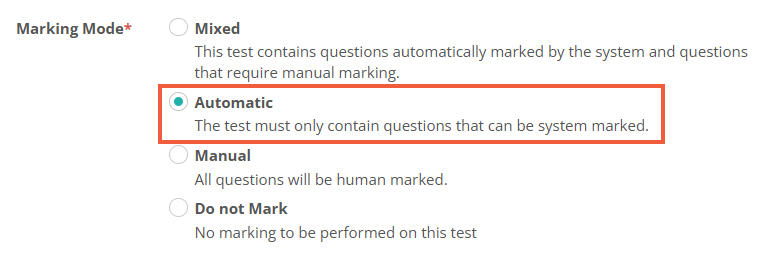
- If Enable Example Test Feedback is on, the test's Marking Mode must be Automatic. Publishing is refused otherwise.
Enable example tests
Only administrators can change this setting. Until it's on, Publish as Example Test… doesn't appear in any test's Actions dropdown.
Go to Settings > Assessment Event Settings, expand Example Test Settings and select Enable Example Tests.

Select Save Assessment Event Settings.
Publish an example test
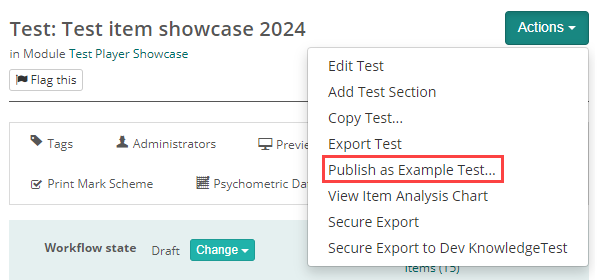
Go to Author > Tests and Surveys and open the test. From the Actions dropdown, select Publish as Example Test….
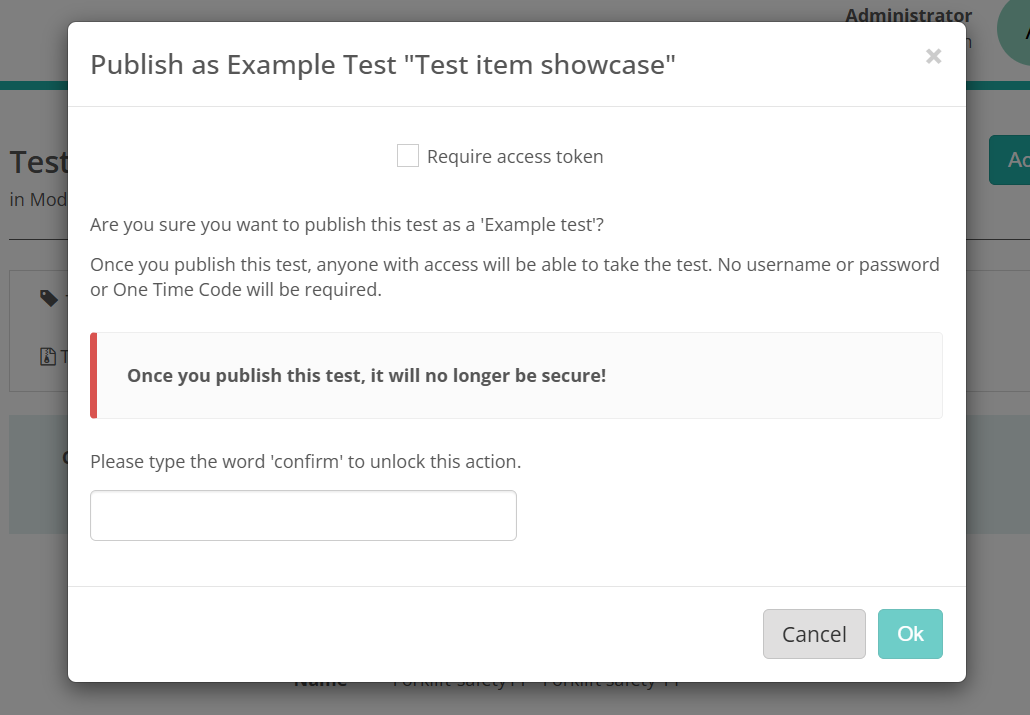
A confirmation modal warns that once published, the test is no longer secure. Type confirm and select Ok.
Important
The modal also has a Require access token checkbox. Leave it unticked unless you're working with an integration that issues access tokens. Ticked, it publishes the test for token-only access. No assessment event is created, and the link only works with a token appended. Use NoSQL delivery must be on. Insights doesn't issue the tokens itself.
The test page now shows the example test link. Copy it and share it with your test-takers.
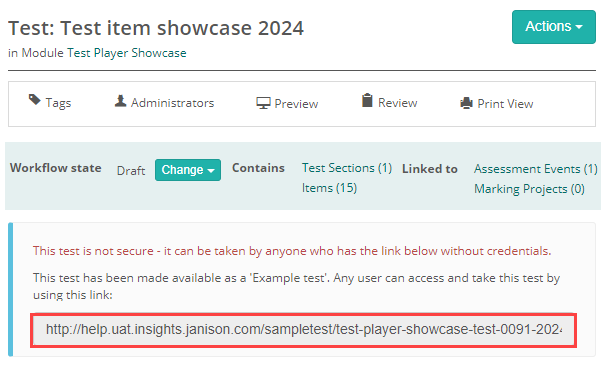
Publishing creates an assessment event for the test in the background and locks the test, so you can't edit it. To make changes, revoke the example test first.
Tip
To find your published example tests later, use the Example Test filter on Tests and Surveys.
Example Test Info and Settings
Once a test is published as an example test, the Example Test Info and Settings expandable appears on the test page.
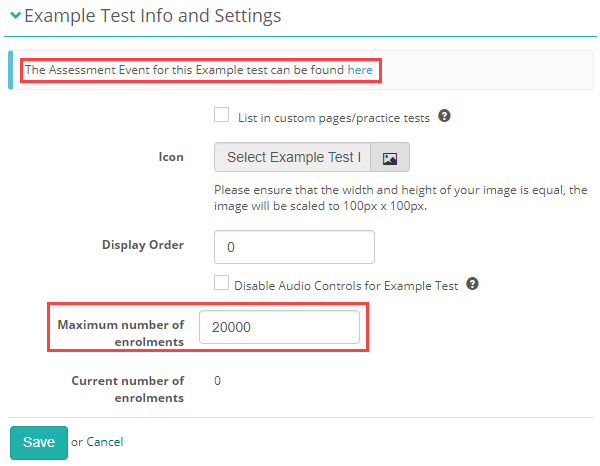
Select the edit (pencil) icon in the section header to change it. It has:
A link to the assessment event — the event created when you published. Select here to open it.
Disable Audio Controls for Example Test — turns off all audio authored in the test, including in stimuli, and removes the audio controls from the test player.
Maximum number of enrolments — how many test-takers can start the test. Defaults to 20,000. Once reached, new launches are refused.
Current number of enrolments — how many have started so far.
If Enable Custom Application Settings Options is on, three more fields appear. They control whether the test is offered on a menu of practice tests, and how it looks there.
List in custom pages/practice tests — adds the test to the practice-test list that the Janison Replay app shows when a test-taker selects Practice a Test on its home screen. The same list is available to any custom page built on your tenant, such as a public practice-test page. Leave it unticked to keep the test link-only.
Icon — the image shown beside the test's name and description on that list. Pick a square image from the module's resources. It's scaled to 100 by 100 pixels.
Display Order — the test's position on that list. Lower numbers appear first.
Each entry on the list shows the test's duration, name, description and icon, with a Start now button that opens the test.
Select Save.
Logged-in test-takers also see every published example test in the Practice test section of their dashboard when Show practice tests is on. That list doesn't use the three fields above. See candidate dashboard.
Assessment event options
Publishing creates an assessment event named after the test. Most of its settings don't matter for an example test, so you rarely need to change anything.
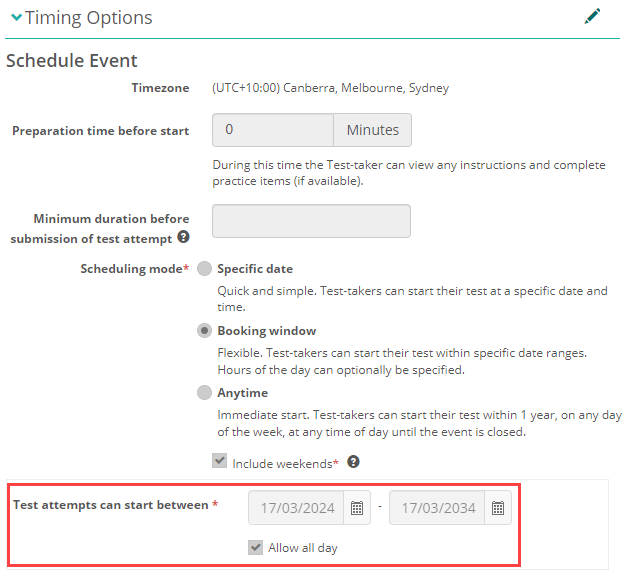
The event is read-only unless Enable Editing Generated Assessment Event of Example Test is on. With that setting on, you can adjust the timing. By default the test stays open for 10 years.
Add feedback to example tests
You can show test-takers their results and feedback as soon as they submit an example test. When Enable Example Test Feedback is on, selecting Finish takes them to the feedback page instead of logging them out.
How marks appear depends on the item:
- System-marked items show the marks the test-taker earned.
- Manually marked items, such as extended text, show full marks and a correct result if the test-taker entered any response. A blank response scores zero and shows as incorrect.
Try a practice test with feedback
Practice test with feedback
Complete 3 items in the Janison test player, select Finish, and review your results and feedback as a test-taker would.
What test-takers see
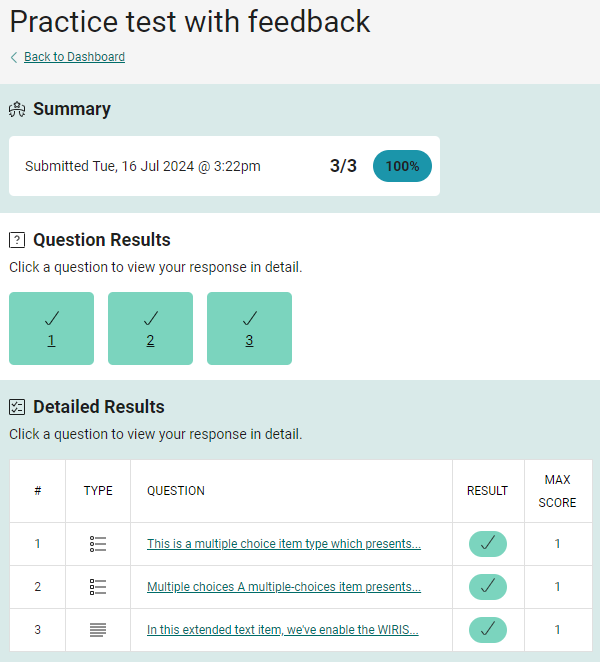
The feedback page has 3 sections: a Summary with the submission time and score, Question Results with a tick or cross per item, and Detailed Results listing each item's type, result and maximum score.
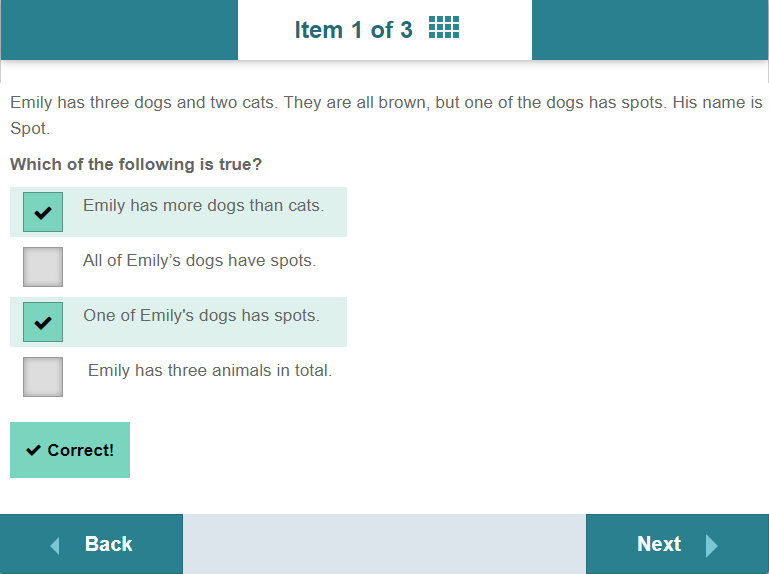
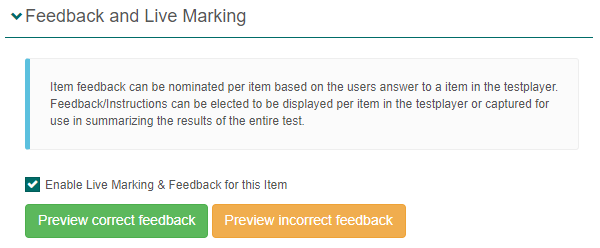
Selecting an item in Question Results or Detailed Results opens it in the test player, with the test-taker's response and the feedback set by the item author. See feedback and live marking.
Note
This is the same formative feedback screen test-takers reach from their dashboard. See formative feedback.
Enable feedback on example tests
Go to Settings > Assessment Event Settings, expand Example Test Settings and select Enable Example Test Feedback. Then select Save Assessment Event Settings.
Important
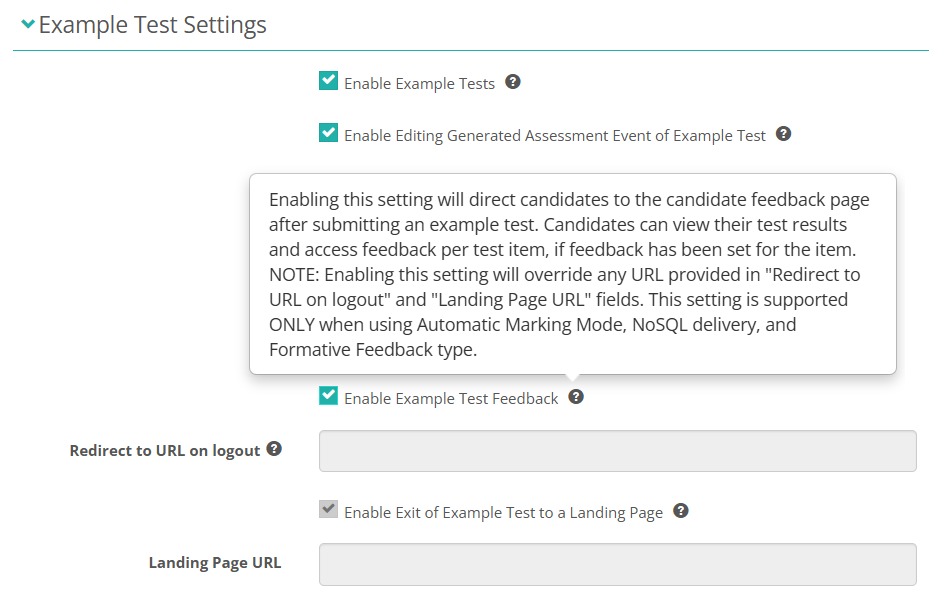
With this setting on, Redirect to URL on logout, Enable Exit of Example Test to a Landing Page and Landing Page URL are ignored and become read-only.
Requirements for feedback
Feedback only launches when all of the following are in place. If a test-taker is logged out instead of seeing their results, check these first.
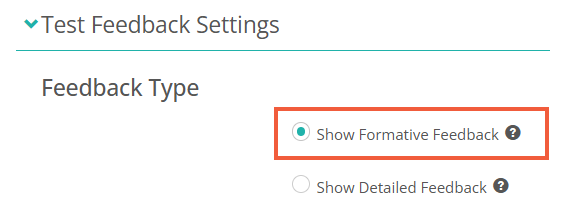
Feedback Type must be Show Formative Feedback. Go to Settings > Test Delivery Settings and expand Test Feedback Settings.
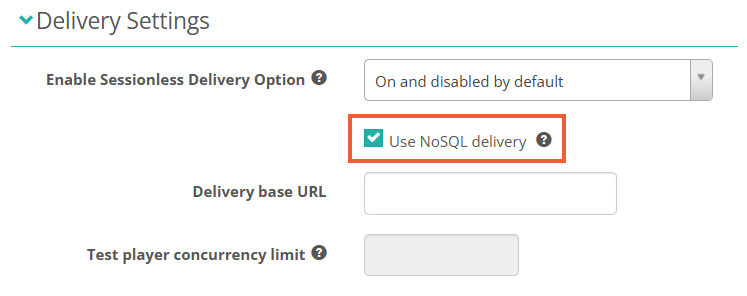
Use NoSQL delivery must be on. Go to Settings > Assessment Event Settings and expand Delivery Settings.
The test's Marking Mode must be Automatic. While feedback is on, publishing is refused otherwise.
Each item needs Enable Live Marking & Feedback for this Item selected, with feedback authored. See feedback and live marking.
Revoke an example test
Revoke an example test to take it offline. This also unlocks the test so you can edit it.
Warning
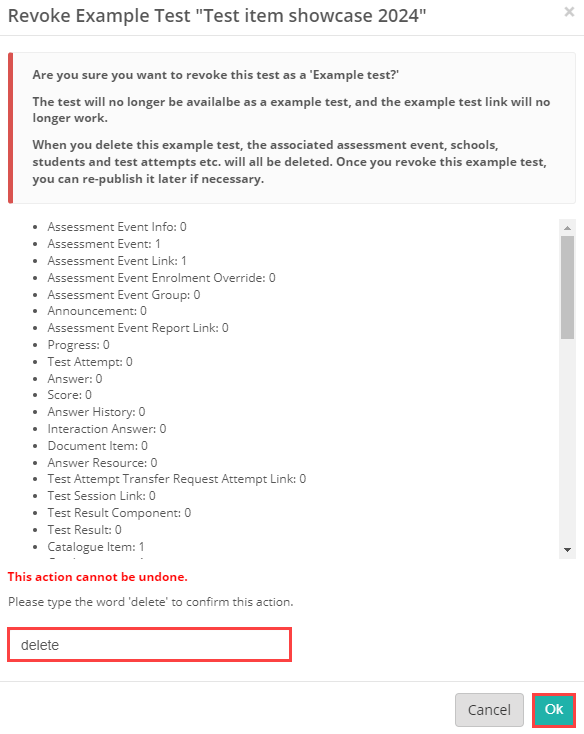
Revoking deletes the assessment event created when you published, along with every enrolment and test attempt made through the link. This cannot be undone.
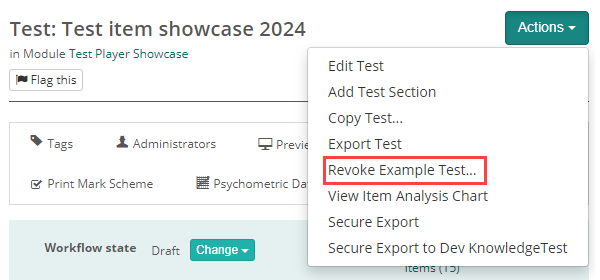
Open the test and select Revoke Example Test… from the Actions dropdown.
A modal lists what will be deleted. Select Confirm, then type delete and select Ok.
Anyone who opens the old link sees a message that the example test is no longer available. Test-takers part-way through are closed out of their attempt.
Make your changes, then publish the test as an example test again.
Tip
The link stays the same each time you republish, as long as you don't change the test's identifier.
Settings
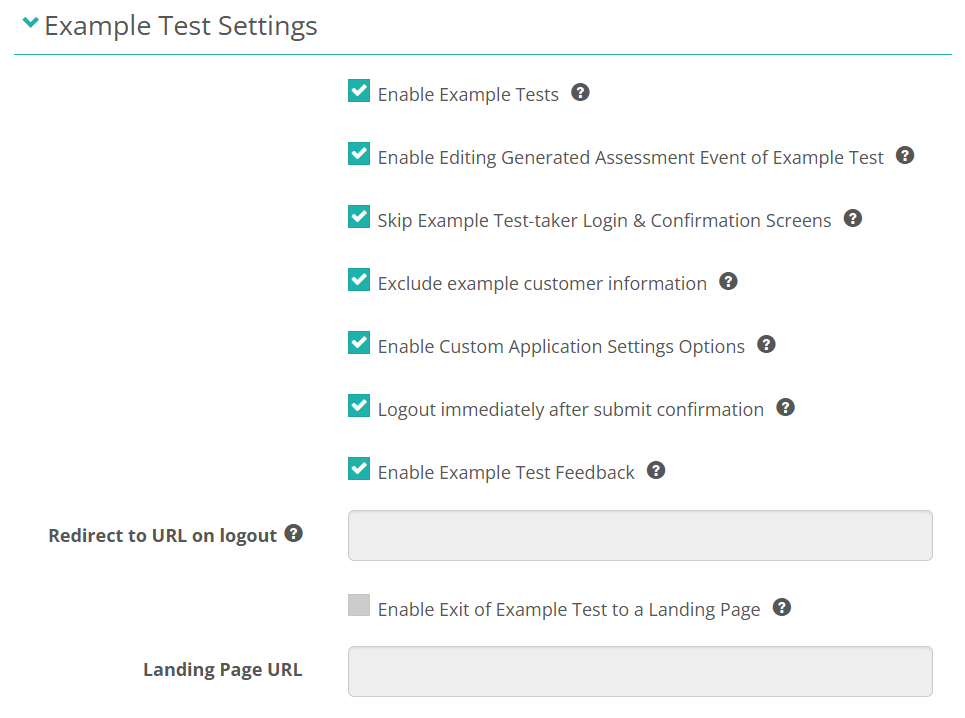
Administrators configure the following at Settings > Assessment Event Settings > Example Test Settings. Every setting except the first is read-only until Enable Example Tests is on.
Enable Example Tests — turns the feature on for the tenant and adds Publish as Example Test… to the Actions dropdown on tests. You can't turn it off while any example test is published. Revoke them first.
Enable Editing Generated Assessment Event of Example Test — lets users edit the assessment event that publishing creates. Without it the event is read-only.
Skip Example Test-taker Login & Confirmation Screens — skips the session and student code pages and the test-taker details before the test starts.
Exclude example customer information — removes the test-taker's name, customer number, and date and time from the results summary. Only editable when the skip setting above is on. On by default.
Enable Custom Application Settings Options — adds List in custom pages/practice tests, Icon and Display Order to Example Test Info and Settings, and turns on the Practice a Test list in the Replay app and the public API behind it. Off, that list is always empty.
Logout immediately after submit confirmation — after confirming their submission, test-takers are redirected straight away and skip the final acknowledgement page.
Enable Example Test Feedback — sends test-takers to the feedback page after they submit. Needs formative feedback, NoSQL delivery and automatic marking. See requirements for feedback. Overrides the three settings below, which become read-only.
Redirect to URL on logout — where test-takers go when they log out of the test. If blank, they return to the login page they started from.
Enable Exit of Example Test to a Landing Page — adds an exit action to the test player that returns test-takers to the Landing Page URL.
Landing Page URL — the page the exit action returns to.
With Enable Example Test Feedback on, the three URL settings are greyed out:
Four settings elsewhere also affect example tests.
Settings > Assessment Event Settings > Event Settings > Student Role — the role given to the temporary test-taker created for each launch. Must be set or the test won't start.
Settings > Test Delivery Settings > Candidate Dashboard Settings > Show practice tests — shows every published example test in the Practice test section of the test-taker dashboard. On by default.
Settings > Assessment Event Settings > Delivery Settings > Use NoSQL delivery — required for example test feedback.
Settings > Test Delivery Settings > Test Feedback Settings > Feedback Type — must be Show Formative Feedback for example test feedback.
Publishing also needs a role permission, granted at Settings > Roles.