Incident reporting
Incident reporting lets invigilators record anything that disrupts a test session, such as a test-taker falling ill or losing time to a technical fault. Each report gets an incident ID and joins a list you can search, filter and export to Excel.
You report an incident from the test session dashboard. An administrator must turn incident reporting on first; see Settings.
Who an incident affects
The Impact field on a report sets who it covers:
- Student — the test-takers you choose
- Test Session — every test-taker in the session who is sitting the same assessment event
- Org Unit — every test-taker from the session's organisation unit who is enrolled in the same assessment event and in an open session.
For Test Session and Org Unit, the test-takers are fixed when you create the report. Anyone who joins the session later isn't included, even if you edit the report.
Org Unit appears only if your role allows it. You can't change the impact after you create the report.
Types of incident
Select the type that best describes the incident in Type of incident:
- Environmental — the physical conditions, such as temperature, lighting, noise, or a power or building problem
- Illness — a test-taker felt unwell, was injured or had a medical condition
- Operational — an operational issue during the test
- Personal Needs and Preferences — a problem with a test-taker's reasonable adjustments or personal needs, such as extra time, assistive technology or individual support
- Security — suspected cheating, prohibited materials or anything else that puts the test's integrity at risk
- Technical — a device, software, connectivity or equipment failure
- Test Content — an error in an item, missing material or unclear instructions.
Roles with the illness and misadventure permission see 4 more types: Absent partial, Absent whole test (medical), Absent whole test (non-medical) and Test performance issue. Reports of these types have extra review fields; see Illness and misadventure reports.
The Incident Type Reference panel beside the form describes each type you can select.
Report an incident
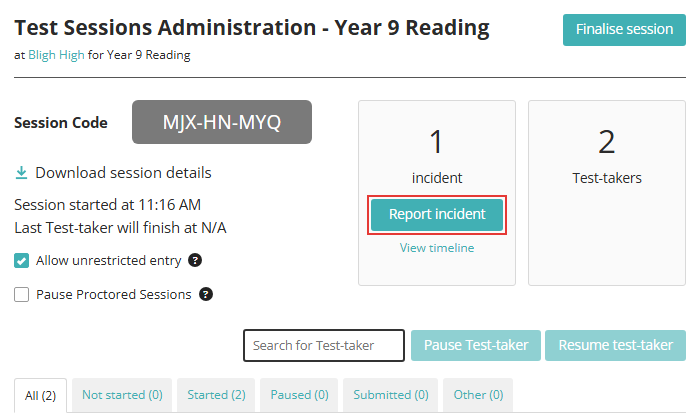
Open the session's dashboard; see test session administration. To report an incident for particular test-takers, tick them in the list first, and Insights fills them in on the report for you. A report covers one assessment event, so Report incident is unavailable while the ticked test-takers belong to different events.
Select Report incident, below the incident count.
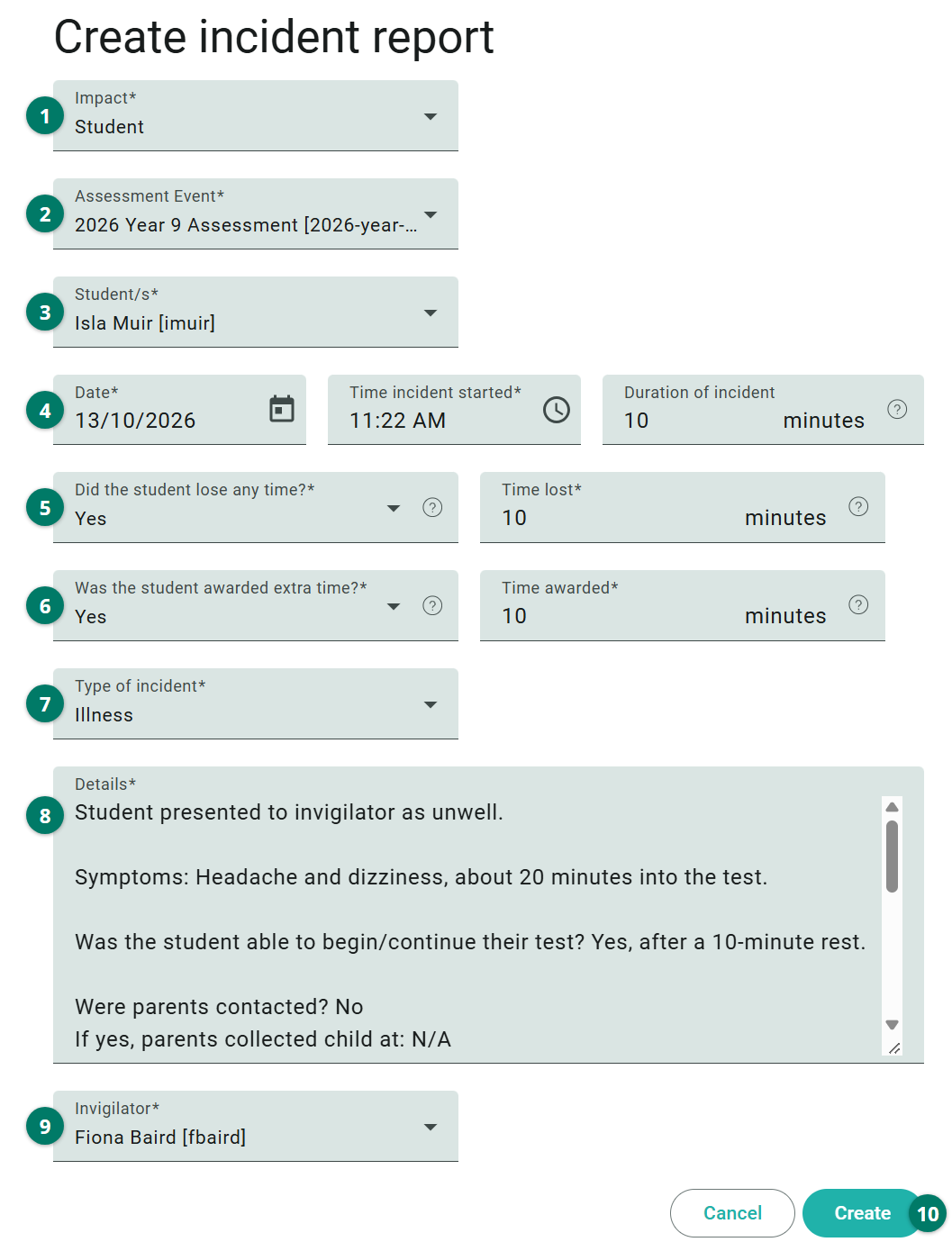
The Create incident report form opens. Complete it as follows:
- In Impact, select who the incident affected.
- Select the Assessment Event the incident relates to. If you change it later, Insights asks you to confirm, then clears the test-takers you selected.
- If you chose Student, select the test-takers in Student/s. You can search the list and select more than one.
- Date and Time incident started show the current date and time. Change them if the incident started earlier. Enter the Duration of incident in minutes, if you know it.
- In Did the student lose any time?, select Yes or No. If you select Yes, enter the minutes in Time lost.
- Answer Was the student awarded extra time? the same way, with the minutes in Time awarded.
- Select the Type of incident. Details fills with prompts for that type.
- Answer each prompt in Details.
- Invigilator shows your name. If you're reporting for another invigilator, select them instead. The list offers staff at the session's test centre whose role can invigilate.
- Select Create.
The report opens, showing its Incident ID. Select Session dashboard to go back to the session.
Important
Time awarded is a record only. To give the test-taker more time, select Award more time on the dashboard; see award more time.
Prompts for each type
Choosing a Type of incident fills Details with prompts for that type, so the report covers what's needed. For Illness, they ask about symptoms, whether the test-taker could carry on, and who was contacted. Answer each prompt after its question or colon, as in the form above.
Note
An administrator can change the wording of the prompts at Settings > String Resources by searching for their text.
View incident reports
The incident reports list shows the reports for a session, an assessment event or a test centre. Open it from:
- View timeline, below Report incident on the test session dashboard, for the session's reports
- View Incidents in the Actions menu of an assessment event in Delivery or Closed, for the event's reports
- the Incidents Reported count on the invigilator dashboard, when a single test centre is selected, for that centre's reports.
On the list:
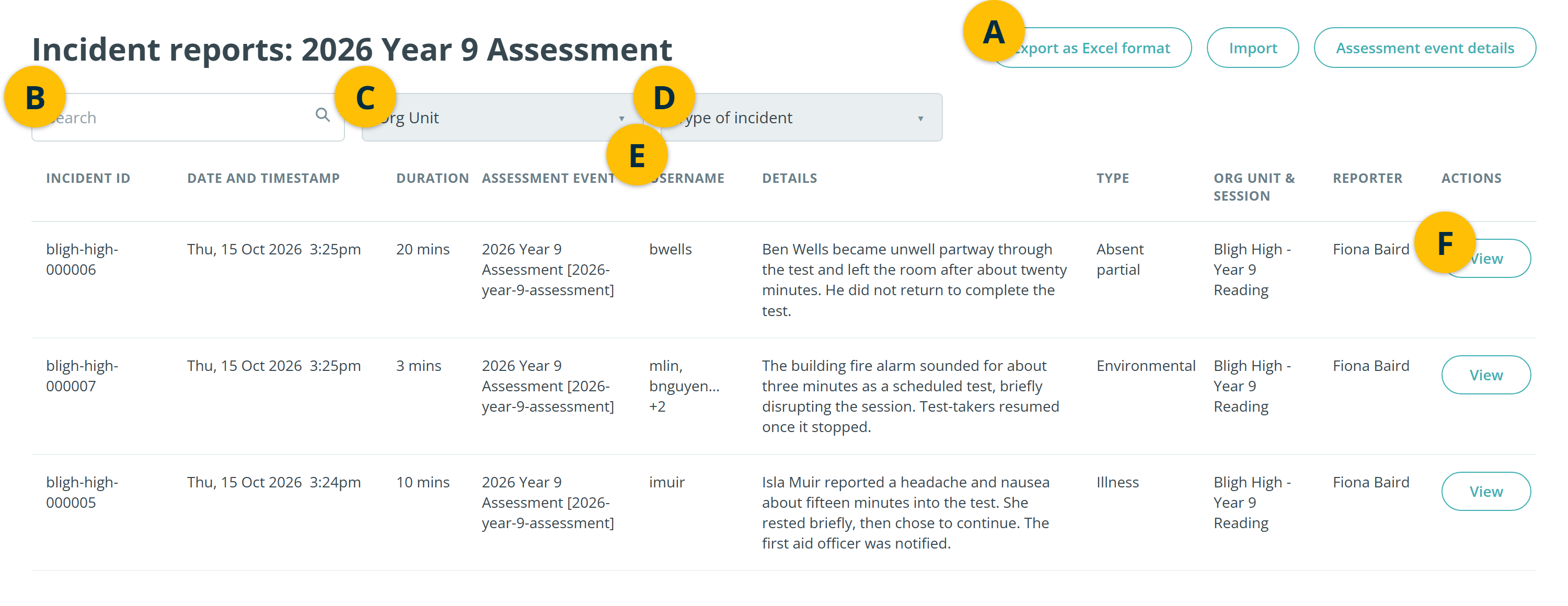
- Export as Excel format downloads the reports to a spreadsheet. It includes details the table doesn't show, such as test-takers' names, time lost and time awarded.
- Search by test-taker name or username, Incident ID, Details, or the assessment event's name or identifier, then select Search.
- Filter by Org Unit to narrow a list that spans several org units, such as an assessment event's. You can select more than one, and the filter works alongside a search. It appears on the assessment event and test centre lists, not on a single session's View timeline.
- Filter by Type of incident.
- Username shows the usernames of the test-takers a report covers: the first 2, then how many more.
- Select View in the Actions column to open a report. If your role allows it, you can edit or delete the report there. You can change everything except Impact.
Illness and misadventure reports
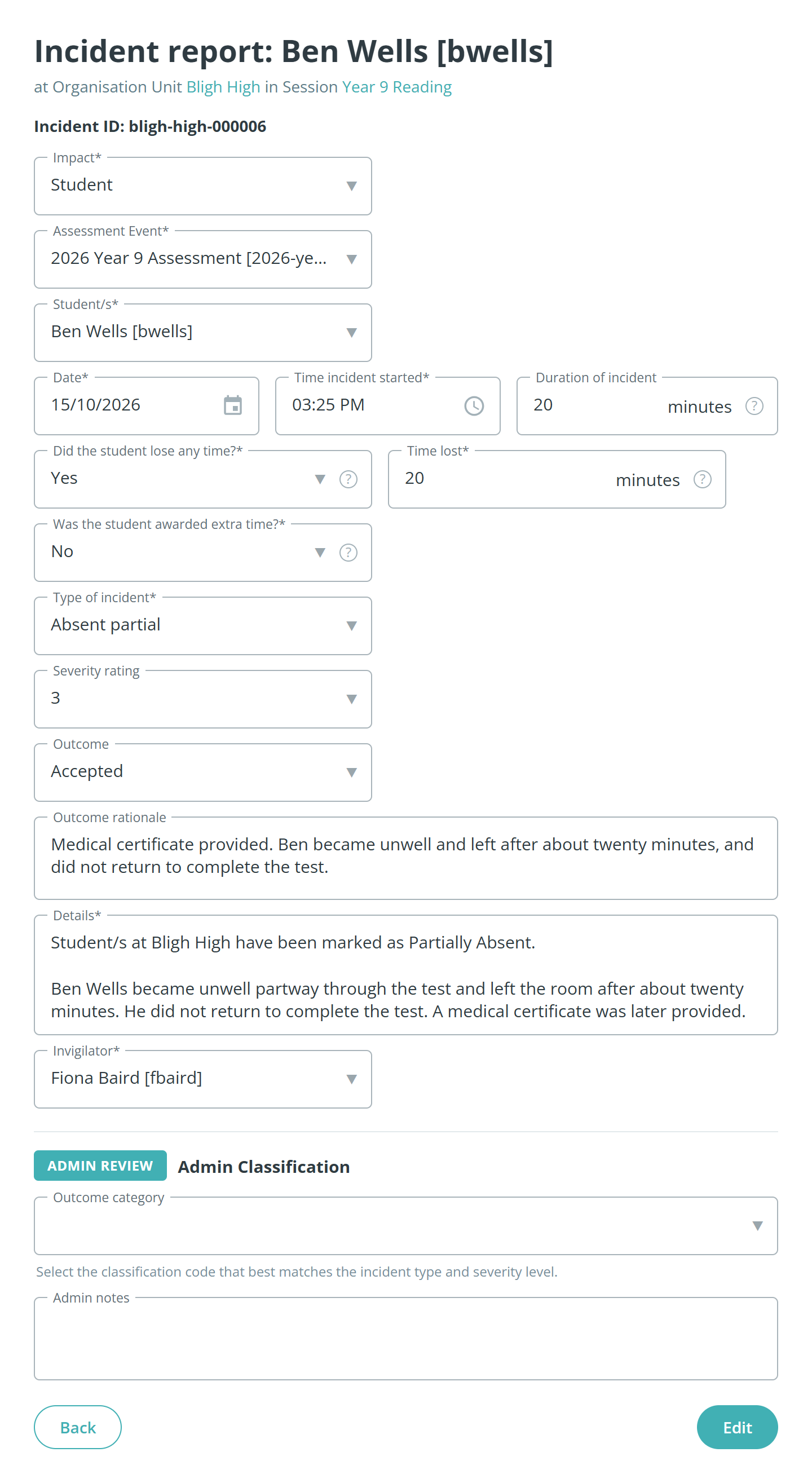
Roles with the Allow Admin Review & Illness Misadventure Functions permission can record and review illness and misadventure. They get:
- the 4 illness and misadventure incident types listed under Types of incident
- Severity rating (0 to 5), Outcome and Outcome rationale on reports of those types
- an Admin Review section on an existing report, with Outcome category and Admin notes
- the review fields as extra columns in the Excel export.
Outcome can be Pending, Accepted, Rejected, Duplicate or Needs further review. The Outcome category options come from the Incident Report Category setting.
The ordinary Illness type isn't one of the 4, so Illness reports don't get a severity or outcome. Without the permission, a role can't see reports of the 4 types in the list.
Import review details
To update the review fields for many reports at once, select Import on the incident reports list. It needs the Import permission too.
The spreadsheet's columns are Incident Id, Type, Severity Rating, Outcome, Outcome Rationale, Outcome Category and Admin Notes. Insights matches each row to a report by Incident Id, and only updates rows whose Type is one of the 4 illness and misadventure types. Write types and outcomes without spaces, such as AbsentPartial and NeedsFurtherReview.
Warning
Each imported row replaces the report's severity rating, outcome and outcome rationale. With the illness and misadventure permission, it also replaces the outcome category and admin notes. A blank cell clears the stored value.
Settings
Administrators can configure the following at Settings > Assessment Event Settings, under Event Settings.
Enable Incident reporting functionality for session invigilation — turns incident reporting on. It adds the incident count, Report incident and View timeline to the test session dashboard. While it's off, incident reporting isn't available for assessment events either. It's off by default.
Roles that can invigilate — sets who Invigilator offers: staff at the session's test centre whose main role is one of these, plus you.
Student Role — test-takers need this as their main role to appear in Student/s or be covered by a Test Session or Org Unit report.
Incident Report Category — the custom attribute whose active values make up the Outcome category list in a report's admin review.
Each incident reporting action is also a role permission, granted at Settings > Roles under Incident Report. If a button or link described here doesn't appear for you, your role may not include it:
- Create — Report incident
- Grid — View timeline, View Incidents and the link on the Incidents Reported count
- Grid Export — Export as Excel format
- Edit and Delete — editing and deleting a report
- Import — the Import button on the incident reports list
Two more permissions change what a role sees:
Allow Admin Review & Illness Misadventure Functions — adds the illness and misadventure types, their review fields and the extra export columns. Without it, a role can't see reports of those types in the list.
Allow Organisation Unit Impact Type — adds Org Unit to Impact. Without it, a role can't see reports with that impact in the list.
An administrator edits the wording of each type's prompts at Settings > String Resources.