Preview items
You can preview an item to see how it will appear to test-takers before the test is delivered. Previewing opens the item in the test player so you can interact with it as a test-taker would.
Note
Preview is not a live test attempt. The system does not record any results during a preview.
Preview from the items list
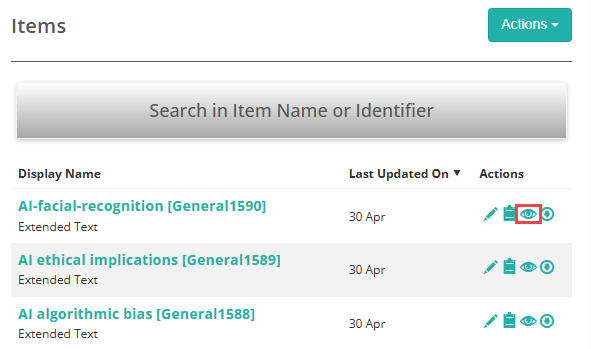
Go to Author > Items and select the preview icon  in the Actions column next to the item. The item opens in the test player in a new tab.
Preview from within an item
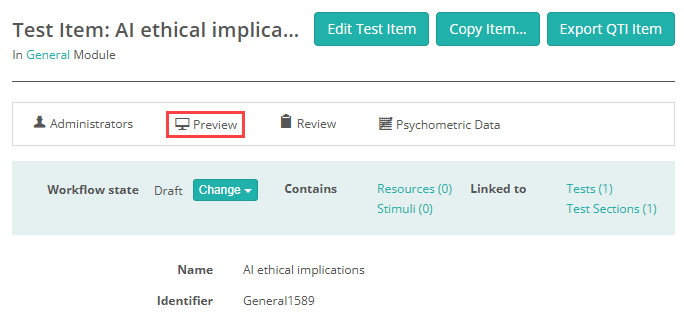
Open the item and select Preview in the toolbar under its name. The item opens in the test player in a new tab.
Preview tools
When the item opens in the test player, the preview tools sit down the right-hand side under the Tools heading. On a single item you can start the preview again, see what a personal needs and preferences code substitutes, reshuffle the distractors and, if your site has it turned on, watch the score as you answer. File upload items also offer Download response. An item in a module with an items workflow offers Question Workflow, so you can move it through its workflow from the preview.
Item Order Sequence and Navigation appear only when you preview a test section or test.
See Test player preview tools for a full description of each tool.
Settings
Administrators can configure the following settings at Settings > Test Designer Settings.
Enable Score Preview — under General Assessment Options. Adds the Scoring tool to the preview. It's off by default.
Items Workflow — under Default Settings For Disciplines / Modules / Item Analysis > Workflows, or on a module's details page. The Question Workflow tool appears when the item's module has one assigned. See Quality control.
Your role also needs the test player's Preview permission, granted at Settings > Roles.