Password settings
Password settings set the rules for the passwords people use to log in to Janison Insights. You can set:
- how complex passwords must be
- whether Insights generates them
- when they expire
- which ones staff can see
- whether they can be reused.
Important
Keep at least the password settings your site was set up with, so its password policy stays strong. You can make them stronger.
Change the password settings
- Select Settings > Password Settings.
- Expand a section and change its settings.
- Select Save.
Complexity rules
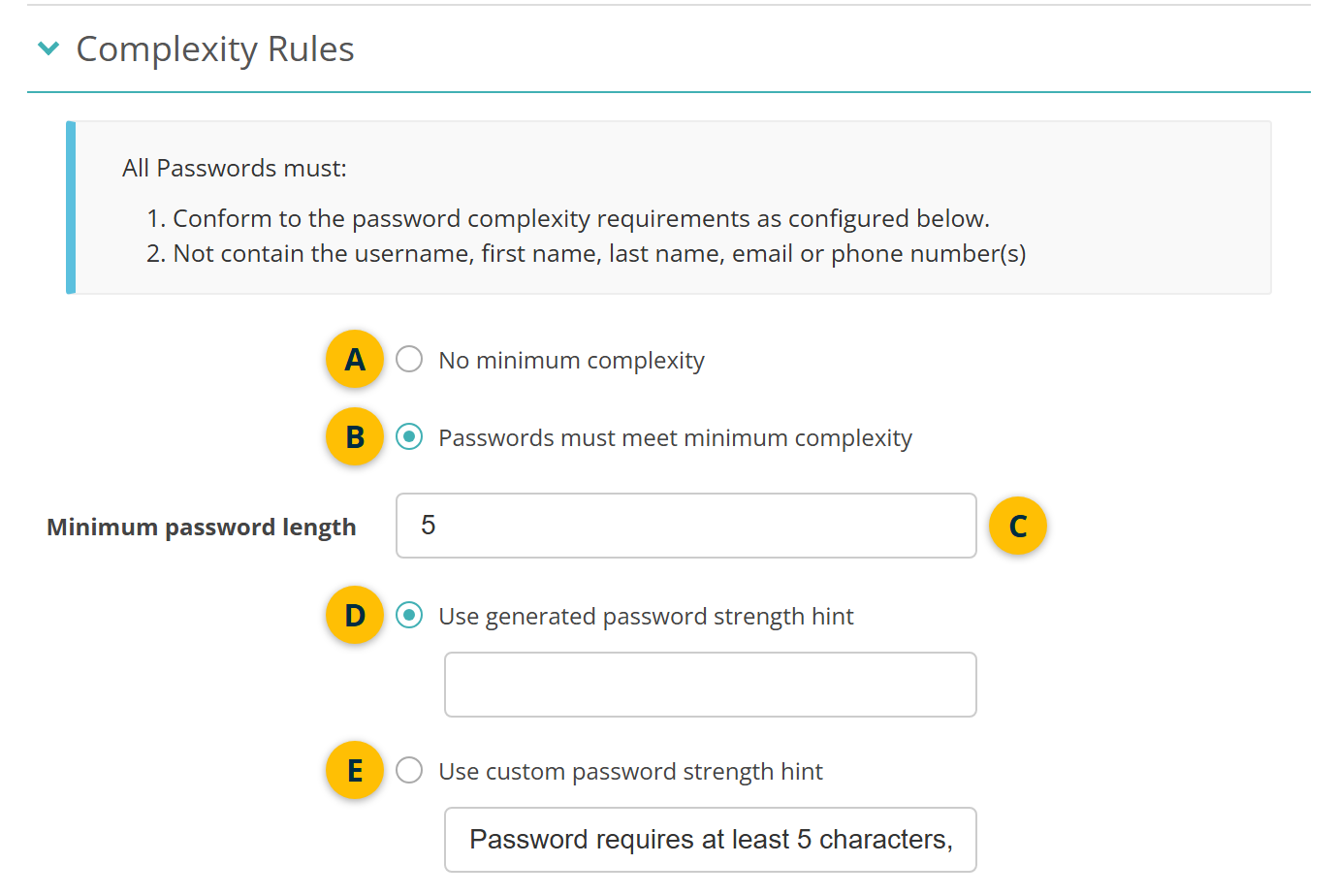
This section sets what a password must contain. With the rules on, a password needs at least one upper case letter, one lower case letter, one number and one symbol. It can't be shorter than the minimum length you set. It also can't contain the person's username, first name, last name, email address or phone number.
- No minimum complexity turns the rules off.
- Passwords must meet minimum complexity turns the rules on.
- Minimum password length is the fewest characters a password can have.
- Use generated password strength hint shows people a hint that Insights writes from the rules.
- Use custom password strength hint shows people your own wording. Enter it in the box below it.
A symbol is any of these characters: ~ ` ! @ # $ % ^ & * ( ) _ + - = { } | [ ] \ : ; " ' < > ? , . /
The password strength hint tells people what a password needs. It shows as a note above New Password on the Change Password page. It's also the error message when a new password doesn't meet the rules. To see which symbols count, people can hover over the icon at the end of the note.
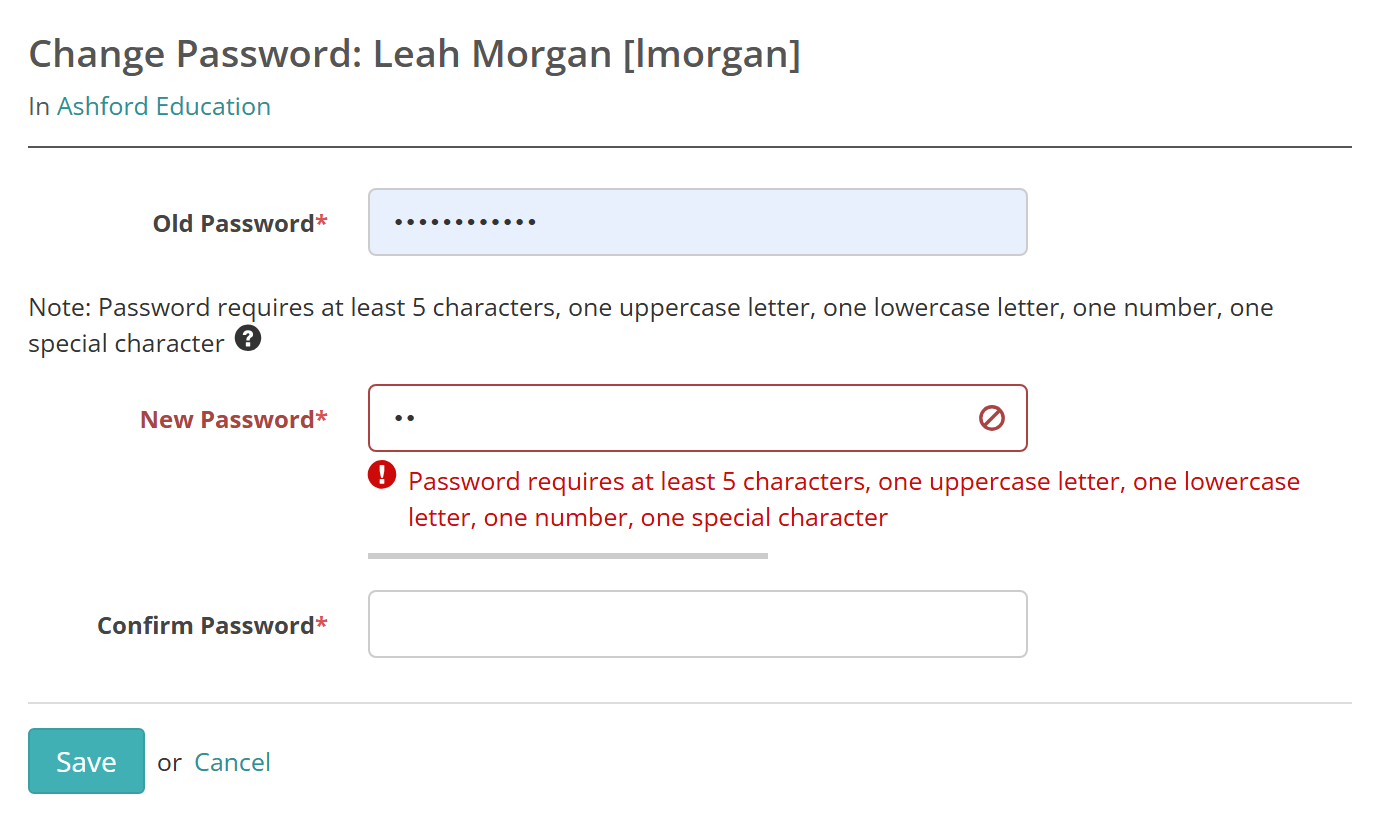
The generated hint always matches the rules, including the minimum length. A custom hint is your own wording, so update it whenever you change Minimum password length.
Password generation
This section sets whether Insights can generate passwords, and how it builds them.
- Don't generate passwords - they must be set manually means a person sets every password.
- Generate Passwords lets Insights generate passwords, using the method you choose below it.
- Generate randomly (with same minimum complexity as above) builds a random password as long as the Minimum password length. It has at least one upper case letter, one lower case letter, one number and one symbol.
- Generate from dictionary picks a word from the Password dictionary and adds a 2-digit number.
- Password dictionary holds the words to pick from, separated by semicolons.
- Generate by combining from two dictionaries joins a word from the first dictionary to a word from the second.
- First password dictionary holds the words a password can start with, separated by semicolons.
- Second password dictionary holds the words a password can end with, separated by semicolons.
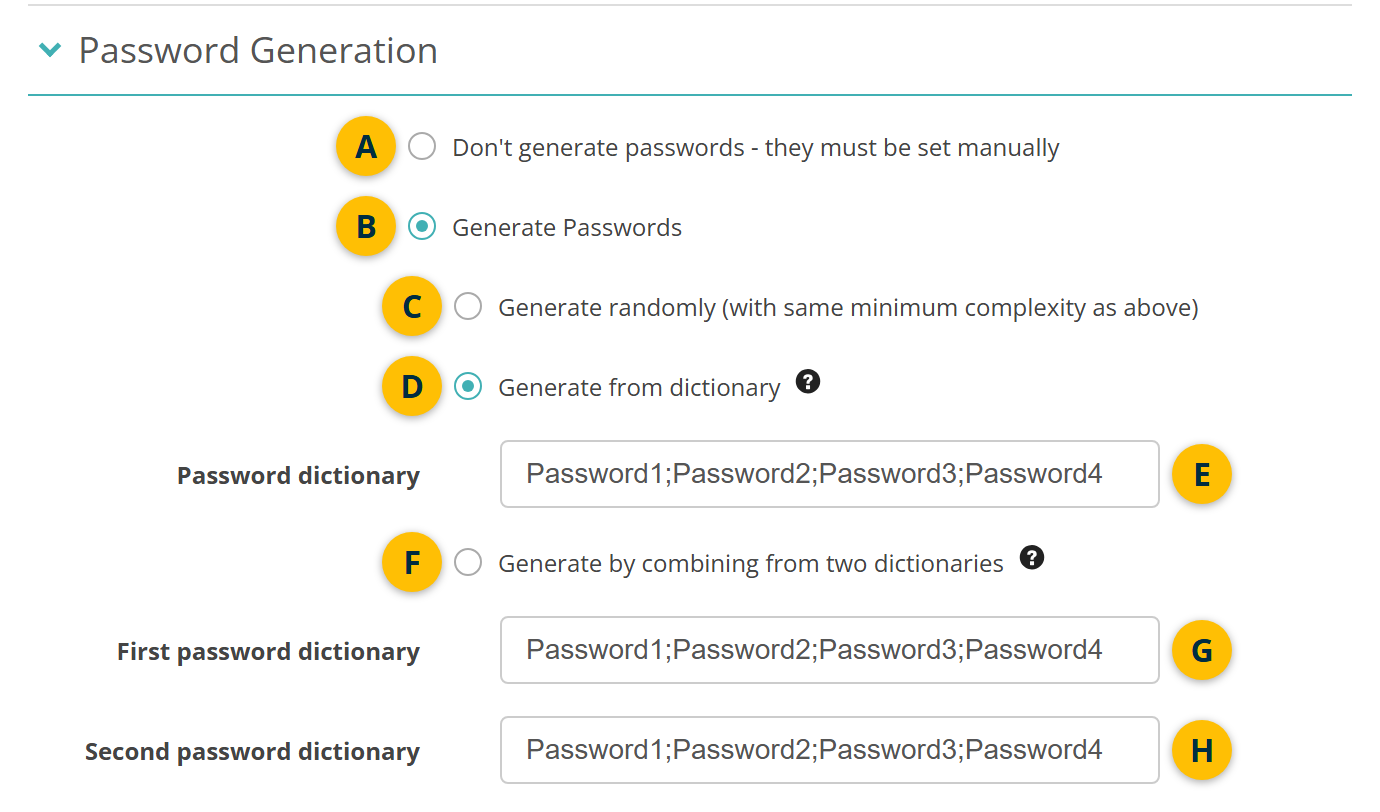
With Generate Passwords selected, Insights gives a generated password to each new user who is imported or created without one. Self-registration can use generated passwords too, if it's set to in User settings.
The quick add form has its own password setting, described in Quick add user settings. Its dictionary option uses the Password dictionary on this page. If you save this page with Don't generate passwords - they must be set manually selected, quick add changes to passwords set by hand.
A generated password isn't checked against the complexity rules, so the words in a dictionary can be short and simple.
To let staff see generated passwords, see Reveal passwords.
Password expiry and reset policy
This section sets how often people must change their password, and how soon they can change it again.
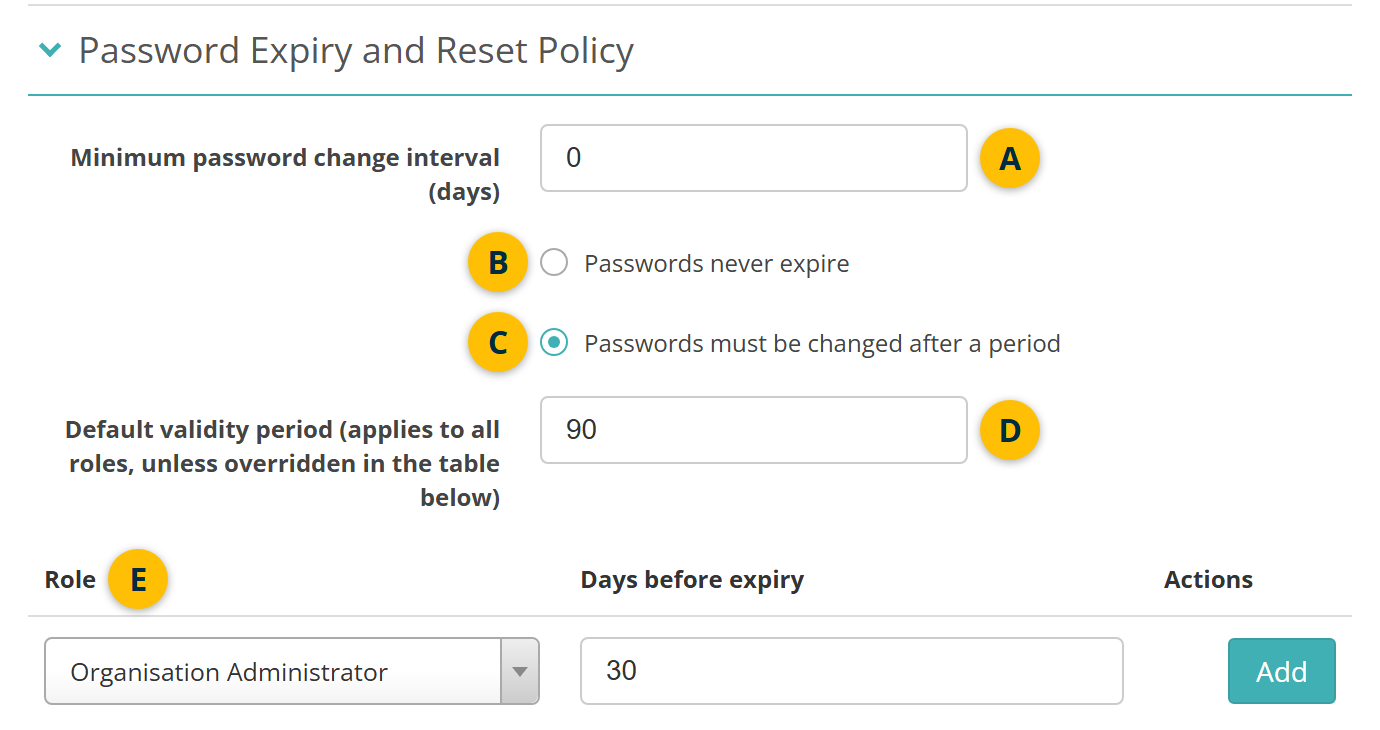
- Minimum password change interval (days) is how many days a person must wait after changing their password before they can change it again. Enter 0 for no wait.
- Passwords never expire means nobody is made to change their password. People can still change it when they choose.
- Passwords must be changed after a period makes people set a new password once theirs reaches the age you set.
- Default validity period (applies to all roles, unless overridden in the table below) is the number of days a password lasts.
- The table gives a role its own number of days.
The minimum interval applies when people change their own password. If they try too soon, a message tells them how many days are left. Staff with permission can still change a person's password at any time, and the person can then change it again straight away.
When a password expires, the person must set a new one the next time they log in.
You can change the wording of both messages in String resources.
To give a role its own period, choose it in the Role list, enter a number in Days before expiry and select Add. The role appears in the table. In this example, people whose main role is Organisation Administrator must change their password every 30 days, and everyone else every 90 days.
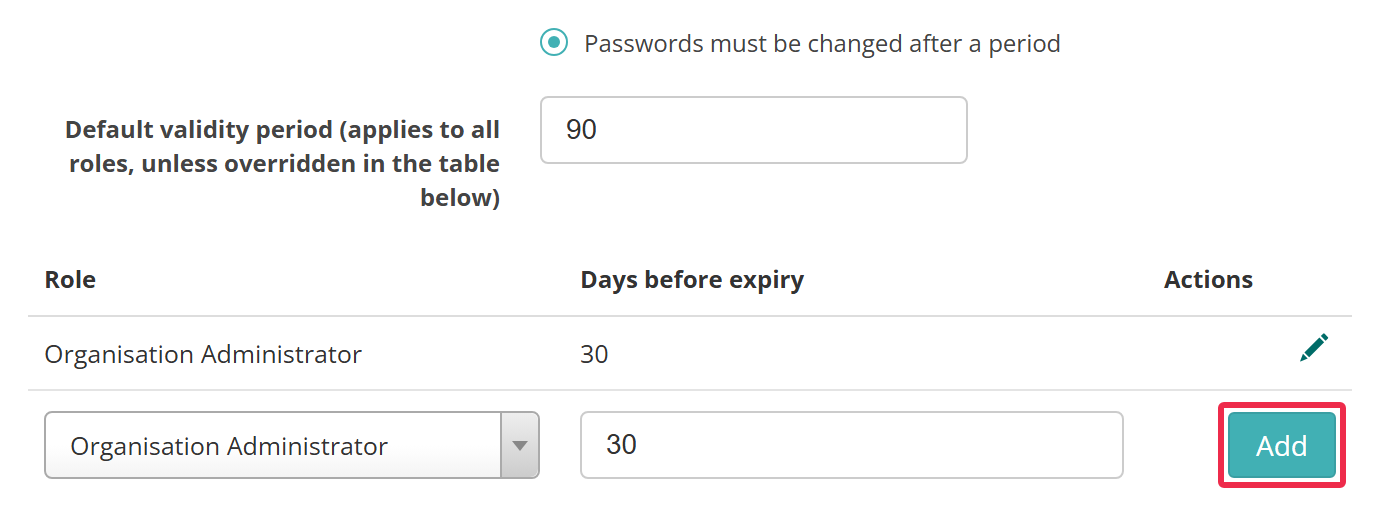
A role's period applies to people who have it as their main role. To change a period, select the row's edit icon and enter the new number. While you edit a row, it also has an icon that removes it. Your changes take effect when you select Save.
Reveal passwords
This section sets whether staff can see the passwords that were generated or set for other people, so they can pass them on. It applies only to passwords set by importing users. Insights shows every other password as ******.
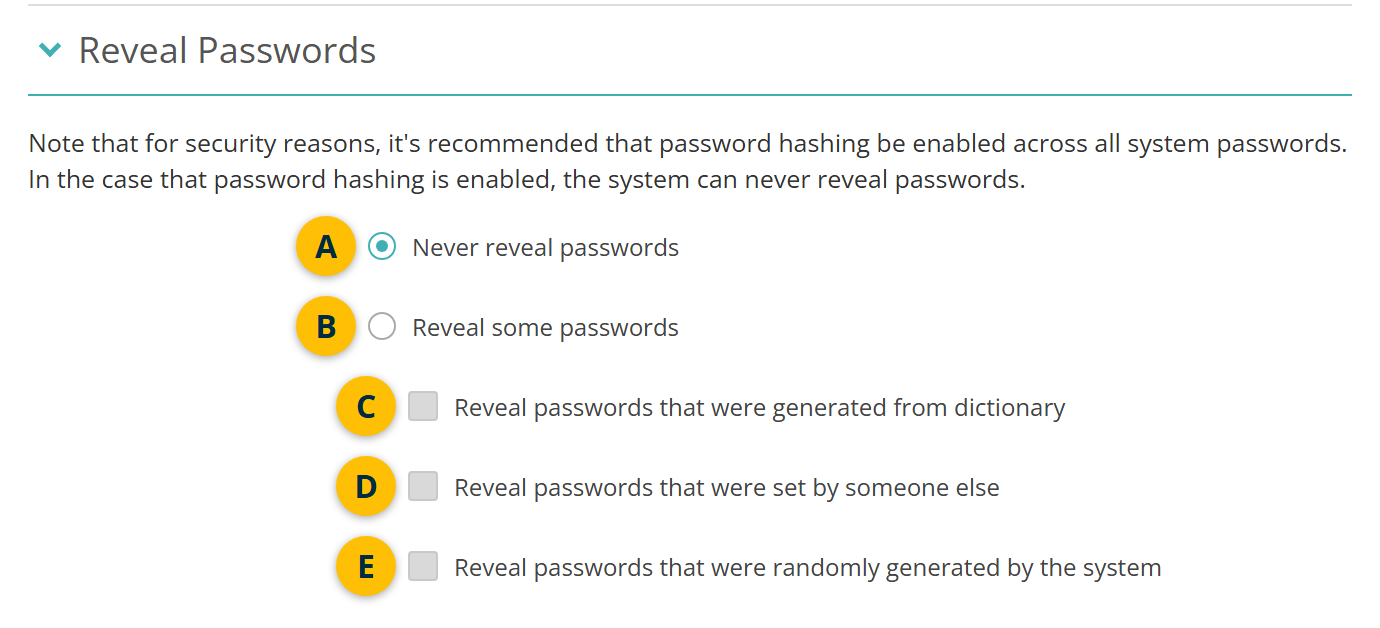
- Never reveal passwords hides every password.
- Reveal some passwords shows the kinds of password you tick below it.
- Reveal passwords that were generated from dictionary shows passwords built from one dictionary or two.
- Reveal passwords that were set by someone else shows passwords that were given in an import file.
- Reveal passwords that were randomly generated by the system shows randomly generated passwords.
A password that someone sets for themselves is never revealed, and neither is a hashed password. Hashing scrambles a password when it's saved, so that nobody can read it back.
Insights hashes every password that's set on screen, including one that an administrator sets for someone else. A password set by importing users isn't hashed, whether it came from the import file or was generated during the import.
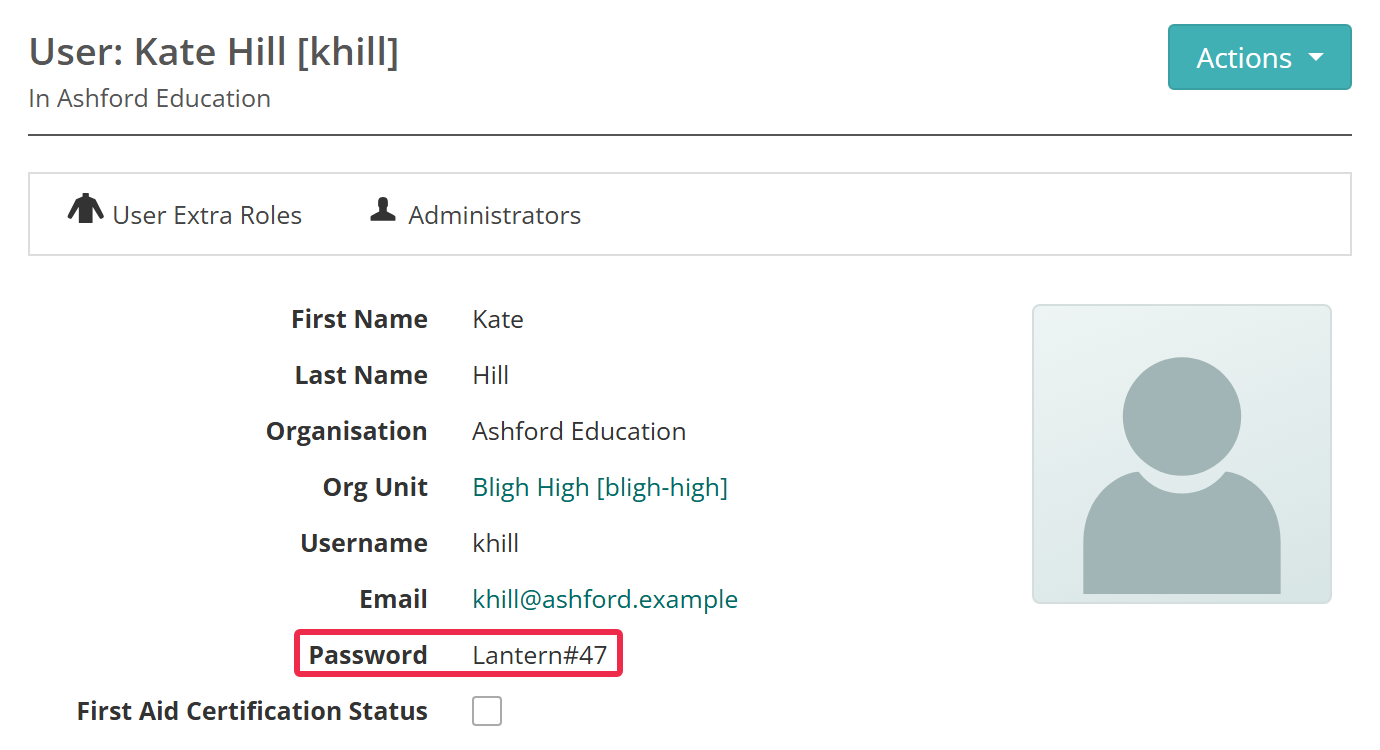
A revealed password shows:
- in Password on the user's page
- in the Password column of the Users list
- under the test-taker's name on Manage attempts, when the attempt has no one-time code.
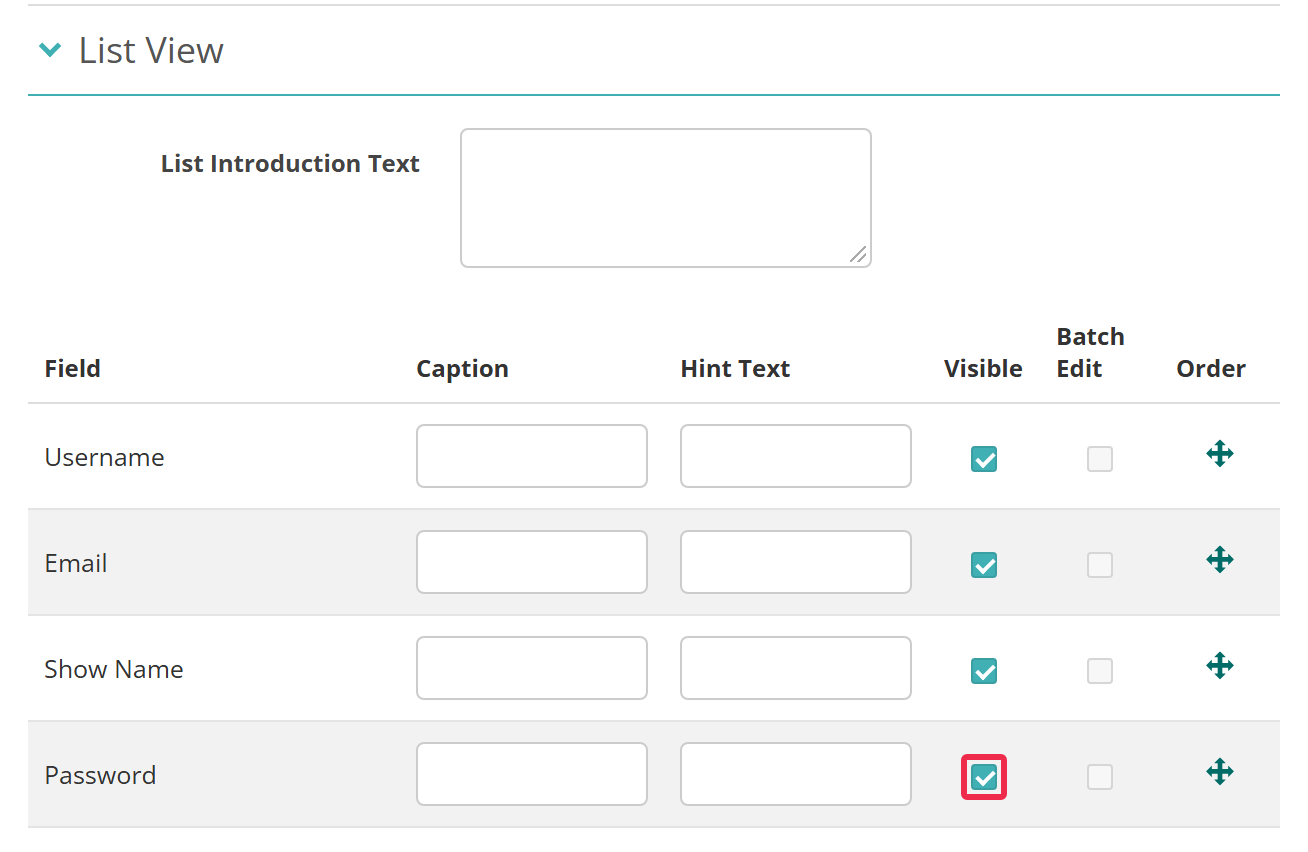
The Password column shows only once it's made visible. Select Settings > User Settings, expand List View and tick Visible beside Password. The field on a user's page is set the same way, in Details View.
Re-using the same password
This section sets whether people can go back to a password they've used before.
- Allow users to set new passwords that they have used previously lets people reuse any old password.
- Don't allow users to set new passwords that they have used previously stops people reusing their most recent passwords.
- Number of passwords in history is how many recent passwords a new password is checked against.
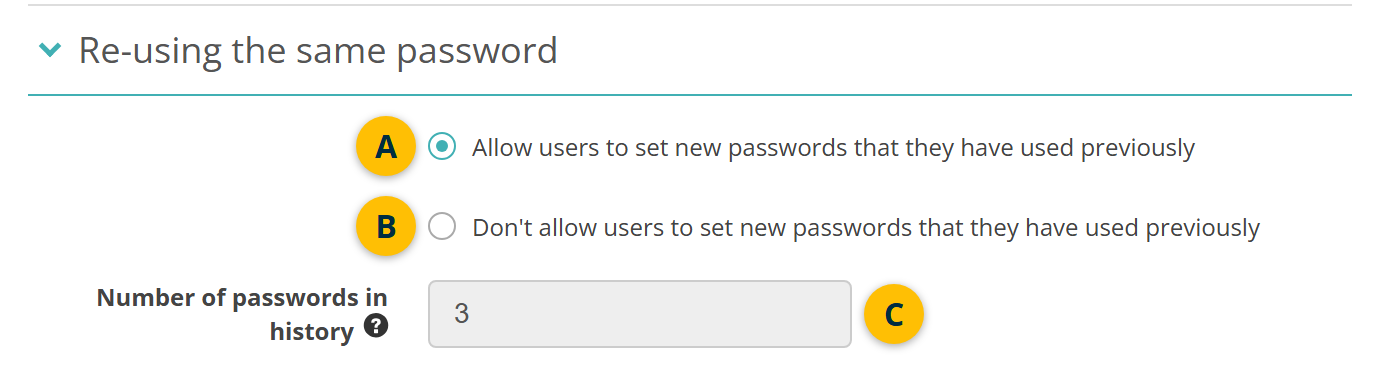
For example, with Number of passwords in history set to 3, a new password can't match the person's current password or the 2 before it. If it does, a message says the password has already been used.
Settings
Administrators change everything on this page at Settings > Password Settings. These other settings work with it.
Roles (Settings > Roles) — sets which roles can open Password Settings.
User Settings (Settings > User Settings) — List View and Details View set whether Password shows on the Users list and on a user's page. Its self-registration form can generate passwords only while Generate Passwords is selected.
Quick Add User Settings (Settings > Quick Add User Settings) — sets how users added with quick add get a password: set by hand, generated from the Password dictionary, or generated randomly.
String Resources (Settings > String Resources) — changes the wording of the messages people see when a password has expired or was changed too recently.