Questions
The Questions section of an enrolment-based marking project lists the items your markers will mark. For each item, it shows how many responses there are and how many are marked so far. Use it to check the project has the right items before marking starts, take an item out of marking, and set up how markers work on each item.
The section is on the marking project's page. Select Questions to expand it.
Info
The section's heading and some of its labels say "questions", while others say "item". Both mean the same thing.
Which items appear
The section lists only the items that markers mark by hand. Items the system marks are left out. These types appear, under the names the section shows:
- Extended Text — written responses. See Extended text.
- File Upload — files the test-taker uploads. A speaking item is a kind of file upload item, so it appears as File Upload too. See File upload.
- Drawing Interaction — drawings. See Drawing interaction.
- Text Entry, only when its Scoring Type is Semi-automatic. The system marks responses that match the answers you set and sends the rest to markers. See Text entry.
- Coding — code the test-taker writes.
- Composite — composite items with at least one interaction of these types. Depending on the project's settings, the section lists the whole item or each of those interactions. See Composite items.
What the section shows
Each item is listed with its response counts and an Include in Marking Project tick box.
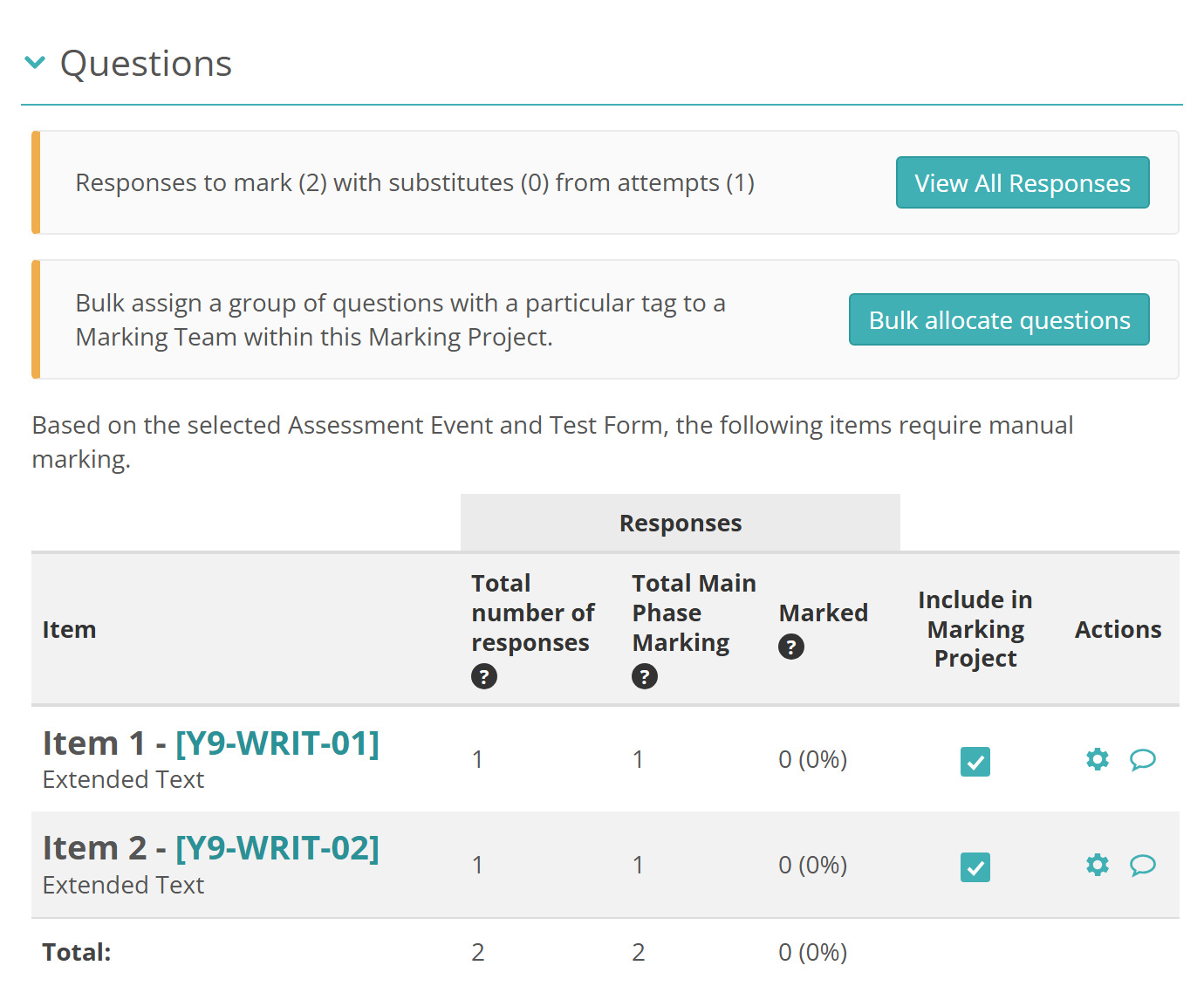
The banner at the top counts the responses to mark, how many of them are to substitute items, and the test attempts they come from. Blank responses aren't counted. A substitute item is one a test-taker gets in place of another through their personal needs and preferences (PNP).
Select View All Responses to see every response in the project and its scores. See View candidate responses.
The table has a row for each item:
- Item shows the item's number in the test, its identifier and its type. If your role can open items, select the identifier to open the item in a new tab.
- Total number of responses counts every response to the item, leaving out blank ones.
- Total Main Phase Marking counts the responses that need marking. For a semi-automatic Text Entry item, it counts each different response once.
- Marked counts the responses marked so far, with their percentage of the total.
- Include in Marking Project is ticked for every item in marking. See Exclude an item from marking.
- Scores appears when the project uses grace periods. See Reopen an item's scores.
- Actions holds the item's icons. See Item icons.
Before you start marking
Check the list before you transition the project to Marking. Once markers have scored an item, you can't exclude it.
If an item you expect is missing, check its type against Which items appear. A Text Entry item needs Semi-automatic scoring. Then check that the project's Assessment events include the event that delivers the item's test. See Change the assessment events later.
Exclude an item from marking
To take an item out of the project, clear its Include in Marking Project tick box and confirm. The item turns grey and markers stop getting its responses. To put it back, tick the box again.
Important
An excluded item is worth 0 marks in every test-taker's result. Including it again gives it back its marks.
You can exclude or include items only while the project is in Setup or Marking. In Marking, you can't exclude an item once markers have scored it.
Excluded items are shown only while the project is in Setup or Marking, and only to people whose role lets them change the tick box.
Give items to marking teams by tag
Every marker you add to an enrolment-based project can mark every item. Bulk allocation changes what a whole marking team can mark, using the items' tags.
- Select Bulk allocate questions. Work Allocation opens.
- Choose a Tag type. Each of its tags becomes a column, showing how many items have it. Each marking team is a row.
- Select the icon where a team's row meets a tag's column. A tick gives the tag's items to everyone in the team. Select it again to take them away. A partly filled icon means only some of the team have them.
- Select Save.
Expand a team to see each marker's allocation. To change the tag type after a change, save or cancel first.
To change one marker's items, see Allocate items to markers.
Item icons
The Actions column has an icon for each thing you can do with an item:
 opens the item's annotation settings, which replace the project's for this item. It's on every item except File Upload items. Once the item has scores, you can't switch it between holistic and discrete marking. See Set marking annotation per question.
 opens the marking team's comment on the item. The icon fills in once there's a comment. You can edit it while the project is in Setup or Marking.
- On a semi-automatic Text Entry item, or a composite item that contains one, a branching icon opens its semi-automatic marking configuration.
An excluded item has the comment icon only.
Reopen an item's scores
When the project uses grace periods, a Scores column appears. Its Review link reopens every score for an item, so markers can change them.
- Select Review on the item's row. Review Scores opens.
- Select Quick change.
- Select Update, then confirm.
The item's scores stay open for the length of the grace period, then close again on their own.
Review appears on an item once markers have scored it, if your role lets you reset grace periods.
Settings
Administrators can configure these settings at Marking > Marking Extended Settings, in the Marking Project Settings section.
Enable Question Settings Section, under Enrolment Based Marking Project Section Settings — shows the Questions section on enrolment-based projects. On by default. See Enrolment based marking.
Enable Showing Standardised Scripts Linked To Item, under Marking Settings — adds an icon beside any item that has standardised scripts linked to it.
On each marking project:
Grace Periods — when the project uses grace periods, the Scores column appears. See Grace periods.
On each item:
Scoring Type, on a Text Entry item — Semi-automatic puts the item in this section. See Text entry.
Permission to see the section, change Include in Marking Project, edit an item's annotation settings and reopen scores is set per role at Settings > Roles.