Mark test-taker responses
Markers on an enrolment-based project mark one test-taker at a time, scoring each of their items before moving on to the next test-taker. This page covers the marker's dashboard and marking screen, escalating a score, finishing a test-taker and reviewing your scores. A test-taker's set of responses is also called a script.
Open your marking dashboard
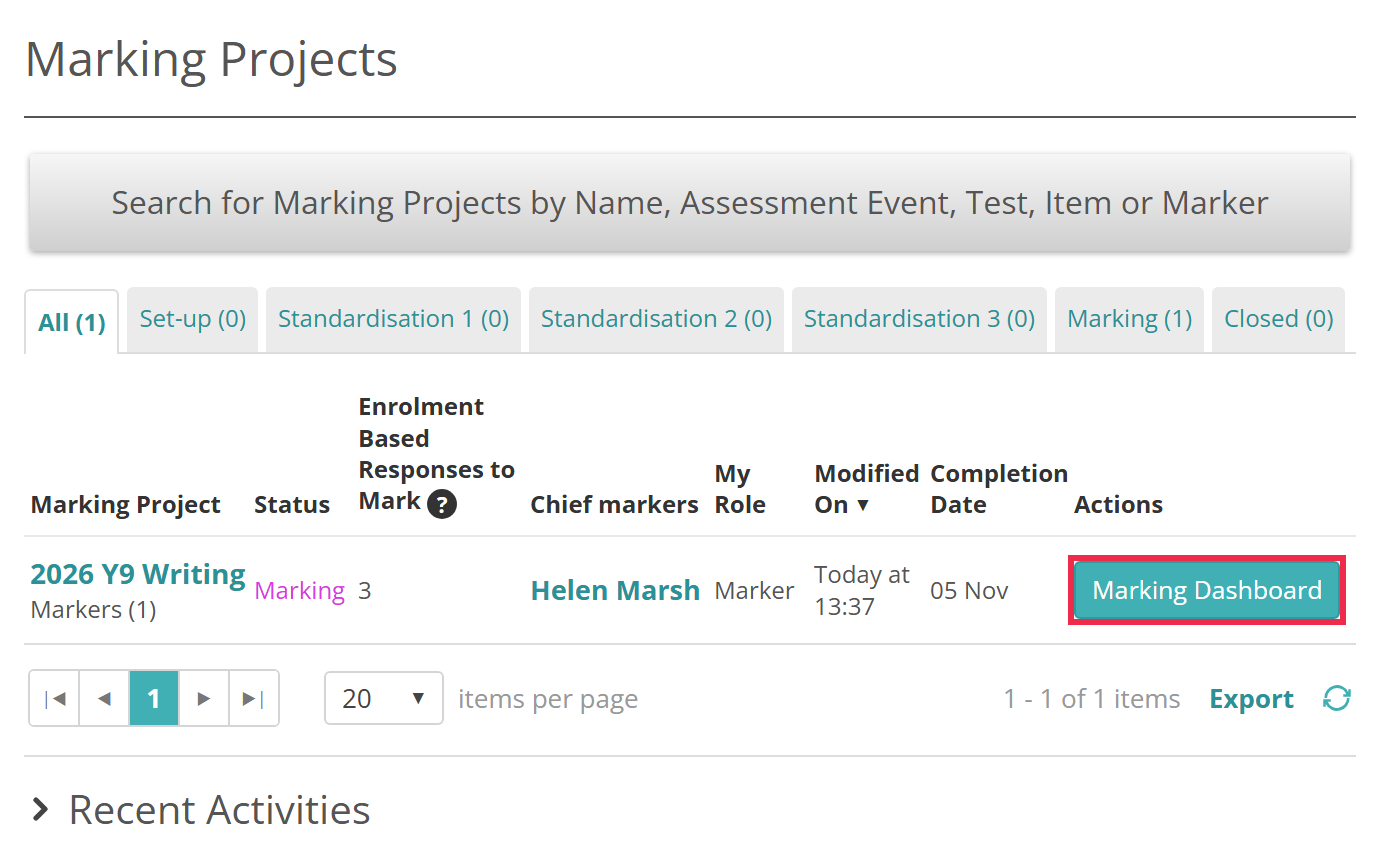
You mark from your Marking Dashboard. To open it, go to Marking > Marking Projects and select Marking Dashboard in the project's row.
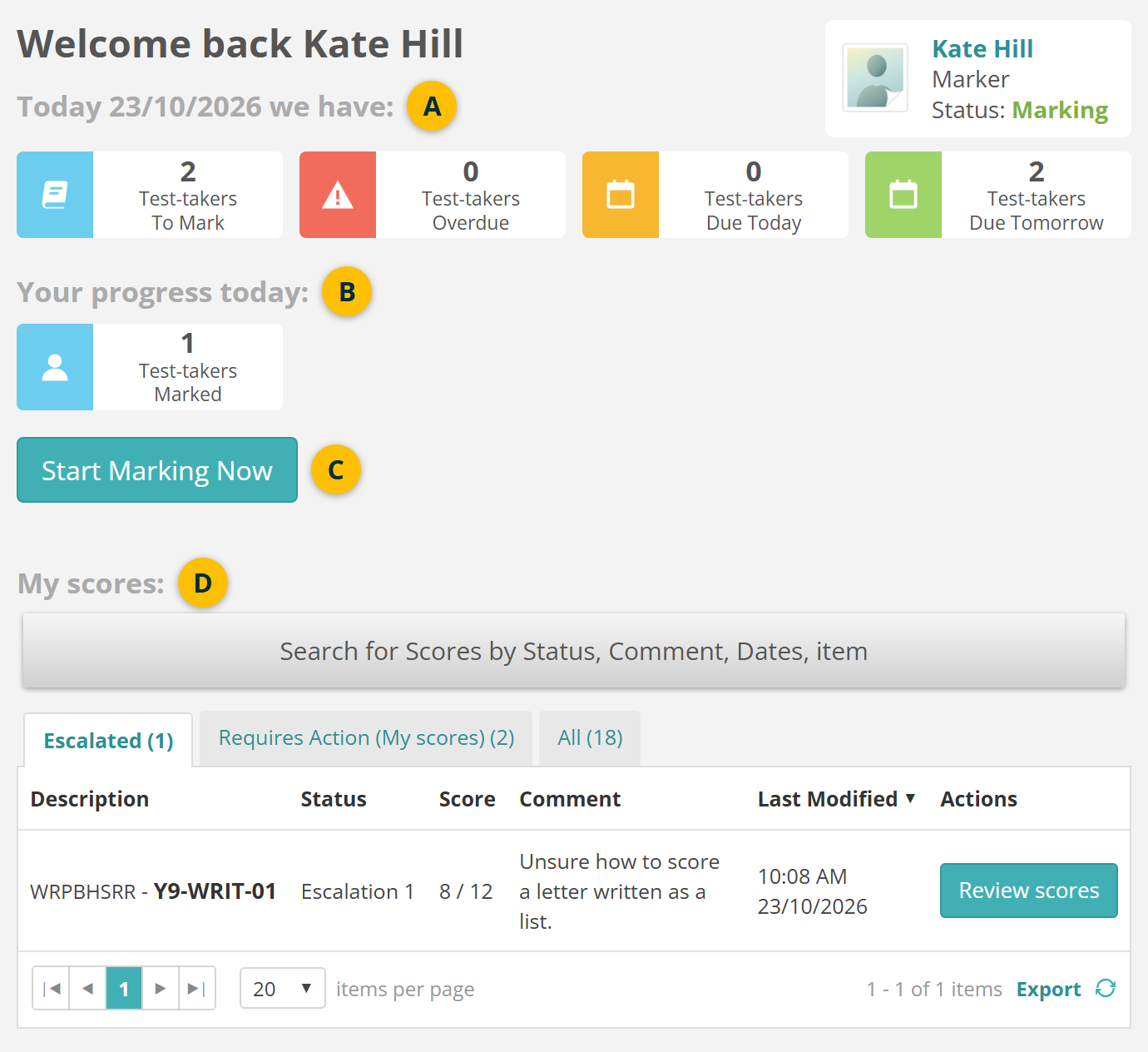
The dashboard has these parts:
- The tiles count the test-takers waiting to be marked, and those overdue, due today and due tomorrow. Marking is due 2 days after a test-taker submits.
- Your progress today counts the test-takers you've marked today.
- Start Marking Now opens a test-taker for you to mark. If you left one unfinished, it opens that one first.
- My scores lists the scores you've given. See Review your scores.
If the project has a marking schedule, you can mark only during its times. See Marking sessions schedule.
Mark a test-taker
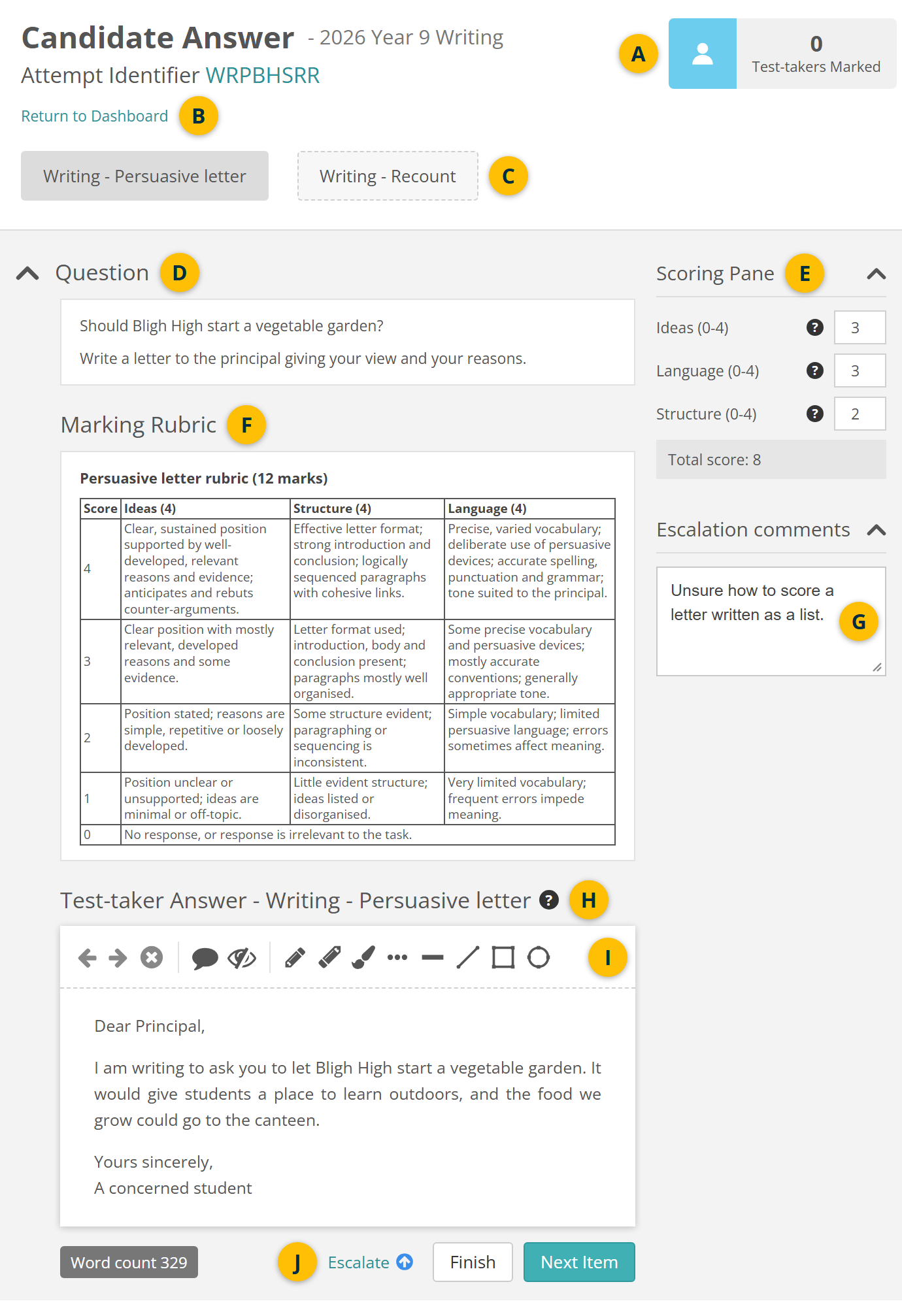
Select Start Marking Now. The marking screen opens on the test-taker's first item. It has these parts:
- Test-takers Marked counts the test-takers you've marked today.
- Return to Dashboard takes you back to your dashboard.
- The item buttons switch between the items you're marking for this test-taker.
- Question shows the item as the test-taker saw it. Select the arrow beside it to hide it.
- Scoring Pane has a box for each part of the marking scheme.
- Marking Rubric gives the marking guide, when the item has one.
- Escalation comments holds your comment when you escalate a score.
- The help icon beside the response lists the keyboard shortcuts.
- The annotation tools mark up the response. Which tools you get is set for the project or the item.
- Escalate, Finish and Next Item save your score and move you on.
To mark the test-taker:
- Read the response. Mark it up with the annotation tools if you need to.
- Enter a score in each box in the Scoring Pane.
- Select Next Item to save your score and move to the next item.
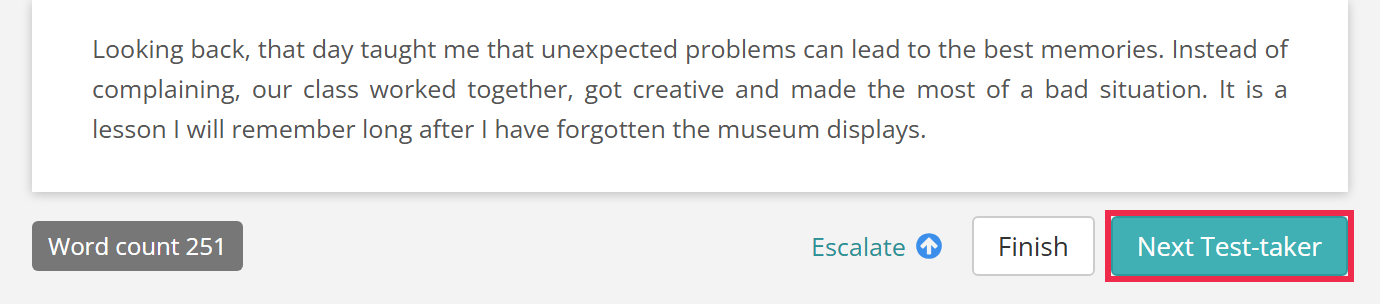
Once every item is scored, Next Test-taker takes the place of Next Item. It finishes this test-taker and opens the next. Finish finishes the test-taker and returns you to your dashboard.
When you finish a test-taker, they move on to have their result released. If one of their scores is still escalated, they go to a senior marker first. See Escalate a score.
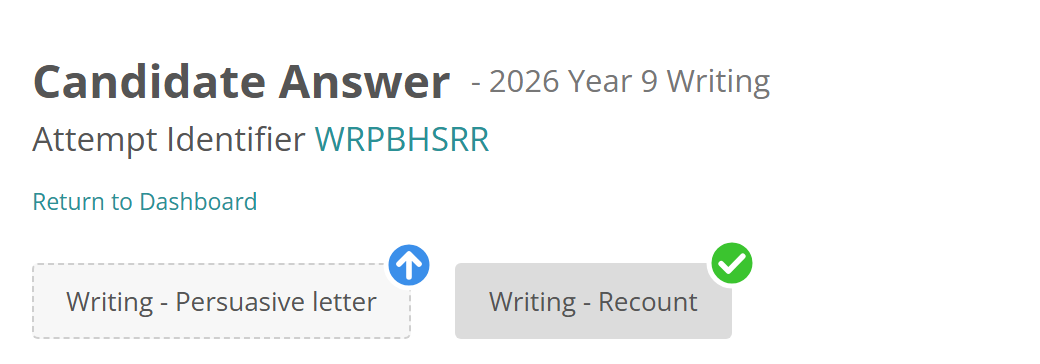
Item button icons
Once you've worked on an item, its button shows an icon. Hover over the icon to see its name:
- Scored — a green tick
- Escalated — a blue up arrow
- De-Escalated — a down arrow, when a senior marker returns an escalated score to you.
Keyboard shortcuts
Select the help icon beside Test-taker Answer to see these:
- C selects a score box
- Enter saves
- Ctrl+Enter finishes
- T returns to your dashboard.
Scores in their grace period
A project can give you time to change a score after you save it, called a grace period. Until the grace period on every score for a test-taker is up, you can't finish that test-taker or move on to the next one.
Instead, Finish and Next Test-taker show a message such as "There are 2 answer scores within grace period, markers can still amend these scores." Start Marking Now brings you back to the same test-taker. Select Finish again once the grace period is up. See Grace periods.
Seed scripts
Seed scripts check your marking. They're scripts a senior marker has already finalised and promoted, and they arrive among your usual test-takers, looking just like them. The project can also make your first script of the day a seed script, called a calibration script.
Insights compares your score on a seed script with its mark. If you fail too many seed scripts, you're suspended from marking. Your dashboard and marking screen then show this message, and your nearest senior marker is emailed:
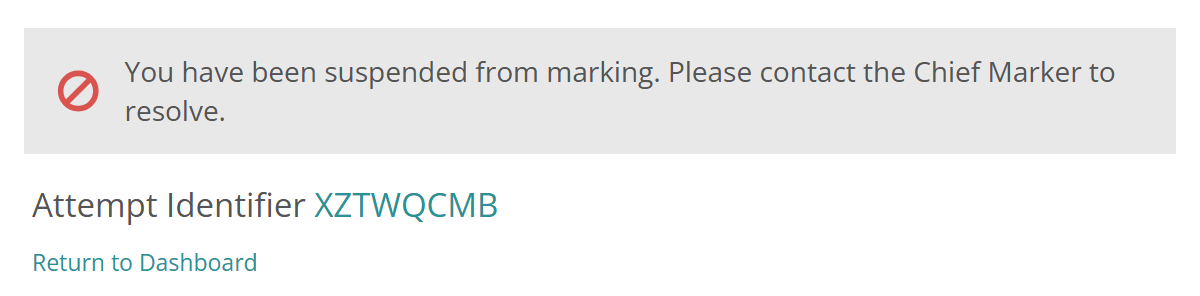
A senior marker can return you to marking. See Quality controls.
Escalate a score
Escalate a score when you need advice from a senior marker, or can't mark the response. Score the item first: you can't finish a test-taker while any of their items has no score.
- Type your comment in Escalation comments.
- Select Escalate.
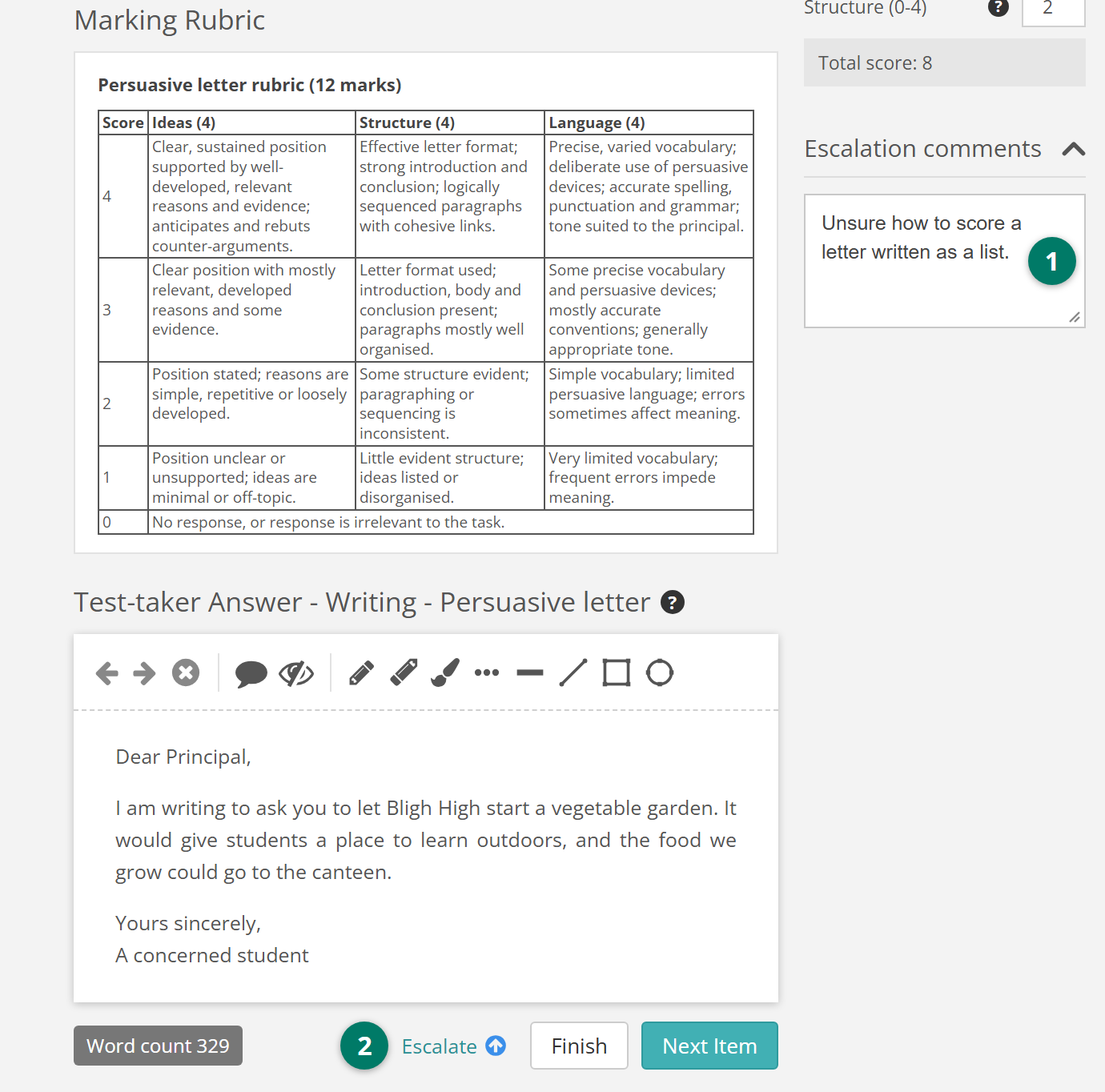
If Escalation comments is empty when you select Escalate, Insights shows "Escalating requires a comment." Type your comment, then select Save and escalate.
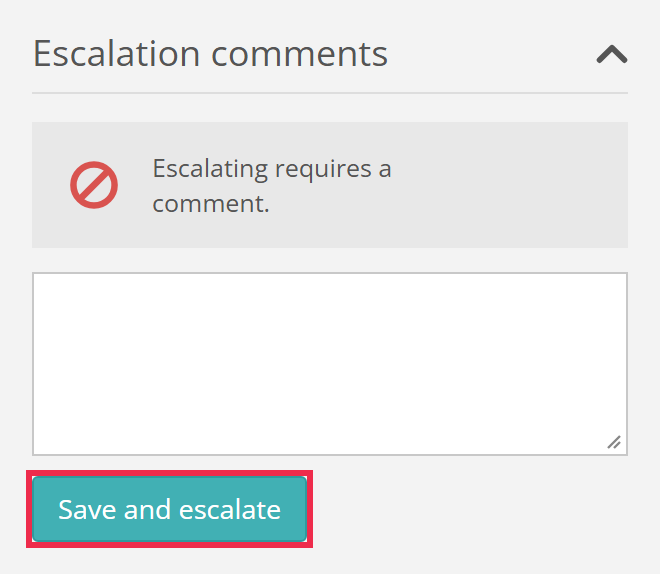
The item button then shows a blue up arrow, and you can no longer change that score. Score the test-taker's other items and finish as usual.
When you finish with a score still escalated, the test-taker moves to In Review instead of having their result released. A senior marker sees the escalated score once any grace period on it has ended. They can add their own score, resolve the escalation or return the score to you. See Review escalated scripts.
Review your scores
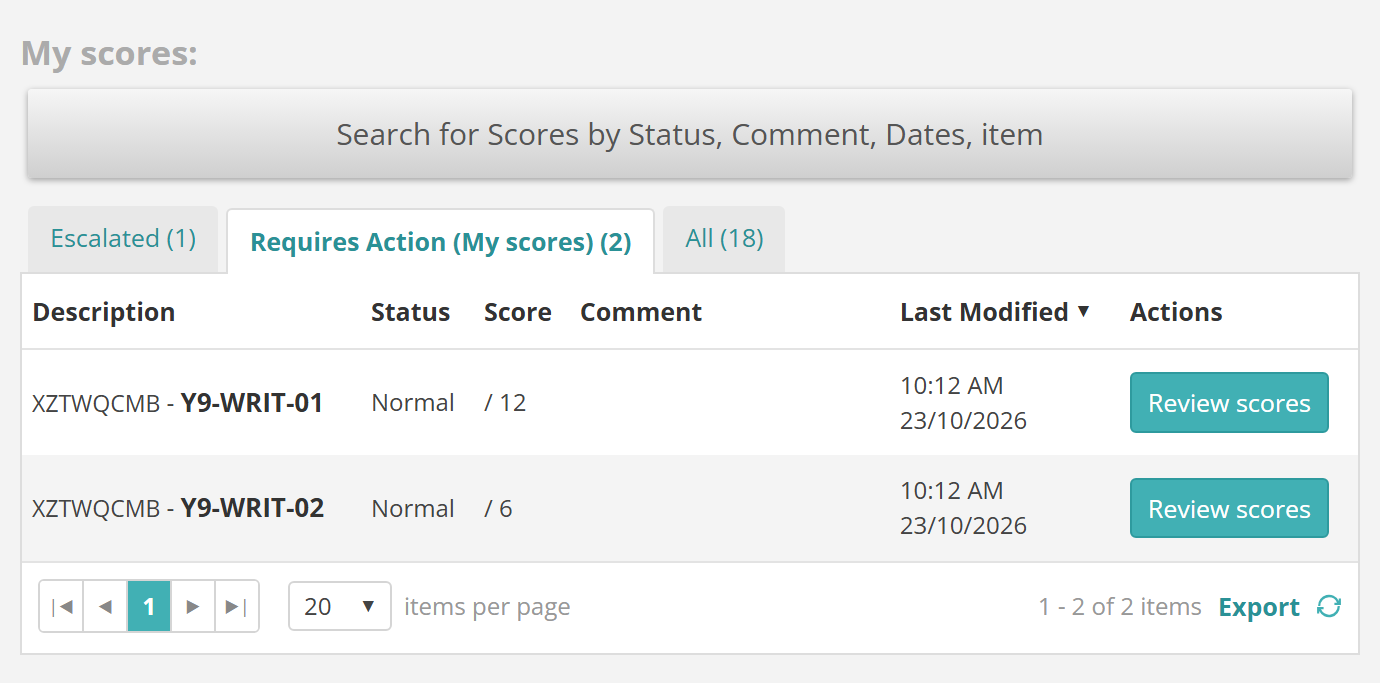
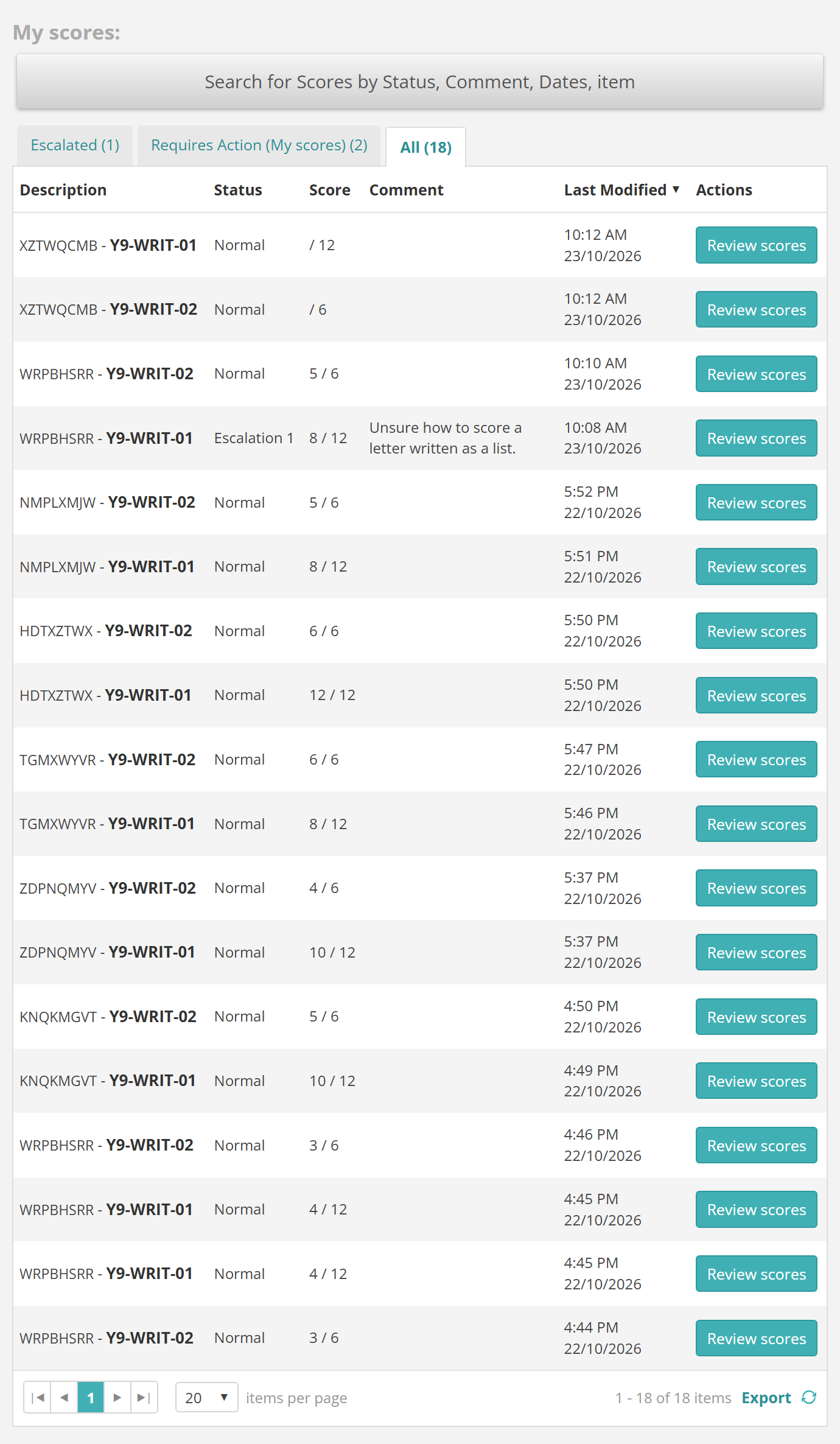
My scores on your dashboard lists the scores you've given, by tab. Select Review scores in a row to open that test-taker's marking screen.
- Escalated lists the scores you've escalated. It appears only if your role allows it.
- Requires Action (My scores) lists items you've opened but not scored yet.
- All lists every score you've given.
- Open and Locked appear when the project uses grace periods. Open lists your scores that are still in their grace period, and Locked lists the ones you can no longer change.
Settings
On each marking project:
Grace Periods, in Project Settings — gives markers a set time to change a score after saving it. A marker can't finish a test-taker until it's up. See Grace periods.
Marking Sessions Schedule, in Project Settings — limits marking to set times. See Marking sessions schedule.
Marking & Annotation Settings, in Project Settings — sets the annotation tools markers get. An item can have its own, set in the Questions section. See Marking and annotation.
Seed Script settings, in Quality Controls — set whether markers get seed scripts and calibration scripts, and how many they can fail before they're suspended. See Quality controls.
Each user's role, at Settings > Roles, decides whether My scores has an Escalated tab.