Double marking
Double marking gives some or all scripts to a second marker during the main marking phase. When two markers' scores for a script are further apart than the item's tolerance, they're in conflict, and a senior marker resolves them. Double marking is optional.
This page covers setting up double marking for a project. To resolve conflicts, see Resolve double marking conflicts.
Set up double marking
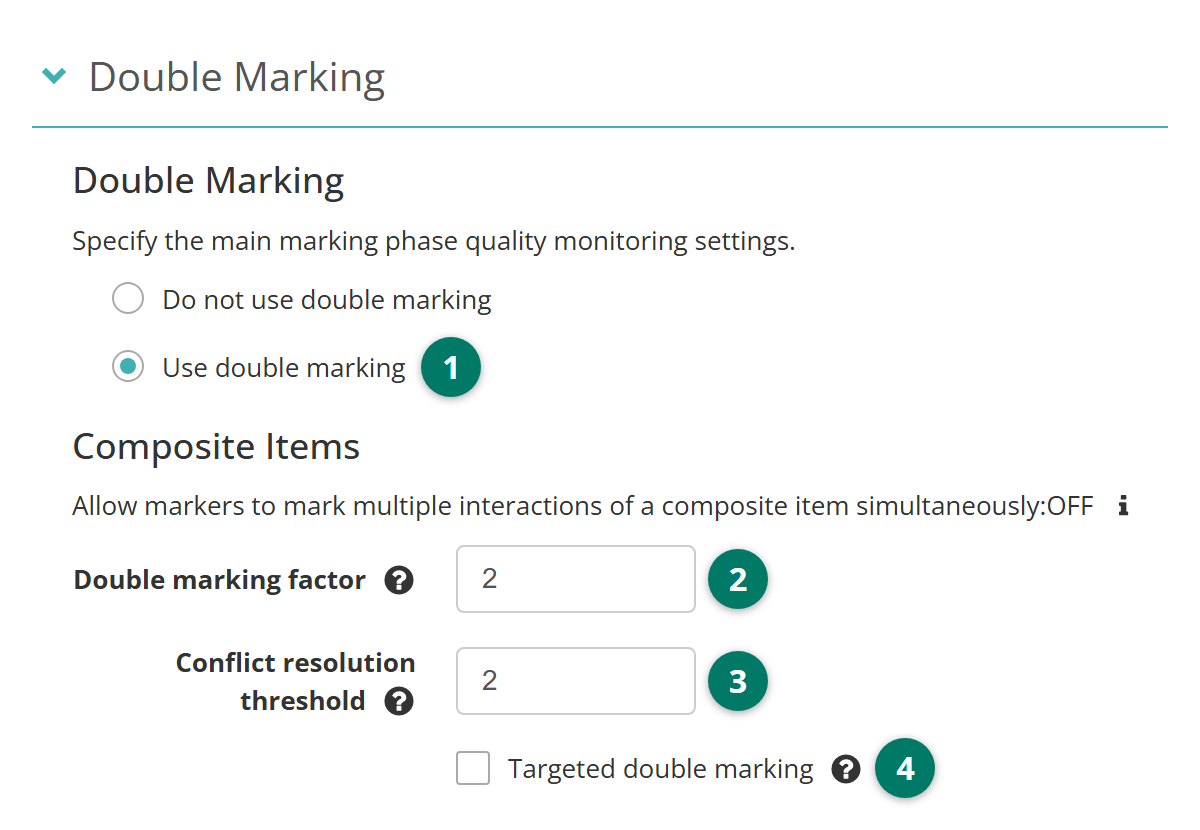
The settings are in the project's Double Marking section, under Quality Controls. Select the pencil icon on the section to change them. Use double marking appears only when your site has double marking turned on (see Settings).
- Choose Use double marking.
- Enter the Double marking factor, from 1 to 5. It sets how much of the marking gets a second marker: the extra scores are the item's answers times the factor, minus the answers. At 2, every script is double marked. At 1.2, about one script in five is.
- Enter the Conflict resolution threshold. Each time a conflict is resolved against a marker this many times, their senior marker is emailed. With 2, that's on the 2nd, 4th, 6th and so on.
- Choose whether to tick Targeted double marking. See Targeted double marking.
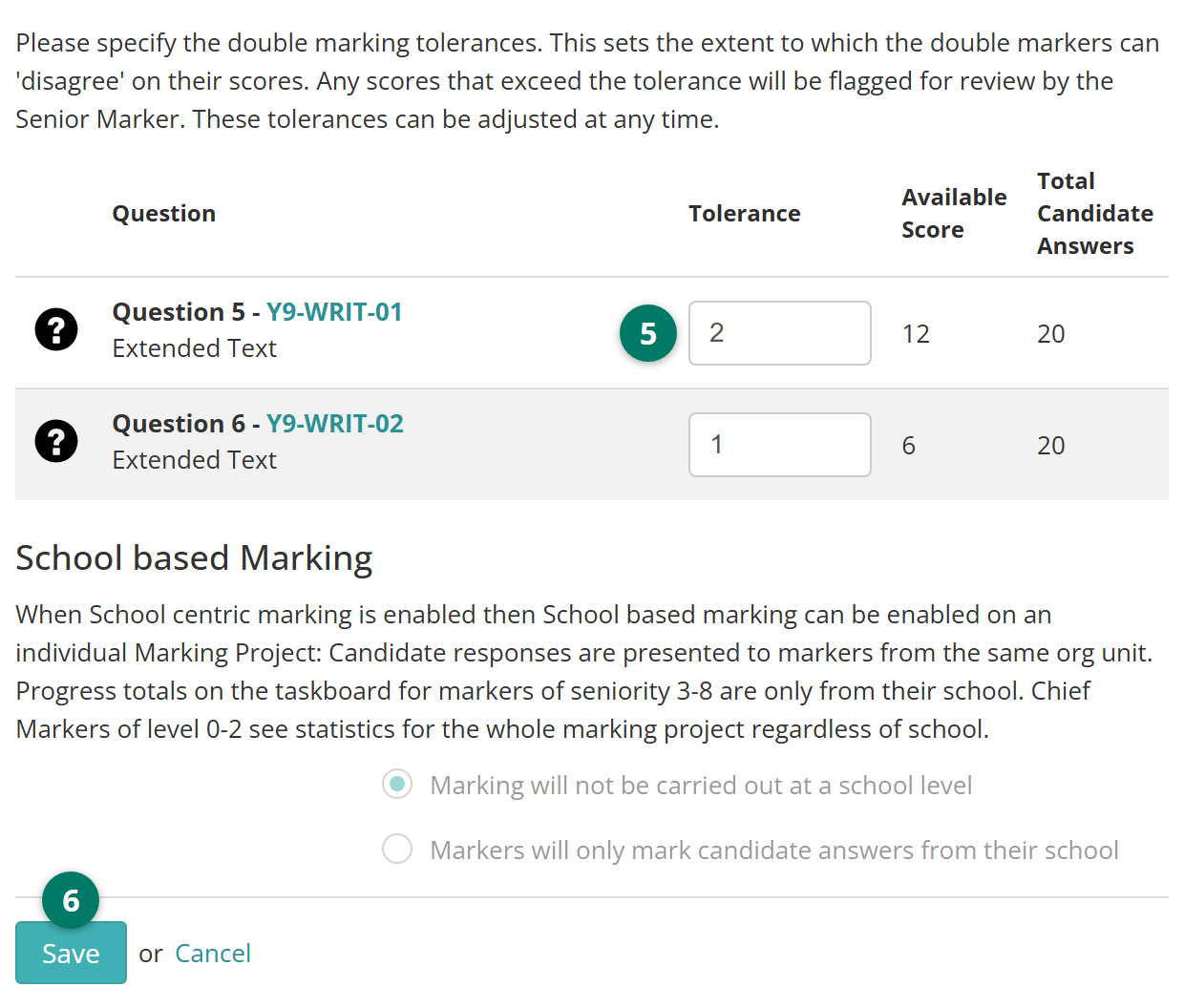
- For each item, enter the Tolerance: how far apart two markers' scores can be before they're in conflict. Available Score and Total Candidate Answers show each item's highest score and how many responses it has.
- Select Save.
Composite Items shows whether markers mark a composite item's parts together. It's set when the project is created, from your site's setting, and can't be changed here.
When two scores are within tolerance, the final score is their average, or the more recent score if your site uses Use most recent score as final score instead of average. See Marking settings.
Targeted double marking
With Targeted double marking ticked, only scores within a range are double marked. Scores outside it aren't.
- Under Targeted Score Range, enter the Min Score (%) and Max Score (%), as percentages of each item's available score.
- To give an item its own range or factor, tick Apply custom values in its row, then enter its Targeted score range (min%/max%) and Double marking factor. Items without it use the project's range and factor.
School based marking
The Double Marking section also holds School based Marking. With Markers will only mark candidate answers from their school, markers get only the responses of test-takers from their own school. Markers at levels 3 to 8 see taskboard totals for their school. Chief markers at levels 0 to 2 see the whole project.
The default is Marking will not be carried out at a school level. You can change it only when your site has Enable School Centric Marking turned on. Otherwise both options show greyed out.
Follow the marking
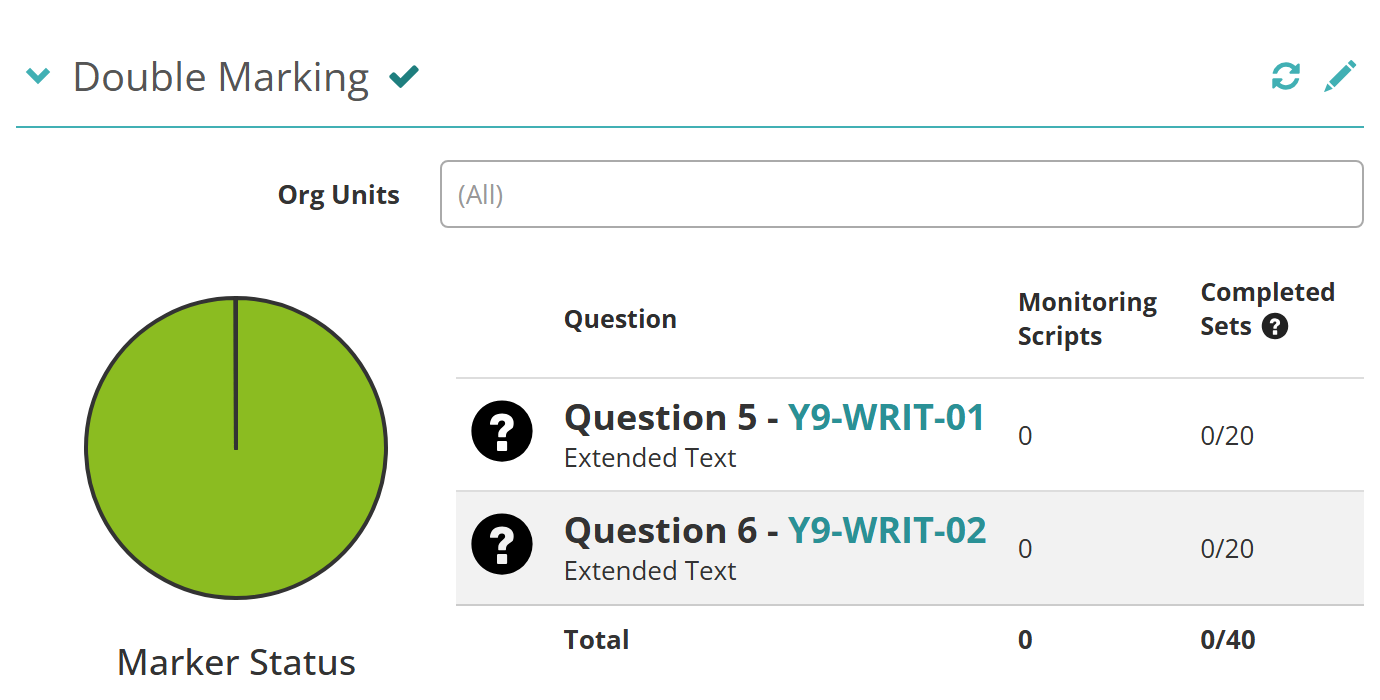
When you're not editing it, the Double Marking section shows how the main marking phase is going:
- Org Units — choose one or more to see only their markers
- Marker Status — a chart of the markers by status
- for each item, Item Training Completion if the project has training requirements, Monitoring Scripts if it uses blind quality monitoring, and how many of its responses have been marked. That column is headed Completed Sets when the double marking factor is more than 1, and Marked Scripts otherwise.
Select the refresh icon to update it.
Start marking
When standardisation is finished, select Change beside Workflow state, then the option that starts marking, such as Commence Marking from Standardisation 3. See Move between phases.
Settings
Administrators can configure these settings at Marking > Marking Extended Settings. See Marking settings.
Enable Double Marking, in Marking Project Settings — adds Use double marking to projects. Off by default.
Allow markers to mark multiple interactions of a composite item simultaneously, in Marking Project Settings — whether new projects mark a composite item's parts together. It's what the Composite Items line shows.
Enable School Centric Marking, in Marking Project Settings — lets projects choose School based Marking. Off by default.
In Quality Controls, the defaults for new projects:
- Default Double Marking, Default Double Marking Factor and Default Number of conflict resolutions to occur before marker's senior marker is notified
- Default Double Marking Tolerance — as a percentage of each item's available score, rounded up
- Use most recent score as final score instead of average — how the final score is chosen when two scores are within tolerance.
Permission to change a project's double marking settings is set per role at Settings > Roles.