Enrolments
The Enrolments section of an enrolment-based marking project lists every test-taker in the project, from when they start their test until their result is released. Use it to see where each test-taker is up to, find marking that's due, open a test-taker's marking and release results. It's on the marking project's page, below Marking Team.
What the list shows
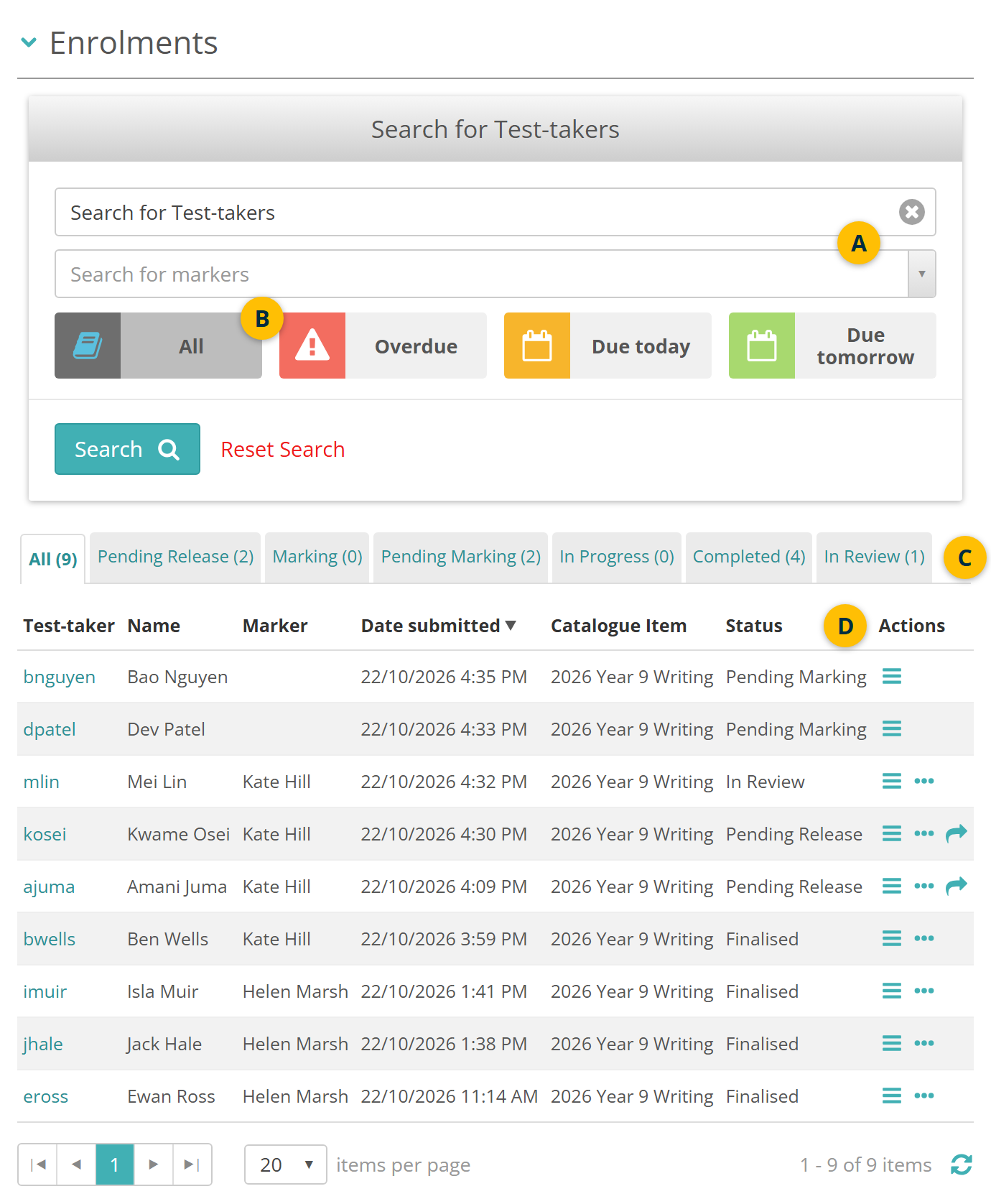
A test-taker appears in the list once they start their test. Each row shows their username and name, their marker, when they submitted their last test, the catalogue item and their status. Select a username to open the test-taker's user record.
The section has these parts:
- Search for Test-takers and Search for markers narrow the list to one test-taker, or to the test-takers one marker has.
- The due-date tiles find test-takers whose marking is due.
- The tabs sort test-takers by status, with a count on each.
- Actions has the icons for opening a test attempt or the marking screen, and for releasing a result.
Status tabs
Each tab holds the test-takers at one stage of marking. How it works explains the order they move through.
- All — every test-taker in the list.
- Pending Release — marked, and waiting for their result to be released.
- Marking — with a marker.
- Pending Marking — submitted, and waiting for a marker.
- In Progress — still sitting their test. Their status shows as Delivery In Progress.
- Completed — result released. Their status shows as Finalised, or Partially Finalised if they didn't complete every test in the enrolment.
- In Review — held for a senior marker to check. A test-taker moves here when their marker finishes with a score still escalated, or when a senior marker moves them.
Senior markers can also open the In Review tab from the Test-takers in Review tile on their Marking Dashboard. To resolve an escalation, see Review escalated scripts.
Search the list
Type the start of a test-taker's name, username or email address in Search for Test-takers, or choose a marker in Search for markers. Then select Search. Reset Search clears the search.
Find marking that's due
Marking is due 2 days after a test-taker submits their last test. The due-date tiles find test-takers at Pending Marking or Marking by when their marking is due:
- All — every test-taker, due or not.
- Overdue — submitted 3 or more days ago.
- Due today — submitted 2 days ago.
- Due tomorrow — submitted yesterday.
Select a tile, then select Search. A test-taker who submitted today shows only under All. The overdue and due tiles on the Marking Dashboard count the same way.
Act on a test-taker
The icons in Actions depend on the test-taker's status and on whether you're on the marking team.
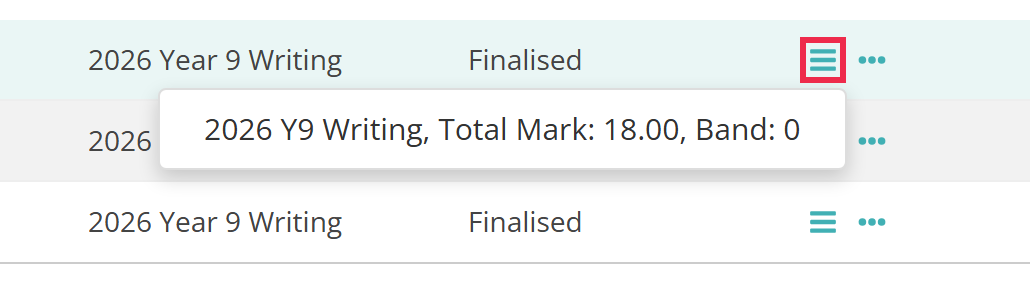
 lists each test in the enrolment, with its Total Mark and Band once it has them. Select a test to open its test attempt page.
 View more opens the marking screen for the test-taker. It appears once they have a marker, for members of the project's marking team.
 Release Results releases the test-taker's result. It appears at Pending Release.
Isla Muir's tests menu shows her one test, 2026 Y9 Writing, with its mark.
Release a result
On the Pending Release tab, select in the test-taker's row. The result is released straight away, with no confirmation.
The test-taker moves to Completed and is emailed that their results are available. If the result can't be released, a message says why. For example, it can't be released to a test-taker with no email address when Require email to release results is on.
A result nobody releases is released automatically 4 days after the test-taker submitted. See When results are released.
Settings
Administrators can configure these settings at Marking > Marking Extended Settings, in the Marking Project Settings section.
Enable Enrolments Settings Section, in Enrolment Based Marking Project Section Settings — shows the Enrolments section on enrolment-based marking projects. On by default.
Require email to release results — stops a result being released for a test-taker with no email address. Off by default.
The 2 days before marking is due and the automatic release after 4 days are built in, and apply to every enrolment-based project.