Survey items
Survey items gather information, opinions and feedback from test-takers. They're built from the same item types as test items, but they have no correct answer and aren't scored. You add them to a survey section, or to any section of a survey test — see Surveys.
Open the simulation to see each survey item type as test-takers answer it.
Survey simulation
See a survey as a test-taker does, with a guide beside each step. Mei Lin opens the 2026 Y9 Wellbeing Check-in and answers one item of each survey type, then finishes the survey. Just want to look around? Skip straight to free practice.
Survey item types
Choose the type from the Type dropdown when you create the item. A standard site offers these:
- Extended Text — a text box for a longer written answer. See Extended text
- File Upload — test-takers upload one or more files. See File upload
- Instruction — information or directions with nothing to answer, such as a welcome or thank-you message. See Instruction
- Multiple Choice — test-takers choose one option from a list. See Multiple choice
- Multiple Choices — test-takers choose one or more options from a list. See Multiple choices
- Slider Interaction — test-takers drag a slider along a scale, for a rating such as 0 to 10. See Slider interaction
- Text Entry — a short typed answer, such as a year or a single word. See Text entry
The Type dropdown only shows the types an administrator has ticked in the For Surveys column (see Settings), so your site may offer more or fewer.
Create a survey item
Navigate to Author > Items.
Select Add Survey Item from the Actions dropdown.
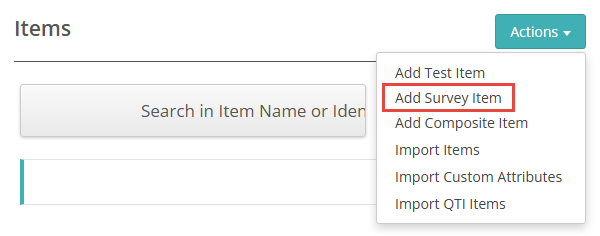
The New Survey Item screen opens. Choose the Discipline and Module, then select the Type.
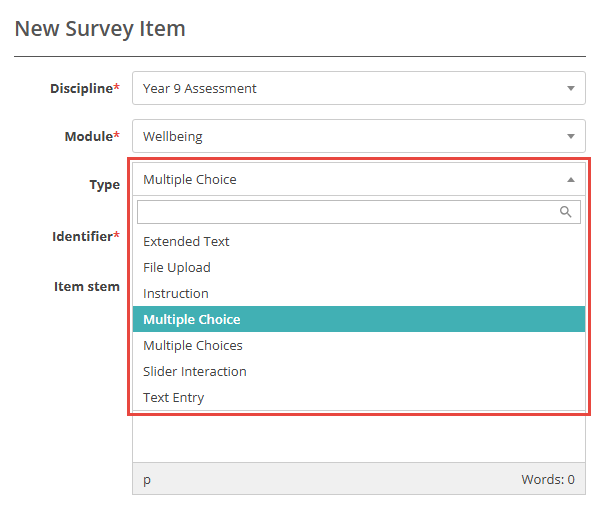
Complete the fields for the type you chose, then select Save. The fields are the same as for a test item of that type, apart from the differences below.
You can also create a survey item from inside a survey section or a survey test: select Create a new Question on the section's Add Questions expandable. See Add items to a survey section.
How survey items differ from test items
Survey items carry no marks: in a survey section, every item's weight is 0. Three sections of the item details page are hidden on a survey item:
- Audio — you can't attach audio to the item as a whole. See Add audio to an item
- Personal Needs and Preference Code Substitute items — you can't link substitute items. See Substitute test items
- Stimuli — stimuli aren't shown on a survey item. If any were linked before, the section stays visible with the warning "Warning – Stimuli linked to a survey item will not be shown"
Whether an item is a survey item is set when you create it, and it can't be changed later. A copy of a survey item is also a survey item.
Survey items and test items are kept apart. Survey sections, and every section of a survey test, only accept survey items. Other sections only accept test items, so you can't reuse a test item in a survey.
Settings
Administrators configure this setting at Settings > Test Designer Settings.
Available Question Types — the For Surveys column controls which item types appear in the Type dropdown on New Survey Item. Not every item type has a For Surveys checkbox.
Settings that affect survey sections and survey tests are listed on Surveys.