Standardisation 1 (S1)
Standardisation 1 (S1) is the first quality control phase of a standard marking project. Before marking starts, the most senior markers, usually the chief markers, build a set of scored scripts. Later phases use them to train markers and check their work. This page covers setting up S1 for a project and following its progress.
Script types
S1 scripts come in three types:
- Benchmark — a model answer every marker can refer to while they mark
- Standardisation — used to train and check markers in Standardisation 2 and Standardisation 3
- Monitoring — mixed into the main marking at random, to check markers stay consistent. See Blind quality monitoring.
Choose how S1 works
Each project's Standardisation section, under Quality Controls, offers three options:
- Do not use Standardisation — the project has no S1. Start marking with Set-up Commence Marking instead.
- Import Standardisation scripts from a spreadsheet — use reference answers you already have, with their scores, such as scripts from an earlier test. See Import scripts from a spreadsheet.
- Develop Standardisation scripts from live scripts — chief markers choose and score test-takers' responses in this project. See Develop scripts from live scripts.
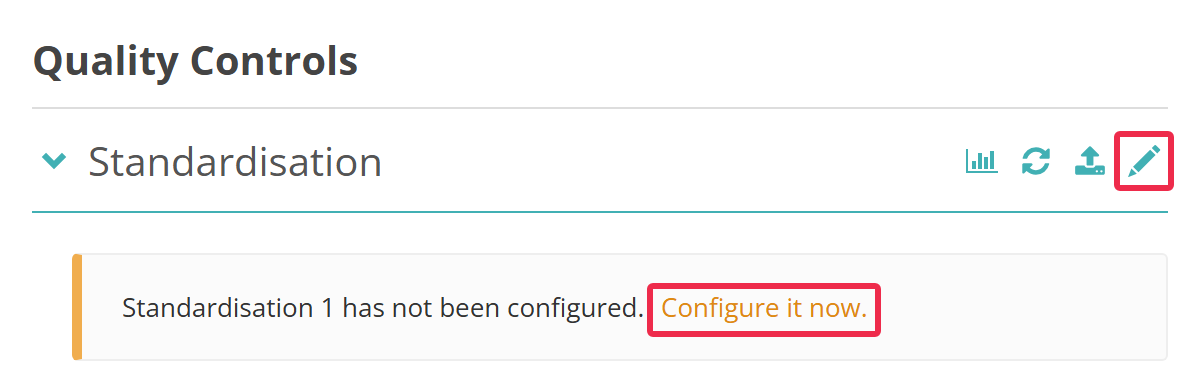
Until you choose one, the section says "Standardisation 1 has not been configured." Select Configure it now. or the pencil icon on Standardisation.
Import scripts from a spreadsheet
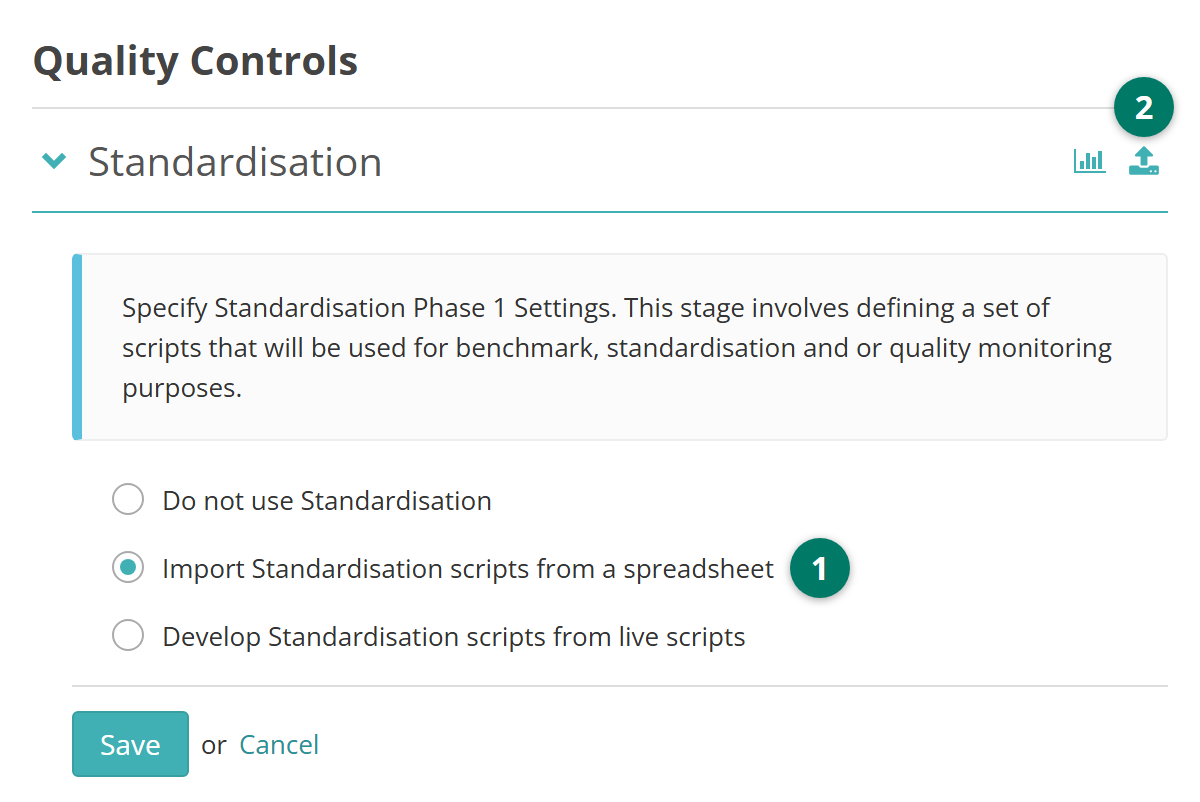
- Select the pencil icon on Standardisation, choose Import Standardisation scripts from a spreadsheet, then select Save.
- Select the import icon on the Standardisation heading. You can also select Actions > Import Archived Scripts.
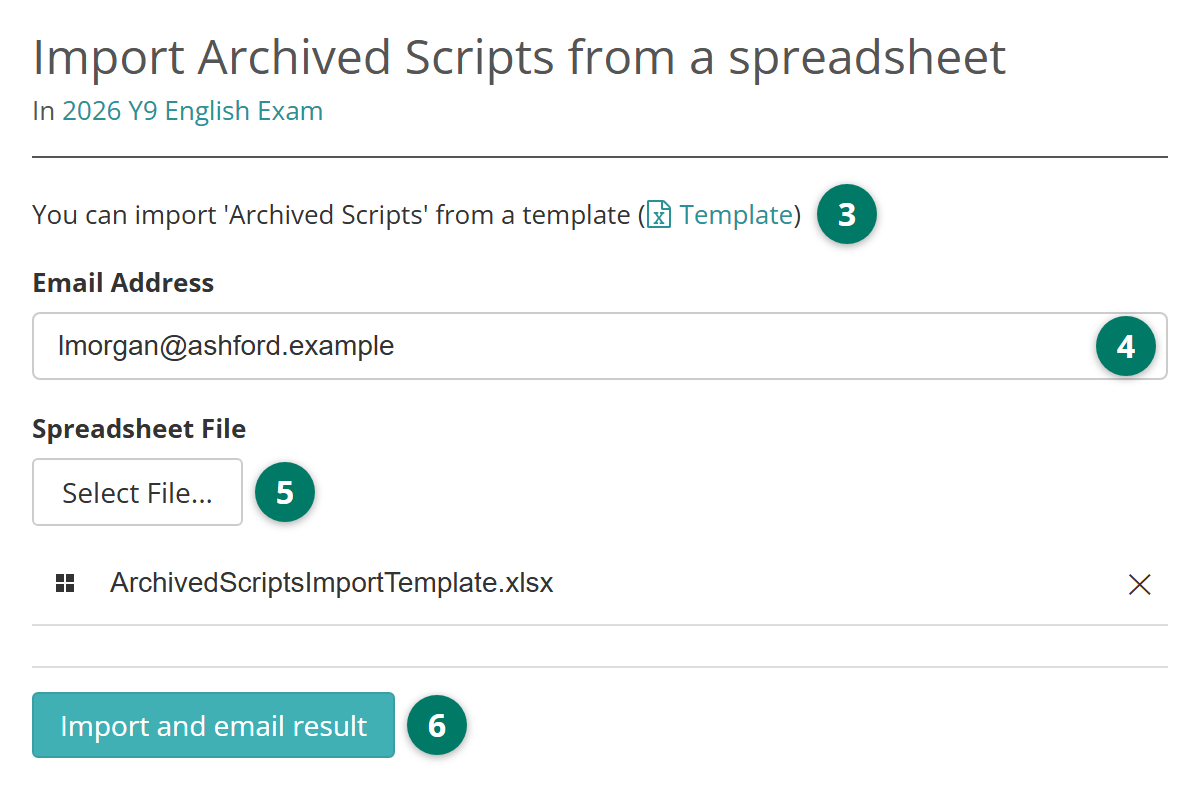
- On Import Archived Scripts from a spreadsheet, select Template to download the spreadsheet template. Fill in a row for each script, then save it.
- Check the Email Address. The import's results are sent there.
- Select Select File..., then choose your spreadsheet.
- Select Import and email result.
Insights says how many scripts it added, and emails the details within 30 minutes. The scripts take the place of the ones chief markers would choose. Each takes its type from the Standardisation Score Type column.
The template's columns
The template's Supported Attributes tab describes each column. The order of the columns doesn't matter.
| Column | Required | What it holds |
|---|---|---|
| Score Id | Yes | Your own reference for the script. Importing a row with a Score Id you've used before replaces that script |
| Question Identifier | Yes | The identifier of the item the script answers |
| Test Identifier | No | The test the item is in |
| Score | Yes | The script's score |
| Response | Yes | The answer. For an item with several parts, the answer to the first part |
| Response2, Response3 and so on | No | The answers to the other parts of a multi-part item |
| Mark Scheme Components | No | The score for each marking scheme component, as Ideas=4;Language=4;Structure=3 |
| Standardisation Score Type | No | Benchmark, Monitoring or Standardisation |
| Annotations | No | Annotations on the script |
| Composite Answer Id | No | For a part of a composite item, the ID of the composite answer to create |
| Feedback | No | Feedback the marker sees once they've finished marking the script |
Develop scripts from live scripts
Chief markers build the set from the project's own responses, in up to three passes: selection, marking and sampling. Chief marker role covers how they do it. Here you choose the passes and how many scripts each item needs.
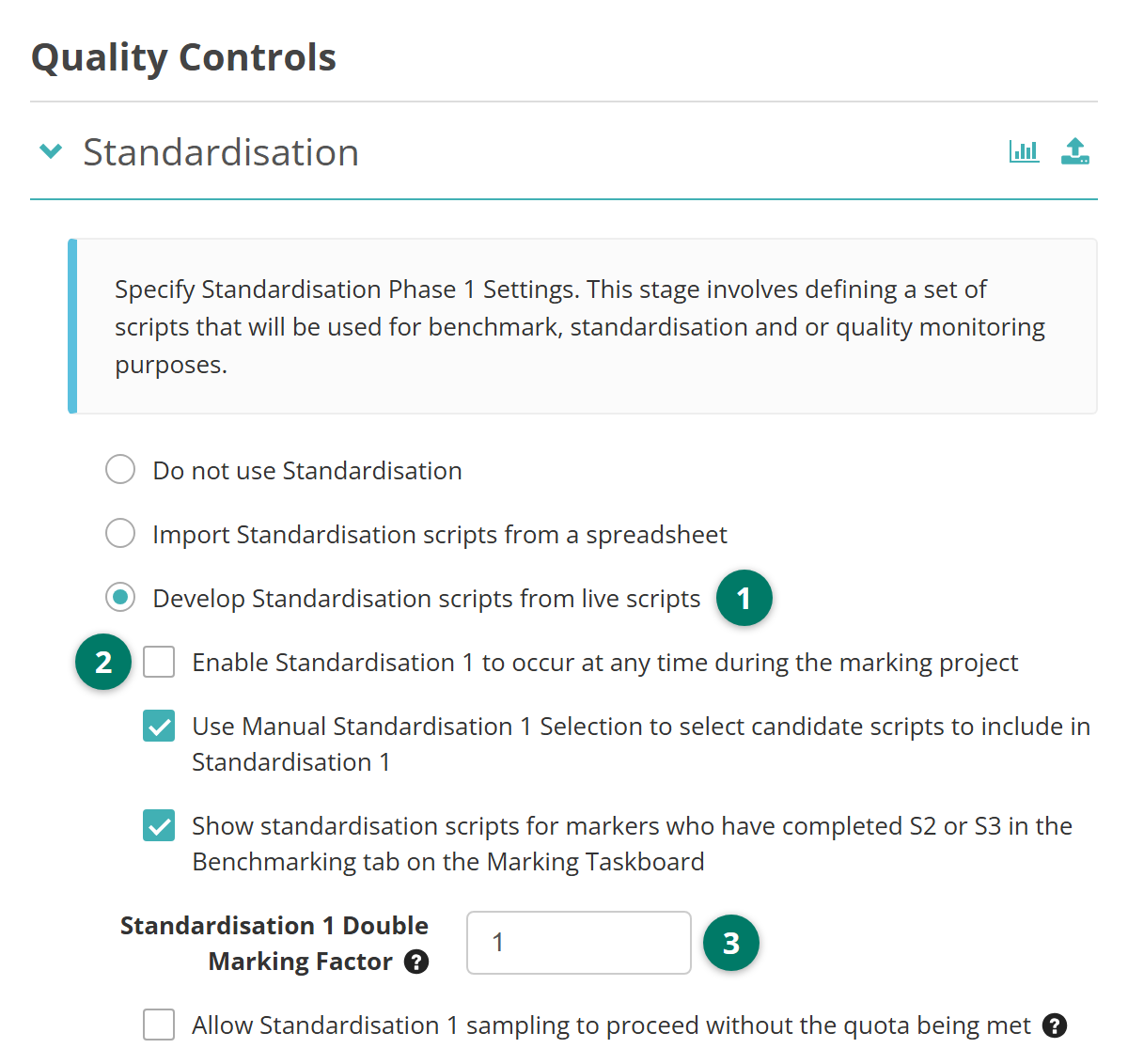
- Select the pencil icon on Standardisation, then choose Develop Standardisation scripts from live scripts.
- Tick the options you want:
- Use Manual Standardisation 1 Selection to select candidate scripts to include in Standardisation 1 — adds the selection pass, where chief markers choose the responses and sort them into bands. Without it, they score as many responses as the three script types add up to.
- Enable Standardisation 1 to occur at any time during the marking project — lets chief markers add scripts to S1 in any later phase. Ticking it also ticks manual selection.
- Show standardisation scripts for markers who have completed S2 or S3 in the Benchmarking tab on the Marking Taskboard — once a marker has completed S2 or S3, they can see the standardisation scripts beside the benchmark scripts.
- Allow Standardisation 1 sampling to proceed without the quota being met — lets sampling go ahead on a script before every marker the double marking factor asks for has scored it, such as when a marker is away.
- If your site uses double marking, enter the Standardisation 1 Double Marking Factor: how many markers score each script, from 1 to 30.
- For each item, enter:
- Selection Quota — how many responses to choose for S1. It must be at least the item's benchmark, standardisation and monitoring scripts added together, and Insights raises it if it's less.
- Selection Bands — how many bands chief markers can sort the chosen responses into, such as high, middle and low scores.
- Benchmark, Standardisation and Monitoring — how many scripts of each type the item needs.
- Select Save.
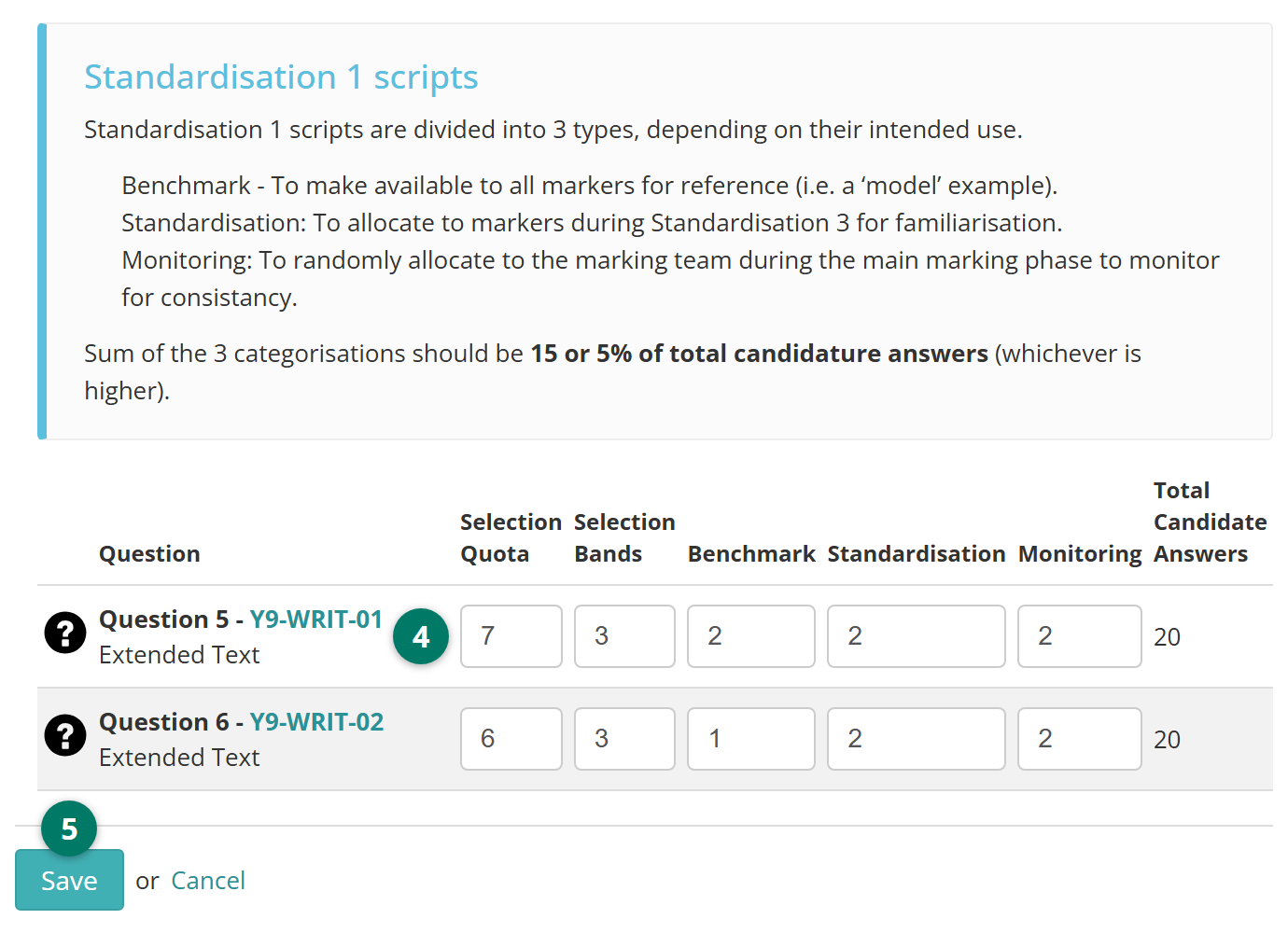
Selection Quota and Selection Bands appear only with manual selection, and the double marking factor only when your site has Enable Double Marking turned on.
Total Candidate Answers shows how many responses each item has. The screen suggests a total of 15 scripts per item, or 5% of its responses if that's more. Insights won't save numbers that:
- add up to more than the item's responses, or more than its selection quota
- give the item fewer standardisation scripts than S2 or S3 gives each marker for it.
Follow S1's progress
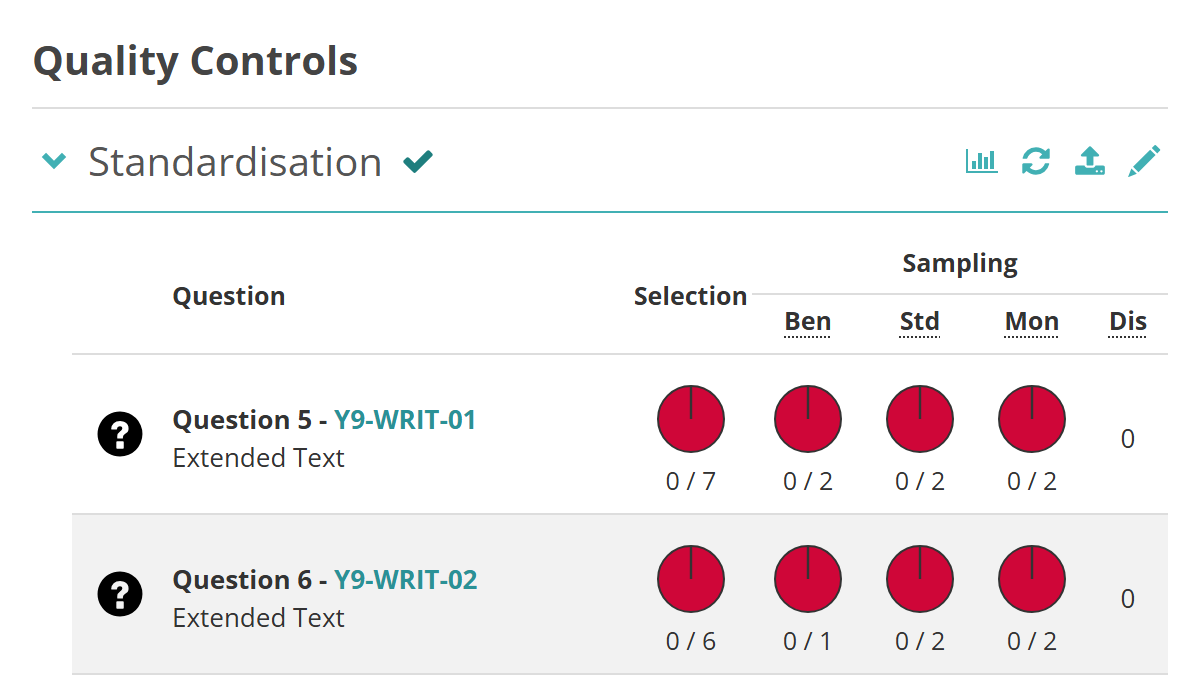
When you're not editing it, the Standardisation section shows a row of dials for each item:
- Selection — the responses chosen, against the selection quota. With manual selection only
- Marking Completed Sets — the chosen responses scored by as many markers as the double marking factor asks for. When the factor is more than 1
- Ben, Std and Mon, under Sampling — the scripts sorted into each type, against the item's numbers
- Dis — the responses discarded in sampling.
Each dial is red until its target is met, then green. Select the refresh icon to update them. With manual selection, the bar chart icon shows how the chosen scripts spread across total scores, marking scheme components and assessment events. With imported scripts, each column shows a count, with no target.
To check S1 is finished before moving on, see Check Standardisation 1 is complete.
Start S1
Select Change beside Workflow state, then Commence Standardisation 1. Everyone whose role takes part in S1 in Team Responsibilites moves to Marking. See Start the project.
To leave S1, every chosen script needs its scores and a type, and each item needs its numbers met. See Move between phases.
Settings
Administrators can configure these settings at Marking > Marking Extended Settings. See Marking settings.
Enable Standardisation 1, in Marking Project Settings — makes S1 available to marking projects. On by default.
Enable Anytime Standardisation, in Marking Project Settings — lets projects add scripts to S1 at any time. On by default.
Enable Double Marking, in Marking Project Settings — adds Standardisation 1 Double Marking Factor to each project. Off by default.
Default Standardisation 1 to On, in Quality Controls — starts new projects with Develop Standardisation scripts from live scripts chosen.
Team Responsibilites — which roles take part in S1 selection, marking and sampling on new projects. Each project can change its own. See Choose each role's activities.
Permission to change a project's S1 settings and to import archived scripts is set per role at Settings > Roles.