Sessionless delivery
Sessionless delivery runs an assessment event without test sessions. Test-takers start with their test-taker code alone, with no session code, whenever the event is open. This page covers when to use it, how to turn it on, how test-takers start, and how to manage attempts when there's no session dashboard.
Session-based or sessionless
Each assessment event delivers its test in one of two ways. The event's details page shows which under Delivery Mode.
- Session-based — test-takers enter a session code as well as their own code, and join a test session. An invigilator runs the session from the session dashboard, admitting test-takers, watching their progress and finishing the session. Choose it for supervised tests. See Test session administration.
- Sessionless — no test sessions. Test-takers enter their own code and start straight away. Choose it for low-stakes tests where nobody needs to control when each test-taker starts, such as practice tests.
What changes when an event is sessionless:
- Nobody admits test-takers or starts the test. Anyone enrolled can start once the event opens.
- Allow re-entry to a test without needing to be unlocked is turned on and can't be turned off. A test-taker can sign in again from another device, browser or tab without anyone unlocking them.
- There's no session dashboard. You manage attempts one at a time or in bulk instead. See Manage attempts during the test.
- The event has no Finalise Sessions button. You close off unfinished attempts with Bulk complete attempts. See Close off the event.
What stays the same:
- Test-takers sit the test in Janison Replay or a supported browser. Whether Replay locks the device down depends on Enable Replay lockdown and its overrides, as for any event. See Janison Replay.
- Resilient and offline delivery work as usual when the event has Allow Reliable Offline Delivery ticked. You can prepare devices for a sessionless event with Prepare for an Assessment Event, or with Prepare for selected Test-takers and no session code. See Prepare devices.
Turn on sessionless delivery
Sessionless delivery is switched on for each event. The option appears on events only once an administrator has turned it on for your site; see Settings.
Go to Deliver > Assessment Events and open the event. Expand Test Player & Delivery Options and select Edit. Under Sessionless Delivery Settings, tick Enable Sessionless Delivery for this Assessment Event, then select Save.

After you save, the event's Delivery Mode shows Sessionless, and Allow re-entry to a test without needing to be unlocked is ticked and locked.
Important
You can change this setting only while the event is in Draft. Once the event is in Delivery, the checkbox is locked.
How test-takers start
Test-takers start a sessionless test the same way as any other test, but skip the session code.
- With their test-taker code. Test-takers enter their code on your site's test-taker login page in a browser, or in Janison Replay after selecting Start a Test. Insights sees that the event is sessionless and skips the session code screen. They go straight to the confirmation screen and then the test.
- From the candidate dashboard. Test-takers who sign in to Insights select Start on the test's tile, or Resume if they've already begun. The link carries their test-taker code, so they type nothing. See Candidate dashboard.
Note
The hint beside Enable Sessionless Delivery for this Assessment Event says the test-taker login must redirect to auth/opensession. You don't need to set that up. An address ending in /auth/opensession still works, and opens the usual login page.
Manage attempts during the test
With no test session, there's no session dashboard. Instead, open each attempt's test attempt modal. You can open it from the invigilator dashboard, the manage attempts screen, the event's enrolments or the test-taker's profile; see Open a test attempt.
Manage active attempts
The modal's Manage active attempts section holds the actions an invigilator would otherwise take on the session dashboard. Which buttons appear depends on your role and on the attempt.
Under Time:
- Award more time — adds minutes to a timed attempt that's in progress or paused
- Award less time — takes back time awarded earlier, and appears only once an attempt has extra time
- Pause candidate — pauses an attempt in progress, so the test-taker can't carry on
- Resume candidate — lets a paused test-taker carry on.
Under State:
- Postpone candidate — stops the attempt part-way, to be picked up later
- Submit candidate — submits the attempt for the test-taker
- Unlock candidate — lets an attempt that's locked to one device carry on from another.
A button you can't use on the attempt right now is greyed out, such as Resume candidate on an attempt that isn't paused. If none apply, the modal says No actions can be taken on this attempt.
In this example, Dev Patel's practice test isn't timed, so the two buttons for awarding time are hidden. Dev's attempt isn't paused, so Resume candidate is greyed out.
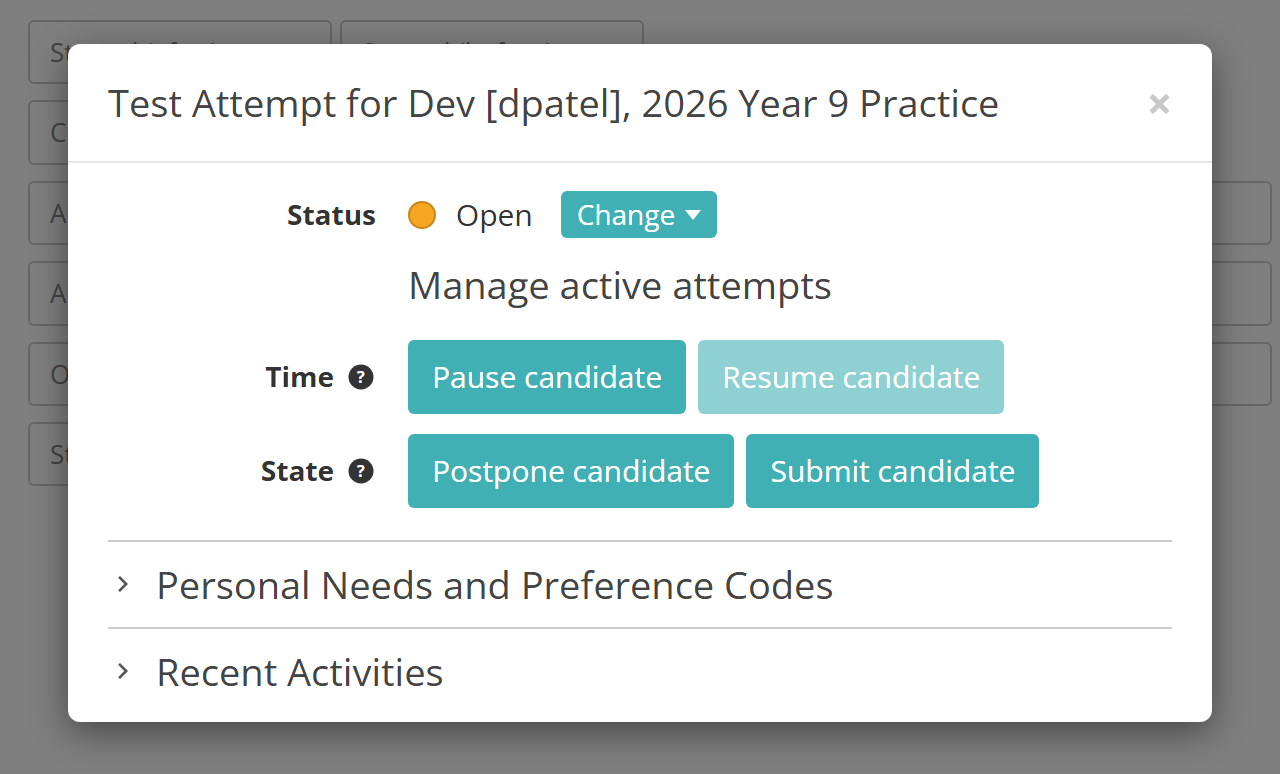
Select a button to use it. A panel opens under the buttons, naming the action. For a time change, enter the minutes in Time to add or Time to reduce. Choose a Reason if the action asks for one, and add any Details. Then select Confirm, or Cancel to back out.
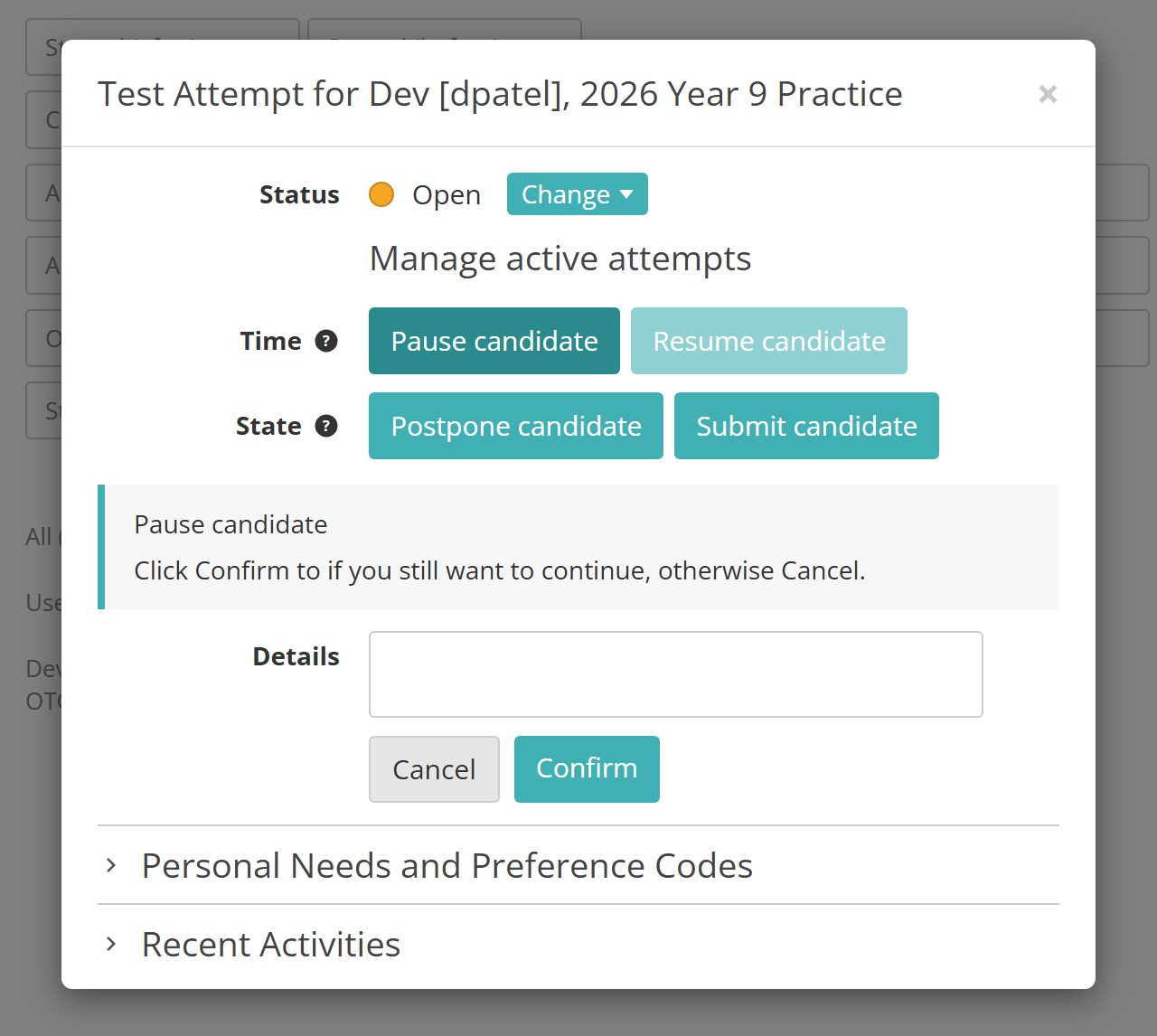
The buttons work as they do on the session dashboard; see Test session administration. The rest of the modal, including Status and its Change menu, is covered on Test attempt workflows.
Bulk manage attempts
To act on several attempts together, go to Deliver > Manage Attempts and find them. Search for Test Attempts narrows the list, and the Started tab shows only attempts in progress. Then:
- Tick the attempts.
- Choose Manage Attempts from Select to apply a bulk action.
- Select Apply.
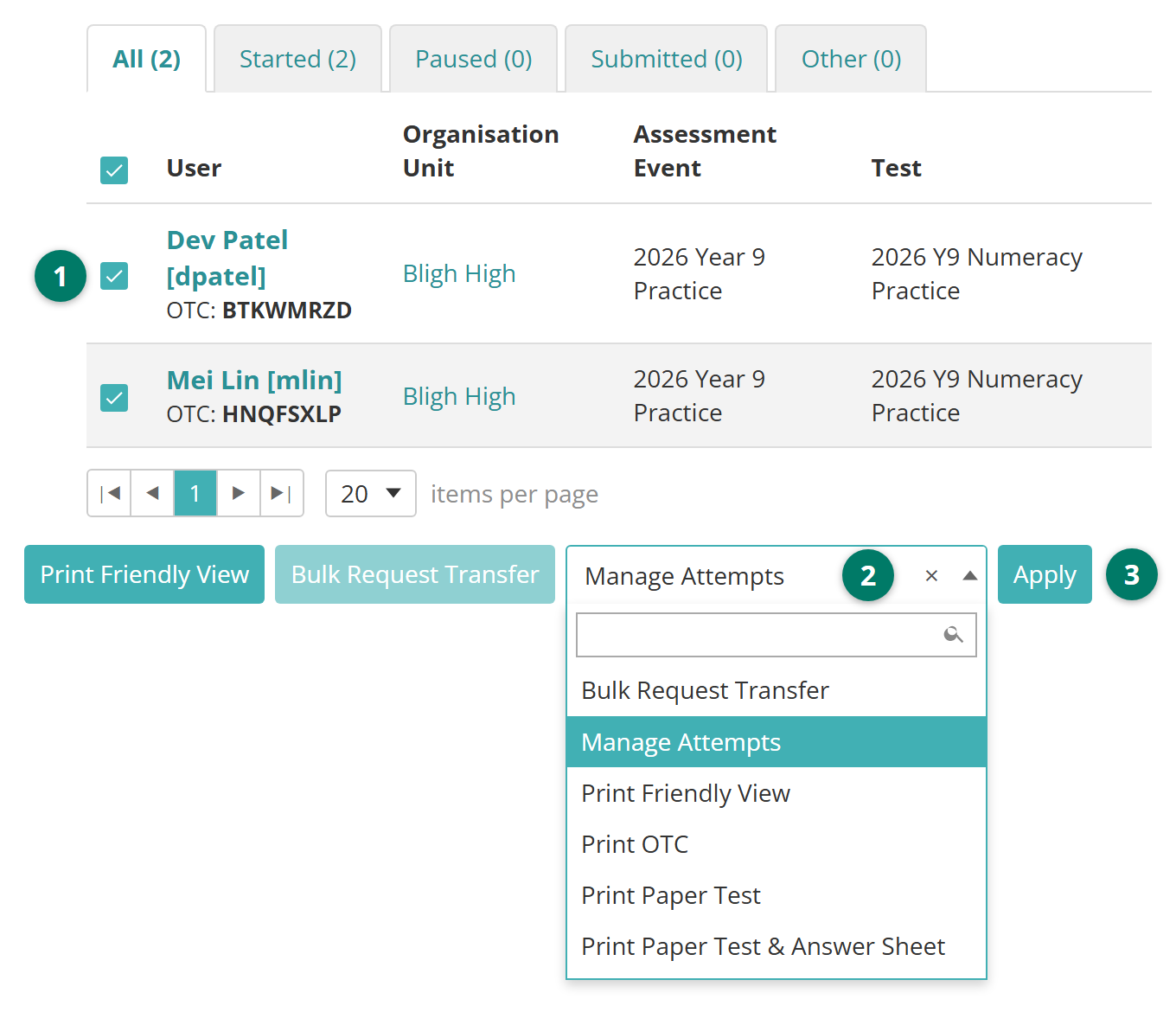
A Bulk manage 2 attempts window opens, with the same Time and State buttons as the test attempt modal. The number in its title is how many attempts you ticked. You can use only the actions that apply to every attempt you ticked.
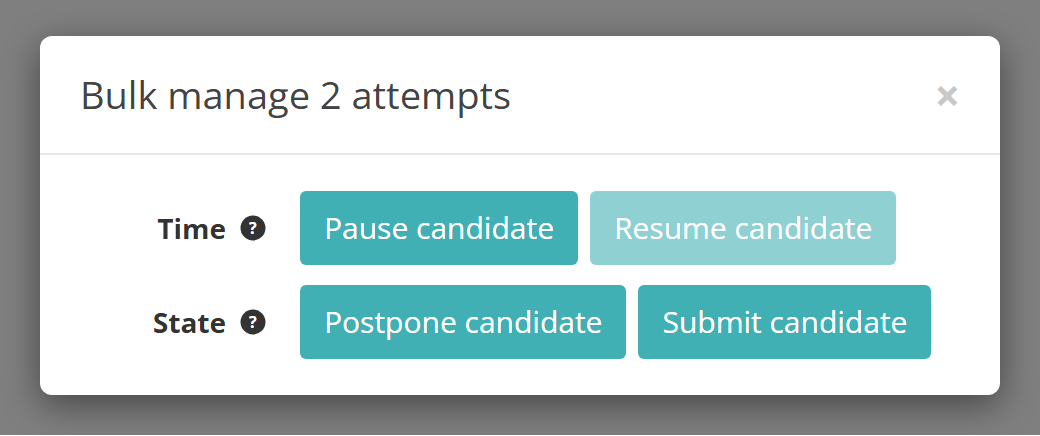
The Manage Attempts bulk action is also on the invigilator dashboard's test-takers list; see Invigilator dashboard. On the Started tab, buttons under the list also pause attempts and award or remove time; see Manage attempts.
Close off the event
Session-based events close off their attempts as each session is finalised. A sessionless event has no sessions, so its details page has two bulk actions instead while the event is in Delivery. Your role decides whether you see them.
- Bulk complete attempts — completes every attempt that's been started but not submitted, so it moves on to marking
- Bulk cancel attempts — cancels every attempt that was never started.
Each one tells you how many attempts it will change and asks you to confirm. Neither can be undone.
Warning
In a sessionless event, both actions run as soon as you confirm, even while the event is still open. Bulk complete attempts stops test-takers who are still working, and Bulk cancel attempts cancels those who haven't started yet. Wait until the event's time window has closed.
When every attempt has been dealt with, close the event: select Change beside Workflow state, then Close. See Assessment events.
Settings
Administrators set these at Settings > Assessment Event Settings.
Enable Sessionless Delivery Option — whether events offer Sessionless Delivery Settings, and whether it starts ticked on new events. Off, the default, hides it. On and disabled by default shows it unticked, and On and enabled by default shows it ticked. Changing it doesn't affect existing events. In the Delivery Settings expandable.
Test Commencement Confirmation — what test-takers see after entering their code, before the test opens.
These are at Settings > Test Delivery Settings:
Enable Offline Reliable Delivery — with Allow Reliable Offline Delivery ticked on the event, lets sessionless attempts keep running through internet dropouts or run offline, and lets you prepare devices for them.
Enable Replay lockdown — whether test-takers must sit the test in the locked-down Replay app. It applies to sessionless events as to any other.
The buttons in Manage active attempts and the event's bulk actions each depend on your role's permissions, set at Settings > Roles.