Base marker role
Markers score test-takers' responses. On a standard marking project, they usually complete Standardisation 3 first, if the project uses it, then mark in the main marking phase. This page covers both, and how to keep track of your scores.
Your marking may be checked as you go, through blind quality monitoring, sampling and double marking. Nothing on your screen shows when that happens. See Marker training and quality control.
Practise marking a script
Standard marking simulation
Practise marking in a standard marking project, with a guide beside each step. You’re Kate Hill, a marker on the 2026 Y9 English Exam project. You score a persuasive letter and move on to the next script, then escalate a letter you’re not sure how to score. Done it before? Skip straight to free practice.
Complete Standardisation 3
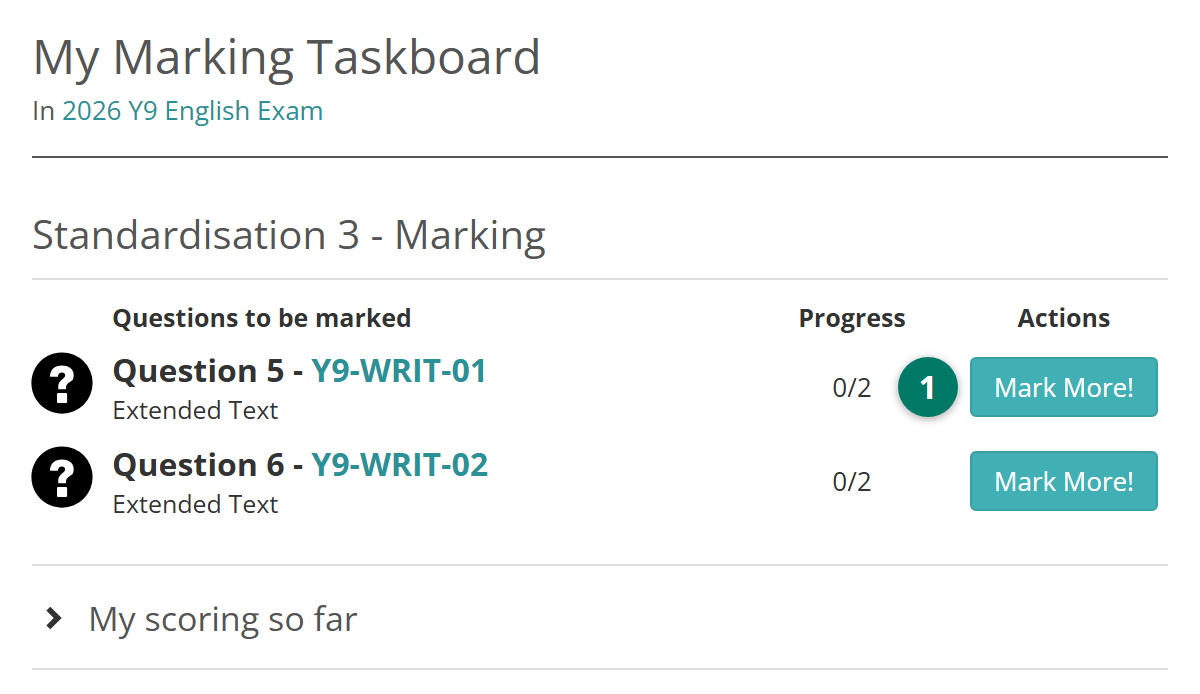
Standardisation 3 trains markers before marking starts. You score a set of standardisation scripts whose scores were agreed in Standardisation 1, and Insights checks your scores against them.
- In Standardisation 3 - Marking on My Marking Taskboard, select Mark More! beside the item.
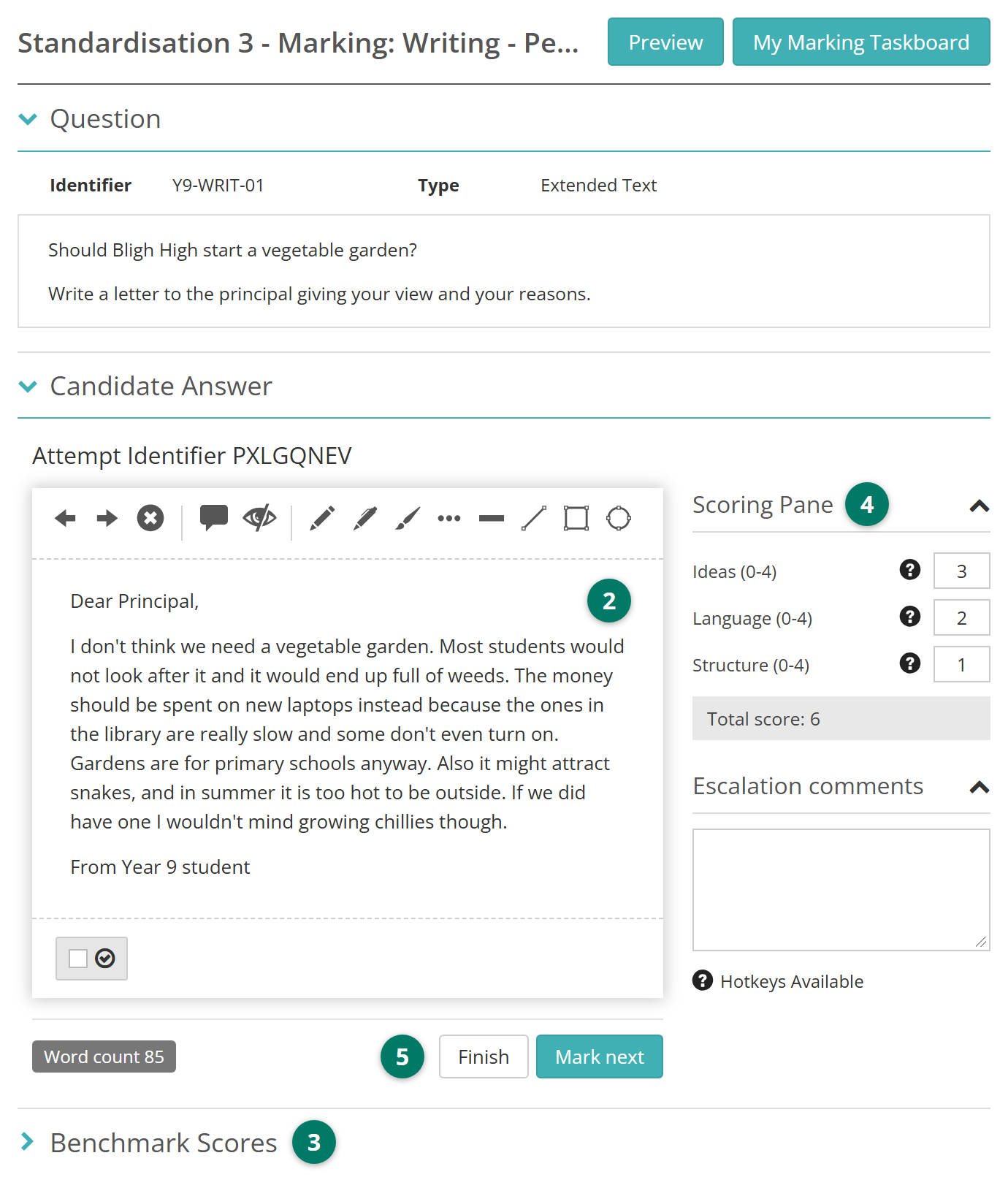
- Read the response, and annotate it if you want to.
- Open Benchmark Scores to compare it with model answers, if you want to. See Use benchmark scores.
- Enter your scores in the Scoring Pane, and a comment under Escalation comments if you want one.
- Select Mark next to move to the next script, or Finish to stop.
- Select Confirm to confirm you've finished scoring the response.
- Repeat until no scripts are left. The screen then shows "There are no remaining standardisation scripts to mark. Please contact your senior marker."
When your scores are within the project's tolerances, you pass. The screen shows "You have passed standardisation, please return your marking taskboard and begin marking.", and you move straight to marking.
When they aren't, you're suspended. The screen shows "You have been suspended as you have failed to meet standardisation requirements.", and your senior markers are emailed. Your chief marker can return you to Standardisation 3 to try again.
Use benchmark scores
Benchmark scripts are model answers whose scores were agreed in Standardisation 1. They show what a response at a given score looks like.
During Standardisation 3, Benchmark Scores at the bottom of the marking screen lists them, if your role has permission to see benchmark scripts in standardisation. Choose a score in Find benchmark scripts with scores similar to: to see the benchmark scripts near it. A score is similar when it's within 10% of the item's available score, above or below.
Once live marking starts, only markers at levels 0 to 2, usually chief markers, see Benchmark Scores.
Mark responses
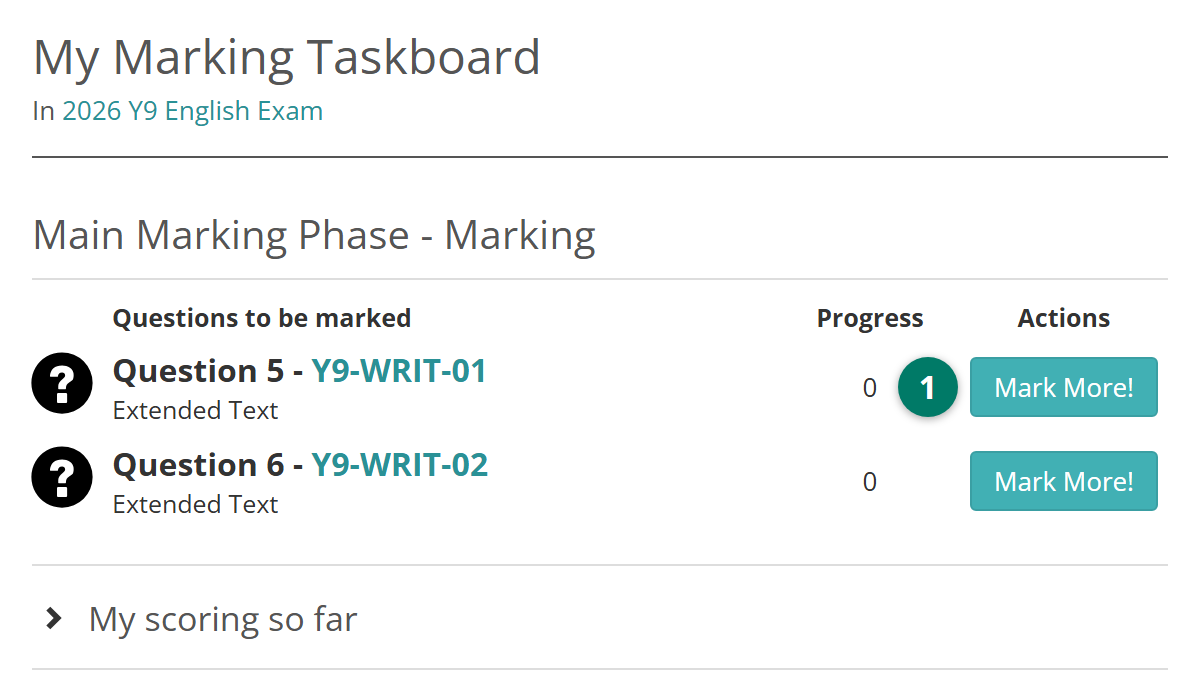
When the project moves to marking, Main Marking Phase - Marking appears on your taskboard: once you've passed Standardisation 3, or straight away if the project doesn't use it.
- Select Mark More! beside the item.
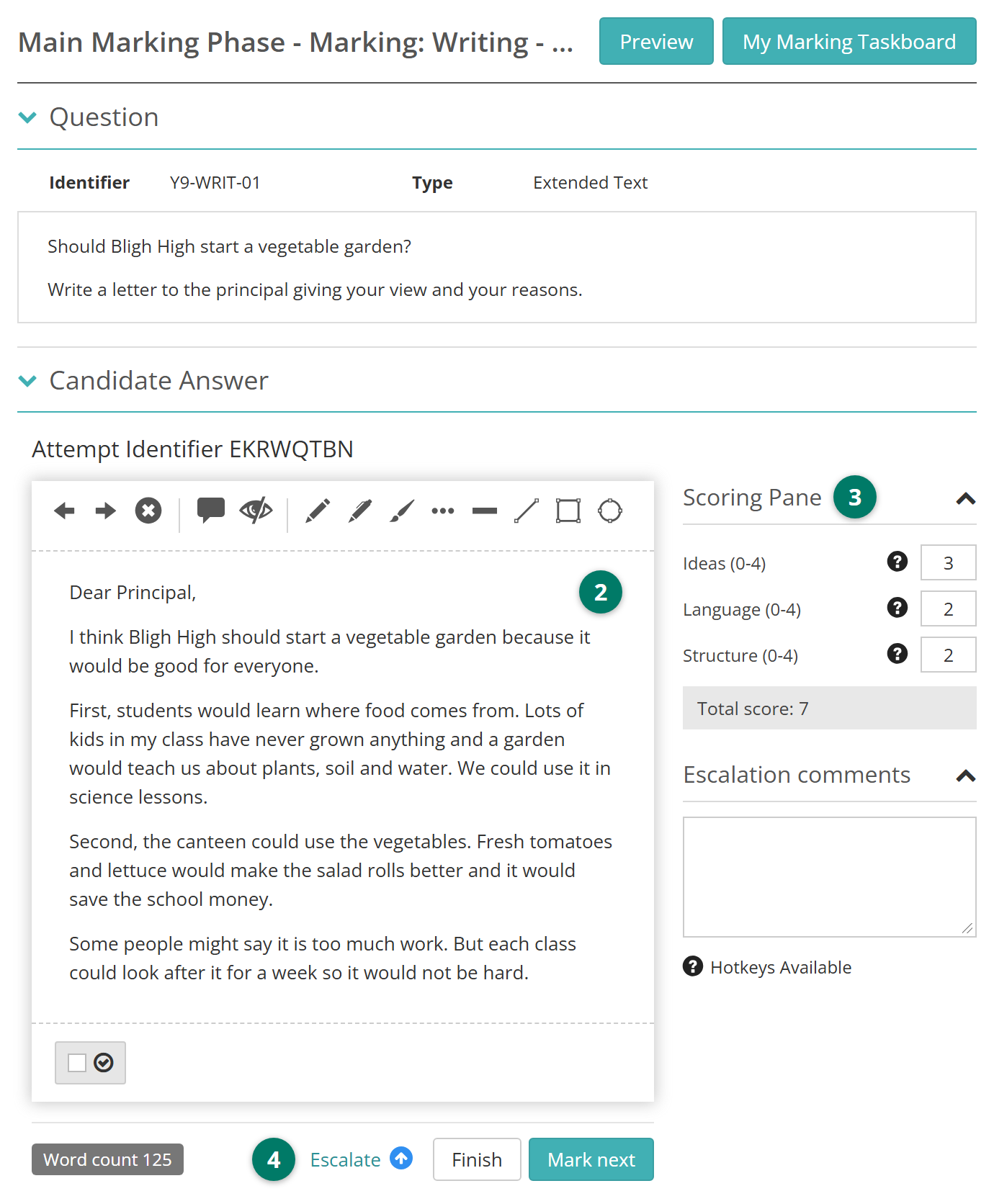
- Read the response, and annotate it if you want to.
- Enter your scores in the Scoring Pane, and a comment under Escalation comments if you want one.
-
Select what to do next:
Option What it does Mark next Saves your scores and opens the next response Finish Saves your scores and returns you to the taskboard Escalate Sends the response, with your scores, to your senior markers, who are emailed a link to it. Say why in Escalation comments -
Repeat until you've marked every response.
Once you open a response, mark it. A response you open and leave unscored waits in Requires Action (My scores) until you do.
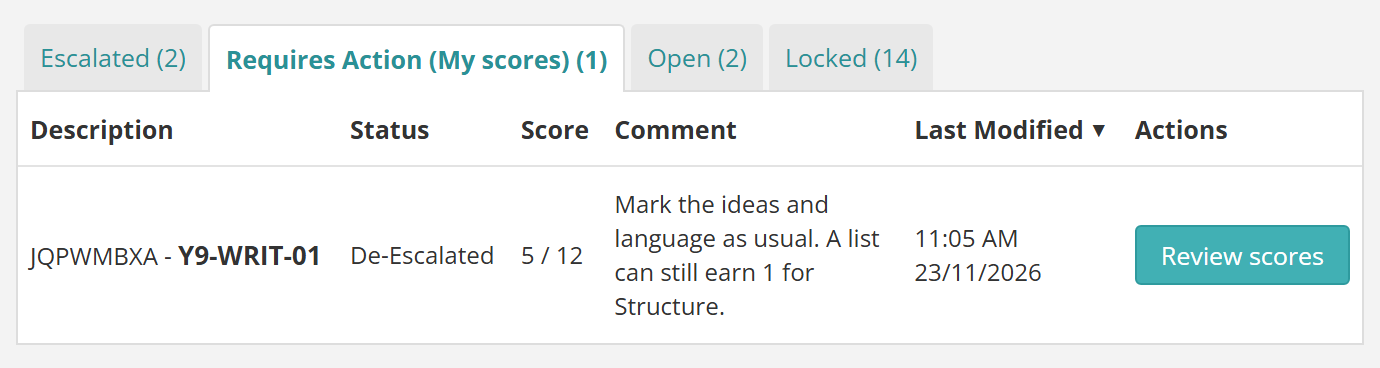
When you escalate, your senior marker can resolve the score, send it back to you, or escalate it further. A score sent back appears in Requires Action (My scores) with their comment. If nobody in the team is more senior than you, escalating shows "There are no superior markers to escalate to."
Mark composite items
How a composite item's parts appear on your taskboard depends on the project. Each part can be listed and marked separately, or the whole item marked from one row. The project takes this from Allow markers to mark multiple interactions of a composite item simultaneously when it's created, so changing the setting later doesn't change existing projects.
Track your scores
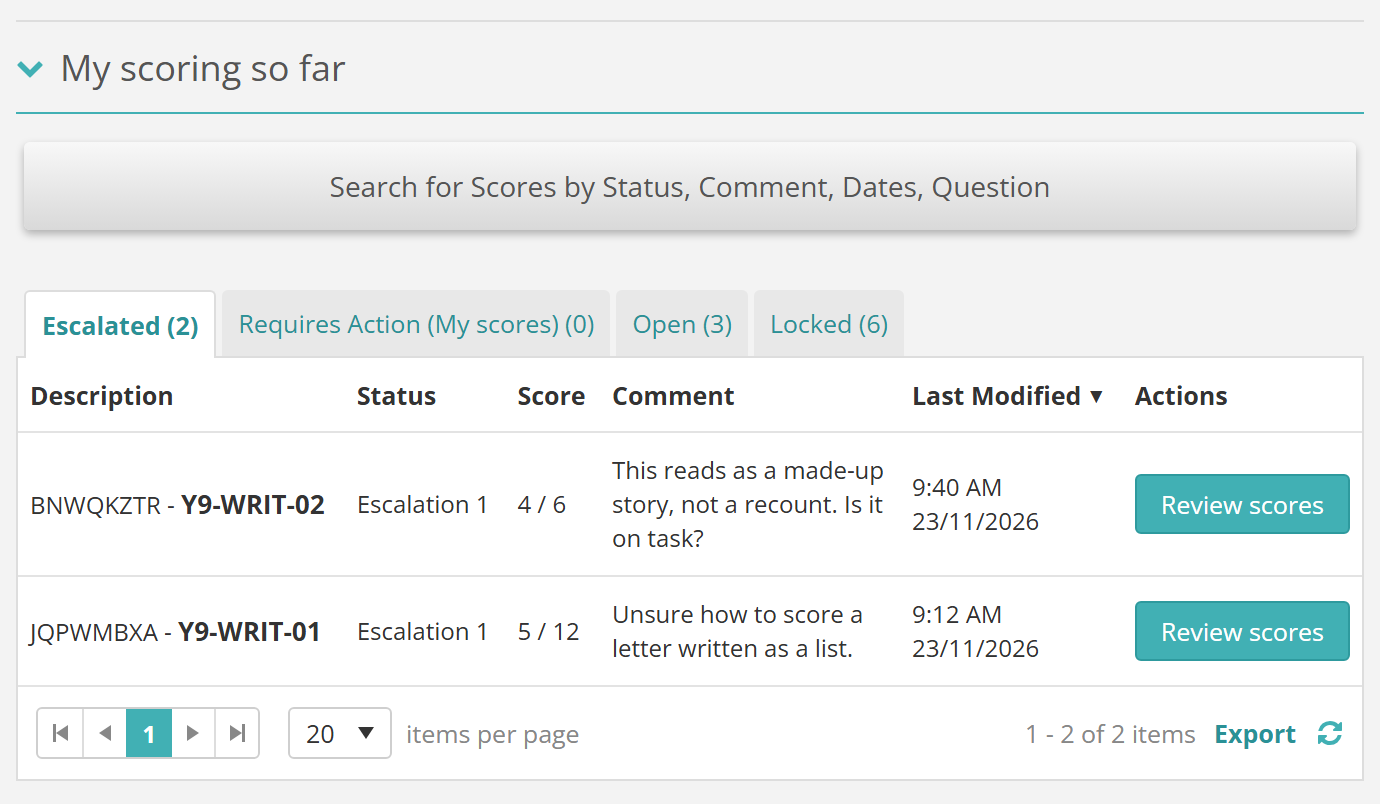
My scoring so far, at the bottom of your taskboard, lists your scores on tabs. Which tabs you see depends on how the project is set up and on your role's permissions.
| Tab | Lists |
|---|---|
| Escalated | Scores you've escalated, and scores a senior marker has sent back to you or asked you to review, until they're resolved. With grace periods, a score appears once its grace period ends |
| Requires Action (My scores) | Responses you've opened but not scored, scores a senior marker has sent back to you, and scores a senior marker has asked you to review. Select Review scores to act on one |
| Conflict | Your scores that conflict with another marker's, when the project uses double marking |
| All | All your scores |
| Monitoring and Standardisation | Standardisation 1 scripts, when the project uses standardisation |
| Open | Scores still in their grace period, which you can change. Only when the project uses grace periods |
| Locked | Scores past their grace period, which you can't change. Only when the project uses grace periods |
Settings
Administrators can configure these settings at Marking > Marking Extended Settings.
Enable Standardisation 3 — makes Standardisation 3 available to marking projects. On by default.
Enable Benchmark Scores — shows Benchmark Scores on the marking screen. On by default.
Allow markers to mark multiple interactions of a composite item simultaneously — lets markers mark a composite item's parts together, in projects created after it's turned on. Off by default.
Each project's own settings decide whether it uses Standardisation 3, double marking and grace periods, and its Team Responsibilites decide which roles take part in each activity.