View all responses
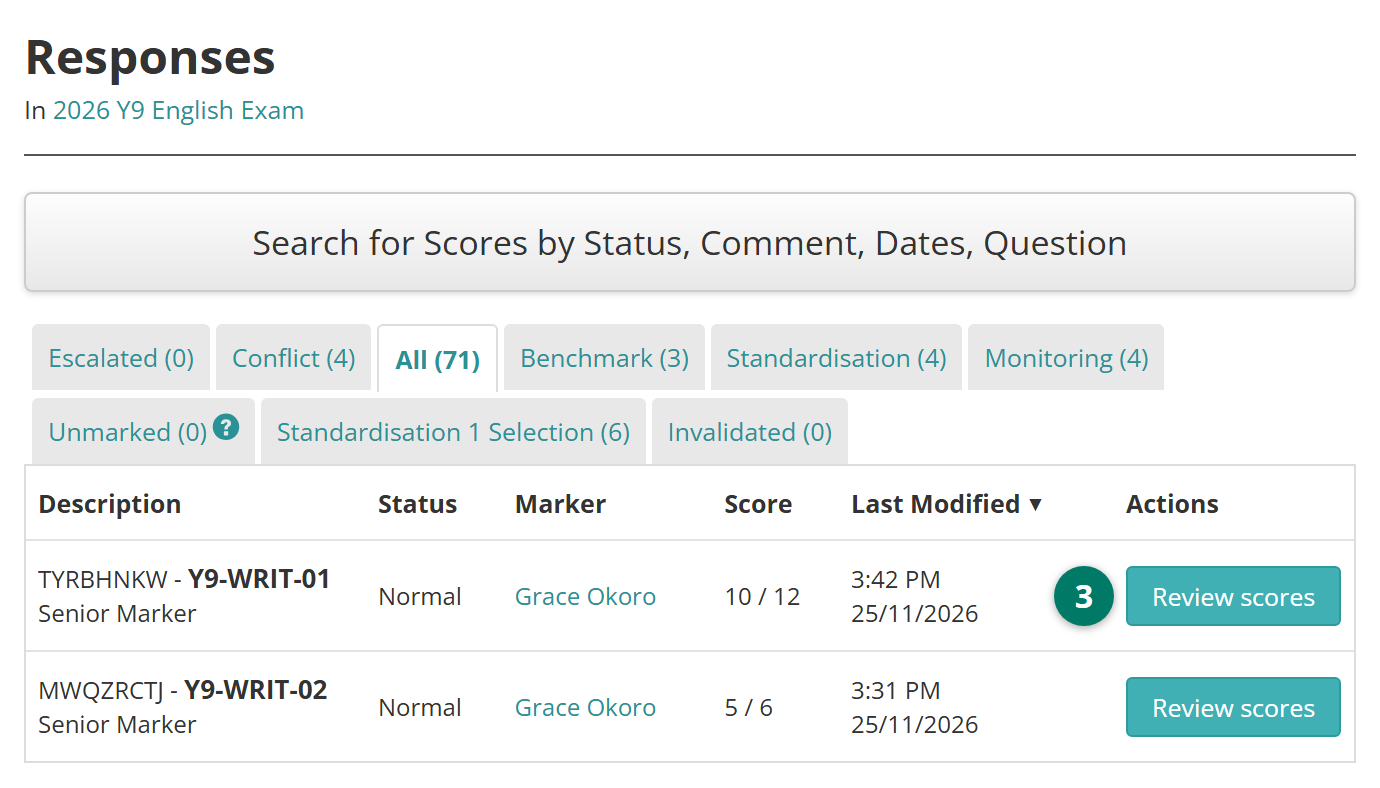
The Responses screen lists the scores on every response in a marking project, sorted into tabs. It's the project-wide version of the Scoring Details list on a marker's taskboard. From it you can open any response on the score page.
Open the Responses screen
- Expand Questions on the marking project.
- Select View All Responses. The Responses screen opens.
- Select Review scores beside a script to open its scores. See Review a response's scores.
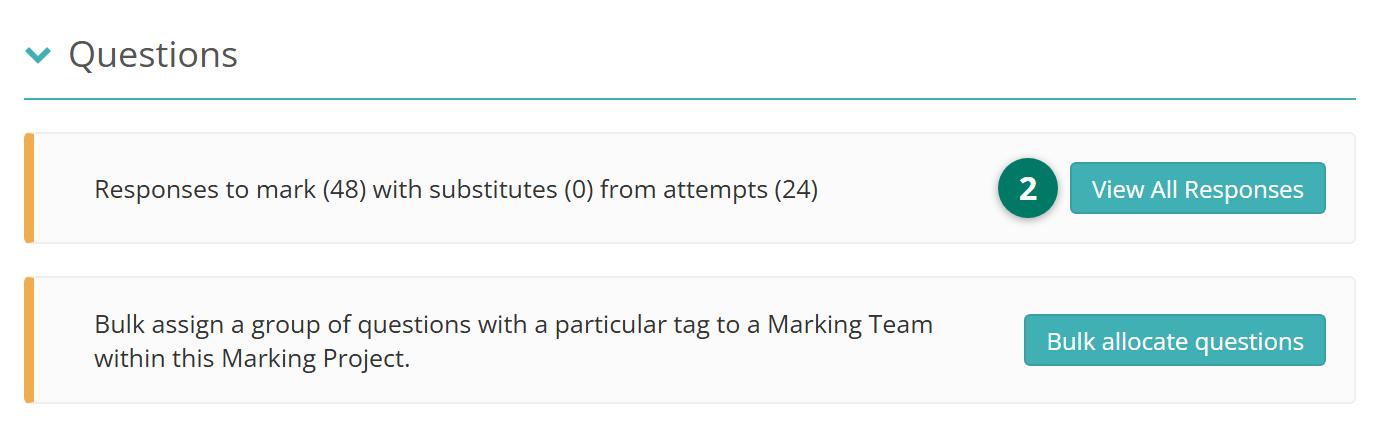
View All Responses appears when your role can open the Responses screen.
What the Responses screen shows
The tabs follow the project's settings, and each one also needs your role's permission:
- Escalated, Conflict, All, Benchmark, Standardisation and Monitoring — as on the taskboard. See Scoring details. Conflict appears only when the project uses double marking.
- Unmarked — responses no marker has scored yet.
- Standardisation 1 Selection — the scripts chosen for Standardisation 1, when the project chooses them by hand.
- Invalidated — scores that have been invalidated.
On an enrolment-based project, the Responses screen has no standardisation, monitoring or benchmark tabs.
Use the search bar to find scores by status, comment, date or item.
Markers at seniority levels 5 to 8 don't see the score type under each description. See Marking teams.
Settings
No site settings affect the Responses screen. Permission to open it, and to see each of its tabs, is set per role at Settings > Roles.