Quality controls
Quality controls check that markers score consistently. In an enrolment-based marking project they use seed scripts: scripts with a known mark that markers get among their usual scripts. Insights compares each marker's score with that mark, and can suspend a marker who fails too many.
You set them up in the project's Seed Script section, under Quality Controls. That group appears only when the project's Team Mode is Team. Set seed scripts up before markers start. You can still change them until the project is closed or cancelled.
How seed scripts work
Seed scripts are finalised scripts that have been promoted with Promote. See Promote a script to a seed script. Insights compares markers with the script's final mark at the time it was promoted. Markers get no seed scripts until at least one script has been promoted.
A seed script arrives in a marker's queue like any other script. Insights sends one as the marker's first script of the day if you turn on calibration. It also sends one after every so many scripts the marker marks, if you set a repeat rate. Insights works through the promoted scripts in turn.
Important
A marker's score on a seed script is used only to check their marking. It never changes the test-taker's result.
Set up seed scripts
In the Quality Controls group, select the pencil icon on the Seed Script row.

Then choose how seed scripts reach markers:
- Select Use Seed Scripts.
- To give each marker a seed script as their first script of the day, tick Enable Calibration. This first script is the calibration script.
- To give a marker who fails the calibration script the same script again, tick Provide second seed script on failure of the calibration script. A marker who fails it a second time is suspended.
- In Repeat Rate, enter how many scripts a marker marks between seed scripts. With 3, a marker gets a seed script after every 3 scripts they mark. Enter 0 to send calibration scripts only.
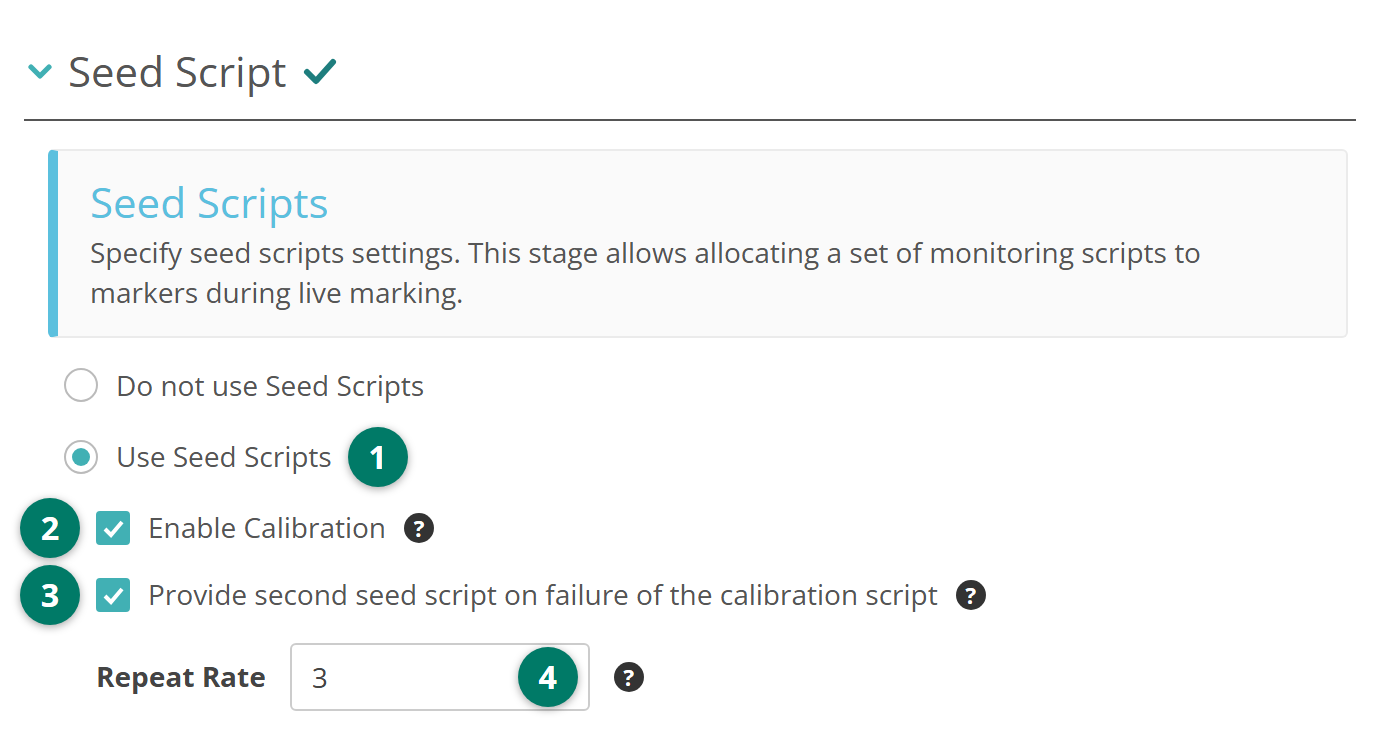
Markers get seed scripts only when Enable Calibration is ticked or Repeat Rate is above 0.
Set the tolerance and notification settings further down the section, then select Save.
Tolerance settings
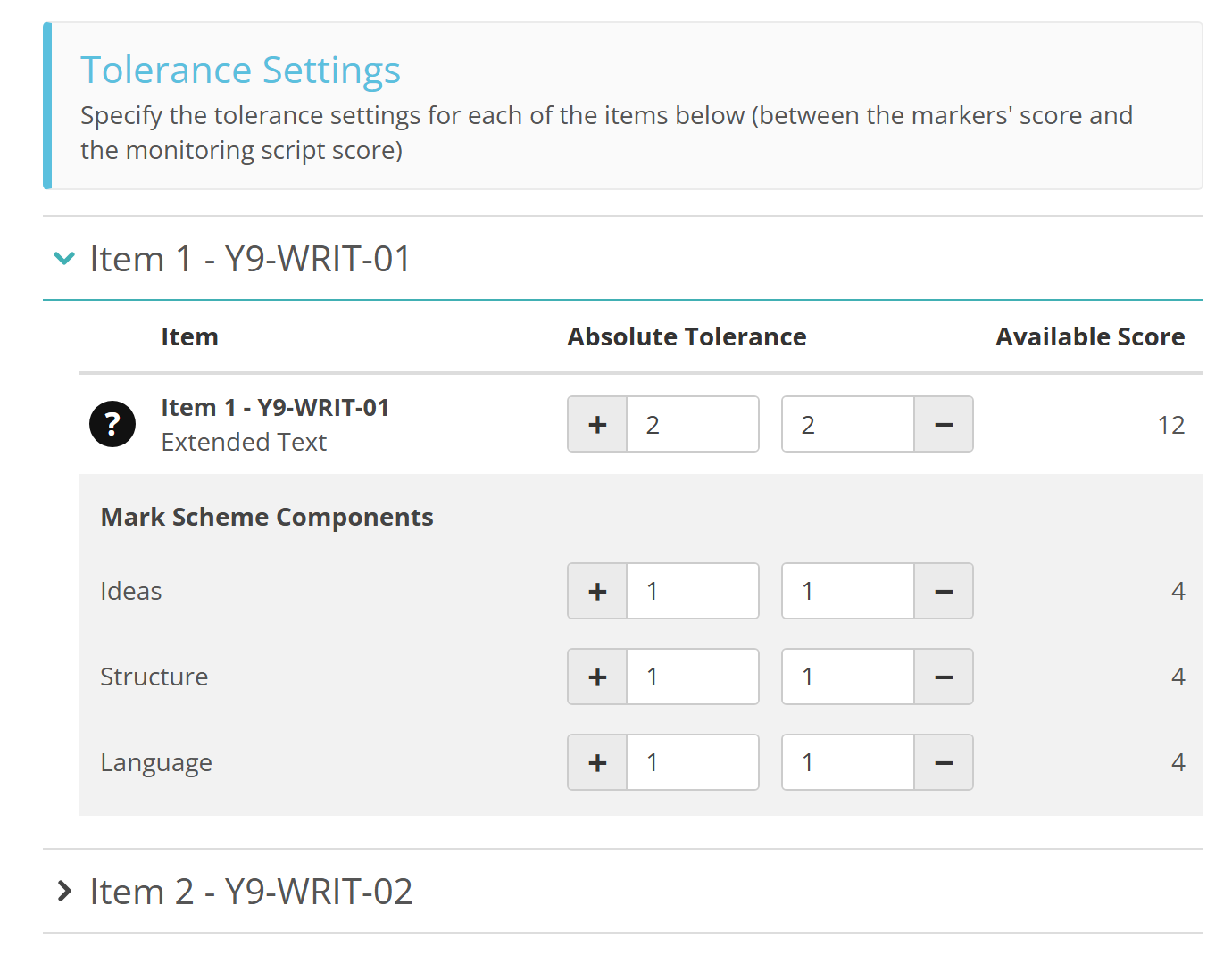
Tolerance sets how far a marker's score can be from the seed script's mark before the marker fails it. Under Tolerance Settings, expand each item and fill in its two Absolute Tolerance fields:
- + — how far above the seed script's mark the marker's score can be
- − — how far below it the marker's score can be.
For example, with 2 in each, a marker passes with a score up to 2 marks either side of the seed script's mark. A score 3 marks away fails. You can use half marks, and the two values together can't be more than the item's Available Score. Leave a field blank for no limit on that side.
Items with a marking scheme also list their Mark Scheme Components, each with its own + and − fields. A marker fails the seed script if their score on any item or component is outside its tolerance.
Notification settings
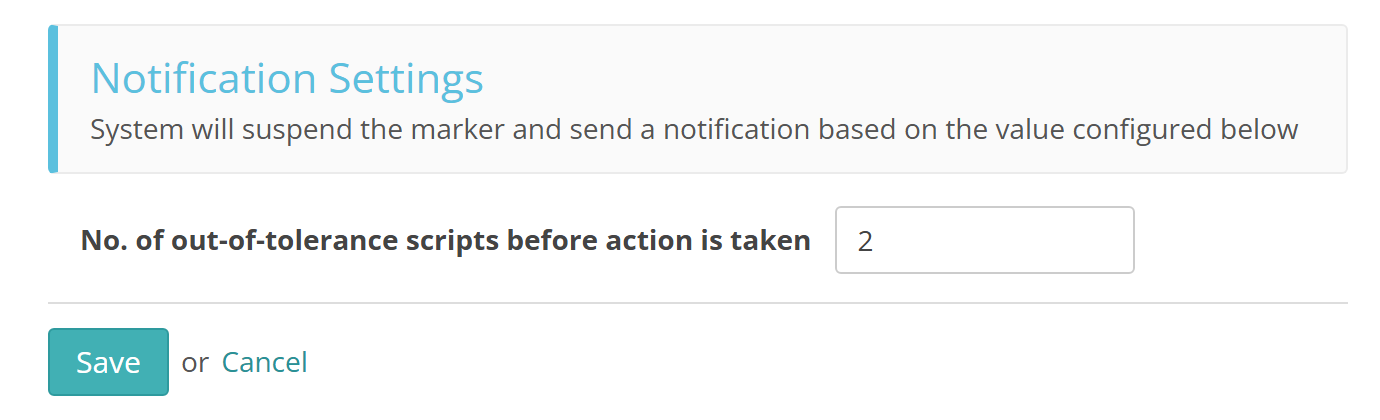
No. of out-of-tolerance scripts before action is taken sets how many seed scripts a marker can fail before Insights suspends them. With 2, a marker is suspended when they fail their second seed script. Insights then emails their nearest senior marker. The email links straight to the out-of-tolerance seed script. See Marking roles and seniority.
The count covers seed scripts sent by the repeat rate, from the time the marker was last set to marking. A failed calibration script is handled by Provide second seed script on failure of the calibration script instead. Once you return a suspended marker to marking, they can fail 2 more before they're suspended again. With 0, failed seed scripts never suspend a marker.
You can see each marker's passed and failed seed scripts in their marking progress. See Review a marker's script history.
Settings
Administrators can configure these settings at Marking > Marking Extended Settings.
Enable Seed Script Settings Section, in Marking Project Settings > Enrolment Based Marking Project Section Settings — shows the Seed Script section on enrolment-based projects. On by default.
The same group can add other quality controls to enrolment-based projects, with settings such as Enable Standardisation 1 Settings Section and Enable Blind Quality Monitoring Settings Section. Each section also needs its feature turned on for your site. See Enrolment based marking.
Enable Marking Settings Section adds the Marking section, but its double marking doesn't apply to these projects. Each test-taker goes to a single marker.
On each marking project:
Team Mode — Quality Controls appears only on projects set to Team. See Create marking project.