Gap match interaction
A gap match interaction item asks test-takers to drag answers from a bay into the gaps in a passage of text. The answers can be text or images, and you can include answers that don't belong in any gap.
Try this item type in the practice test below. It has examples with images, with a fixed answer, and with the bay above and below the text.
Practice test
Open this test in the Janison test player and complete three examples of gap match interaction items.
What test-takers see
Test-takers see the answers in a bay above or below the text, with an empty gap wherever an answer belongs.
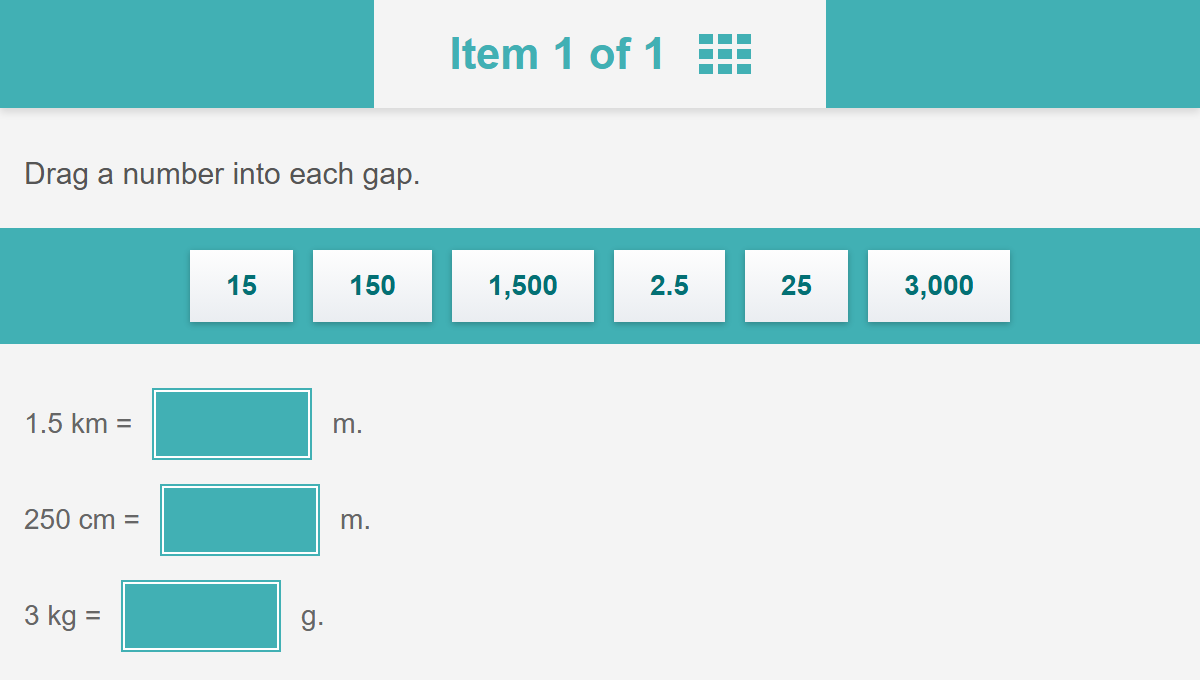
They drag an answer into each gap, or select an answer and then a gap. Each gap holds one answer. Here every gap is filled, and the answers placed have left the bay.
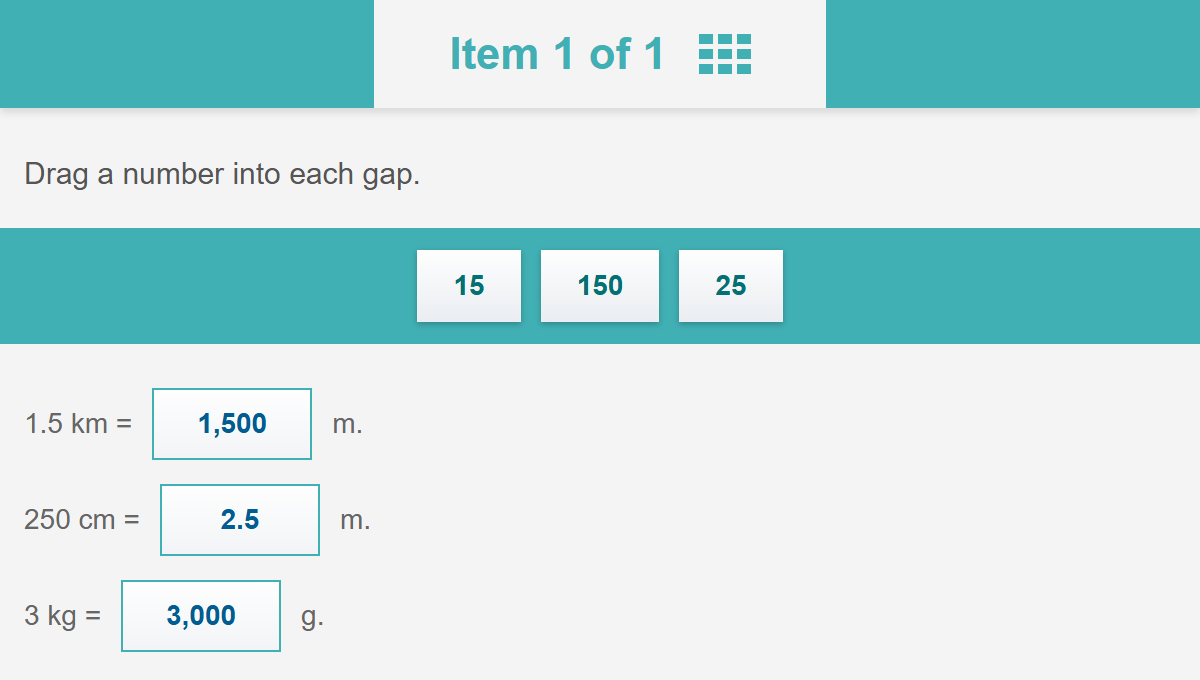
To take an answer out of a gap, test-takers drag it back to the bay. The item counts as answered once every gap is filled.
Create a gap match interaction item
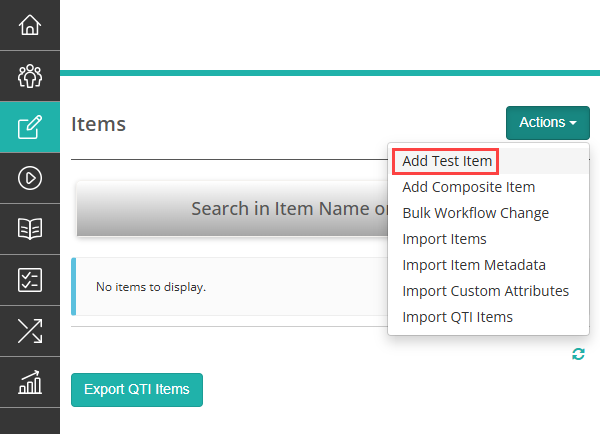
Navigate to Author > Items, then select Add Test Item from the Actions dropdown.
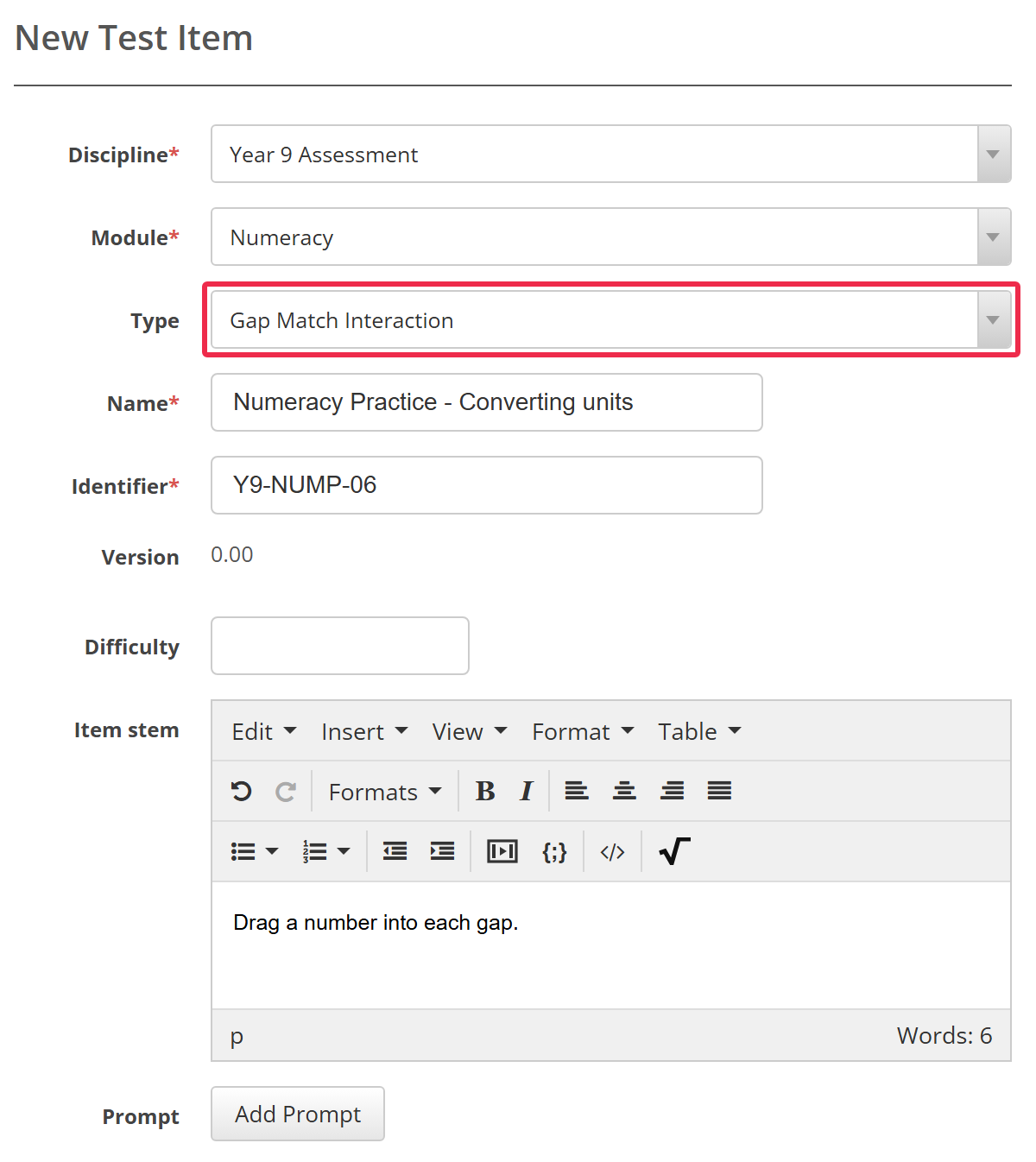
The New Test Item form opens. Choose the Discipline and Module, select Gap Match Interaction as the Type, give the item a Name and Identifier, and enter the Item stem.
Further down the form, choose how the item looks and how it's scored.
Alignment — where the answers sit in the bay: Center, Left or Right.
Orientation — Above puts the bay above the text, and Below puts it underneath. The practice test has an example of each.
Scoring Type — Correct/Incorrect or Per Distractor. See Setting scores and marking.
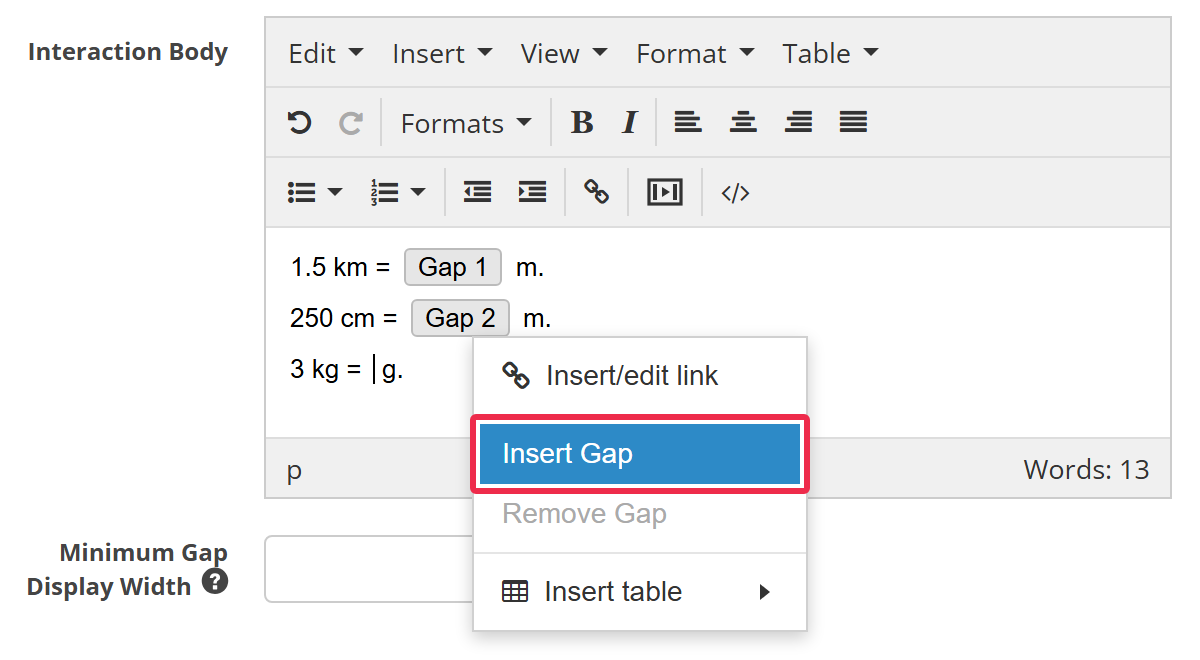
In Interaction Body, enter the text, with a gap wherever an answer belongs. To add a gap, right-click where it goes and select Insert Gap. You can also select Insert > Insert Gap from the editor's menu bar, or press Ctrl+G.
Gaps are numbered Gap 1, Gap 2 and so on. To remove one, right-click it and select Remove Gap. This also takes the gap out of the Correct column and deletes its scores.
Minimum Gap Display Width — the narrowest a gap can be, in pixels, from 100 to 1,220. Leave it blank for the standard width. On a screen narrower than the width you set, gaps fill the width available.
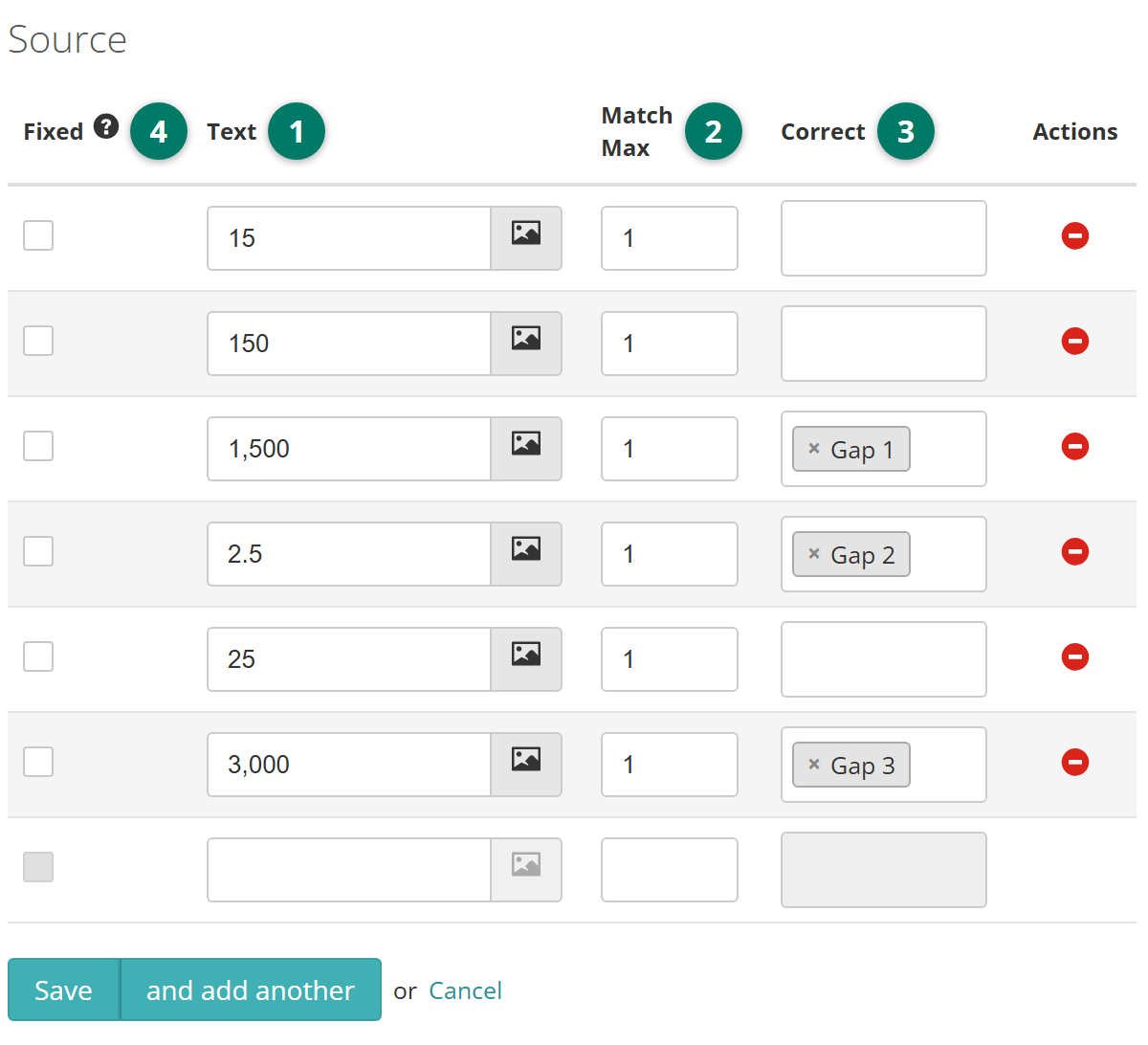
Then, in the Source table, add the answers:
- In the Text column, enter an answer. To use an image, select the image icon
 and choose an image resource from the item's module. Fields appear for its Title, Alt text, Width and Height.
- In Match Max, enter how many gaps the answer can go in. Once it's used that many times, it leaves the bay. Leave it blank for no limit.
- In Correct, select each gap the answer is correct for. An answer can be right for more than one gap, and a gap can have more than one right answer. Leave Correct empty for an answer that doesn't belong in any gap.
- Tick Fixed for an answer you want already placed in its gap, as a worked example. Test-takers can't move it, and it needs a gap in Correct.
Tip
A fixed answer also stays in the bay for test-takers to use elsewhere, until its Match Max is used up. To keep it out of the bay, set its Match Max to the number of gaps it's fixed in.
A new empty row appears when you click in the last row. To remove an answer, select the red minus icon in its Actions column, then select Really? to confirm.
Select Save. To save the item and start another straight away, select and add another instead.
Setting scores and marking
Gap match interaction items are marked automatically.
Scoring types
Choose one of two scoring types from the Scoring Type dropdown.
- Correct/Incorrect — the item is right only when every gap holds one of its correct answers. Anything else scores 0.
- Per Distractor — each answer earns the score you set for the gap it's in, so a partly right response can earn part marks.
Additional scoring options
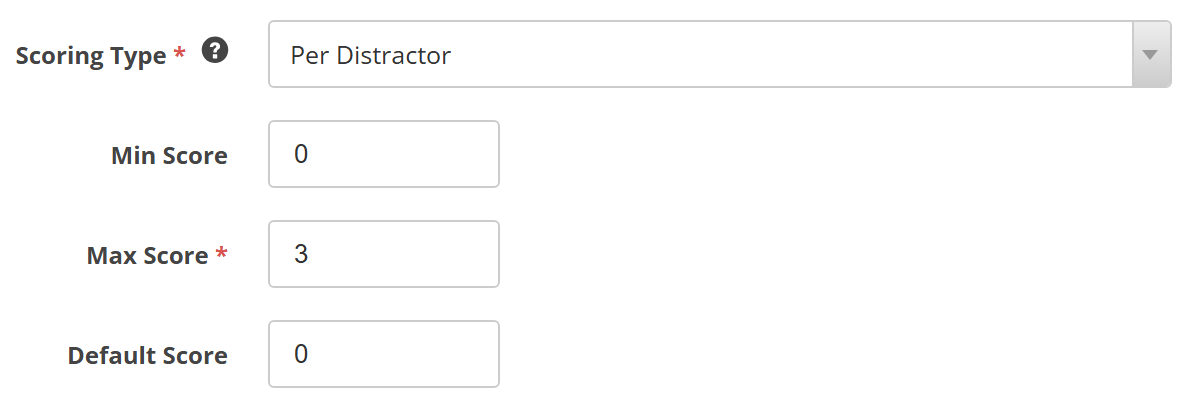
When you choose Per Distractor, three fields appear below Scoring Type:
- Min Score — the lowest score the item can give.
- Max Score — the highest score the item can give. It's required, and must be higher than Min Score.
- Default Score — the score for a placed answer whose Score is blank or that has no row in the Scoring table.
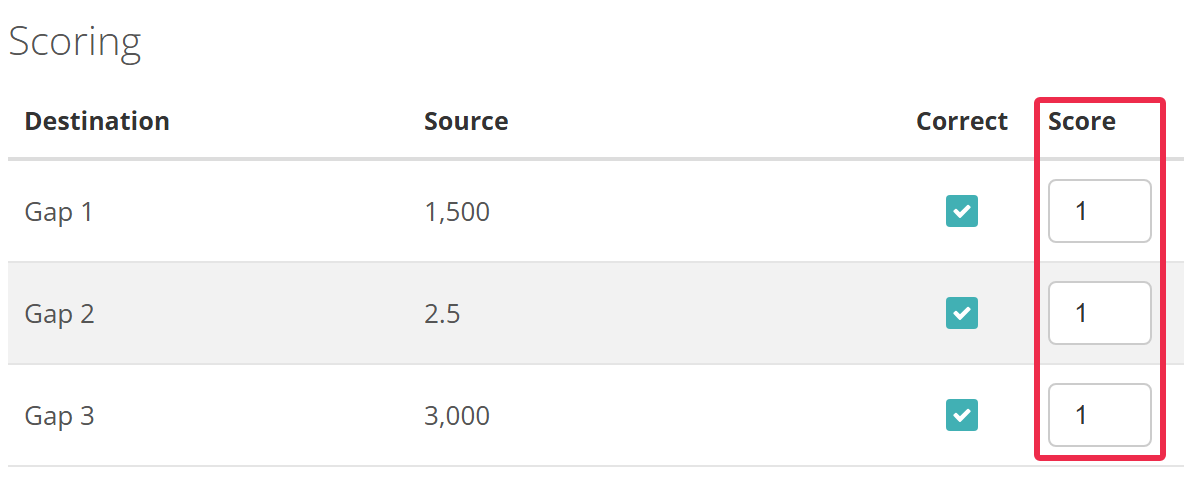
The Correct column in the Source table becomes Mapping. Use it to pick the gaps each answer is scored in. Each answer and gap you pick gets a row in the Scoring table below:
- Correct — tick it if the answer is right for that gap. It sets whether the item counts as correct, for example for feedback, but doesn't change the score.
- Score — what the answer earns in that gap.
The item scores the total for the answers placed, kept between Min Score and Max Score.
Settings
Administrators configure these settings at Settings > Test Designer Settings.
Under Available Question Types:
Gap Match Interaction — For Tests lists the type in the Type dropdown on New Test Item, and For Composite lets you use it in a composite item. It has no For Surveys box, so it can't be a survey item.
Under Question Options:
Enable Answer Replacement on Drag & Drop for Gap Match Interaction Questions — lets test-takers drop an answer onto a filled gap to replace the answer there. When it's off, they must take the first answer out before placing another. It's on by default.
Allow partial match on some item types to be marked as answered — counts a gap match item as answered as soon as one gap is filled. It also applies to match and graphic gap match items. It's off by default.