Standardisation 2 (S2)
Standardisation 2 (S2) trains and checks senior markers before markers start Standardisation 3. Each senior marker scores some of the standardisation scripts from Standardisation 1, and Insights compares their scores with the agreed ones. A senior marker who scores within the project's tolerances moves on to marking. One who doesn't is suspended until a chief marker returns them to S2. S2 is optional.
This page covers setting up S2 for a project and following its progress. For what senior markers do in S2, see Complete Standardisation 2.
Set up S2
S2 uses the standardisation scripts from S1, so the project must use Standardisation 1 first. Until it does, the S2 section says "You must enable standardisation 1 first."
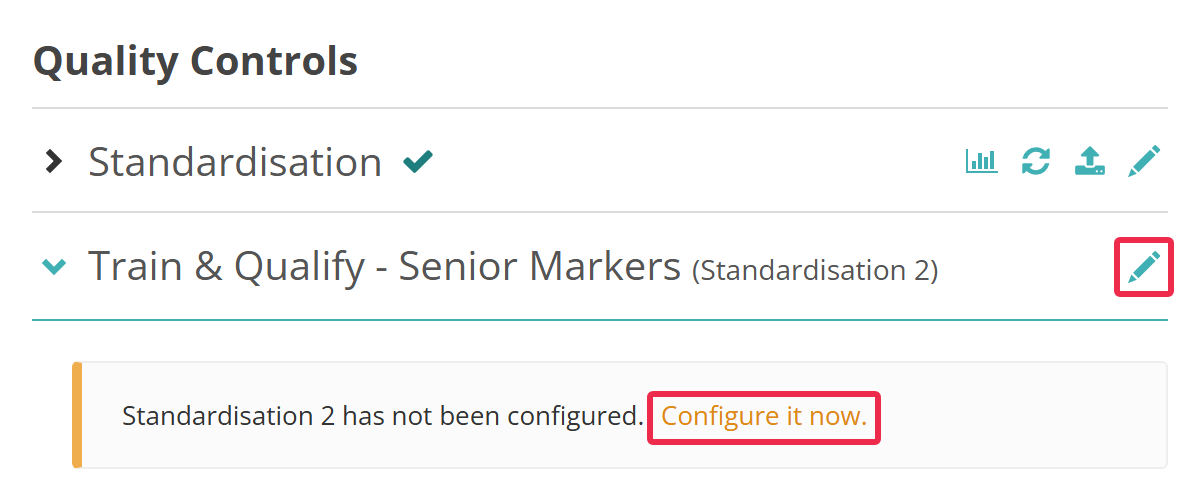
S2's settings are in the project's Train & Qualify - Senior Markers (Standardisation 2) section, under Quality Controls. Until you set it up, the section says "Standardisation 2 has not been configured." Select Configure it now. or the pencil icon on the section.
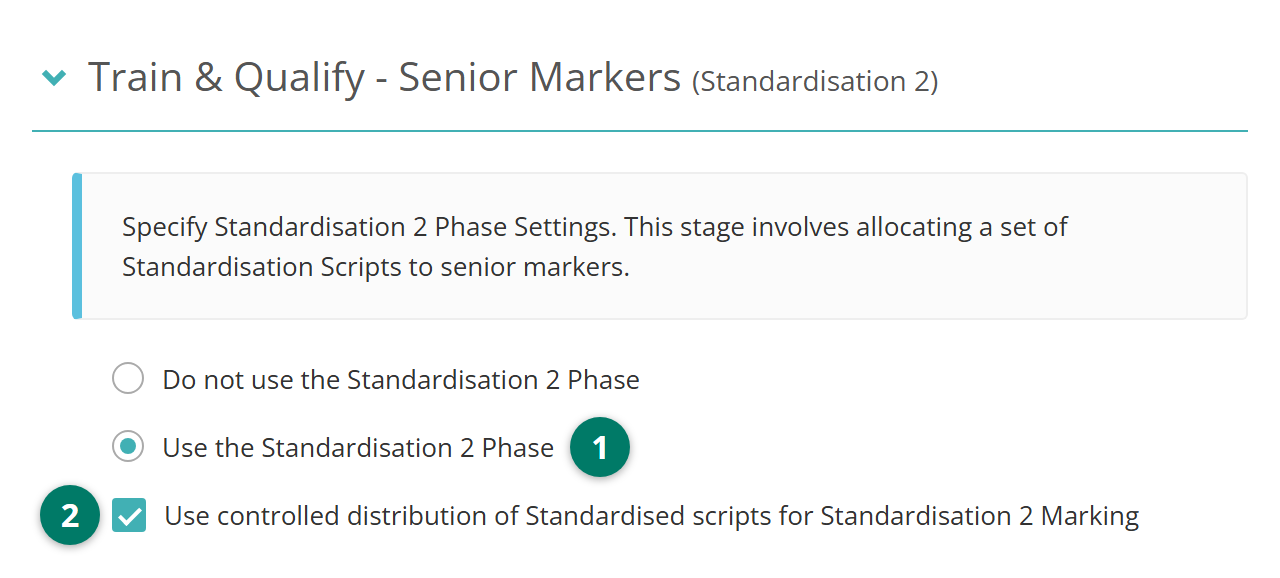
- Choose Use the Standardisation 2 Phase.
- Choose whether to tick Use controlled distribution of Standardised scripts for Standardisation 2 Marking. It's ticked by default.
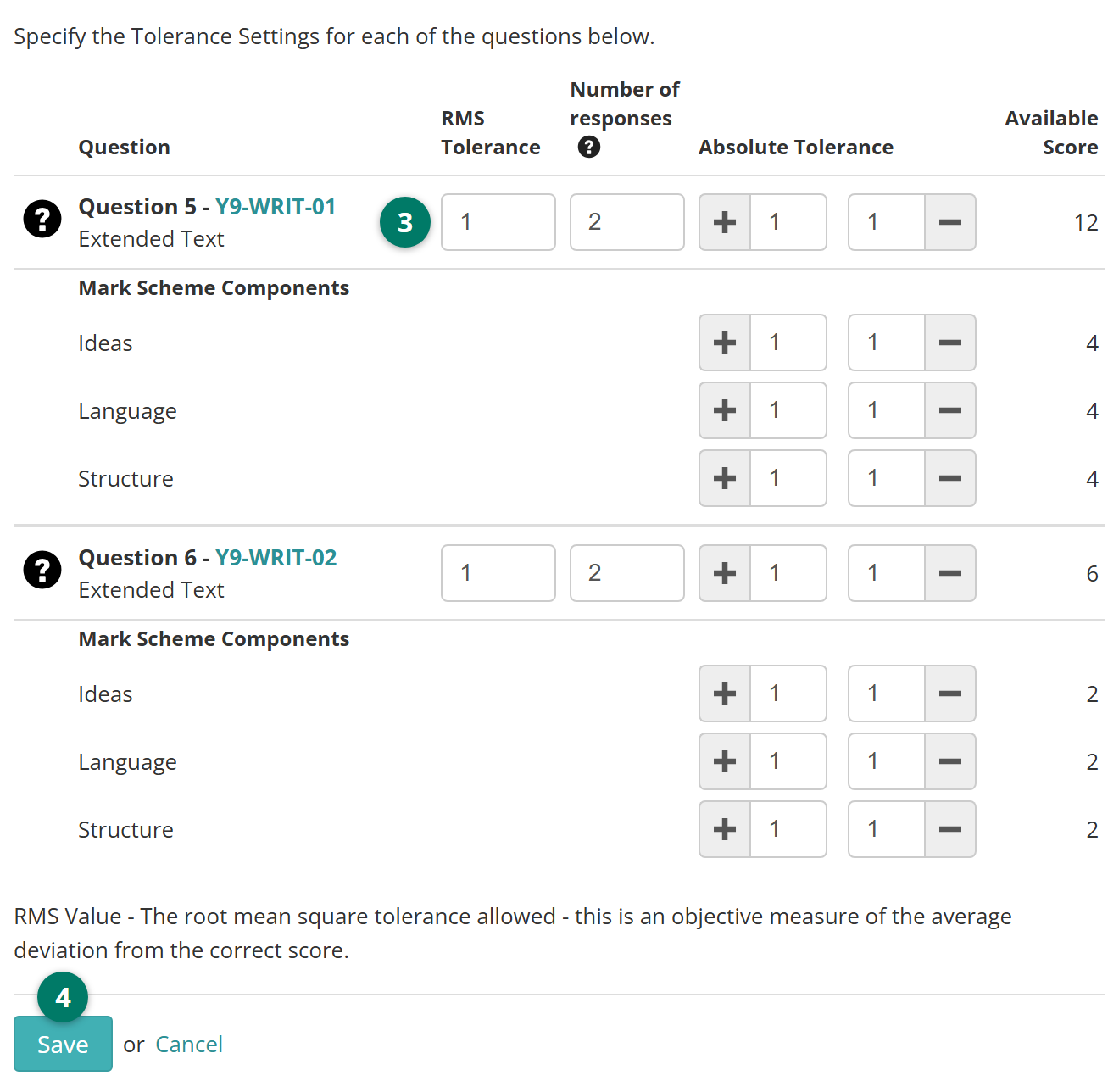
- For each item, enter:
- RMS Tolerance — how far, on average, a senior marker's scores for the item can be from the agreed scores. It's the root mean square of the differences
- Number of responses — how many scripts each senior marker scores for the item. It can't be more than the item's standardisation scripts in S1, and the screen suggests it should be well under
- Absolute Tolerance — how far above (+) and below (−) the agreed score each of a senior marker's scores can be
- the + and − tolerance for each marking scheme component, if the item has them.
- Select Save.
What you enter in the first item's row is copied to the rows below. You can then change any of them. Available Score shows each item's highest score, and each component's.
Controlled distribution
With Use controlled distribution of Standardised scripts for Standardisation 2 Marking ticked, S2 uses only the scripts a chief marker has released for it: those set to Released for Standardisation 2 or Released for Standardisation 2 and 3. See Release scripts for Standardisation 2 and 3. Without it, S2 can use any of the item's standardisation scripts.
You can't change it once standardisation has started, or while Standardisation 3 is set to use the same settings as S2.
How a senior marker passes
Insights checks a senior marker's S2 scores for each item. They pass when:
- each score is within the item's Absolute Tolerance of the agreed score
- each component's score is within that component's tolerance, if it has one
- the root mean square of all the differences is no more than the item's RMS Tolerance.
Insights only decides once they've scored all their S2 scripts.
Follow S2's progress
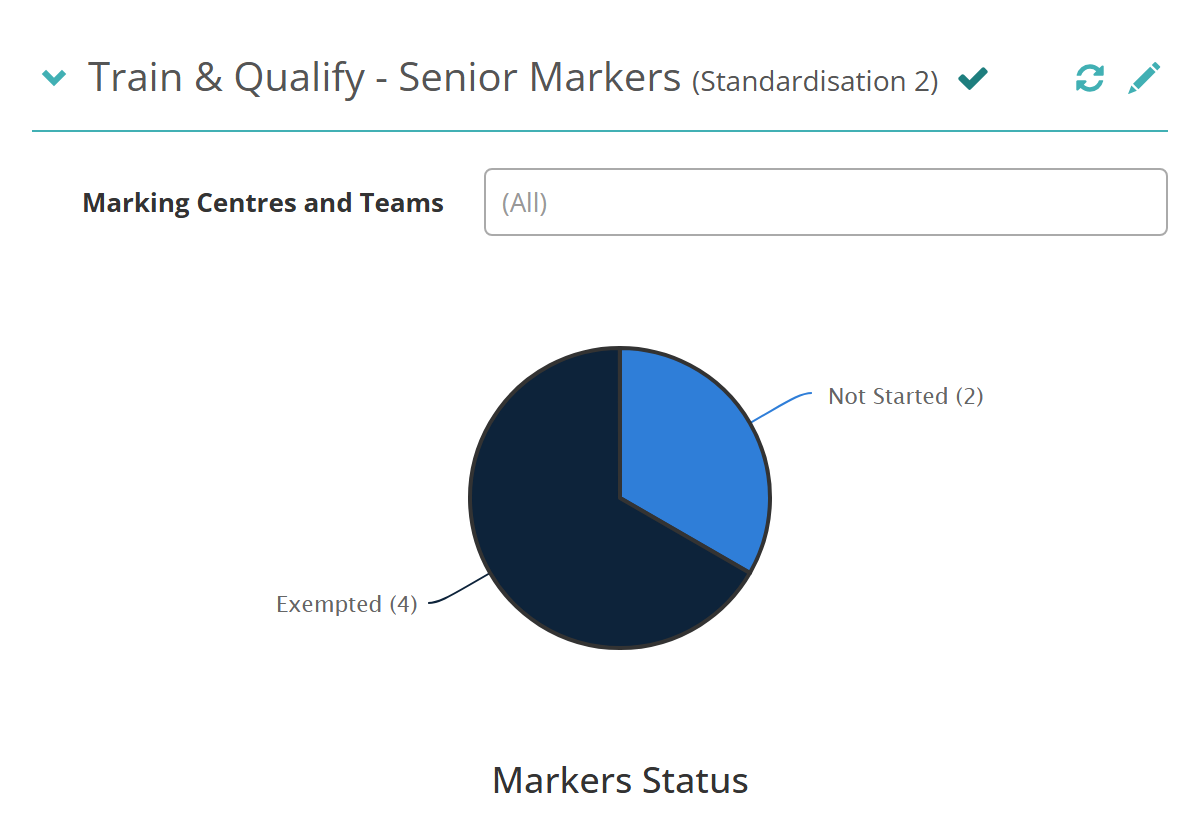
When you're not editing it, the section shows a Markers Status chart of everyone in the marking team:
- Not Started — hasn't scored an S2 script yet
- Started — has scored some
- Passed — passed S2 and moved on to marking
- Suspended — didn't pass
- Exempted — their role doesn't take part in S2, or they started marking without it
- Inactive — their user account is inactive.
Only the statuses that apply appear. To see one marking centre or team, choose it in Marking Centres and Teams. Select the refresh icon to update the chart.
To see how each senior marker is doing, see Check senior markers' Standardisation 2 progress.
Start S2
When S1 is finished, select Change beside Workflow state, then Commence Standardisation 2. See Move between phases for the checks Insights makes first. If the project uses S2, it can't go straight from S1 to Standardisation 3.
Benchmark scores
Senior markers can compare a script with model answers at a similar score while they mark it. See Use benchmark scores.
Settings
Administrators can configure these settings at Marking > Marking Extended Settings. See Marking settings.
Enable Standardisation 2, in Marking Project Settings — makes S2 available to marking projects. On by default.
Enable Per Mark Scheme Component Tolerance For S2, in Marking Project Settings — adds a tolerance for each marking scheme component to the S2 settings. On by default.
Team Responsibilites — which roles take part in S2 on new projects. Each project can change its own. See Choose each role's activities.
Permission to change a project's S2 settings is set per role at Settings > Roles.