Grace periods
A grace period gives markers time to change a score after they've saved it, so they can correct a mistake. When it ends, the score is locked. You set it in the project's Grace Periods, which has two options:
- Don't use grace periods - markers cannot change their score after saving — scores lock as soon as they're saved. New projects start with this unless your site gives them a grace period (see Settings).
- Use grace periods, and lock scores only after a grace period has expired — markers can change a score for the number of minutes you set.
Grace periods apply to scores given in the main marking phase, not to standardisation, sampling or resolution scores.
Turn on grace periods
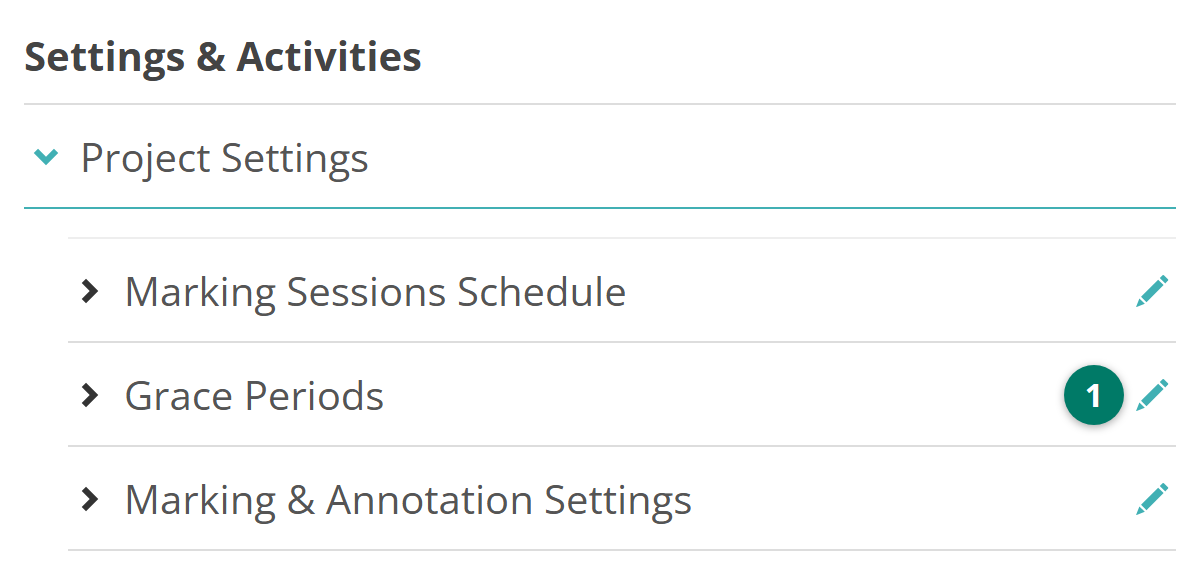
The setting is in the project's Project Settings, under Settings & Activities.
- Select the pencil icon on Grace Periods.
- Select Use grace periods, and lock scores only after a grace period has expired.
- In Locked grace period, enter the number of minutes markers have to change a score.
- Select Save.
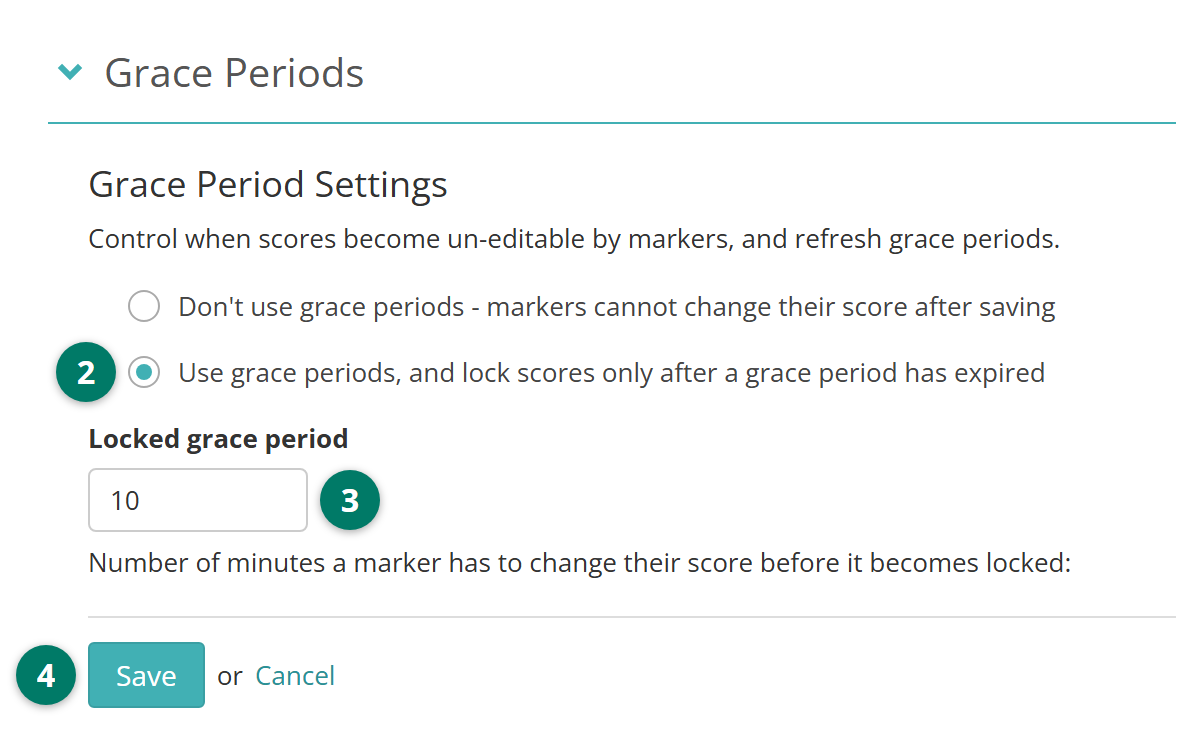
The grace period must be at least 1 minute.
Tip
Escalations, double marking conflicts and sampling all wait for the grace period to end, so a long one holds them up. Insights suggests 10 minutes or less.
You can change the setting until the project is closed or cancelled. A change applies straight away to every score, including those already saved.
While a score is in its grace period
The marker can change the score from the Open tab of My scoring so far on their taskboard. When the grace period ends, the score moves to Locked. Each change starts the grace period again. See Base marker role.
Until the grace period ends:
- an escalated score doesn't appear on anyone's Escalated tab
- the score doesn't count towards a double marking conflict
- the response can't be chosen for sampling
- the project can't be finalised.
Finalising shows a message such as "There are 2 answer scores within grace period, markers can still amend these scores."
Reopen an item's scores
Quick change reopens every marker's score on an item for one grace period, so markers can change them again.
- In the project's Questions section, select Review in the item's Scores column. Review Scores opens.
- Select Quick change.
- Select Update, then confirm.
Insights shows when the scores lock again, such as "Grace Period extended till 3:45 PM".
Quick change appears once markers have scored the item, if the project uses grace periods and isn't in Standardisation 3, and your role lets you reset grace periods.
Settings
Administrators can configure these settings at Marking > Marking Extended Settings. See Marking settings.
Default Grace Period On and Default Grace Period, in New Marking Project Automation — give every new project a grace period, in minutes. Off by default.
Permission to change a project's grace periods, and to reopen an item's scores, is set per role at Settings > Roles.