Automatically marked items
A test can mix items Insights marks automatically, such as multiple choice, with items people mark, such as extended text. A marking project manages the people's marking. Its Automatically Marked Questions screen lets you check how the automatically marked items were answered, and re-score them, for example after a change to an item's marking scheme.
To open it, select Automatically Marked Questions from the marking project's Actions menu.
What's on the screen
- Auto-Mark Questions marks or re-marks every attempt in the project.
- The project's name links back to the marking project.
- Exclude Question stops the item counting towards test-takers' scores. See Exclude an item.
- Re-Score re-scores every answer to the item. See Re-score an item.
- Response analysis shows how many test-takers chose each answer, with the correct answer ticked.
- Score distribution shows how many answers got each mark.
- Scoring history lists each re-score, with who did it and when.
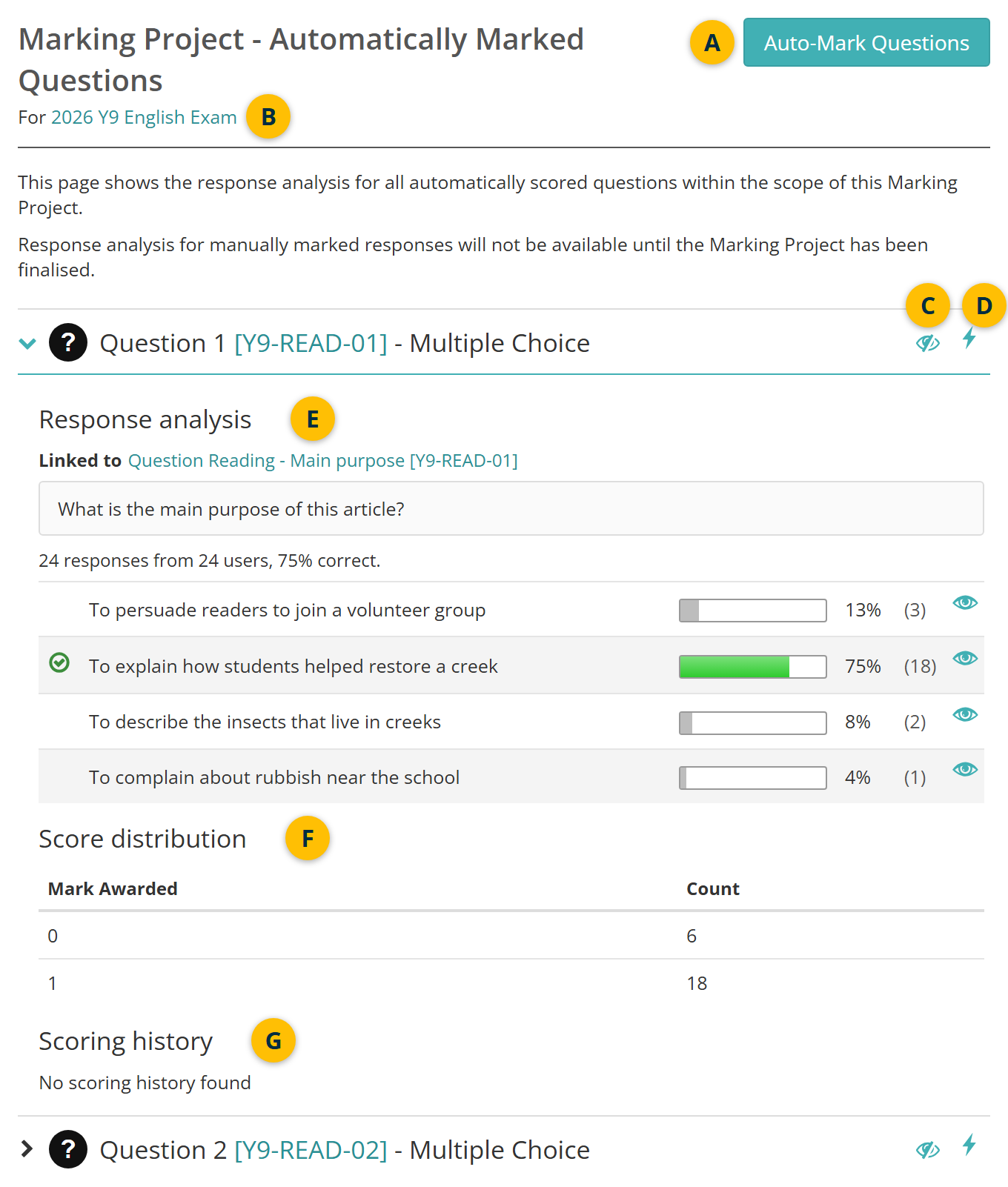
Auto-Mark Questions isn't there once the project is closed, or when the project includes a paper-based event.
Important
Re-score and exclude items before you finalise the project. Once it's closed, Auto-Mark Questions, Re-Score and Exclude Question are gone.
Re-score an item
Re-score an item after changing its marking scheme, so the answers already given are scored the new way.
- Select Re-Score on the item's heading.
- Check the impact, then select Remark.
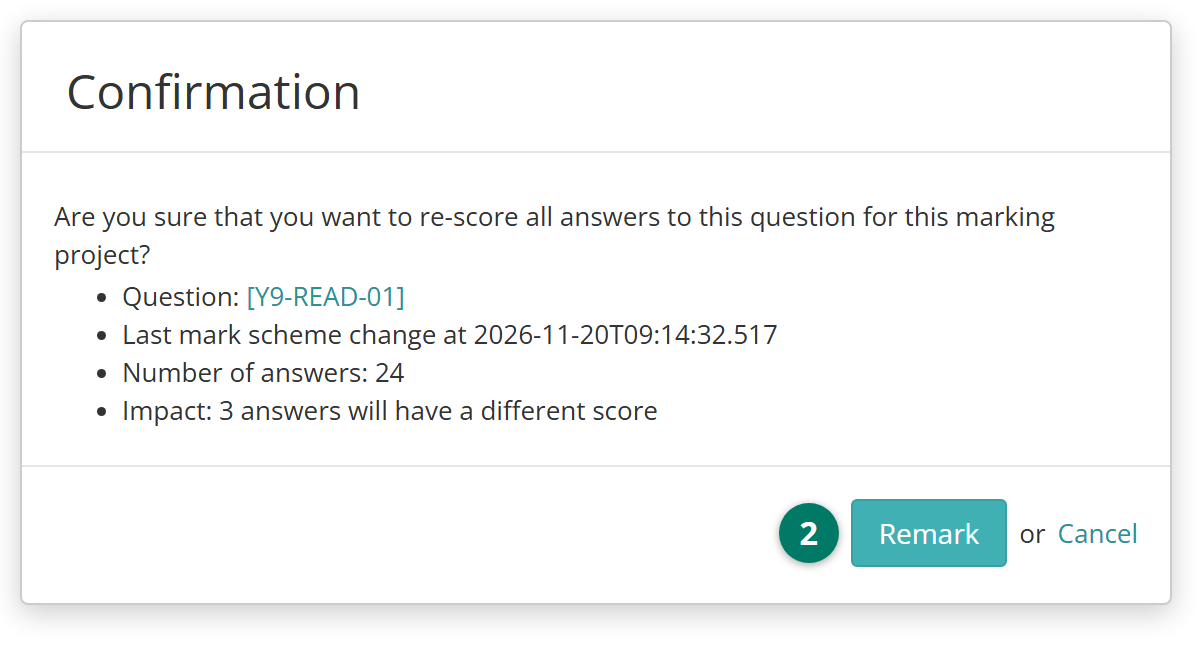
The window shows when the item's marking scheme last changed, how many answers there are, and how many will get a different score. Each re-score is added to Scoring history.
Exclude an item
Exclude Question stops an item counting towards test-takers' scores, and re-scores its answers. Include Question, in its place, puts the item back.
You can exclude items while a standard marking project is in Setup or Marking, if your role allows it. Once the project is closed, excluded items no longer appear on the screen.
Settings
No site settings affect this screen. Permission to open it and to exclude items is set per role at Settings > Roles.