Replay keyboard shortcuts
Keyboard shortcuts let test-takers move through a test, answer items and use the test player's tools without a mouse or touchscreen. They belong to the test player, so they work the same in Janison Replay and in a supported browser. To see the shortcuts for the screen you're on, press ? (hold Shift and press / on most keyboards). Press Esc, or ? again, to close the menu.
Important
If shortcuts don't work, an administrator may have turned them off for the event or the test. See Settings.
The menu changes with the screen you have open and the features turned on for the test. It lists only the shortcuts that would do something at that moment. The volume shortcuts appear only when the test has audio, and the ruler shortcut only when the test author has enabled the ruler.
This is the menu as it appears on an extended text item. Other item types and screens add their own shortcuts to it.
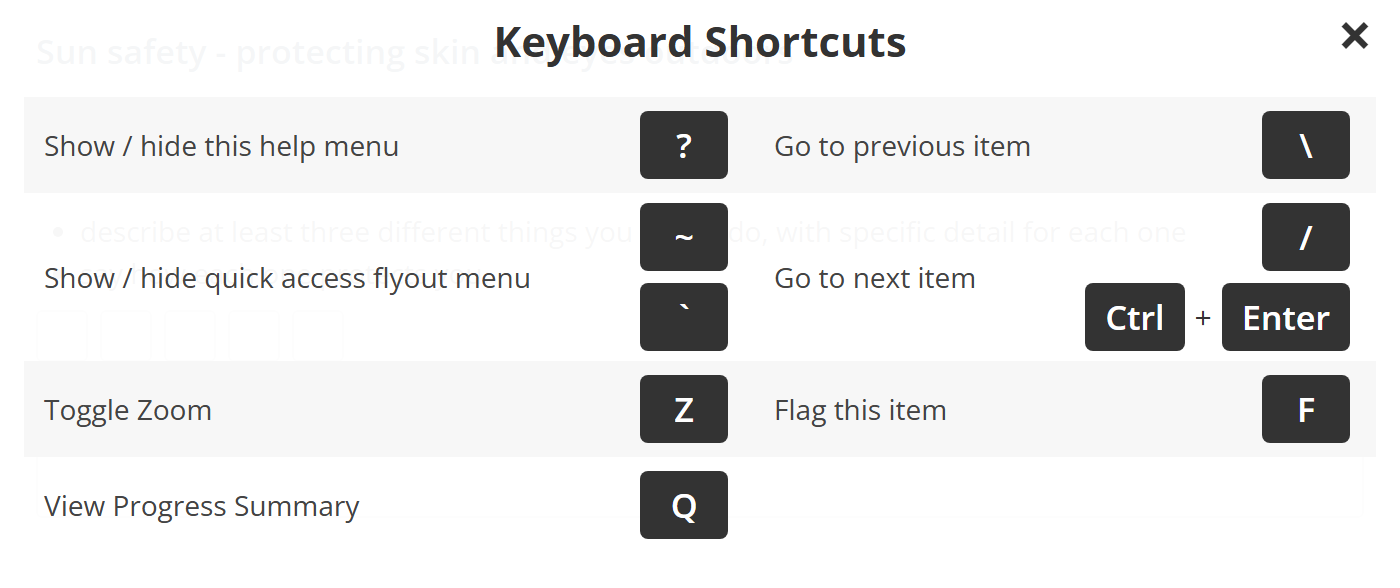
General shortcuts
| Action | PC | Mac |
|---|---|---|
| Open or close the shortcut menu | ? | ? |
| Close the shortcut menu | Esc | Esc |
| Scroll | Arrow keys | Arrow keys |
| Move forward through screen elements | Tab | Option+Tab |
| Move backward through screen elements | Shift+Tab | Option+Shift+Tab |
| Go to the next item | / or Ctrl+Enter | / or Ctrl+Enter |
| Go to the previous item | \ | \ |
| Zoom | Z. Each press moves to the next level: 100%, 150%, 200%, 300%, then back to 100% | Z. Each press moves to the next level: 100%, 150%, 200%, 300%, then back to 100% |
| Flag or unflag an item | F | F |
| Show or hide the quick access menu | ` or ~ | ` or ~ |
| Show or hide the audio player bar | Tab to the audio icon, then Enter | Option+Tab to the audio icon, then Enter |
| Play or pause audio | Tab to the play/pause icon, then Enter | Option+Tab to the play/pause icon, then Enter |
| Mute or unmute audio | Tab to the volume icon, then Enter | Option+Tab to the volume icon, then Enter |
| Adjust the volume | Tab past the volume icon, then Arrow keys | Option+Tab past the volume icon, then Arrow keys |
| Skip audio forward or back | Tab past the volume icon to the progress bar, then Arrow keys | Option+Tab past the volume icon to the progress bar, then Arrow keys |
| Show or hide the timer | Tab to the timer icon, then Enter | Option+Tab to the timer icon, then Enter |
Ctrl+Enter also works while you're typing in a response box, where / would type a slash. In Firefox the menu doesn't list /, because Firefox uses it for quick find, so use Ctrl+Enter there. Zoom to fit joins the zoom cycle when your site has it enabled. The quick access menu appears once you zoom in far enough that the page no longer fits the screen. It gathers the timer, item list, zoom, audio and tool buttons in one place.
Progress summary screen
The progress summary lists every item with its answered, flagged and not-read status. Press Q to open it and Q again to return to the item you were on. The shortcut appears only in tests that show a progress summary.
| Action | PC | Mac |
|---|---|---|
| Open the progress summary | Q | Q |
| Return to the last item you visited | Q | Q |
| Show all items | Alt+1, or Tab to Show all, then Enter | Option+1, or Option+Tab to Show all, then Enter |
| Show answered items | Alt+2, or Tab to Answered, then Enter | Option+2, or Option+Tab to Answered, then Enter |
| Show unanswered items | Alt+3, or Tab to Not answered, then Enter | Option+3, or Option+Tab to Not answered, then Enter |
| Show items you haven't read | Alt+4, or Tab to Not read, then Enter | Option+4, or Option+Tab to Not read, then Enter |
| Show flagged items | Alt+5, or Tab to Flagged, then Enter | Option+5, or Option+Tab to Flagged, then Enter |
| Go to an item by number | Type its number, then Enter: 1 then 2 selects item 12. Or Tab to the item, then Enter | Type its number, then Enter: 1 then 2 selects item 12. Or Option+Tab to the item, then Enter |
Confirmation dialogs
When the player asks you to confirm something, you can answer from the keyboard.
| Dialog | Keys |
|---|---|
| Finish the test, exit the test, leave the instructions, log out, or return to the dashboard | Y for yes. N or Esc for no |
| Time is up | F finishes the test |
| Your attempt has been closed | Y finishes the test |
| An invigilator has reopened your attempt | S starts the test again |
Multiple choice and multiple choices items
Each option is numbered in the order it appears on screen.
| Action | PC | Mac |
|---|---|---|
| Select or deselect an option | Press the option's number, for example 1 for the first option. In a multiple choices item, press each number you want. Press a number again to deselect it. Or Tab to the option, then Enter; Enter again deselects it | Press the option's number, for example 1 for the first option. In a multiple choices item, press each number you want. Press a number again to deselect it. Or Option+Tab to the option, then Enter; Enter again deselects it |
Text entry items
| Action | PC | Mac |
|---|---|---|
| Enter a response | Tab to the text box, then type | Option+Tab to the text box, then type |
| Clear a response | Tab to the text box, then Delete | Option+Tab to the text box, then Delete |
| Edit a response | Tab to the text box, then use the Arrow keys to place the cursor | Option+Tab to the text box, then use the Arrow keys to place the cursor |
Formatting text in a text entry item
| Action | PC | Mac |
|---|---|---|
| Select all | Ctrl+A | Command+A |
| Delete text | Backspace | Delete |
| Move the cursor | Arrow keys | Arrow keys |
| Go to the start of the line | Home | Command+Left Arrow |
| Go to the end of the line | End | Command+Right Arrow |
| Go to the start of the response | Ctrl+Home | Command+Up Arrow |
| Go to the end of the response | Ctrl+End | Command+Down Arrow |
| Move the cursor one word | Ctrl+Left Arrow or Ctrl+Right Arrow | Option+Left Arrow or Option+Right Arrow |
| Undo | Ctrl+Z | Command+Z |
| Redo | Ctrl+Y | Command+Y |
| Cut | Ctrl+X | Command+X |
| Copy | Ctrl+C | Command+C |
| Paste | Ctrl+V | Command+V |
| Bold | Ctrl+B | Command+B |
| Italic | Ctrl+I | Command+I |
| Underline | Ctrl+U | Command+U |
Interactive items
| Action | PC | Mac |
|---|---|---|
| Drag an answer into place | Tab to the answer, Enter to pick it up. Tab to the drop zone, Enter to drop it | Option+Tab to the answer, Enter to pick it up. Option+Tab to the drop zone, Enter to drop it |
| Move a placed answer | Tab to the answer, Enter to pick it up. Tab to the new drop zone, Enter to drop it | Option+Tab to the answer, Enter to pick it up. Option+Tab to the new drop zone, Enter to drop it |
| Draw a line between 2 answers | Tab to the answer in the left column, Enter. Tab to the answer in the right column, Enter | Option+Tab to the answer in the left column, Enter. Option+Tab to the answer in the right column, Enter |
| Delete a line | Tab to the line, then Enter | Option+Tab to the line, then Enter |
| Choose from a drop-down list | Tab to the list, Enter to open it, Arrow keys to move, Enter to choose | Option+Tab to the list, Enter to open it, Arrow keys to move, Enter to choose |
| Select or deselect a hotspot | Tab to the hotspot, then Enter | Option+Tab to the hotspot, then Enter |
| Switch between reading texts | Tab to the reading text's tab, then Enter | Option+Tab to the reading text's tab, then Enter |
Reference materials and stimuli
| Action | PC | Mac |
|---|---|---|
| Expand or collapse the stimulus panel | S | S |
| Open or close reference materials | M | M |
| Close reference materials | Esc | Esc |
The reference material shortcuts appear only while the Reference Materials button is on screen. The stimulus shortcut isn't available in a writing task.
Ruler, protractor, notepad and calculator tools
These shortcuts work only when the test author has enabled the tool. See Stationery tools.
| Action | PC | Mac |
|---|---|---|
| Turn the ruler on or off | R | R |
| Turn the protractor on or off | P | P |
| Turn the notepad on or off | N | N |
| Turn the calculator on | C | C |
| Turn the calculator off | Esc, or Tab out of the calculator, then C | Esc, or Tab out of the calculator, then C |
| Move the ruler or protractor | Tab to the tool, then Arrow keys | Tab to the tool, then Arrow keys |
| Rotate the ruler or protractor | Tab to the tool's rotation handle, then Arrow keys | Tab to the tool's rotation handle, then Arrow keys |
| Move or rotate faster | Hold Shift with the Arrow keys | Hold Shift with the Arrow keys |
Calculator keys
With the calculator open, type the calculation on the keyboard. The keys are the same on PC and Mac.
| Action | Key |
|---|---|
| Numbers | 0 to 9 |
| Decimal point | . |
| Add | + |
| Subtract | - |
| Multiply | * |
| Divide | / |
| Equals | = or Enter |
| Percentage | % |
| Square | X |
| Power | ^ |
| Square root | R |
| Pi | P |
| Brackets | ( and ), or [ and ] |
| Negative | N |
| Clear entry | C |
| Clear all | C twice |
| Delete the last digit | Backspace |
| Memory add | M, then + |
| Memory subtract | M, then - |
| Memory recall | M, then R |
| Memory clear | M, then C |
| Close the calculator | Esc |
Other item types and writing tasks
| Where | Action | PC | Mac |
|---|---|---|---|
| Speaking items | Skip to the next step | Alt+N | Option+N |
| Coding items | Show or hide code completion hints | Ctrl+Space | Ctrl+Space |
| Writing tasks | Go to the prompt | \ | \ |
| Writing tasks | Go to the writing task | / | / |
| Writing tasks | Finish the writing task, or the practice | Ctrl+Enter | Ctrl+Enter |
Settings
Shortcuts are on by default. Three settings, all labelled Enable Shortcut Keys, can turn them off.
For an assessment event, administrators find the setting at Deliver > Assessment Events, in the event's test delivery settings.
Enable Shortcut Keys — ticked by default. Unticking it turns off every shortcut in the test player for that event, including the shortcut menu. The event's value overrides the test's.
For a test delivered without an assessment event, such as a practice test or a preview, the setting is on the test's details page at Author > Tests, under Test Player Styling.
Enable Shortcut Keys — ticked by default. Applies only when there is no assessment event.
For events created through the API, the default comes from Settings > Assessment Event Settings > API Default Settings.
Enable Shortcut Keys — the value an API-created event gets when the request leaves it out. Unticked by default. It has no effect on events created in Insights.
Which shortcuts appear also depends on the test. The ruler, protractor, calculator and notepad shortcuts need the tool enabled as a stationery tool, the reference material shortcuts need reference material attached, and the progress summary, zoom and audio shortcuts appear only where those features are on.