Chief marker role
On a standard marking project, chief markers usually run Standardisation 1 and oversee the senior markers. This page covers those tasks: choosing, scoring and sorting the Standardisation 1 scripts, releasing scripts for Standardisation 2 and 3, adding scripts to Standardisation 1 later, and checking how senior markers do in Standardisation 2.
What a chief marker can do depends on their role's permissions and on the project's Team Responsibilites grid. See Marking teams.
Tip
For how standardisation fits with the other quality controls, see Marker training and quality control. To set up a project, start with Standard marking.
The marking taskboard
Chief markers work from My Marking Taskboard. Its sections change as the project moves through its phases. During Standardisation 1 it has a section for each pass: selection, marking and sampling.
The three Standardisation 1 sections appear only when the project develops its scripts from live scripts. That's Develop Standardisation scripts from live scripts in the project's Standardisation settings. Standardisation 1 - Selection also needs Use Manual Standardisation 1 Selection to select candidate scripts to include in Standardisation 1. A project that imports its scripts from a spreadsheet has none of these sections. See Standardisation 1.
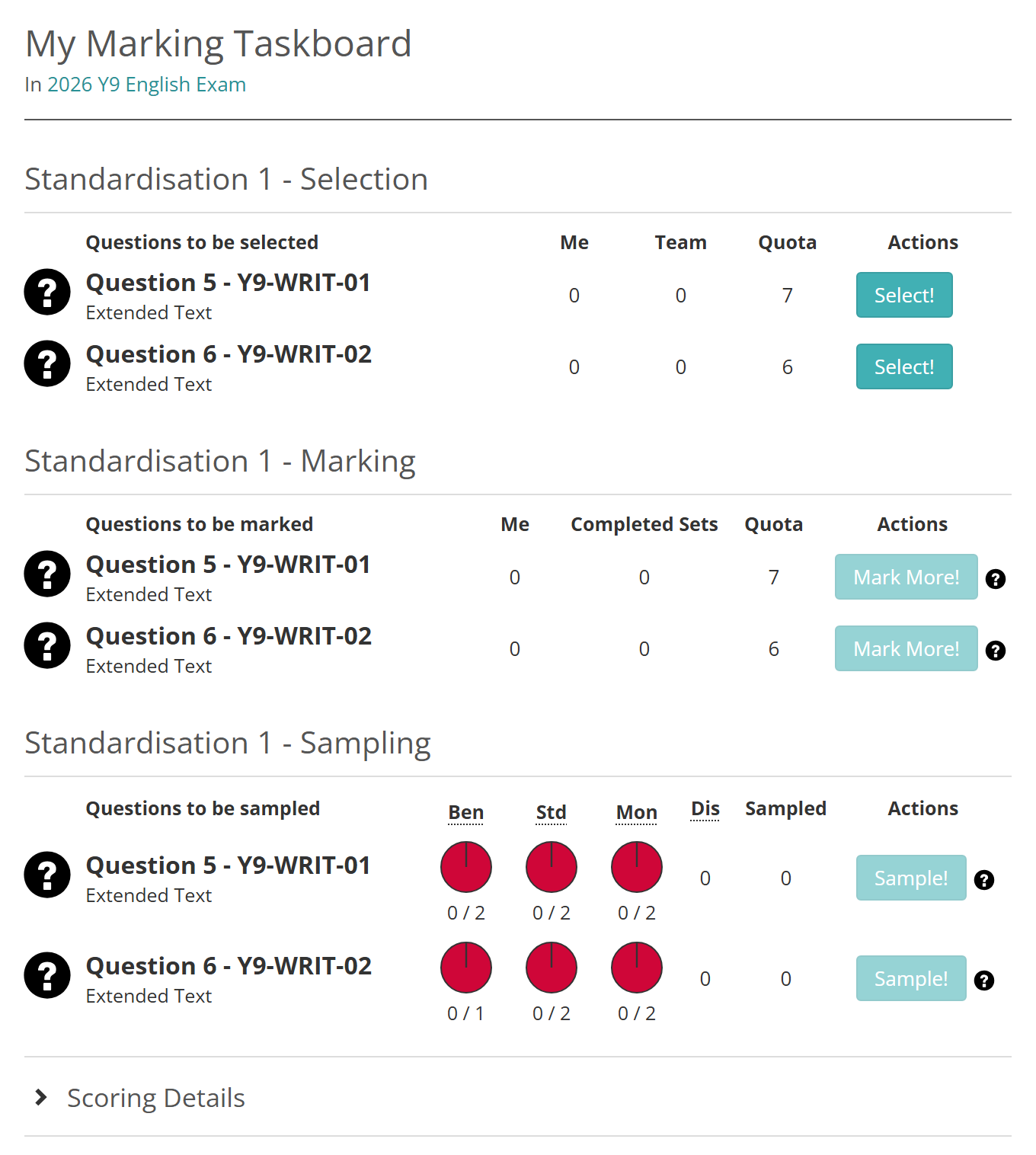
Standardisation 1 selection
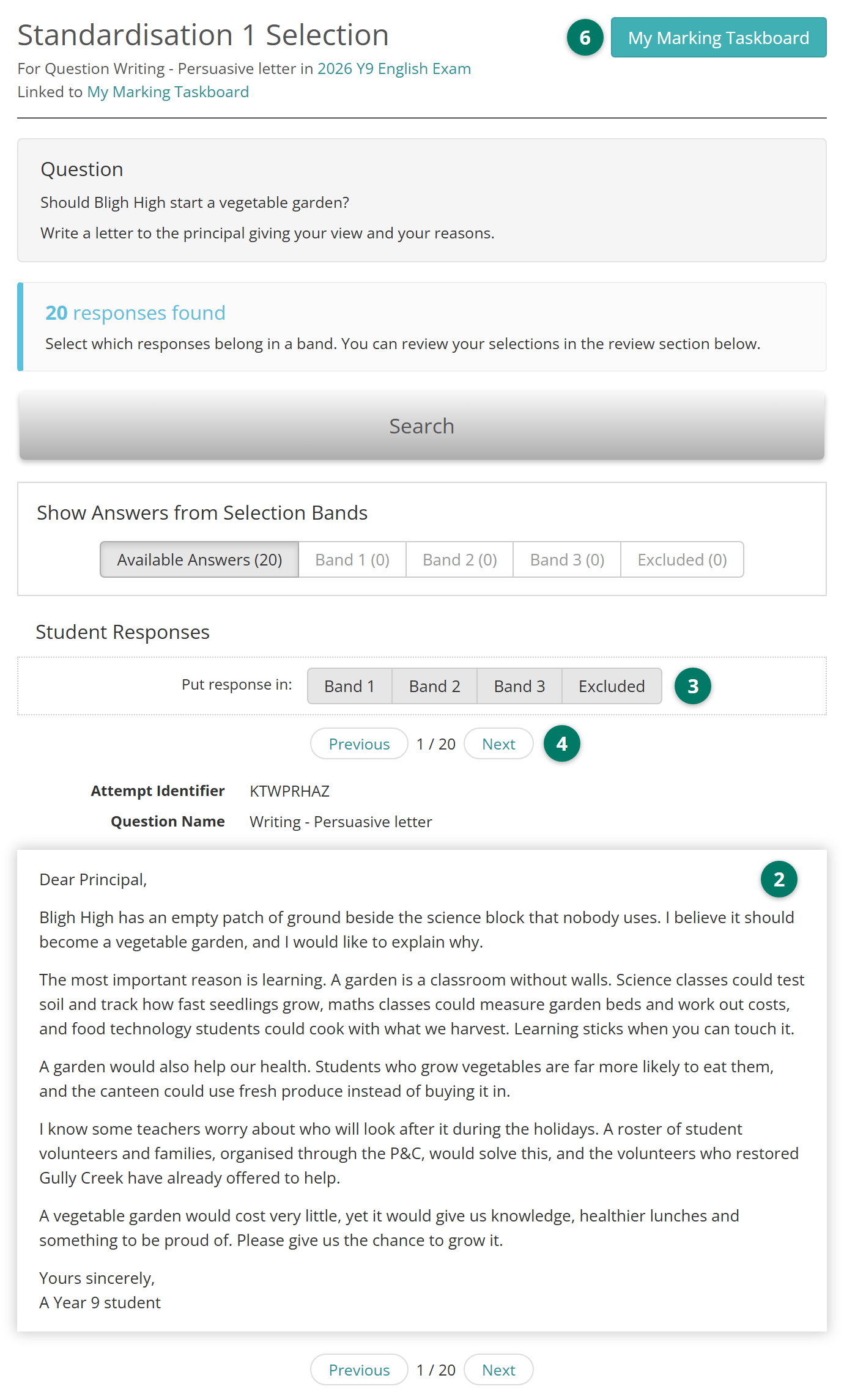
In the selection pass, you choose which live scripts go into Standardisation 1, and sort them into bands. The project sets how many to choose for each item, its selection quota, and how many bands there are.
- In Standardisation 1 - Selection on the taskboard, select Select! beside the item.
- Read the response under Student Responses.
- Under Put response in, select a band, or Excluded to leave the response out.
- Select Next to move to the next response.
- Repeat until the quota is met. The screen then shows "You and your marking team have reached the Standardisation 1 Selection Quota. You cannot select more answers without first removing some from the selection."
- Select My Marking Taskboard to go back, and select for the next item.
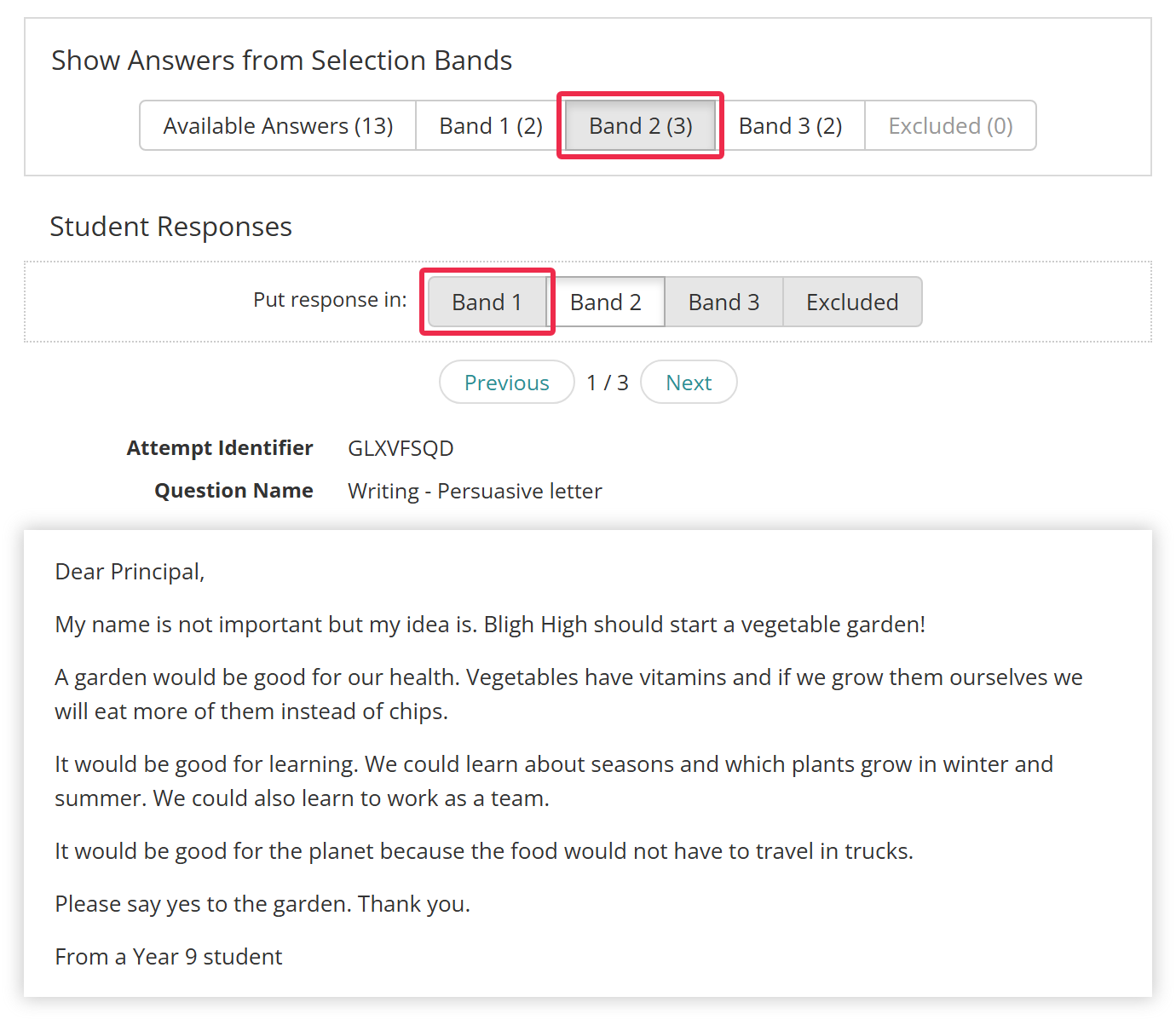
To check your choices, select a band under Show Answers from Selection Bands. The responses in that band appear under Student Responses. To move one to another band, select that band under Put response in.
Standardisation 1 marking
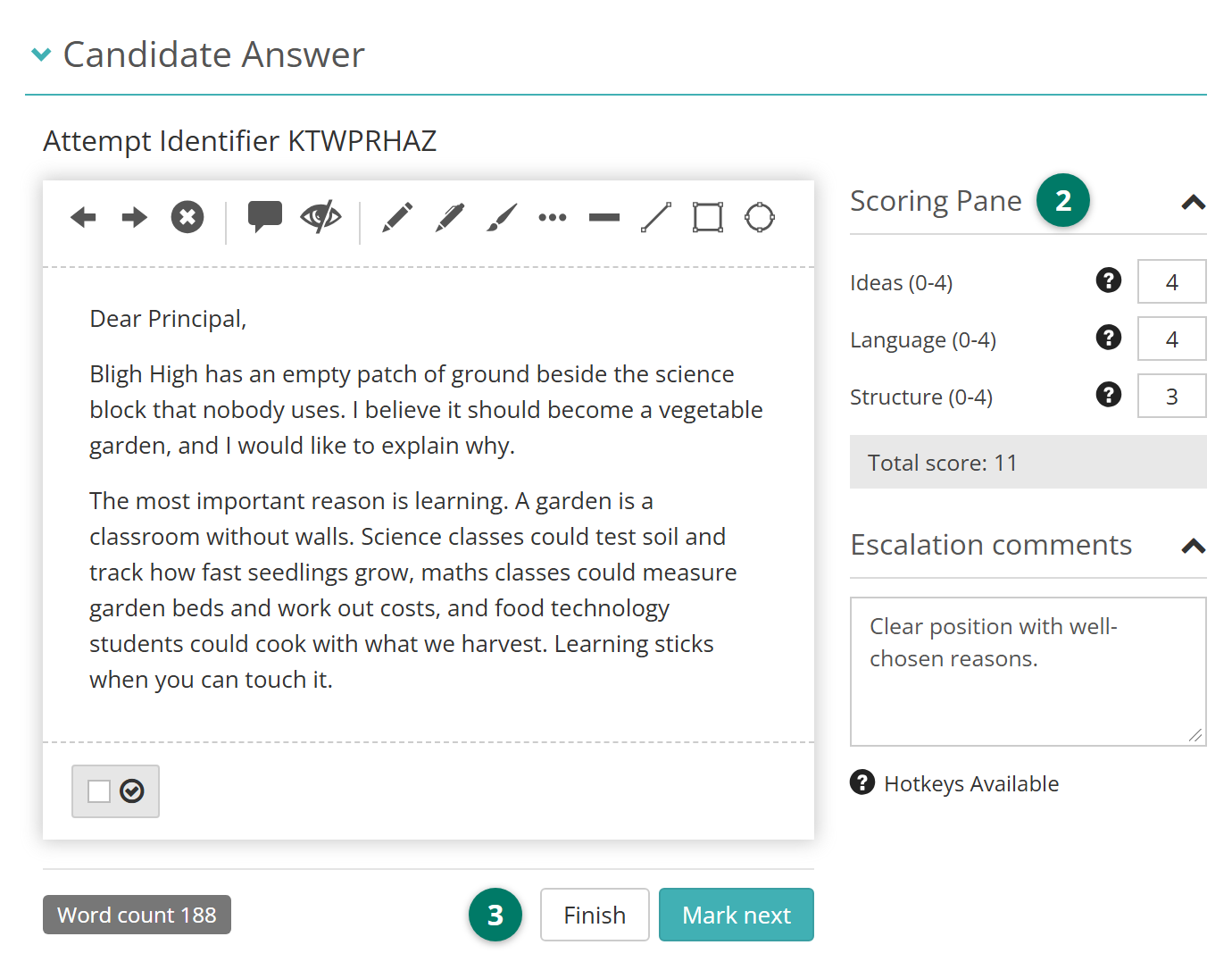
In the marking pass, the chosen scripts are scored. The project's Standardisation 1 Double Marking Factor sets how many markers score each one.
- In Standardisation 1 - Marking on the taskboard, select Mark More! beside the item.
- Enter the scores in the Scoring Pane, and a comment under Escalation comments if you want one.
- Select Mark next to move to the next script, or Finish to stop.
- Select Confirm to confirm you've finished scoring the response. Tick Don't show this message again. to stop the confirmation appearing.
- Repeat until no scripts are left. The screen then shows "There are no remaining standardisation scripts to mark. Please contact your senior marker."
Standardisation 1 sampling
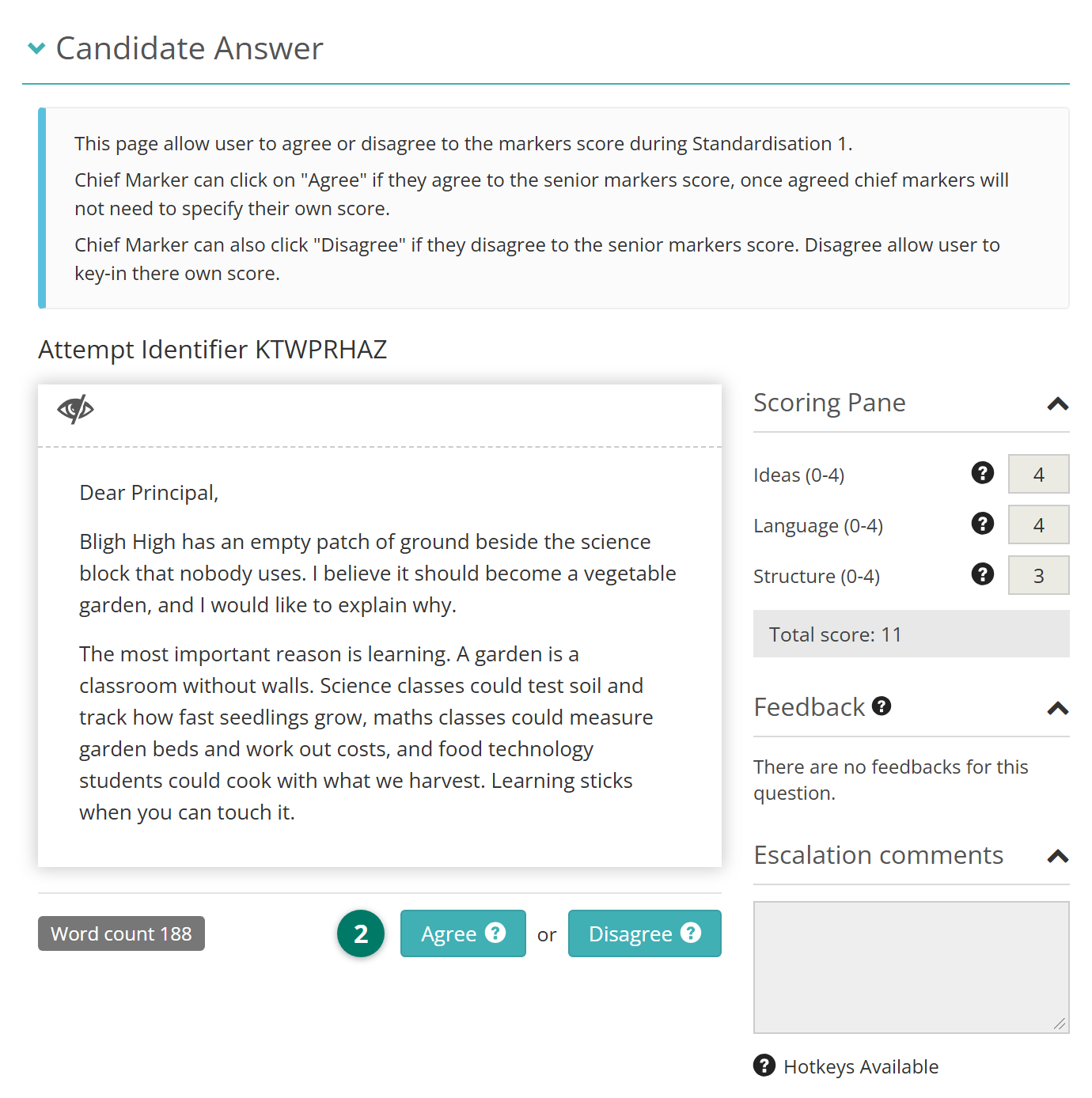
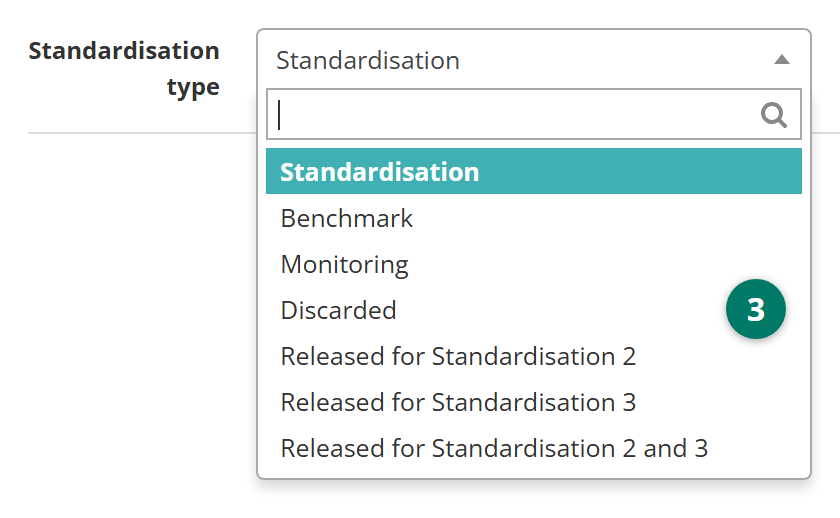
In the sampling pass, you review each scored script. You agree or disagree with its score, and choose its standardisation type, which decides how the script is used:
- Benchmark — a model answer markers can refer to while they mark
- Standardisation — scored by markers in Standardisation 2 and 3
- Monitoring — given to markers during live marking for blind quality monitoring
- Discarded — left out of standardisation
-
Released for Standardisation 2, Released for Standardisation 3 and Released for Standardisation 2 and 3 — a standardisation script that's already released for that phase, so you don't need to release it later.
-
In Standardisation 1 - Sampling on the taskboard, select Sample! beside the item.
- Select Agree to keep the score, or Disagree and enter your own scores in the Scoring Pane.
- Choose the script's Standardisation type.
- Select Sample next to move to the next script, or Finish to stop.
- Select Confirm to confirm you've finished.
- Repeat until no scripts are left. The same message as in marking appears.
Check Standardisation 1 is complete
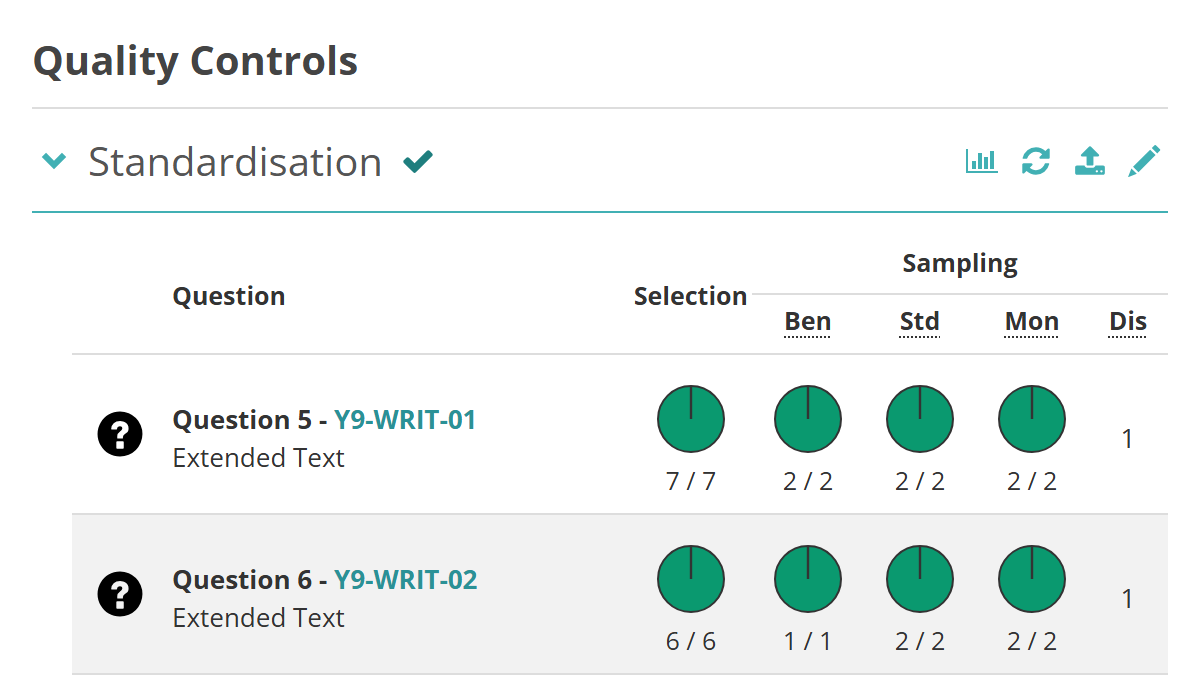
The project's Standardisation section, under Quality Controls, shows each item's progress against its quotas. Every dial turns green once its quota is met.
Release scripts for Standardisation 2 and 3
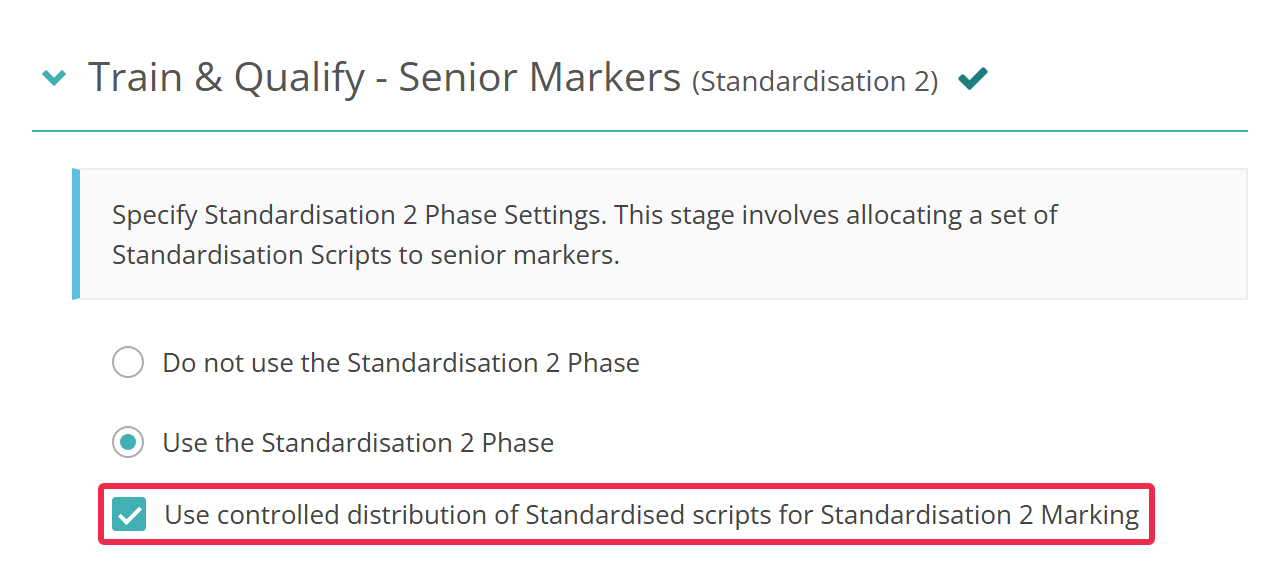
If the project's Train & Qualify - Senior Markers section has Use controlled distribution of Standardised scripts for Standardisation 2 Marking ticked, senior markers get only the standardisation scripts you release. Without it, they get every script of type Standardisation. Train & Qualify - Markers has the same option for Standardisation 3. Both are locked once standardisation has started.
A script you typed Released for Standardisation 2, Released for Standardisation 3 or Released for Standardisation 2 and 3 in sampling is already released for that phase.
- At the bottom of My Marking Taskboard, open Scoring Details and select the Standardisation tab.
- Select Release script for S2 or Release script for S3 in the script's row.
- Select Yes to confirm.
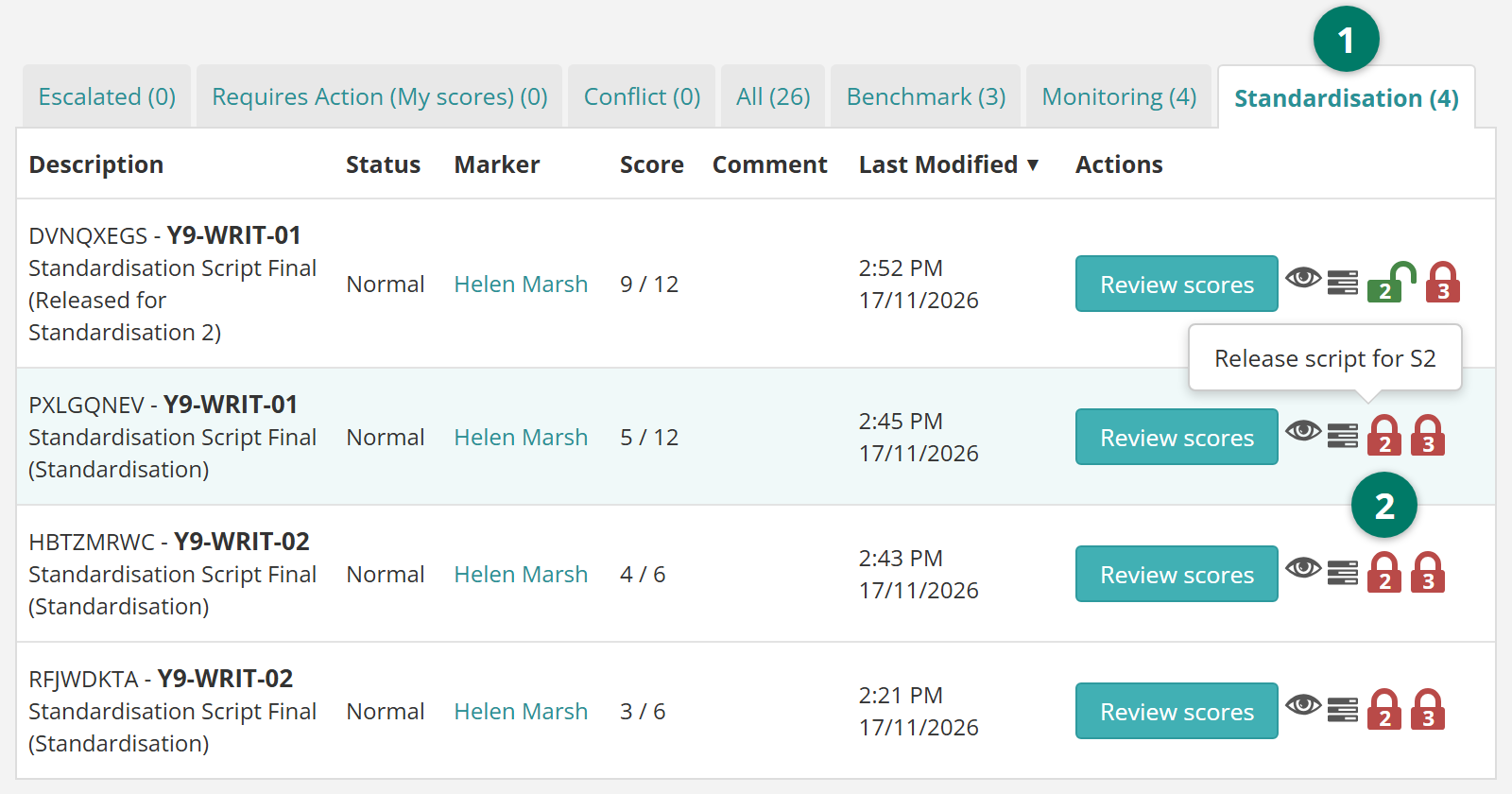
The icon turns green and unlocked, and the script's description shows the release. To take a release back, select the same icon, now Exclude script from S2 or Exclude script from S3.
Add scripts to Standardisation 1 later
If the project has Enable Standardisation 1 to occur at any time during the marking project ticked, you can add a live script to Standardisation 1 in any phase.
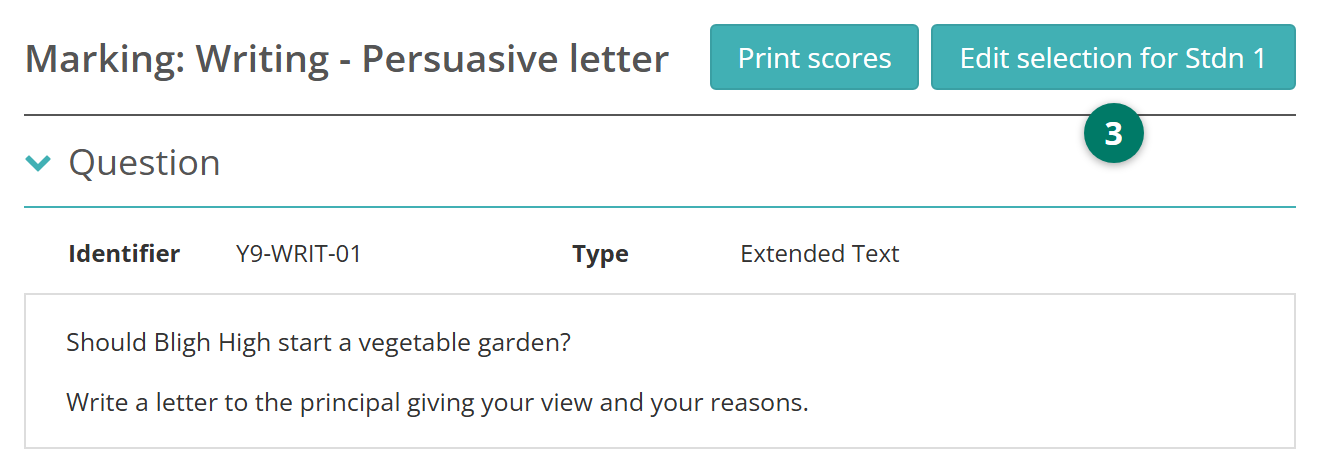
- At the bottom of My Marking Taskboard, open Scoring Details and select the All tab.
- Select Review scores beside the script.
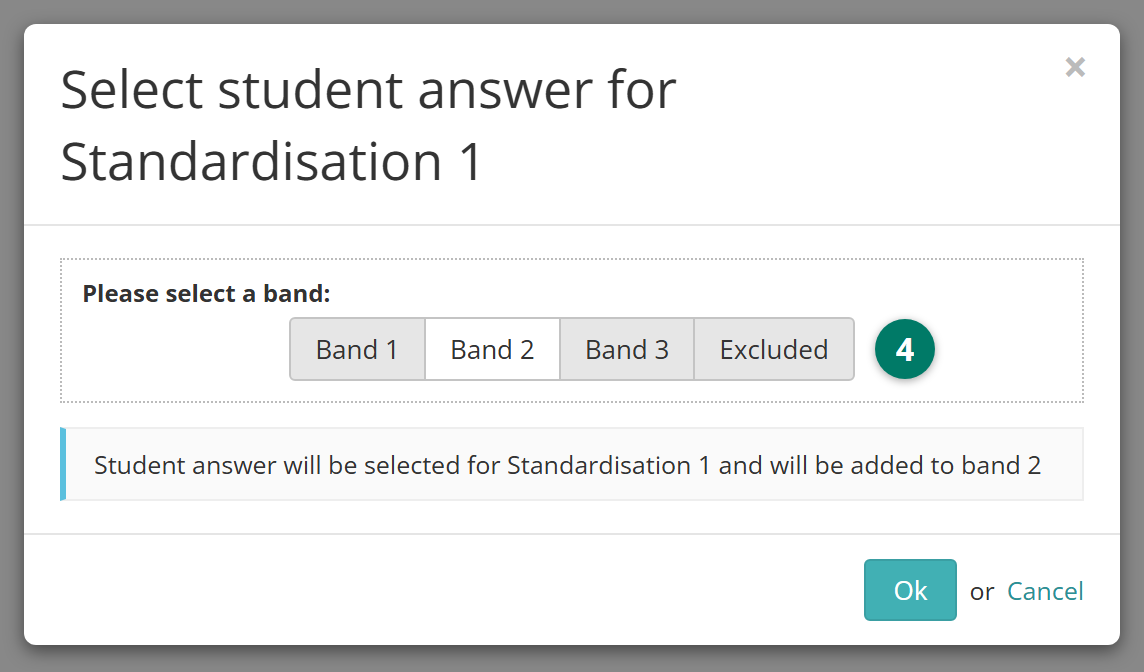
- Select Edit selection for Stdn 1.
- Select a band, or Excluded to leave the script out, then select Ok.
Check senior markers' Standardisation 2 progress
You can follow how senior markers do in Standardisation 2 from their marker profile, or for every marker at once from Scoring Details.
From the marker profile
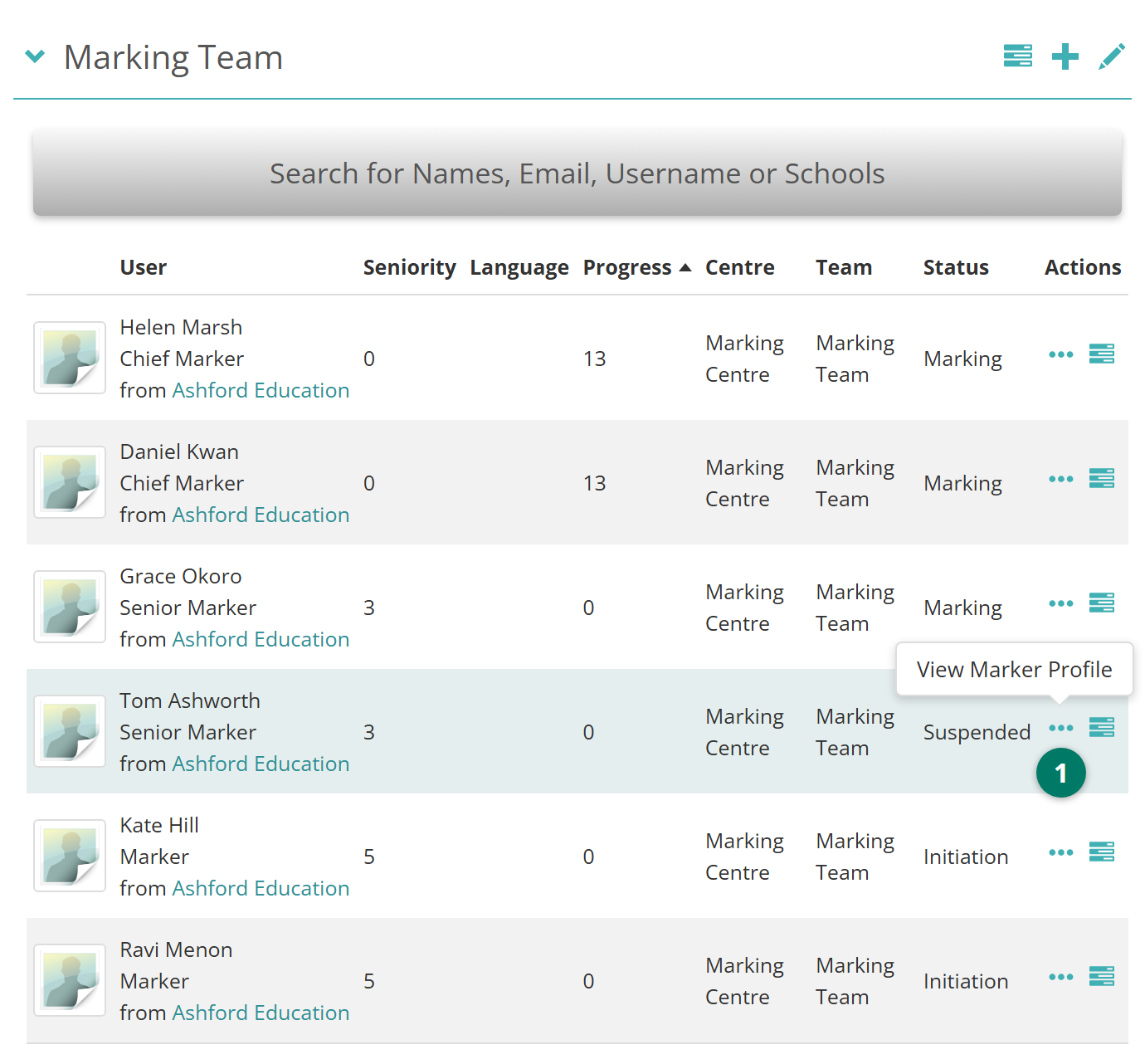
- In the project's Marking Team section, select View Marker Profile in the senior marker's row.
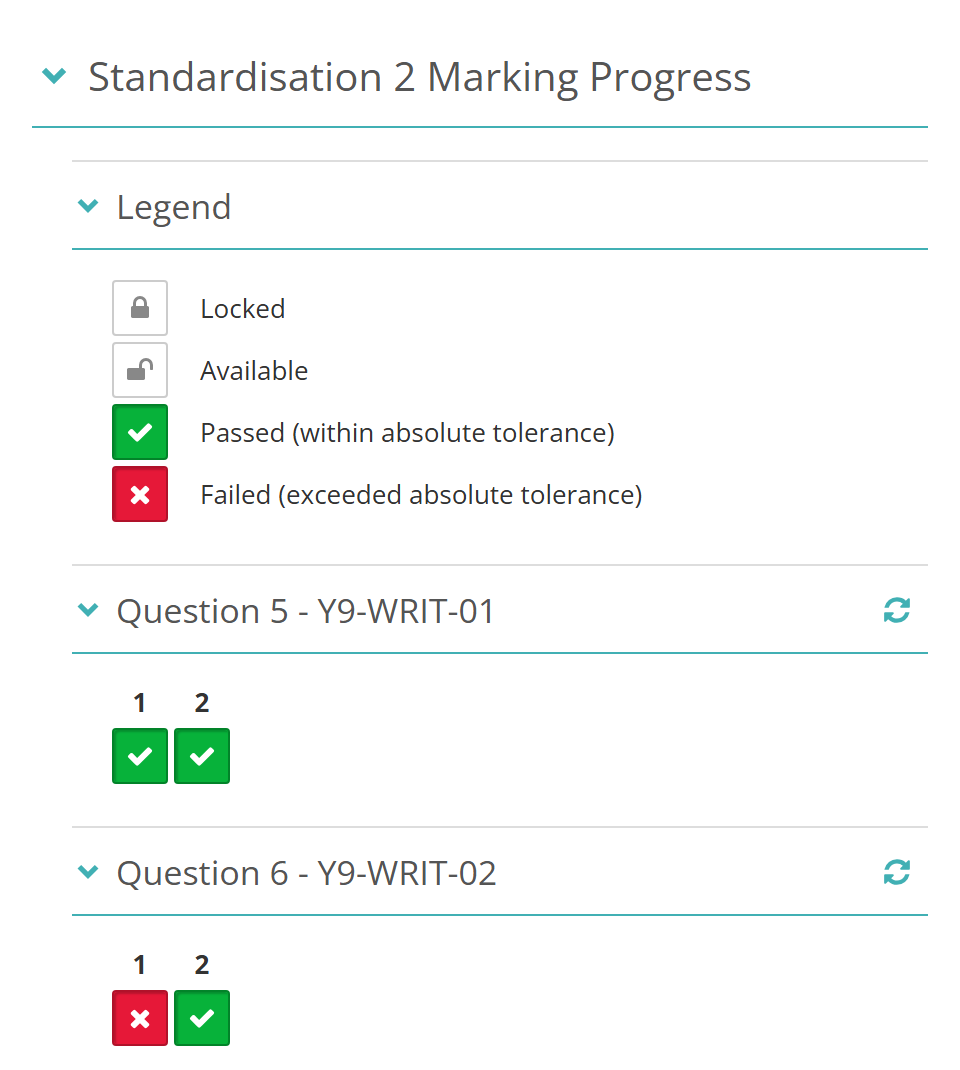
- Open Standardisation 2 Marking Progress.
Each item shows a box for every standardisation script the marker has scored. Legend explains them: locked, available, passed within tolerance, or failed.
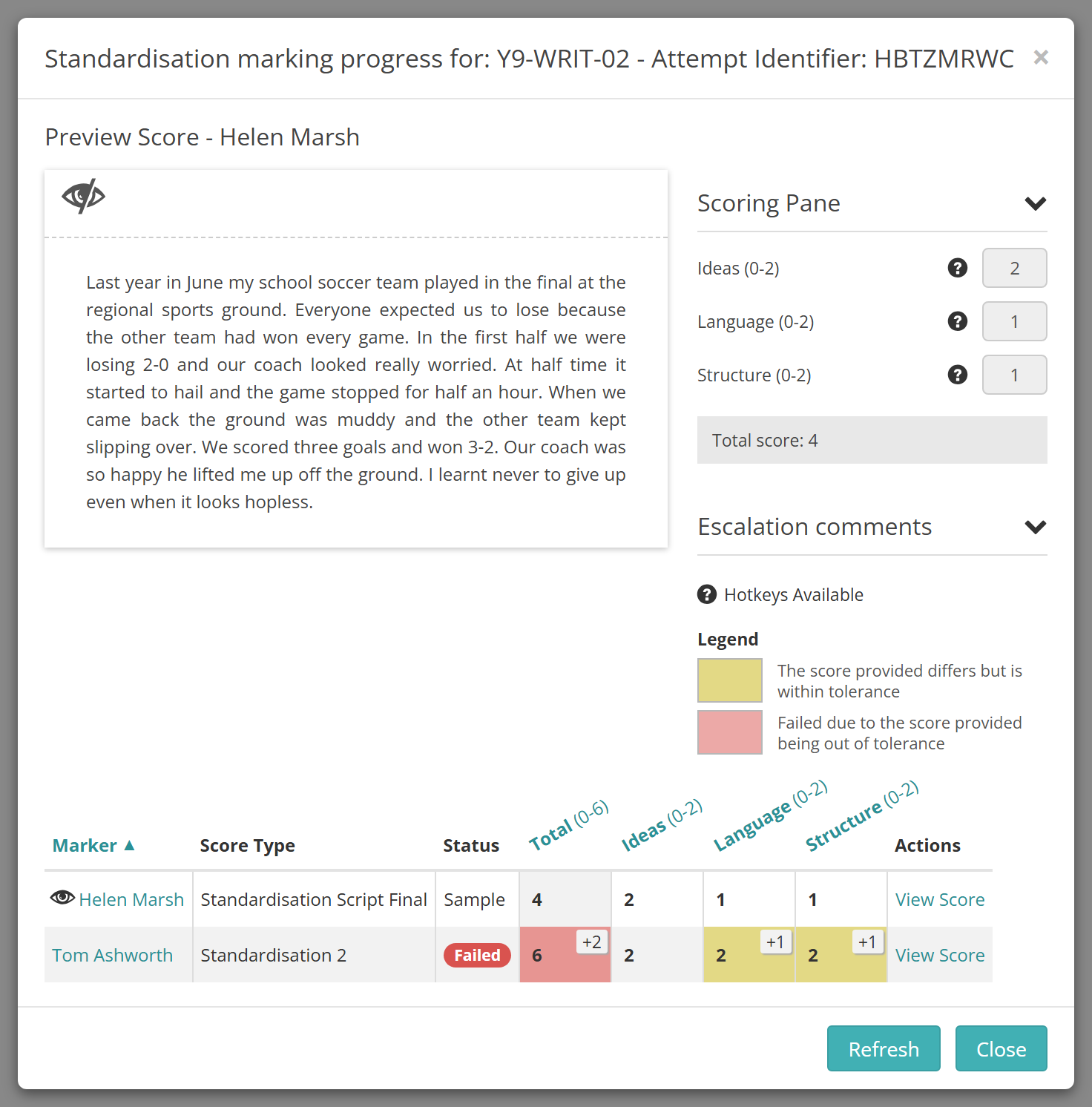
Select a passed or failed box to open the script's progress screen. It compares the senior marker's score with the agreed one.
From Scoring Details
- At the bottom of My Marking Taskboard, open Scoring Details and select the Standardisation tab.
- Select Review scores beside the script.
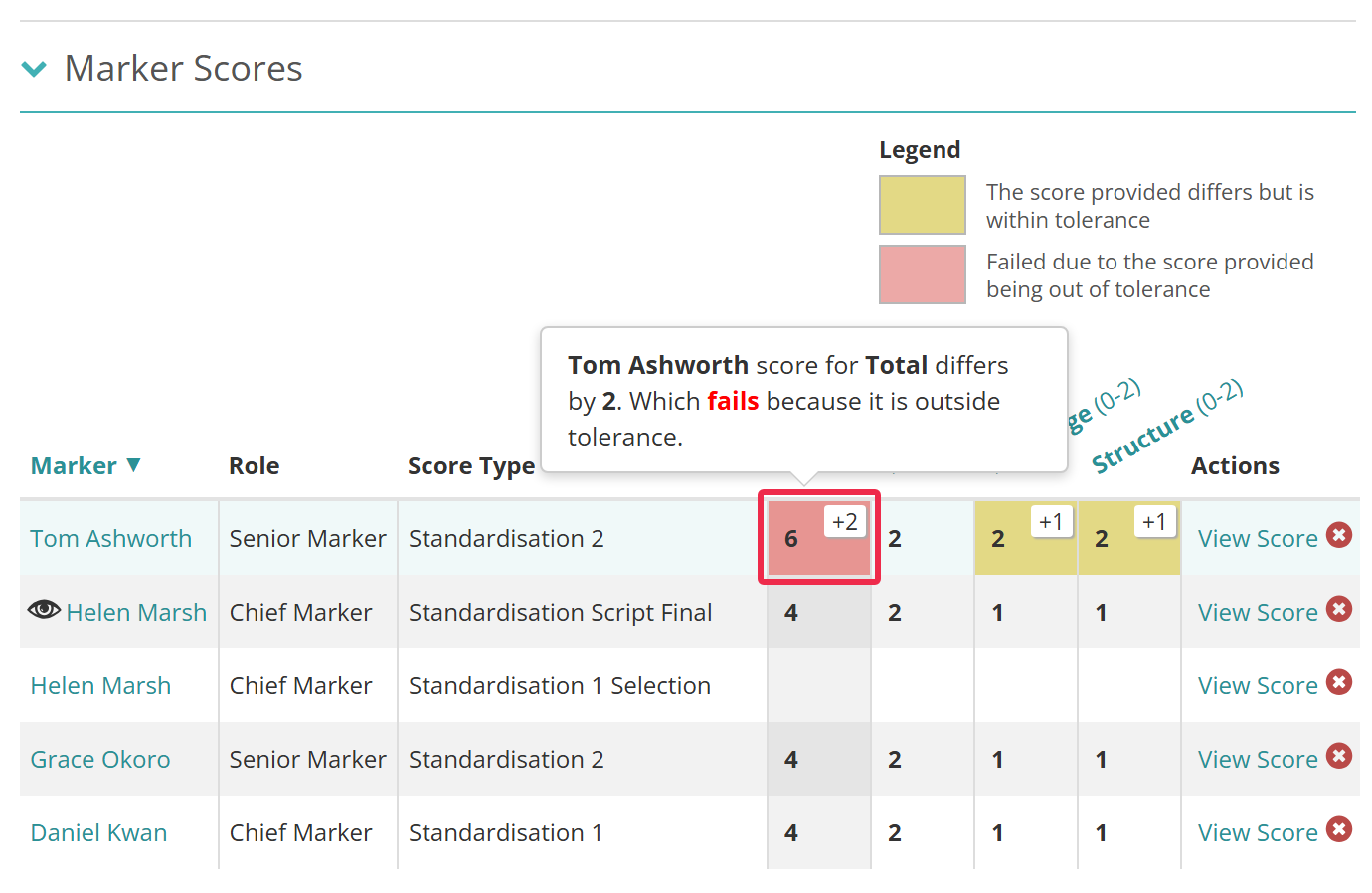
Marker Scores lists every score on the script, and the Score Type column shows which are from Standardisation 2. Hover over a score to see how far it is from the agreed score, and whether that's within tolerance.
Settings
Administrators can configure these settings at Marking > Marking Extended Settings.
Enable Standardisation 1 and Enable Standardisation 2 — make each phase available to marking projects. On by default.
Enable Anytime Standardisation — offers projects the option to add scripts to Standardisation 1 at any time. On by default.
Each project's Quality Controls set how it uses standardisation:
Standardisation — Develop Standardisation scripts from live scripts gives the chief marker the three Standardisation 1 passes on the taskboard. Use Manual Standardisation 1 Selection to select candidate scripts to include in Standardisation 1 adds the selection pass. Enable Standardisation 1 to occur at any time during the marking project allows scripts to be added later. Each item's selection quota, bands and number of each script type are set here too.
Standardisation 1 Double Marking Factor — how many markers score each selected script.
Use controlled distribution of Standardised scripts for Standardisation 2 Marking, in Train & Qualify - Senior Markers — senior markers get only the scripts you release for Standardisation 2. Train & Qualify - Markers has the same option for Standardisation 3.