Multiple choices
A multiple-choices item presents a prompt followed by several possible answers, and more than one of them can be correct. The test-taker ticks every answer they think is right. A multiple-choice item, by contrast, has just one correct answer.
Open the practice test to see different ways of setting up this item type.
Practice test
Open this test in the Janison test player to view examples of multiple-choices items.
What test-takers see
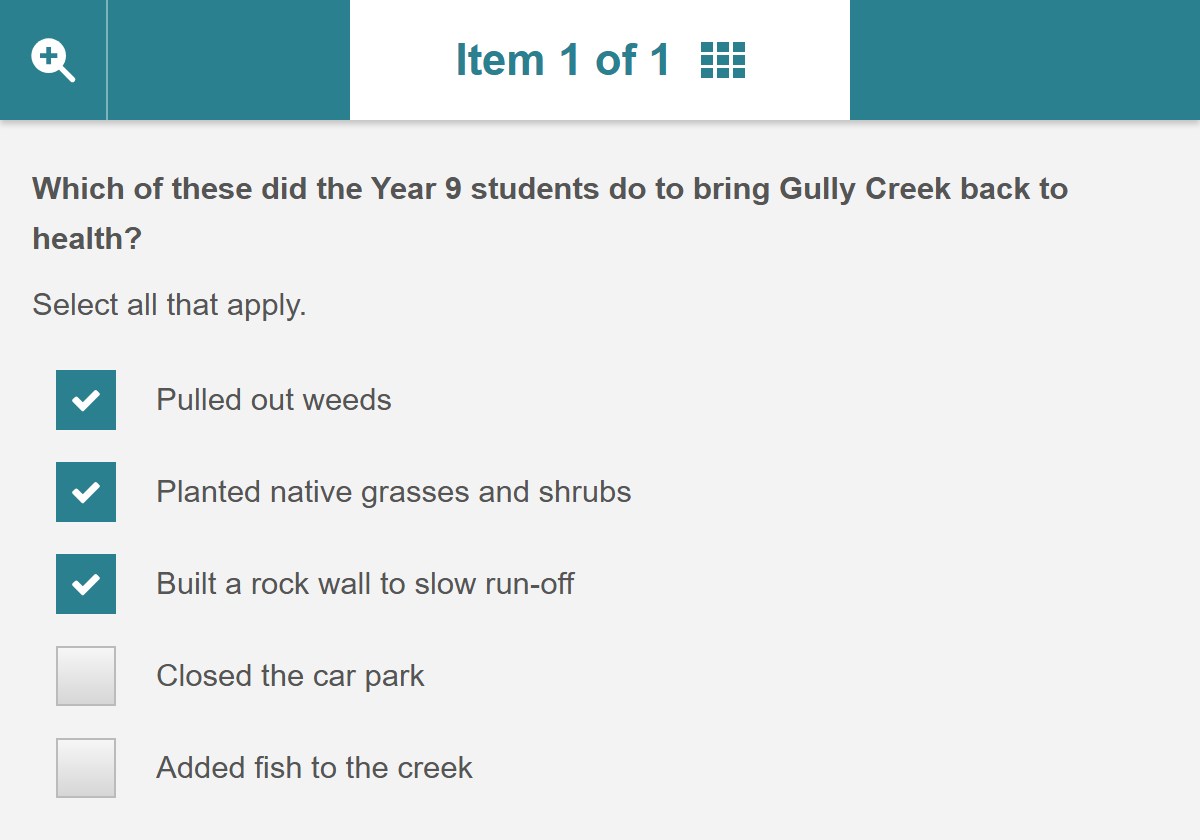
Each answer has a checkbox, and test-takers tick every answer they think is correct. Answers can be text, as here, or include images.
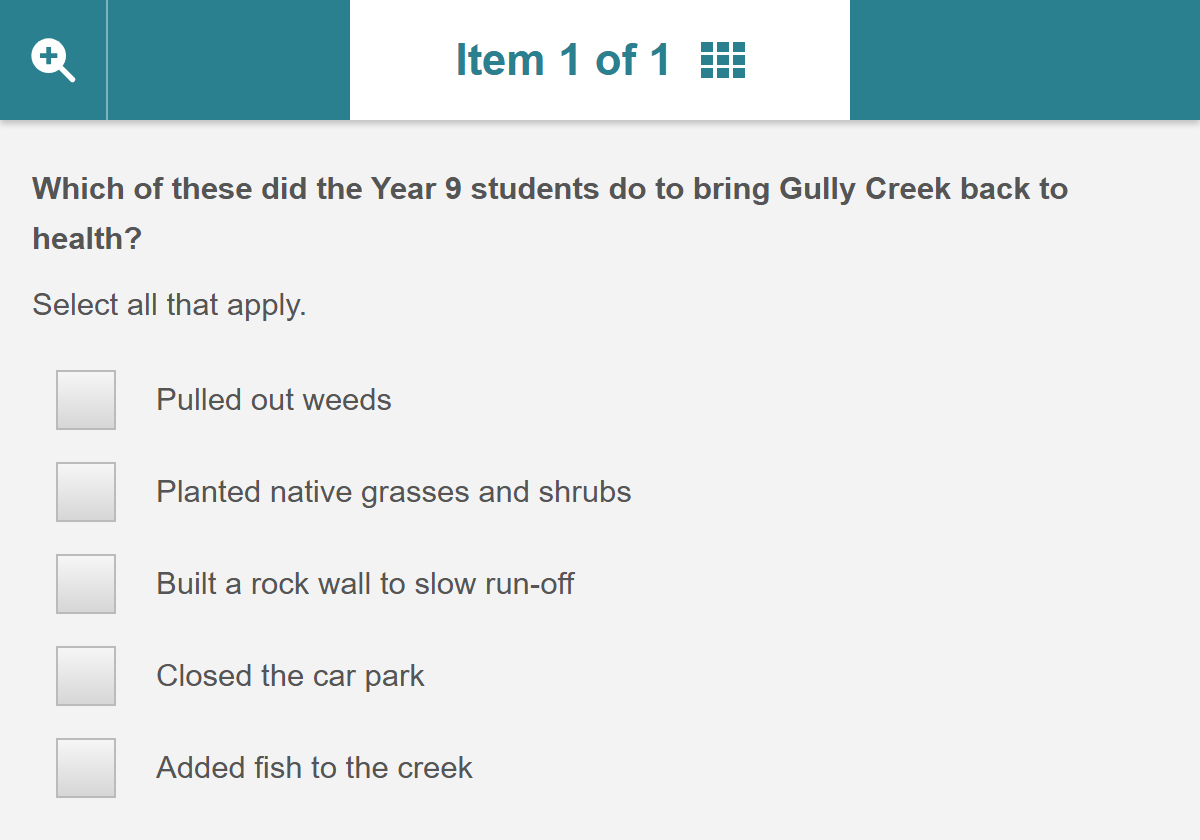
Here the test-taker has ticked 3 answers.
Create a multiple-choices item
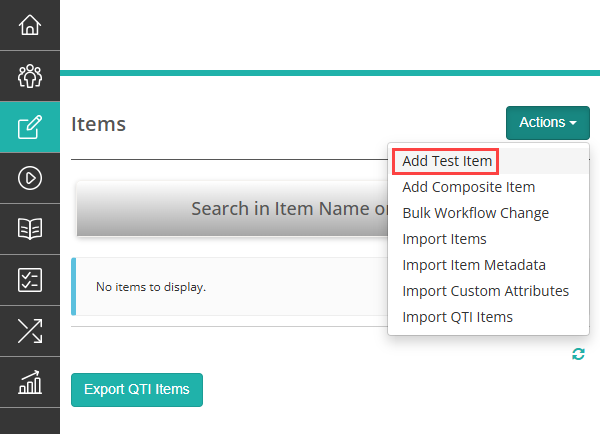
Go to Author > Items and select Add Test Item from the Actions dropdown.
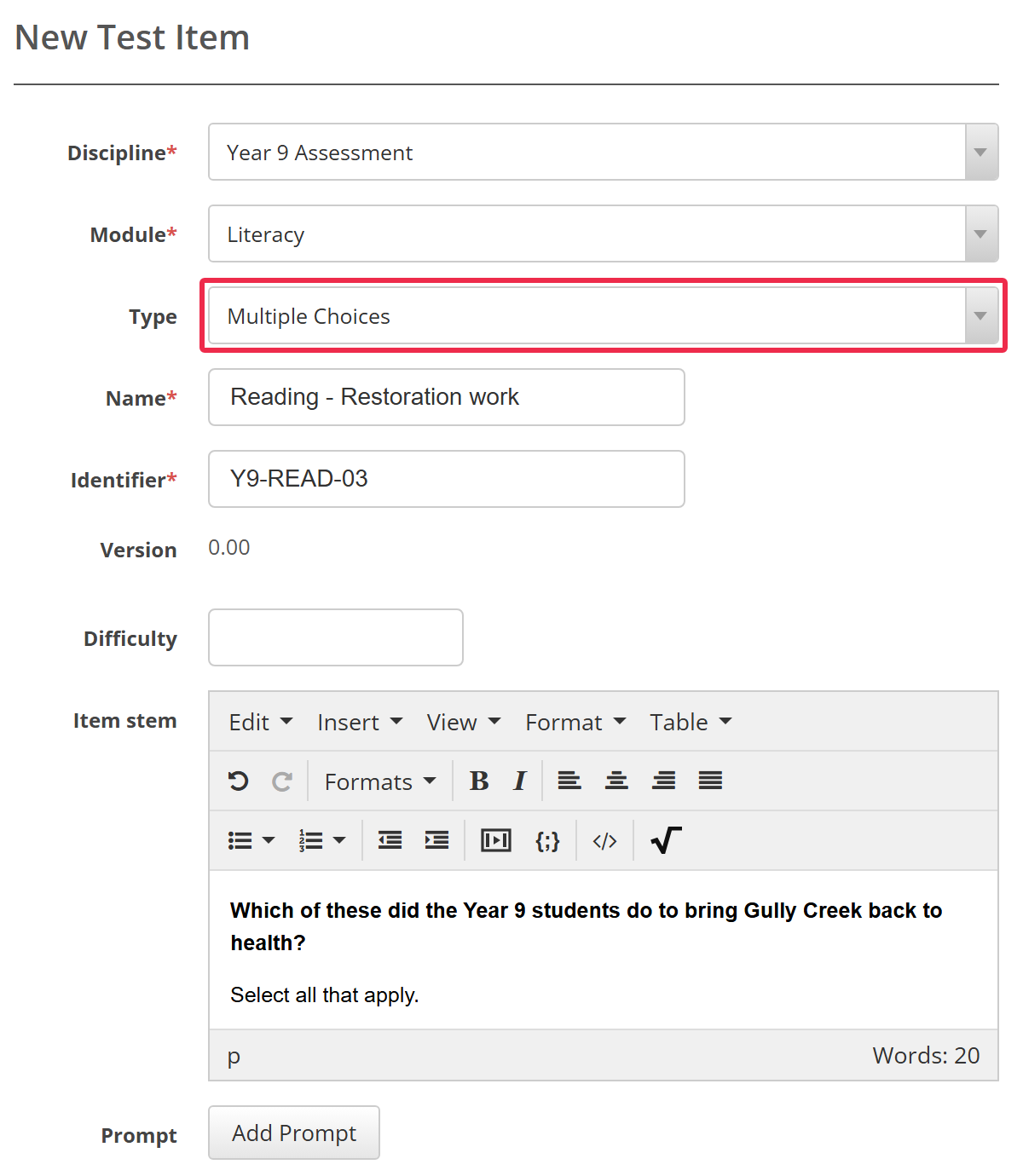
The New Test Item form opens. Choose the Discipline and Module, select Multiple Choices as the Type, give the item a Name, and enter the item in Item stem.
Next, set up the answers.
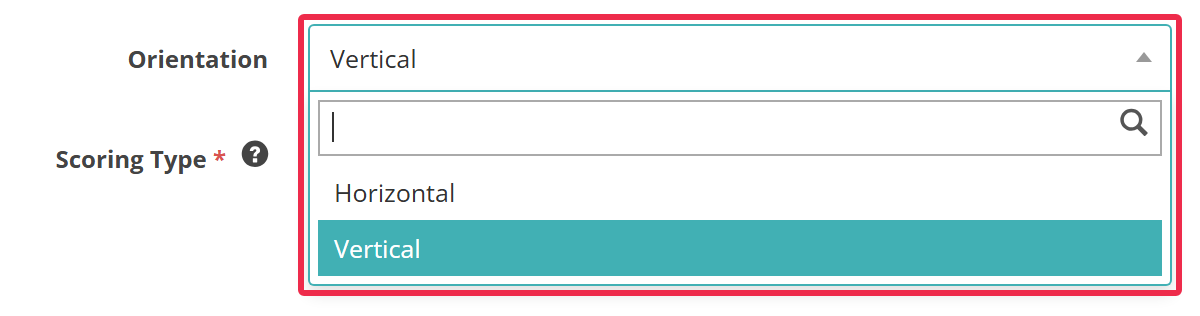
Orientation — Vertical lists the answers one under another. Horizontal places them side by side. The practice test has examples of both.
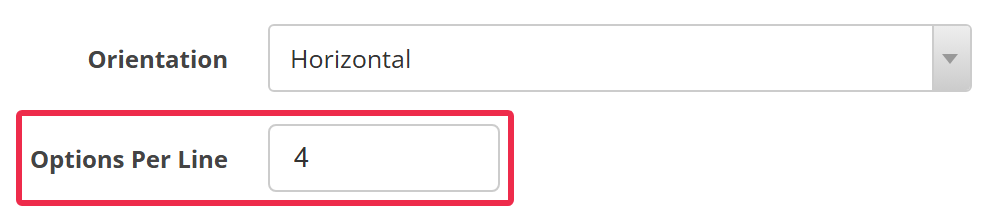
Options Per Line — appears when you choose Horizontal, and sets how many answers sit on each line. It must be 2 or more. If you leave it empty, test-takers see 4 answers per line.
Scoring Type — Correct/Incorrect or Per Distractor. See Setting scores and marking.
Shuffle — tick it to show the answers in a different order for each test-taker. Shuffling only applies to online delivery, and answer statistics always list the answers in the order you entered them.
Min Answers — the fewest answers a test-taker must tick. The item only counts as answered once they've ticked at least this many. It must be 1 or more, and no more than the number of correct answers.
Max Answers — the most answers a test-taker can tick. Once they reach it, the other checkboxes are disabled. Leave it empty for no limit. It can't be less than Min Answers or the number of correct answers, or more than the total number of answers.
Enter each answer in the Answer column and tick each correct one in the Correct column. The table always ends with an empty row: start typing in it and a new row appears below. To remove an answer, select the red minus icon in its Actions column.
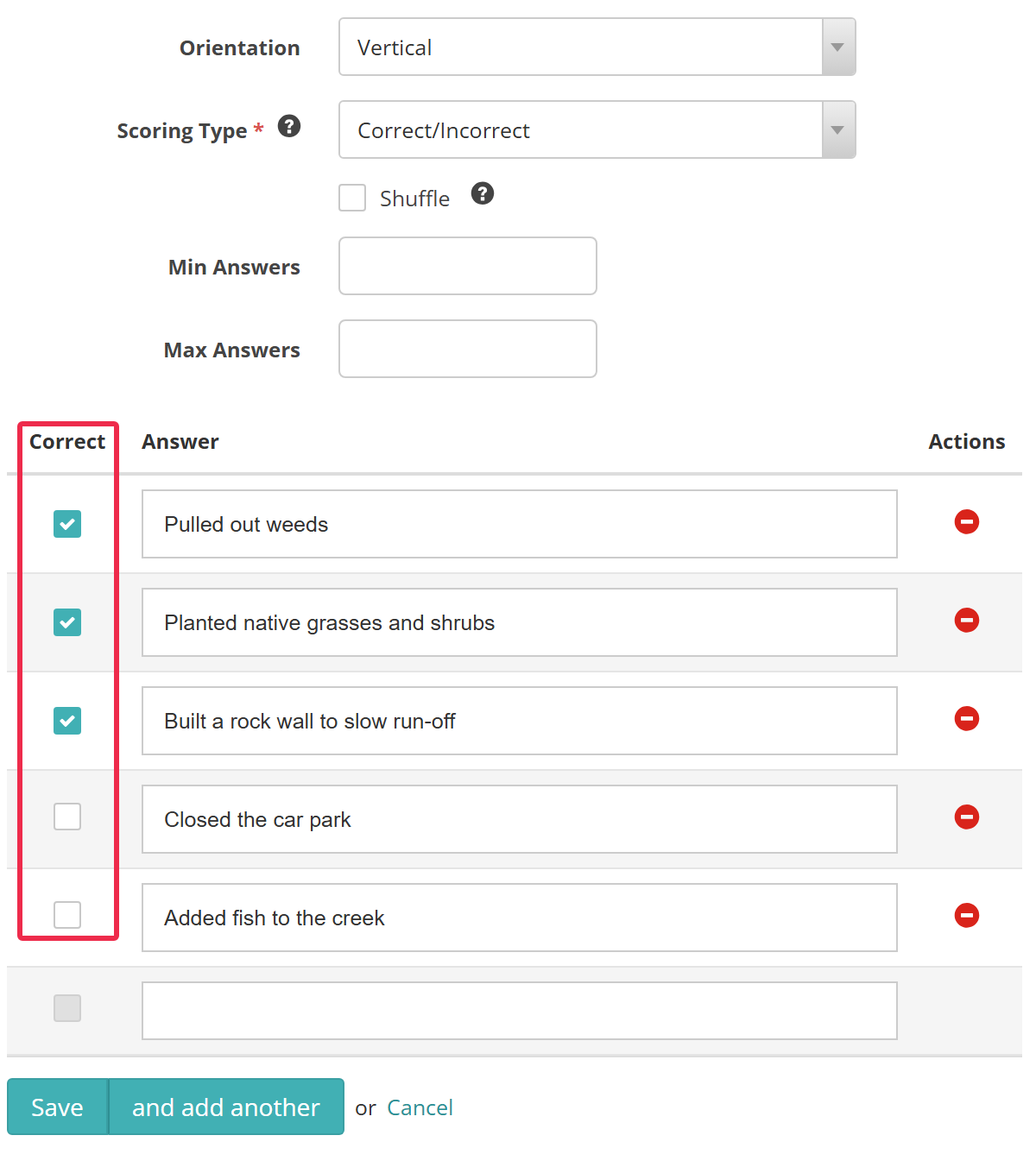
When you're done, select Save. To save the item and start another straight away, select and add another instead.
You can also use a multiple-choices item in a survey. A survey item has no correct answers, no scoring and no Min Answers field. See Survey items.
Setting scores and marking
Multiple-choices items are system marked. The Scoring Type you choose decides how.
Correct or incorrect
With Correct/Incorrect, the item scores full marks only when the test-taker ticks every correct answer and nothing else. Any other response scores 0.
Per distractor
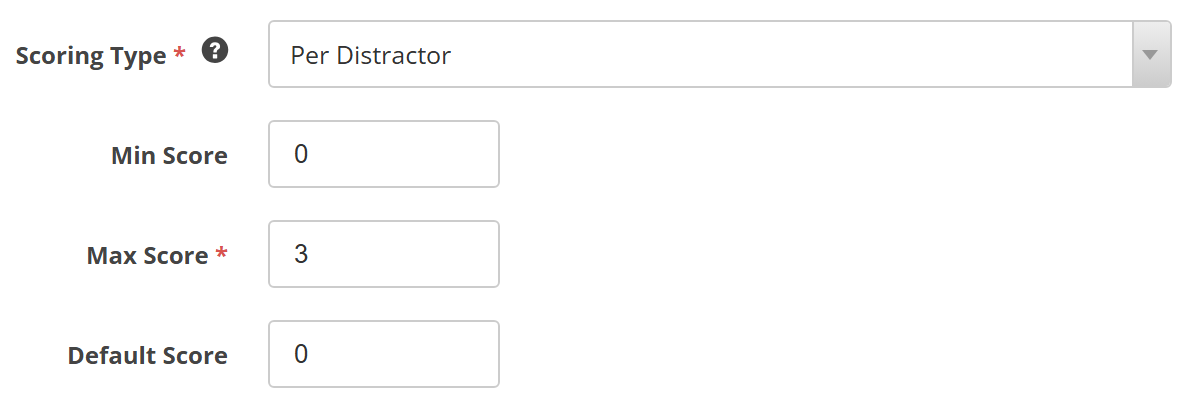
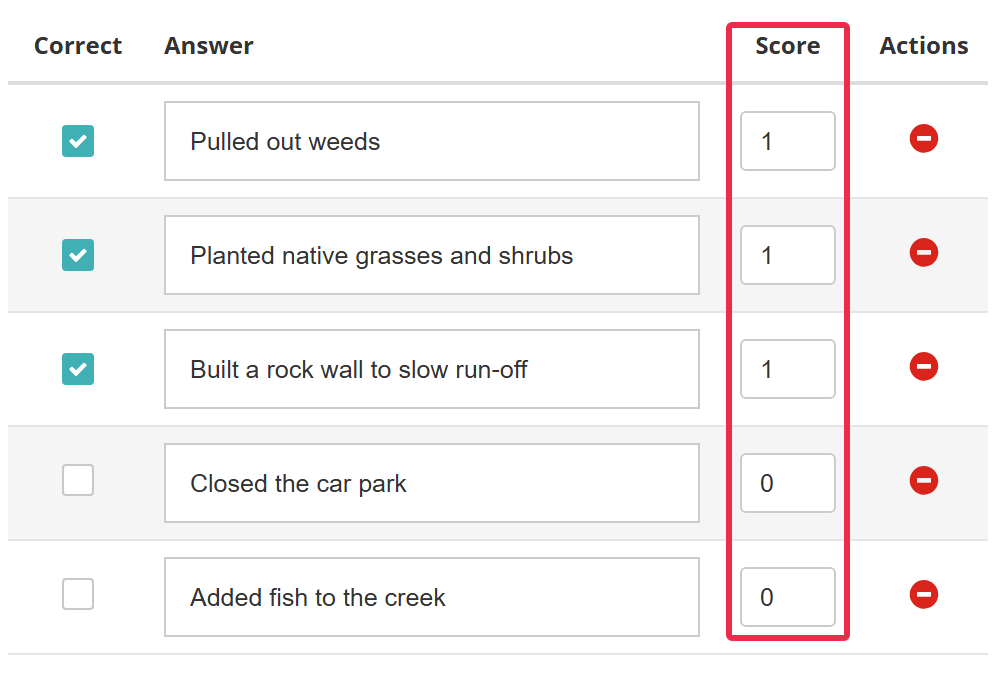
With Per Distractor, you give each answer its own score, so a partly right response can earn part marks. The item scores the total of the answers the test-taker ticks, kept between Min Score and Max Score. These fields appear:
Min Score — the lowest score the item can give. If the ticked answers add up to less, the item scores this.
Max Score — the highest score the item can give. If the ticked answers add up to more, the item scores this. You must enter it.
Default Score — the score for any answer whose Score you leave blank.
A Score column appears in the answer table, where you set the score for each answer.
Settings
Administrators can configure the following settings at Settings > Test Designer Settings > Question Options.
Shuffle by default — ticks Shuffle on new multiple-choice and multiple-choices items. Items that already exist keep their own setting.
Per Distractor By Default — sets Scoring Type to Per Distractor on new multiple-choice and multiple-choices items.
Enable Prompt For Questions — shows the Prompt field, so you can add a prompt below the item stem. See Prompts.
Under Settings > Test Designer Settings > Available Question Types:
Multiple Choices — For Tests puts the type in the Type dropdown on New Test Item. For Surveys lets you create it as a survey item, and For Composite lets you add it to a composite item.
Response Conditions — ticking this column for Multiple Choices adds an Add Response Condition link to multiple-choices items. The checkbox only appears where response conditions have been enabled for your site.